# Try the sample database (/docs/contacts/sample-database)
The sample database is a small online store, Northwind Commerce, that you can connect in a few clicks to see a live database sync before you connect your own. It works like a Postgres database with streaming turned on: you pick its tables, they become objects, new orders and leads arrive every few seconds, and your edits are written back to it.
- **Who can use it:** Owners and admins, like any database connection. See [Roles and permissions](/docs/settings/roles).
- **Before you start:** Nothing. There's no connection string to enter and no database to prepare.
## What's in it [#whats-in-it]
Eight tables in four schemas, all with primary keys:
| Table | Rows | What it holds |
| --- | --- | --- |
| `public.customers` | 48 | Name, email, phone, company, city, plan, lifetime value, marketing opt-in |
| `public.leads` | 30 | Full name, phone, email, source, budget, status, notes |
| `public.orders` | 120 | Customer, total, status, channel, date placed |
| `public.products` | 10 | SKU, name, category, price, stock, active |
| `billing.subscriptions` | 25 | Customer, plan, monthly revenue, status, renewal date |
| `billing.invoices` | 64 | Invoice number, customer, amount, status, due and paid dates |
| `support.tickets` | 26 | Customer, subject, priority, status, channel |
| `analytics.page_views` | 900 | Path, referrer, visitor, time viewed |
While it's connected, something changes every few seconds: a new order comes in, an order moves from pending to paid or from paid to shipped, a new lead arrives, a ticket moves from open to pending or solved, or a product's stock drops.
The sample store starts fresh each time you open Mokanata, so changes you make to it don't carry over to your next visit.
## Connect it [#connect-it]
### Choose Sample database [#choose-sample-database]
Go to **Setup → Objects**, click **Connect database** in the **Connected databases** panel, then click **Sample database** (marked **Try it**).
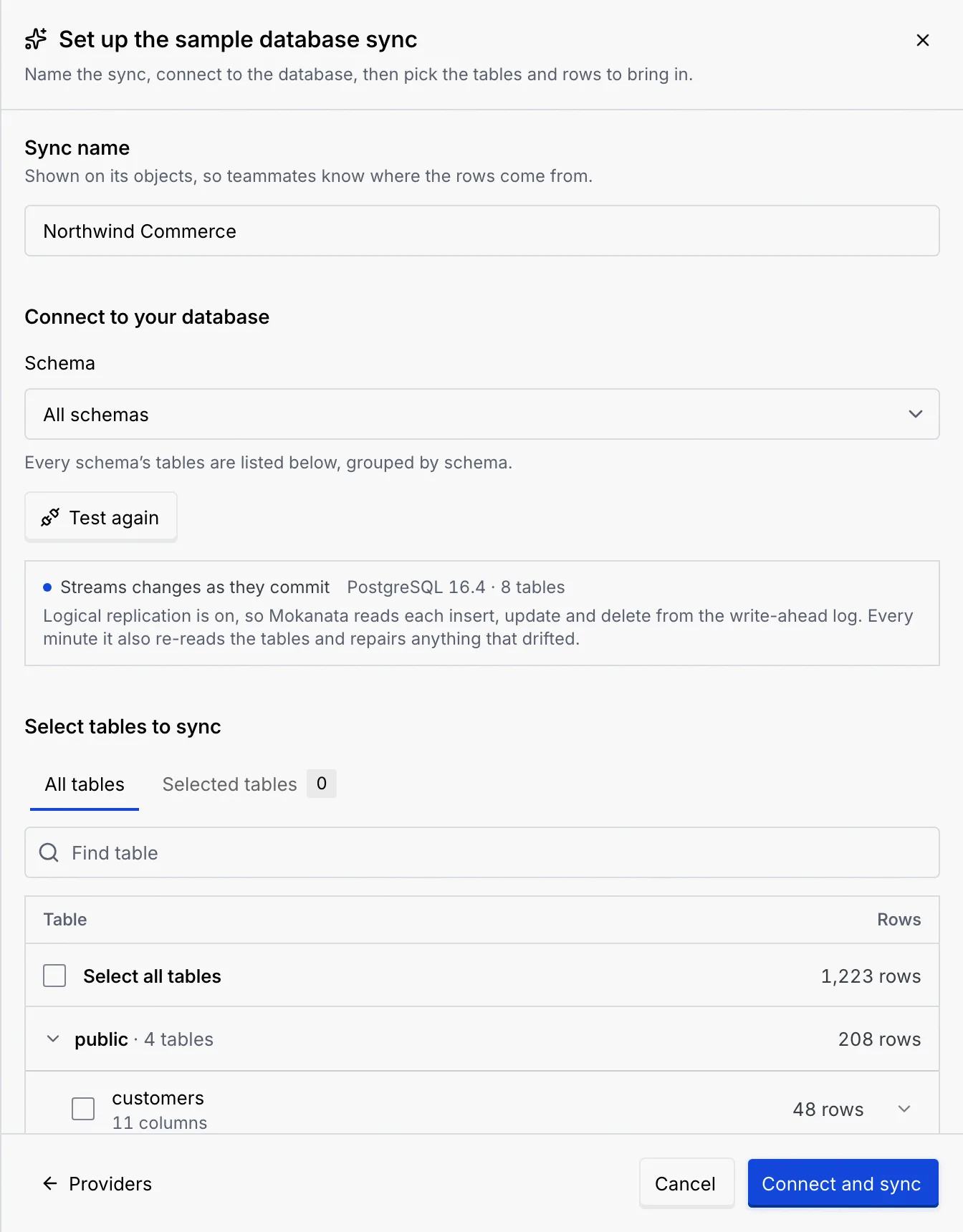
The setup opens with the sync named **Northwind Commerce**, **All schemas** chosen, and the connection already tested: **Streams changes as they commit**, with the Postgres version and 8 tables.
### Pick some tables [#pick-some-tables]
Under **Select tables to sync**, tick the tables you want, for example `customers`, `orders` and `tickets`. The tables are grouped by schema; click a schema's name to fold or unfold it. **Select all tables** ticks every table at once.
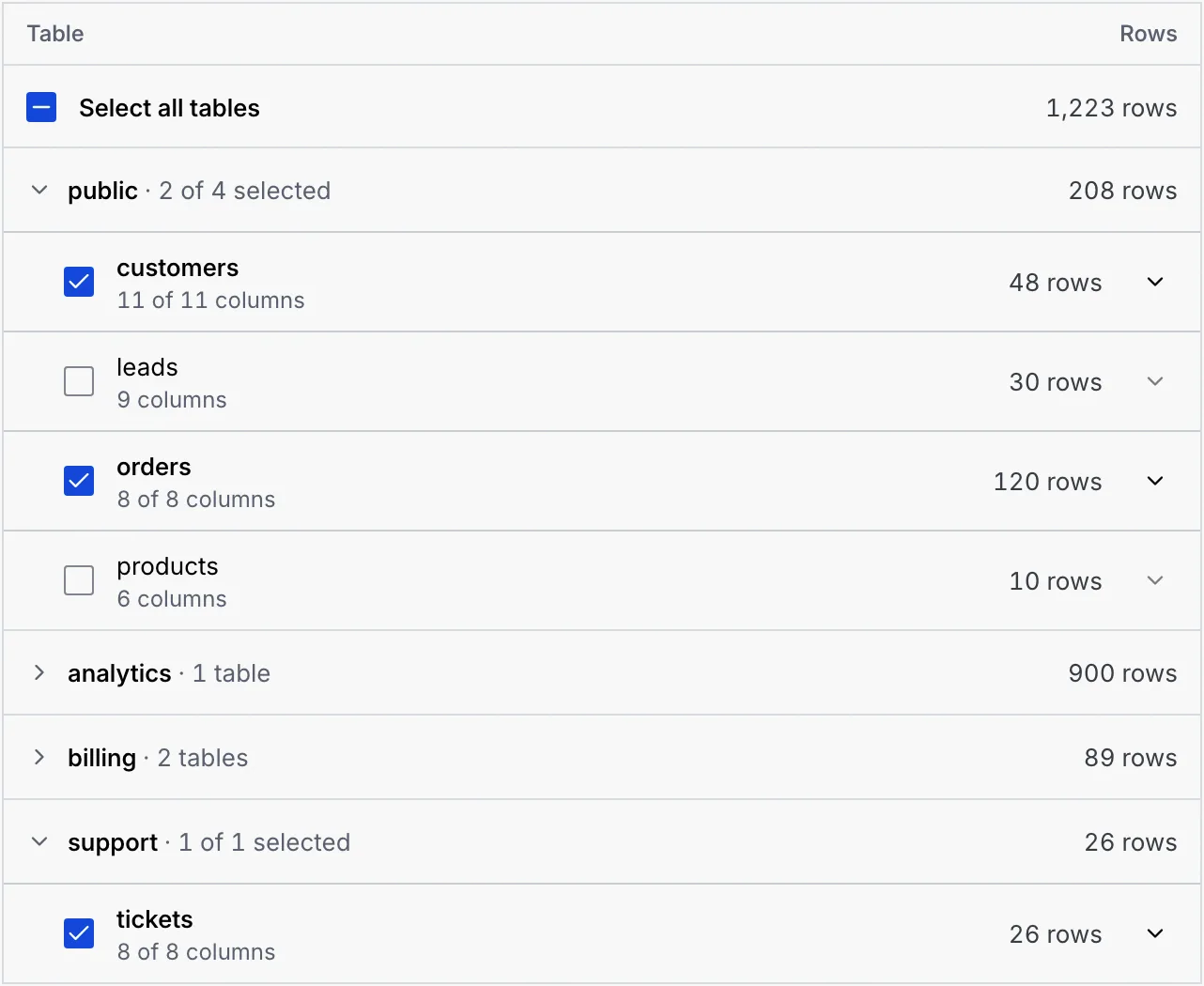
You can open a table to choose its columns and filter its rows; see [Tables, columns, row filters and sync status](/docs/contacts/database-sync).
### Sync them [#sync-them]
Click **Sync 3 tables**. A notice confirms **Connected Northwind Commerce** — “3 tables sync live into objects.” The **Connected databases** panel now shows the sync **Live · streaming**, with how many rows it holds, the changes it has received during this visit and when the last one arrived. Under it, a badge per table leads to its object.

### Find the new objects [#find-the-new-objects]
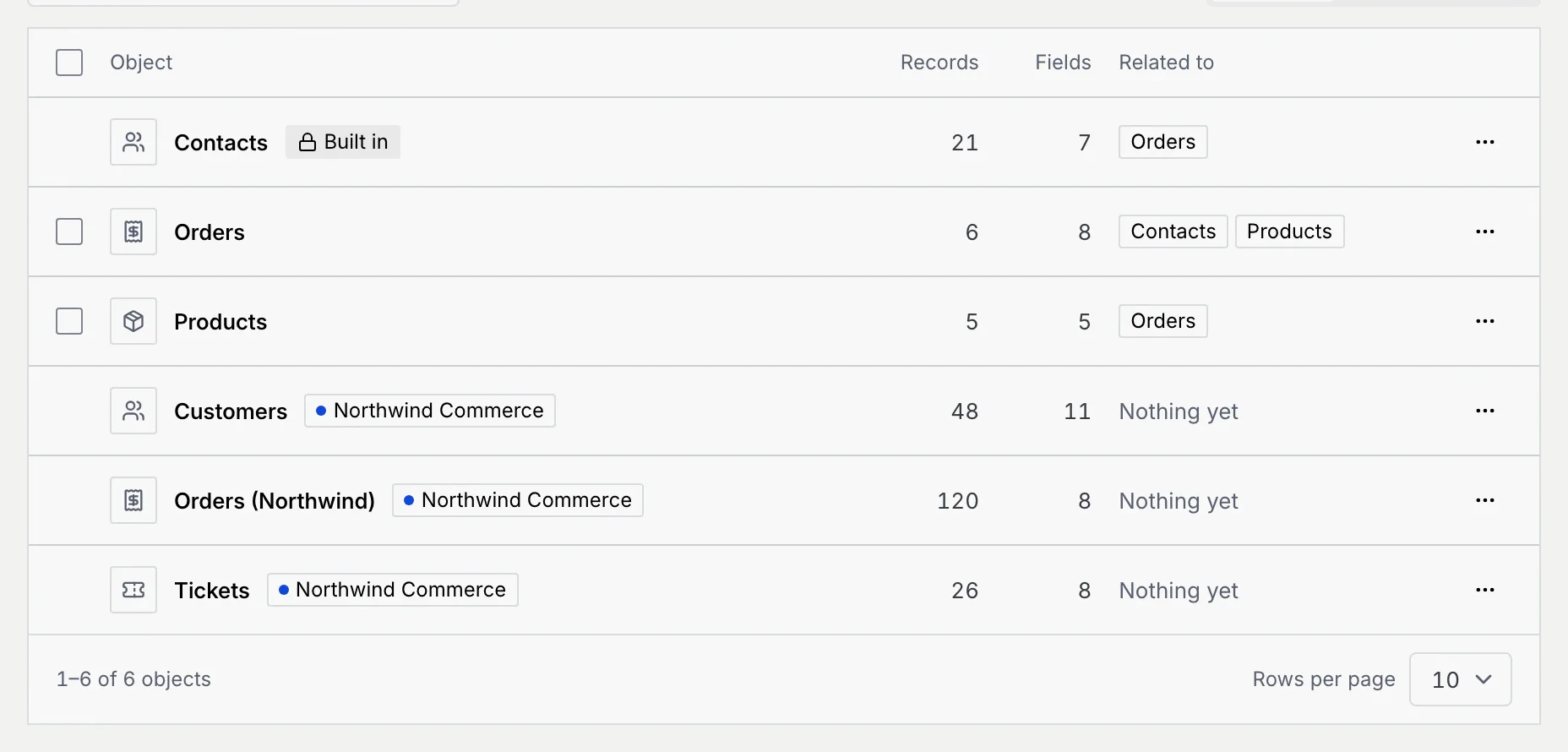
The tables are now objects in the list, each with a **Northwind Commerce** badge and a status dot. A table whose name is already taken gets the sync's first word, which is why the store's orders are called **Orders (Northwind)** next to your own **Orders**.
### Open a synced table [#open-a-synced-table]
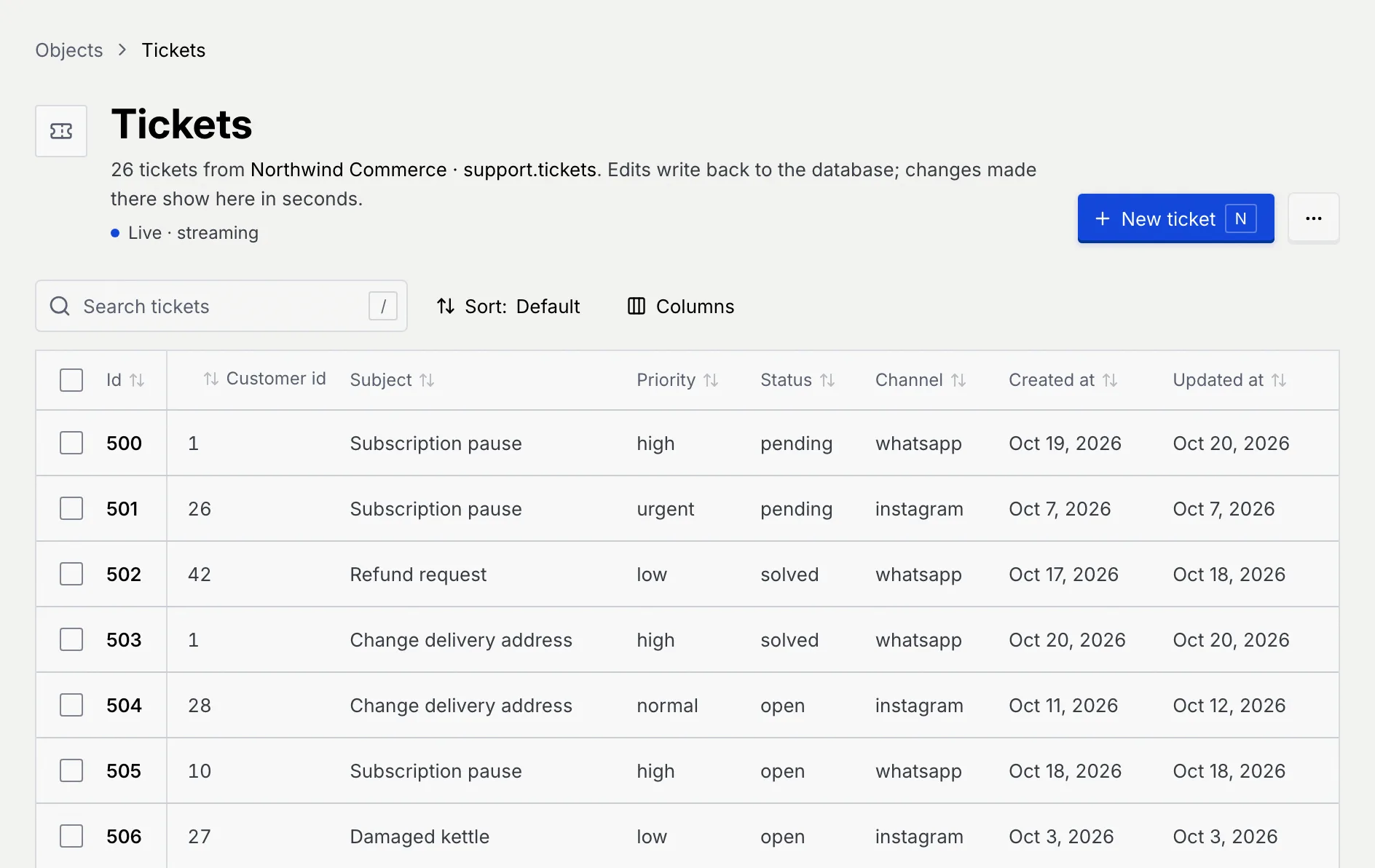
Click **Tickets**. The lead says where the rows come from (**Northwind Commerce · support.tickets**), that edits write back to the database, and the sync's status. Leave it open for a minute and you'll see tickets change status on their own.
## Things to try [#things-to-try]
- Edit a ticket's **Status** or a customer's **City** in the table. The change is written back to the store, the same way it would be to your database.
- Add a row with **New ticket**, or delete one; both go to the store too.
- Open the sync with **Tables and filters** and filter `orders` to `status is paid`, then watch orders join the object as they're paid. See [Tables, columns, row filters and sync status](/docs/contacts/database-sync#filter-rows).
- Relate a synced object to Contacts or to your own objects (see [Relate objects](/docs/contacts/relations)), or open the [data model canvas](/docs/contacts/data-model-canvas) to see it beside them.
- **Pause syncing** and **Resume syncing** from the sync's **⋯** menu.
When you're done, open the sync's **⋯** menu and click **Disconnect**. Its objects go from Mokanata.
## Next steps [#next-steps]