# Search and jump with ⌘K (/docs/getting-started/search)
The command palette is the fastest way around Mokanata: press ⌘ K, type a few letters and press Enter. To search within a page instead, such as your contacts, press /.
- **Who can use it:** Everyone. The palette only offers actions your role can take: **New agent** needs permission to create agents and **Invite people** needs permission to manage members, so they're missing for roles without them.
- **Before you start:** Nothing.
## Open the command palette [#open-the-command-palette]
### Press ⌘K [#press-k]
Press ⌘ K on a Mac or Ctrl K on Windows and Linux, from any page, even with a dialog open. Or click **Search contacts, agents and pages** in the top bar. Press the same keys again, or Esc, to close it.
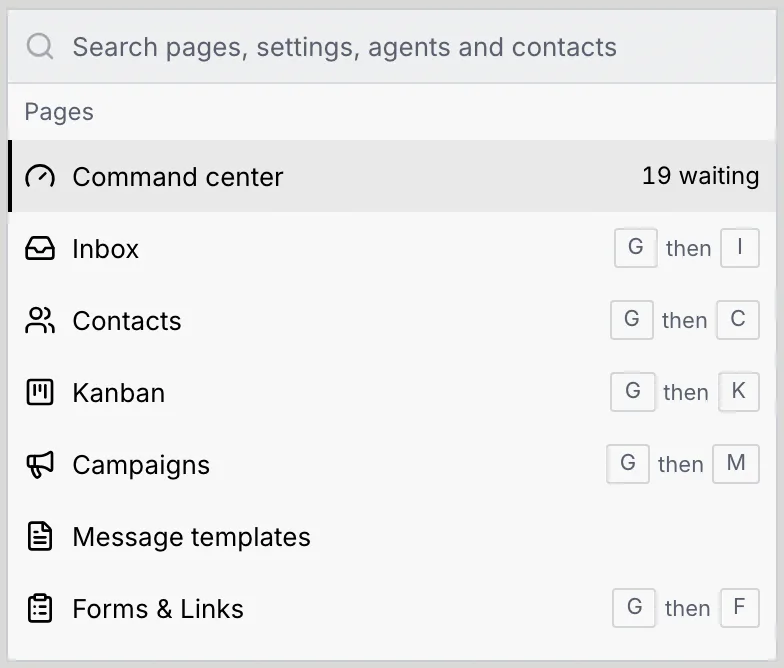
Before you type, the palette lists everything in groups: **Pages**, **Actions**, **Settings**, **Agents** and **Contacts**. Pages show their go-to shortcut (for example G then I for the Inbox), and the Command center shows how many drafts are waiting.
### Type what you're looking for [#type-what-youre-looking-for]
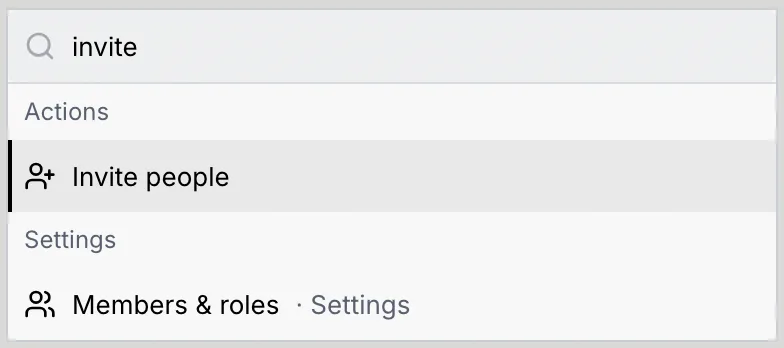
Type the start of any word in a name: "rep" finds **Reports**, "short" finds **Short links**, "invite" finds **Invite people**. The group with the best match moves to the top. Use ↑ and ↓ to move through the results.
### Press Enter to go [#press-enter-to-go]
Press Enter or click a result to open it. The palette closes and the page opens.
## What you can find [#what-you-can-find]
| Group | What's in it |
|---|---|
| **Pages** | Every page in the sidebar, plus **Message templates**, **Short links** and **Link in bio**. |
| **Actions** | **New agent**, **Invite people**, **Switch to dark theme** (or light) and **Keyboard shortcuts**. |
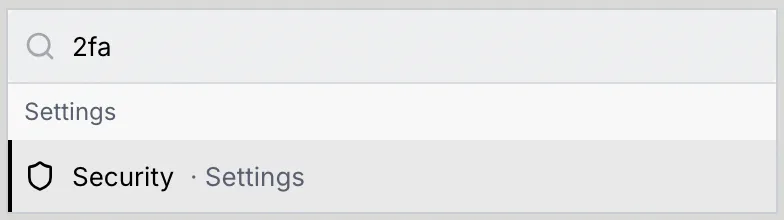
| **Settings** | Every settings page, shown as for example "Security · Settings": Profile, Security, Notifications, Keyboard shortcuts, Workspace, Language & region, Members & roles, Billing, Usage, API keys and Danger zone. |
| **Agents** | Every agent in the workspace, by name or handle. |
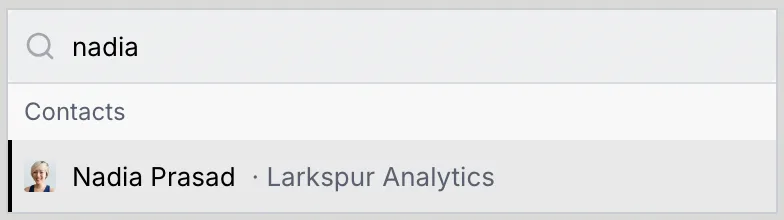
| **Contacts** | Every contact, with their company. |
Results also match common words for things, so you don't need to know what a page is called. A few examples:
| Type | To find |
|---|---|
| home, approvals, queue | **Command center** |
| integrations, channels, connect | **Setup** |
| passkeys, authenticator, sessions | **Security** settings |
| team, invite, permissions | **Members & roles** settings |
| delete, leave, transfer | **Danger zone** |
| plan, invoices | **Billing** settings |
To open a contact or an agent, type their name:
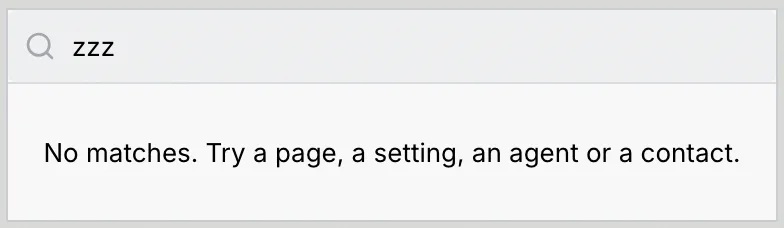
When nothing matches, the palette says "No matches. Try a page, a setting, an agent or a contact."
## Search the page you're on [#search-the-page-youre-on]
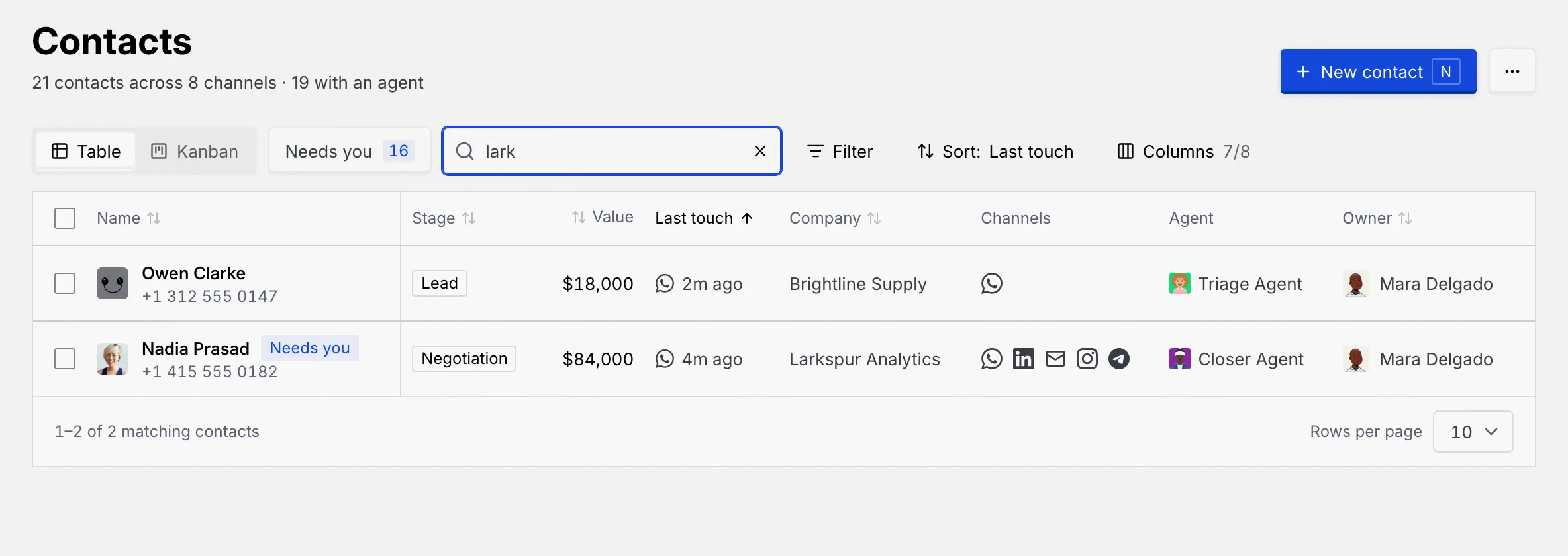
Lists such as the inbox, contacts, kanban boards and cards, campaigns, forms and links have their own search field. The / key jumps to it from anywhere on the page.
### Press / [#press-]
While you're not typing in a field, press /. The page's search field takes focus and selects what's in it, so you can start a new search right away. An empty search field shows the / key at its end as a reminder.

### Type to filter [#type-to-filter]
The list narrows as you type. Clear the field with its **×** button to see everything again.
On a page without a search field, / does nothing. If you've turned single-key shortcuts off, / is off too; click the search field instead (see [Keyboard shortcuts](/docs/settings/keyboard-shortcuts)).
## Next steps [#next-steps]