Lead pipelines and ad campaign boards
Track leads with their value, chance to close and contacts, and ad campaigns with their platform, budget, spend and results.
Two board kinds carry money on every card. On a lead pipeline, each lead has a deal value, a chance to close, a source and the contacts it's about. On an ad campaigns board, each campaign has its platform, objective, flight, budget, spend, clicks and conversions. You can also put a contact on any board straight from their record.
- Who can use it: Everything on Add and work on cards applies: adding leads and campaigns needs Add cards, editing them needs Edit and move cards, and you need to be the board's project manager or on the card. Mark closed won also needs permission to edit contacts. Owners, Admins and Members have these by default; Viewers see the fields read-only. See Roles and permissions.
- Before you start: Create a Lead pipeline or Ad campaigns board (Create and set up a board). To link contacts, they need to be in Contacts.
Work a lead pipeline
Read the pipeline
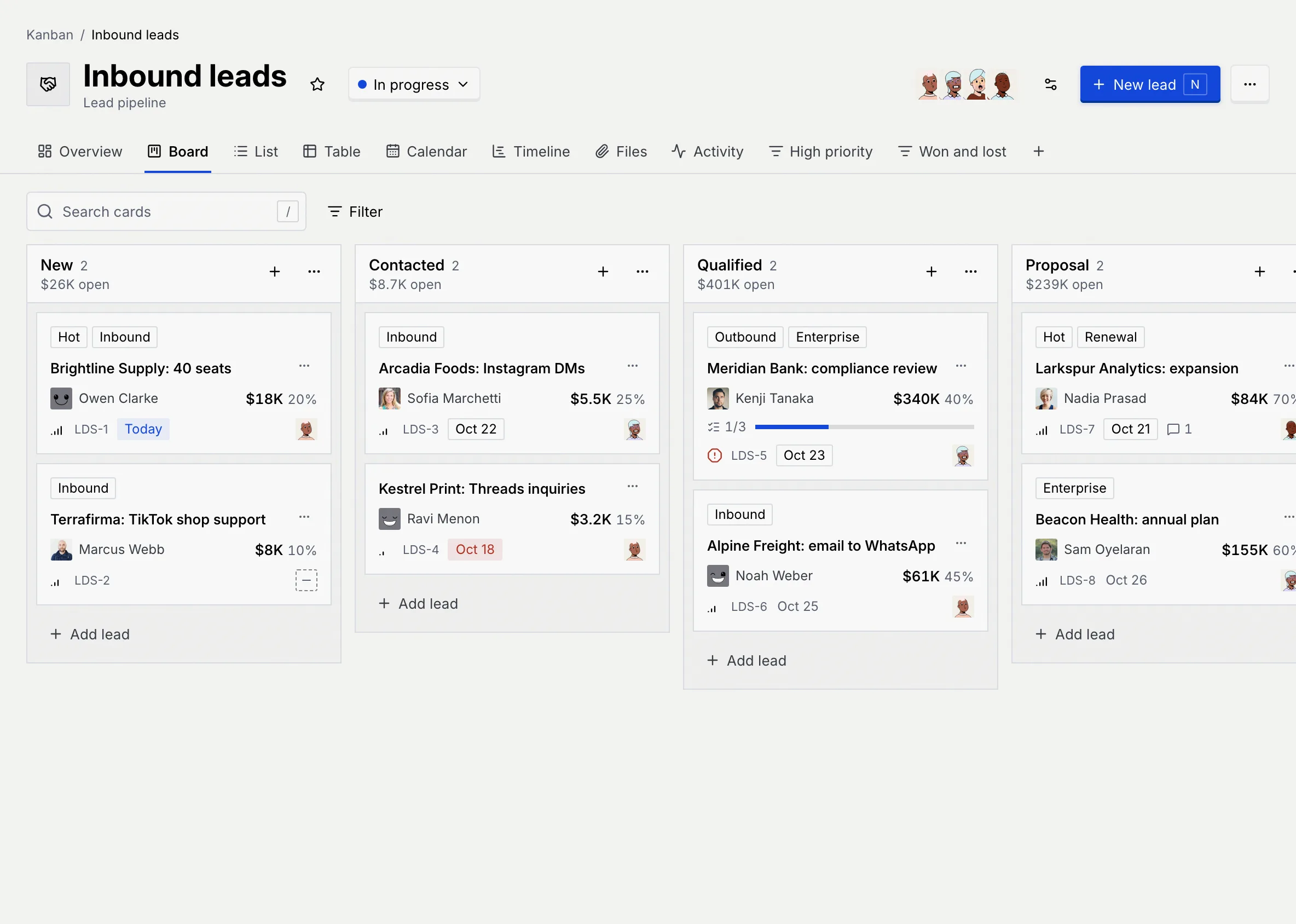
A lead pipeline starts with the statuses New, Contacted, Qualified, Proposal, Won and Lost. Each status shows the total value of its leads (for example "$401K open", or "won" and "lost" in the last two). Each lead shows its first contact (and "+1" and so on for more, or "No contact linked"), its value and its chance to close.
Add a lead
Click New lead (or press N), type the lead's name and press Enter. Then open it to fill in the deal.
Fill in the deal
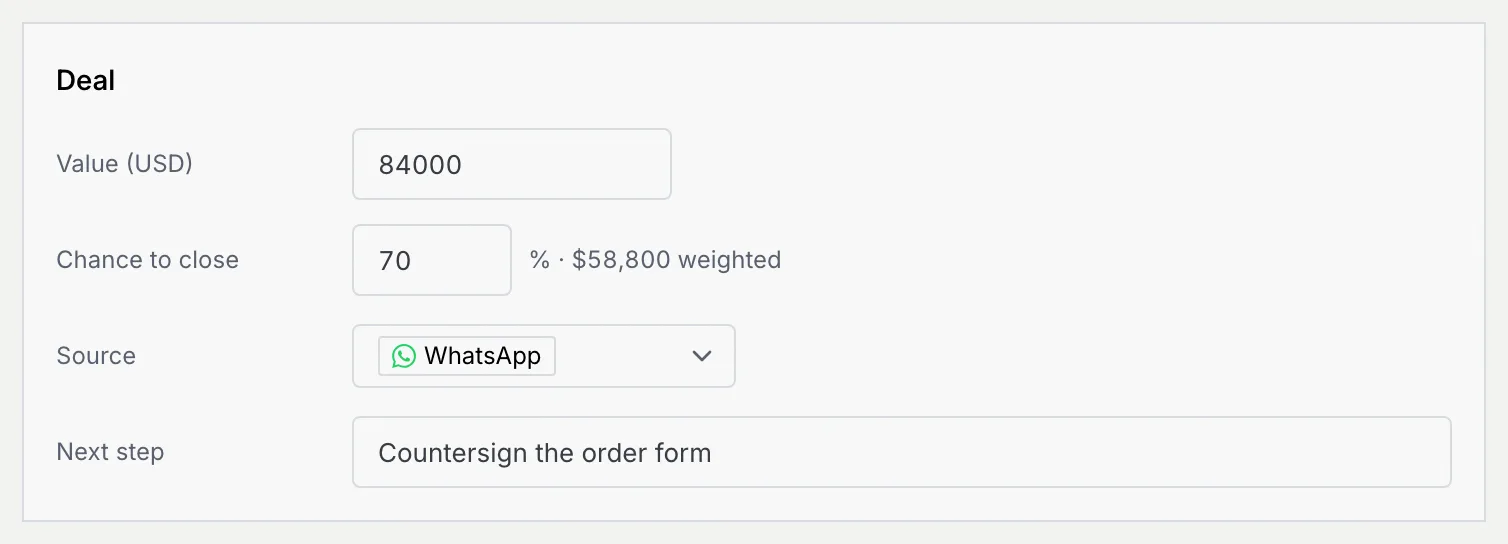
On the lead's page, the Deal section sits above the description:
| Field | What it holds |
|---|---|
| Value | What the deal is worth, in your workspace's currency (shown in the label, for example Value (USD)). |
| Chance to close | 0 to 100%. The weighted value (value × chance) shows next to it. |
| Source | Where the lead came from: WhatsApp, Instagram, Facebook, TikTok, LinkedIn, Telegram, Threads, Email, Website form, Referral or Event. |
| Next step | What happens next, for example "Send the proposal". |
Link the contacts
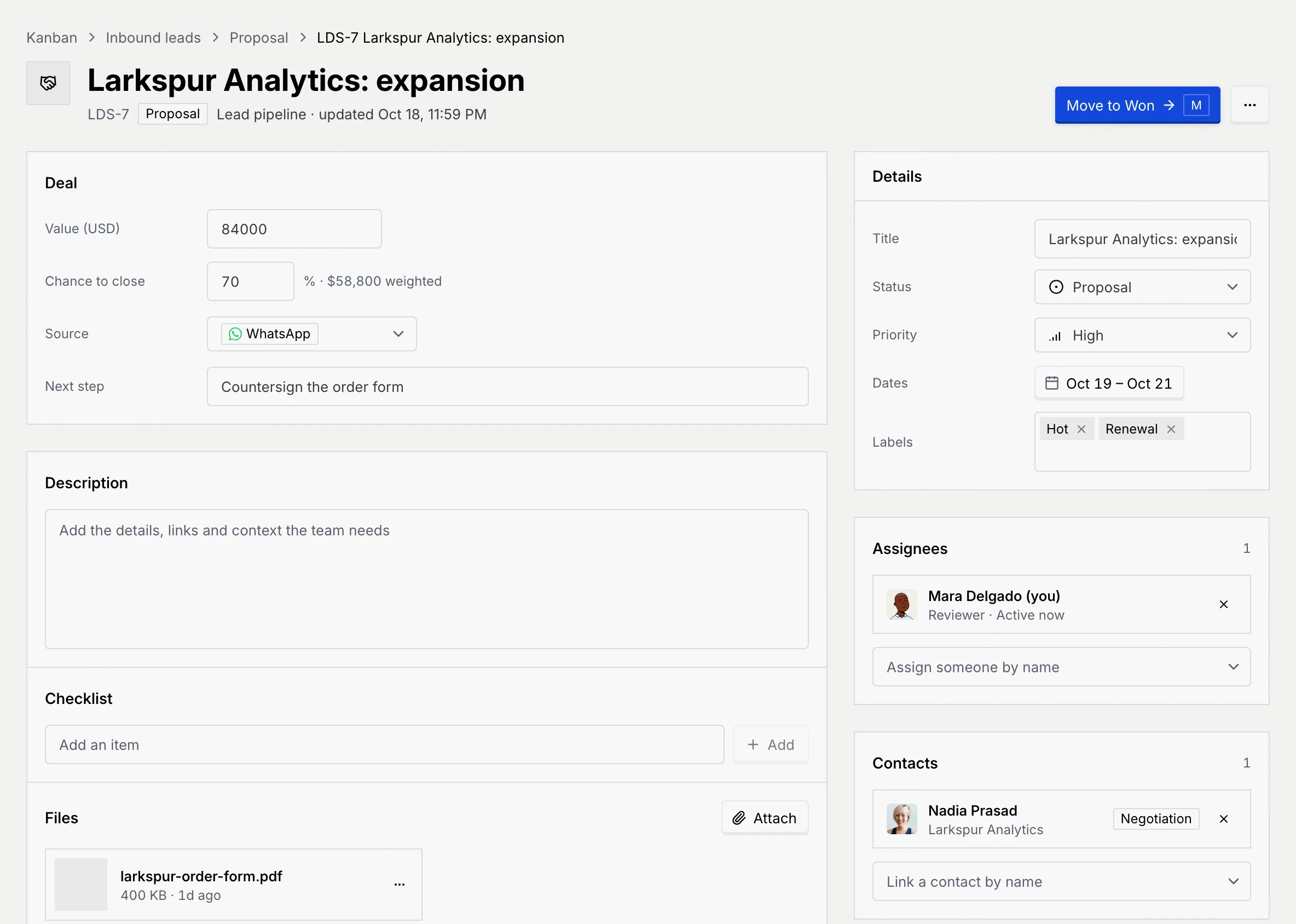
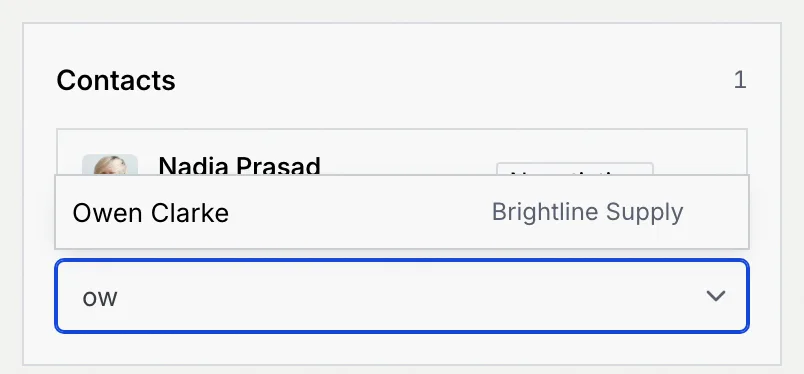
In Contacts on the right, click Link a contact by name and pick the person. Each linked contact shows their company and pipeline stage; click a name to open their record, or × to unlink them. If nobody matches, add them in Contacts first.
Win or lose the lead
Move the lead to Won (with Move to Won, M, or by dragging it) and its chance becomes 100%; move it to Lost and it becomes 0%. When a won lead's contacts are still open in your contact pipeline, the Contacts section offers Mark closed won to move them to closed won as well.
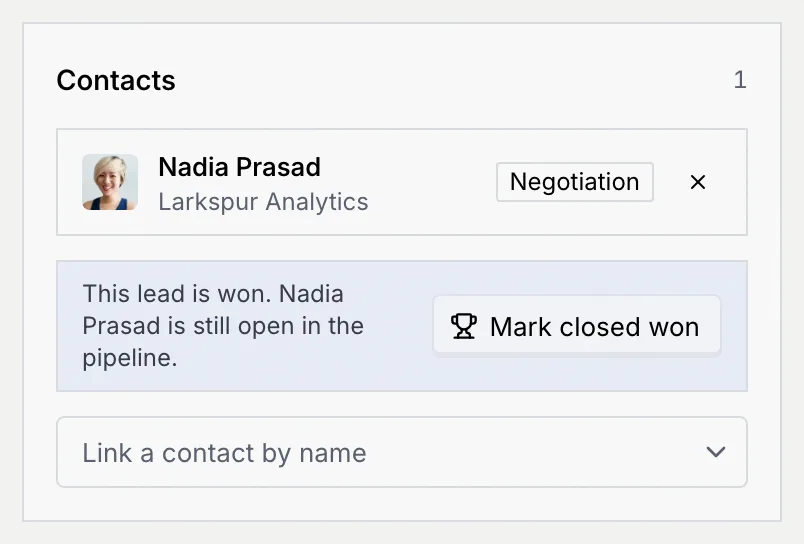
Won and lost leads are never overdue. The board's Overview sums up the Open pipeline, Weighted pipeline, Won value and Win rate (Board overview, files and activity).
Review won and lost deals
On the Table tab, a lead pipeline adds Contacts, Value and Chance columns. Sort by Deal value or Chance to close, and filter by Source. A saved view such as Won and lost (filtered to State is Done or Lost) keeps the closed deals one click away (Views, filters and saved views).

Track ad campaigns
Read the campaigns board
An ad campaigns board starts with Planning, Creative, In review, Live and Ended. Each status shows what its campaigns have spent of their budget (for example "$3.1K of $8.5K spent"). Each campaign shows its platform, its spend against its budget with a bar, and, once it's running, its clicks and conversions.
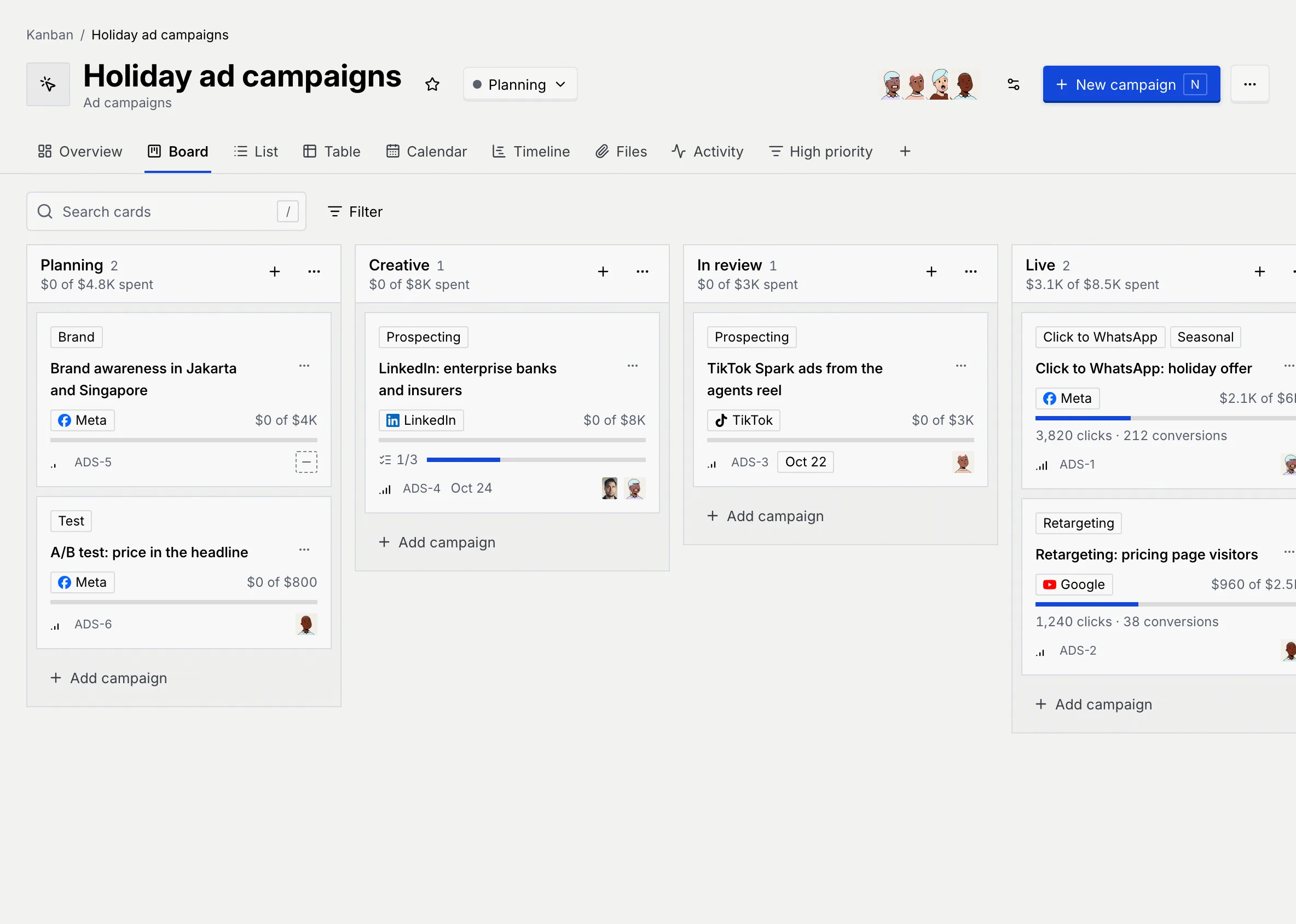
Fill in the campaign
Click New campaign, name it, then open it. The Campaign section holds:
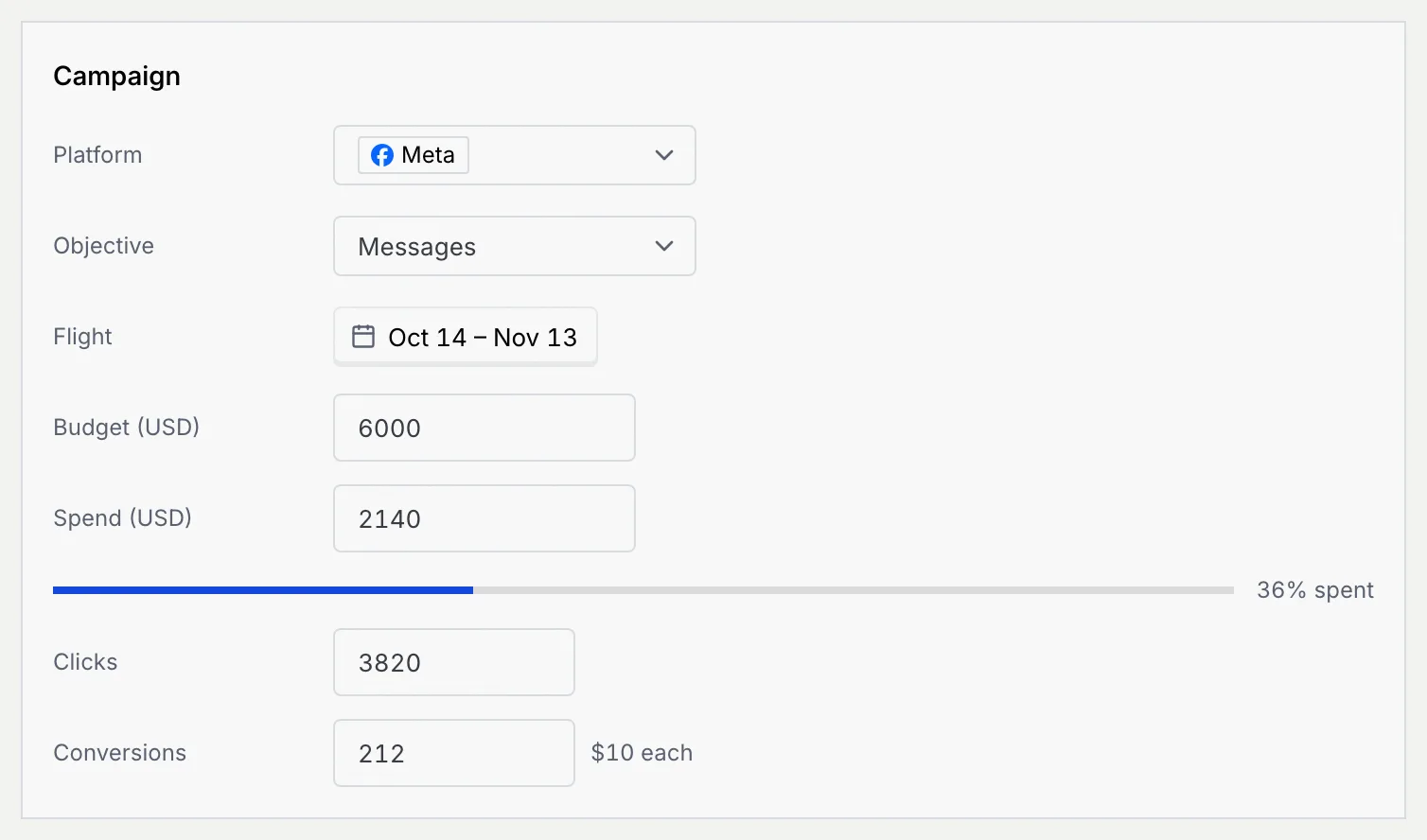
| Field | What it holds |
|---|---|
| Platform | Meta, TikTok, Google or LinkedIn. |
| Objective | Messages, Leads, Traffic, Awareness or Sales. |
| Flight | When the campaign runs, from start to end. |
| Budget, Spend | In your workspace's currency; the bar shows the share spent. |
| Clicks, Conversions | The results so far; the cost per conversion shows next to Conversions. |
On the Calendar, a campaign without a due date sits on its start day; on the Timeline, its bar is its flight. The Table tab adds Platform, Spend and Conversions, and you can filter by Platform and sort by Spend or Conversions. The Overview shows what's Running, total Spend against budget, Conversions and Cost per conversion. Duplicating a campaign copies it with its spend, clicks and conversions reset to zero.
Results from your ad accounts
To send WhatsApp conversions back to Meta, TikTok and Google and see click-to-WhatsApp ads by the conversations they started, see Ads & conversions.
Put a contact on a board
Open the contact
Open a contact's record (The contact record). The Kanban cards panel lists every card linked to them on boards you can see, with its status, board and due date. Click a card to open it.
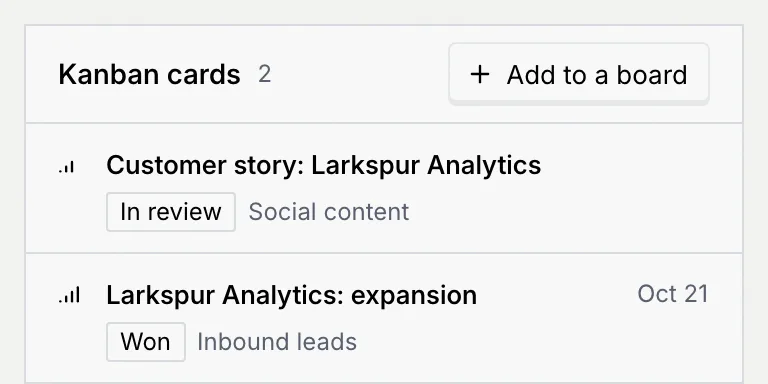
Add them to a board
Click Add to a board and choose a board. A card is added at the top of its first status and opens, already linked to the contact:
| Board kind | New card |
|---|---|
| Lead pipeline | "Company: Name", with the contact's value and their last channel as the source. |
| Content calendar | "Customer story: Company" (or their name). |
| Ad campaigns | "Audience: Company: Name". |
| Project board | "Follow up with Name". |
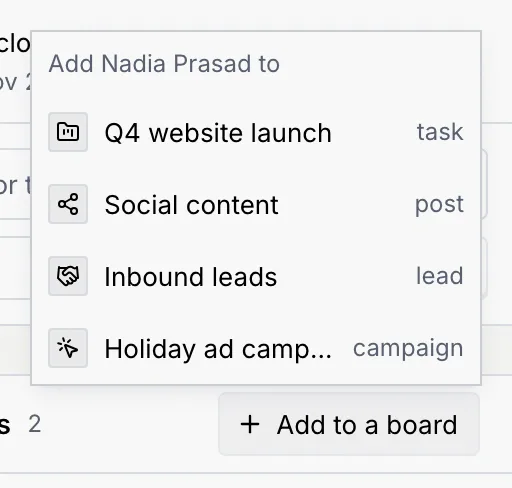
A message confirms it, for example "Added to Inbound leads". Only boards where you can add cards are listed. With no cards yet, the panel says "Not on any board yet. Add them as a lead, a customer story or a follow-up task."
On boards other than lead pipelines, linked contacts show as faces on the card and in the table's Contacts column; the Contacts section with linking and unlinking is on lead cards only.
Values and budgets stay private
Deal values and budgets are never shown on a board's or card's public link (Share a board or card with a public link).
Troubleshooting
The person isn't in Contacts yet. Add them there first (Add and import contacts), then link them.
It shows only when the lead is in a finished status and at least one linked contact isn't closed won yet, and your role can edit contacts.
Your role can't add cards, or you're a guest on every board you can see. Ask a board's project manager for a role.