Content planner and social analytics
Plan posts on a weekly grid at the best hours, keep drafts and the queue in view, and see how your posts and accounts perform.
Content calendars have two extra tabs. Planner lays out the week hour by hour, shaded where your networks get the most engagement, with your drafts and queue beside it. Analytics shows how the board's posts did across networks, and each published post has its own Analytics tab.
- Who can use it: Everyone who can see the board can read the planner and analytics. Planning a post by dragging it needs the right to edit it, + on an hour needs Add cards, and moving a scheduled post needs Schedule and publish posts (all three on for Owners, Admins and Members by default). See Board members, roles and access.
- Before you start: You need a content calendar with posts on it (Write, preview and schedule social posts).
Plan the week
Open the Planner tab
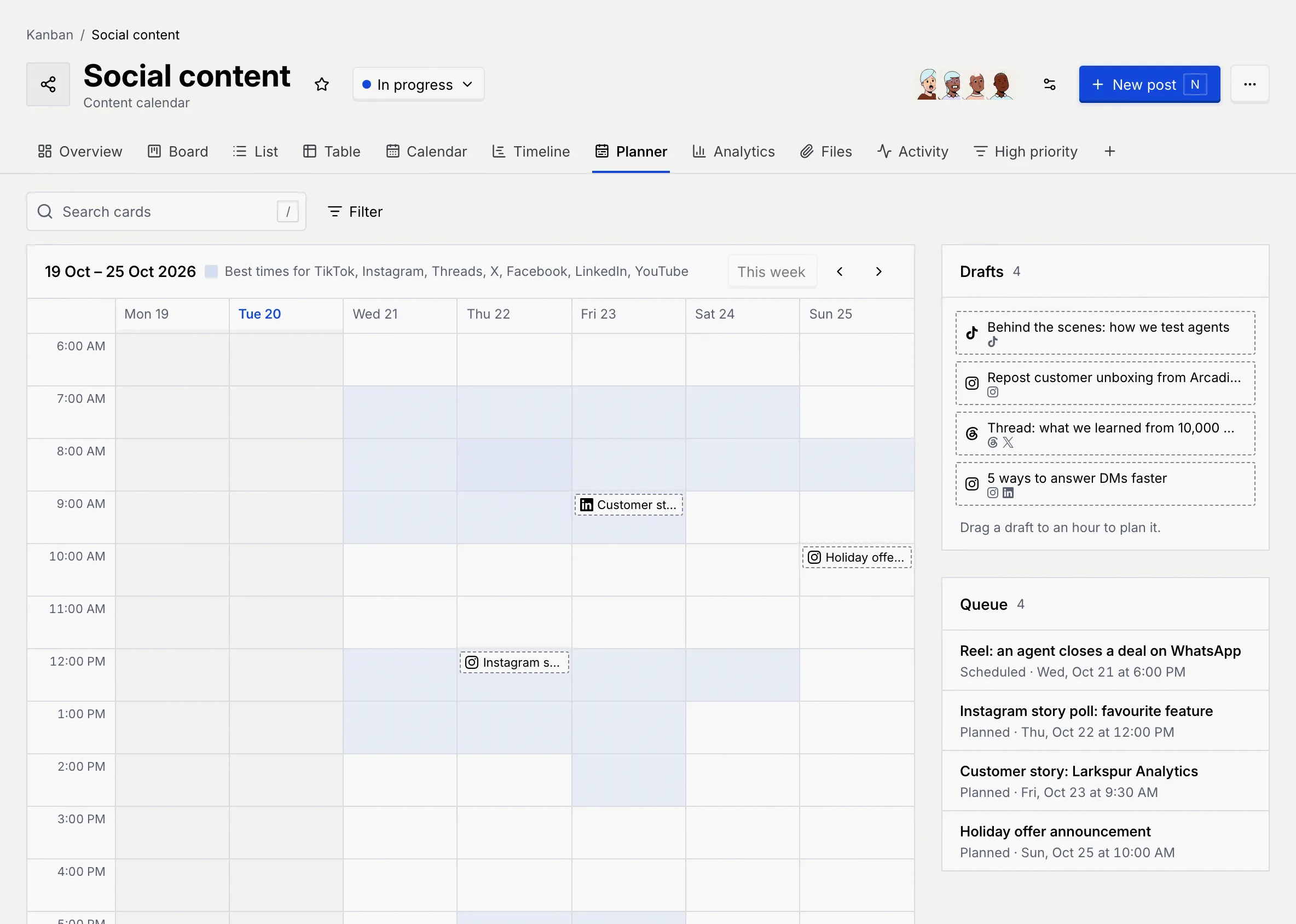
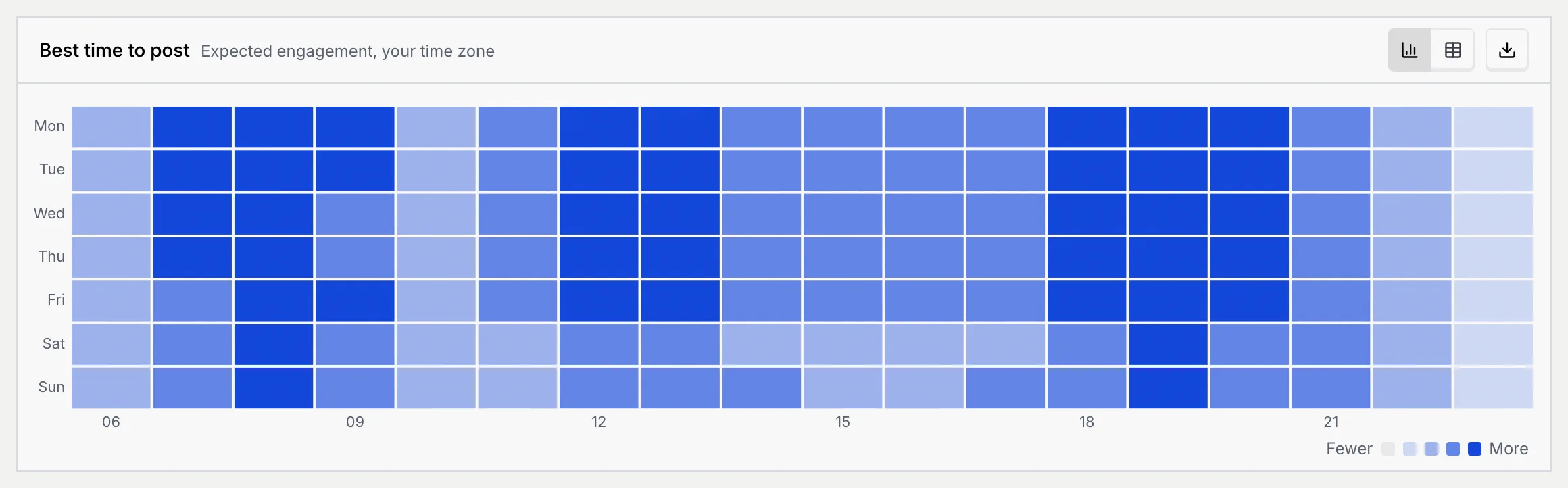
On a content calendar, click Planner. The grid shows Monday to Sunday by the hour, scrolled to 6:00 AM, with today's date in blue and past hours greyed out. Shaded hours are the best times for the board's networks; the darker, the better.
Move between weeks
Use the arrows to go to the previous or next week, and This week to come back. The week is part of the page's address, so you can send a link to a particular week.
Read the posts on the grid
Each post sits at its hour with its first network's icon and its title. Click one to open it.
| Looks like | Status |
|---|---|
| Solid blue border | Scheduled |
| Red border | Missed its time |
| Dashed border | Planned |
| Grey with a check | Published |
Search cards and Filter above the grid narrow the posts shown, as on the board's other views (Views, filters and saved views).
Plan drafts and posts
Find your drafts and queue
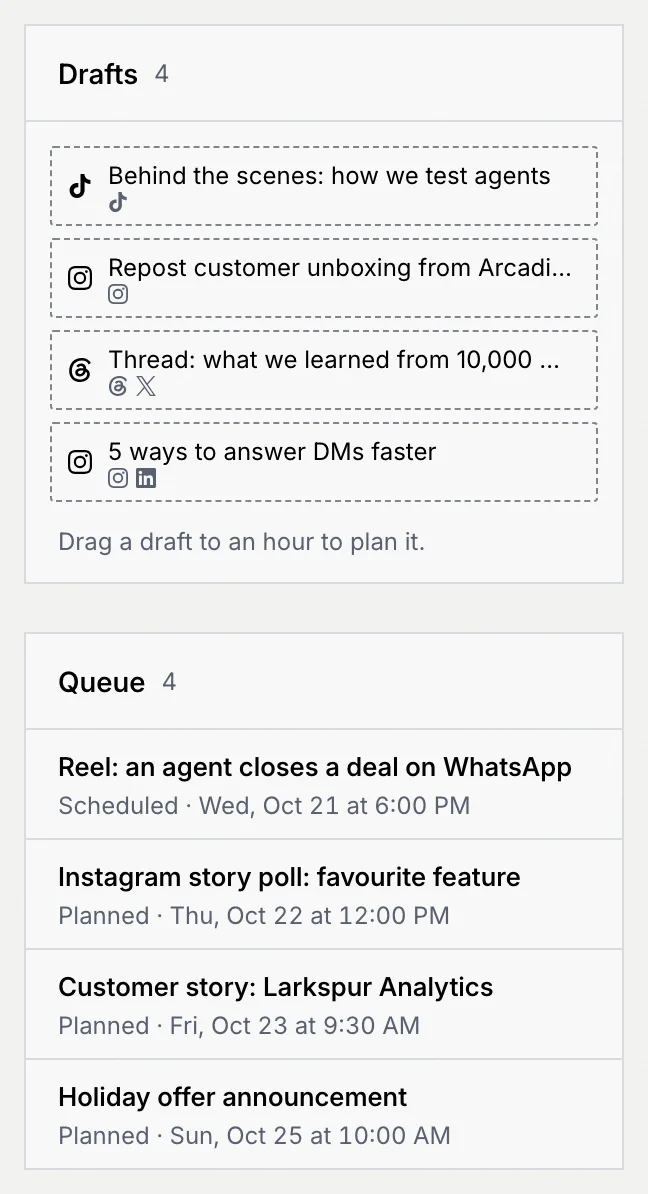
Drafts lists posts that don't have a time yet ("No drafts without a time." when there are none). Queue lists planned and scheduled posts in order, with their status and time ("Nothing is planned or scheduled." when it's empty).
Drag a draft to an hour
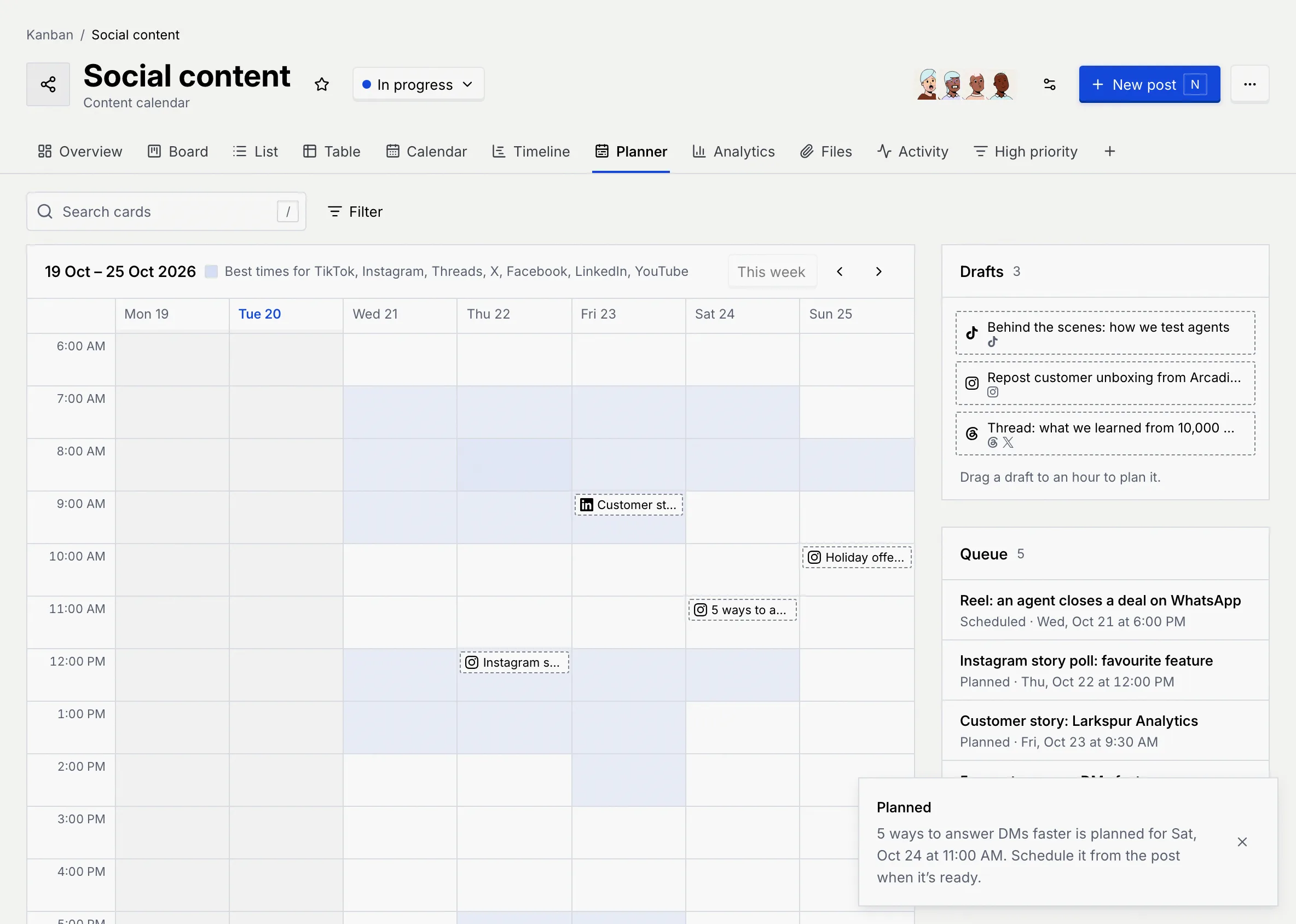
Drag a draft from Drafts onto an hour in the grid. It's now planned for that time, and a message says so: "… is planned for … Schedule it from the post when it's ready." Planned posts don't go out on their own.
Move a post to another hour
Drag a post already on the grid to another hour. A planned post is planned for the new time; a scheduled post is rescheduled ("Rescheduled", "… goes out …"). Posts can't be moved into the past, and published posts don't move.
Add a post at an hour
Point to an empty hour in the future and click the + that appears. A New post is added to the board's first status, planned for that hour, and opens so you can write it.
Schedule it
Open a planned post and click Schedule in its Publishing panel (Schedule a post); scheduling is coming soon.
See how your accounts are doing
Open the Analytics tab
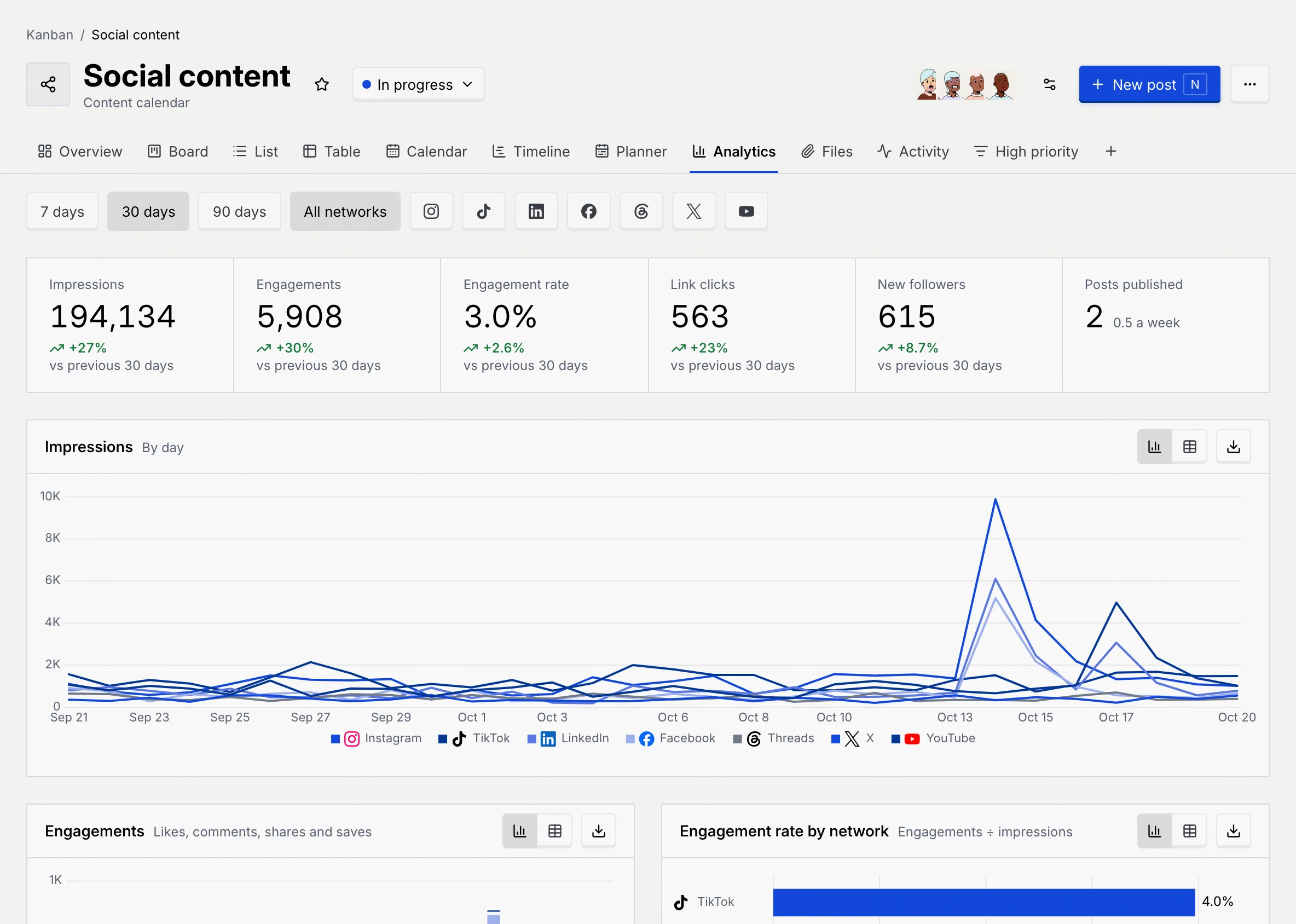
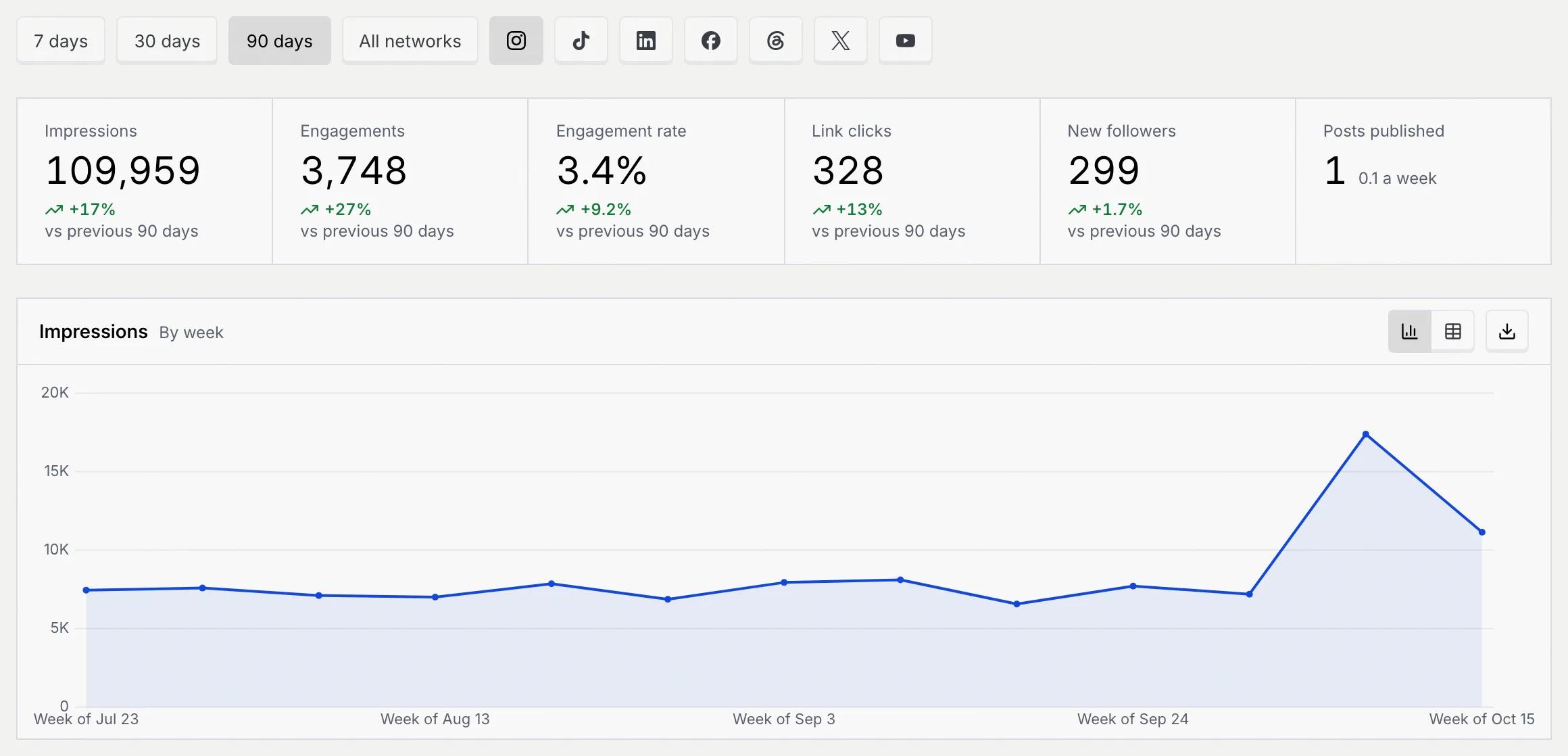
On a content calendar, click Analytics. Choose the period (7 days, 30 days or 90 days) and All networks or one network's icon (only networks the board posts to are listed).
Read the numbers
The strip at the top covers the chosen period, each number compared with the period before it:
| Number | What it counts |
|---|---|
| Impressions | Times the board's posts were shown. |
| Engagements | Likes, comments, shares and saves. |
| Engagement rate | Engagements divided by impressions. |
| Link clicks | Clicks on links in the posts. |
| New followers | Followers gained on the networks. |
| Posts published | Posts that went out in the period, with how many a week. |
Read the charts
- Impressions: by day (or by week, for 90 days), one line per network.
- Engagements: likes, comments, shares and saves over time.
- Engagement rate by network and New followers by network.
- Engagement rate by format: how posts, carousels, reels and so on did ("No posts were published in this period." when none went out).
- Best time to post: expected engagement by day and hour, in your time zone. The planner's shading comes from the same scores.
- Top posts: the posts with the most engagements, with their networks, when they went out, their reach, engagements and engagement rate. Click a post to open its analytics.

Each chart has a button to switch to a table and one to download it as PNG, JPG, CSV or Excel.
See how a post did
Open a published post and click its Analytics tab (or See how it's doing in its Publishing panel). The results update as the networks report them.
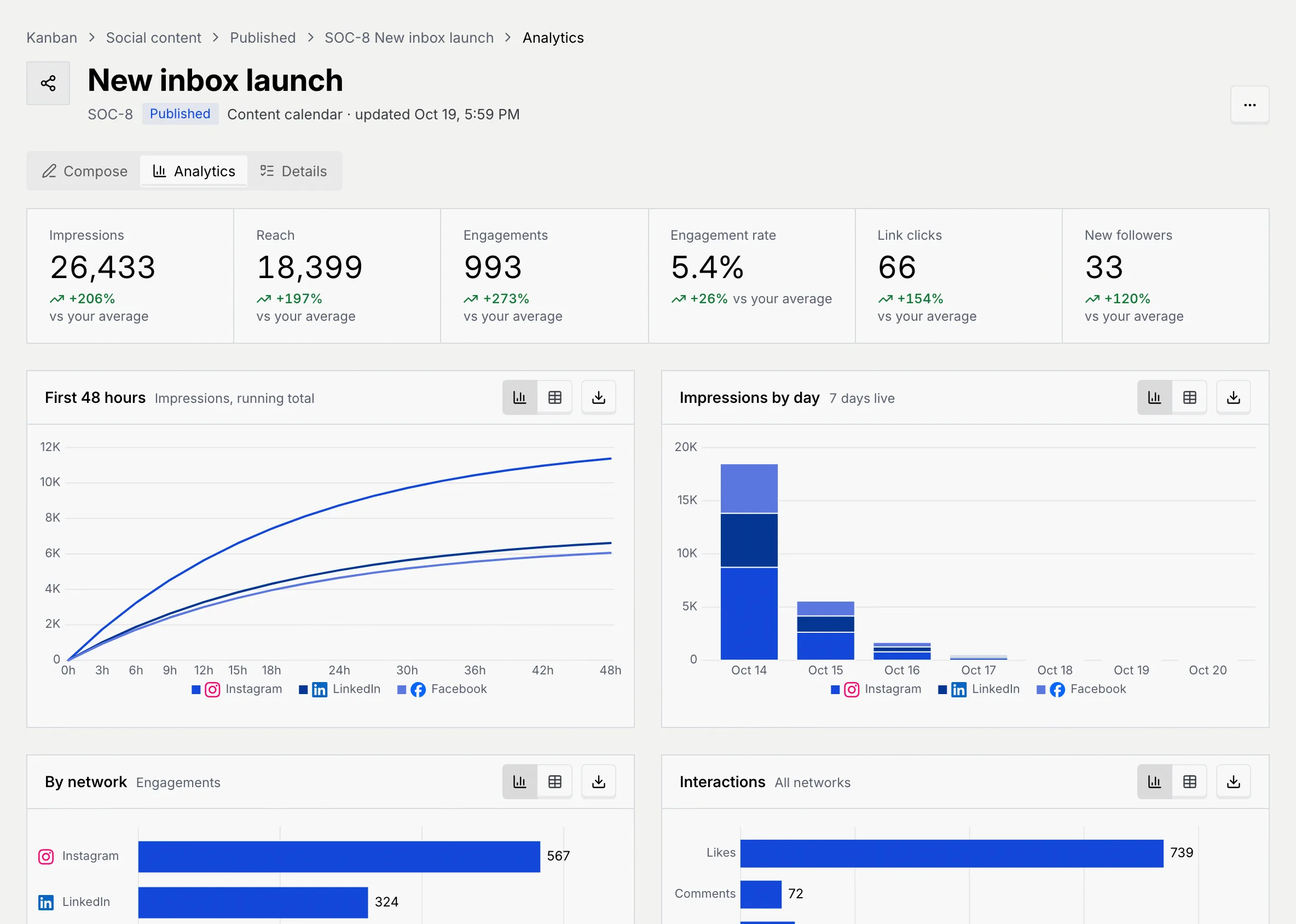
- The numbers at the top count everything since the post went out: Impressions, Reach, Engagements, Engagement rate, Link clicks, and Video views (with average watch time) for videos or New followers otherwise. Each is compared with your average post on the board ("First published post on this board" when there's nothing to compare with).
- First 48 hours shows impressions building up after it went out, per network.
- Impressions by day shows each day it's been live.
- By network compares engagements across the networks it went to.
- Interactions breaks engagement into likes, comments, shares, saves and link clicks.
- Top countries and Age describe who saw it, and Audience retention shows how long people watched (videos only).
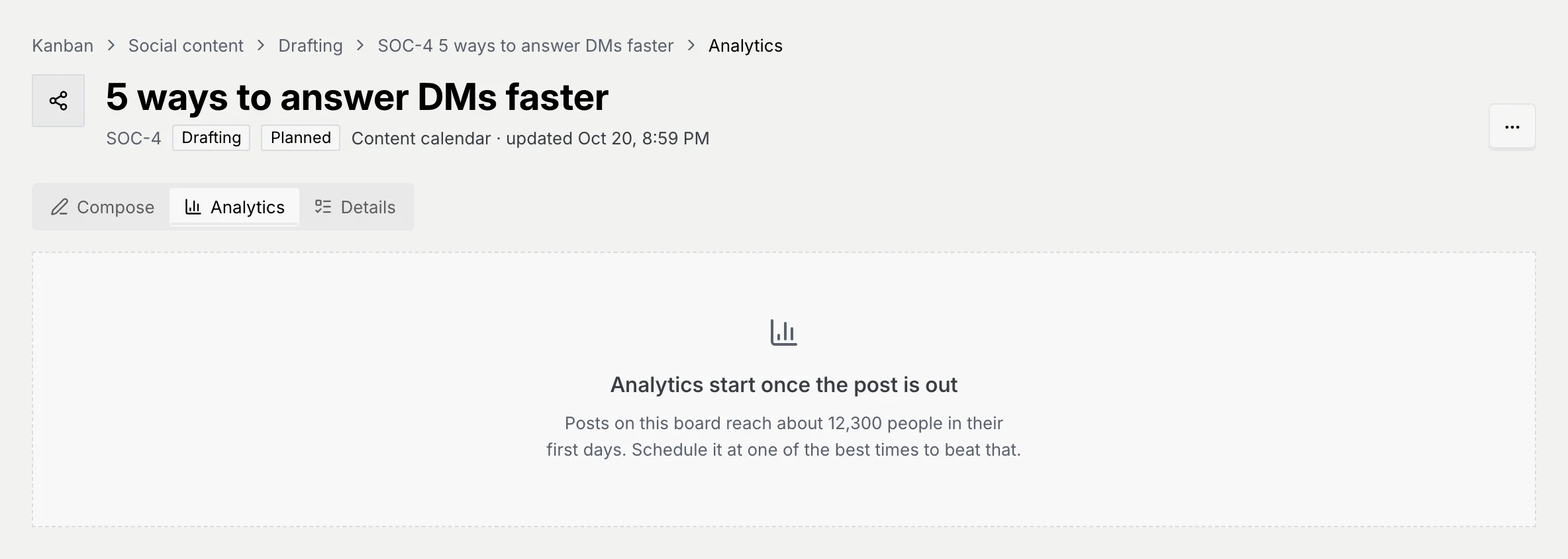
Before a post goes out, its Analytics tab says Analytics start once the post is out, with how many people the board's posts usually reach in their first days.
Troubleshooting
Hours that have passed don't take posts, published posts don't move, and you need to be able to edit the post. Moving a scheduled post also needs Schedule and publish posts; without it, a Not rescheduled message appears.
Planning only sets a time. Scheduling a post to go out is coming soon (Schedule a post).
No post went out on the chosen networks in that period. Pick a longer period or All networks.
Next steps
Write, preview and schedule social posts
Write one post for several networks, adjust it per network, check it and preview it in each network's layout. Scheduling and publishing are coming soon.
Lead pipelines and ad campaign boards
Track leads with their value, chance to close and contacts, and ad campaigns with their platform, budget, spend and results.