# Content planner and social analytics (/docs/kanban/content-planner)
Content calendars have two extra tabs. **Planner** lays out the week hour by hour, shaded where your networks get the most engagement, with your drafts and queue beside it. **Analytics** shows how the board's posts did across networks, and each published post has its own **Analytics** tab.
- **Who can use it:** Everyone who can see the board can read the planner and analytics. Planning a post by dragging it needs the right to edit it, **+** on an hour needs **Add cards**, and moving a scheduled post needs **Schedule and publish posts** (all three on for Owners, Admins and Members by default). See [Board members, roles and access](/docs/kanban/board-members).
- **Before you start:** You need a content calendar with posts on it ([Write, preview and schedule social posts](/docs/kanban/social-posts)).
## Plan the week [#plan-the-week]
### Open the Planner tab [#open-the-planner-tab]
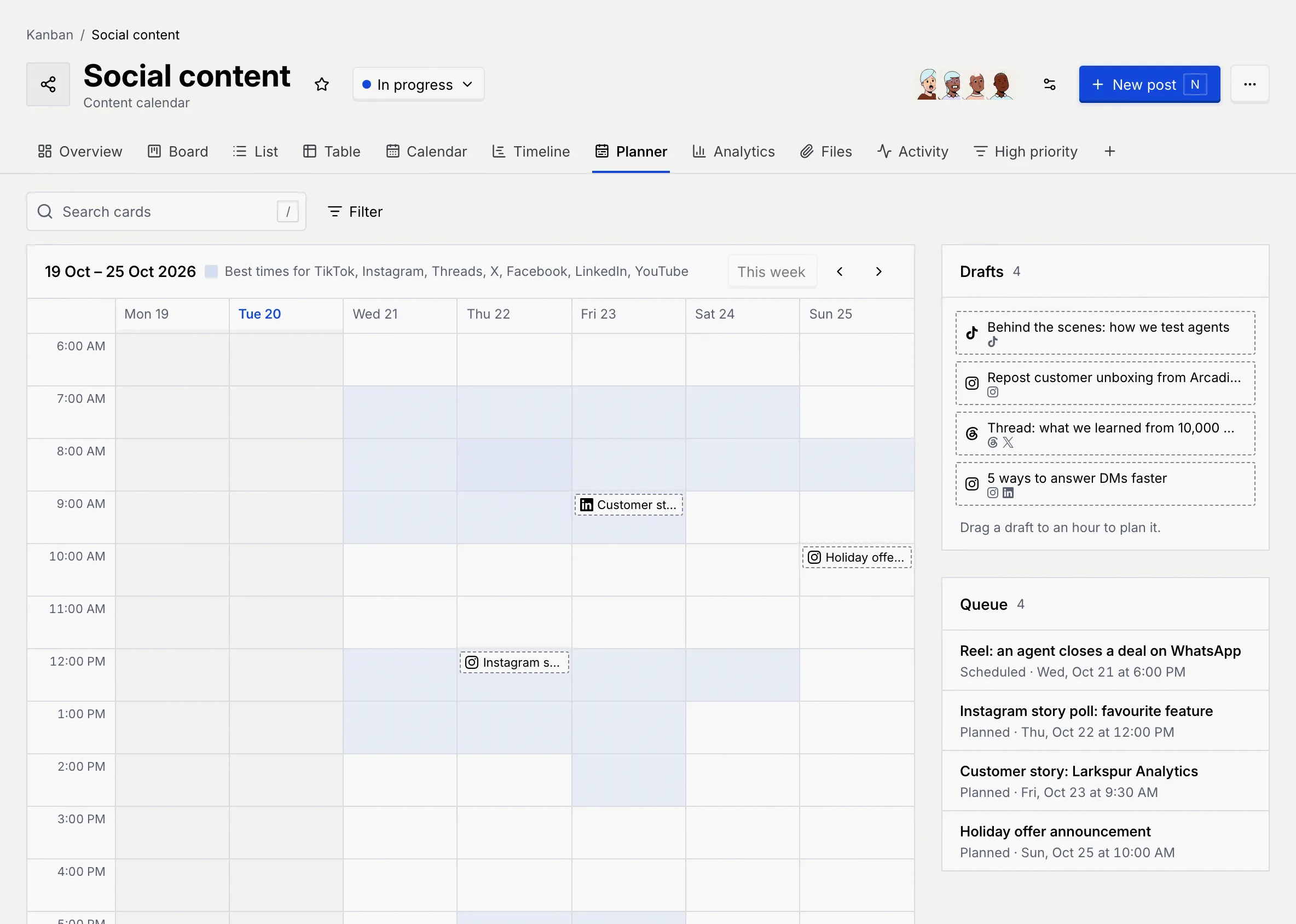
On a content calendar, click **Planner**. The grid shows Monday to Sunday by the hour, scrolled to 6:00 AM, with today's date in blue and past hours greyed out. Shaded hours are the best times for the board's networks; the darker, the better.
### Move between weeks [#move-between-weeks]
Use the arrows to go to the previous or next week, and **This week** to come back. The week is part of the page's address, so you can send a link to a particular week.
### Read the posts on the grid [#read-the-posts-on-the-grid]
Each post sits at its hour with its first network's icon and its title. Click one to open it.
| Looks like | Status |
|---|---|
| Solid blue border | Scheduled |
| Red border | Missed its time |
| Dashed border | Planned |
| Grey with a check | Published |
**Search cards** and **Filter** above the grid narrow the posts shown, as on the board's other views ([Views, filters and saved views](/docs/kanban/kanban-views)).
## Plan drafts and posts [#plan-drafts-and-posts]
### Find your drafts and queue [#find-your-drafts-and-queue]
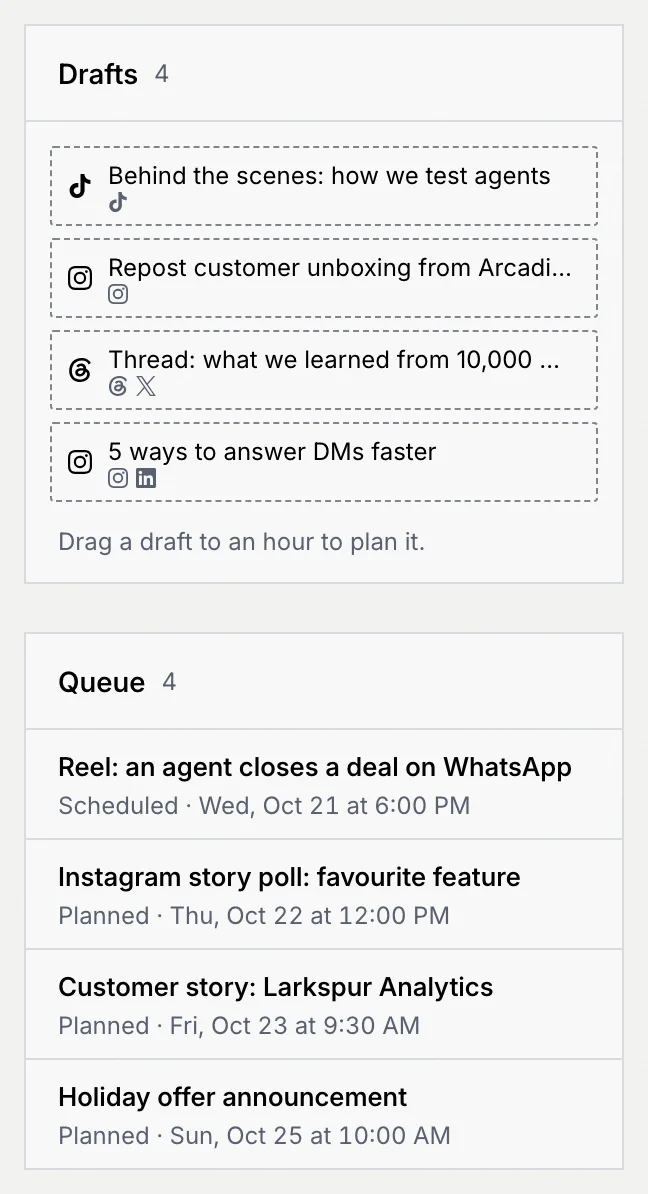
**Drafts** lists posts that don't have a time yet ("No drafts without a time." when there are none). **Queue** lists planned and scheduled posts in order, with their status and time ("Nothing is planned or scheduled." when it's empty).
### Drag a draft to an hour [#drag-a-draft-to-an-hour]
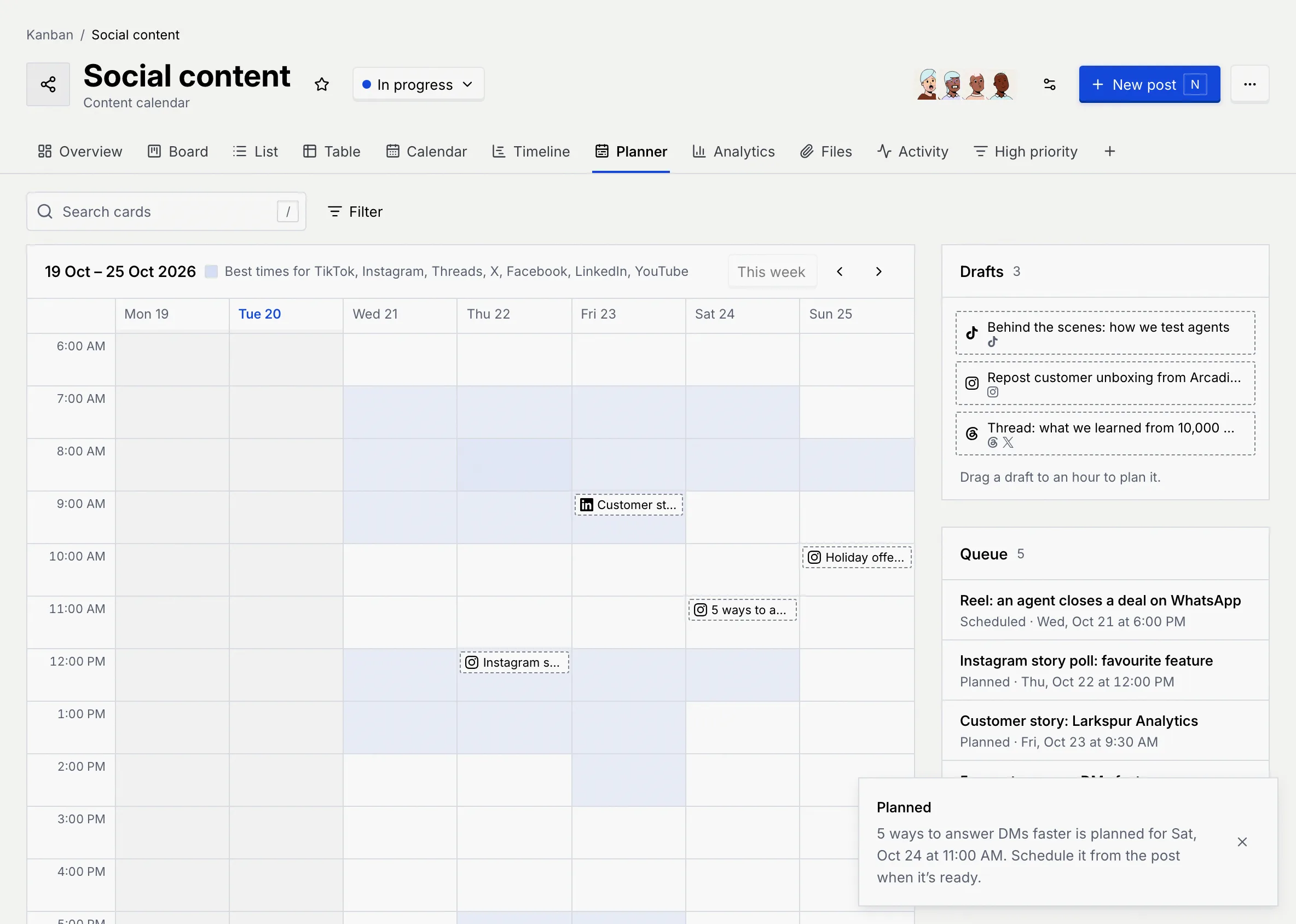
Drag a draft from **Drafts** onto an hour in the grid. It's now planned for that time, and a message says so: "… is planned for … Schedule it from the post when it's ready." Planned posts don't go out on their own.
### Move a post to another hour [#move-a-post-to-another-hour]
Drag a post already on the grid to another hour. A planned post is planned for the new time; a scheduled post is rescheduled ("Rescheduled", "… goes out …"). Posts can't be moved into the past, and published posts don't move.
### Add a post at an hour [#add-a-post-at-an-hour]
Point to an empty hour in the future and click the **+** that appears. A **New post** is added to the board's first status, planned for that hour, and opens so you can write it.
### Schedule it [#schedule-it]
Open a planned post and click **Schedule** in its **Publishing** panel ([Schedule a post](/docs/kanban/social-posts#schedule-a-post)); scheduling is coming soon.
## See how your accounts are doing [#see-how-your-accounts-are-doing]
### Open the Analytics tab [#open-the-analytics-tab]
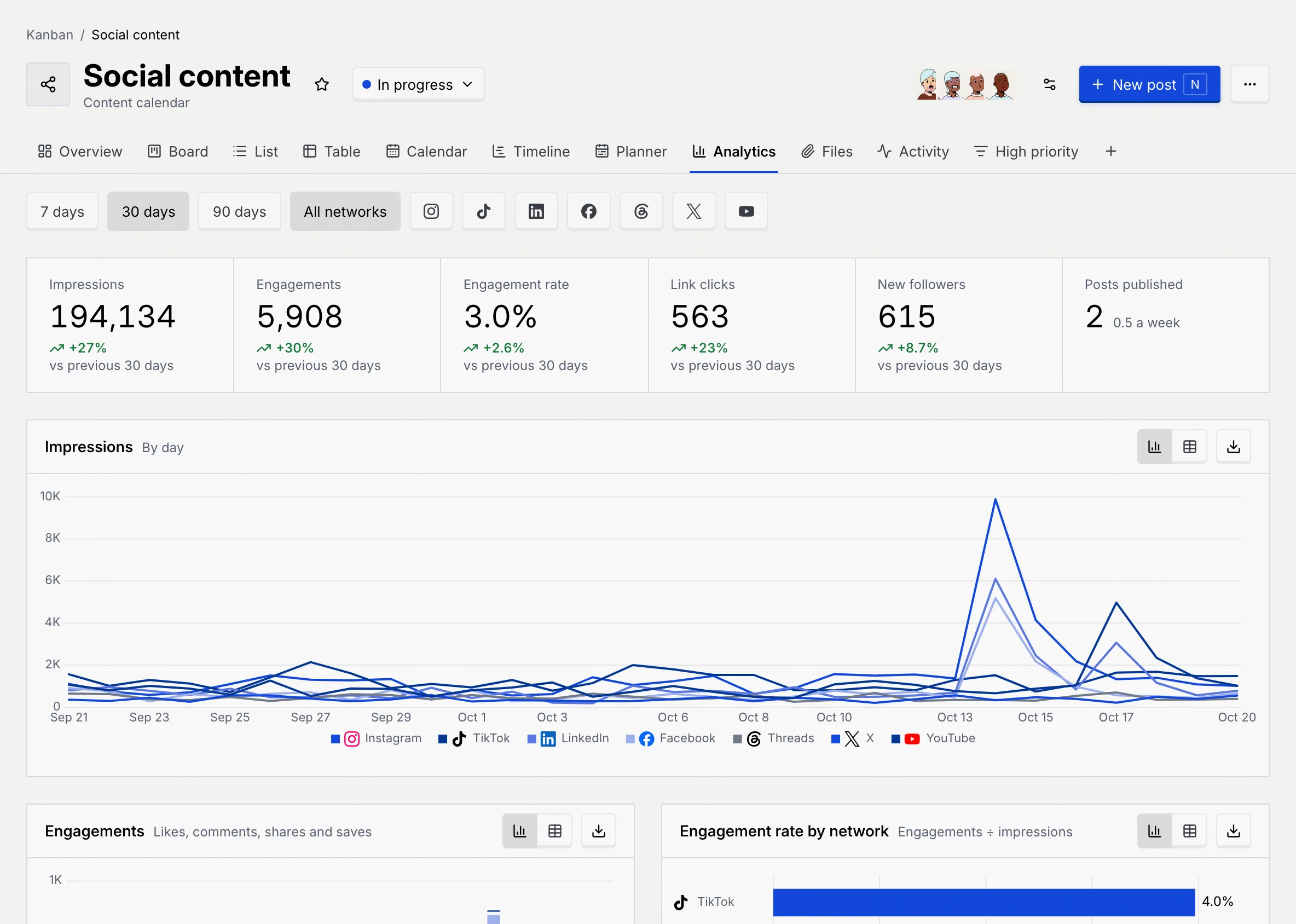
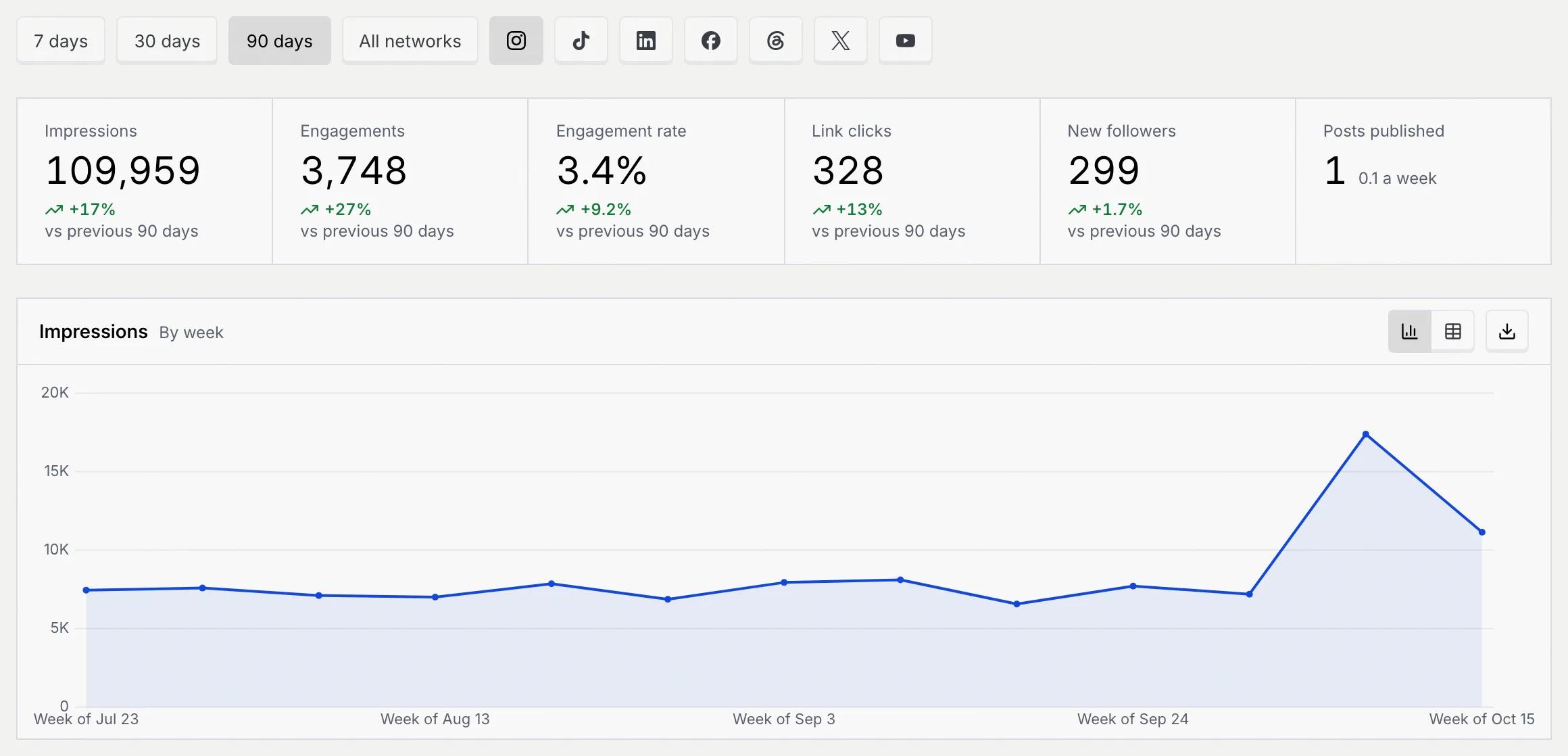
On a content calendar, click **Analytics**. Choose the period (**7 days**, **30 days** or **90 days**) and **All networks** or one network's icon (only networks the board posts to are listed).
### Read the numbers [#read-the-numbers]
The strip at the top covers the chosen period, each number compared with the period before it:
| Number | What it counts |
|---|---|
| **Impressions** | Times the board's posts were shown. |
| **Engagements** | Likes, comments, shares and saves. |
| **Engagement rate** | Engagements divided by impressions. |
| **Link clicks** | Clicks on links in the posts. |
| **New followers** | Followers gained on the networks. |
| **Posts published** | Posts that went out in the period, with how many a week. |
### Read the charts [#read-the-charts]
- **Impressions**: by day (or by week, for 90 days), one line per network.
- **Engagements**: likes, comments, shares and saves over time.
- **Engagement rate by network** and **New followers by network**.
- **Engagement rate by format**: how posts, carousels, reels and so on did ("No posts were published in this period." when none went out).
- **Best time to post**: expected engagement by day and hour, in your time zone. The planner's shading comes from the same scores.
- **Top posts**: the posts with the most engagements, with their networks, when they went out, their reach, engagements and engagement rate. Click a post to open its analytics.
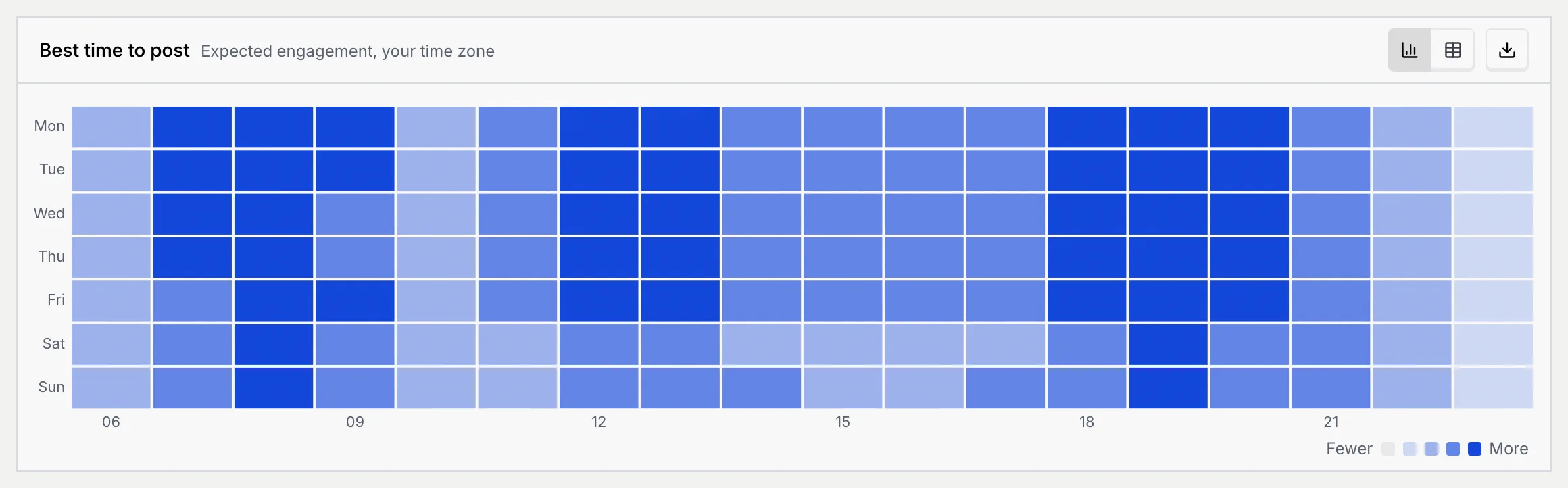

Each chart has a button to switch to a table and one to download it as PNG, JPG, CSV or Excel.
## See how a post did [#see-how-a-post-did]
Open a published post and click its **Analytics** tab (or **See how it's doing** in its Publishing panel). The results update as the networks report them.
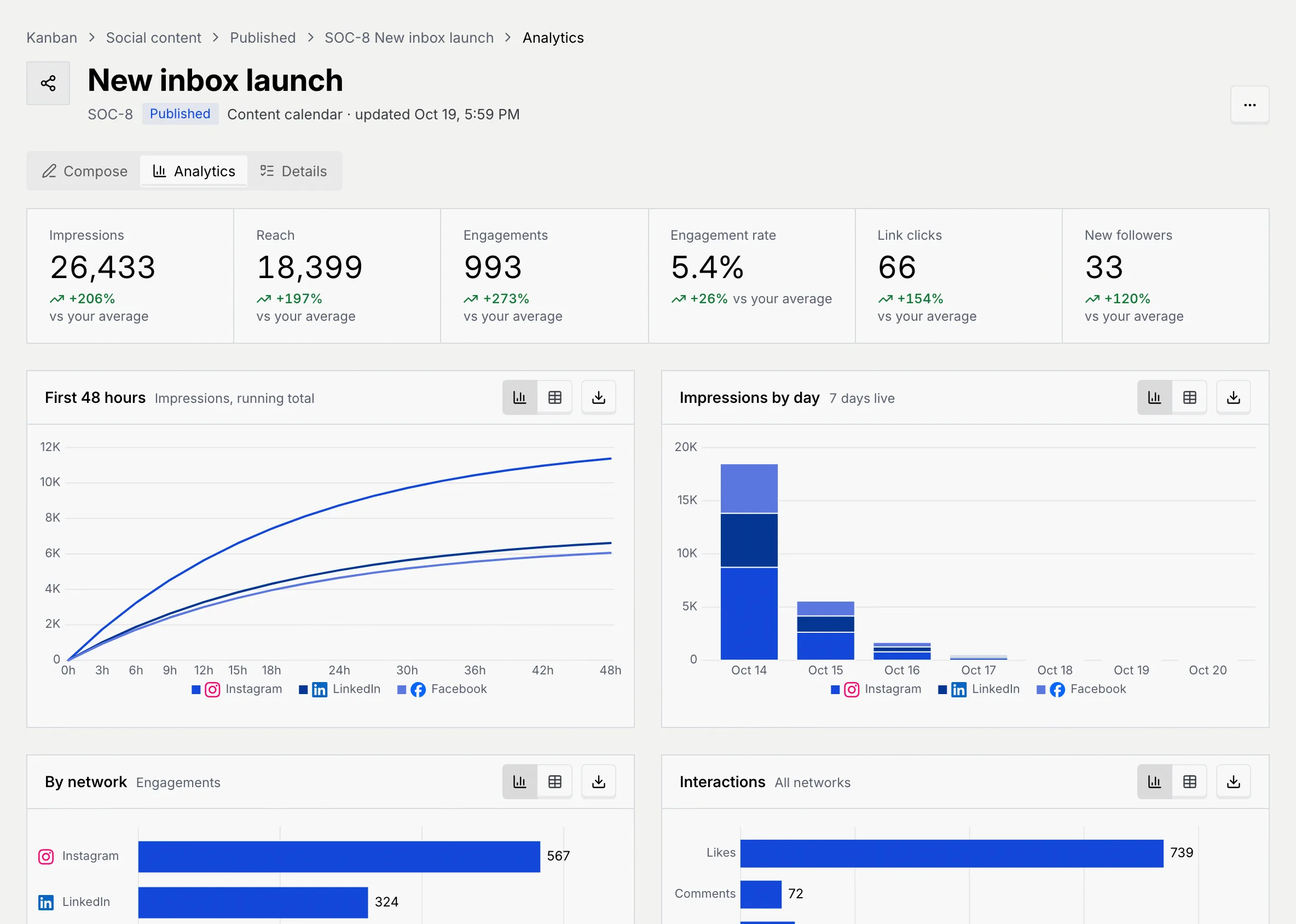
- The numbers at the top count everything since the post went out: **Impressions**, **Reach**, **Engagements**, **Engagement rate**, **Link clicks**, and **Video views** (with average watch time) for videos or **New followers** otherwise. Each is compared with your average post on the board ("First published post on this board" when there's nothing to compare with).
- **First 48 hours** shows impressions building up after it went out, per network.
- **Impressions by day** shows each day it's been live.
- **By network** compares engagements across the networks it went to.
- **Interactions** breaks engagement into likes, comments, shares, saves and link clicks.
- **Top countries** and **Age** describe who saw it, and **Audience retention** shows how long people watched (videos only).
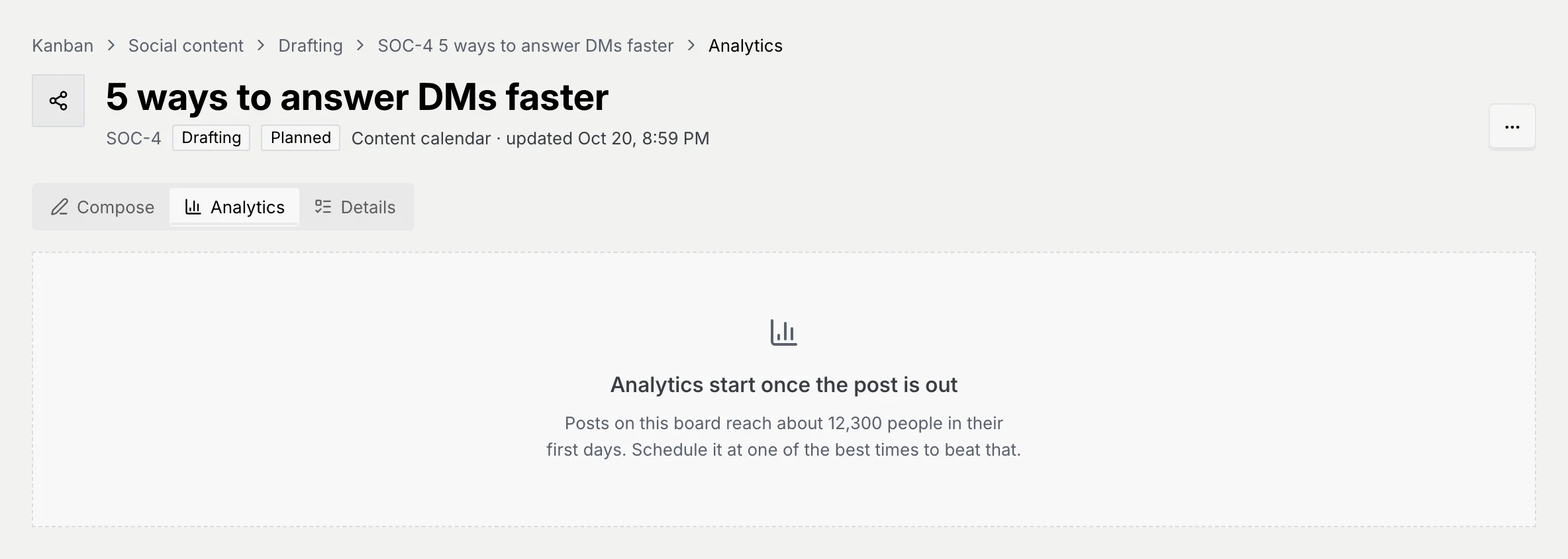
Before a post goes out, its Analytics tab says **Analytics start once the post is out**, with how many people the board's posts usually reach in their first days.
## Troubleshooting [#troubleshooting]
Hours that have passed don't take posts, published posts don't move, and you need to be able to edit the post. Moving a scheduled post also needs **Schedule and publish posts**; without it, a **Not rescheduled** message appears.
Planning only sets a time. Scheduling a post to go out is coming soon ([Schedule a post](/docs/kanban/social-posts#schedule-a-post)).
No post went out on the chosen networks in that period. Pick a longer period or **All networks**.
## Next steps [#next-steps]