Board overview, files and activity
Track a board's progress and what's coming up, share files with everyone on it, and follow everything that changed.
Three tabs on every board give you the big picture. Overview sums up how the work stands and what's due next, Files gathers every file on the board in one place, and Activity lists everything that happened to its cards.
- Who can use it: Everyone who can see the board reads all three tabs. Changing the board's details, lead and milestones on the Overview is for its project manager (Create and set up a board). Uploading and deleting files on the Files tab needs Edit and move cards (Owners, Admins and Members by default) and a board role other than guest; others see the files without Upload or the drop zone. See Roles and permissions.
- Before you start: Open a board from the Kanban page.
Read the overview
Open the Overview tab
On a board, click Overview. Four numbers sum up the board, then the About, Progress, Coming up and Recent activity panels sit on the left, and Details, Lead, Members and Milestones on the right.
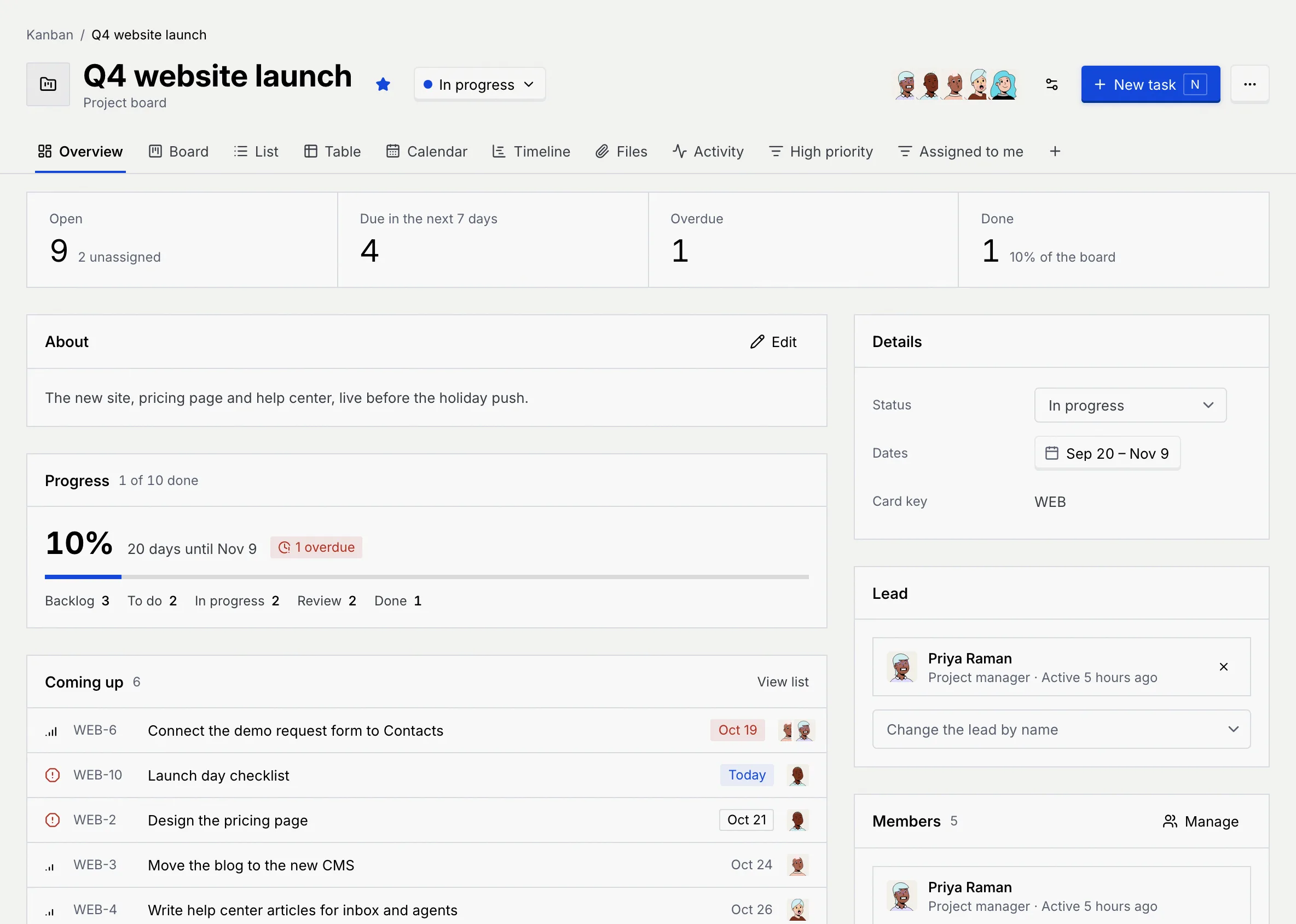
Read the numbers for your kind of board
The four numbers depend on the board's kind and always count every card, whatever filters you have on in other tabs.
| Number | What it counts |
|---|---|
| Open | Cards not finished or closed, with how many have nobody assigned ("2 unassigned", or "All assigned"). |
| Due in the next 7 days | Open cards due today or in the next seven days. |
| Overdue | Open cards past their due date. |
| Done | Cards in a finished status, with their share of the board. |
Money shows in your workspace's currency (Language and region).
Check progress
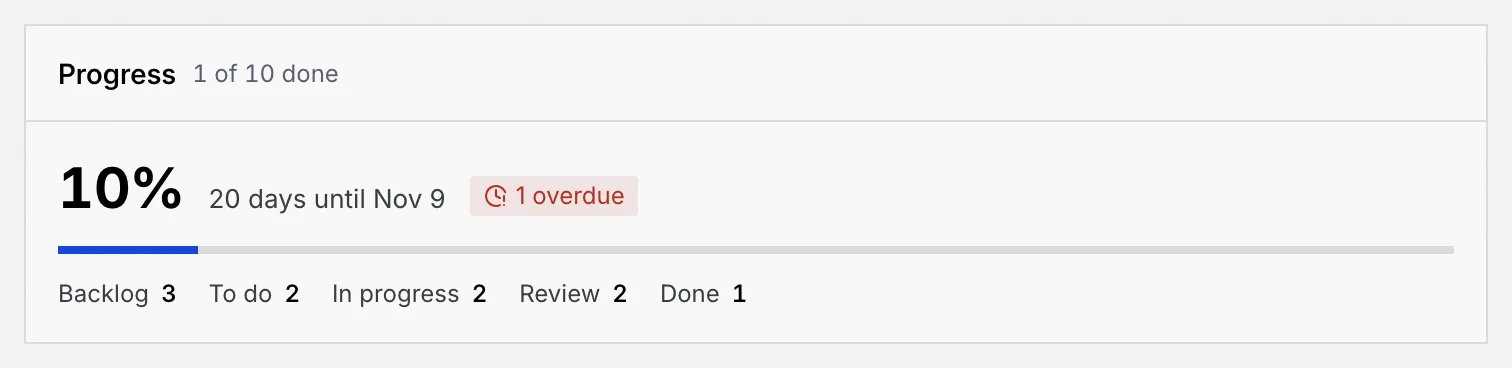
Progress shows the share of cards that are done, how many days are left until the board's end date (or when it ended), and a red badge with the number of overdue cards. Under the bar, each status shows how many cards it holds; click one to see those cards on the List tab.
See what's coming up
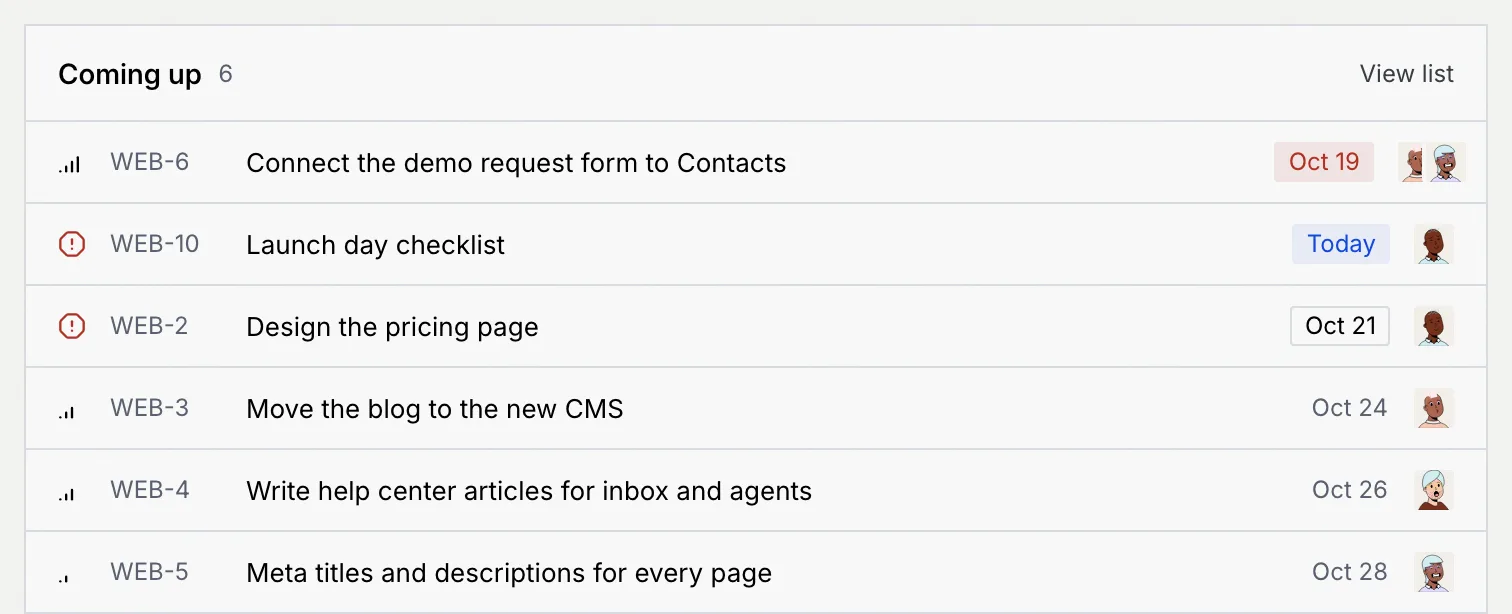
Coming up lists the next six open cards with a date, soonest first (a post's date is when it publishes). Click a card to open it, or View list to see every card sorted by due date. With nothing dated, it says "Nothing open has a date yet."
Glance at recent activity
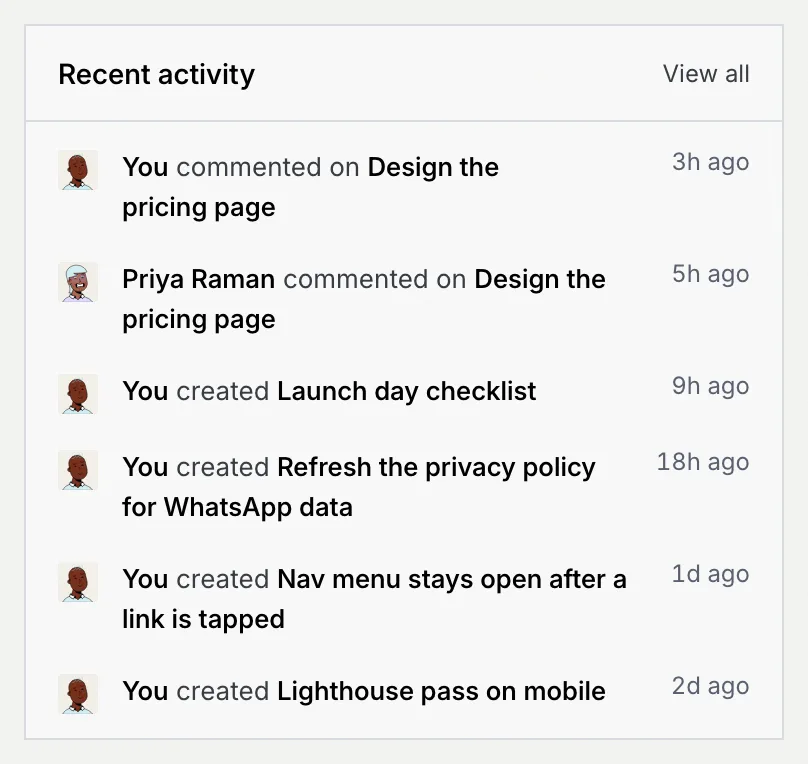
Recent activity shows the six latest changes on the board. Click View all to open the Activity tab.
The About panel shows the board's description ("No description yet." if it has none); its project manager can click Edit to change it in Board settings. The Members panel lists who's on the board with their board role and when they were last active; Manage opens Members and roles.
Share files on the board
The Files tab gathers every file on the board: files uploaded to the board itself, files attached to cards, and the photos and videos on posts.
Open the Files tab
On a board, click Files. Each file shows a preview, its name, size, who added it, when, and the key of the card it belongs to.
Upload files
Click Upload, click browse in the drop zone, or drop files anywhere on the tab. Each file can be up to 250 MB. A message confirms each upload, for example "Uploaded homepage-hero-b.png".
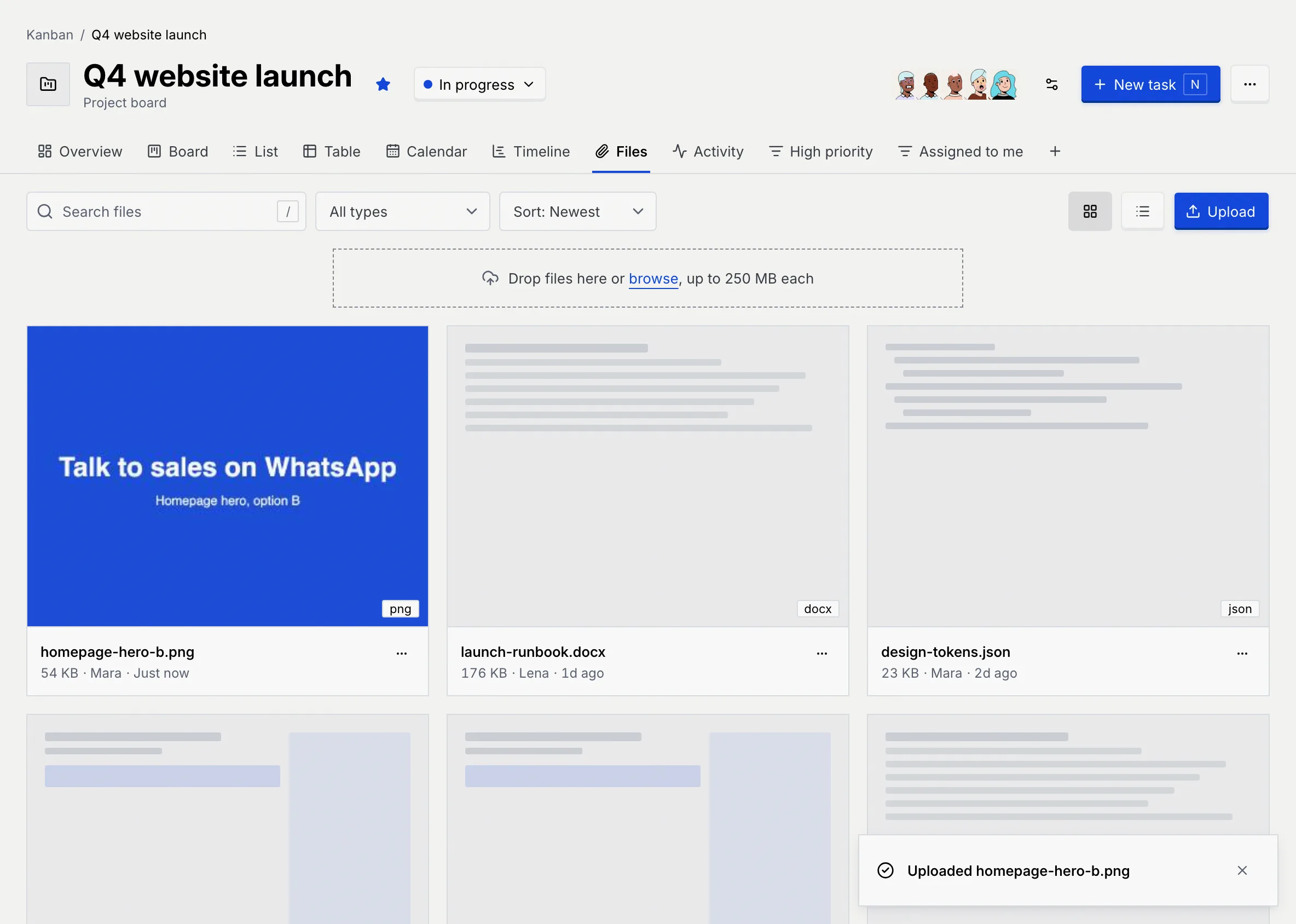
Files uploaded here belong to the board. To attach a file to a card instead, use the card's Files section (Add and work on cards).
Find a file
Type in Search files (or press /), pick a type in All types, or change the order with Sort: Newest, Sort: Name, Sort: Type or Sort: Size. Switch between the grid and a list with the two buttons next to Upload.
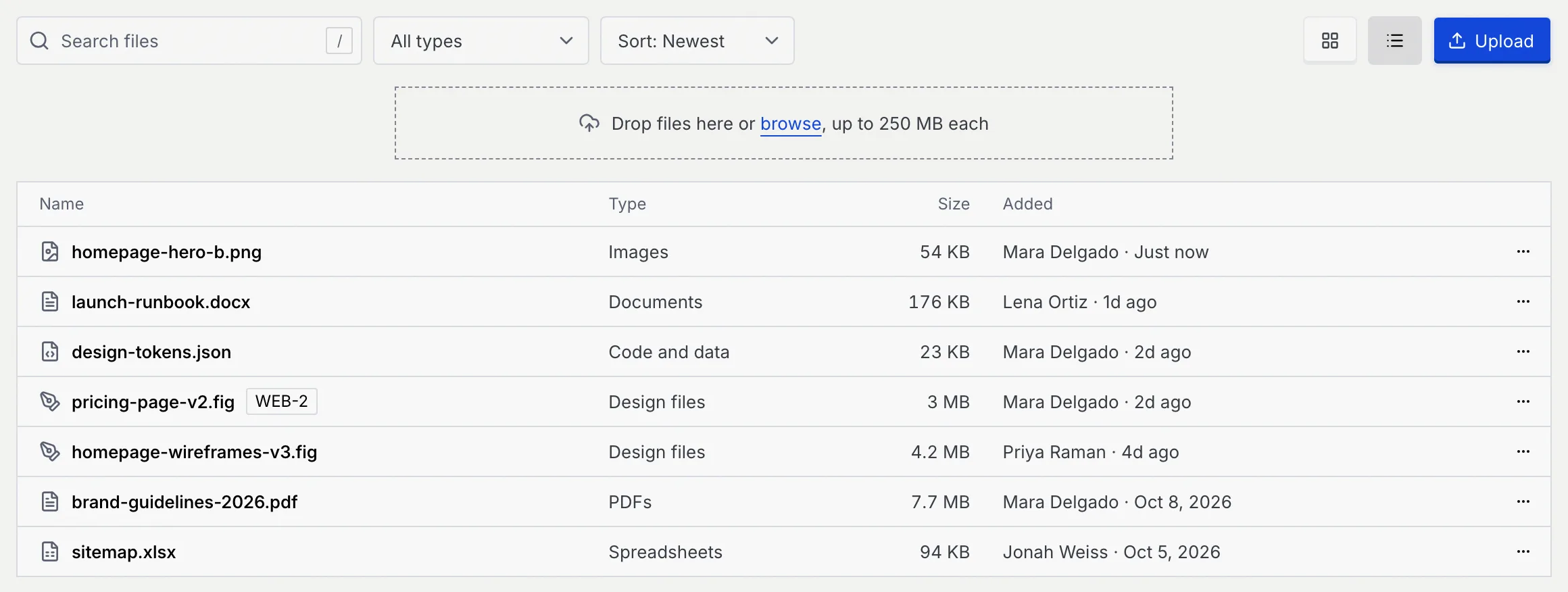
| Type | Files |
|---|---|
| Images | Photos and pictures. |
| Videos | Video files. |
| PDFs | PDF documents. |
| Documents | doc, docx, txt, md, rtf, pages, odt |
| Spreadsheets | xls, xlsx, csv, numbers, ods |
| Design files | fig, sketch, psd, ai, xd, svg |
| Code and data | json, js, ts, tsx, html, css, yml, yaml, xml, sql |
| Archives | zip, rar, 7z, tar, gz |
| Other | Anything else. |
Download, open or delete a file
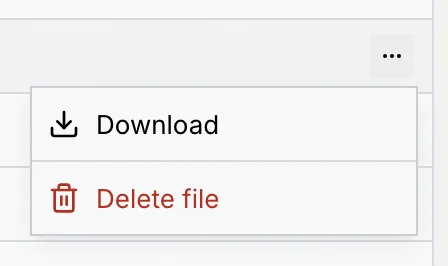
Open a file's ⋯ menu. Download saves it, Delete file removes it after you confirm, and, for a file attached to a card, Open followed by the card's key (such as Open WEB-2) opens that card.
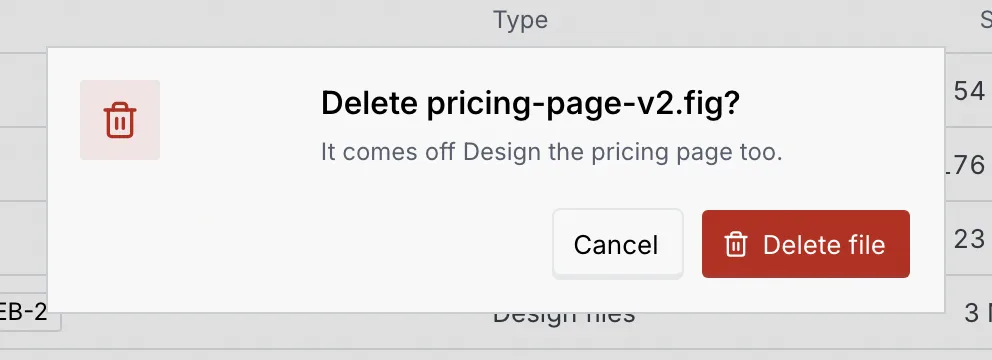
Deleting a file removes it for everyone
A file deleted from the Files tab is gone from the board for everyone, and a card's file comes off that card too. There's no undo.
Follow the activity
Click the Activity tab to see what happened on the board: new cards, moves, edits, assignments, checklist items, files, comments, scheduling and publishing. Entries are grouped into Today, This week and Earlier, newest first, and each card's title links to it. Your own changes show as "You".
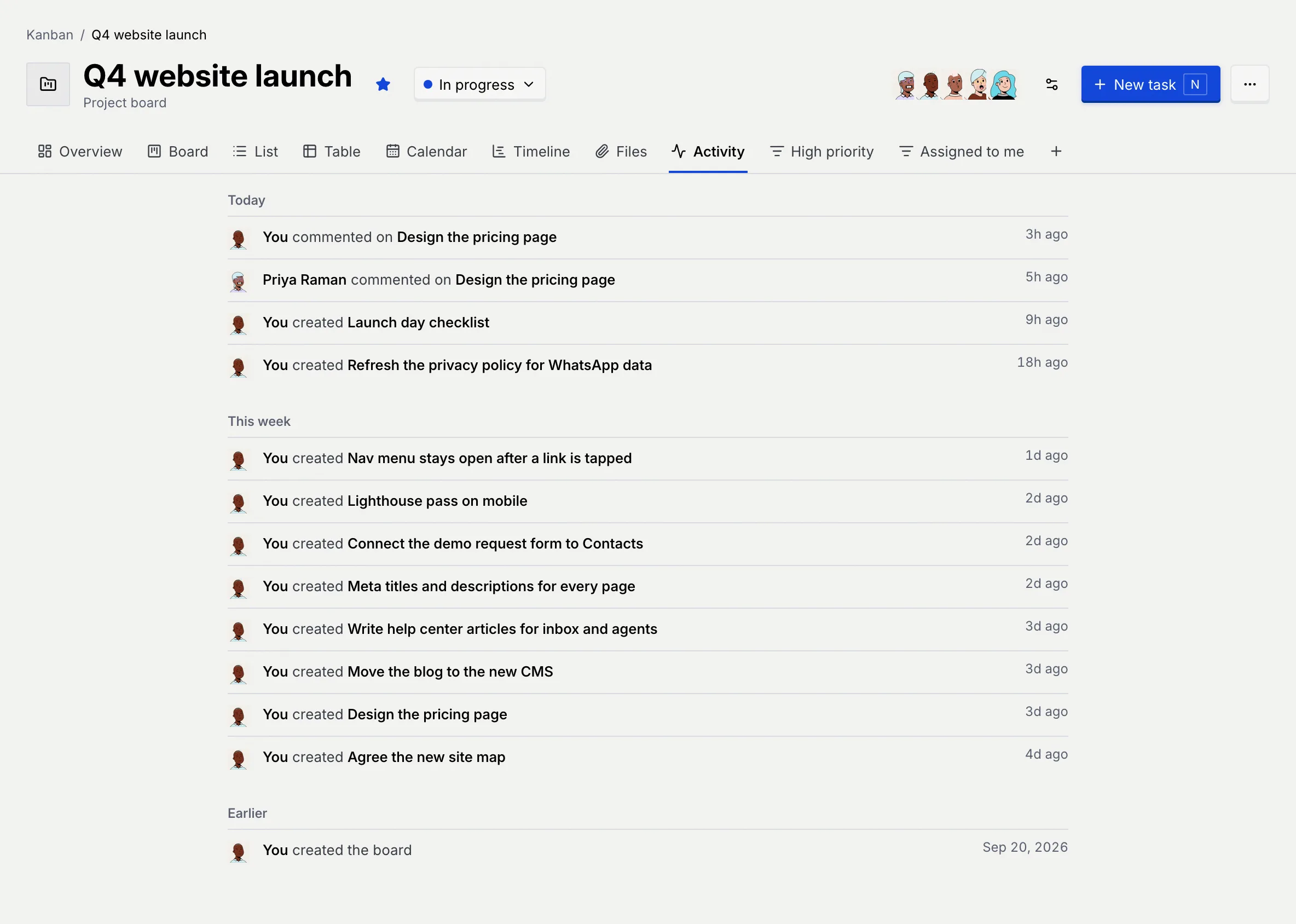
The tab shows the latest 200 entries. A card's full history is on its own page, under Activity (Add and work on cards). When nothing has happened yet, it says "No activity yet".
Troubleshooting
Files over 250 MB aren't added; the message names the file. Split or compress it, or share a link to it in a comment instead.
Your role can't edit cards, or you're a guest on this board. Ask the project manager for another board role, or an owner or admin to change your workspace role.
Next steps
Views, filters and saved views
See a board's cards as a board, list, table, calendar or timeline, filter, sort and group them, and save the views you use.
Board members, roles and access
Choose who is on a board, give each person a board role, decide which cards members see, and learn what each role can do.