Views, filters and saved views
See a board's cards as a board, list, table, calendar or timeline, filter, sort and group them, and save the views you use.
Every board can show its cards in five ways: as columns, a grouped list, a sortable table, a month calendar or a timeline. Search, filters, sorting and grouping narrow any of them, and a saved view keeps a combination as its own tab for everyone on the board.
- Who can use it: Everyone who can see the board can switch views, search, filter, sort and group. Saving, renaming, updating and deleting saved views needs the Save board views permission (Owners, Admins and Members by default), on any board you can see. Dragging cards on the calendar or timeline needs the right to edit them (Add and work on cards). See Roles and permissions.
- Before you start: Open a board from the Kanban page.
Switch views
The tabs under the board's name switch between its views. Content calendars also have Planner and Analytics; saved views follow the built-in tabs, and + at the end saves a new one.

| Tab | What it shows |
|---|---|
| Overview | Progress, what's coming up, details, members and milestones (Board overview, files and activity). |
| Board | One column per status (Add and work on cards). |
| List | The cards as rows, grouped by status or another field. |
| Table | The cards as a sortable table with the fields of the board's kind. |
| Calendar | The cards on a month calendar by date. |
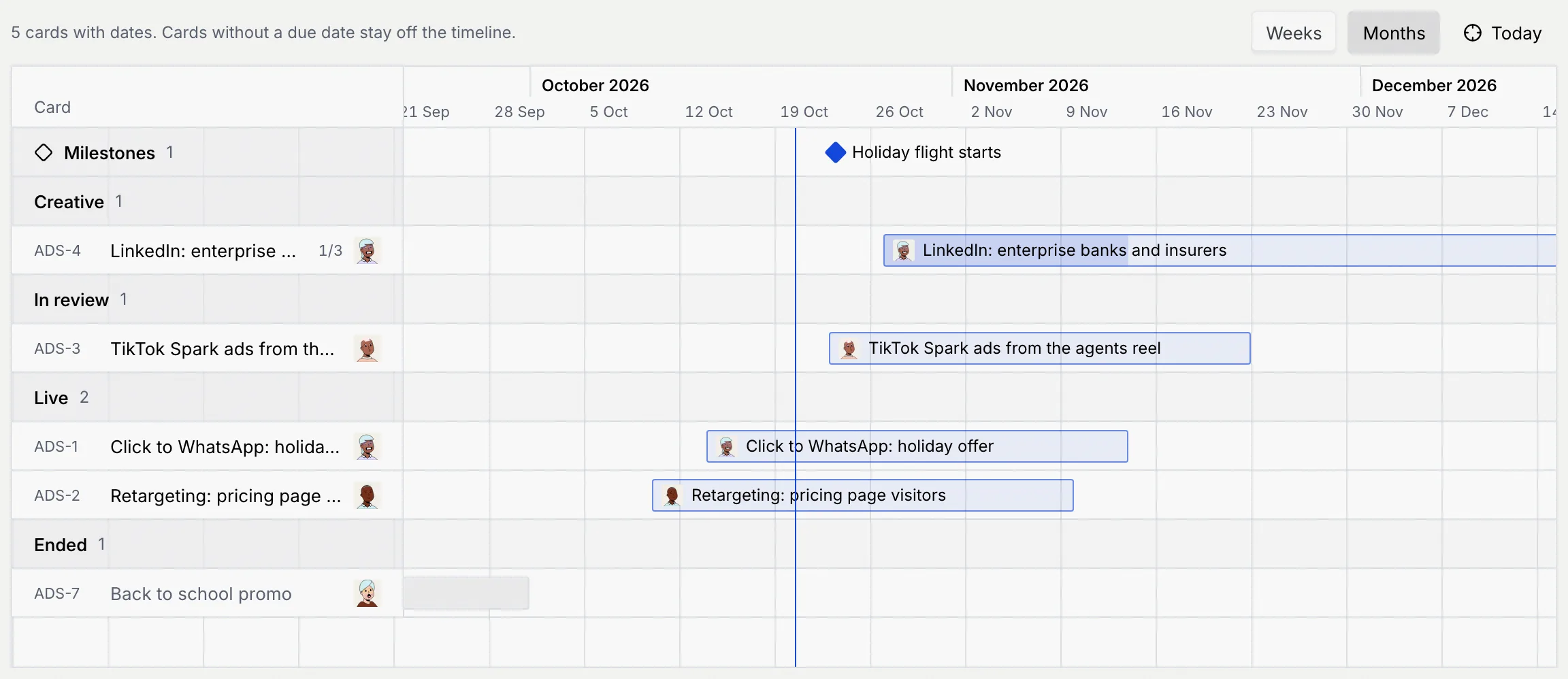
| Timeline | The cards as bars across weeks or months, with milestones. |
| Planner, Analytics | Content calendars only (Content planner and social analytics). |
| Files | Every file on the board (Board overview, files and activity). |
| Activity | Everything that changed on the board (Board overview, files and activity). |
The tab, search, filters, sort and grouping are part of the page's address, so you can bookmark a view or send it to a teammate. Switching between the built-in tabs keeps your search and filters.
Search and filter cards
Search
Type in Search cards above the cards, or press / to jump there. Search matches a card's key, title and description, and the names of contacts linked to it; on content calendars also captions and hashtags, and on lead pipelines the next step. While a search or filter is on, the count on the right says how many cards match, for example "4 of 10".
Add a filter
Click Filter, point to a field and tick one or more values. The cards narrow as you tick.
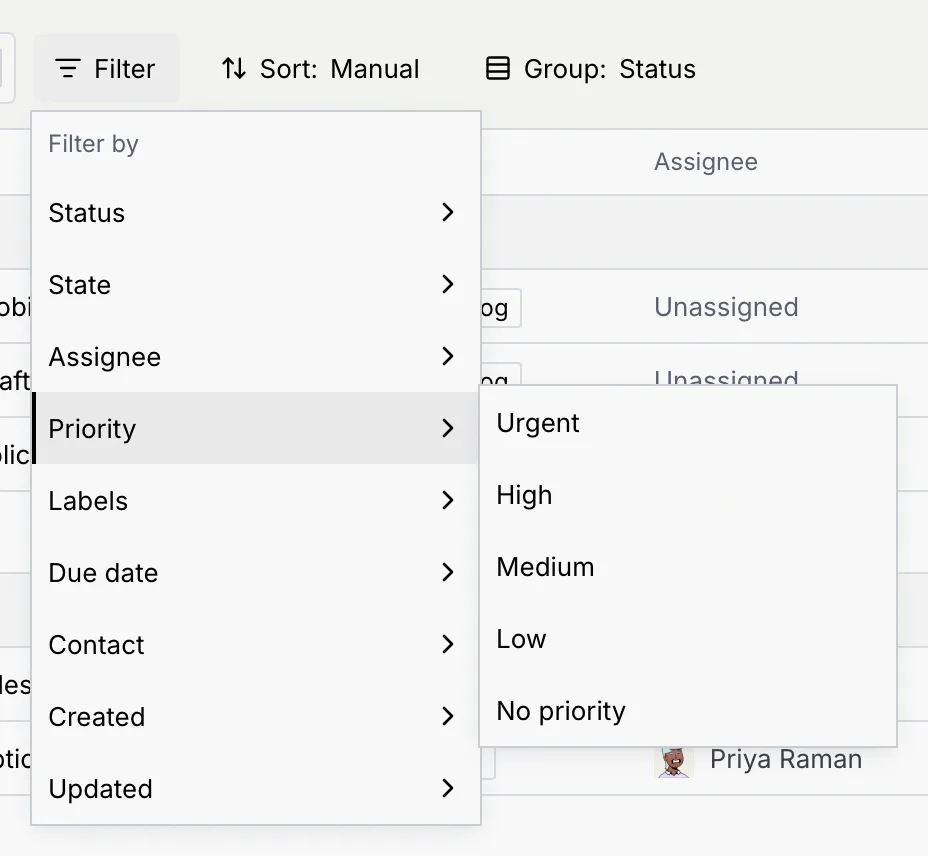
| Field | Values |
|---|---|
| Status | The board's statuses. |
| State | Open, Done, Lost. Scheduled posts count as open. |
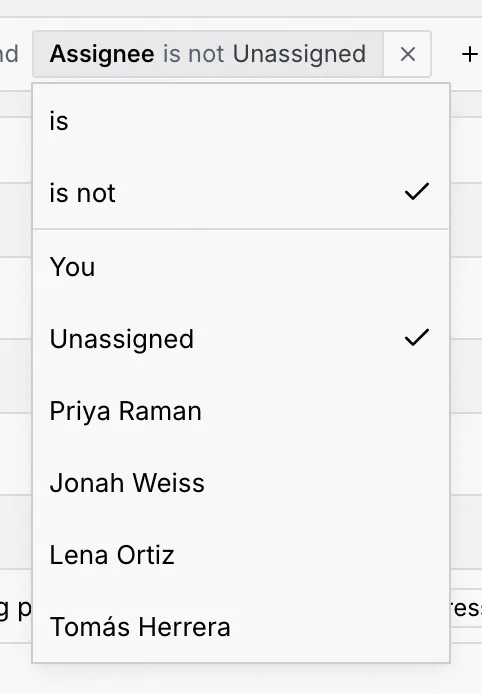
| Assignee | You, Unassigned, and each person on the board. |
| Priority | Urgent, High, Medium, Low, No priority. |
| Labels | The board's labels. |
| Due date | Overdue, Today, Next 7 days, Later, Past, finished, No due date. |
| Contact | Contacts linked to cards on this board. |
| Network, Post status | Content calendars only: the seven networks, and Draft, Planned, Scheduled, Missed its time, Published. |
| Source | Lead pipelines only: where the lead came from. |
| Platform | Ad boards only: Meta, TikTok, Google, LinkedIn. |
| Created, Updated | Last 24 hours, Last 7 days, Last 30 days. |
Adjust the chips
Each filter shows as a chip under the toolbar. Values ticked in one chip widen the match (any of them); separate chips narrow it (all of them), which is why they're joined by "and".

Click a chip to switch between is and is not, or to change its values. Click its × to remove it, Add to filter on another field, or Clear all to remove every filter.
When nothing matches, the view says, for example, No tasks match. Click Clear search and filters to see every card again.
Sort and group
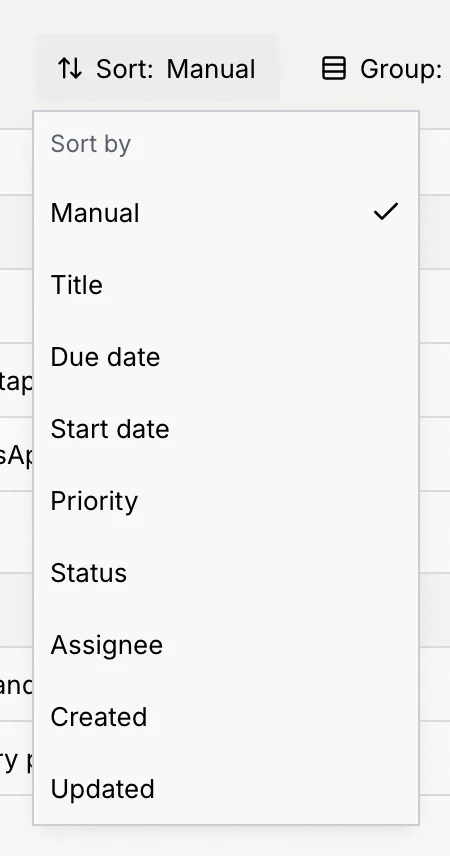
On the List, Table and Timeline tabs, click Sort: to order the cards. Manual (the default) follows the order on the board; the others are Title, Due date, Start date, Priority, Status, Assignee, Created and Updated, plus Publish time on content calendars, Deal value and Chance to close on lead pipelines, and Spend and Conversions on ad boards. Pick Ascending or Descending under Order; cards without a value go last.
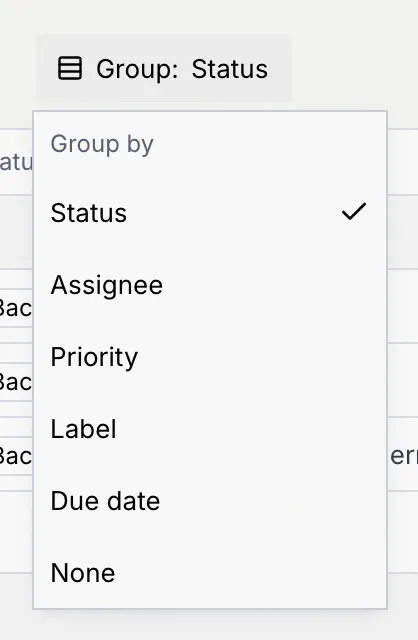
On the List and Timeline tabs, click Group: to group the cards by Status (the default), Assignee, Priority, Label, Due date, or None for one group of all cards. Content calendars can also group by Post status and Network.
List
The List tab shows each card as a row with its key and title, Status, Assignee, Priority, Due date and Labels. Finished cards are struck through, and overdue dates are red. Grouped by assignee, your cards come first and a card with several assignees shows in each of their groups.
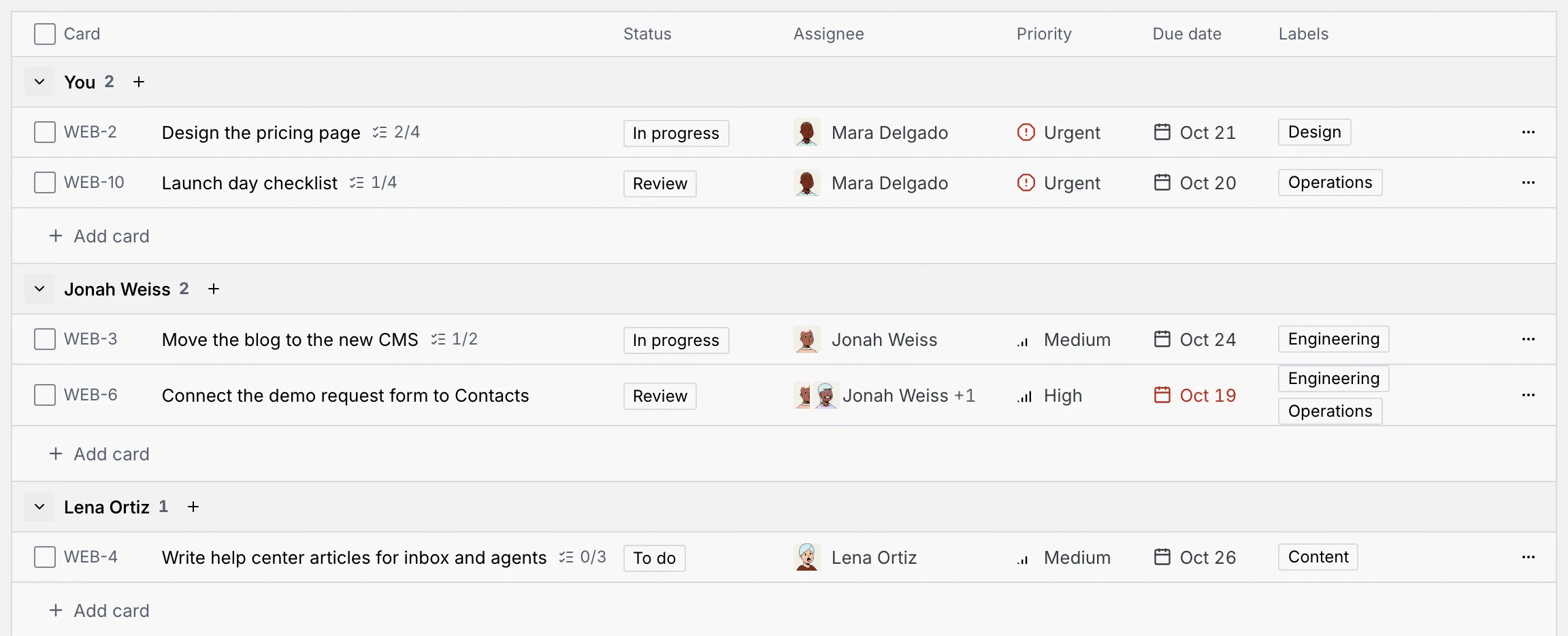
- Click the arrow before a group's name to fold or unfold it.
- Click Add card under a group (or the + beside its name) to add a card that takes that group's status, priority, assignee or label.
- Tick rows to change several cards at once (Change several cards at once).
Table
The Table tab lists every card with more of its fields, by board kind. Click a column header to sort by it, and again to reverse.
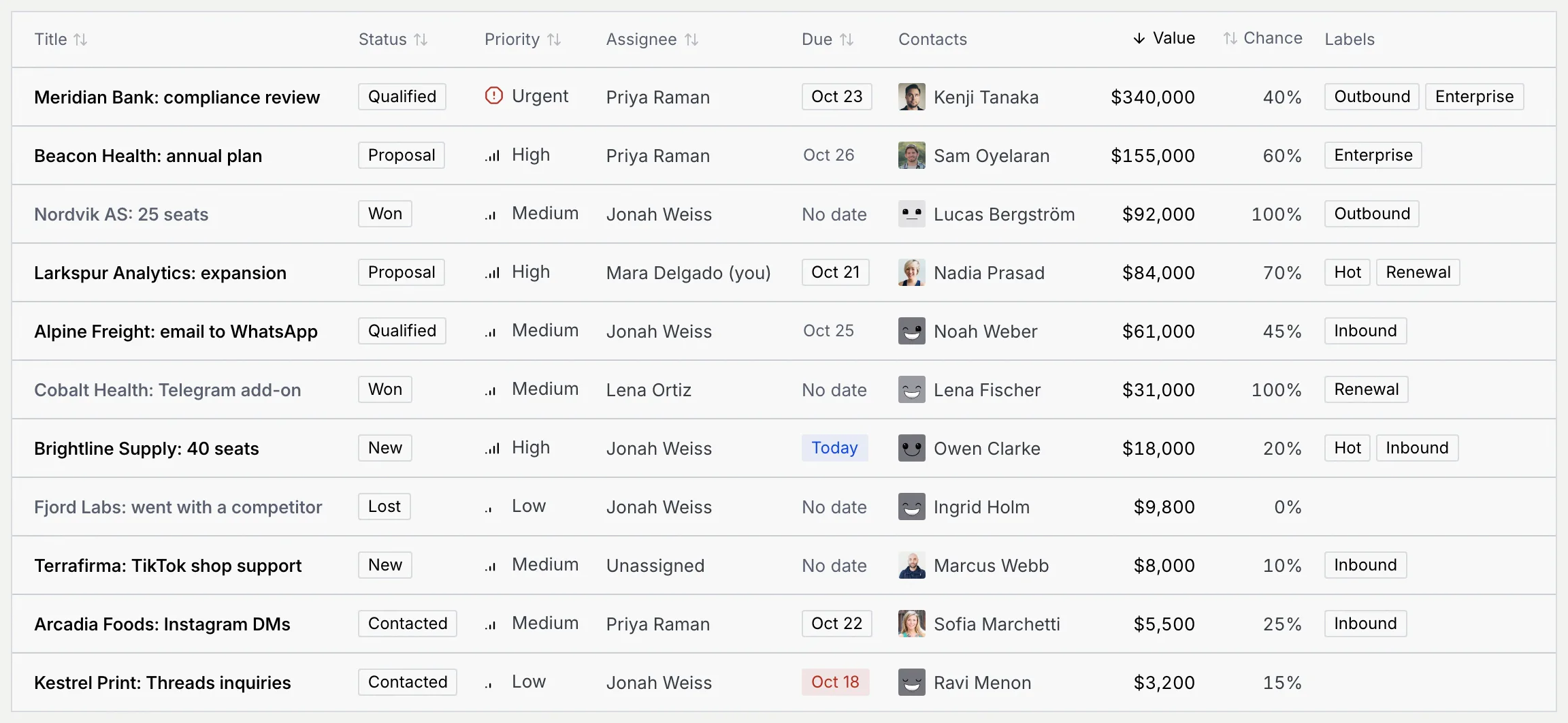
| Board kind | Columns after Title, Status, Priority, Assignee and Due |
|---|---|
| Project board | Checklist, Labels, Contacts |
| Content calendar | Channels, Publishes, Labels, Contacts |
| Lead pipeline | Contacts, Value, Chance, Labels |
| Ad campaigns | Platform, Spend, Conversions, Labels |
Calendar
The Calendar tab shows a month. A post sits on the day it publishes (with its time), and other cards on their due date (a campaign without one sits on its start day). Each day shows up to four cards; click … more to see the rest. Cards without a date wait in No date under the month.
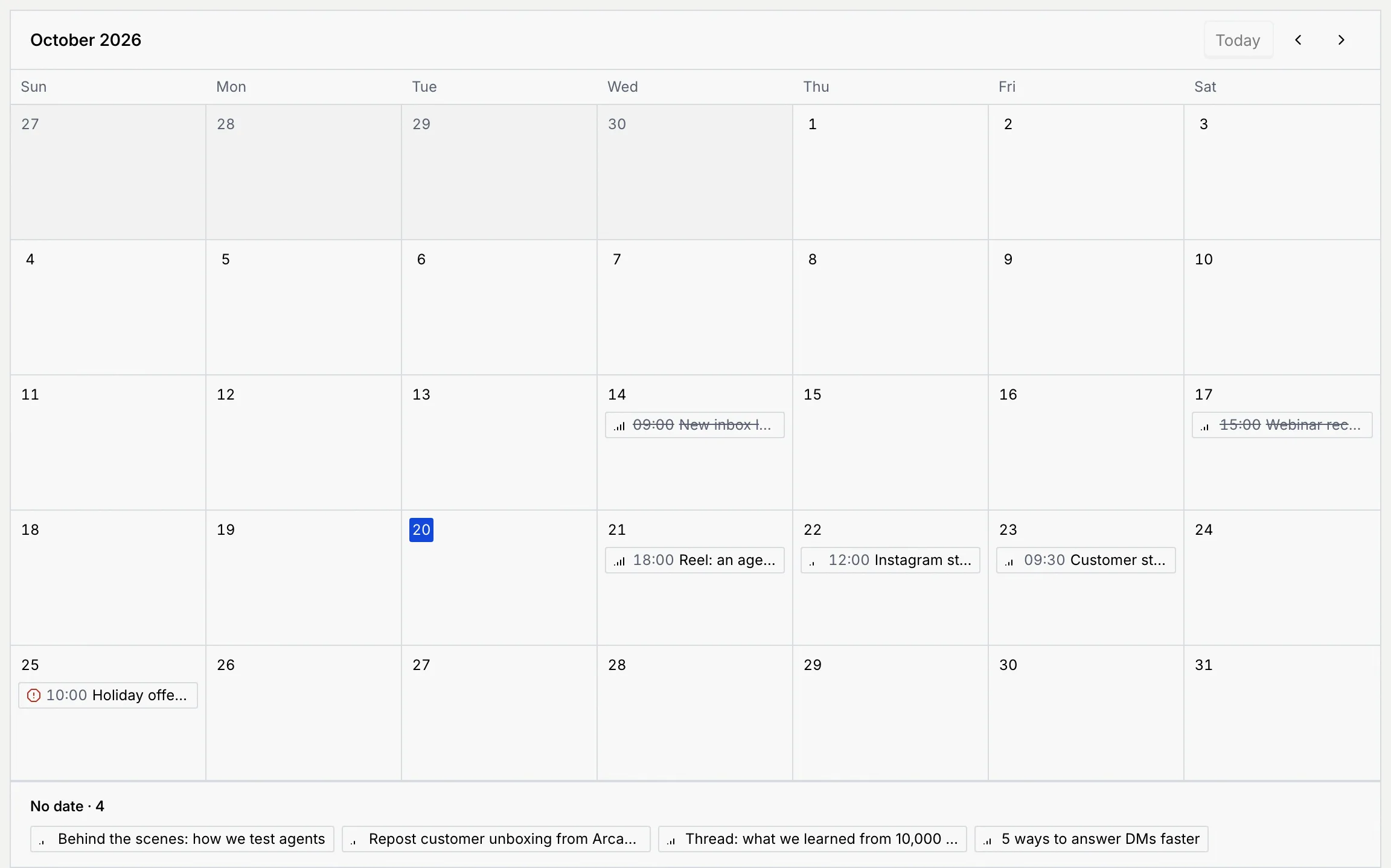
- Use the arrows to go to the previous or next month, and Today to come back.
- Drag a card to another day to make that day its due date. A post moves to the new day and keeps its time of day; it can't move to a time that has passed, and published posts don't move. Moving a scheduled post needs Schedule and publish posts.
- Click a card to open it.
On a phone, the calendar lists the days of the month that have cards instead ("Nothing is scheduled this month." when there are none).
Timeline
The Timeline tab draws each dated card as a bar from its start to its due date (a campaign's bar is its flight, a post's is its publish day). The blue line is today. Cards without a due date stay off the timeline; the line above it says how many are on.
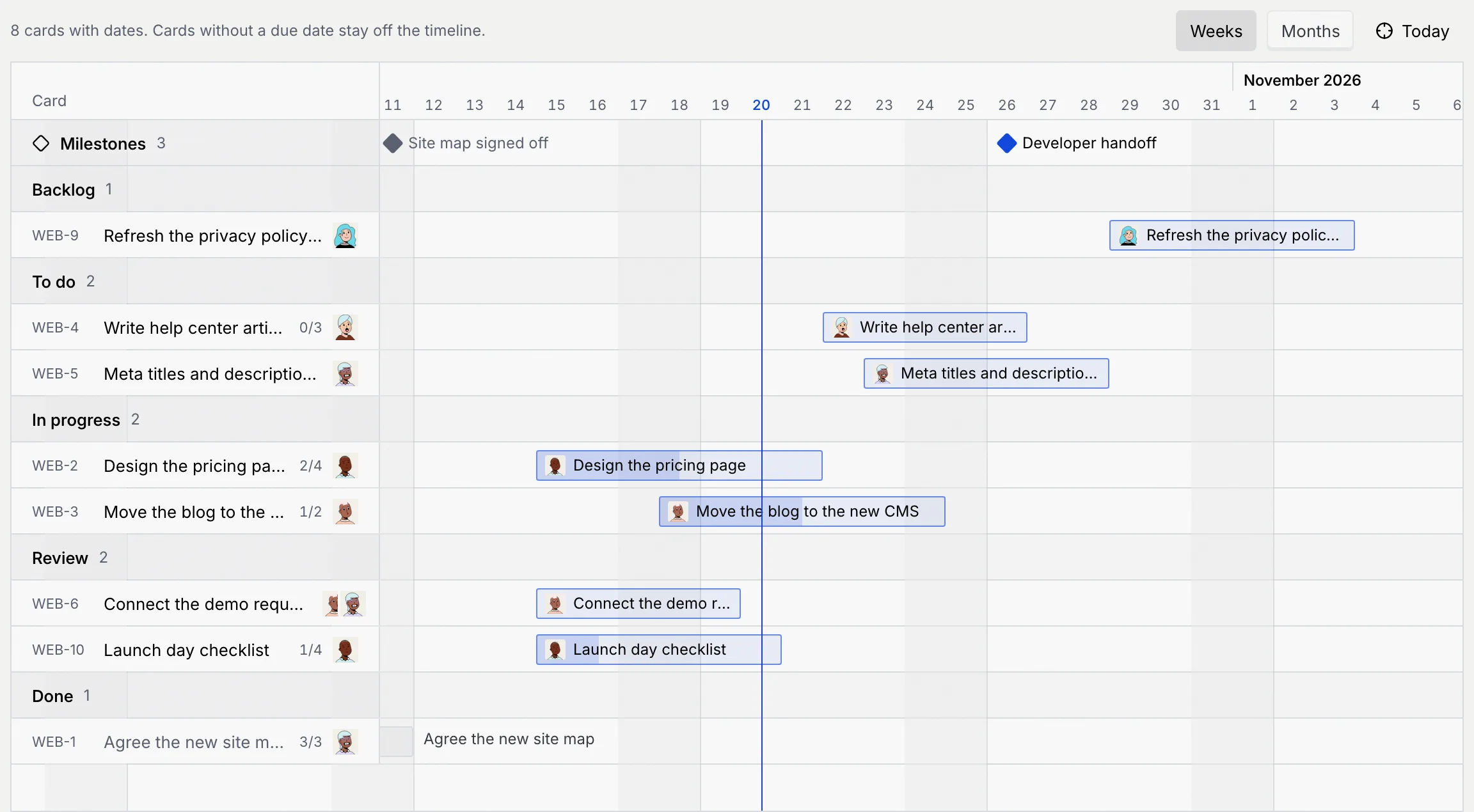
- Switch between Weeks and Months, and click Today to scroll back to today.
- The Milestones row shows the board's milestones as diamonds; past ones are grey (Set the dates, lead and milestones).
- A bar fills as the card's checklist gets done.
- Drag a bar to move the card's dates, or drag its right edge to change the end. With a bar focused, ← and → move it a day, and Shift ← / Shift → change its end.
Save a view
Set up the view
Search, filter, sort and group the cards the way you want them.
Click + and name it
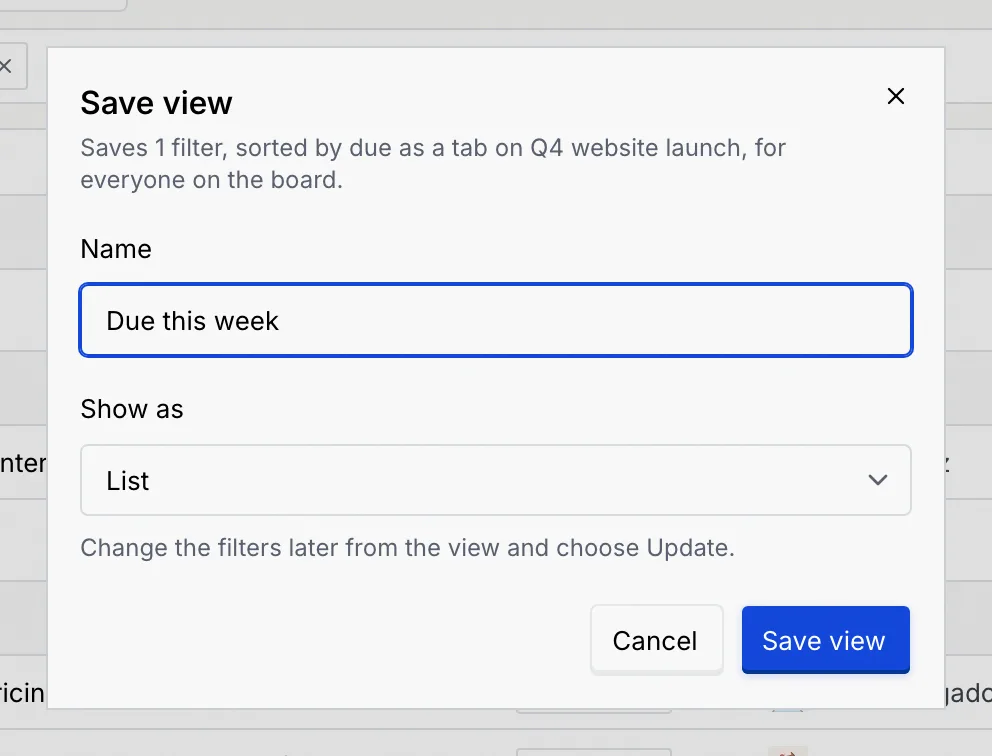
Click + at the end of the tabs. The dialog sums up what it saves, for example "1 filter, sorted by due". Type a Name (up to 30 characters, unique on the board) and choose how it opens under Show as: Board, List, Table, Calendar or Timeline.
Save it
Click Save view. The view opens as a new tab, and everyone on the board sees it.
Update, rename or delete a saved view
Open the saved view's tab. If you change its filters, sort or grouping, the view's ⋯ menu (next to its name) offers Update with current filters to save the change. It also has Rename and Delete view.
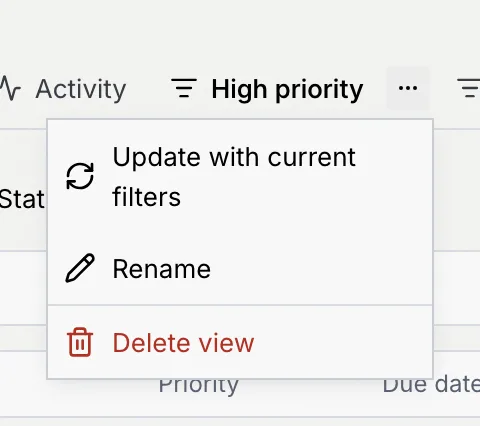
Deleting a view asks you to confirm; the cards stay, only the saved filters go. Click Undo in the message to bring the view back. Renaming changes the name for everyone on the board.
Leaving a saved view
Switching from a saved view to a built-in tab drops the view's filters, so the tab shows every card again.
Troubleshooting
The calendar needs a due date (or, for posts, a publish time; for campaigns, a start day), and the timeline needs a due date. Look under No date on the calendar, or add dates on the card.
Published posts don't move, a post can't move to a time that has passed, and moving a scheduled post needs Schedule and publish posts. A message such as Not rescheduled or Not moved says why.
Your role doesn't include Save board views. Ask an owner or admin (Roles and permissions).