Write, preview and schedule social posts
Write one post for several networks, adjust it per network, check it and preview it in each network's layout. Scheduling and publishing are coming soon.
On a content calendar, every card is a social post. You write it once for all its networks, give any network its own caption or format, add photos and videos, and preview it the way each network will show it.
Coming soon
Publishing is coming soon: Mokanata can't post to Instagram, TikTok, Facebook, Threads, X, LinkedIn or YouTube yet. You can write, check, preview and plan posts today; Schedule, Publish now and a network's own time say social publishing isn't available yet.
- Who can use it: Adding posts needs Add cards, and writing them needs Edit and move cards; scheduling, publishing and unscheduling need Schedule and publish posts. All three are on for Owners, Admins and Members by default. On the board, the project manager can work on every post, and other members on the posts they created or are assigned to. People who can't publish see Schedule and Publish now greyed out, and those who can't edit see the post read-only. See Board members, roles and access.
- Before you start: You need a content calendar (Create and set up a board) with a status marked Scheduled to go out; new content calendars come with one.
Create a post
Add a post
On a content calendar, click New post (or press N). An Untitled post is added to the first status and its page opens on the Compose tab. You can also add a post from the board's composer or, on the Planner tab, at a particular hour (Content planner and social analytics).
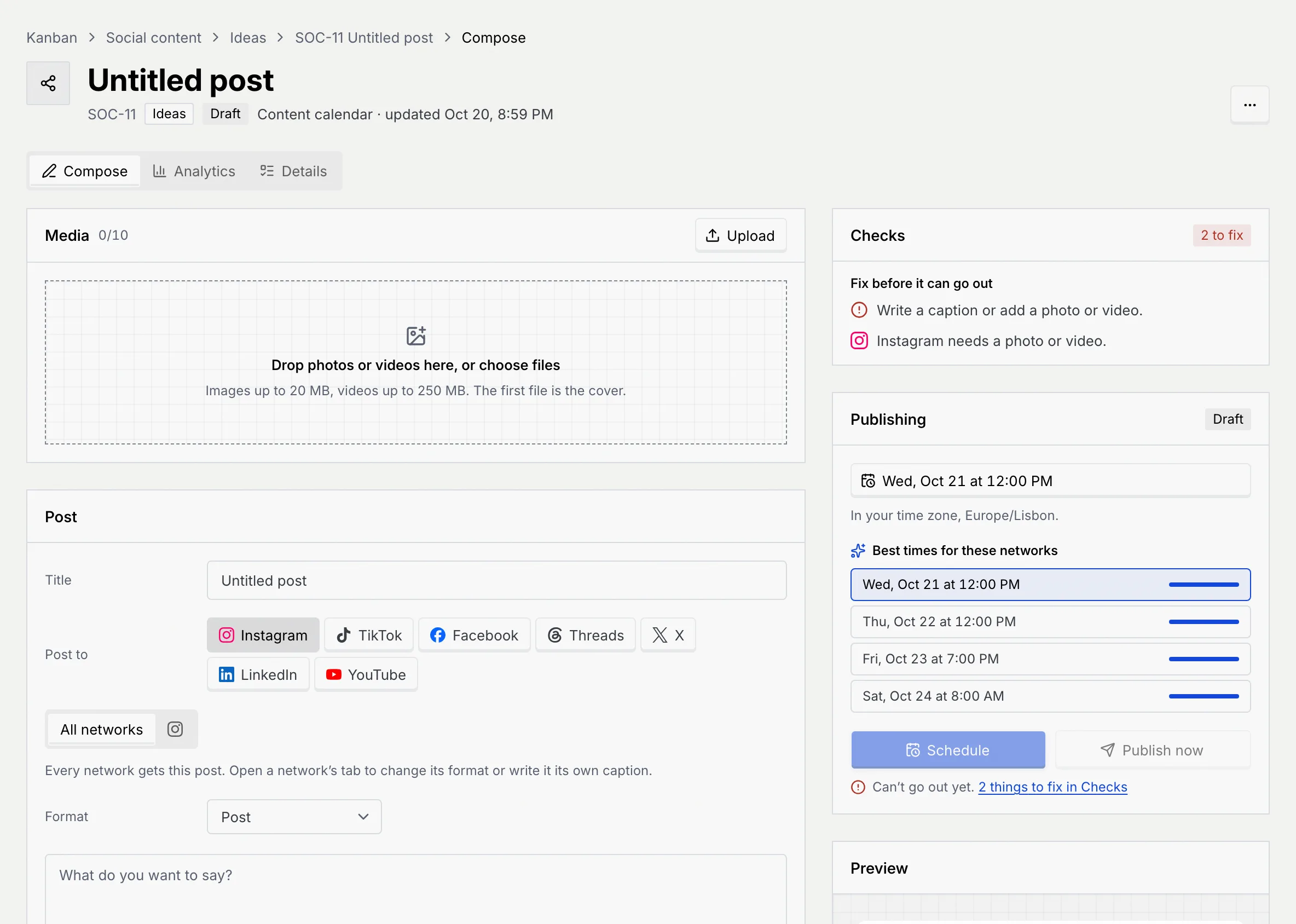
Find your way around the post
The left column has Media and Post (the words). The right column has Checks, Publishing and Preview, and stays in view while you scroll. Under the title, the post shows its key, its status on the board and its post status (such as Planned). The Analytics tab shows results once it's out, and Details holds the description, checklist, files, comments, dates, labels and assignees, as on any card (Add and work on cards).
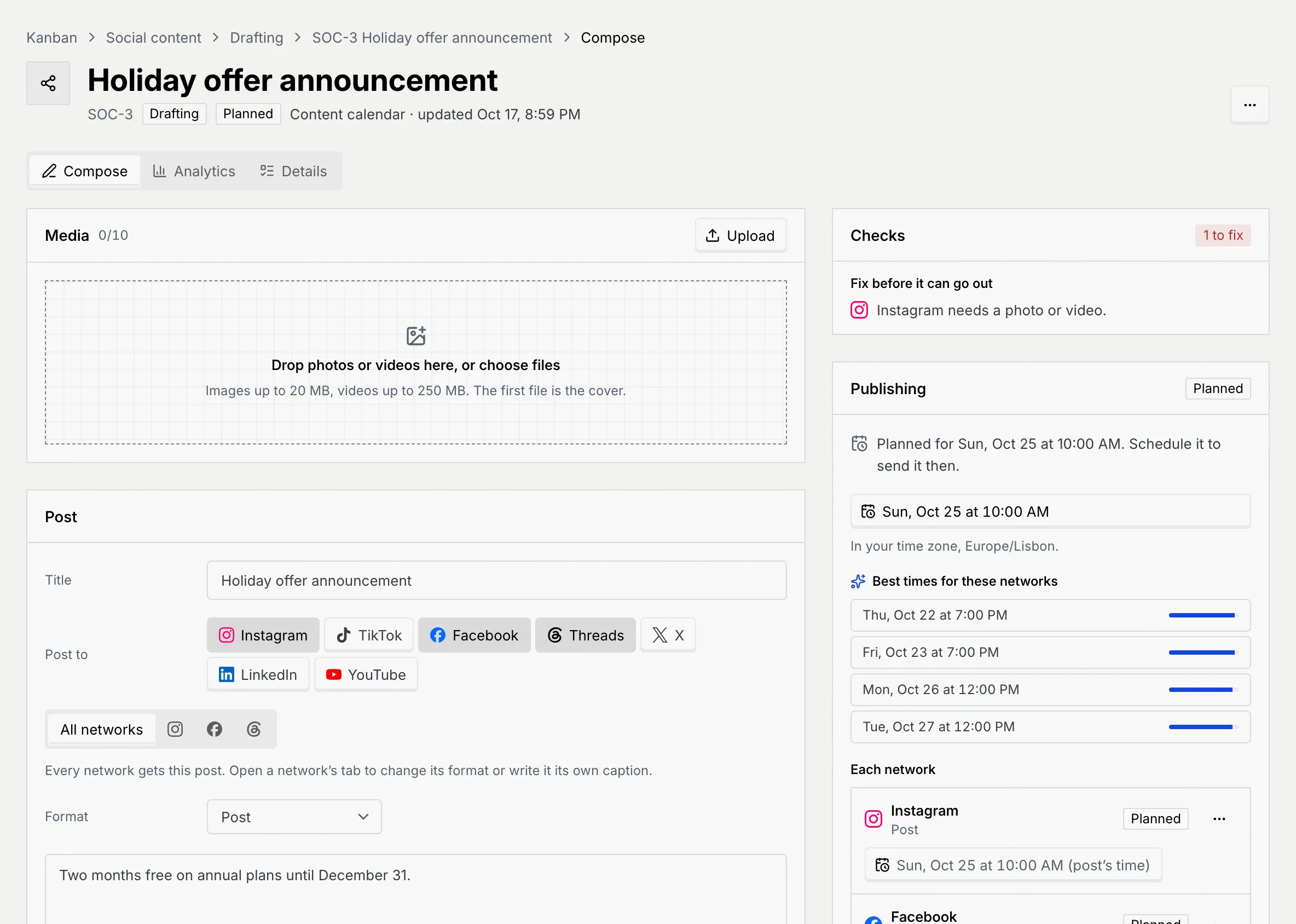
Everything saves as you go.
Add photos and videos
Click Upload in Media, or drop files onto it. A post holds up to 10 files: images up to 20 MB (JPEG, PNG, GIF or WebP) and videos up to 250 MB (MP4 or MOV). The first file is the Cover.
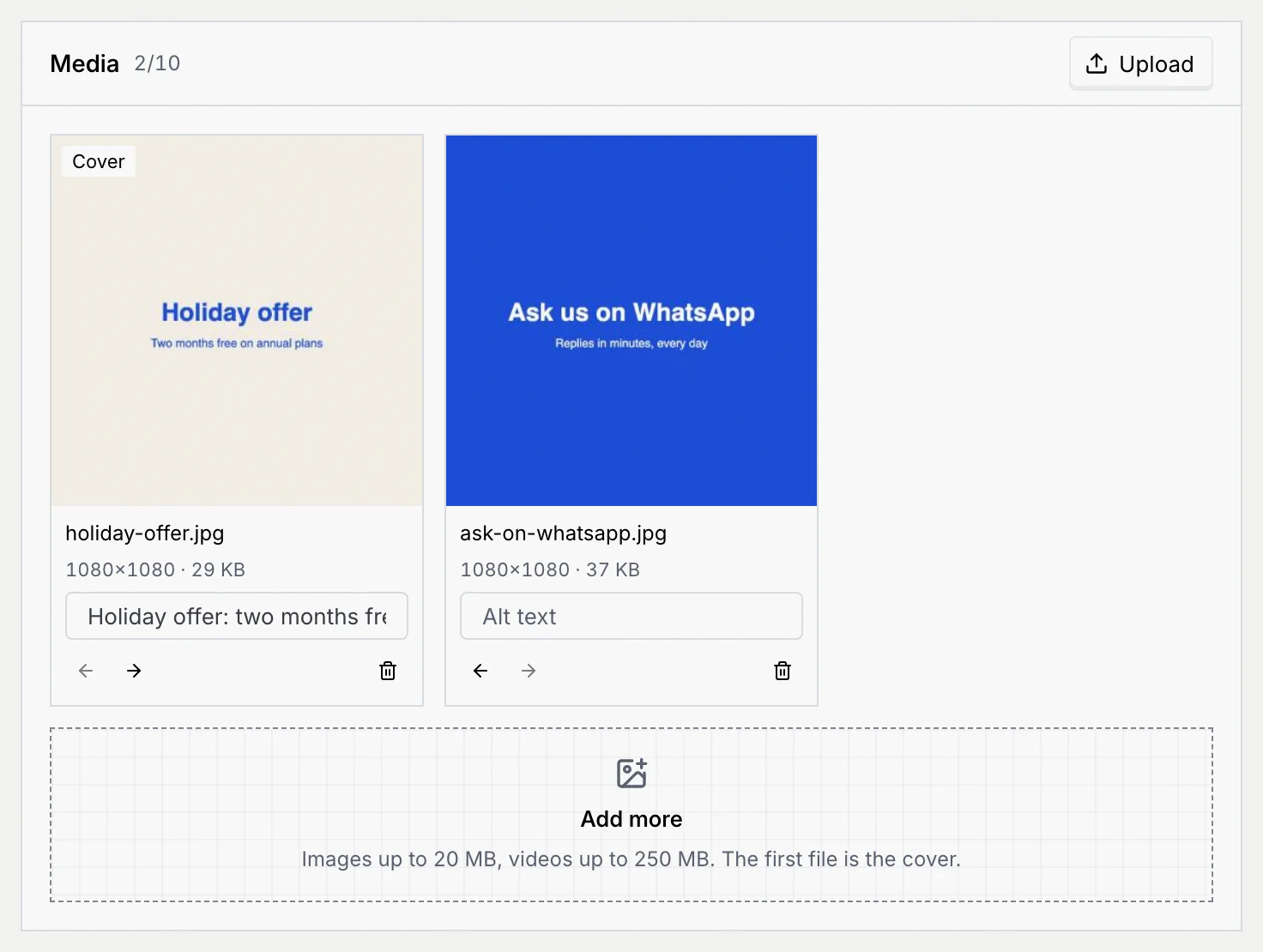
- Type Alt text under each image, so people using screen readers know what it shows.
- Use the arrows to move a file earlier or later; the first one becomes the cover.
- Click the bin to remove a file, and Undo in the message to bring it back.
Each file shows its size (and, for images and videos, its dimensions; for videos, how long they run).
Write the post
Name it and pick the networks
In Post, the Title is what your team calls the post; it isn't published. Under Post to, click the networks it's for: Instagram, TikTok, Facebook, Threads, X, LinkedIn and YouTube (publishing to them is coming soon). Selected networks are shaded.
Write for all networks
On the All networks tab, choose the Format, write the caption in What do you want to say?, and add Hashtags, a First comment (posted right after, for a link or extra hashtags) and a Link. Under the caption, a counter for each network shows how many characters you've used of its limit, and turns red when you're over.
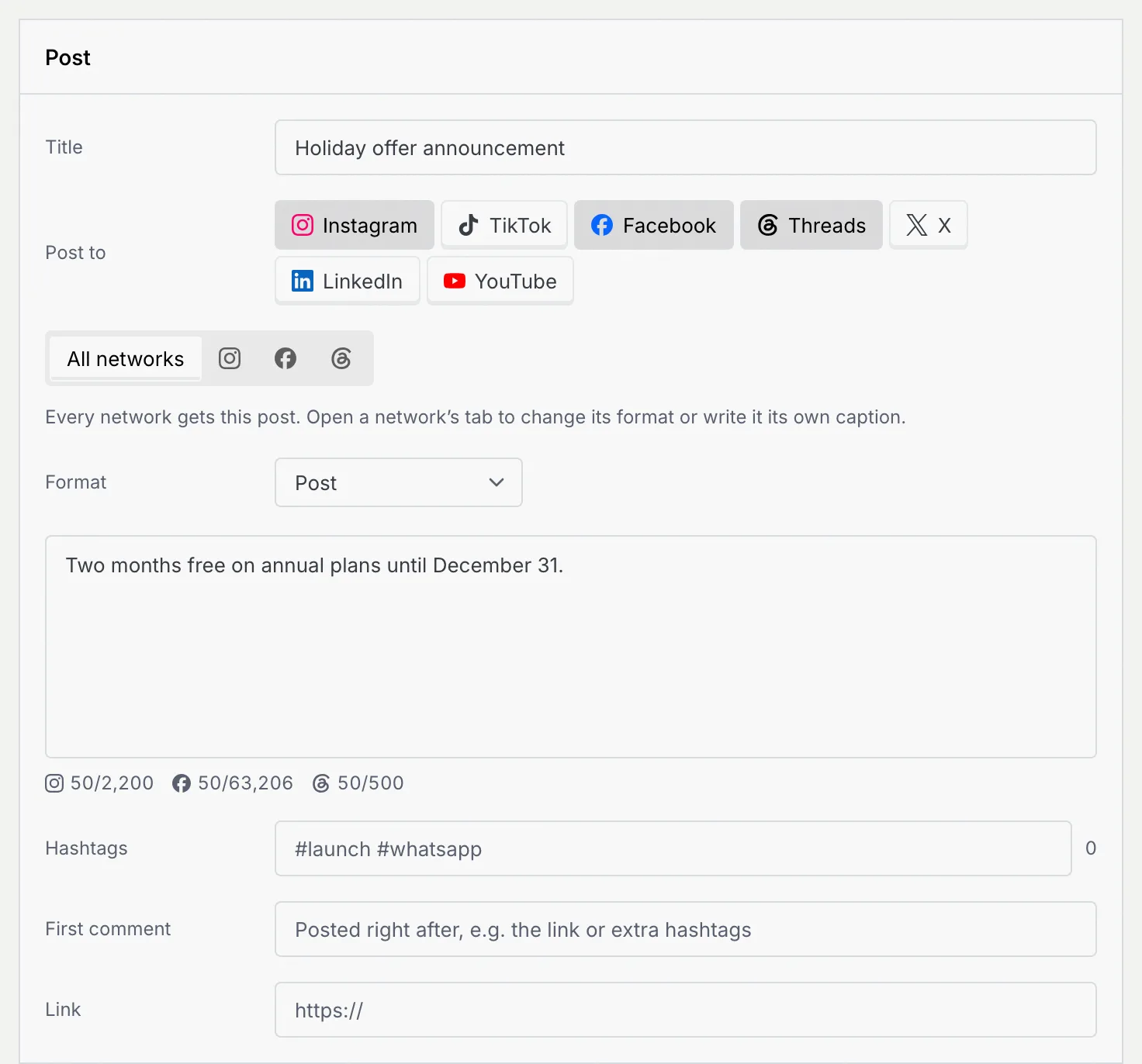
Adjust it for one network
Click a network's icon next to All networks. There you can choose that network's own Format (for example Reel on Instagram, Short on YouTube, Document on LinkedIn) and give it its own Caption, Hashtags and first comment. Each field shows the shared text until you click Write for and the network's name; then it's that network's own, and Use the shared caption again (or hashtags, or comment) goes back. A dot on the network's icon means it has text of its own.
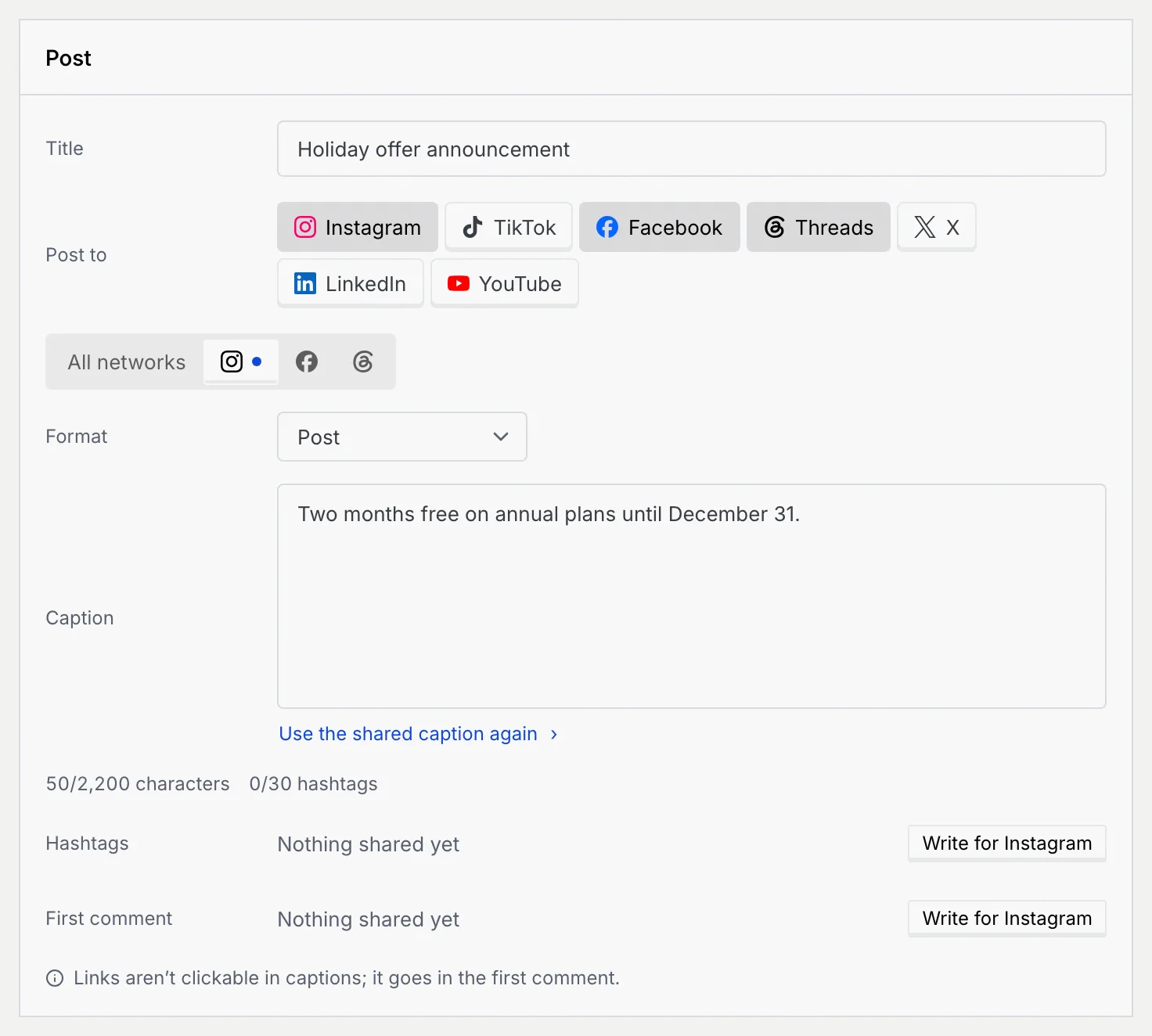
YouTube posts also have a Title (up to 100 characters). On Threads and X the first comment is a Reply, on YouTube a Pinned comment. Each network's tab also says how it handles links.
What each network takes
| Network | Formats | Caption limit | Files | Needs | Hashtags | Link |
|---|---|---|---|---|---|---|
| Post, Carousel, Reel, Story | 2,200 | Up to 10 | A photo or video | Up to 30 | Not clickable in captions; it goes in the first comment. | |
| TikTok | Video, Photo post | 2,200 | 1 | A video | Not clickable; mention it in the caption. | |
| Post, Carousel, Reel, Story, Video | 63,206 | Up to 10 | Shown as a link preview under the post. | |||
| Threads | Post, Thread | 500 | Up to 10 | Added to the end of the post. | ||
| X | Post, Thread | 280 (a link counts as 23) | Up to 4 | Counts as 23 characters at the end of the post. | ||
| Post, Document, Video | 3,000 | Up to 9 | Shown as a link preview under the post. | |||
| YouTube | Video, Short | 5,000 | 1 | A video and a title | Added to the description. |
Fix what Checks lists
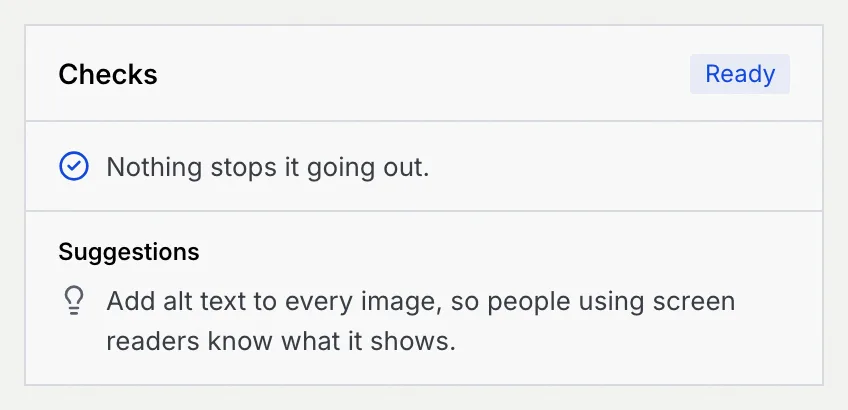
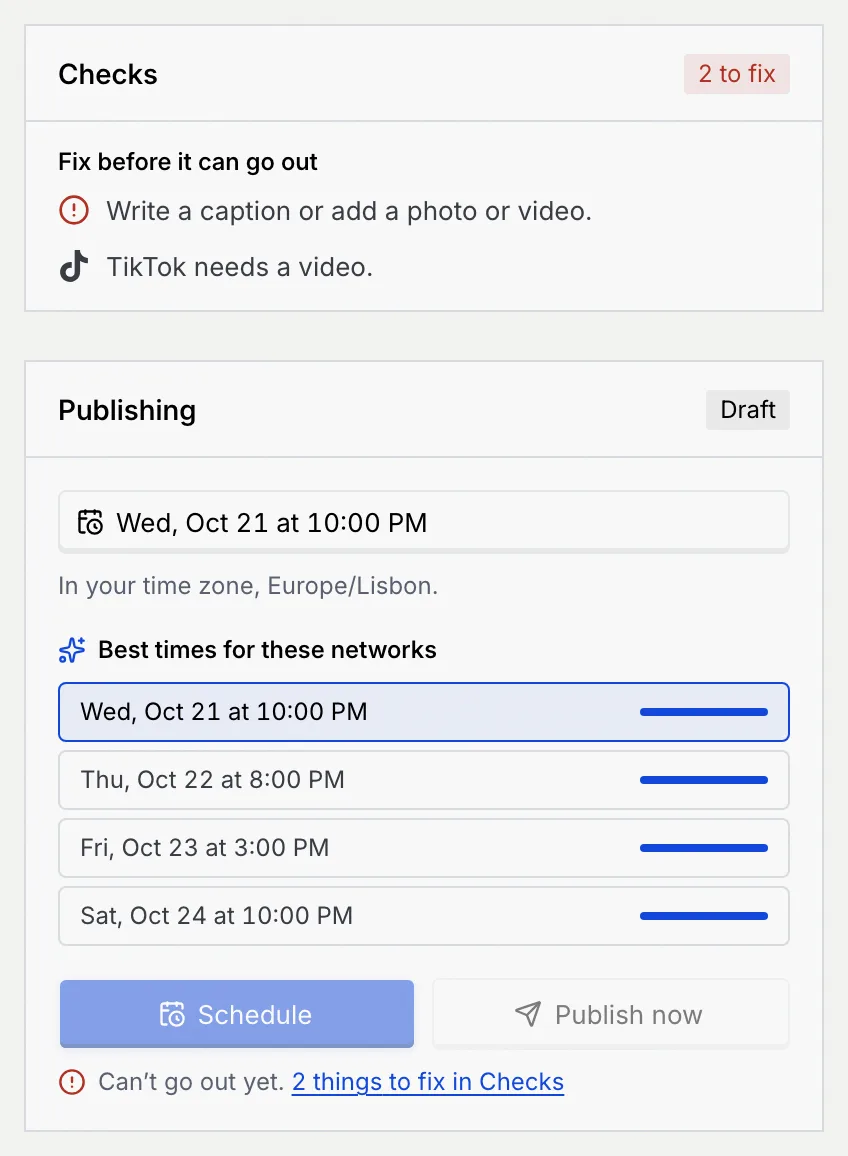
Checks says whether the post can go out on every network it's set for. Ready with "Nothing stops it going out." means it can; otherwise it shows how many things to fix, under Fix before it can go out. Suggestions are worth doing but don't block the post.
| Message | What to do |
|---|---|
| Pick at least one network to post to. | Choose networks under Post to. |
| Write a caption or add a photo or video. | Give the post something to publish. |
| Network has nothing to post: write it a caption or add a photo or video. | That network's own caption is empty. |
| Network takes up to n characters; this is n over. | Shorten the caption, or write that network its own. |
| YouTube needs a title. | Fill in Title on the YouTube tab. |
| Network needs a video / a photo or video. | Add media in Media. |
| Network only takes video. | Replace the images with a video. |
| Network takes up to n files; n are attached. | Remove files, or take that network off. |
| Instagram allows 30 hashtags; there are n. | Use fewer hashtags. |
While anything is listed, Schedule and Publish now are greyed out and the Publishing panel says "Can't go out yet", with a link that takes you to Checks.
Preview the post
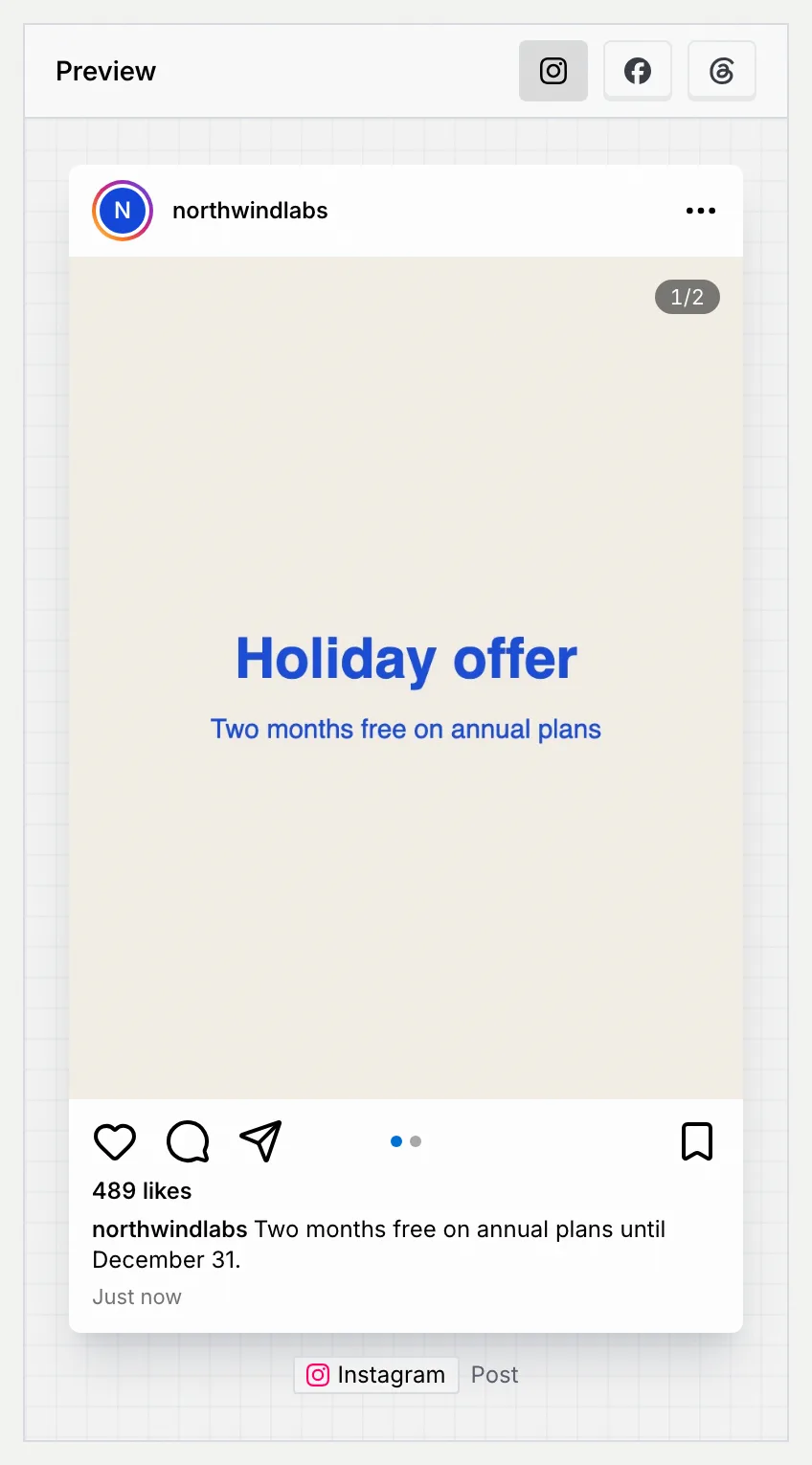
Preview draws the post in the network's own layout and format: an Instagram feed post, Reel or Story, a TikTok video, a Facebook post, a Threads post, an X post, a LinkedIn post or document, a YouTube video or Short. With more than one network, use the icons at the top of Preview to switch; the editor follows, and picking a network's tab in the editor switches the preview.
Schedule a post
Coming soon
Scheduling a post isn't available yet: Schedule says social publishing isn't available yet, and nothing goes out at the time you pick. You can still give a post a planned time on the Planner, Calendar or Timeline. The steps below describe how scheduling will work.
Pick a time
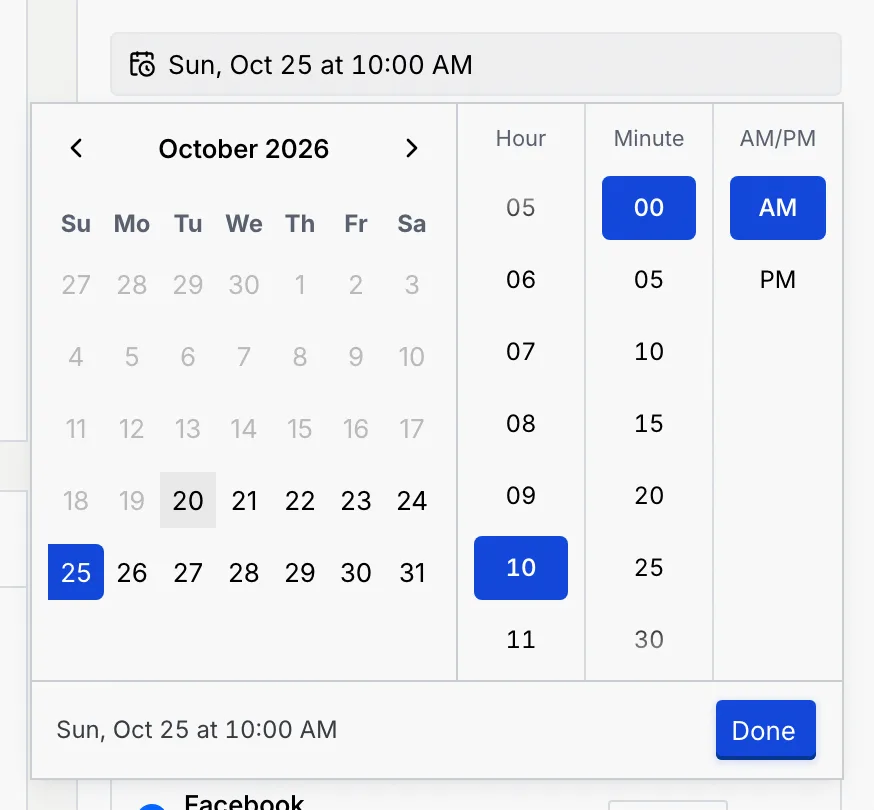
In Publishing, click the time field. It starts on the post's planned time or, for a draft, on the best suggested time. Choose a day on the calendar, then the hour and minute (in 5-minute steps); past days can't be picked. Click Done. Times are in your time zone, which is named under the field. The time is only saved when you schedule the post.
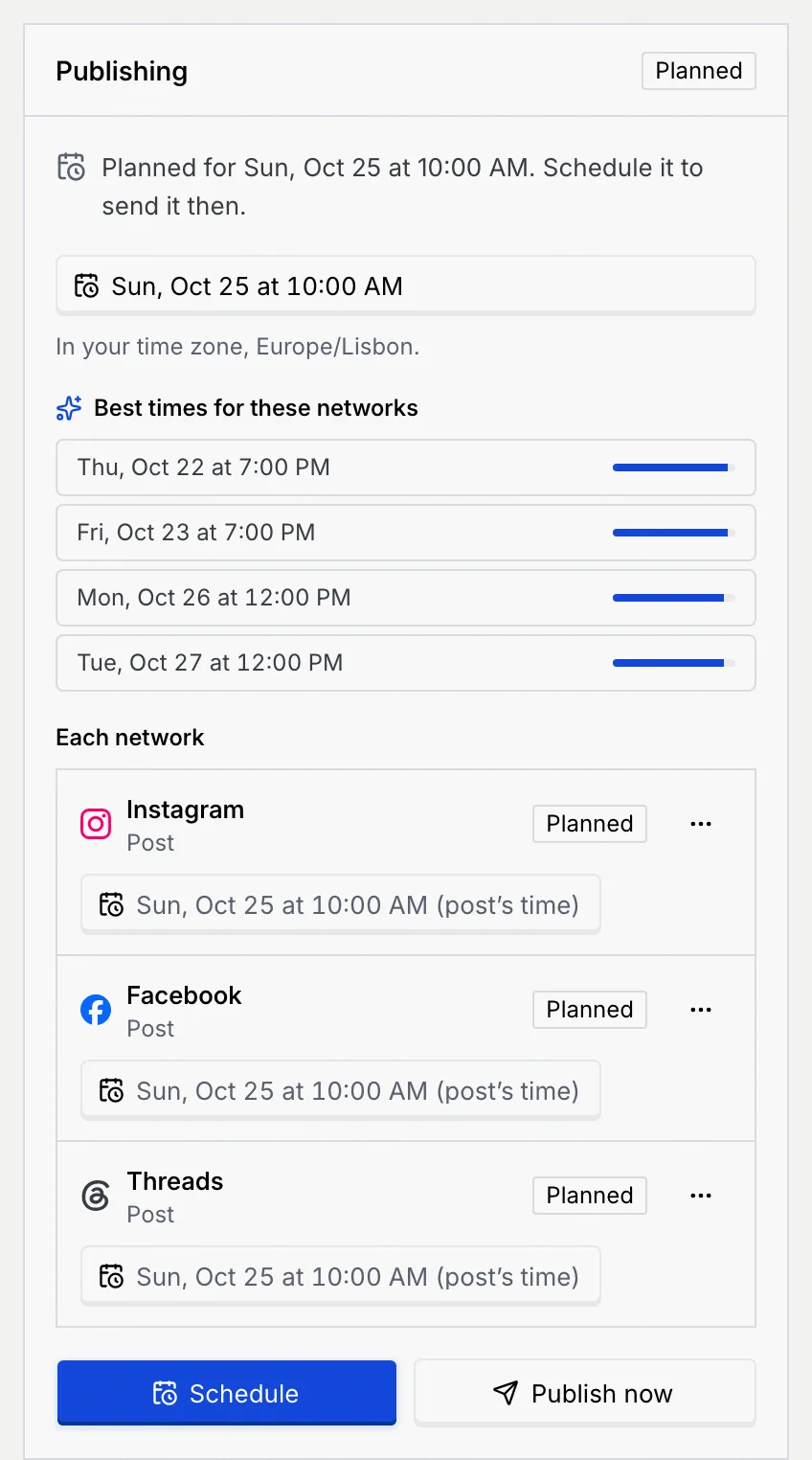
Or click one of the Best times for these networks: four suggested slots in the next seven days, one per day, with a bar showing how well posts tend to do then.
Schedule it
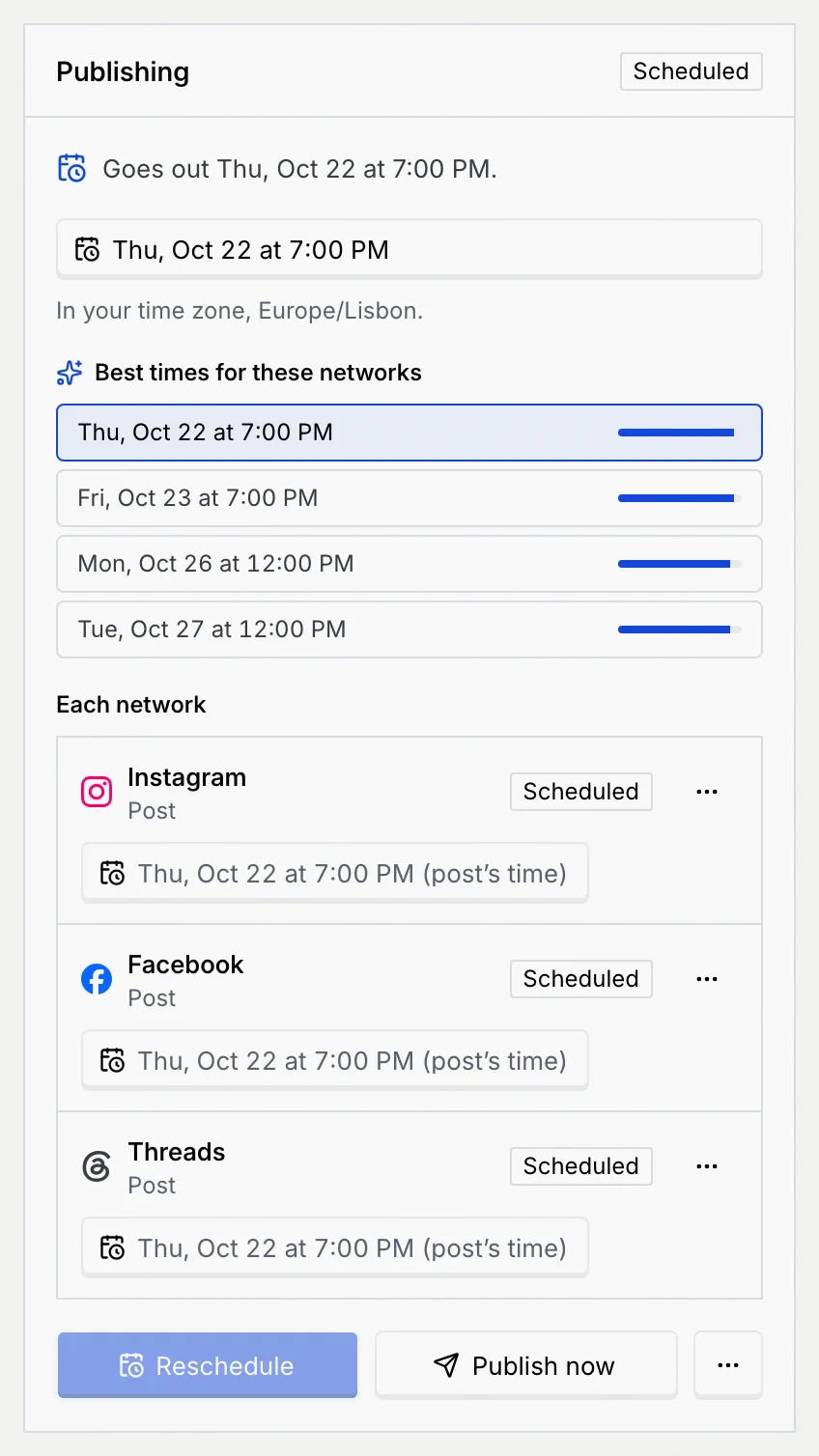
Click Schedule. A message confirms it ("Post scheduled"), the post moves to the board's Scheduled status, and its status becomes Scheduled with "Goes out" and the time.

At that time the post goes out on each network, and when every network is out it moves to Published.
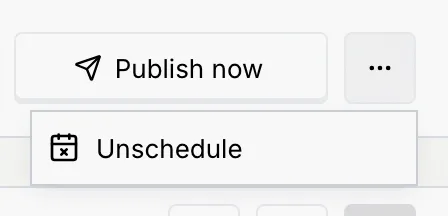
To change the time, pick a new one and click Reschedule. To take the post off the schedule, open ⋯ next to Publish now and choose Unschedule ("Taken off the schedule"); the post moves back one status and its time is cleared, so it's a draft again.
A post gets a planned time, without being scheduled, when you drag it to an hour on the Planner or to a day on the Calendar or Timeline. It's then Planned: "Planned for … Schedule it to send it then." A planned post doesn't go out on its own; click Schedule when it's ready.
Give a network its own time
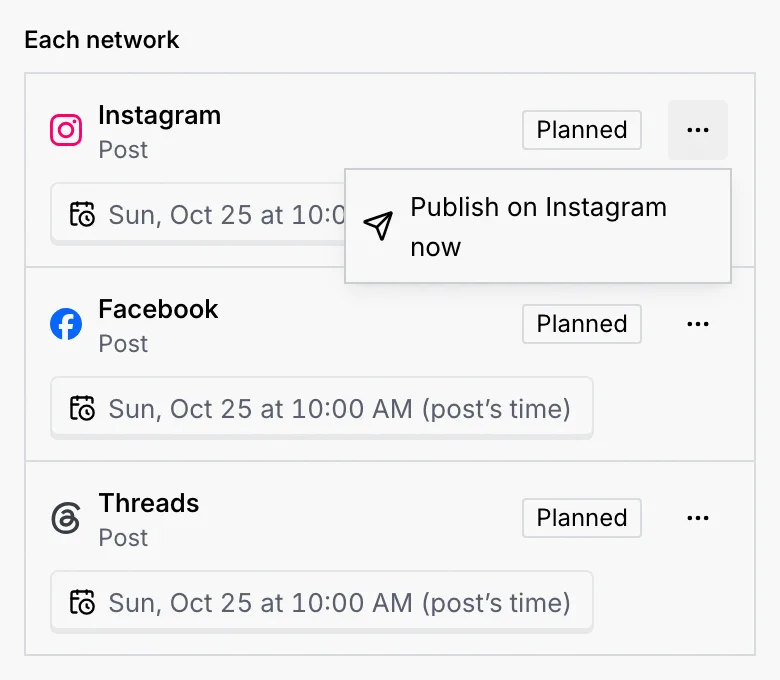
With two or more networks, Each network lists them with their format, status and time. A network follows the post's time ("post's time") until you pick one for it. Its ⋯ menu has Publish on followed by the network's name, to send it to that network straight away, and Use the post's time to go back to the shared time.
No Scheduled status
If the board has no status marked Scheduled to go out, the panel says "This board has no Scheduled column, so posts can be published now but not scheduled." Add one, or mark an existing status as scheduled, in its settings (Add a status).
Publish now
Coming soon
Publishing a post isn't available yet: Publish now says social publishing isn't available yet.
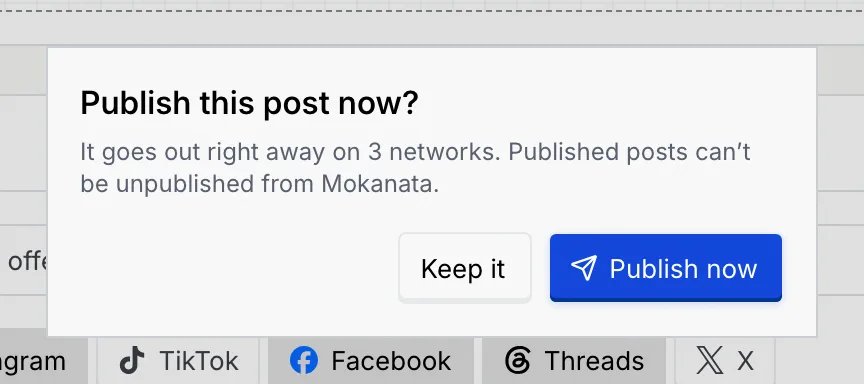
Click Publish now and confirm. The post goes out right away on every network that hasn't published yet, and moves to Published.
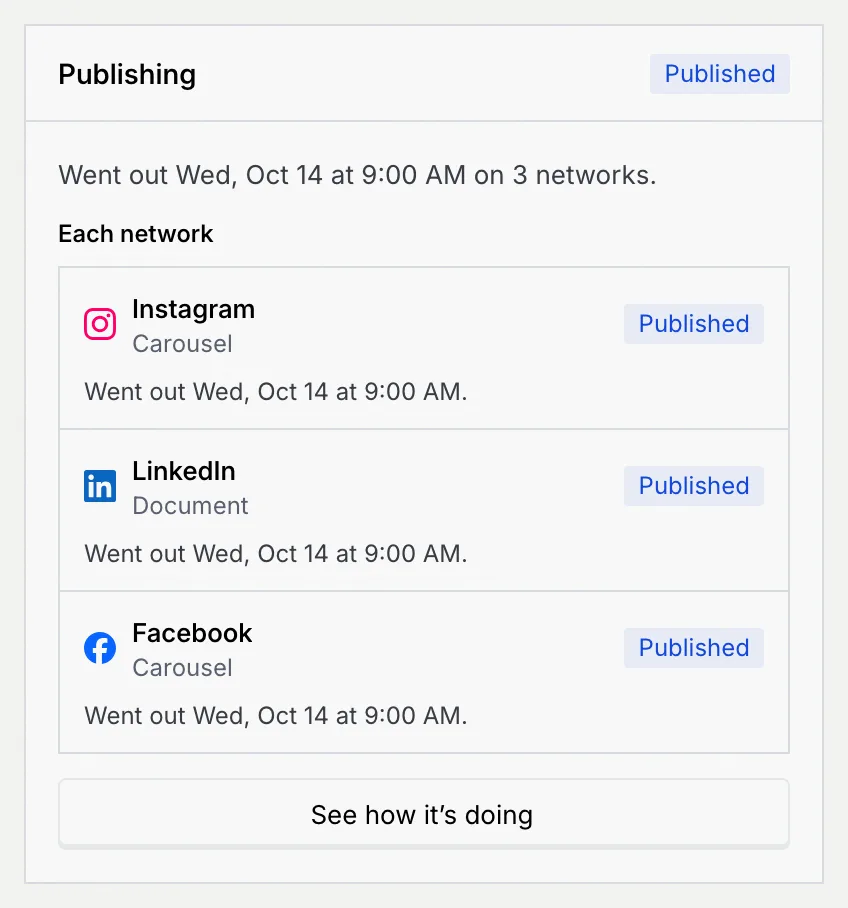
Once published, the Publishing panel says when and on how many networks it went out, with a row per network, and See how it's doing opens the post's Analytics tab (Content planner and social analytics).
Published posts stay published
Mokanata can't take a post down once it's out. To remove it, delete it on the network itself.
Post statuses
| Status | When |
|---|---|
| Draft | The post has no time. |
| Planned | It has a time but isn't scheduled. |
| Scheduled | It's in the Scheduled status with a time in the future. |
| Missed its time | Its time passed and it didn't go out. The panel says why: it was planned but not scheduled, or something in Checks stopped it. Pick a new time or publish it now. |
| Published | It went out (on every network), or it was moved to the Published status. |
Each network row in Each network uses the same statuses.
Moving posts on the board
Dragging a post into Scheduled schedules it at its time, and into Published publishes it now. These moves, and moving a post out of either status, need Schedule and publish posts; the post must have nothing to fix, and scheduling needs a time that hasn't passed. Otherwise the post stays put and a Not moved message says why.
Troubleshooting
Fix what Checks lists, pick a time in the future, and make sure the board has a status marked Scheduled to go out. If it's still greyed out, your role can't schedule posts.
Photos must be JPEG, PNG, GIF or WebP up to 20 MB, and videos MP4 or MOV up to 250 MB. A post holds up to 10 files; the message says how many weren't added.
It was planned but never scheduled, or something in Checks stopped it going out. Fix the checks, pick a new time and click Schedule, or click Publish now.
A suggestion in Checks: the format (such as Reel or Video) expects a video. Add one, or switch the format.
Next steps
Share a board or card with a public link
Give people outside your workspace a view-only link to a whole board or a single card, and reset or turn it off when you're done.
Content planner and social analytics
Plan posts on a weekly grid at the best hours, keep drafts and the queue in view, and see how your posts and accounts perform.