Board members, roles and access
Choose who is on a board, give each person a board role, decide which cards members see, and learn what each role can do.
Boards are shared with their members only. Each member has a board role, from Project manager, who runs the board, to Guest, who only reads. The project manager also decides whether members see every card or only their own.
- Who can use it: Everyone on a board can open Members and roles to see who's on it. Adding and removing people, changing board roles and choosing who sees which cards is for the board's project manager, and needs the Manage board members permission (Owners, Admins and Members by default). Owners and admins see every board and act as its project manager. Anyone else sees the dialog read-only, with "Only the project manager changes who's on it." See Roles and permissions.
- Before you start: People must be in the workspace before you can add them to a board (Members and invites).
Open Members and roles
On a board, click the row of faces next to the board's settings button, or open the ⋯ menu and choose Members and roles. You can also click Manage on the Members panel of the Overview tab.
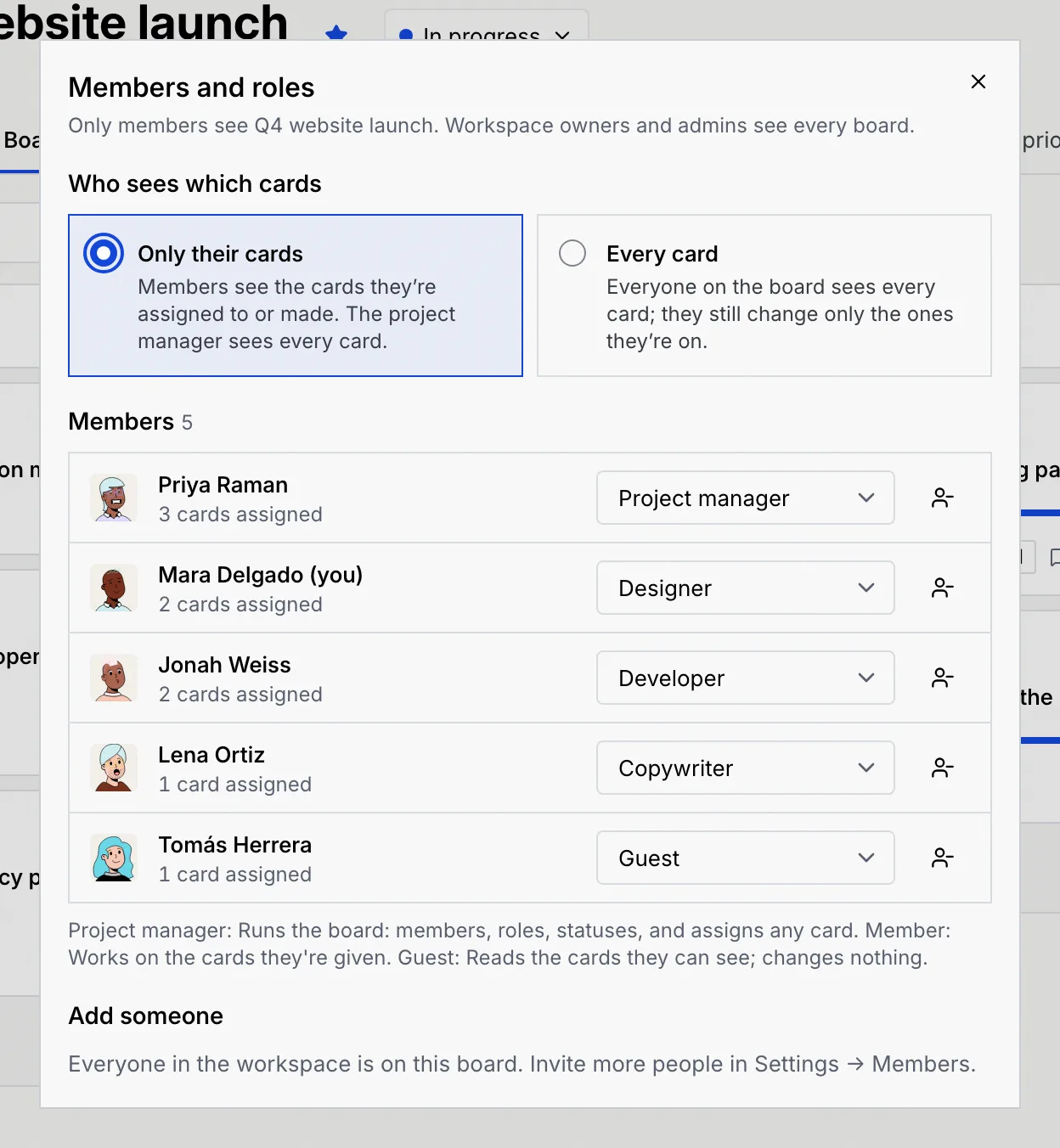
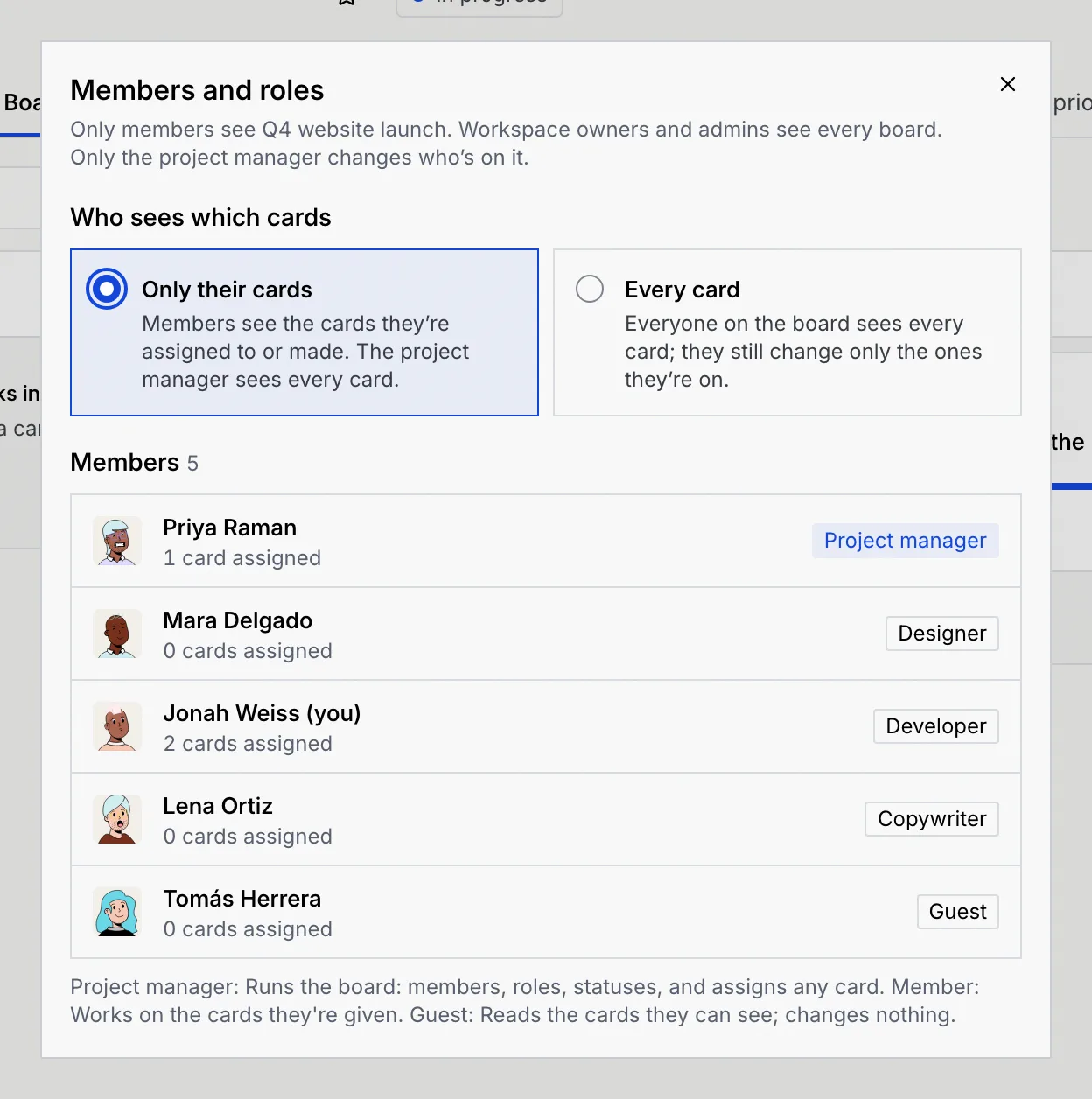
The dialog lists every member with the number of cards assigned to them, their board role and a button to remove them.
Board roles
| Board role | What it's for |
|---|---|
| Project manager | Runs the board: members, roles, statuses, and assigns any card. |
| Designer | Design work: visuals, creatives, layouts. |
| Developer | Build work: code, integrations, fixes. |
| Copywriter | Words: captions, articles, scripts. |
| Marketer | Campaigns, posting and promotion. |
| Sales | Leads and deals. |
| Reviewer | Reviews and approves work. |
| Member | Works on the cards they're given. |
| Guest | Reads the cards they can see; changes nothing. |
Designer, Developer, Copywriter, Marketer, Sales, Reviewer and Member all work the same way; the name says what the person does on this board. A board can have several project managers, and always keeps at least one.
What each board role can do
| Action | Project manager | Work roles (Designer … Member) | Guest |
|---|---|---|---|
| See the board | Yes | Yes | Yes |
| See cards | Every card | Every card, or only their own (see below) | Same as work roles |
| Add cards | Yes | Yes | No |
| Edit, move and attach files to a card | Every card | Cards they created or are assigned to | No |
| Assign people to a card | Every card | Cards they created | No |
| Delete a card | Every card | Cards they created | No |
| Comment | Yes | On cards they can see | On cards they can see |
| Save views | Yes | Yes | Yes |
| Change board settings, statuses, dates, lead and milestones | Yes | No | No |
| Manage members and roles | Yes | No | No |
| Share public links | Yes | No | No |
| Delete the board | Yes, with Delete boards | No | No |
Your workspace role applies on top of this: a board role never gives you more than your workspace permissions allow. For example, a Viewer added as a project manager still can't change anything, because the Viewer role can't edit cards. The workspace permissions for boards are listed below.
Change someone's board role
In the dialog, open the select next to the person and choose a role. The change applies straight away.
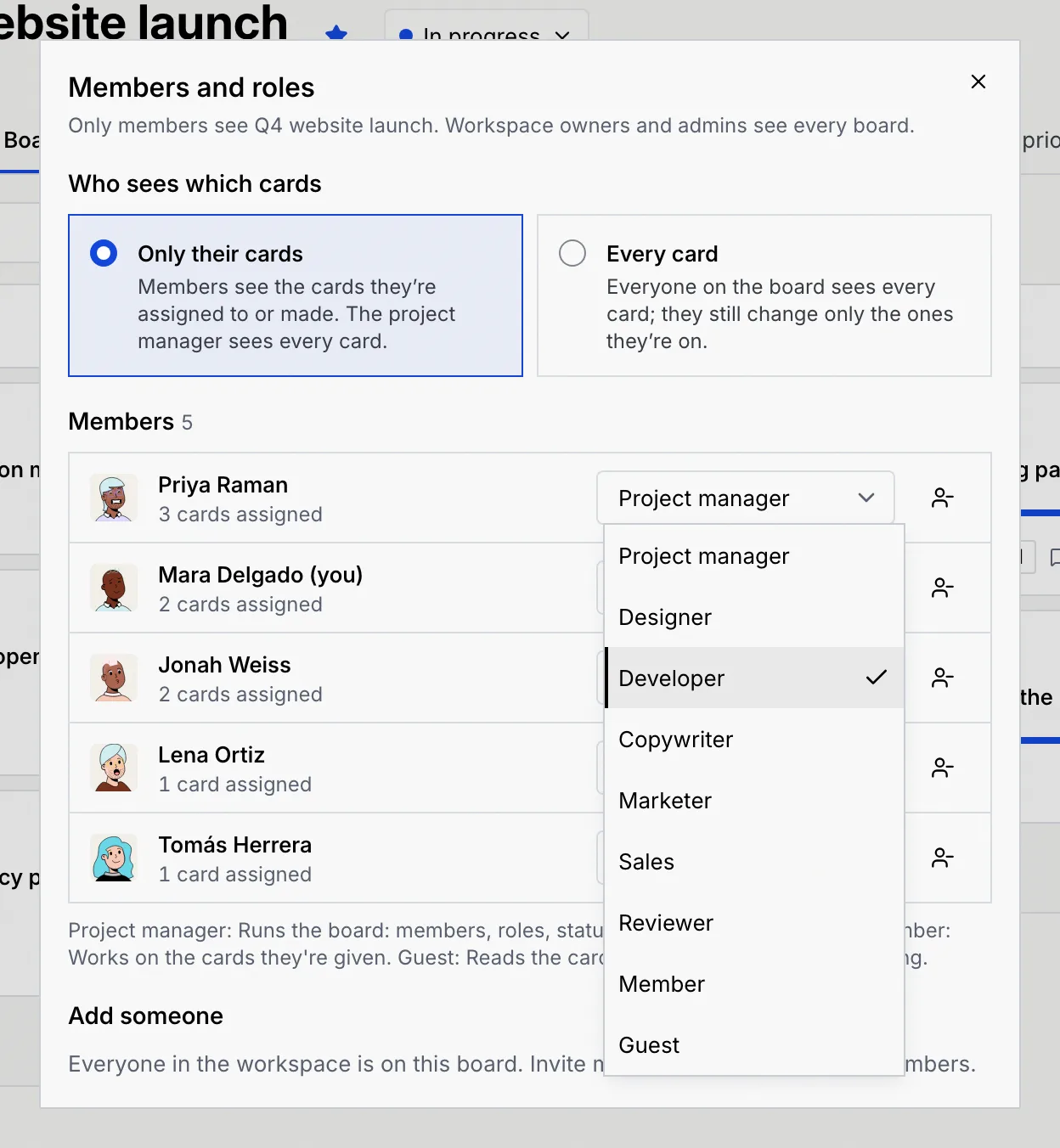
If they're the board's only project manager, the change is refused with "A board needs a project manager. Make someone else one first."
Add someone to a board
Choose the person and their role
Under Add someone, pick a person in Choose a workspace member and their board role (it starts on Member).
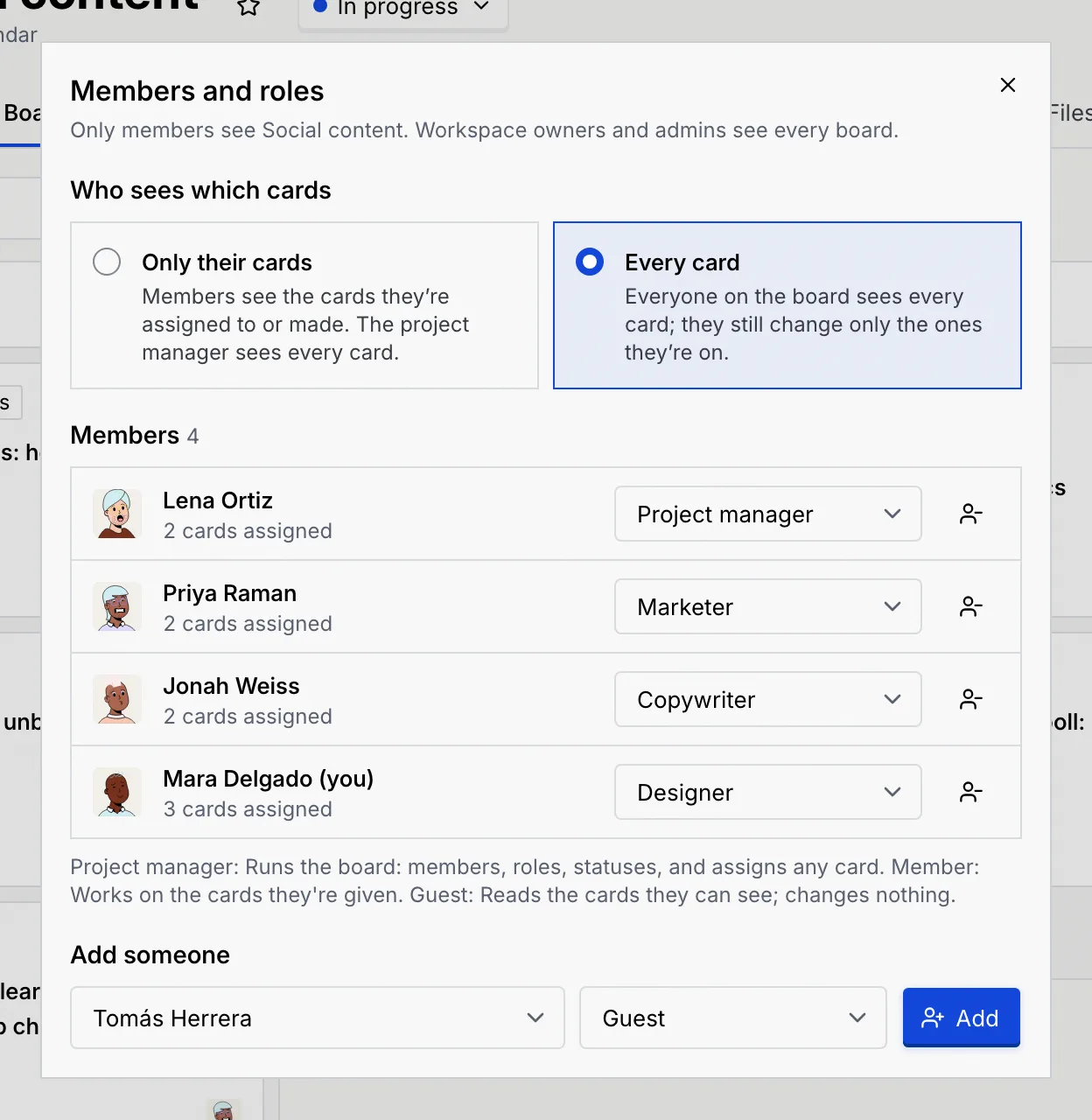
Add them
Click Add. A message confirms it, for example "Added Tomás Herrera" with "Guest on Social content." under it. The board now shows up on their Kanban page.
When everyone in the workspace is already on the board, the dialog says "Everyone in the workspace is on this board. Invite more people in Settings → Members." See Members and invites.
Remove someone from a board
Click the remove button at the end of the person's row and confirm with Remove from board. They lose access to the board, and any cards assigned to them become unassigned (each of those cards notes it in its activity).
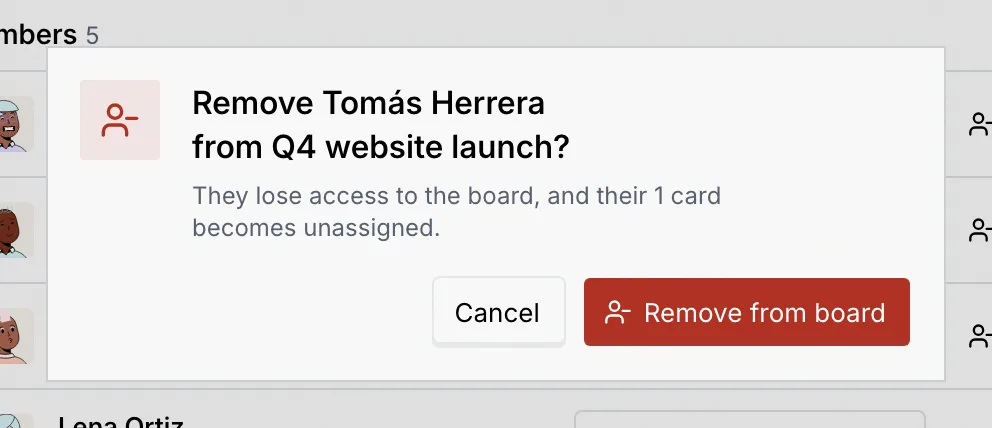
The board's only project manager can't be removed until someone else is made project manager.
Choose who sees which cards
Under Who sees which cards, choose:
- Only their cards: members see the cards they're assigned to or made. The project manager sees every card.
- Every card: everyone on the board sees every card; they still change only the ones they're on.
New boards start on Every card. With Only their cards, numbers on the board (counts, progress, the overview) cover only the cards each person can see.
Public links show every card
A board's public link shows every card on it, whichever option you choose here. See Share a board or card with a public link.
What people see without access
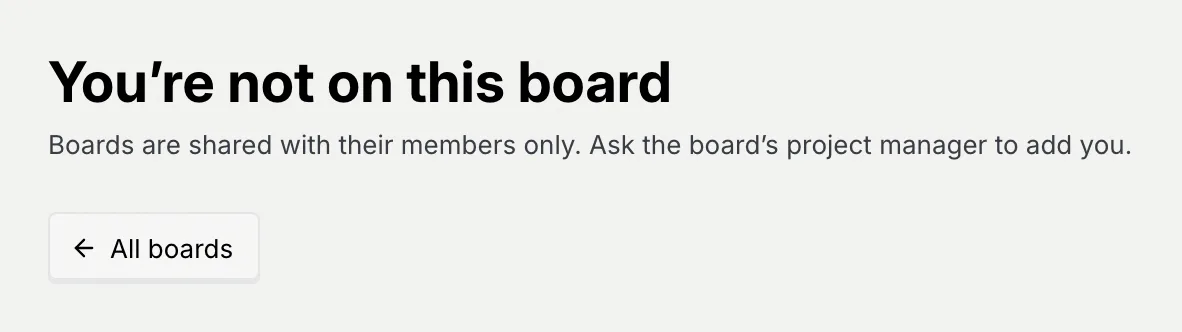
A person who isn't on a board doesn't see it on the Kanban page. If they open a link to it, they see You're not on this board ("Boards are shared with their members only. Ask the board's project manager to add you.") and an All boards button.
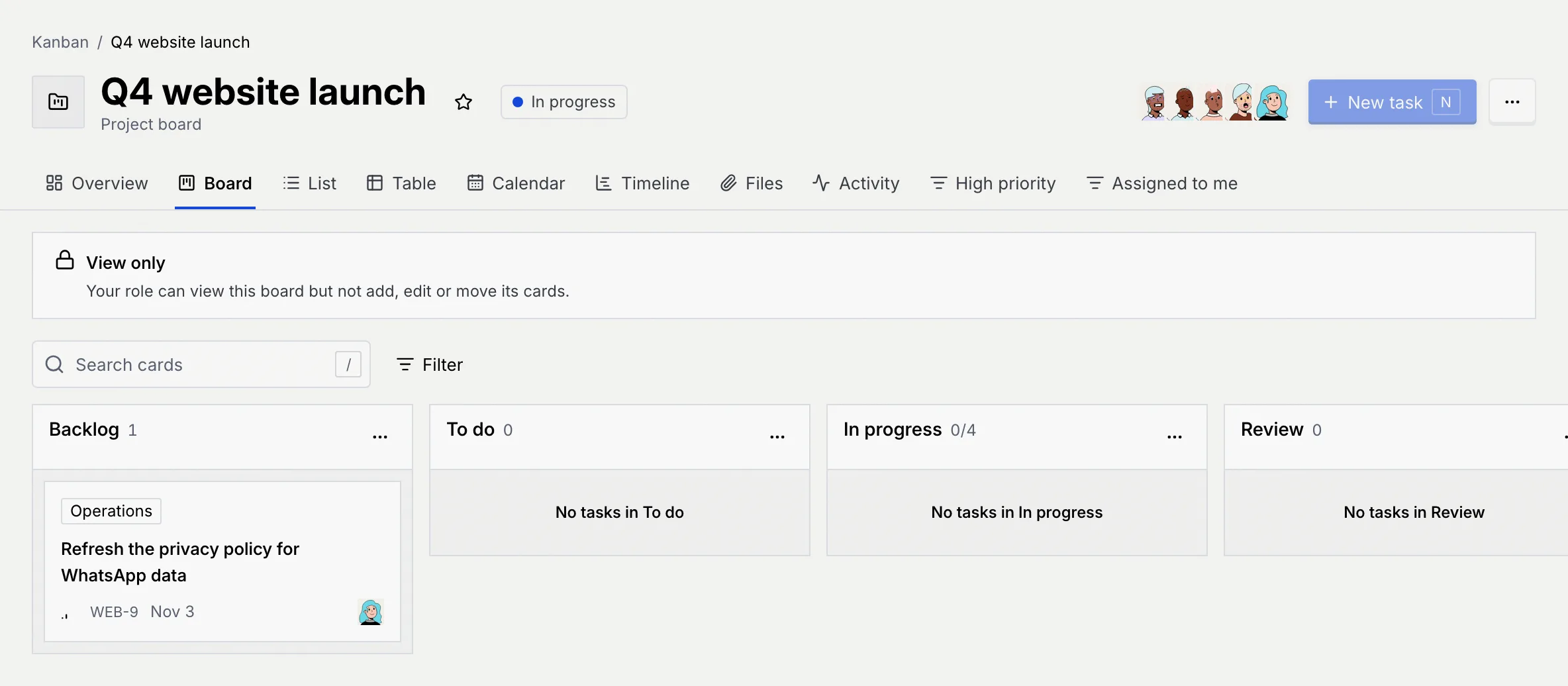
Guests, and anyone whose workspace role can't add or edit cards, see a View only notice under the tabs: "Your role can view this board but not add, edit or move its cards." New task is greyed out, there's no composer or Add task, and cards can't be dragged.
Members who can't change the board still open Members and roles to see who's on it, without the selects, remove buttons or Add someone:
A card on a board where members see only their own cards says This card isn't shared with you to anyone else who opens its link, with Back to the board.
Workspace permissions for boards
Workspace roles decide what people can do on any board, on top of their board role. Owners and admins can change them in Settings → Members & roles (Roles and permissions).
| Permission | What it allows | Owner | Admin | Member | Viewer |
|---|---|---|---|---|---|
| View boards | See the boards they're a member of and the cards on them they're allowed to see. Owners and admins see every board. | Yes | Yes | Yes | Yes |
| Add cards | Add tasks, posts, leads and campaigns to a board, including from a contact's record. | Yes | Yes | Yes | No |
| Edit and move cards | Change a card's fields, checklist and linked contacts, and move it between statuses. | Yes | Yes | Yes | No |
| Comment on cards | Write comments on cards for the team. | Yes | Yes | Yes | No |
| Schedule and publish posts | Schedule social posts, publish them now or take them off the schedule. | Yes | Yes | Yes | No |
| Save board views | Save filters, sorting and grouping as a view on a board, and rename or remove saved views. | Yes | Yes | Yes | No |
| Delete cards | Delete cards and everything on them. | Yes | Yes | Yes | No |
| Manage boards | Create boards, rename them and add, edit, reorder or remove their statuses. | Yes | Yes | Yes | No |
| Manage board members | On boards they run as project manager: add and remove people, set their board roles and choose who sees which cards. | Yes | Yes | Yes | No |
| Share public links | On boards they run as project manager: create, reset and turn off view-only links to the whole board or to single cards. | Yes | Yes | Yes | No |
| Delete boards | Delete a board with all of its cards. | Yes | Yes | No | No |
When a role can't do something, its buttons stay visible but greyed out (such as New board, New task, Move to and Schedule), menu items it can't use are hidden, and keyboard shortcuts for them do nothing.
Troubleshooting
The board needs at least one project manager. Make someone else project manager first, then change or remove the last one.
With Only their cards, people see only cards they created or are assigned to. Assign them to the card, or switch the board to Every card.
They aren't in the workspace yet, or they're already on the board. Invite them from Members and invites first.
Next steps
Board overview, files and activity
Track a board's progress and what's coming up, share files with everyone on it, and follow everything that changed.
Share a board or card with a public link
Give people outside your workspace a view-only link to a whole board or a single card, and reset or turn it off when you're done.