Add and work on cards
Add cards to a board, move them through its statuses, and fill in their details, assignees, checklist, files and comments.
Cards are the work on a board: a task on a project board, a post on a content calendar, a lead on a lead pipeline or a campaign on an ad board. Each card moves left to right through the board's statuses and has its own page with its details, checklist, files and discussion.
- Who can use it: Adding cards needs the Add cards permission, and moving or editing them needs Edit and move cards (Owners, Admins and Members by default). On a board, the project manager can change every card; other members change the cards they created or are assigned to; guests only read. Assigning people is for the project manager and the card's creator, and deleting a card needs Delete cards plus being its project manager or creator. Commenting needs Comment on cards. Viewers read cards with a View only notice. See Board members, roles and access and Roles and permissions.
- Before you start: You need to be on the board (Board members, roles and access). This page uses a project board; posts, leads and campaigns have extra fields, covered in Write, preview and schedule social posts and Lead pipelines and ad campaign boards.
Read the board
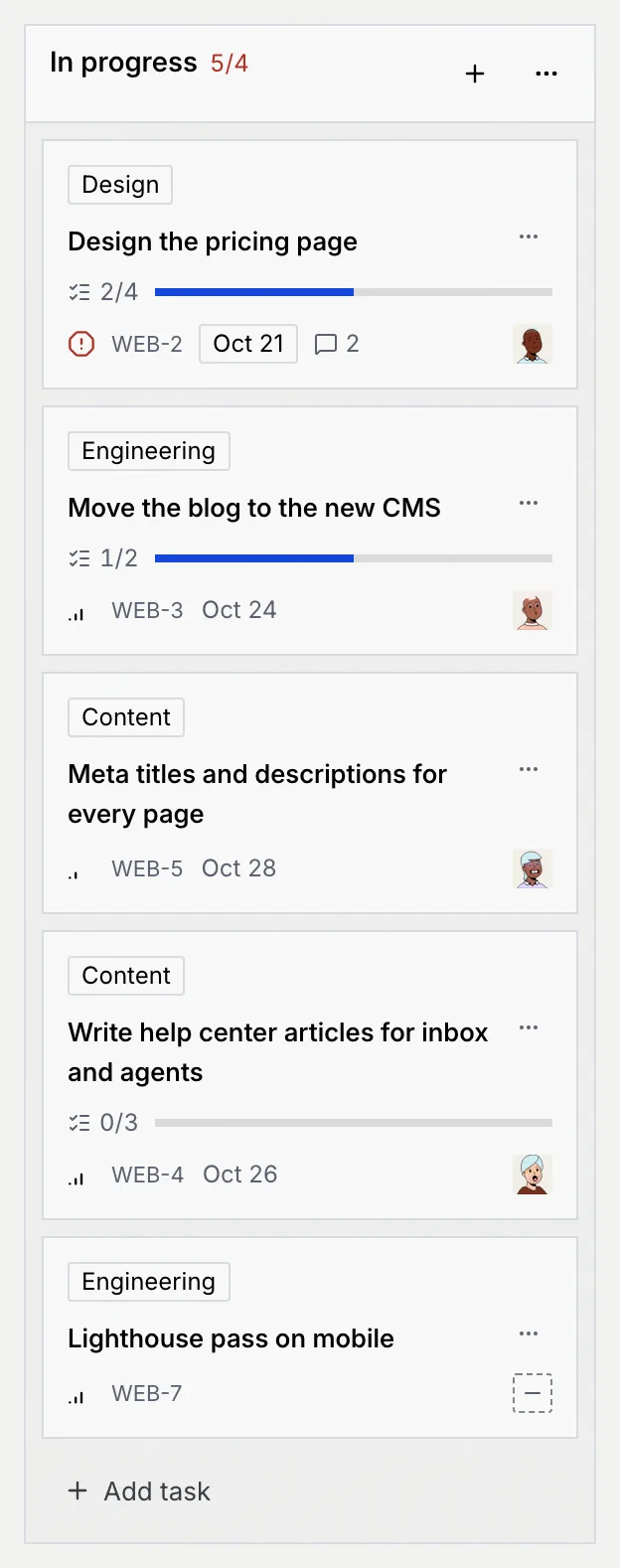
Open a board from the Kanban page. The Board tab shows one column per status, side by side; scroll sideways to see them all. Each column shows its name and how many cards it holds (for example 2/4 when it has a card limit).
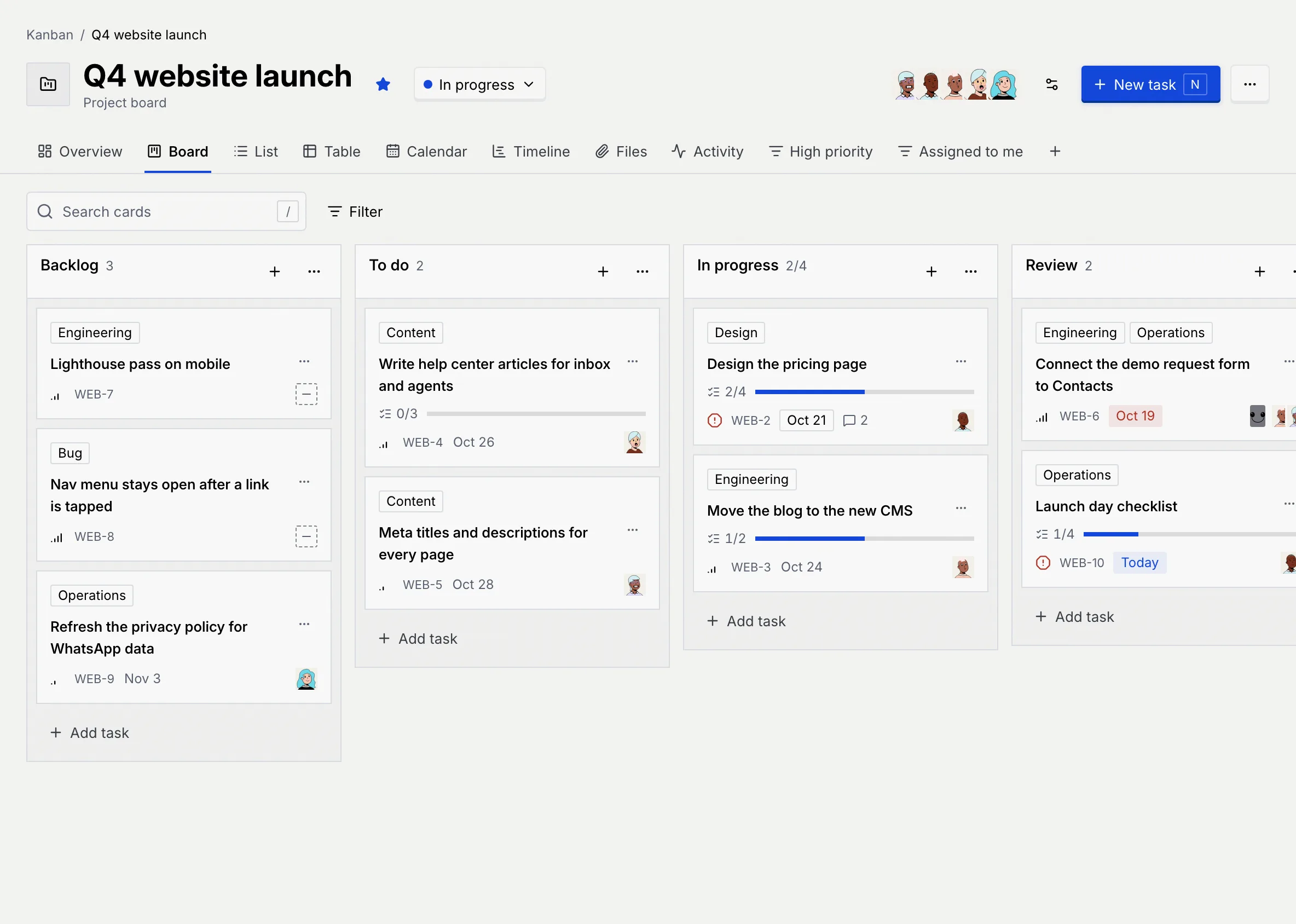
Each card shows up to three labels, its title, a checklist bar, its priority, its key (such as WEB-2), its due date, how many comments it has and who it's assigned to (a dashed box when nobody is). Click anywhere on a card to open it.
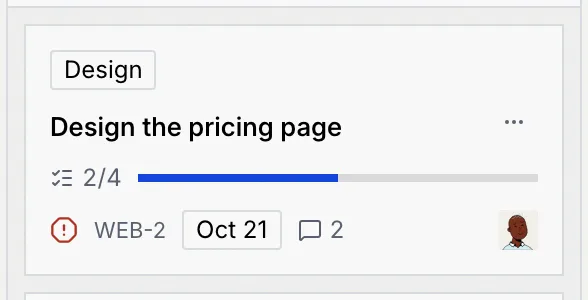
| Due date | What it looks like |
|---|---|
| Overdue | A red badge with the date. |
| Due today | A tinted Today badge. |
| Due in the next three days | An outlined badge with the date. |
| Later | The date in plain text. |
Cards in a finished or closed status are never shown as late, and their titles are muted. An empty status says, for example, "No tasks in Review", with "Drag a card here." if you can move cards.
Cards on other kinds of boards show a line of their own: a post shows its networks, format and publish time (and its reach and engagements once it's out), a lead its contact, value and chance to close, and a campaign its platform, spend against budget and results. See Write, preview and schedule social posts and Lead pipelines and ad campaign boards.
Add cards
Open the composer
Click New task at the top of the board (or press N) to add to the first status. To add to a particular status, click Add task at the bottom of its column, or the + at its top.
Type the title and press Enter
Type the card's title and press Enter (or click Add task). The card is added and the composer stays open, so you can type the next one straight away. Press Shift Enter for a new line, and Esc to close the composer.
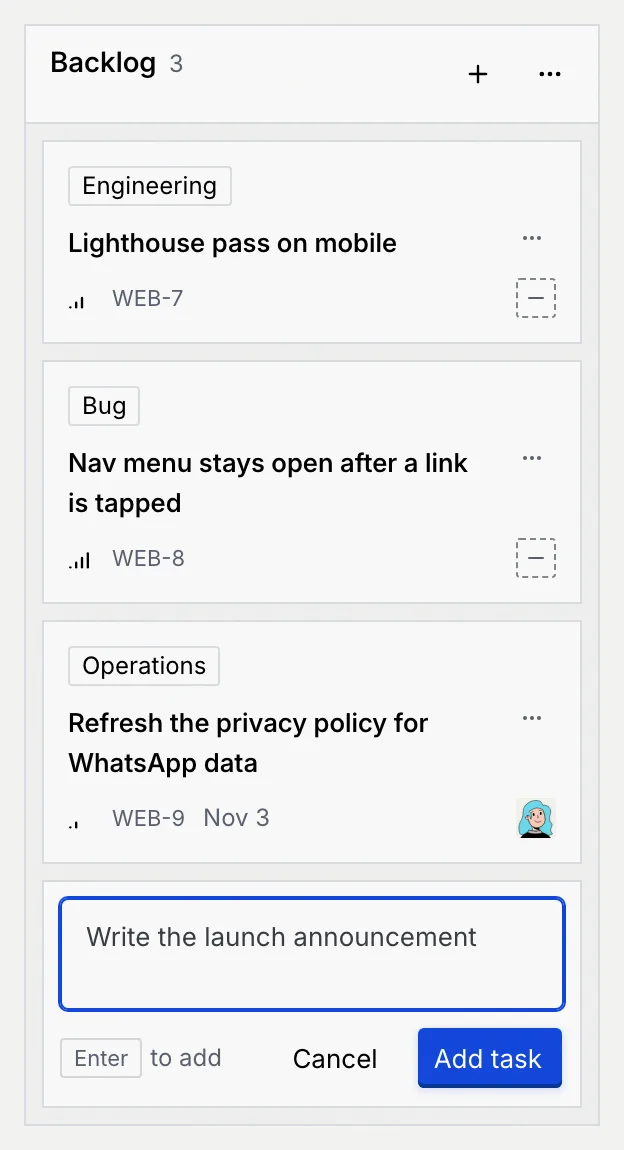
The new card gets the next key on the board and you as its creator. On a content calendar, New post opens the new post's page instead, ready to write (Write, preview and schedule social posts).
You can also add cards from the List tab: click Add card under a group, type the title and press Enter. The card takes that group's status, priority, assignee or label.
Move cards
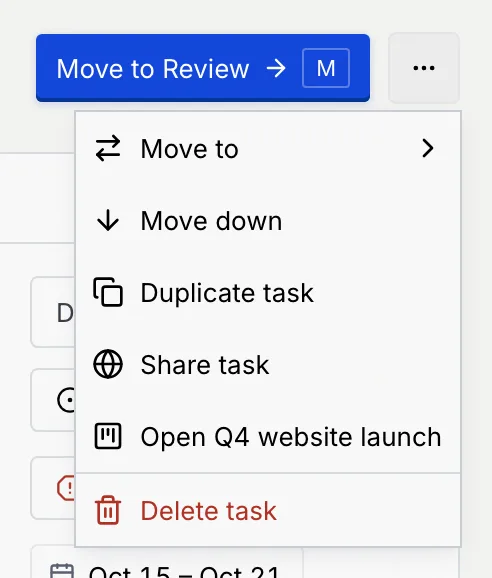
Drag a card to another column, or up and down within one; a blue line shows where it will land. You can also use the card's ⋯ menu:
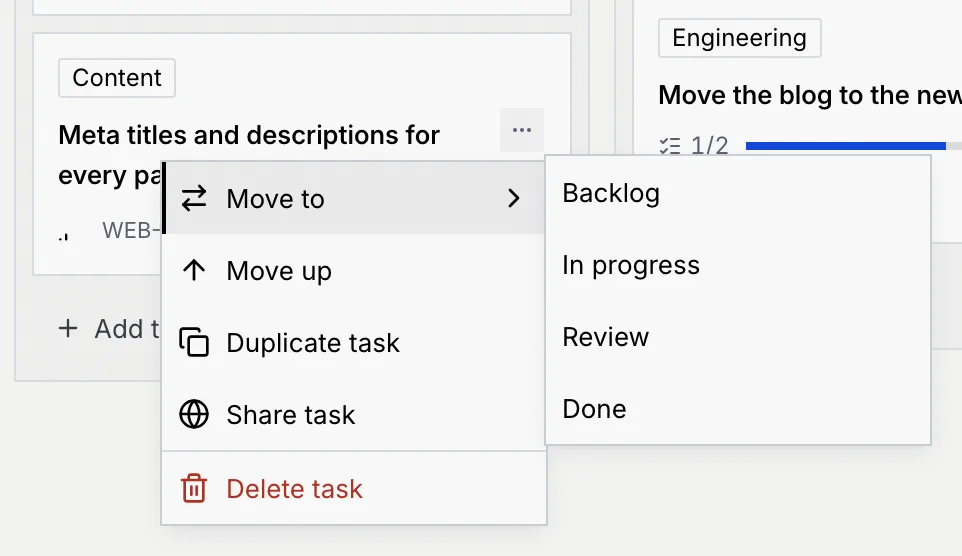
- Move to: pick another status.
- Move up / Move down: change its place in the column.
- Duplicate task: add a copy titled "… (copy)" in the same status, with the same description, priority, assignees, dates and labels (the checklist, files and comments aren't copied). From the card page, the copy opens straight away.
- Share task: give it a public view-only link (Share a board or card with a public link).
- Delete task: delete it (below).
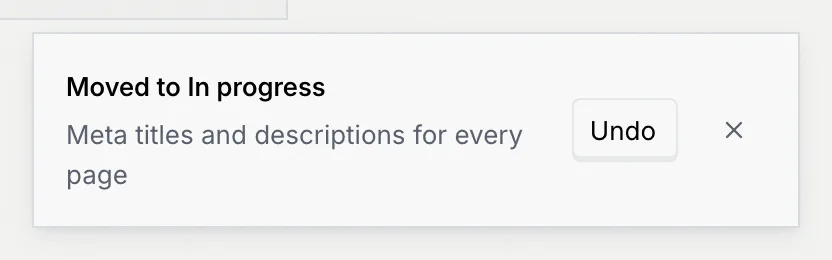
After a move, a message names the new status. Click Undo in it to put the card back.
When a status holds more cards than its card limit, its count turns red. Here In progress has a limit of 4 and holds 5 cards:
Moving a card into a finished status (such as Done) marks it done; moving it into a closed status (such as Lost) closes it. Neither is ever overdue. To change a status's limit, see Set a card limit.
Open a card
Open the card page
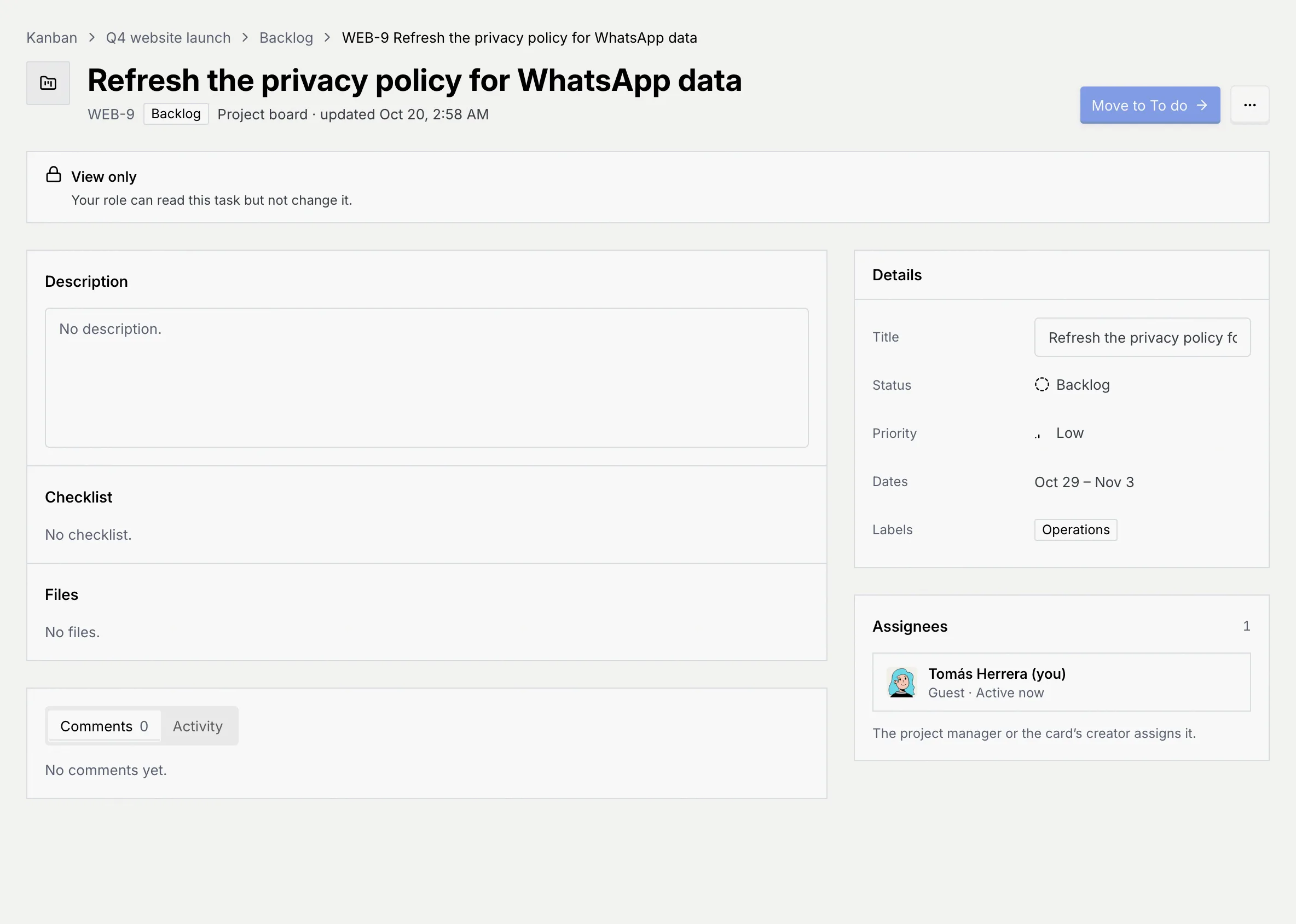
Click a card. Its page shows the card's path (board, status and key), its title, key, status and when it last changed. On the left are the Description, Checklist, Files and the discussion; on the right, its Details and Assignees.
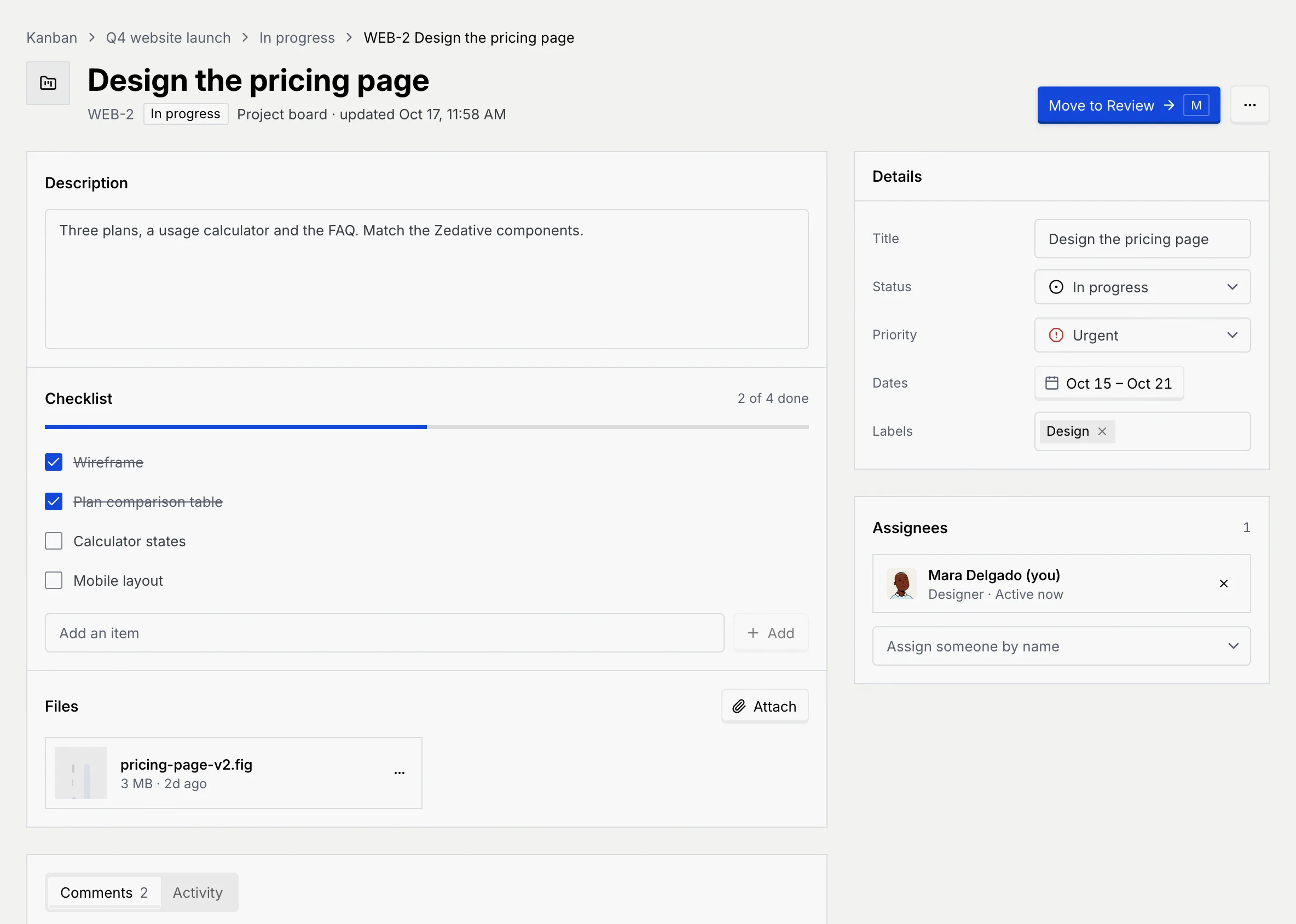
Everything saves as you go: pickers when you choose, text when you click away or press Enter. Press Esc in a text field to undo what you typed.
Move it to the next status
Click Move to followed by the next status (here Move to Review), or press M. The button isn't shown when the card is in the last status. Click Undo in the message to move it back.
Edit the details
In Details, change the card's Title (up to 200 characters), Status, Priority (Urgent, High, Medium, Low or No priority), Dates and Labels.
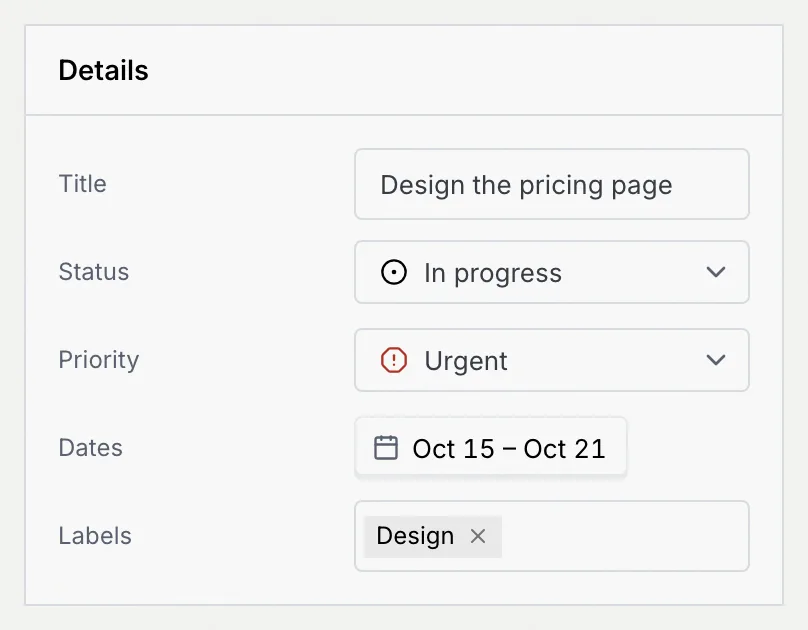
Click Dates to set a start and due date. Pick a preset (Today, Tomorrow, This week, Next 7 days, Next 2 weeks, This month or Next month) or click a first and last day on the calendar, then Apply. Clear removes both dates.
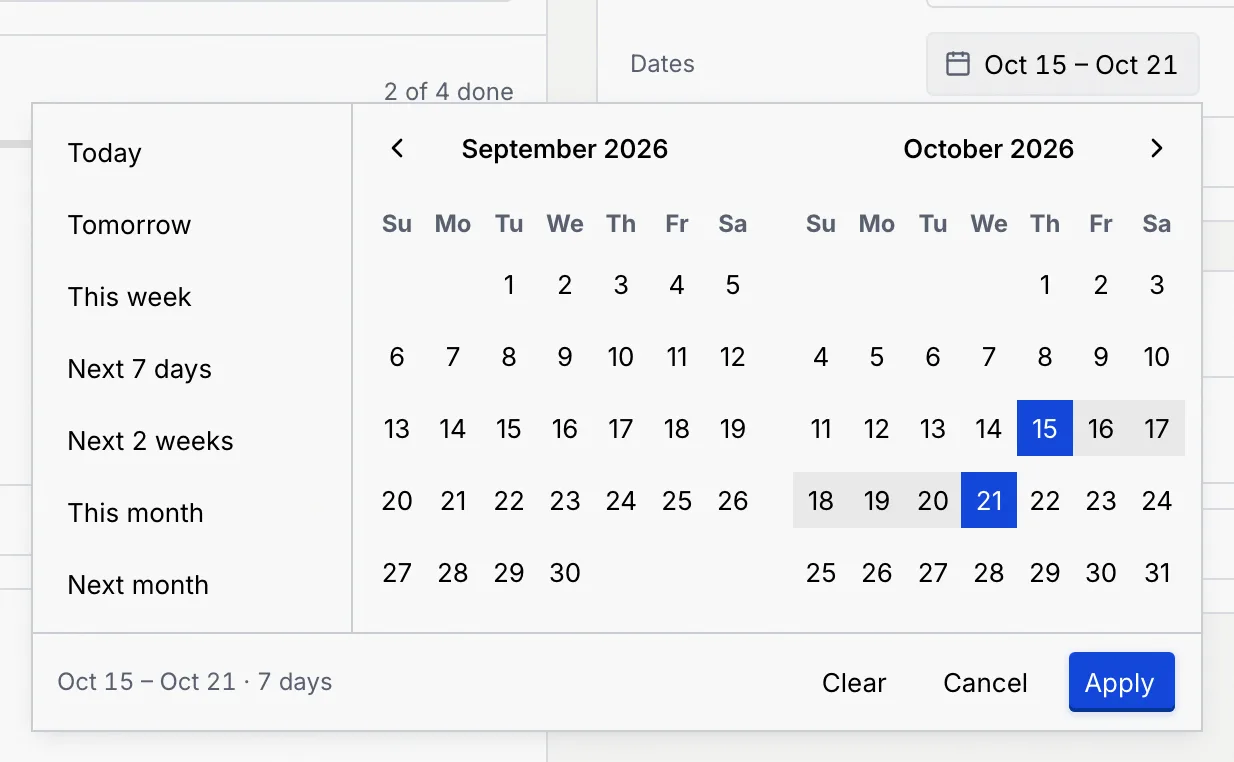
Click Labels to add any of the board's labels, or click a label's × to remove it. Labels come from the board; add new ones in Board settings.
Write the Description in the box at the top left (up to 5,000 characters): the details, links and context the team needs.
Assign people
Under Assignees, click Assign someone by name and pick a person. Only people on the board can be assigned, and guests can't. To unassign someone, click the × on their row. A card can have several assignees.
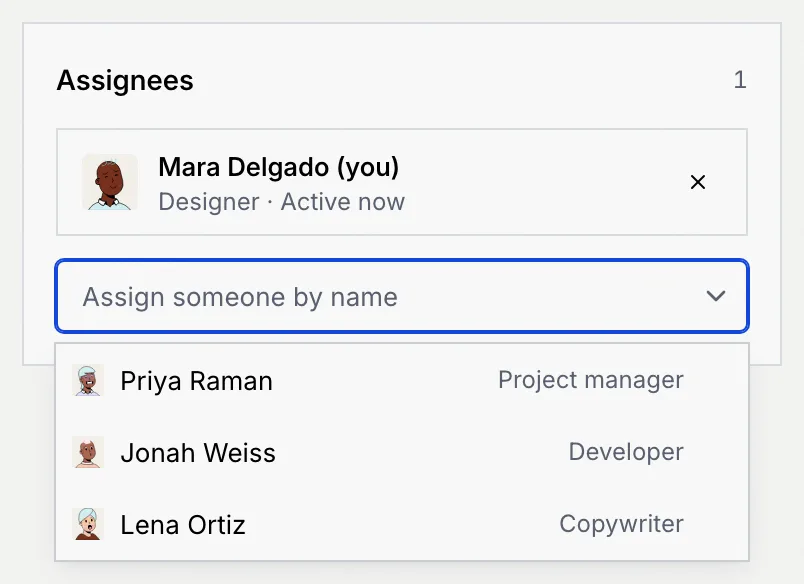
If you can't change the assignees, the section says "The project manager or the card's creator assigns it."
Use the checklist
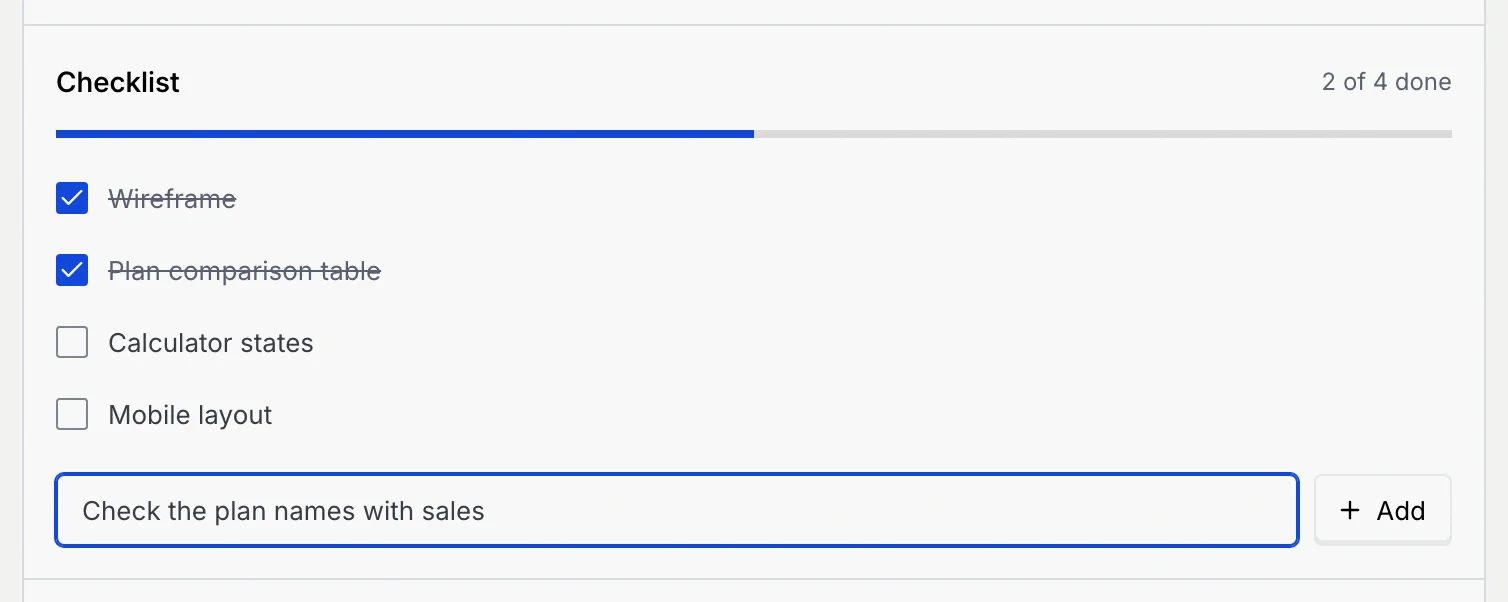
Tick items as they're done; the bar and the "2 of 4 done" count follow. To add an item, type it in Add an item and press Enter or click Add. To remove one, point to it and click its ×; click Undo in the message to bring it back.
Attach files
Under Files, click Attach or drop files onto the section. Each file shows its size and when it was added. Open a file's ⋯ menu to Download it or Remove file (Mokanata asks you to confirm, because it's removed from the card for everyone).
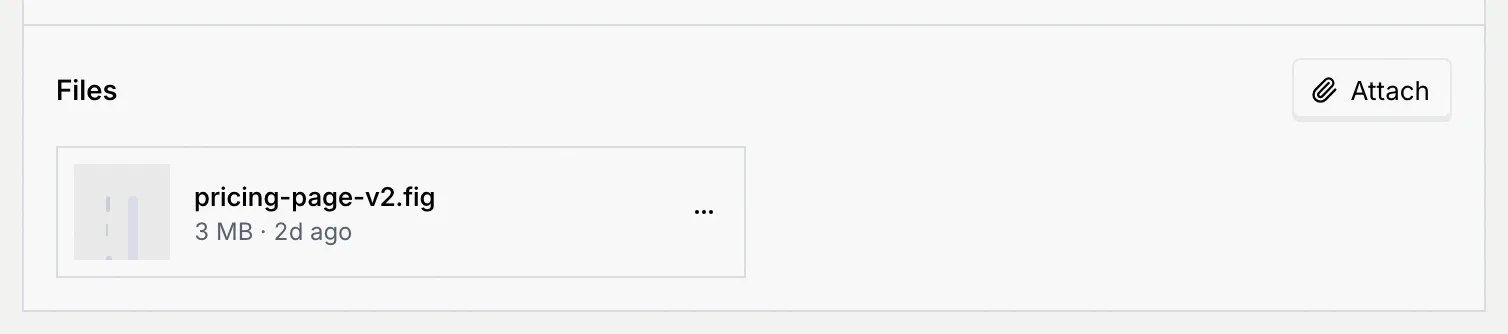
Files attached to cards also appear on the board's Files tab (Board overview, files and activity).
Comment and see the history
Write a comment
Under Comments, type in Write a comment and click Comment, or press ⌘ Enter (Ctrl Enter on Windows and Linux).
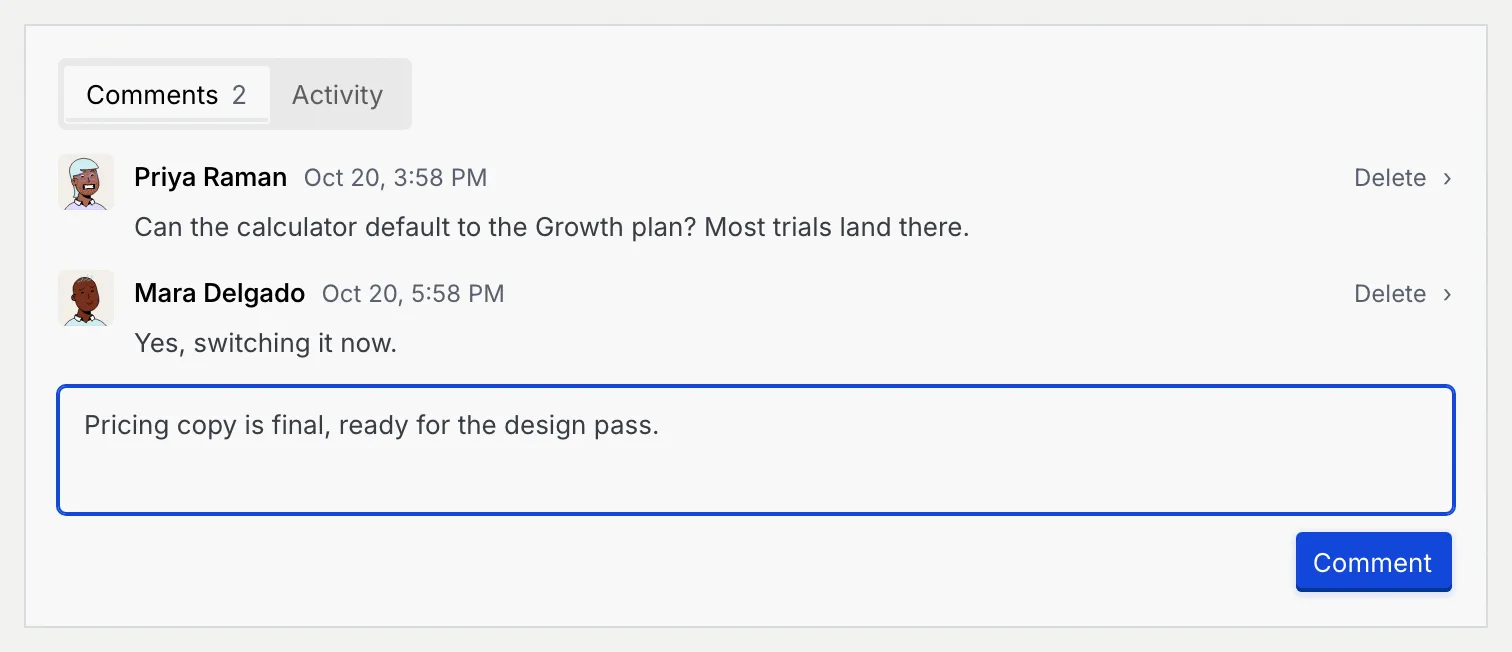
You can delete your own comments, and people who can edit the card can delete any. Click Undo in the message to restore one.
Read the card's activity
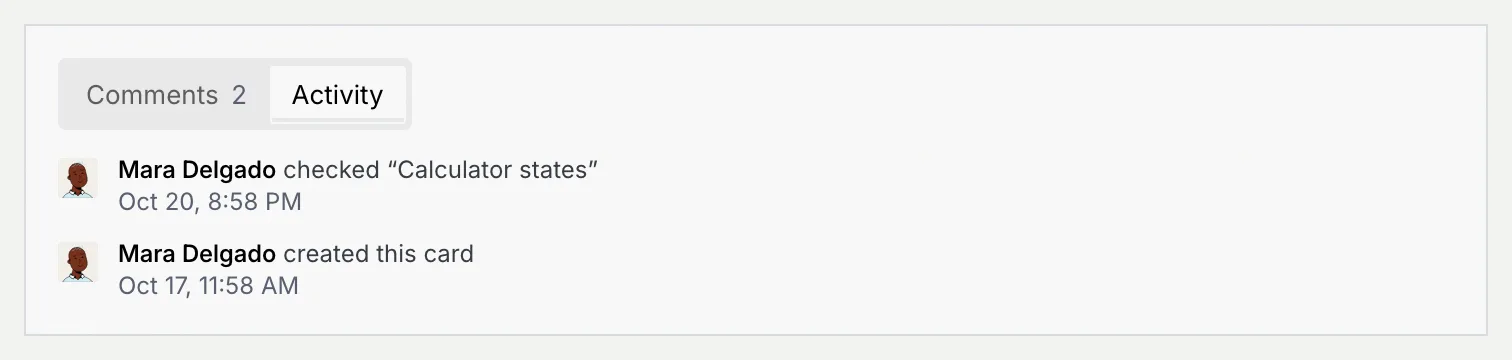
Click Activity to see everything that happened to the card, newest first: who created it, moved it, changed its dates or priority, assigned people, ticked checklist items, attached files and more.
Duplicate or delete a card
On the card page, open the ⋯ menu next to the move button. Besides Move to, Move up, Move down, Duplicate task and Share task, it has Open followed by the board's name to go back to the board.
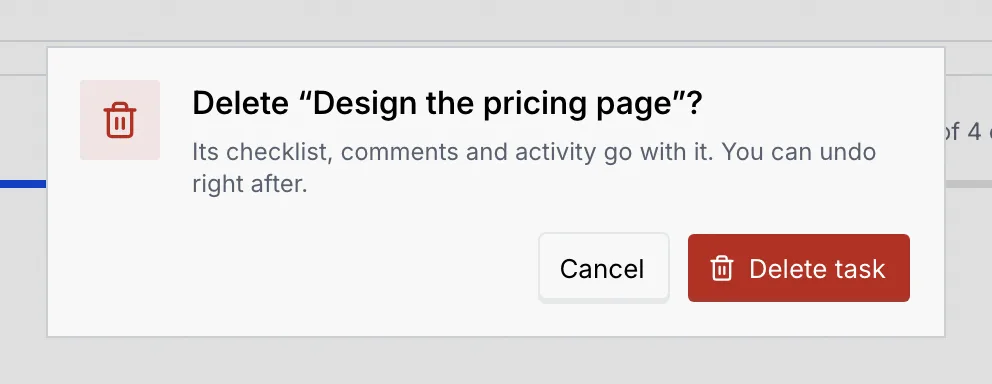
Choosing Delete task asks you to confirm. Its checklist, comments and activity go with it; click Undo in the message right after to bring it back.
Change several cards at once
Select the cards
On the List tab, tick the box at the start of each row, or the box in the header to select every card shown. A bar at the bottom says how many cards are selected.
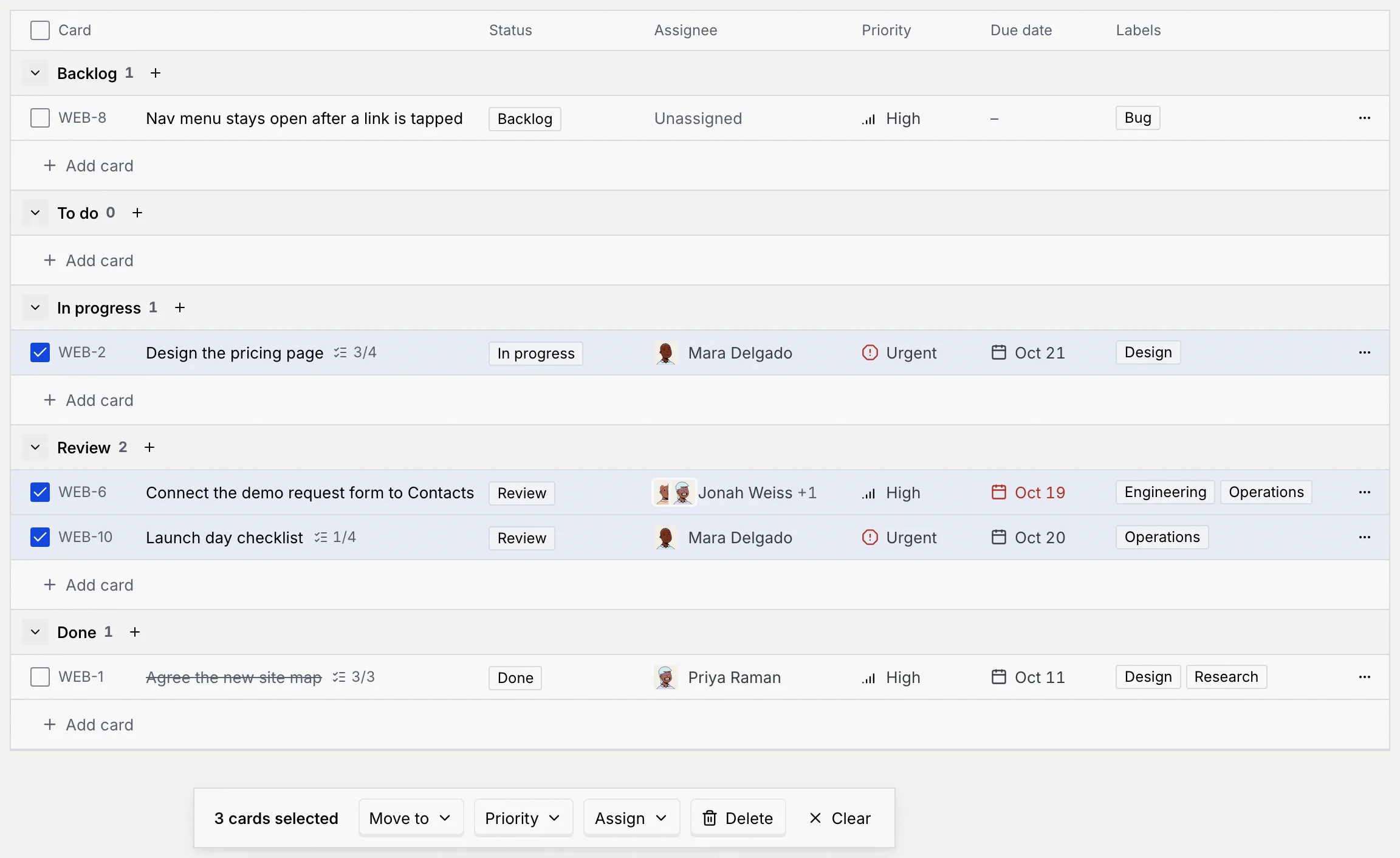
Choose what to change
- Move to: move them all to a status.
- Priority: give them all one priority.
- Assign: assign them all to one person, or choose Unassigned. Cards you can't assign are left as they were, and the message says how many.
- Delete: delete them all, after you confirm. Click Undo in the message to bring them back.
- Clear: deselect them.
What a read-only card looks like
People who can see a card but not change it get a View only notice ("Your role can read this task but not change it."). Pickers show as plain text, the checklist can't be ticked, there's no comment box without Comment on cards, and Move to is greyed out. Guests on a board and Viewers see cards this way, and so do members looking at a card they aren't on.
Keyboard shortcuts
| Keys | Where | What it does |
|---|---|---|
| N | A board | Add a card to the first status (on a content calendar, a new post). |
| M | A card page | Move the card to the next status (not on posts). |
| / | A board | Search the cards. |
| Enter | The composer, checklist, text fields | Add the card or item, or save the field. |
| Shift Enter | The composer | New line in the title. |
| Esc | The composer, text fields | Close the composer, or undo what you typed in a field. |
| ⌘ Enter / Ctrl Enter | Write a comment | Send the comment. |
You can change N and M in Keyboard shortcuts.
Troubleshooting
You can't move this card: your role can't edit cards, or you aren't its project manager, creator or assignee. On a content calendar, moving a post into or out of Scheduled or Published also needs Schedule and publish posts, and the post must have nothing to fix. The message says why.
The card was deleted, moved to another board, or the link is wrong. Click Back to the board (or All boards) and search for it. If it says This card isn't shared with you, you don't have access to it on that board (Board members, roles and access).
On boards where members see only their cards, you see the cards you created or are assigned to. Ask the project manager to assign you, or to switch the board to Every card (Board members, roles and access).
Only people on the board can be assigned, and guests can't. Ask the project manager to add them or change their board role.