# Board overview, files and activity (/docs/kanban/board-overview)
Three tabs on every board give you the big picture. **Overview** sums up how the work stands and what's due next, **Files** gathers every file on the board in one place, and **Activity** lists everything that happened to its cards.
- **Who can use it:** Everyone who can see the board reads all three tabs. Changing the board's details, lead and milestones on the Overview is for its project manager ([Create and set up a board](/docs/kanban/create-board#set-the-dates-lead-and-milestones)). Uploading and deleting files on the **Files** tab needs **Edit and move cards** (Owners, Admins and Members by default) and a board role other than guest; others see the files without **Upload** or the drop zone. See [Roles and permissions](/docs/settings/roles).
- **Before you start:** Open a board from the [Kanban page](/docs/kanban/kanban-boards).
## Read the overview [#read-the-overview]
### Open the Overview tab [#open-the-overview-tab]
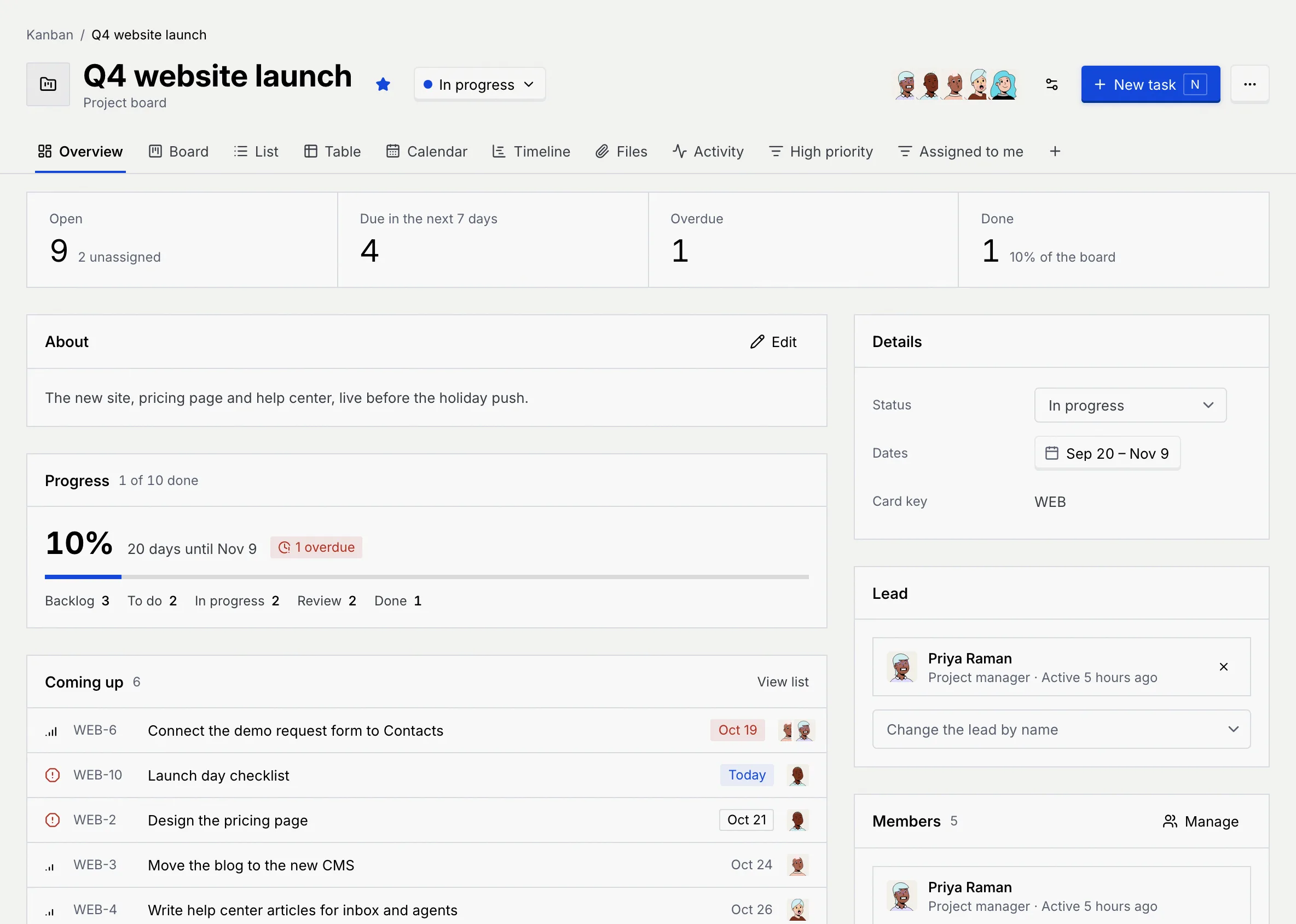
On a board, click **Overview**. Four numbers sum up the board, then the **About**, **Progress**, **Coming up** and **Recent activity** panels sit on the left, and **Details**, **Lead**, **Members** and **Milestones** on the right.
### Read the numbers for your kind of board [#read-the-numbers-for-your-kind-of-board]
The four numbers depend on the board's kind and always count every card, whatever filters you have on in other tabs.
| Number | What it counts |
|---|---|
| **Open** | Cards not finished or closed, with how many have nobody assigned ("2 unassigned", or "All assigned"). |
| **Due in the next 7 days** | Open cards due today or in the next seven days. |
| **Overdue** | Open cards past their due date. |
| **Done** | Cards in a finished status, with their share of the board. |
| Number | What it counts |
|---|---|
| **In the works** | Posts not yet published, with how many are overdue. |
| **Publishing in the next 7 days** | Unpublished posts with a time in the next seven days. |
| **Published** | Posts that went out. |
| **Reach of published posts** | People reached by the published posts, with their engagement rate (or "No results yet"). |
| Number | What it counts |
|---|---|
| **Open pipeline** | The value of open leads, with how many there are. |
| **Weighted pipeline** | Each open lead's value times its chance to close, added up. |
| **Won** | The value of won leads, with how many were won and lost. |
| **Win rate** | Won leads out of all closed ones, with how many follow-ups are overdue. |

| Number | What it counts |
|---|---|
| **Running** | Open campaigns whose flight has started and not ended, with how many others are still in the works. |
| **Spend** | What the campaigns have spent, out of their total budget. |
| **Conversions** | Conversions from all campaigns. |
| **Cost per conversion** | Spend divided by conversions. |
Money shows in your workspace's currency ([Language and region](/docs/settings/language-region)).
### Check progress [#check-progress]
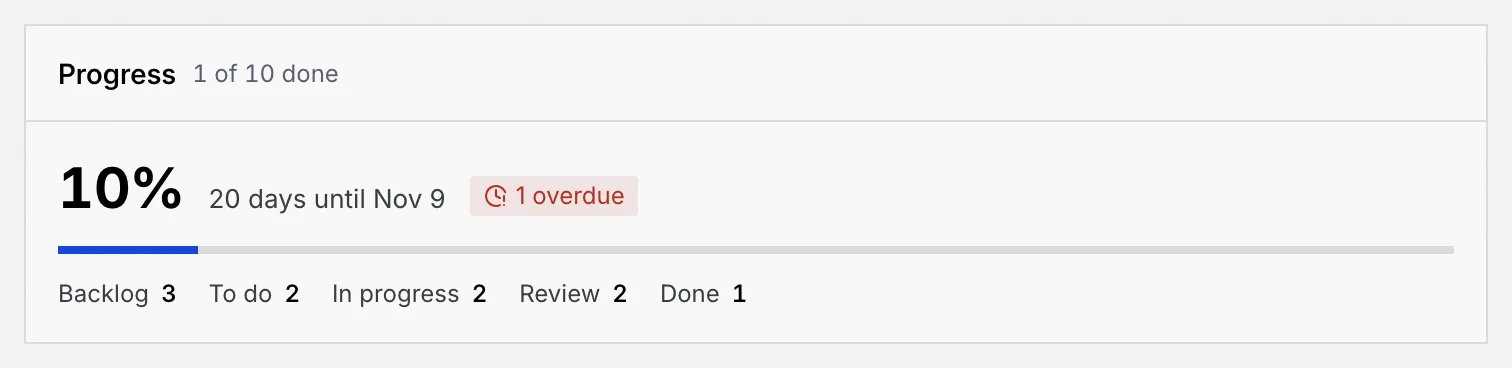
**Progress** shows the share of cards that are done, how many days are left until the board's end date (or when it ended), and a red badge with the number of overdue cards. Under the bar, each status shows how many cards it holds; click one to see those cards on the **List** tab.
### See what's coming up [#see-whats-coming-up]
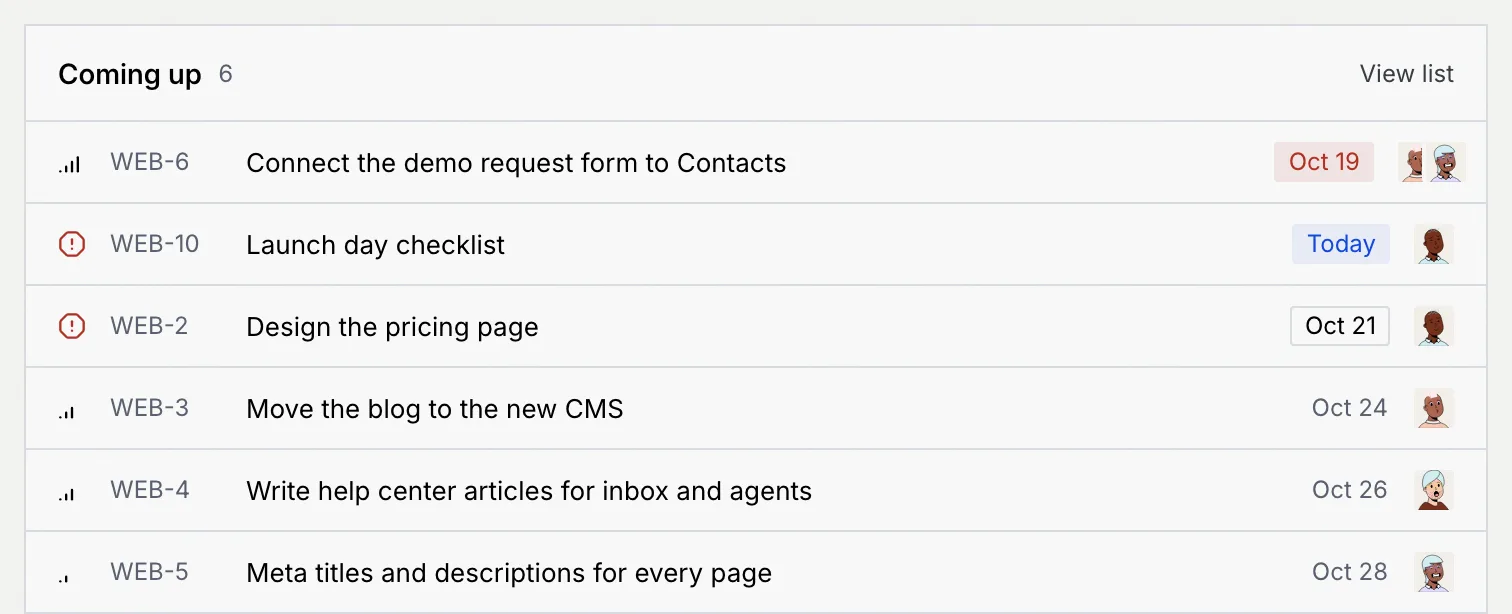
**Coming up** lists the next six open cards with a date, soonest first (a post's date is when it publishes). Click a card to open it, or **View list** to see every card sorted by due date. With nothing dated, it says "Nothing open has a date yet."
### Glance at recent activity [#glance-at-recent-activity]
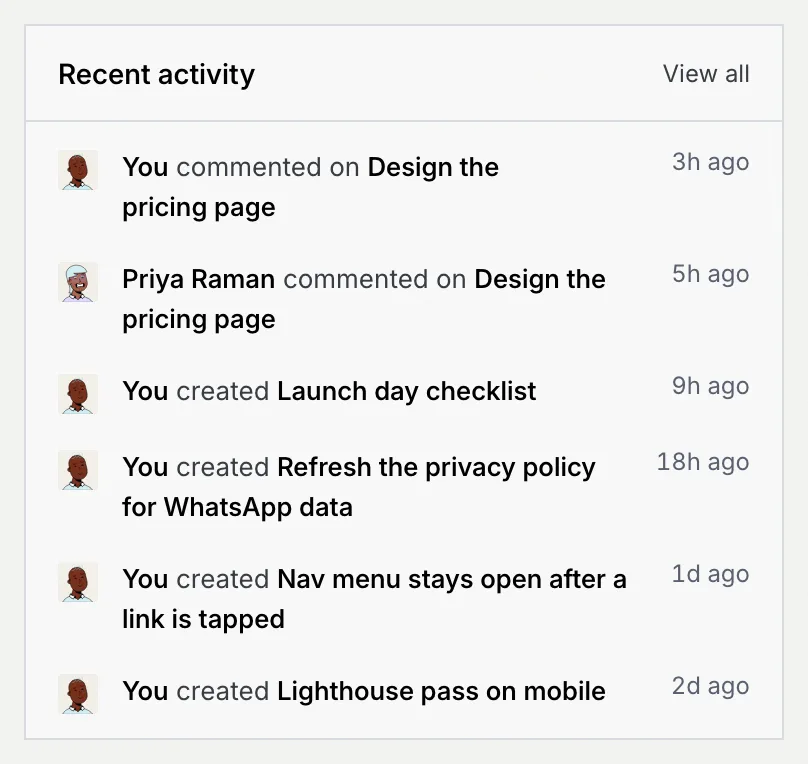
**Recent activity** shows the six latest changes on the board. Click **View all** to open the **Activity** tab.
The **About** panel shows the board's description ("No description yet." if it has none); its project manager can click **Edit** to change it in Board settings. The **Members** panel lists who's on the board with their board role and when they were last active; **Manage** opens [Members and roles](/docs/kanban/board-members).
## Share files on the board [#share-files-on-the-board]
The **Files** tab gathers every file on the board: files uploaded to the board itself, files attached to cards, and the photos and videos on posts.
### Open the Files tab [#open-the-files-tab]
On a board, click **Files**. Each file shows a preview, its name, size, who added it, when, and the key of the card it belongs to.
### Upload files [#upload-files]
Click **Upload**, click **browse** in the drop zone, or drop files anywhere on the tab. Each file can be up to 250 MB. A message confirms each upload, for example "Uploaded homepage-hero-b.png".
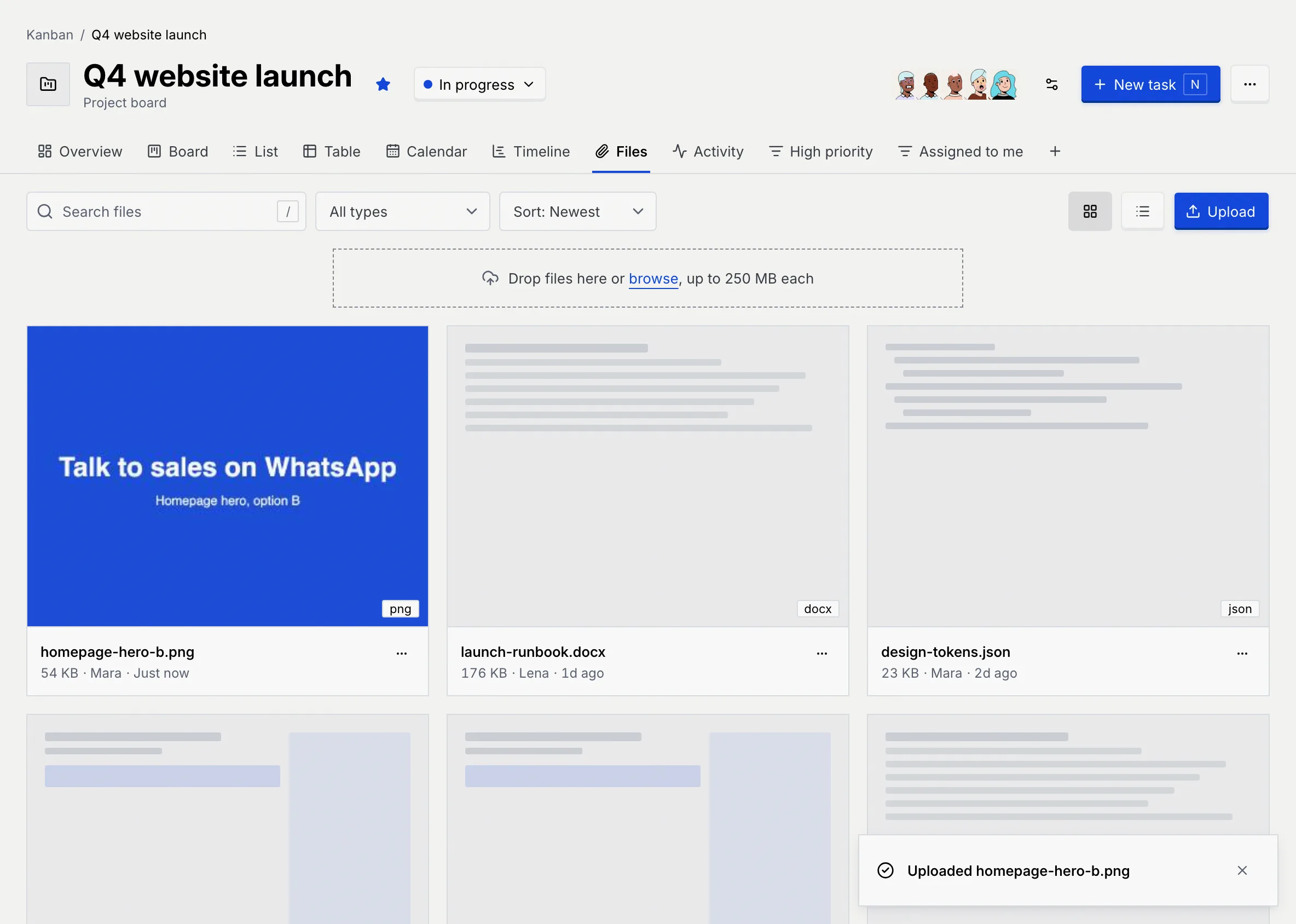
Files uploaded here belong to the board. To attach a file to a card instead, use the card's **Files** section ([Add and work on cards](/docs/kanban/kanban-cards#attach-files)).
### Find a file [#find-a-file]
Type in **Search files** (or press /), pick a type in **All types**, or change the order with **Sort: Newest**, **Sort: Name**, **Sort: Type** or **Sort: Size**. Switch between the grid and a list with the two buttons next to **Upload**.
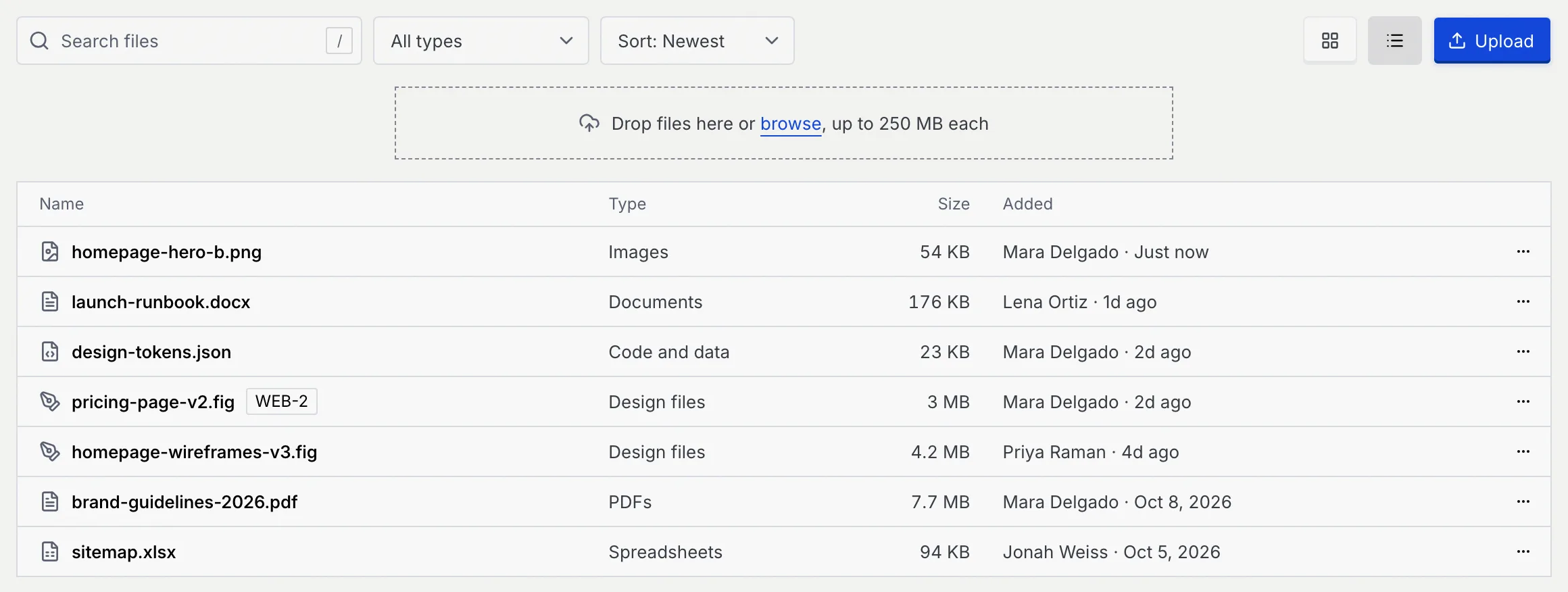
| Type | Files |
|---|---|
| **Images** | Photos and pictures. |
| **Videos** | Video files. |
| **PDFs** | PDF documents. |
| **Documents** | doc, docx, txt, md, rtf, pages, odt |
| **Spreadsheets** | xls, xlsx, csv, numbers, ods |
| **Design files** | fig, sketch, psd, ai, xd, svg |
| **Code and data** | json, js, ts, tsx, html, css, yml, yaml, xml, sql |
| **Archives** | zip, rar, 7z, tar, gz |
| **Other** | Anything else. |
### Download, open or delete a file [#download-open-or-delete-a-file]
Open a file's **⋯** menu. **Download** saves it, **Delete file** removes it after you confirm, and, for a file attached to a card, **Open** followed by the card's key (such as **Open WEB-2**) opens that card.
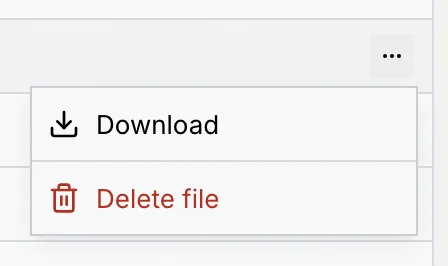
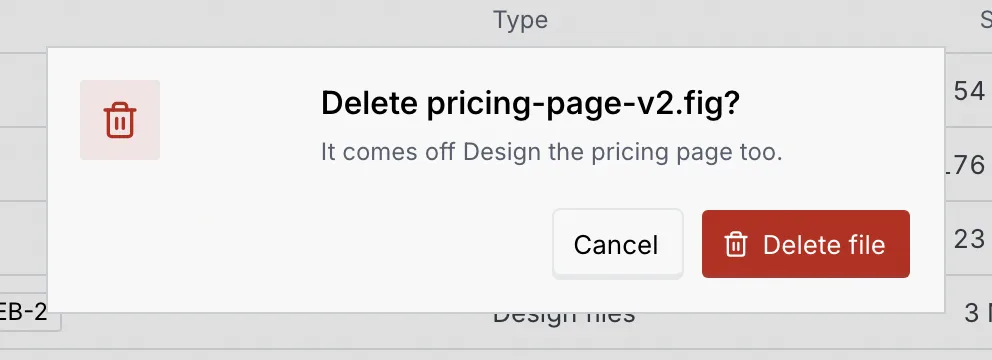
A file deleted from the **Files** tab is gone from the board for everyone, and a card's file comes off that card too. There's no undo.
## Follow the activity [#follow-the-activity]
Click the **Activity** tab to see what happened on the board: new cards, moves, edits, assignments, checklist items, files, comments, scheduling and publishing. Entries are grouped into **Today**, **This week** and **Earlier**, newest first, and each card's title links to it. Your own changes show as "You".
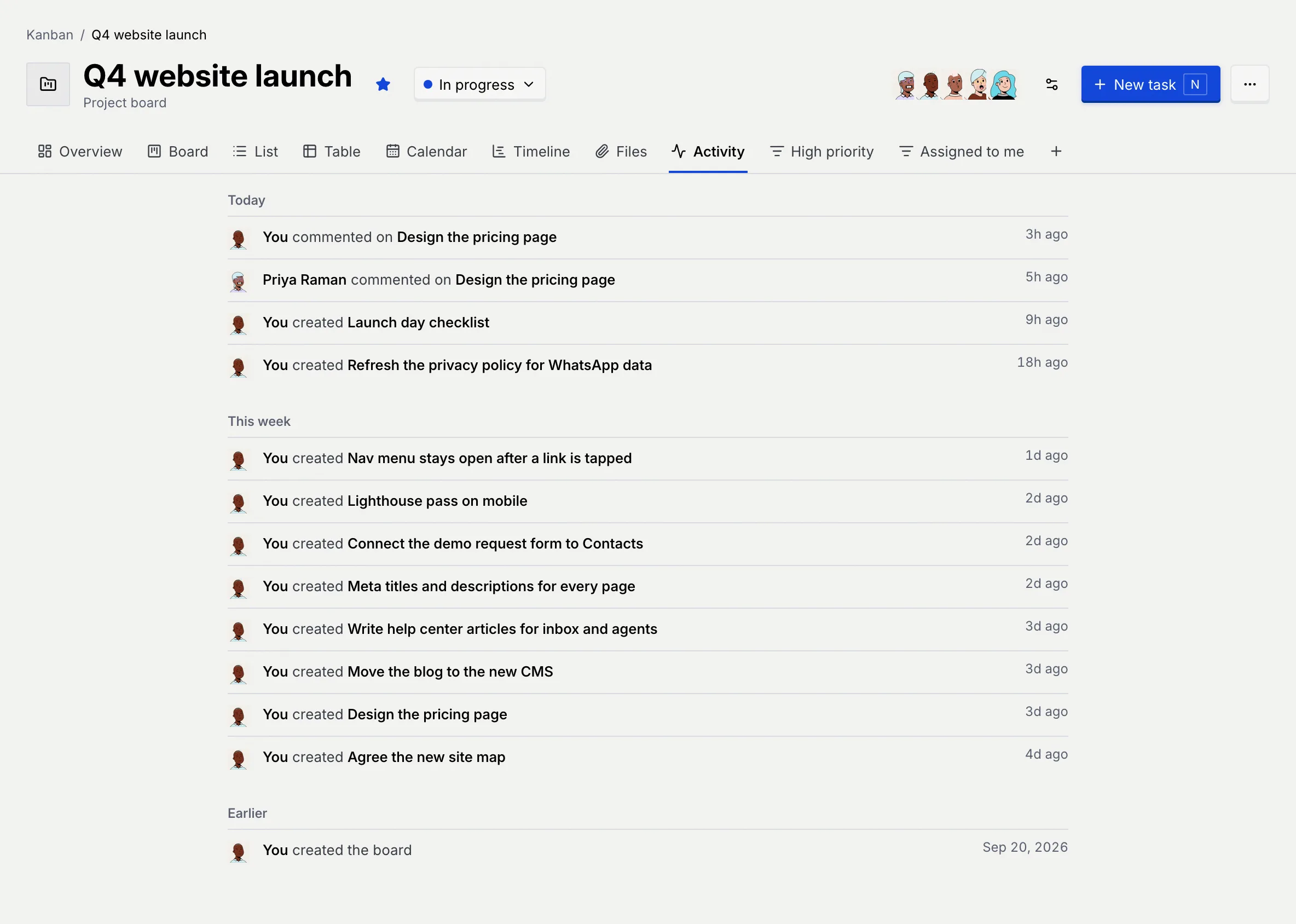
The tab shows the latest 200 entries. A card's full history is on its own page, under **Activity** ([Add and work on cards](/docs/kanban/kanban-cards#comment-and-see-the-history)). When nothing has happened yet, it says "No activity yet".
## Troubleshooting [#troubleshooting]
Files over 250 MB aren't added; the message names the file. Split or compress it, or share a link to it in a comment instead.
Your role can't edit cards, or you're a guest on this board. Ask the project manager for another board role, or an owner or admin to change your workspace role.
## Next steps [#next-steps]