View and export responses
Read every response to a form, filter by status or payment, open one in full, export them as CSV and delete the ones you don't need.
Each form's Responses tab lists everyone who answered it, with what they answered, whether they paid, and when. New responses appear as they come in, without reloading.
- Who can use it: Owners, admins, members and viewers can read responses. Only owners and admins can export or delete them by default: for other roles Export CSV is greyed out (hover or focus it to read why) and the delete actions are left out. A role without View responses doesn't get the Responses tab at all. See Roles and permissions.
- Before you start: The form needs to be published and shared (Publish and share a form).
Open a form's responses
Go to the Responses tab
On the Forms list, click ⋯ on the form's row and choose Responses, or open the form and click the Responses tab. The tab shows how many responses there are.
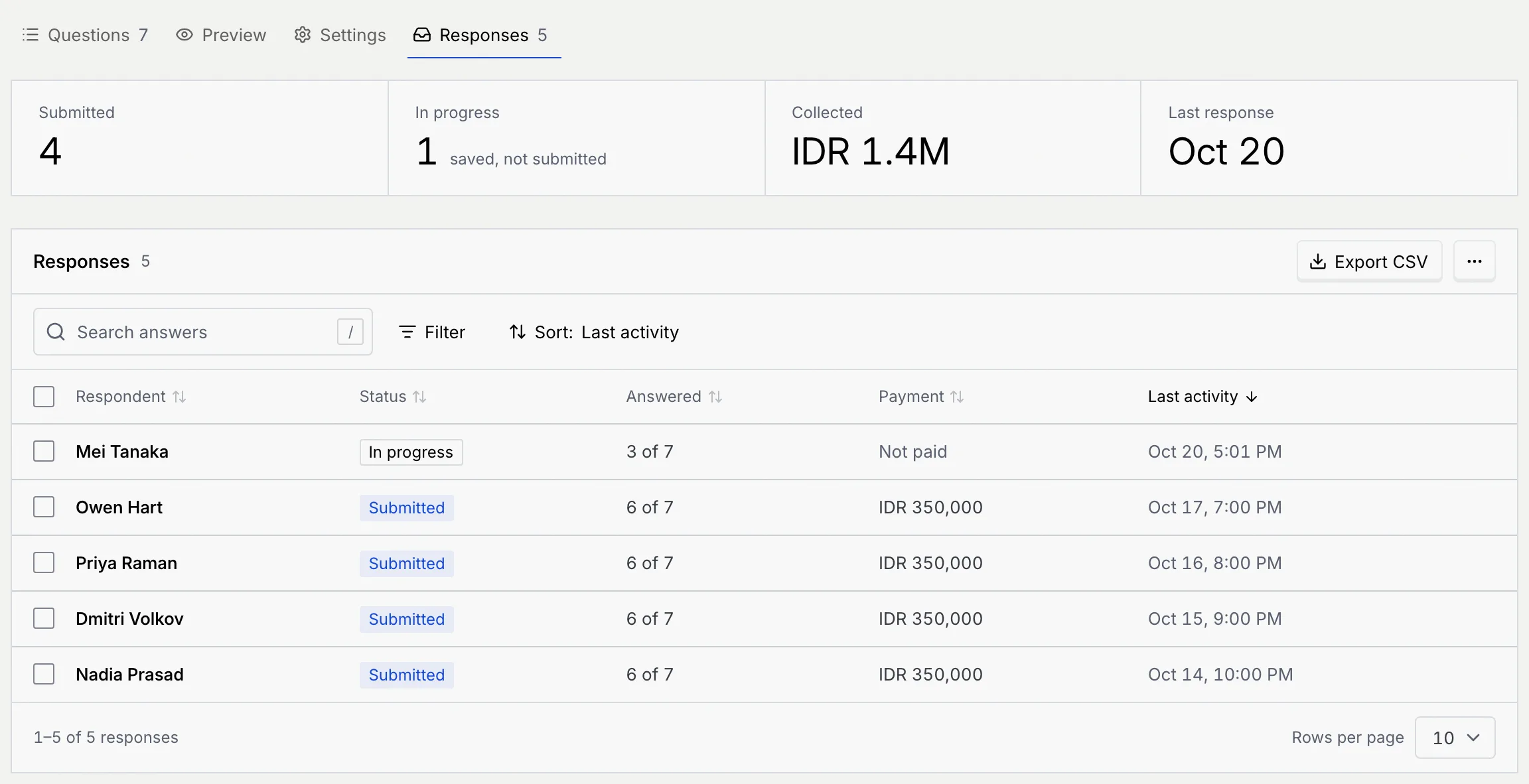
Read the numbers
| Number | What it counts |
|---|---|
| Submitted | Responses that were submitted. |
| In progress | People who started and haven't submitted (saved, not submitted). Shown on forms that save answers as they're given. |
| Sent to WhatsApp | Responses that went on to WhatsApp. Shown instead of In progress on forms that continue in WhatsApp. |
| Collected | Money paid, per currency, on forms with a payment question (None yet until someone pays; payment questions are coming soon). Other forms show how many Questions they ask. |
| Last response | When the latest response came in, or None yet. |
The response list
| Column | What it shows |
|---|---|
| Respondent | The person's name from the form, or their email, or the first short answer. Anonymous if there's nothing to go by. Click it to open the response. |
| Status | Submitted or In progress. A red warning icon means the response wasn't saved as a record (Save responses as records). |
| Answered | How many questions they answered, such as 6 of 7. |
| Payment | The amount paid, or Not paid. Only on forms with a payment question. |
| Last activity | When they last answered or submitted. |
Show 10, 25 or 50 responses a page. With no responses yet, the list says No responses yet, with a Copy link button on a live form, or a reminder to publish on a draft.
Search, filter and sort
Search answers
Type in Search answers (or press /). It matches the respondent's name and any answer.
Filter
Click Filter, then Status (Submitted or In progress) or, on forms that take payment, Payment (Paid or Not paid). Each option shows how many responses it matches.

The filters in force show as chips under the toolbar. Click × on a chip, or Clear filters, to remove them.
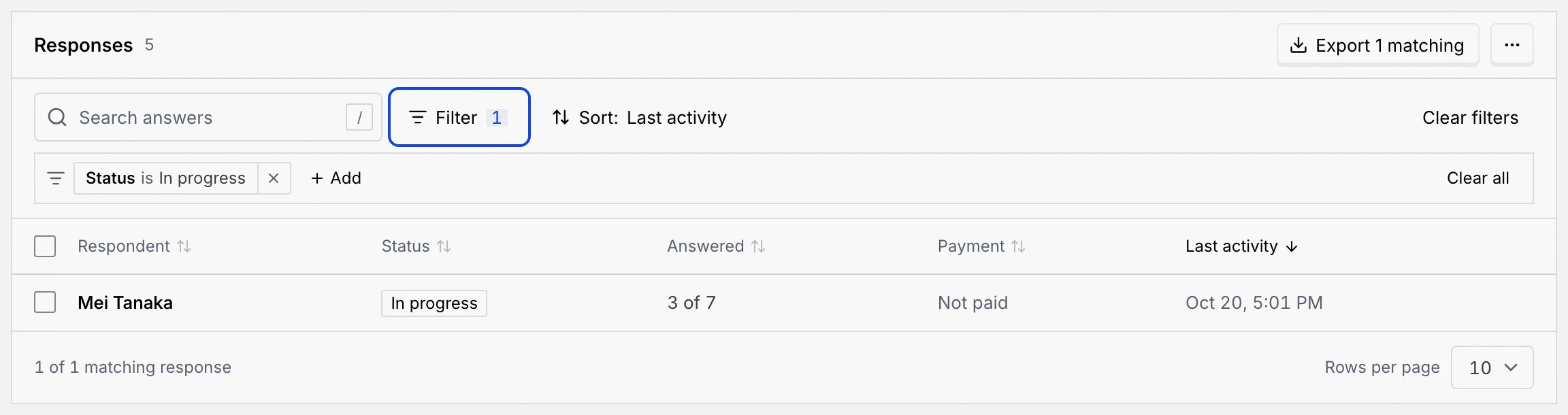
Sort
Click Sort to order by Last activity (the default, newest first), Respondent, Status, Answered or Payment.
When nothing matches, the list says No responses match: try other words, or clear the filters.
Read one response
Click a respondent's name. A panel opens with their status, when they submitted (or Last saved for a response in progress), and every question with its answer. Questions they skipped say No answer; section headings appear as dividers. A payment shows as Paid with the amount and the gateway's receipt number.
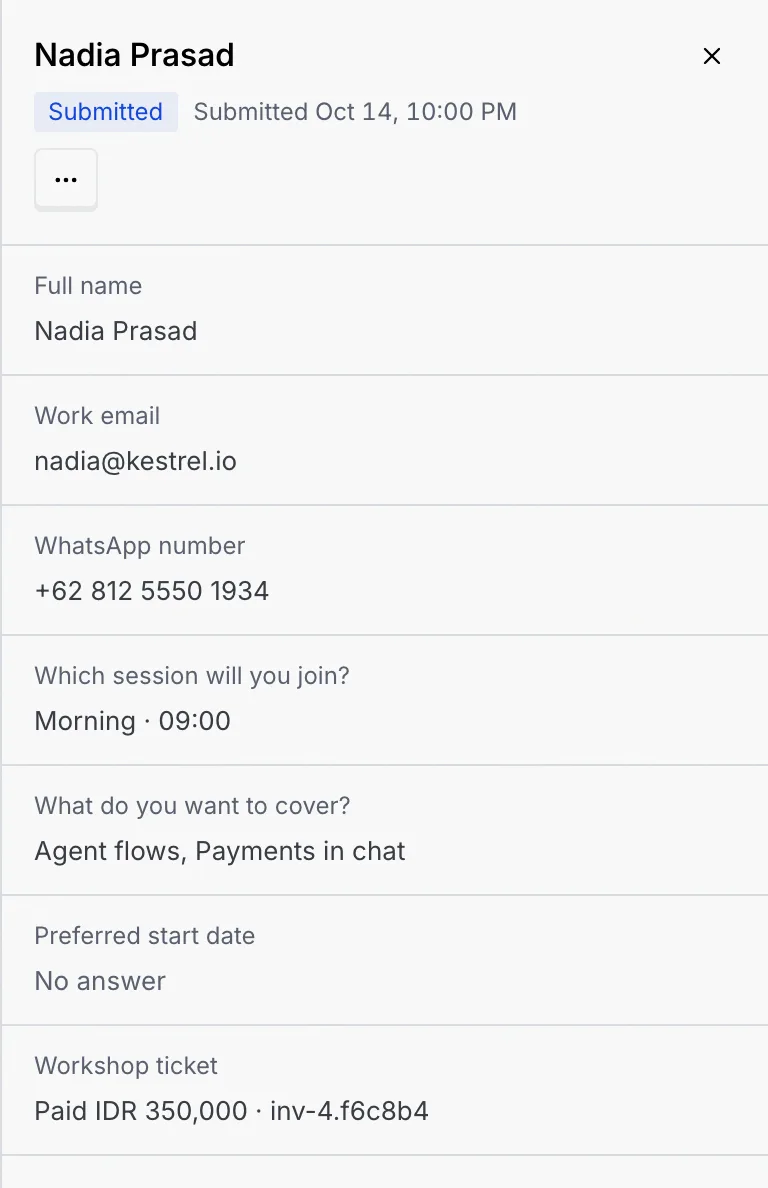
The top of the panel can also say:
- Saved as a record in Object with Open the record, when the form saves responses as records, or Not saved to Object with the reason. See Save responses as records.
- On forms that continue in WhatsApp, a line saying the response was sent on to WhatsApp and The conversation continues in the inbox. Find the conversation in the inbox.
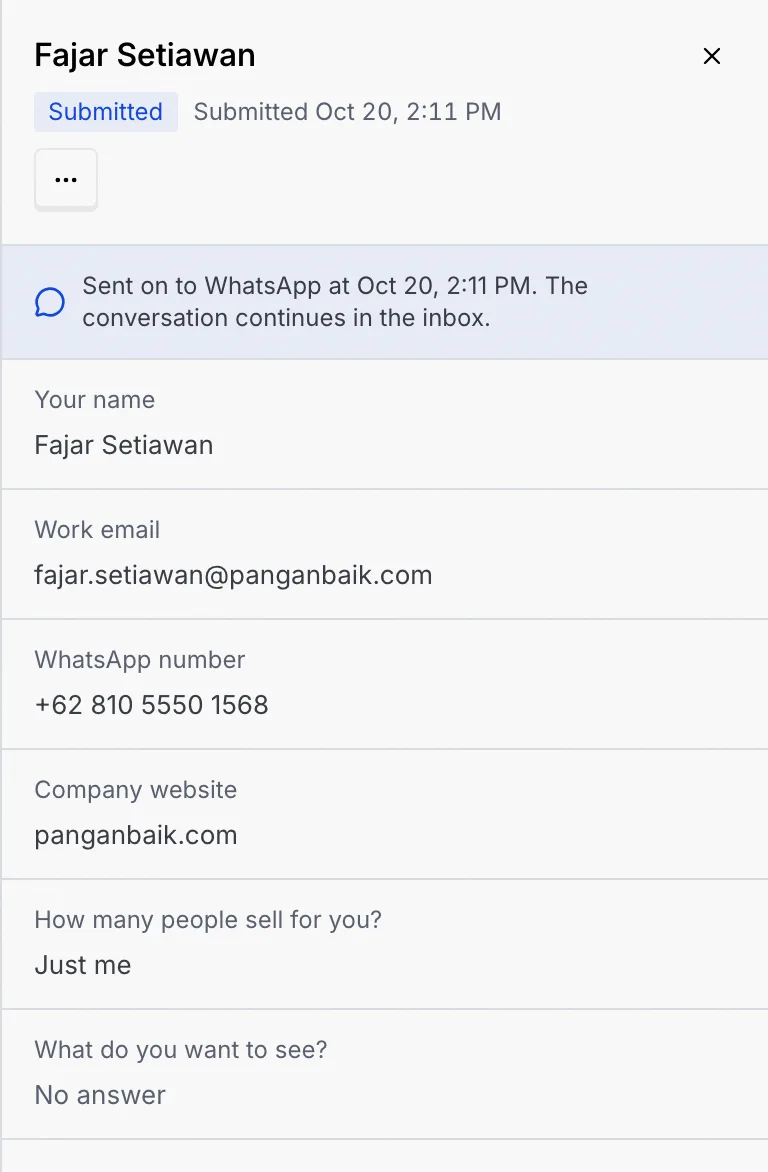
On a form that continues in WhatsApp, the numbers show Sent to WhatsApp in place of In progress, since nothing is saved until people submit.

Export responses
Export
Click Export CSV at the top of the list. With a search or filter on, the button reads Export N matching and exports only those. To export particular responses, tick them and click Export CSV in the selection bar.
Open the file
The toast says the file is in your downloads, named after the form, such as mokanata-workshop-registration-responses.csv. It has one row per response with Status, Started, Submitted and a column for each question.
Delete responses
Select the responses
Tick the box beside each response, or the header box for the whole page. Then click ⋯ in the selection bar.
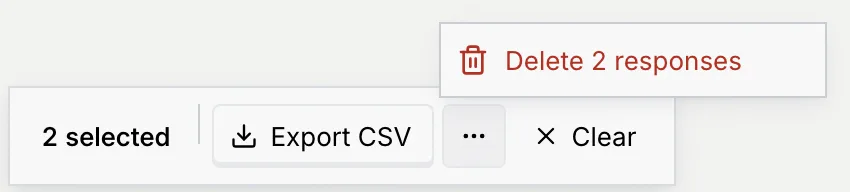
Confirm
Click Delete 2 responses (the count follows your selection), then Delete 2 in the dialog. A toast confirms how many were deleted.
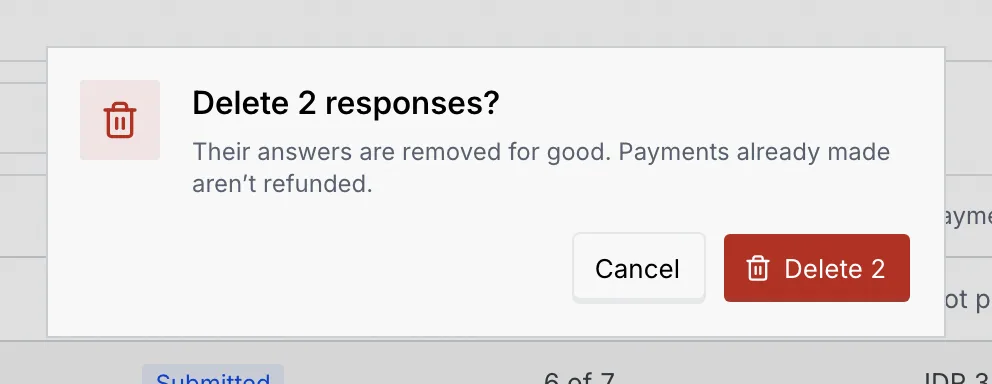
To delete one response, open it and click ⋯ → Delete response in its panel.
Deleting can't be undone
The answers are removed for good. Deleting a response doesn't refund a payment made through it.
Other actions
The ⋯ next to Export CSV holds Copy form link and Open the form for a live form.
Troubleshooting
Either your role can't export responses (hover the button to read why), or your search and filters match nothing, so there's nothing to export.
The response was deleted, here or in another tab. Close the panel to go back to the list.
On a form that continues in WhatsApp, nothing is saved until they press Submit and open WhatsApp. Forms that save answers as they're given show people who started as In progress.
Next steps
Save responses as records
Turn each submitted response into a record in a custom object or a row in a synced database table, with each field filled by a question.
What respondents see
The public form people open from your link, on a phone or a computer, with autosave, the WhatsApp hand-off and the closed and unavailable states.