Save responses as records
Turn each submitted response into a record in a custom object or a row in a synced database table, with each field filled by a question.
Every submitted response already becomes a contact. A form can also save each response as a record somewhere else: in a custom object you made in Mokanata (such as Orders), or as a new row in a table synced from a connected database. You choose the object, then the question that fills each of its fields.
- Who can use it: Owners, admins and members, who can edit forms. Other roles can see the setting but not change it. See Roles and permissions.
- Before you start: You need a custom object (Create a custom object) or a database table synced into Mokanata (Connect a database).
Choose where responses go
Open the form's settings
Open the form and click the Settings tab. Scroll to Save responses to. It starts on Don't save as a record.
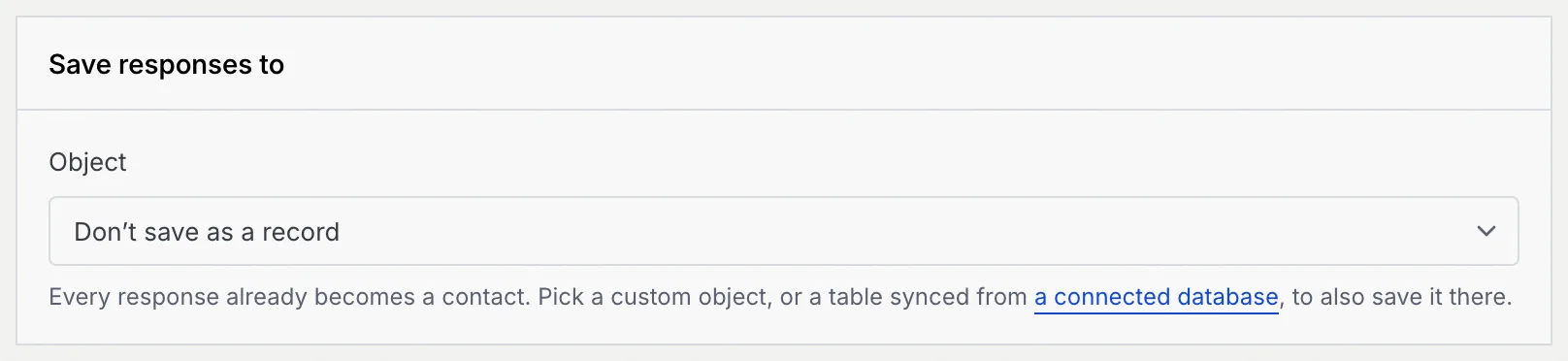
Pick the object
Click Object. Objects you made are listed under Made in Mokanata; tables from a connected database are under Synced from followed by the database's name. Contacts isn't listed, because every response already becomes one.
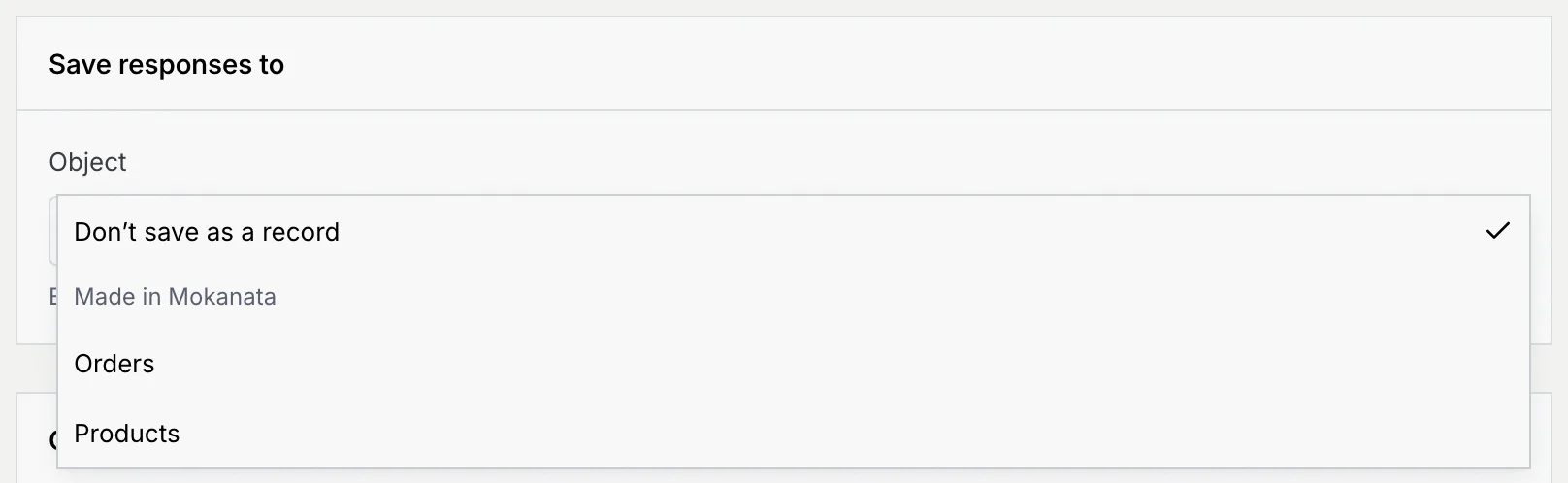
The help under the picker confirms the choice: Each response also becomes a record in Orders, as well as a contact.
Match fields to questions
Check the suggested matches
Under Fields · the question that fills each one, each of the object's fields is listed with its type, and the question that fills it. Mokanata starts with a suggestion: a question with the same name as the field, or the name, email or phone question for fields of that kind. Fields it couldn't match say Leave empty, or Pick a question when the field is required.
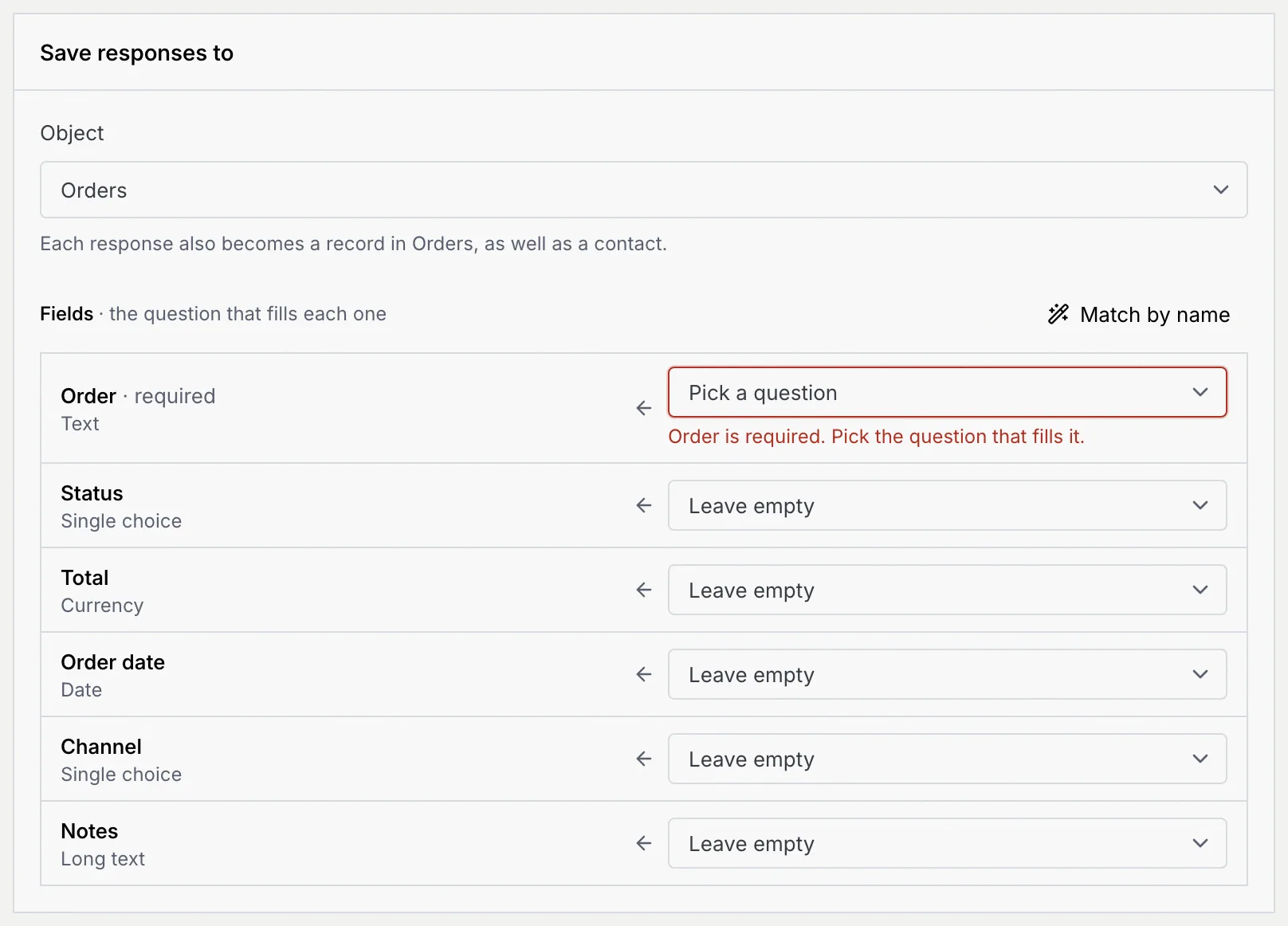
Pick a question for each field
Click a field's picker and choose the question that fills it, or Leave empty. Each picker only offers questions whose answers fit the field:
| Field type | Questions that fit |
|---|---|
| Number, Currency | Number, Linear scale, Payment (the amount paid), Short answer |
| Date | Date, Date and time |
| Single choice, Multiple choice, Checkbox | Multiple choice, Checkboxes, Dropdown, Short answer |
| Email, Short answer | |
| Phone | Phone number, Short answer |
| Text, Long text and other types | Any question except a payment, which only fills Text (with its receipt number). A file upload gives the file names. |
| Teammate | None: a form can't fill it. |
A choice answer fills a Single choice or Multiple choice field when the option has the same name as one of the field's options. Relation fields, and fields the database fills itself (such as ids and timestamps), aren't listed.
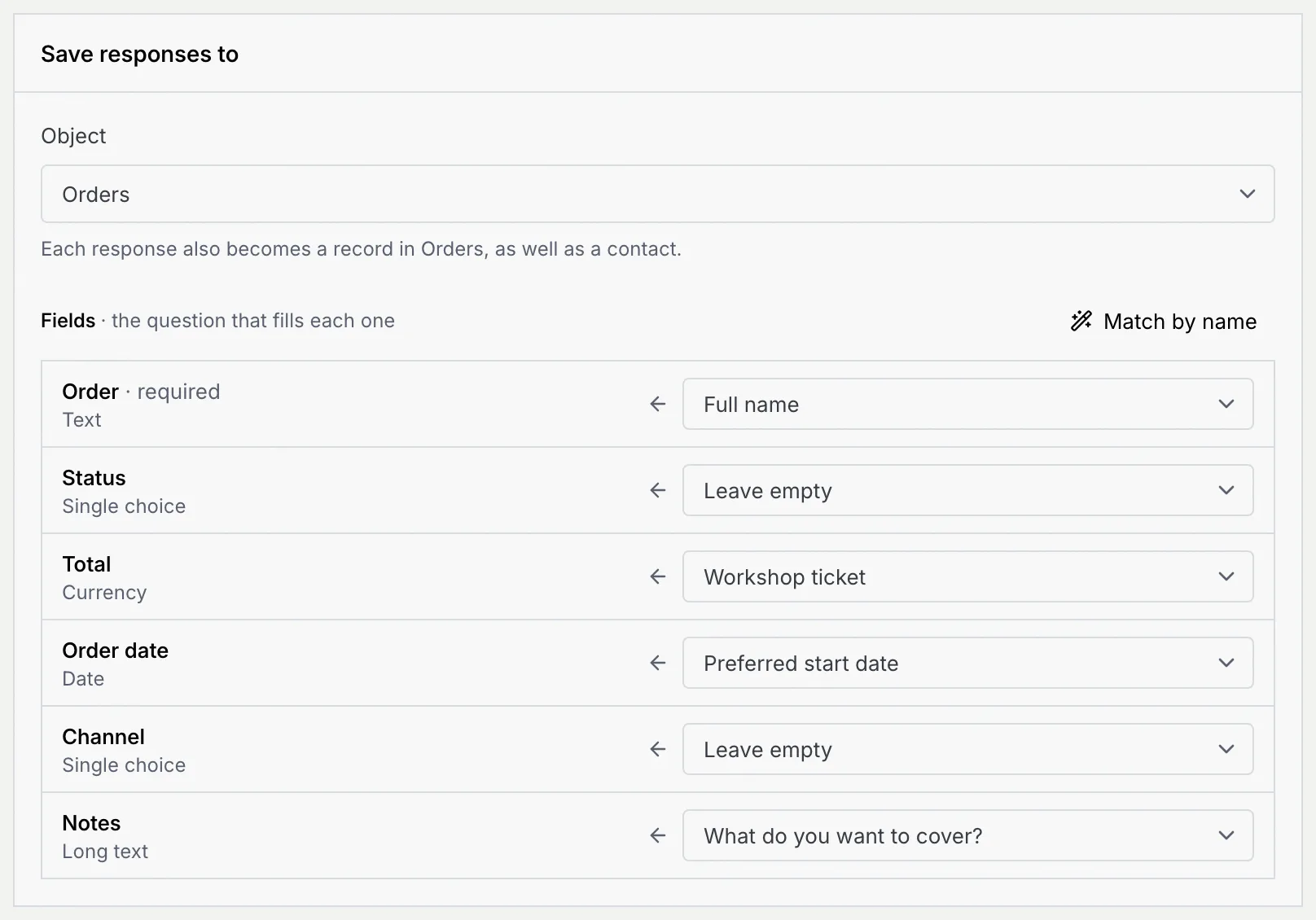
Click Match by name to redo the suggestions after you rename questions.
Save the form
Click Save changes. If a field still has a problem, the form saves anyway, with a warning toast: Responses won't reach Orders yet, and the problem line ends with Fix it in Settings, under Save responses to. Fix it and save again.
Check that responses arrive
Each submitted response becomes a record as it comes in. Open the form's Responses tab and click a respondent: the top of the response says Saved as a record in Orders. and has an Open the record link, which opens the new record.
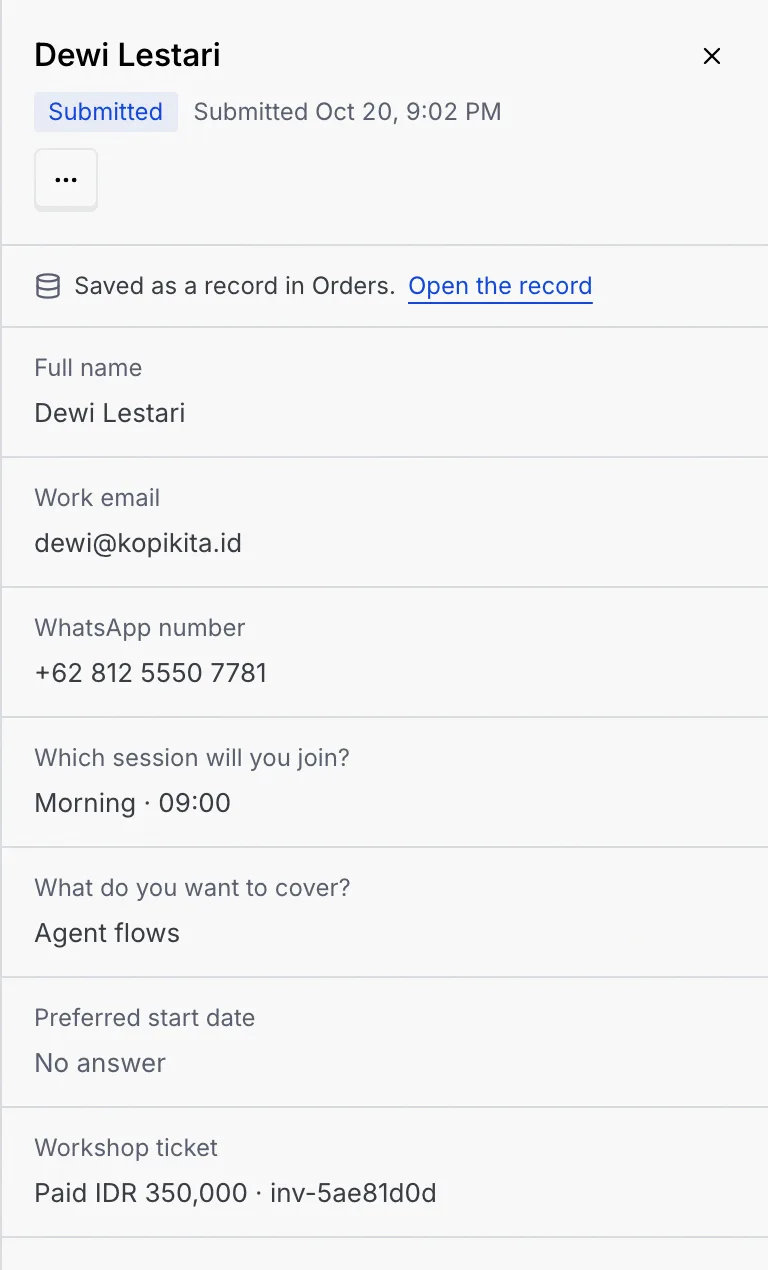
Only submitted responses are saved as records. People still answering (In progress) aren't.
Save into a synced database table
When you pick a table under Synced from, each response inserts a new row into that table in your database, and shows in Mokanata as soon as the database has it. The help names the database and table, and a note says Columns the database fills itself, like ids and timestamps, aren't listed. A response the database refuses stays in Responses with the reason.
If the database refuses a row, or the object can't take the record, the respondent still finishes normally. The response is kept, marked with a red warning icon in the Status column, and its details show Not saved to followed by the object's name, the reason, the line The answers are still here. and a Check where responses are saved link back to this setting.
Stop saving records
Set Object back to Don't save as a record and save the form. Records already created stay where they are.
Troubleshooting
The object needs a value in that field for every record. Pick a question for it.
A required field is filled by an optional question, so some responses could arrive without it. Switch on Required for that question on the Questions tab.
Pick another question for the field, or Leave empty if it isn't required.
Pick another object, or choose Don't save as a record.
Next steps
Publish and share a form
Publish a form, copy its link or QR code, give it a readable ending or your own domain, and choose what happens after someone submits.
View and export responses
Read every response to a form, filter by status or payment, open one in full, export them as CSV and delete the ones you don't need.