Publish and share a form
Publish a form, copy its link or QR code, give it a readable ending or your own domain, and choose what happens after someone submits.
Publishing a form gives it a link anyone can open without signing in. The form's Settings tab holds everything about sharing it: the link and its QR code, a readable ending, your own domain, whether the conversation carries on in WhatsApp, and the message people see when they finish.
- Who can use it: Owners, admins and members can publish, close and change a form's settings. Anyone in the workspace can copy a live form's link and download its QR code, including viewers. See Roles and permissions.
- Before you start: Build the form (Build a form). To share it on your own domain, add a forms domain first (Custom domains).
Publish the form
Click Publish
In the builder, click Publish. If something would stop respondents from finishing, a list of problems appears instead: fix them and click Publish again (see Fix problems before publishing).
Copy the link
The toast says Form published. Share the link to start collecting responses. The status changes to Accepting responses, the form opens on its Settings tab, and the main button becomes Copy link.
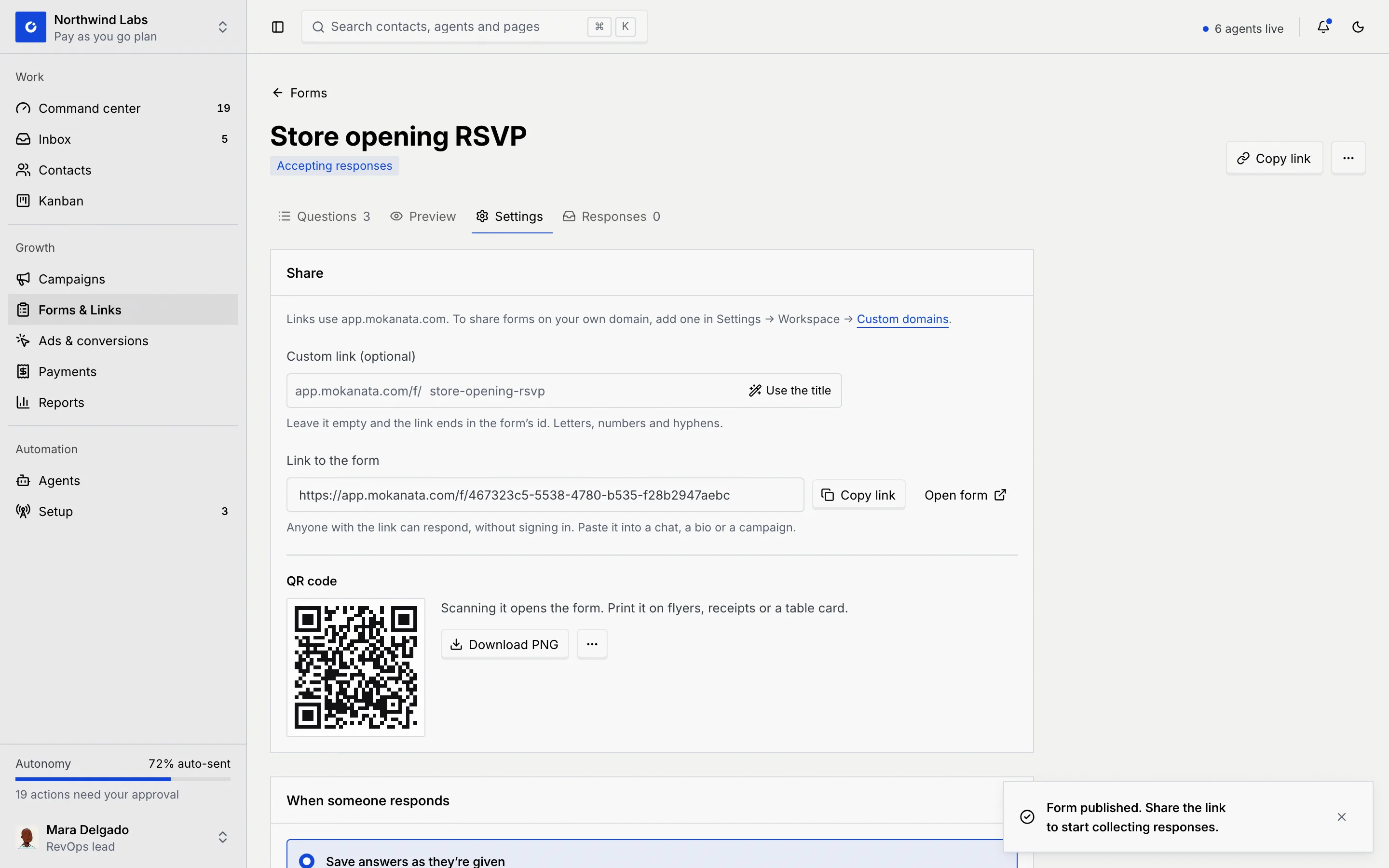
Paste the link into a chat, your bio, an email or a campaign. Anyone who opens it can respond. You can also copy it from the ⋯ menu of the form's row on the Forms list.
The Share panel
Open a form and click the Settings tab. The Share panel holds:
- Domain, if your workspace has a forms domain (see Use your own domain). Without one, it says which address links use.
- Custom link (optional), a readable ending for the link.
- Link to the form, with Copy link and Open form (which opens the public form in a new tab). Only live and closed forms have a link; a draft says Publish the form to get a link anyone can open, no sign-in needed.
- QR code, which opens the same link.
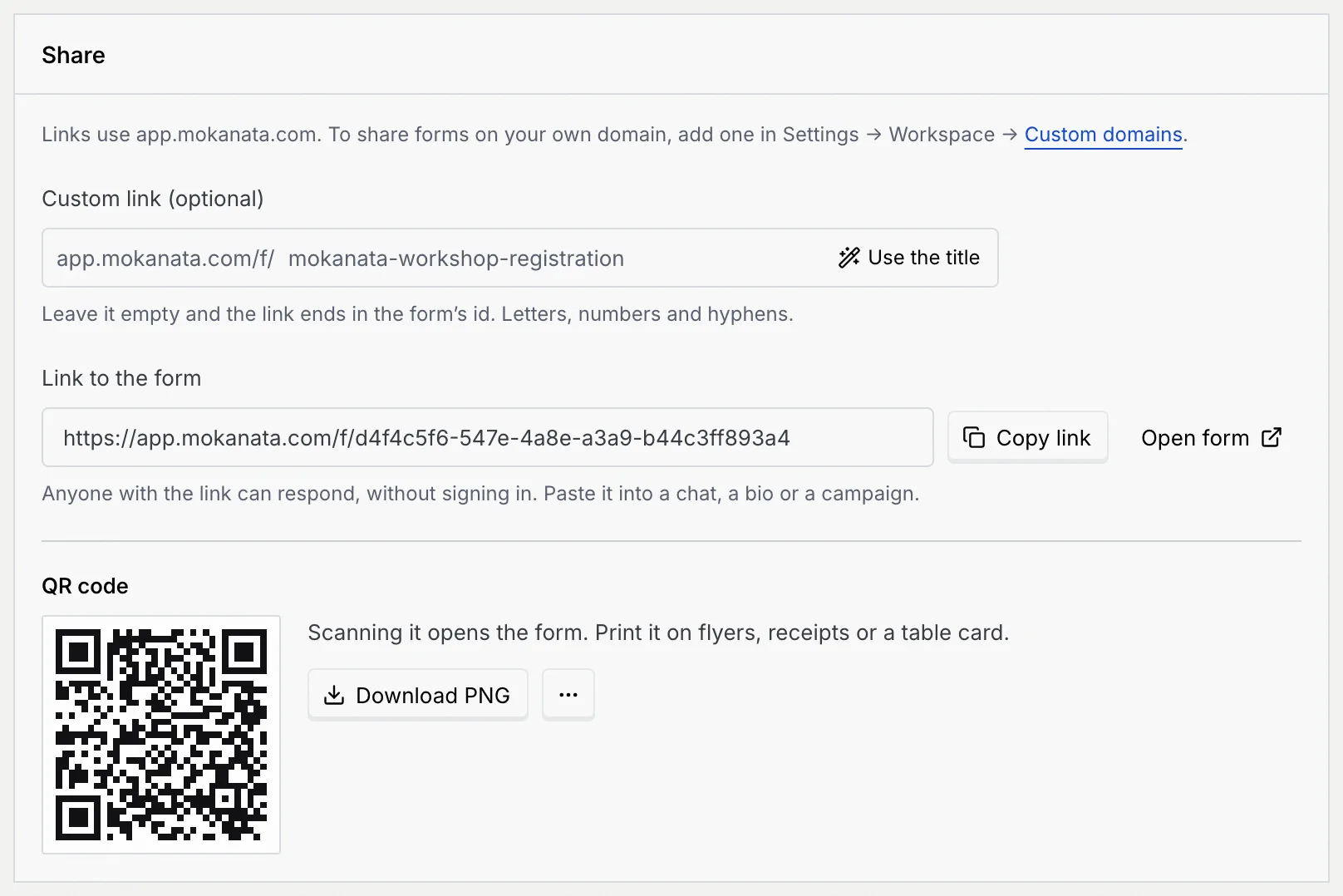
On a closed form the link stays, and says The form is closed, so this link shows that it stopped taking responses.
Give the form a readable link
Without a custom link, the form's address ends in a long id. A custom ending makes it readable, such as /f/workshop-oct.
Type an ending
In Custom link (optional), type the ending, or click Use the title to make one from the form's title. Letters, numbers and hyphens; spaces and capitals turn into hyphens and lowercase as you type.
Check it's free
Under the field, Available. Save the form to use it. means you can have it. The Link to the form already shows the new address, while the QR code keeps opening the saved link until you save: This code opens the saved link. Save the form to point it at the new one.
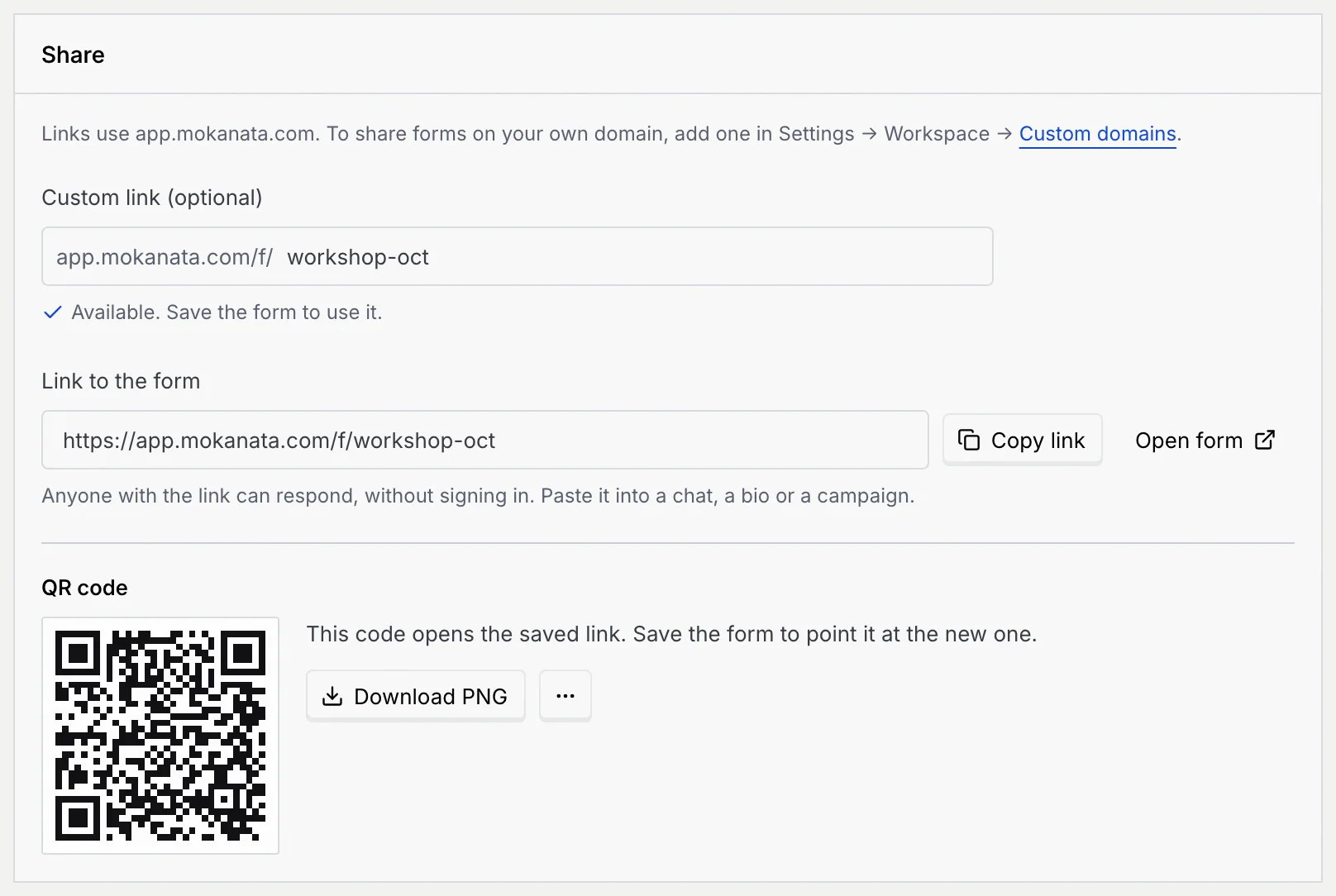
Save
Click Save changes (or Publish on a draft). The help now says The form opens at this ending. Earlier endings keep working too. Links and QR codes you already shared, with the id or an older ending, still open the form and move to the new address.
| Message | What to do |
|---|---|
| Use at least 3 characters. / Use 64 characters or fewer. | Make the ending longer or shorter. |
| Use lowercase letters, numbers and hyphens, starting and ending with a letter or number. | Remove other characters, and any hyphen at the start or end. |
| That looks like an id. Pick a word or phrase people can read. | Use words rather than a code. |
| "ending" is reserved. Pick another ending. | new, edit, links, admin, api, app, login, logout, signup, settings, help, support, mokanata, f and l can't be used. |
| "Form" already uses this ending. | Another of your forms has it, now or from before it was renamed. Pick another. |
| Another workspace already uses this ending. Pick another. | Endings are unique across Mokanata. Pick another. |
Use your own domain
Once an owner or admin has added a forms domain in Custom domains, the Share panel shows a Domain picker.
Pick the domain
Choose your domain instead of the Mokanata link. Domains still waiting for DNS are listed as Waiting for DNS and can't be picked yet.
Save the form
The help reads Save the form to share it on this domain. Links you already shared keep working. Click Save changes.
If the domain is later removed or stops verifying, the form falls back to the Mokanata link and the Domain help says so; pick another domain or keep the Mokanata link.
Download or print the QR code
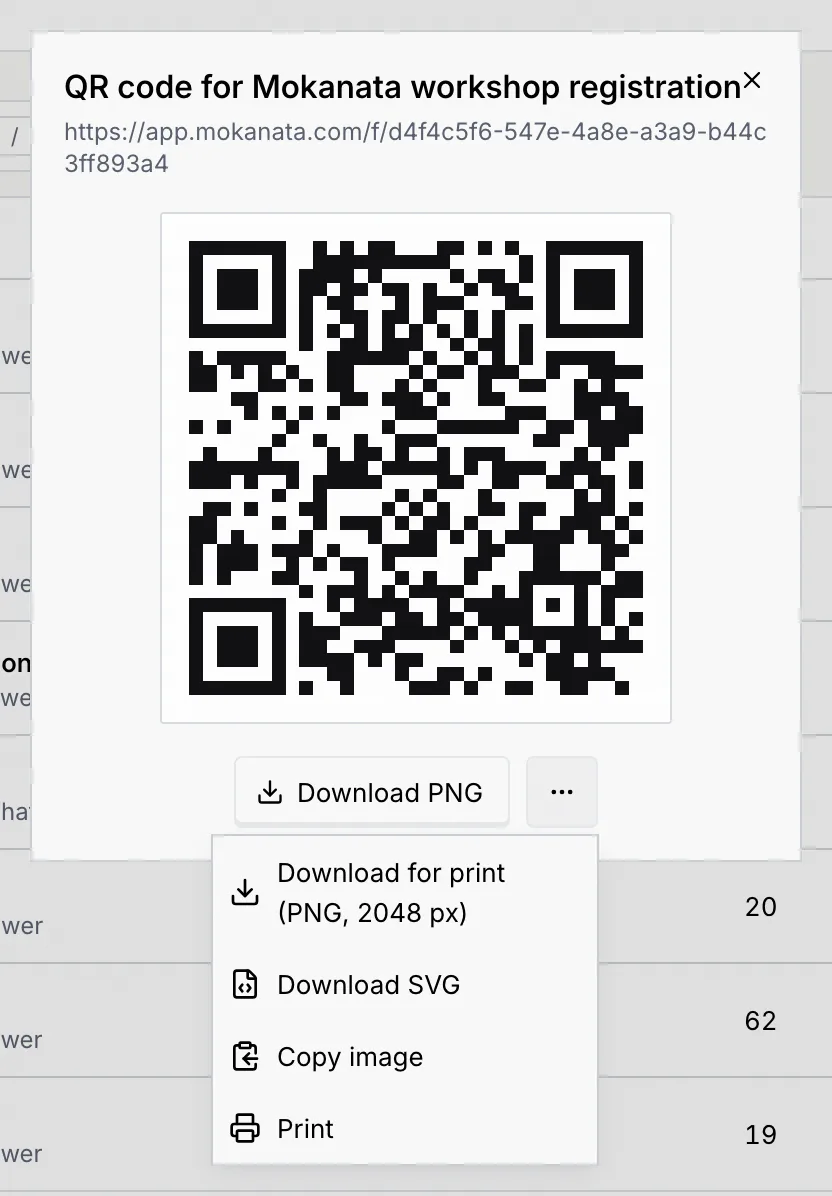
The QR code opens the form's saved link. Print it on flyers, receipts or a table card. It's always dark on white so every phone camera can read it.
Open the QR code
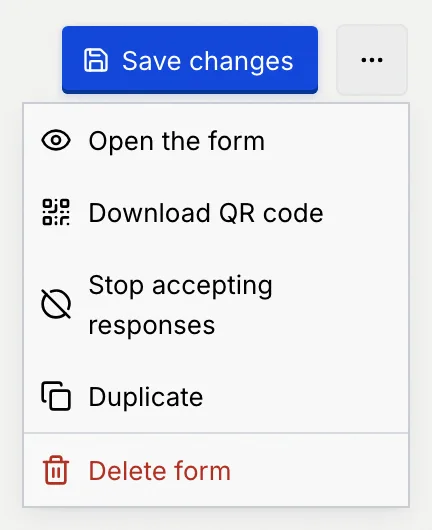
Use the QR code block on the Settings tab, or click ⋯ on the form's row in the Forms list and choose QR code. In the builder, ⋯ → Download QR code downloads the PNG straight away.
Download, copy or print
Click Download PNG (1024 px), or click ⋯ for Download for print (PNG, 2048 px), Download SVG, Copy image and Print. Files are named after the form's ending or title, such as workshop-oct-qr.png.
Choose what happens when someone responds
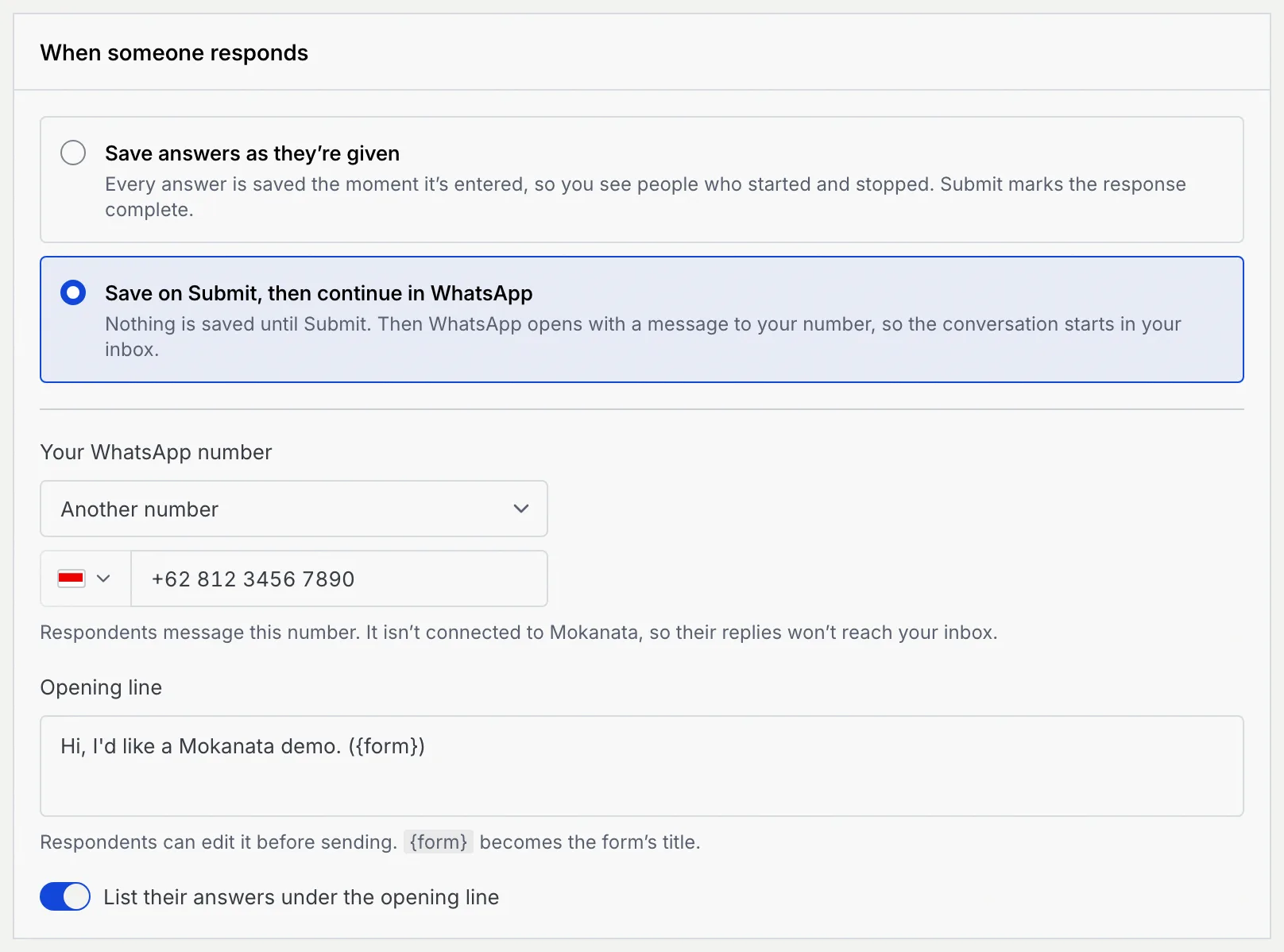
The When someone responds panel on the Settings tab sets how answers are saved.
| Option | What it does |
|---|---|
| Save answers as they're given | Every answer is saved the moment it's entered, so you see people who started and stopped (In progress responses). Respondents can close the page and come back. Submit marks the response complete. This is the default. |
| Save on Submit, then continue in WhatsApp | Nothing is saved until Submit. Then WhatsApp opens with a message to your number, so the conversation starts in your inbox. |
Continue the conversation in WhatsApp
Pick your WhatsApp number
Under Your WhatsApp number, choose one of your connected WhatsApp numbers, so replies land in your inbox. To use a number that isn't connected, choose Another number and type it with its country code; respondents can still message it, but their replies won't reach Mokanata. If a connected number can't send right now, the help says why.
Write the opening line
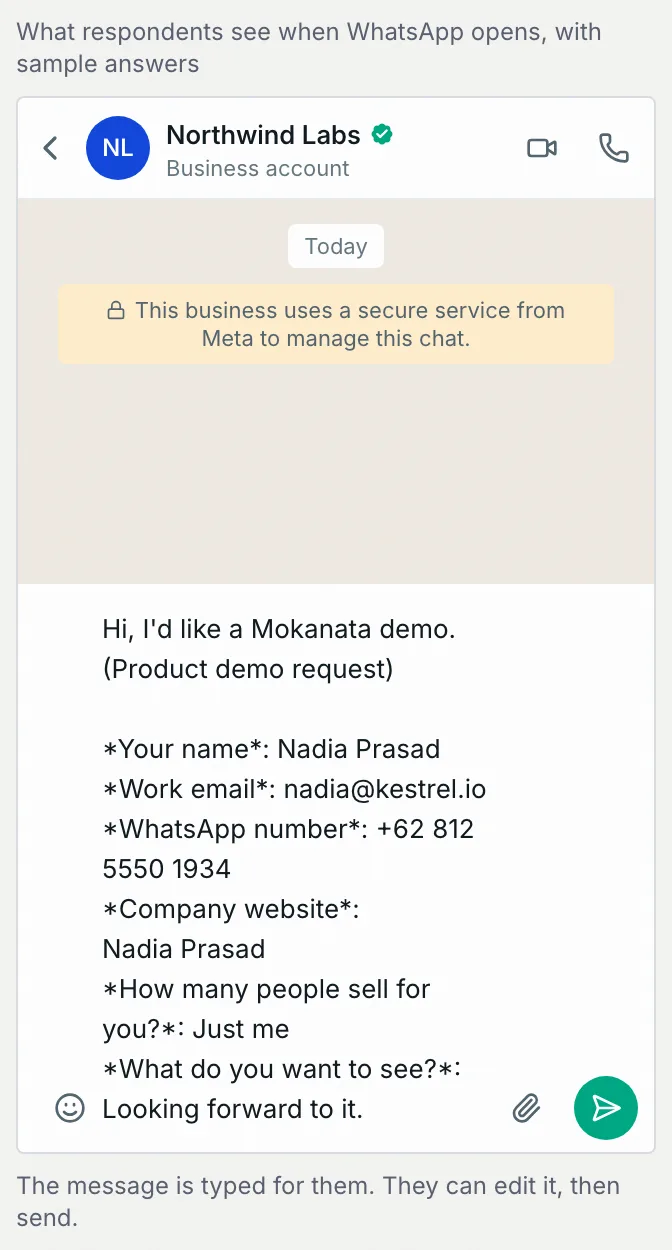
Edit Opening line, the first line of the message. {form} becomes the form's title. Switch on List their answers under the opening line to add each answer below it. Respondents can edit the message before sending.
On the right of the tab, What respondents see when WhatsApp opens, with sample answers previews the message as it will be typed out for them.
Save
Click Save changes. The public form's button now reads Submit and open WhatsApp, and the form's row says Continues in WhatsApp.
Change the confirmation message
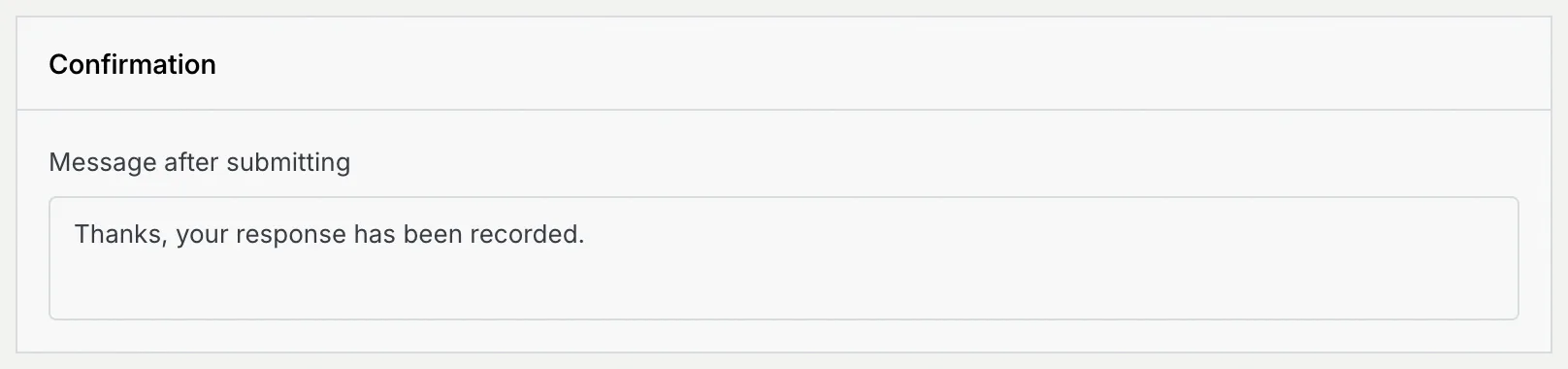
In the Confirmation panel, edit Message after submitting: what respondents read once they submit. It starts as "Thanks, your response has been recorded." Save the form to use it.
Change a live form
Edit the questions or settings, then click Save changes. Until you do, respondents keep seeing the saved version. A toast says Changes saved. The live form shows them now. Saving a live form checks for the same problems as publishing.
Stop accepting responses
Close the form
In the builder, click ⋯ and choose Stop accepting responses. The toast says Form closed. The link now says it stopped taking responses. The status changes to Closed.
Reopen it later
On a closed form, click Accept responses. The toast says Form reopened. To close or reopen several forms at once, use the selection bar on the Forms list (Change several forms at once).
Troubleshooting
Some browsers block the clipboard. Copy the link from Link to the form on the Settings tab instead: click in the box to select it.
The QR code follows the saved link. Save the form after changing its ending or domain, then download the code again.
Print opens a print window: allow pop-ups for Mokanata and try again. If your browser can't copy images, download the PNG instead.
The form continues in WhatsApp but has no valid number. Pick a connected number, or choose Another number and enter it with its country code, like +62 812 3456 7890.
Next steps
Build a form
Add questions of every kind, arrange them side by side, and fix what's missing before you publish. Payment questions are coming soon.
Save responses as records
Turn each submitted response into a record in a custom object or a row in a synced database table, with each field filled by a question.