What respondents see
The public form people open from your link, on a phone or a computer, with autosave, the WhatsApp hand-off and the closed and unavailable states.
People answer your forms on a public page: no sign-in, no Mokanata account, just your workspace's name at the top and the form on graph paper. This page walks through it from their side, so you know what they see and can answer their questions.
- Who can use it: Anyone with the form's link. Nobody in your workspace needs to do anything for a published form to take responses.
- Before you start: The form must be published (Publish and share a form). Drafts aren't reachable.
Open the form
People open the form from its link (/f/ followed by the form's id or its custom ending), from a short link to it, from its QR code, or from a button on your link in bio page. Opening an old ending or the id moves them to the form's current address.
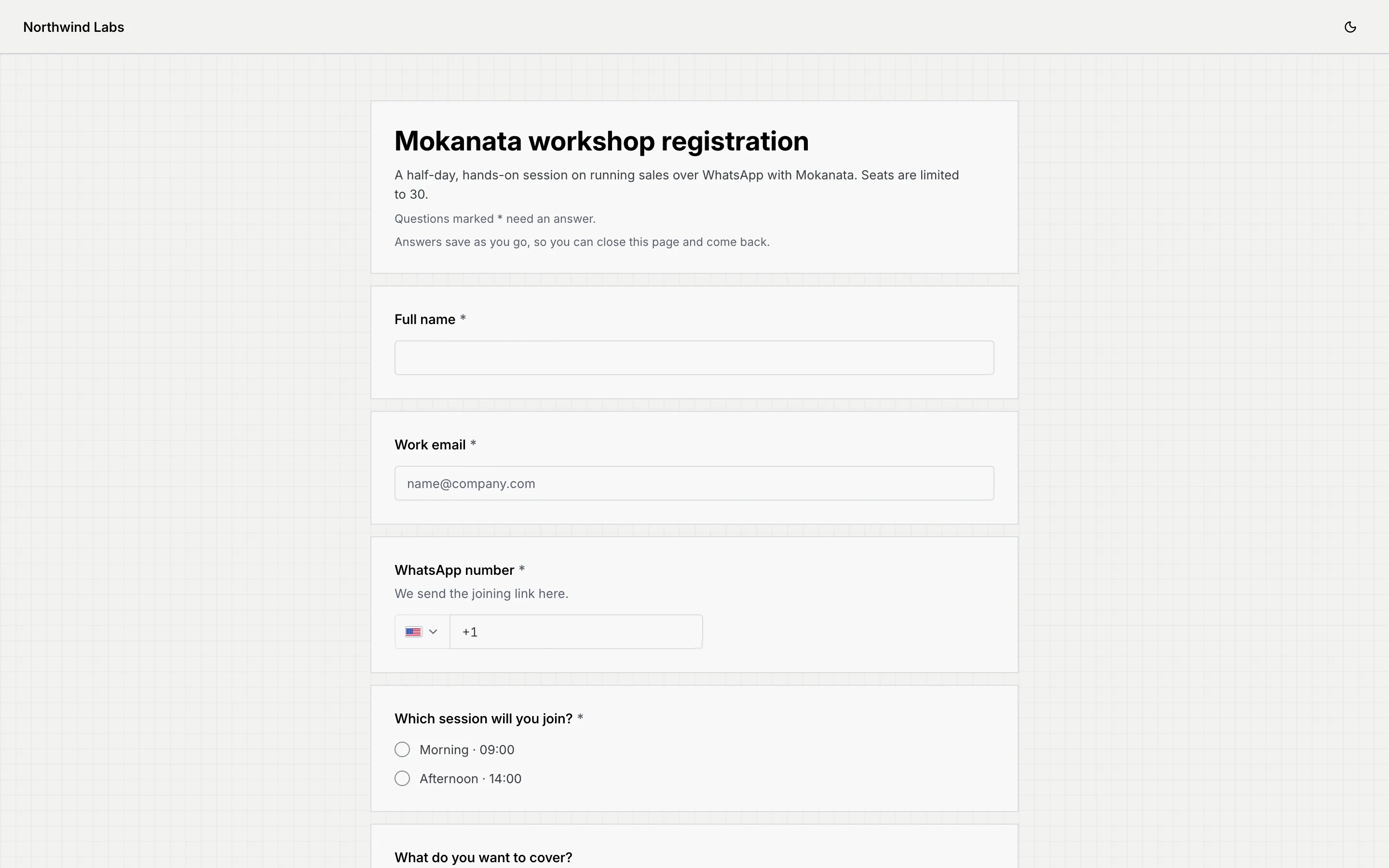
The page works the same on a phone, where most people fill it in. The button at the top right switches between light and dark.
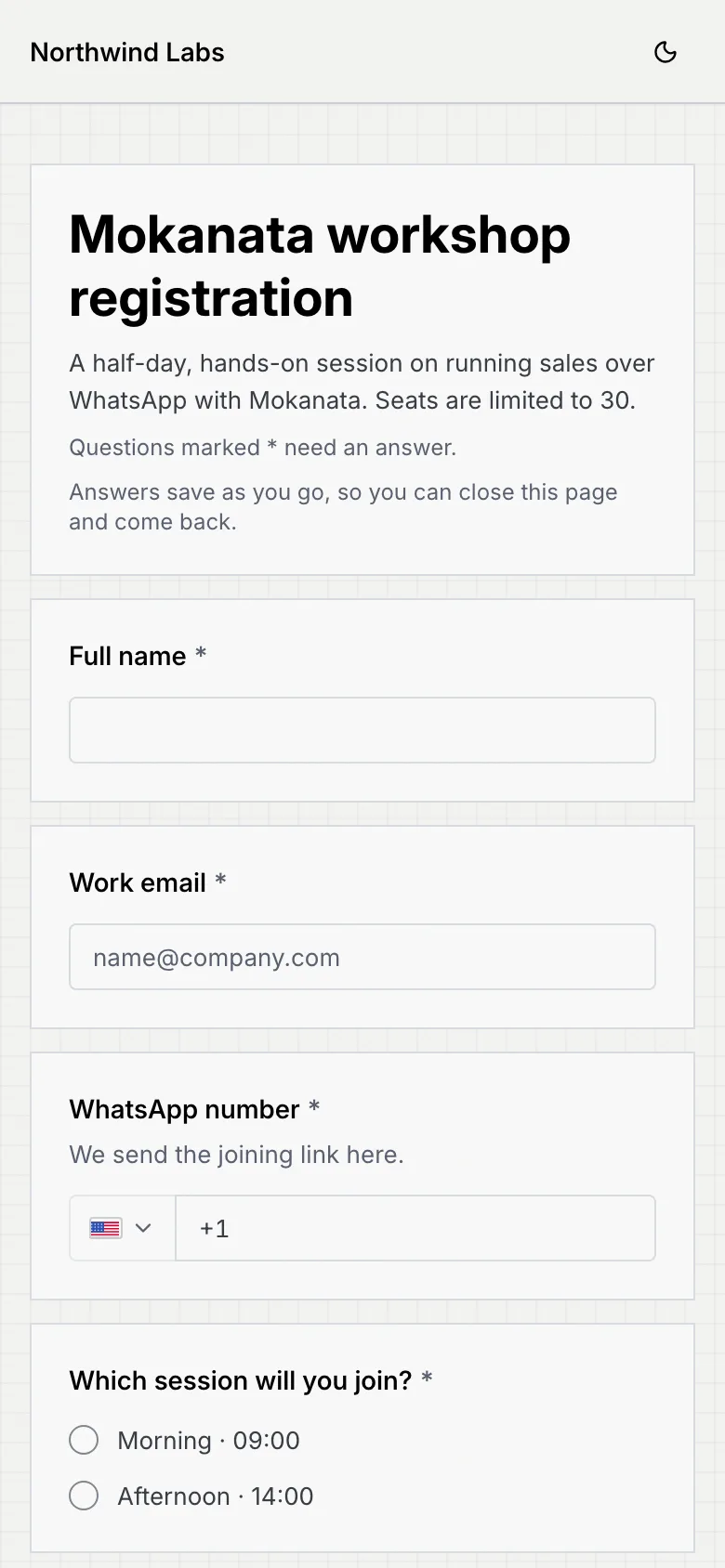
The top of the form shows its title and description, a note that says Questions marked * need an answer. and, on forms that save answers as they're given, another that says Answers save as you go, so you can close this page and come back. Half-width questions sit side by side on wider screens and stack on phones. The footer links to Mokanata (Made with Mokanata).
Answer the questions
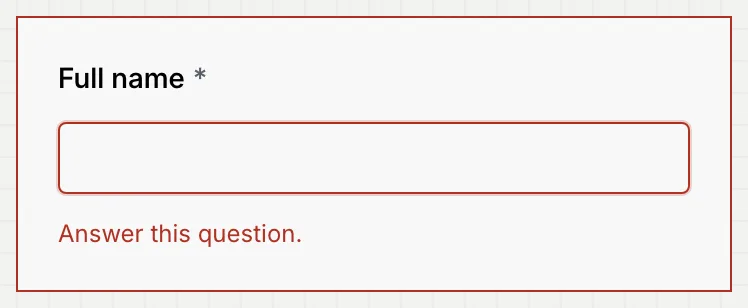
Each question shows its wording, a * if it's required, and its help text. Problems show once someone leaves a field or presses Submit; Submit also moves to the first question that needs attention.
| Question | What respondents do | What they see when it's wrong |
|---|---|---|
| Short answer, Paragraph | Type an answer | Answer this question. (when required) |
| Type an email address | Enter an email address, like name@company.com. | |
| Phone number | Pick a country and type the number | Enter a phone number with its country code, like +62 812 3456 7890. |
| Number | Type a number | Enter a number, like 12 or 4.5. |
| Multiple choice, Dropdown | Pick one answer | Choose an answer. |
| Checkboxes | Tick one or more | Choose at least one. |
| Linear scale | Tap a number; the end labels show under the first and last | Choose an answer. |
| Date, Date and time, Time | Use the picker | Answer this question. |
| File upload | Choose a file (or Choose files, then Replace file), with a hint like "Documents (PDF, Word, Excel), up to 10 MB" | Attach a file. or a note that the file is over the size limit |
Answers save as they go
On forms that save answers as they're given, every answer is kept the moment it's entered. The status next to Submit says Saving, then Saved at and the time.

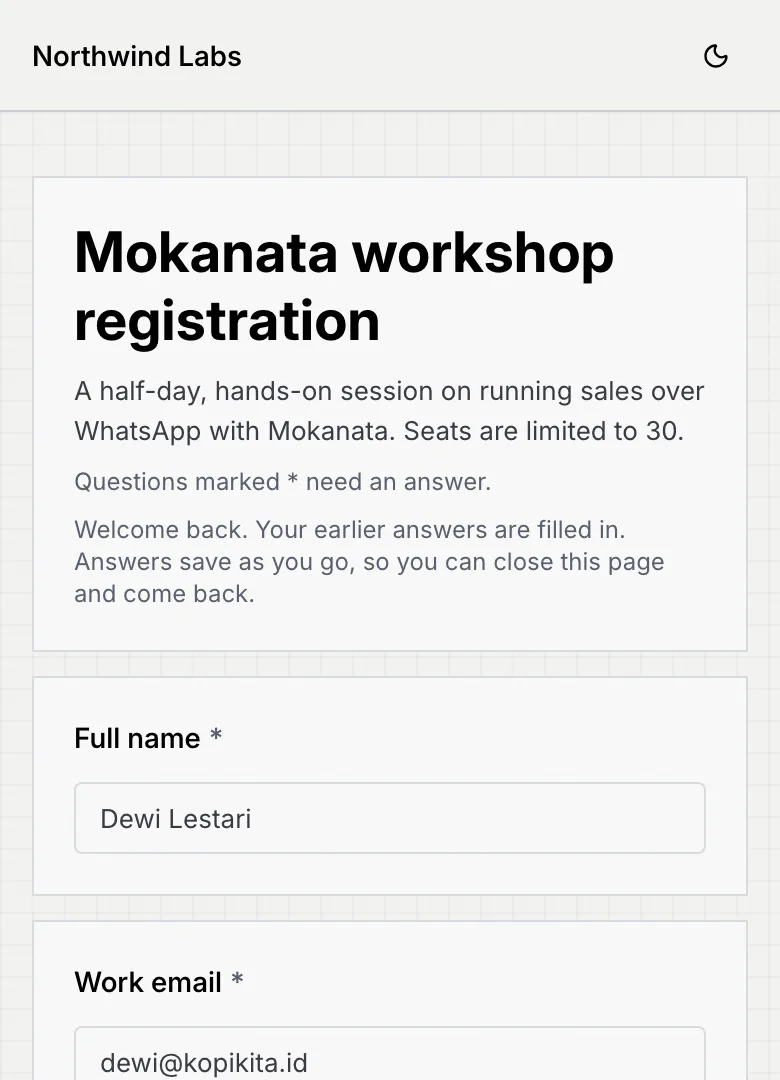
If someone closes the page and opens the link again on the same device, their answers are filled back in and the top of the form says Welcome back. Your earlier answers are filled in.
Until they submit, you see them as In progress on the form's Responses tab. If saving fails, the status turns red: Offline, not saved yet or Couldn't save your answers, with Try again.
Pay inside the form
Coming soon
Paying inside a form isn't available yet. A payment question on a form says "Payments aren't available on this form yet.", takes no answer and doesn't stop the respondent submitting.
Submit
When everything required is answered and paid, Submit sends the response. The confirmation shows the form's title and your confirmation message (Change the confirmation message).
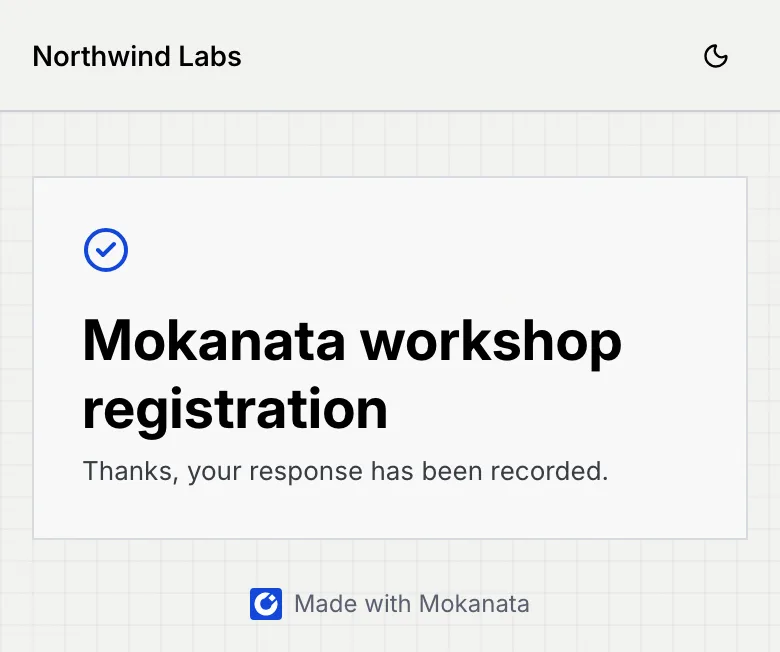
If the response can't be sent, a red alert says You're offline or Your response wasn't sent, with the reason and Your answers are still here. The reason can be that the form isn't available any more, that it stopped taking responses while they were answering, or that this response was already submitted.
Forms that continue in WhatsApp
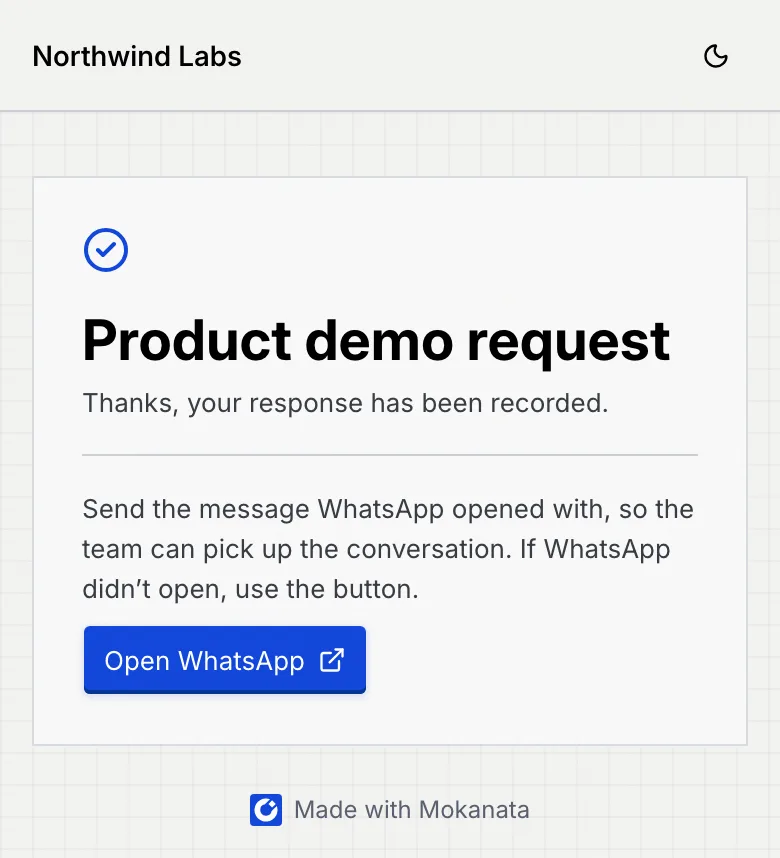
On forms that continue in WhatsApp, the button reads Submit and open WhatsApp. Submitting saves the response and opens WhatsApp with a message to your number, typed out with the opening line and (if you chose) their answers. They can edit it, then send it, and the conversation starts in your inbox.
The confirmation adds a note, Send the message WhatsApp opened with, so the team can pick up the conversation. If WhatsApp didn't open, use the button. It also has an Open WhatsApp button.
Closed and unavailable forms
| What people see | When |
|---|---|
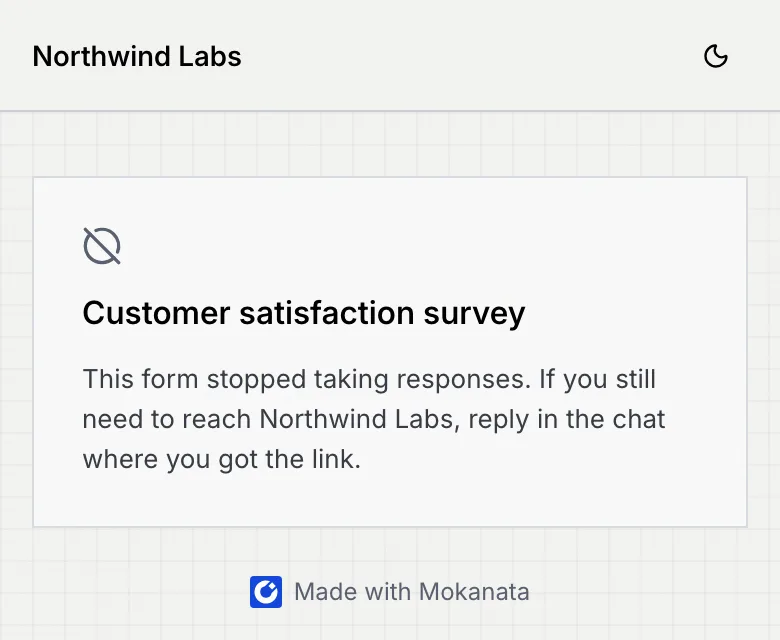
| The form's title and "This form stopped taking responses. If you still need to reach your workspace, reply in the chat where you got the link." | The form is closed. Reopen it with Accept responses. |
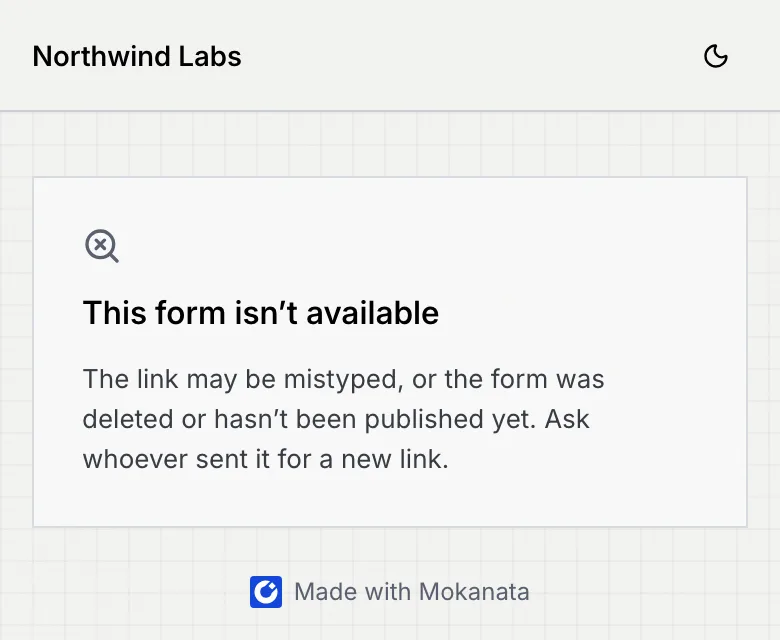
| This form isn't available. The link may be mistyped, or the form was deleted or hasn't been published yet. | The form is a draft, was deleted, or the link is wrong. |
Tracking and consent
A live form loads the tracking tags your workspace set to run on forms, so ad platforms and analytics see visits and sign-ups. If you ask for consent, a banner shows on the form and the tags wait for the visitor's choice. See Tracking tags and Consent and privacy for tracking.
Browser assistants
Some browsers let an AI assistant fill in forms for the person using them. Mokanata forms tell such assistants what each question asks, so the assistant can fill in the answers for the person to check. The assistant never submits the form, and file questions are always left to the person.
Troubleshooting
Saved answers come back only on the same phone or computer they used. Opening the link on another device, or in a private window, starts the form empty.
The response is saved anyway. They can press Open WhatsApp on the confirmation to try again.
Check the form is published and the link is right. If you changed the form's custom ending, older links still work; if you deleted the form, they don't.
Next steps
View and export responses
Read every response to a form, filter by status or payment, open one in full, export them as CSV and delete the ones you don't need.
Short links
Make short, readable links to any page or form, each with a QR code, campaign tags and an optional end date, and see who clicks or scans them.