Read campaign results
Follow a campaign's delivery, failed messages and recipients, and pause, resume, retry, stop or duplicate it.
Every campaign has its own page with how far it got, how many messages were delivered and read, what failed and why, and who each message went to. The buttons at the top change with the campaign's status, so the next useful action is always one click away.
Coming soon
WhatsApp is built, and goes live once Mokanata's Meta app is approved by Meta. Until then no WhatsApp number can be connected, so there are no sent campaigns to read yet.
- Who can use it: Everyone in the workspace can open a campaign and read its results. Pausing, resuming, retrying, sending and stopping need Send and stop campaigns; editing needs Edit campaigns; duplicating needs Create campaigns; deleting a draft or cancelling a scheduled campaign needs Delete and cancel campaigns. Owners and admins have them all. Members and viewers see the page read-only, with a View only notice under the header. See Roles and permissions.
- Before you start: Nothing. Open a campaign from the Campaigns list.
Open a campaign
Open it from the list
On Campaigns, click the campaign's row. The header shows its name, status, WhatsApp number, audience and who created it, with the actions for its status on the right. Campaigns at the top takes you back to the list as you left it.
Follow a send in progress
While a campaign is sending or paused, a progress bar shows how many messages are processed out of the total, roughly how long is left at the campaign's pace, and how many are still queued. The numbers update by themselves while the page is open.
Read the summary
The row of numbers under the header sums up the campaign:
| Number | What it counts |
|---|---|
| Audience | How many people it went to (Recipients). Before it starts, a dash: the audience is Counted when it starts. |
| Delivered | Share of attempted messages that were delivered, and how many. |
| Read | Share of delivered messages that were read, and by how many people. |
| Spend | Meta's charges for the messages delivered so far, at Meta's rate for the template's category in each recipient's country. Undelivered messages aren't charged. |
Mokanata doesn't record replies, button taps or conversions against a campaign yet, so the page shows no reply, click or revenue figures. Replies arrive in the inbox like any other message.
Read the delivery funnel
Delivery funnel shows how many messages made it through each stage: Sent, Delivered and Read. Under the chart, each stage shows its count and its share of the stage before it.
Before anything is sent, the funnel says Nothing sent yet: a scheduled campaign shows when sending starts, and a draft says to finish it first.
See what failed
Read the failed messages
When messages fail, Failed messages groups them by Meta's error code (or by Mokanata's reason, for a message that never reached Meta), with what it means, whether a retry can fix it and how many messages it hit.
Find the people it failed for
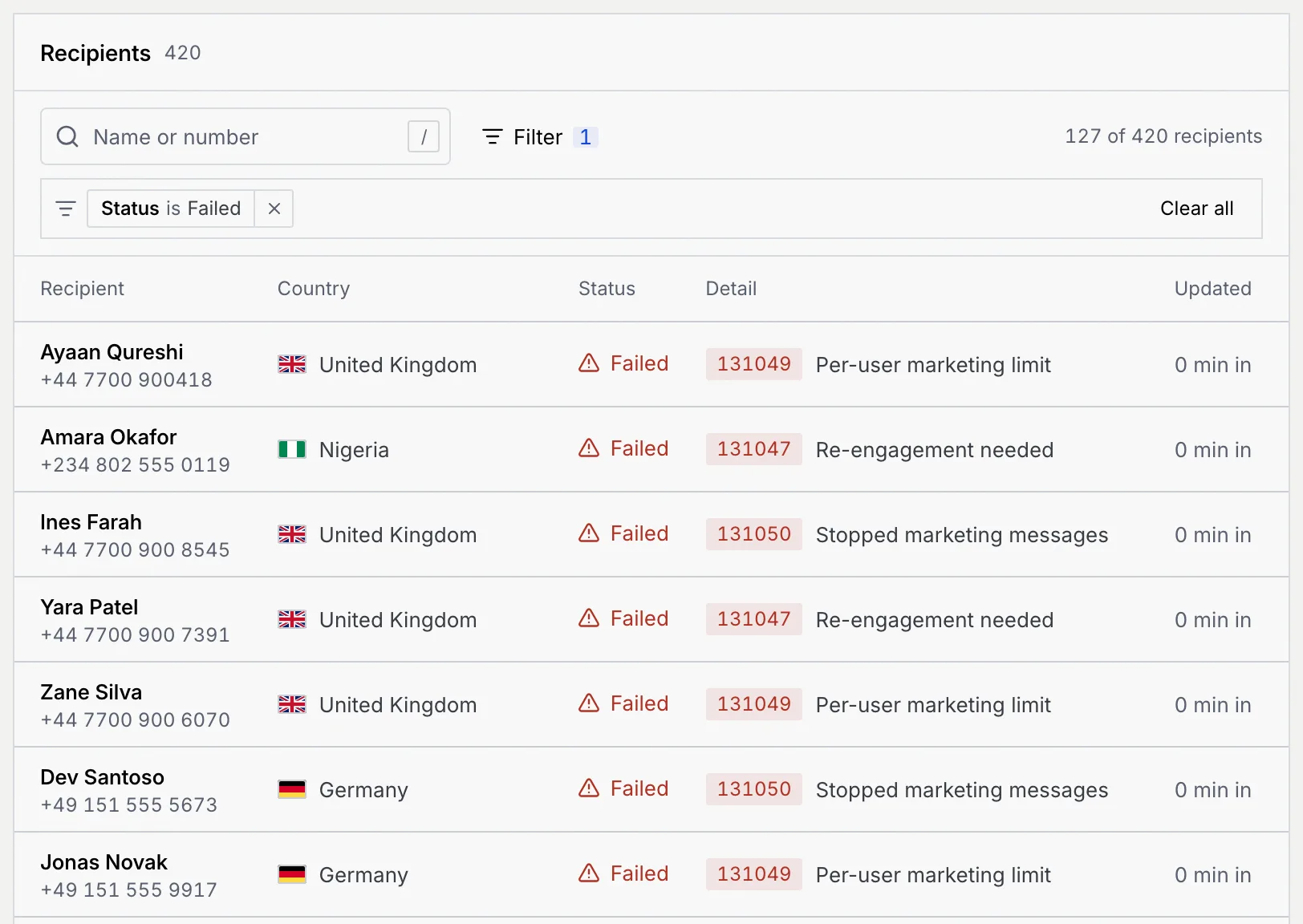
Click Show in recipients. The Recipients list below filters to Failed and scrolls into view. Point at an error code to read what it means.
Retry what can be fixed
If some failures can be fixed by sending again, the header shows Retry N failed (on a paused campaign it's in the ⋯ menu). Click it to send those messages again. Errors a retry can't fix, like numbers that aren't on WhatsApp, stay failed. Each recipient is retried at most once; the list marks them · retried.
Meta error codes
| Code | Title | Retry can fix it | What it means |
|---|---|---|---|
| 131026 | Undeliverable | No | The number isn't on WhatsApp, or its app is too old to receive templates. |
| 131049 | Per-user marketing limit | Yes | Meta held it to keep marketing healthy: this person got other marketing messages recently. Retry after 24 hours. |
| 131047 | Re-engagement needed | Yes | A follow-up went out more than 24 hours after their last reply. Only a template can reopen the chat. |
| 131050 | Stopped marketing messages | No | The person turned off marketing messages from your business in WhatsApp, so Meta didn't deliver it. It isn't retried. |
| 131053 | File not sent | Yes | The message's file couldn't be sent to WhatsApp. |
| 130472 | Meta experiment | Yes | The number is in a Meta experiment that withholds some marketing messages. A retry may get through. |
| 131000 | Not confirmed | No | WhatsApp didn't confirm the message went out. Check with the customer before sending it again. |
| 130429 | Sending rate reached | No | Meta's sending rate for this number was reached before this message went out. |
| 131056 | Too many to this person | No | Too many messages went to this person in a short time, so Meta didn't send this one. |
| 131048 | Spam limit | No | Meta limited this number for spam reports. Check its quality in WhatsApp Manager. |
| 190 | Access expired | No | WhatsApp access for this number expired. Reconnect it in Setup → Channels. |
| 133010 | Number not registered | No | The number isn't registered with WhatsApp yet. Finish its PIN step in Setup → Channels. |
| 132015, 132016 | Template paused, Template disabled | No | Meta paused the template after negative feedback, or disabled it. |
A code not listed here reads Refused by WhatsApp with the code. A message that never reached Meta shows Mokanata's reason instead of a code, for example A variable had no value, Template paused, Number disconnected or WhatsApp unavailable.
Look through the recipients
Recipients lists everyone the campaign went to:
- Recipient: the name (a link to the contact when they're in Contacts) and phone number.
- Country, Status and Updated (how long after the start the status changed: N min in, N h in or Day N; Waiting while queued).
- Detail: the error for failed messages.
Search by name or number (with or without spaces), or press /. Click Filter and choose Status to narrow the list. Show 25, 50 or 100 recipients a page. Recipients show here once the campaign starts sending.
| Recipient status | What it means |
|---|---|
| Queued | Waiting to be sent. |
| Sent | Sent to WhatsApp (one tick). |
| Delivered | Reached the phone (two ticks). |
| Read | Opened (two blue ticks). |
| Failed | Meta couldn't deliver it. The Detail column says why. |
Read replies and the setup
Beside the results (or below them on a narrow window):
- Message previews the template with sample values.
- Replies lists replies recorded against the campaign. Mokanata doesn't record them for a live campaign yet, so it says No replies are recorded against this campaign: replies arrive in the inbox like any message.
- Setup lists the number, throttle, start time, timing, the follow-up you named and when it was created. The follow-up is saved with the campaign; Mokanata doesn't hand replies to it yet.
To answer a reply, open it in the inbox (Reply to a conversation).
Act on a campaign
The main button and the ⋯ menu depend on the status:
| Status | Main button | In the ⋯ menu |
|---|---|---|
| Draft | Edit draft | Duplicate, Delete draft |
| Scheduled | Send now | Edit campaign, Duplicate, Cancel campaign |
| Sending | Pause | Duplicate, Stop sending |
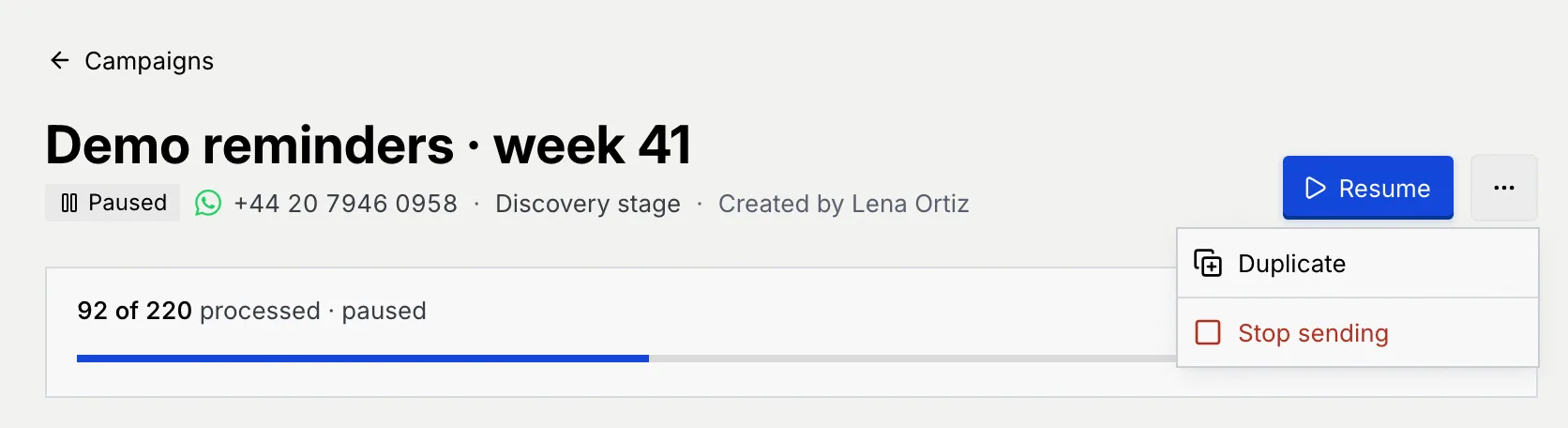
| Paused | Resume | Retry N failed (when a retry can help), Duplicate, Stop sending |
| Sent, Partly failed or Failed, with failures a retry can fix | Retry N failed | Duplicate |
| Anything else (sent cleanly, failed beyond retry, cancelled) | Duplicate | — |
Pause and resume
Click Pause on a sending campaign. Queued messages wait in the queue, and replies still arrive in the inbox. Click Resume to carry on.
Send a scheduled campaign now
Click Send now and confirm. Sending starts right away instead of at the scheduled time. Messages can't be recalled once delivered.
Stop sending or cancel
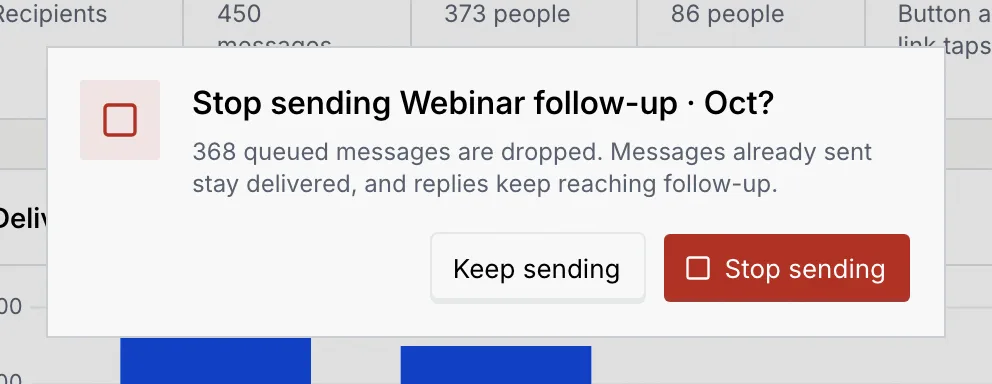
Open ⋯ and click Stop sending (sending or paused) or Cancel campaign (scheduled), then confirm. Stopping drops the queued messages; messages already sent stay delivered and replies keep arriving in the inbox. Cancelling a scheduled campaign sends nothing. Either way the campaign moves to Cancelled and keeps its setup, so you can duplicate it later.
Duplicate
Open ⋯ and click Duplicate (or click Duplicate when it's the main button). The campaign's steps open as a copy named "… copy". Nothing is saved until you send it or save it as a draft. See Create and send a campaign.
Delete a draft
Open ⋯ on a draft and click Delete draft, then confirm. Its audience, message and schedule are deleted. Nothing was sent, so no customer notices. This can't be undone.
Stopping can't be undone
A stopped or cancelled campaign can't be restarted. Duplicate it to send the rest again.
Troubleshooting
There's no campaign at that address. It may have been a draft that was deleted. Click Back to campaigns.
The action didn't go through. Nothing changed: click Retry in the message. If it says your role can't do it, ask an owner or admin.
Meta caps how many marketing messages one person gets. Retry after 24 hours, and next time keep Skip people another campaign reached in the last 24 hours on in the campaign's Audience step.
Meta's limits for the number, or for one person, were reached. Send at a slower Throttle next time, or from a number with a higher daily limit. See WhatsApp number health, limits and settings.
Next steps
Create and send a campaign
Pick pipeline stages or saved segments, an approved template, a sender and a schedule, name who answers replies, then send or schedule it.
WhatsApp message templates
Write WhatsApp templates, submit them to Meta for review, fix rejected ones with a new version, and use approved ones in campaigns.