# Workspace (/docs/settings/workspace)
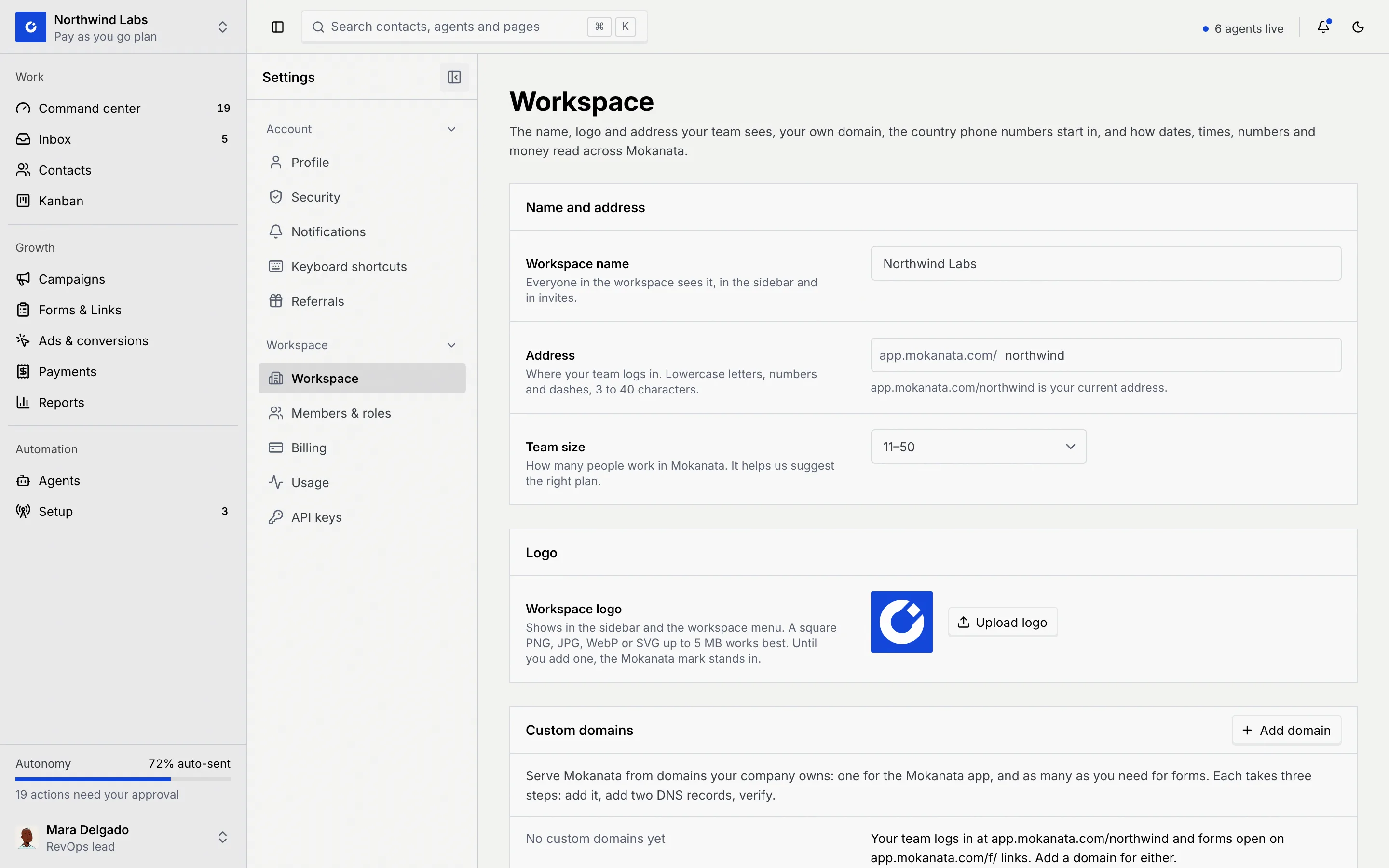
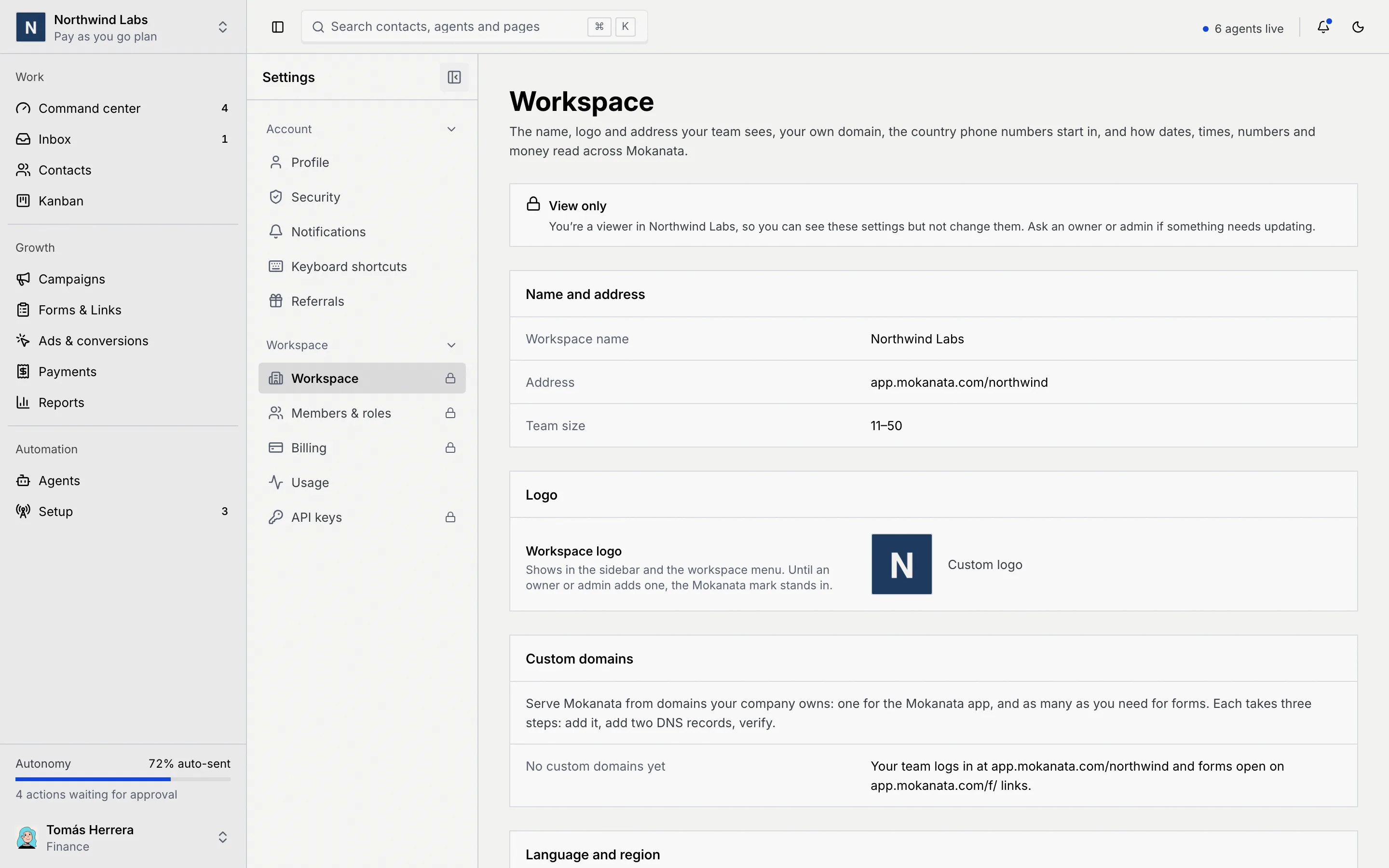
The **Workspace** page holds what everyone in the workspace sees: its name, the address your team logs in at, its team size and its logo. The same page also has [custom domains](/docs/settings/custom-domains) and [language and region](/docs/settings/language-region), which have their own guides.
- **Who can use it:** Owners and admins, and custom roles with Admin access. Members and viewers can open the page and read every setting, but not change them (see [View only](#what-members-and-viewers-see)).
- **Before you start:** Nothing.
## Open the Workspace page [#open-the-workspace-page]
### Go to Settings → Workspace [#go-to-settings--workspace]
Click the workspace name at the top of the sidebar and choose **Workspace settings**. You can also open **Settings** from the menu under your name and pick **Workspace** in the **Workspace** group of the settings menu.
The page opens with the **Name and address** panel, then **Logo**, **Custom domains**, **Language and region** and **About this workspace**.
Press ⌘ K (Ctrl K on Windows and Linux) and type "workspace" to jump straight to the page.
## Rename the workspace or change its address [#rename-the-workspace-or-change-its-address]
### Edit the name [#edit-the-name]
In **Name and address**, change **Workspace name**. Everyone in the workspace sees it in the sidebar and in invites. It needs 2 to 60 characters; usually it's your company's name.
### Edit the address [#edit-the-address]
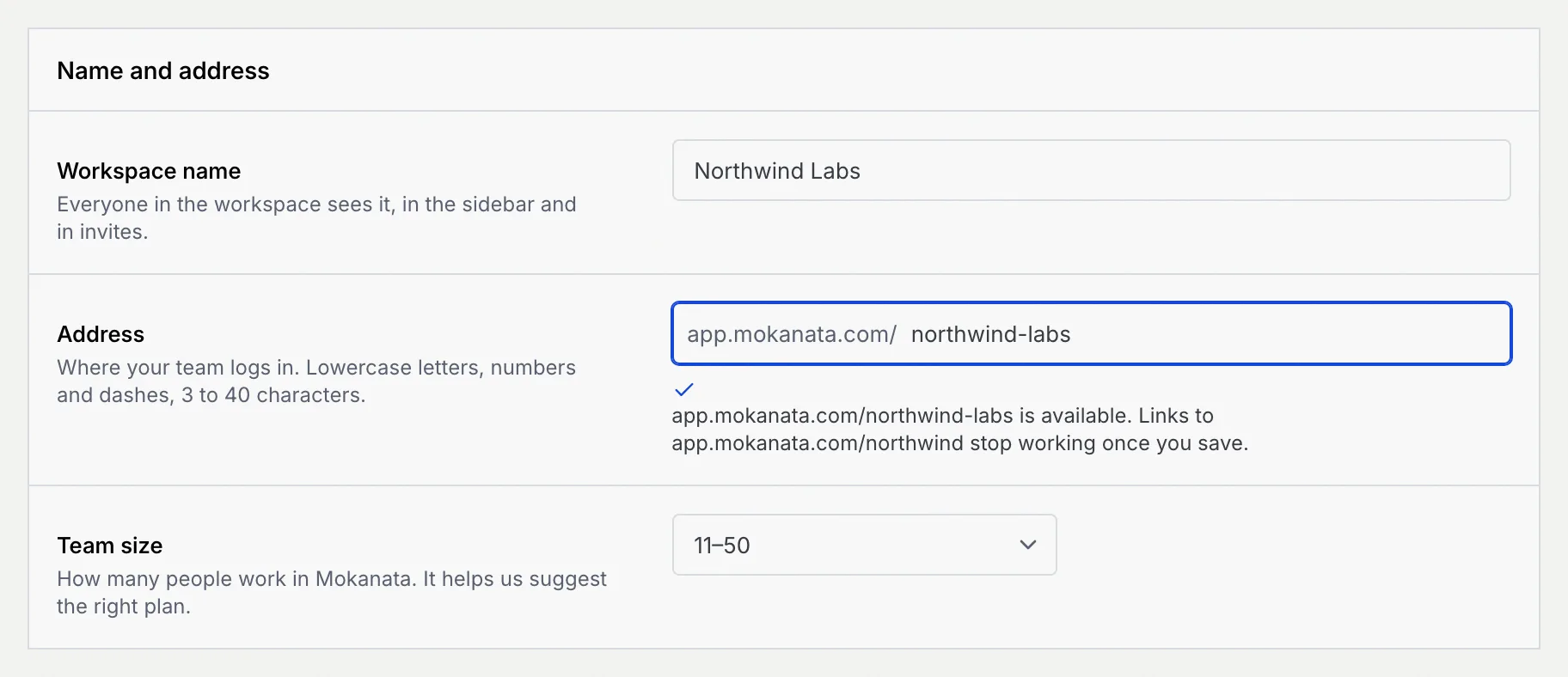
**Address** is where your team logs in: `app.mokanata.com/` followed by the part you type. Use lowercase letters, numbers and single dashes, 3 to 40 characters.
As you type, the line under the field checks the new address:
| Message | What it means |
|---|---|
| **app.mokanata.com/… is your current address.** | Nothing changed. |
| **Checking app.mokanata.com/…** | Mokanata is checking whether the address is free. |
| **app.mokanata.com/… is available. Links to app.mokanata.com/… stop working once you save.** | You can use it. Old links to the current address stop working after you save. |
| **app.mokanata.com/… is taken. Try another.** | Another workspace uses it. Pick a different one. |
| **Couldn't check this address right now. Mokanata checks again when you save.** | The check couldn't run; it runs again when you save. |
### Pick the team size [#pick-the-team-size]
Choose **Team size**: **Just me**, **2–10**, **11–50**, **51–200** or **201+**. It helps Mokanata suggest the right plan.
### Save [#save]
A bar appears at the bottom of the page with the number of unsaved changes. Click **Save changes** (or press Enter in a field). You see **Workspace saved**, and when the address changed, **Your workspace is now at app.mokanata.com/…**. Click **Discard** to undo your edits instead.
The same bar also saves the [Language and region](/docs/settings/language-region) panel, so edits in both are saved together.
Bookmarks and links that use the old `app.mokanata.com/…` address stop working as soon as you save. Tell your team the new address. ([Custom domains](/docs/settings/custom-domains), so the address people use never changes, are coming soon.)
If you try to leave the page with unsaved changes, Mokanata asks **Discard unsaved changes?**. Click **Keep editing** to go back and save, or **Discard and leave**.
## Add or change the logo [#add-or-change-the-logo]
The logo shows in the sidebar and in the workspace menu. Until you add one, the Mokanata mark stands in.
### Upload an image [#upload-an-image]
In **Logo**, click **Upload logo** and pick an image. A square PNG, JPG, WebP or SVG up to 5 MB works best; Mokanata fits other shapes inside a square.
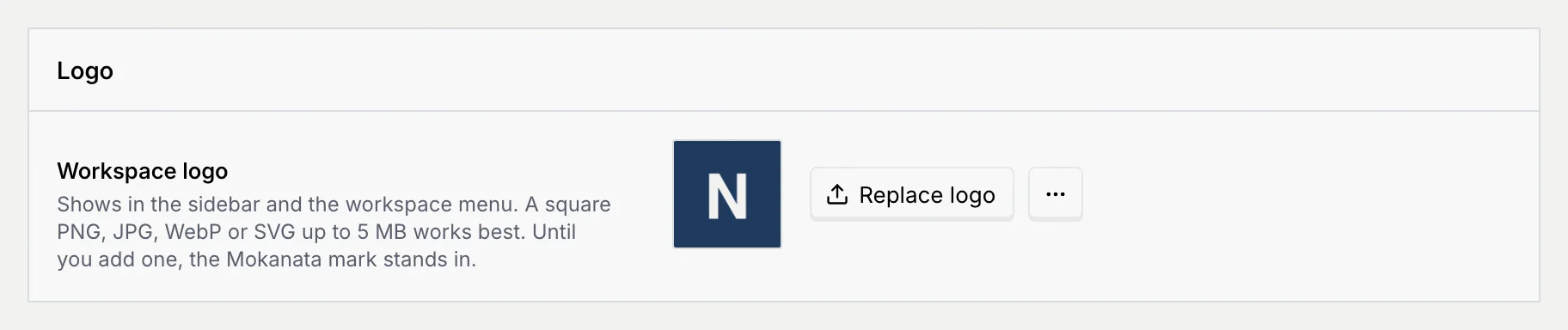
The logo saves right away, with no save bar. You see **Logo added**, and the button changes to **Replace logo**.
### Replace or remove it [#replace-or-remove-it]
To change it, click **Replace logo** and pick another image. To go back to the Mokanata mark, open the **⋯** menu next to it, choose **Remove logo**, then confirm **Remove logo**.
If the upload fails, the panel says why:
| Message | Fix |
|---|---|
| **Use a PNG, JPG, WebP or SVG image.** | Pick an image in one of those formats. |
| **That image is over 5 MB. Try a smaller one.** | Export a smaller version of the image. |
| **Couldn't read that image. Try another file.** | The file is damaged or isn't really an image. |
## Check your plan and workspace ID [#check-your-plan-and-workspace-id]
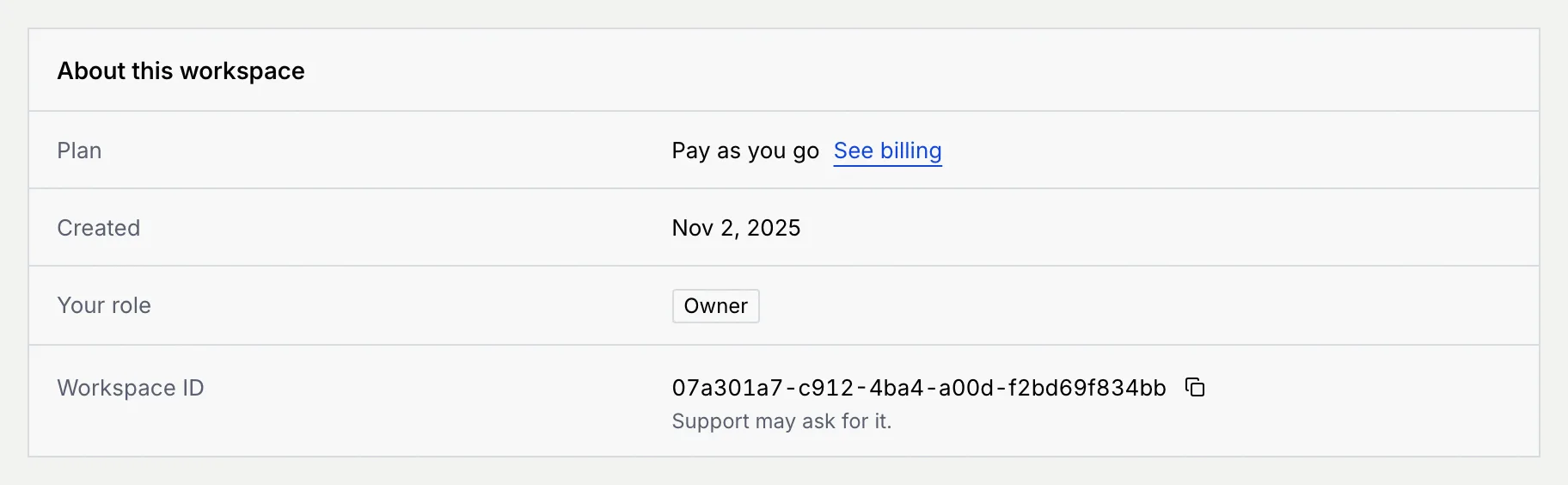
**About this workspace**, at the bottom of the page, is visible to everyone:
- **Plan**: the workspace's plan, with a **See billing** link to [Billing](/docs/settings/billing).
- **Created**: the date the workspace was created.
- **Your role**: your role in this workspace. A custom role also shows its access level, like **Sales lead · Member access**.
- **Workspace ID**: the workspace's unique ID. Click the copy button next to it when Mokanata support asks for it.
## What members and viewers see [#what-members-and-viewers-see]
Members and viewers can open the Workspace page, but every panel shows its settings as plain text, with a **View only** notice at the top: "You're a member in …" (or "a viewer in …") "so you can see these settings but not change them. Ask an owner or admin if something needs updating." In the settings menu, the workspace sections they can't change carry a lock icon.
## Troubleshooting [#troubleshooting]
Each address belongs to one workspace. Add a word or your city, like `northwind-labs` or `northwind-lisbon`, and wait for the line under the field to say it's available.
The bar with **Save changes** only appears after you change something. If the fields are plain text instead of inputs, your role can't change workspace settings: ask an owner or admin, or see [Roles and permissions](/docs/settings/roles).
After you change the address, `app.mokanata.com/` plus the old address stops working. Share the new address shown in **Address**.
A panel that couldn't load shows **Couldn't load …** with the reason (or **Mokanata can't be reached** when you're offline) and a **Try again** button. Check your connection and click **Try again**. If saving fails, the error message has a **Retry** button.
Yes. Add `#custom-domain` or `#language-region` to the Workspace page's address (`/settings/workspace`) to open it at that panel.
## Next steps [#next-steps]