# Passkeys, authenticator and devices (/docs/settings/security)
The **Security** page keeps your account safe: the passkeys you sign in with, the authenticator app that confirms sign-ins and destructive actions, and the list of devices signed in to your account. Mokanata has no passwords, so there's nothing to change or reset here. The [Danger zone](/docs/settings/danger-zone) at the bottom holds the actions that can't be undone.
- **Who can use it:** Everyone, for their own account.
- **Before you start:** Your authenticator app, for the changes that ask for a code (see [Confirm destructive actions](/docs/getting-started/confirm-destructive-actions)).
Every account has an authenticator app and at least one passkey: you set both up when you created your account (see [Create your account](/docs/getting-started/create-account)), and Mokanata won't let you go below that.
## Passkeys [#passkeys]
**Passkeys** lists every passkey on your account, with its name, when you added it, and whether it syncs between devices (for example through iCloud Keychain or Google Password Manager) or stays on one device or security key.
### Add a passkey [#add-a-passkey]
### Start [#start]
Open **Settings → Security** (click your name at the bottom of the sidebar, then **Settings**, then **Security**), and click **Add a passkey** in **Passkeys**.
### Confirm with a code [#confirm-with-a-code]
Type the current code from your authenticator app. Adding a passkey lets someone sign in as you, so it asks for a code like a destructive action does.
### Save it on your device [#save-it-on-your-device]
Your device asks for your fingerprint, face, screen lock or security key and saves the passkey. Give it a name you'll recognise, such as "Work laptop".
Add a passkey on each device you use, or keep them in a password manager that syncs, so losing one device doesn't lock you out of the quick sign-in.
### Rename a passkey [#rename-a-passkey]
In the passkey's **⋯** menu, choose **Rename**, type the new name and save.
### Remove a passkey [#remove-a-passkey]
In the passkey's **⋯** menu, choose **Remove**, then confirm with a code from your authenticator app. The passkey stops working for Mokanata at once; you can also delete it from your device or password manager.
You can't remove your last passkey: add another one first.
## Authenticator app [#authenticator-app]
**Authenticator app** shows that your app is set up. It confirms sign-ins with Google or an email link, and every [destructive action](/docs/getting-started/confirm-destructive-actions). It can't be turned off.
### Get new recovery codes [#get-new-recovery-codes]
Recovery codes let you sign in once each when you don't have your phone. If you've used some, or think someone else saw them, make a new set:
### Ask for new codes [#ask-for-new-codes]
Choose **New recovery codes** and confirm with a current code from your authenticator app.
### Save them [#save-them]
Mokanata shows the new codes once. Copy them into your password manager or download them, then confirm you've saved them. Your old recovery codes stop working.
### Reset your authenticator [#reset-your-authenticator]
Use this when you move to a new phone or a different authenticator app.
### Reset [#reset]
Choose **Reset authenticator** and confirm with a current code from your authenticator app.
### Set up the new app [#set-up-the-new-app]
Mokanata asks you to set up an authenticator again before you can use anything else: scan the new QR code or copy the setup key into your app, type the code it shows, and save the new recovery codes. Until you finish, the rest of Mokanata stays locked.
If you've already lost the old app, sign in with an email code or a recovery code (see [Lost your authenticator app](/docs/getting-started/sign-in-problems#lost-your-authenticator-app)); resetting still needs a code from the old app, so contact Mokanata support if you have none.
## See where you're signed in [#see-where-youre-signed-in]
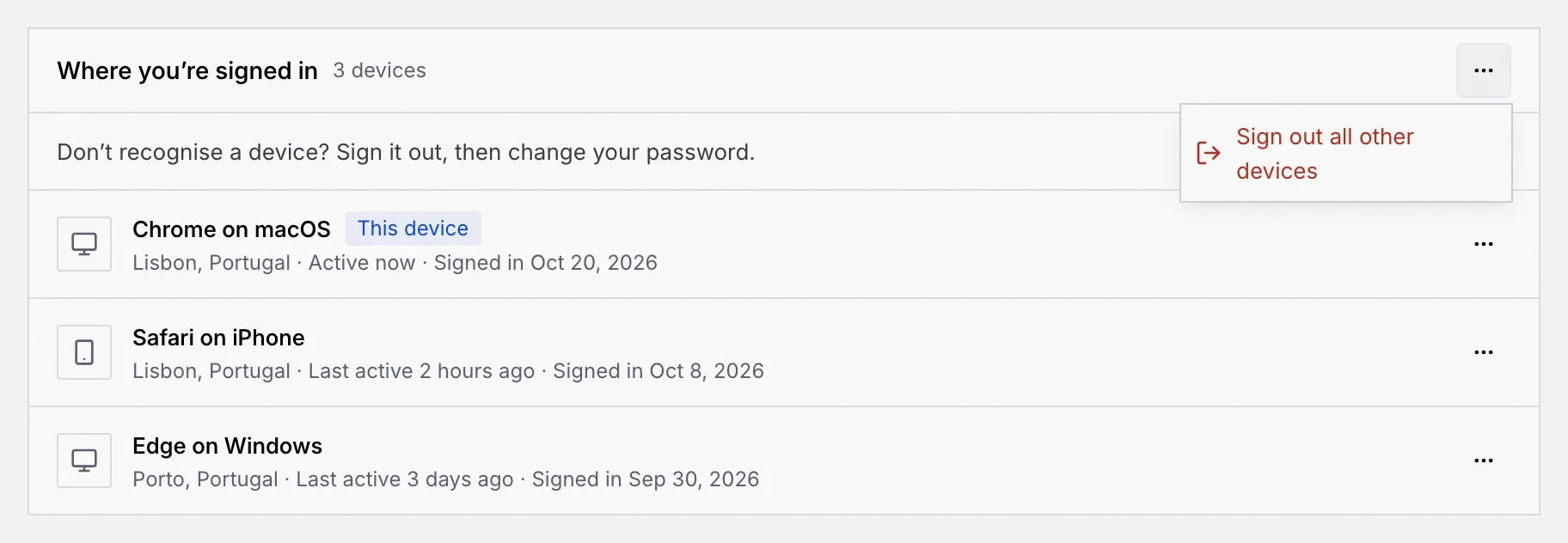
**Where you're signed in** lists every device signed in to your account, with the number of devices next to the title. Each row shows the browser and system (for example "Safari on iPhone"), where it was, when it was last active and when it signed in. The device you're using now is marked **This device**.
Don't recognise a device? Sign it out, then check your passkeys and [make new recovery codes](#get-new-recovery-codes).
## Sign out a device [#sign-out-a-device]
### Choose the device [#choose-the-device]
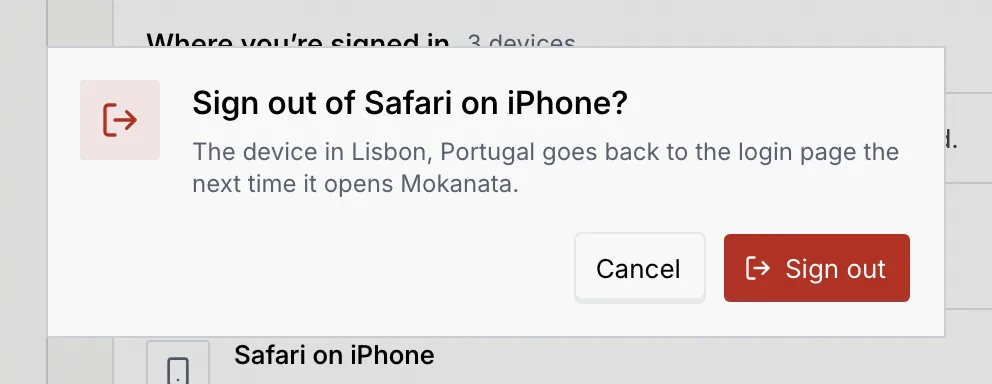
Click the **⋯** menu at the end of the device's row and choose **Sign out**. On your own row the item reads **Sign out of this device**.
### Confirm [#confirm]
If Mokanata asks, type the current code from your authenticator app. Click **Sign out**. The device goes back to the login page the next time it opens Mokanata.
If you signed out **This device**, you go to the login page now, which says **You've logged out**. Your other devices stay signed in.
## Sign out other devices [#sign-out-other-devices]
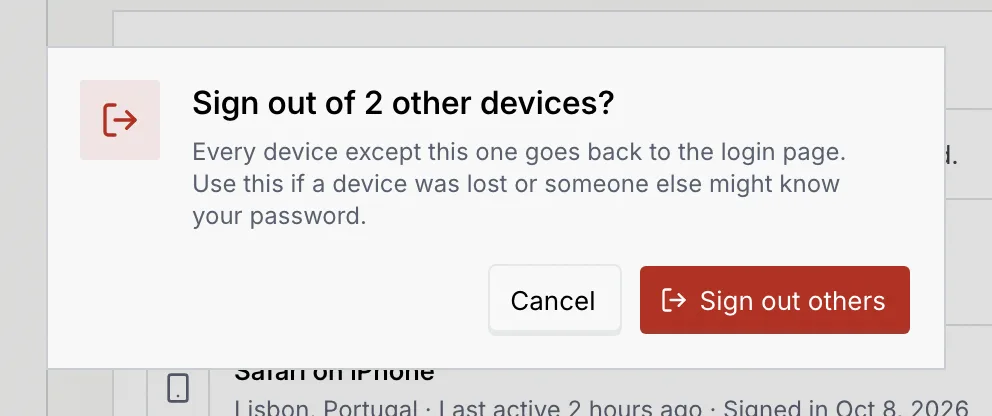
Use this if you lost a device.
### Open the panel menu [#open-the-panel-menu]
Click the **⋯** menu at the top right of **Where you're signed in** and choose **Sign out all other devices**. The menu only appears when another device is signed in.
### Confirm [#confirm-1]
If Mokanata asks, type the current code from your authenticator app. Click **Sign out others**. Every device except this one goes back to the login page, and you see **Only this device is signed in now.**
## Troubleshooting [#troubleshooting]
Codes change every 30 seconds. Type the newest code your app shows for Mokanata, and check the time on your phone is set automatically. Only authenticator codes confirm changes here; recovery codes and email codes are for signing in.
It's your last one. Add another passkey first, then remove the old one.
Check that the device has a screen lock set up, or use a password manager that stores passkeys, or a security key.
Mokanata couldn't finish the change, for example because the connection dropped. Click **Retry** in the message, or try again.
## Next steps [#next-steps]