# Members and invites (/docs/settings/members)
The **Members** tab of **Members & roles** lists everyone in the workspace with their role, when they joined and when they were last active, plus the invites that haven't been accepted yet. Each person's role decides what they can do; see [Roles and permissions](/docs/settings/roles).
- **Who can use it:** Owners and admins, and custom roles with Admin access, invite, change roles and remove people. Admins can't change or remove other admins; only the owner can. Members and viewers see the list and the pending invites, without the role pickers, checkboxes or invite buttons.
- **Before you start:** The email addresses of the people you want to invite.
## Open the Members tab [#open-the-members-tab]
### Go to Settings → Members & roles → Members [#go-to-settings--members--roles--members]
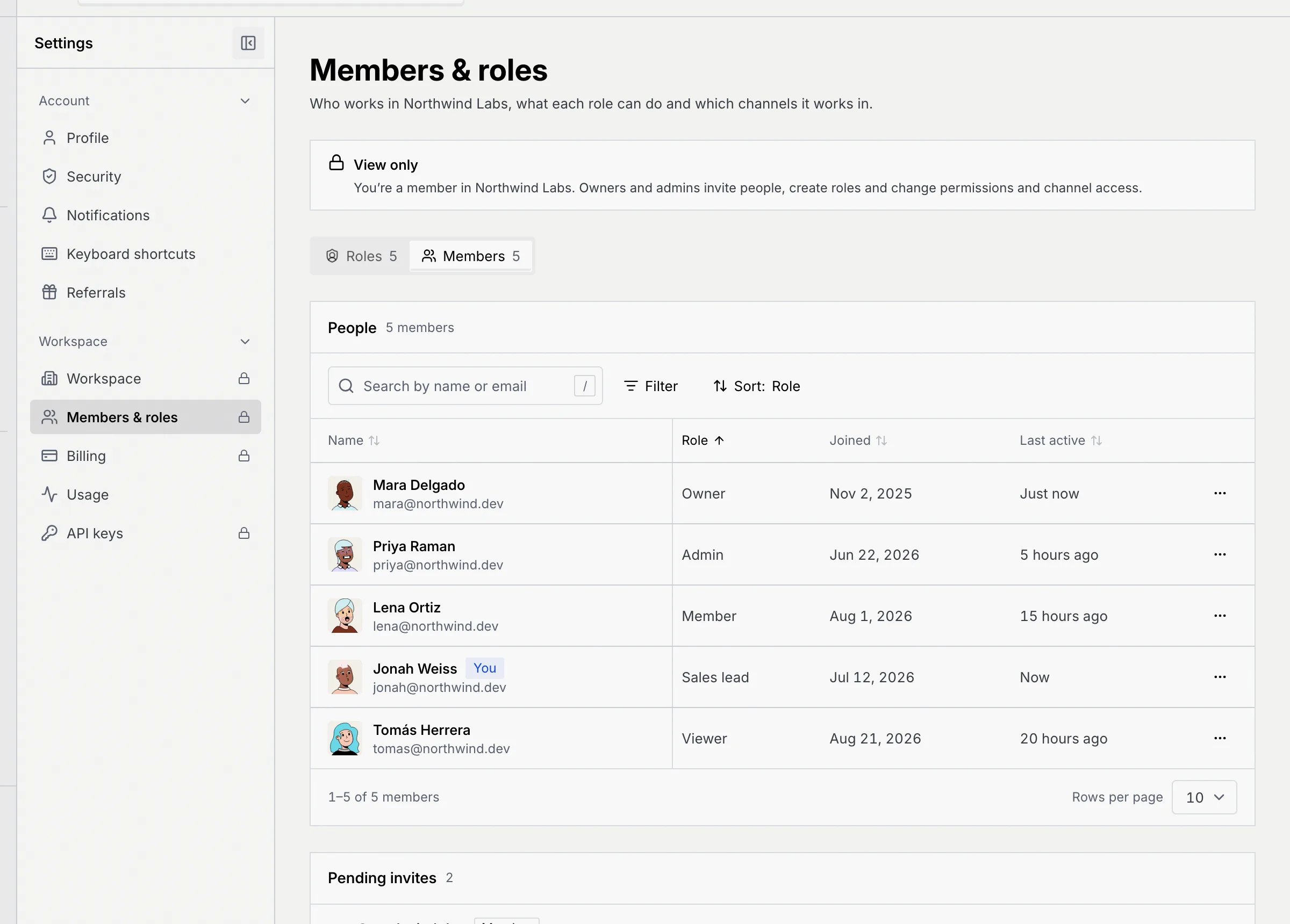
Open **Settings**, choose **Members & roles** in the **Workspace** group, then the **Members** tab. The **People** panel lists everyone, with **Pending invites** under it.
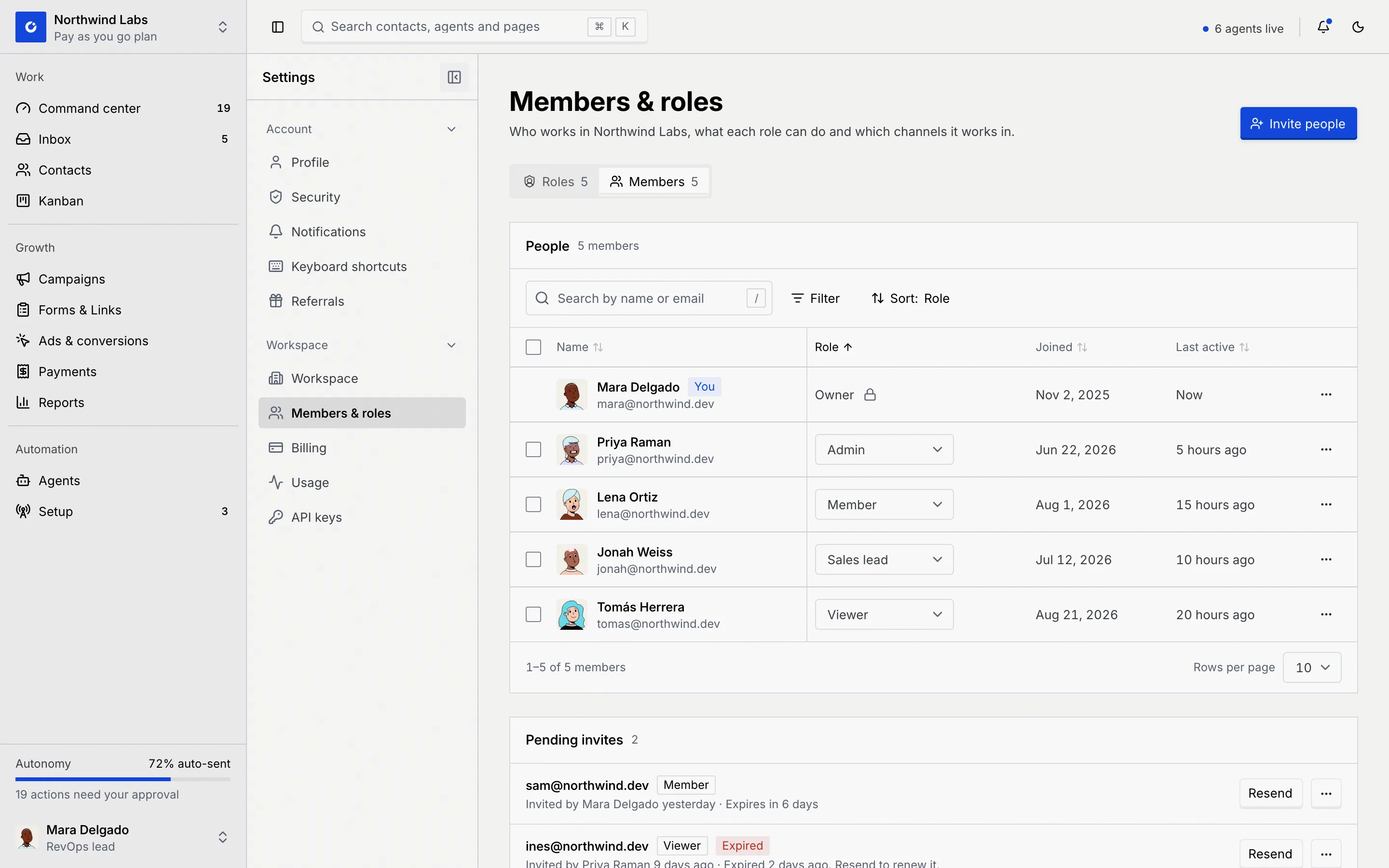
The table shows each person's **Name** and email (your own row has a **You** badge), **Role**, **Joined** and **Last active**. Above it:
- **Search by name or email** (press / to jump to it).
- **Filter** by **Role**, or by **Last active**: **Active in the last 7 days** or **Inactive for 30 days or more**.
- **Sort** by **Role** (owner first, then admins, members and viewers, with custom roles after the built-in role of the same level), **Name**, **Joined** or **Last active**.
If nothing matches, the table says **No one matches** with a **Clear filters** button. Long lists split into pages of 10, 25 or 50.
## Invite people [#invite-people]
### Open the invite dialog [#open-the-invite-dialog]
On the **Members** tab, click **Invite people**.
### Add addresses and roles [#add-addresses-and-roles]
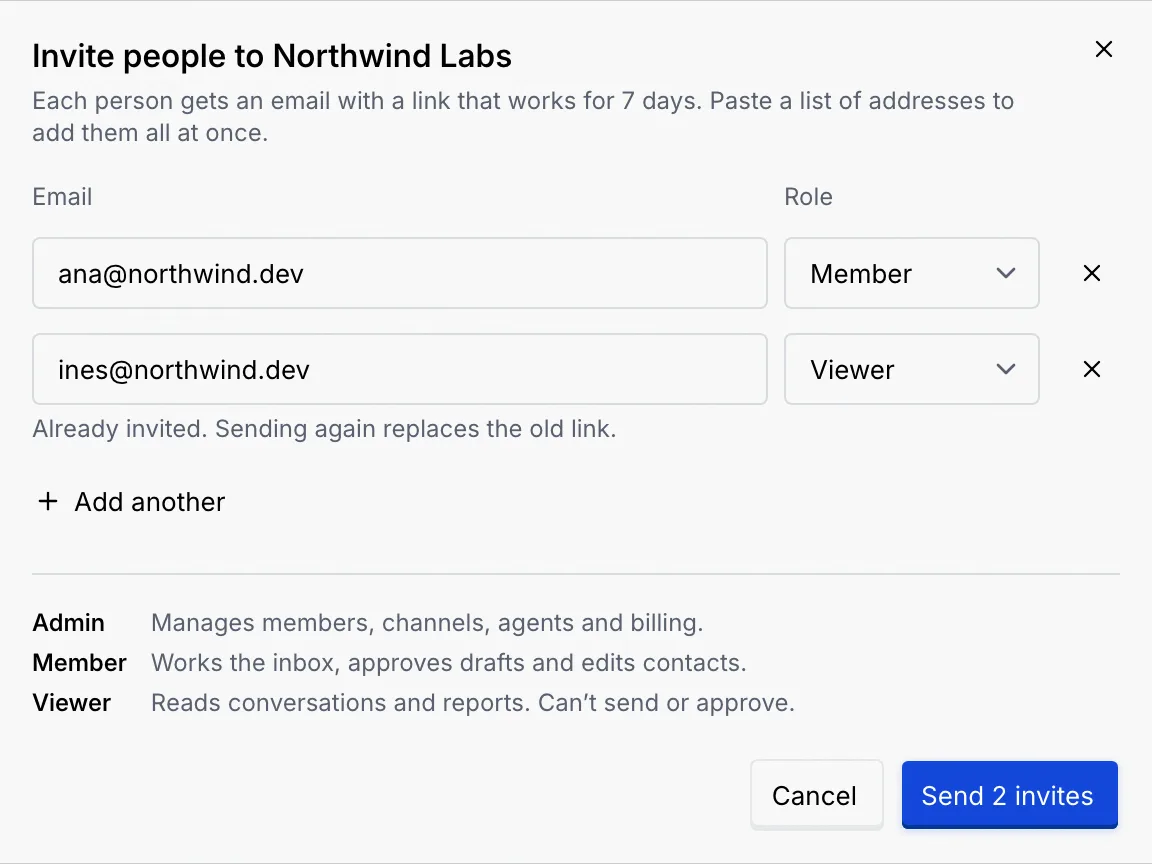
Type an **Email** and pick a **Role** for each person: **Admin**, **Member** or **Viewer**. Click **Add another** for another row (it copies the role of the row above), or paste a list of addresses into one field to split them into rows. You can invite up to 25 people at a time.
The dialog flags problems as you type: an address that isn't valid, one you already added above, or someone who **is already in** the workspace. When an address already has an open invite, it says **Already invited. Sending again replaces the old link.**
### Send [#send]
Click **Send invite** (or **Send 2 invites**, and so on). Each person gets an email with a link that works for 7 days, and shows under **Pending invites** until they accept. See [Accept an invite](/docs/getting-started/accept-invite) for what they see.
The invite dialog offers the built-in roles only. To give someone a custom role such as **Sales lead**, invite them as the role's access level (Member, say), then [change their role](#change-someones-role) once they've joined.
## Manage pending invites [#manage-pending-invites]
**Pending invites** lists each open invite with the access level it grants, who sent it, and when it expires. An invite past its 7 days shows a red **Expired** badge.
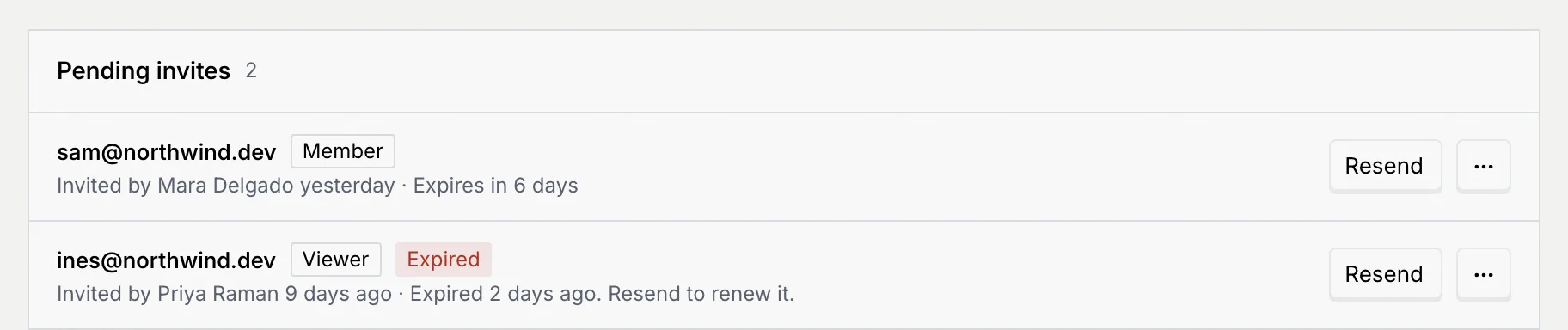
- **Resend**: sends a new email with a fresh 7-day link. The old link stops working. This also renews an expired invite.
- **⋯ → Copy invite link**: copies the link to send it yourself (not offered for expired invites).
- **⋯ → Revoke invite**: confirm **Revoke invite** and the link stops working right away. You can invite them again later.
With no open invites, the panel says **No pending invites**.
## Change someone's role [#change-someones-role]
### Pick the new role [#pick-the-new-role]
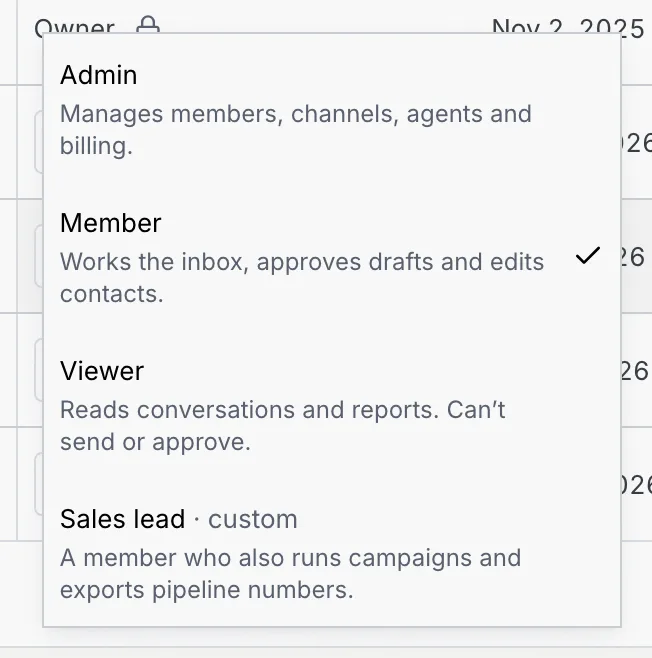
In the person's row, open the **Role** picker and choose a role. Every built-in role except Owner is listed, then custom roles marked **· custom**, each with its description.
### Check the result [#check-the-result]
The change applies right away, and you see **… is now …** with the role's description and an **Undo** button. Picking a custom role also moves the person to that role's access level.
Some rows show the role with a lock instead of a picker. Hover or click the lock for the reason:
| Lock reason | What to do |
|---|---|
| **To change the owner, use Transfer ownership in the danger zone.** | Ownership moves only through [Transfer ownership](/docs/settings/danger-zone). |
| **You can't change your own role. Ask the owner or another admin.** | Someone else has to change it. |
| **Only the owner can change or remove another admin.** | Admins can't change other admins; ask the owner. |
If you're an admin and make someone else an admin, you can't change or remove them afterwards, so **Undo** won't work either. Only the owner can.
## Change roles in bulk [#change-roles-in-bulk]
### Select people [#select-people]
Tick the checkbox in each row, or the one in the header to select the whole page. A bar appears with the count, a **Select all** link when there are more pages, and **Clear**.
### Choose an action [#choose-an-action]
Click **Change role** and pick a role to give everyone selected. The **⋯** menu next to it has **Copy emails**, **Export as CSV** (name, email, role, access level, joined and last active) and **Remove … members**.
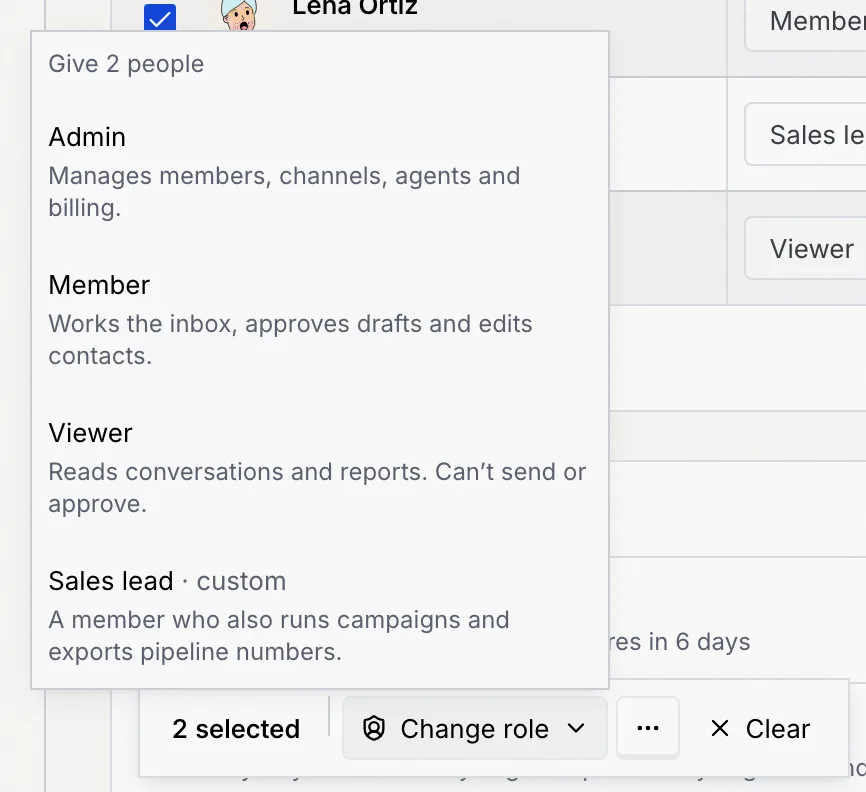
Rows you can't change (the owner, yourself, and other admins when you're an admin) have no checkbox.
## Remove someone [#remove-someone]
### Open their menu [#open-their-menu]
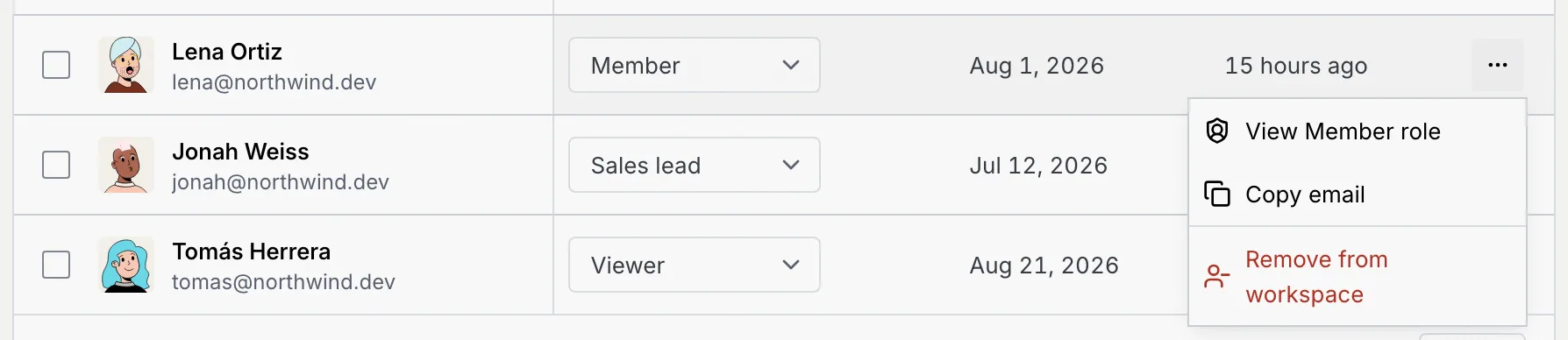
Click **⋯** at the end of the person's row. The menu also has **View … role**, which opens their role's page, and **Copy email**.
### Confirm [#confirm]
Choose **Remove from workspace**, then **Remove member**. They lose access right away, including every channel. Their replies, notes and approvals stay. To bring them back, invite them again.
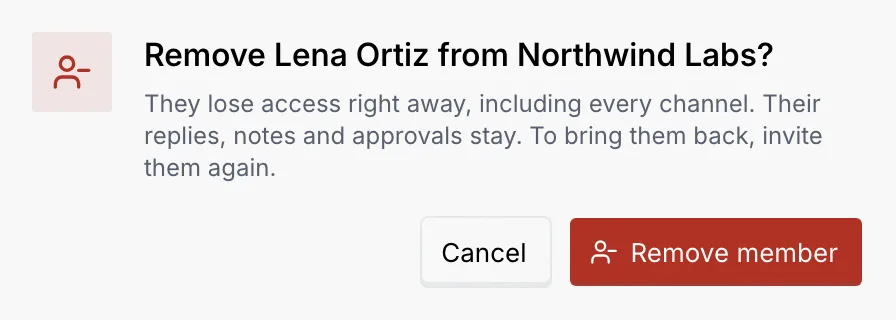
The owner can't be removed; they can [transfer ownership](/docs/settings/danger-zone) first. To leave a workspace yourself, use **Leave workspace** in the [Danger zone](/docs/settings/danger-zone).
## What members and viewers see [#what-members-and-viewers-see]
Members and viewers see a **View only** notice, the list of people with their roles as text, and the pending invites without buttons. Their menu on each row still has **View … role** and **Copy email**.
## Troubleshooting [#troubleshooting]
Ask them to check spam, then click **Resend** on the invite: it sends a new link and the old one stops working. You can also choose **Copy invite link** from the invite's **⋯** menu and send the link yourself.
They're already a member. Find them in **People** and change their role instead.
Hover the lock next to their role for the reason. Admins can't change other admins, nobody changes their own role, and the owner changes only through Transfer ownership.
The dialog shows **The invites weren't sent** with the reason, and keeps your list so you can fix it and send again. Inviting someone as owner isn't possible: invite them as an admin, then transfer ownership.
When custom roles couldn't load, the tab says **Custom roles didn't load, so people show their access level**. Click **Try again**.
Invite them as an admin, then the current owner uses **Transfer ownership** in the [Danger zone](/docs/settings/danger-zone).
## Next steps [#next-steps]