# Channel access (/docs/settings/channel-access)
Channel access decides where people work. Each role either works in **all channels** or **only selected accounts**, with a level on each account: **View**, **Reply** or **Manage**. Someone sees a conversation in the inbox only when their role has access to the account it came in on. Channel access is set per role on its page in **Members & roles**, so it applies to everyone with that role.
- **Who can use it:** Owners and admins, and custom roles with Admin access. Only the owner can change channel access for Admin-level roles, and nobody can change the Owner role's. Members and viewers can see each role's access but not change it.
- **Before you start:** At least one connected channel account (see [Connect a channel](/docs/channels/connect-a-channel)). With none, the panel says **No channel accounts are connected yet.**
## Access levels [#access-levels]
| Level | What people can do on the account |
|---|---|
| **View** | Read conversations on this account. |
| **Reply** | Read conversations and reply from this account. |
| **Manage** | Reply, and reconnect, disconnect and route the account. |
| **No access** | Conversations on this account don't show up for them. |
A role can't get more on a channel than its permissions allow. Its highest level comes from its [permissions](/docs/settings/roles#permission-reference):
| The role has | Highest level |
|---|---|
| **Edit channel settings** | **Manage** |
| **Reply and send** (but not Edit channel settings) | **Reply** |
| **View conversations** only | **View** |
| None of these | No channel access at all |
So the built-in roles start at: Owner and Admin up to **Manage**, Member up to **Reply**, Viewer up to **View**, each on every account.
## Check channel coverage [#check-channel-coverage]
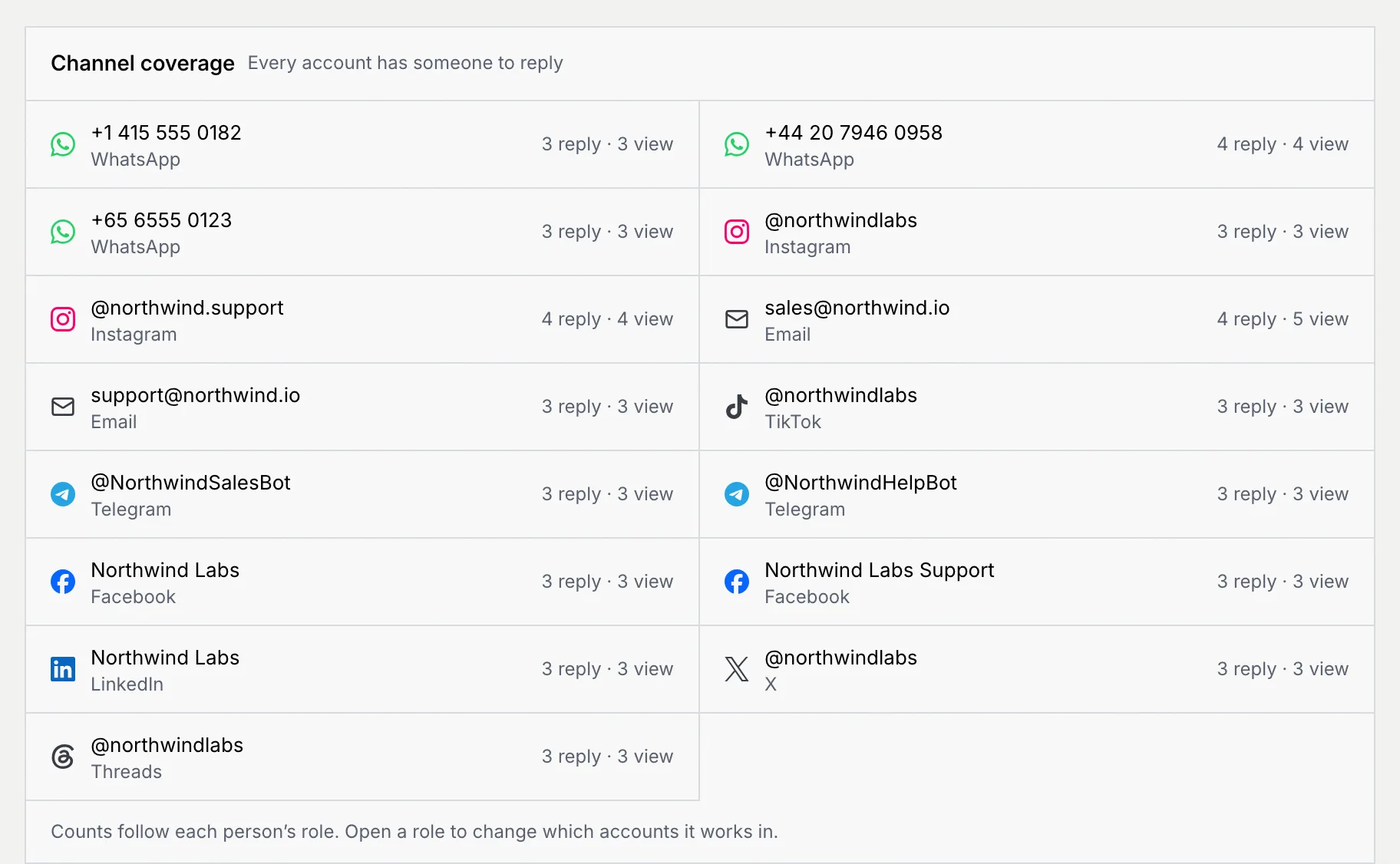
The **Roles** tab of **Members & roles** ends with **Channel coverage**: every connected account, with how many people can reply on it and how many can see it (those who can reply are counted in both). An account that nobody can reply from shows **No one can reply** in red, and the panel's header counts them. Disconnected accounts are never flagged.
## See a role's channel access [#see-a-roles-channel-access]
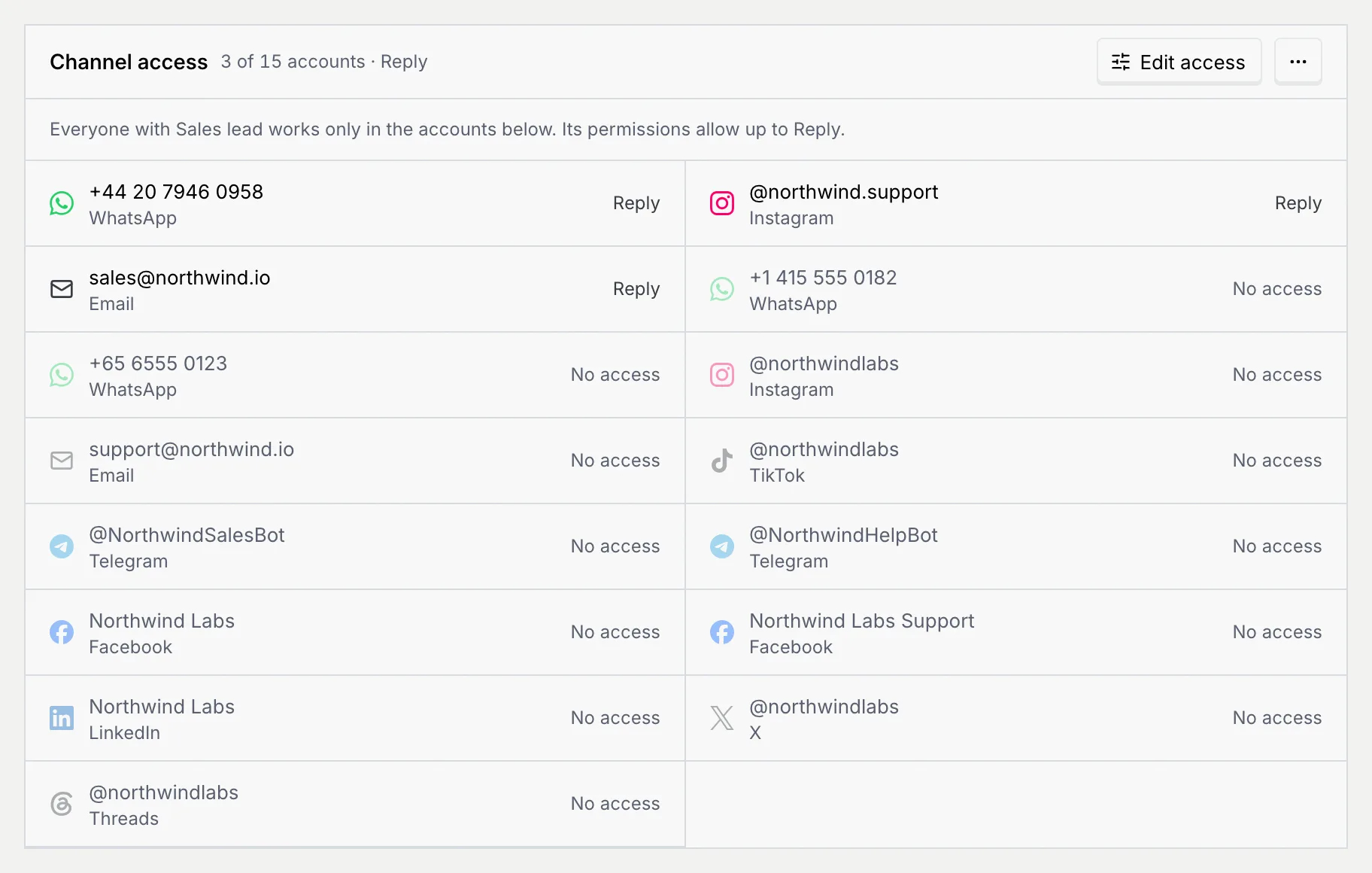
Open a role from the Roles tab and scroll to **Channel access**. The header sums it up, like **3 of 15 accounts · Reply** or **All 15 accounts · up to Manage**, and the list shows every account with the role's level on it.
## Change a role's channel access [#change-a-roles-channel-access]
### Open Edit access [#open-edit-access]
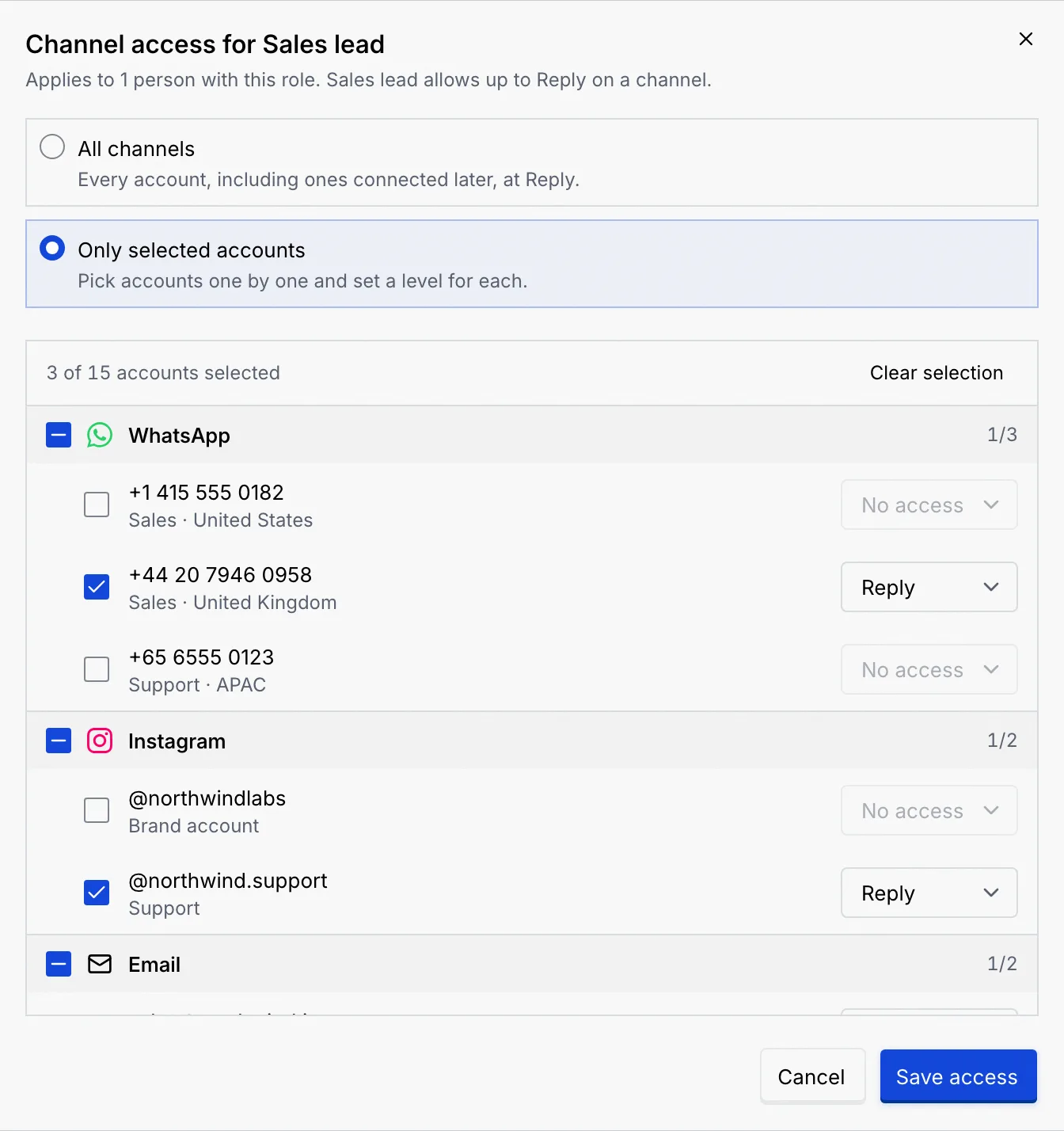
On the role's page, in **Channel access**, click **Edit access**. The dialog says how many people it applies to and the highest level the role allows.
### Choose all channels or specific accounts [#choose-all-channels-or-specific-accounts]
- **All channels**: every account, including ones connected later, at the role's highest level.
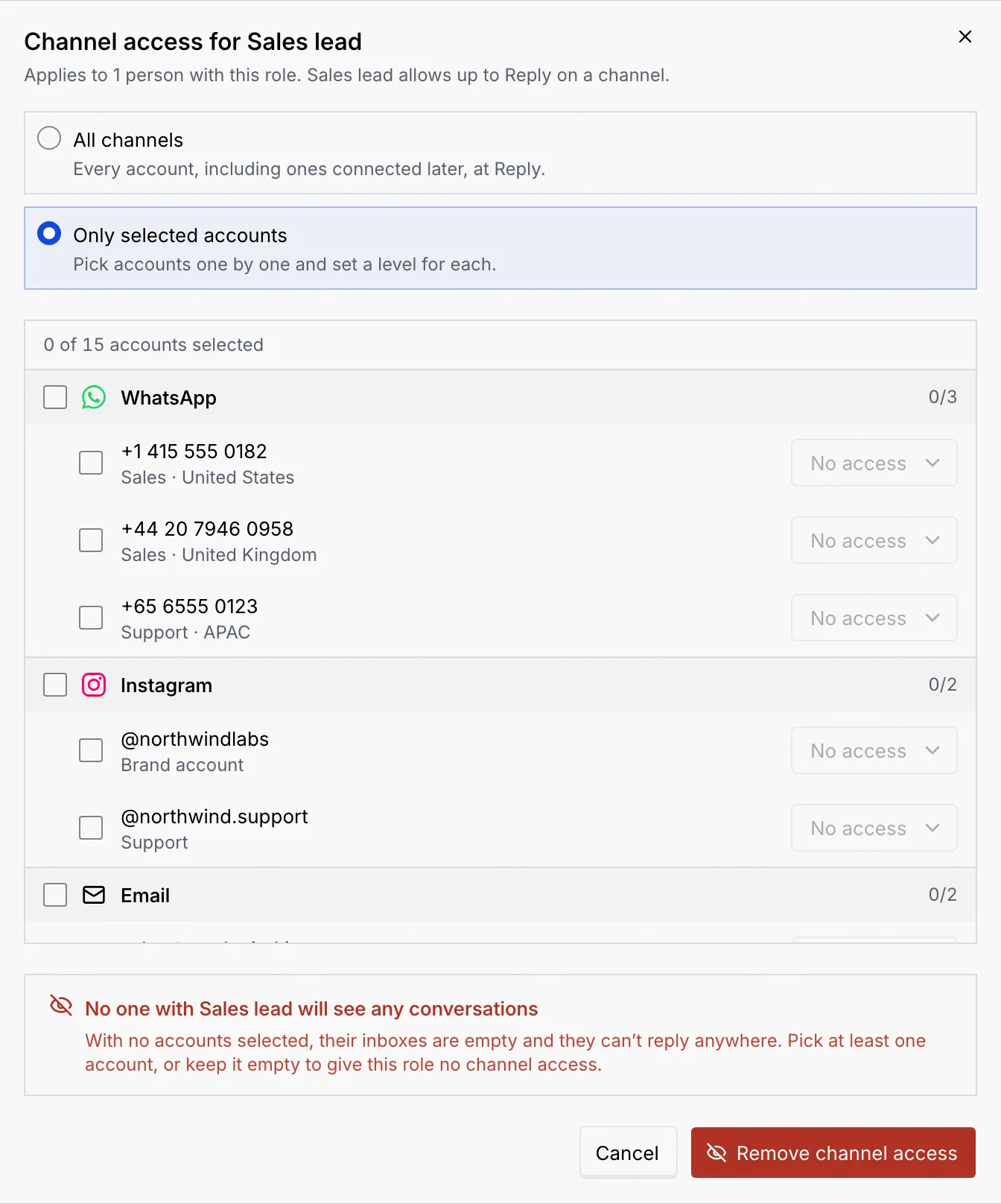
- **Only selected accounts**: tick accounts one by one, or a platform's checkbox to tick all its accounts (it shows a dash when only some are ticked). The header counts how many are selected.
### Set a level on each account [#set-a-level-on-each-account]
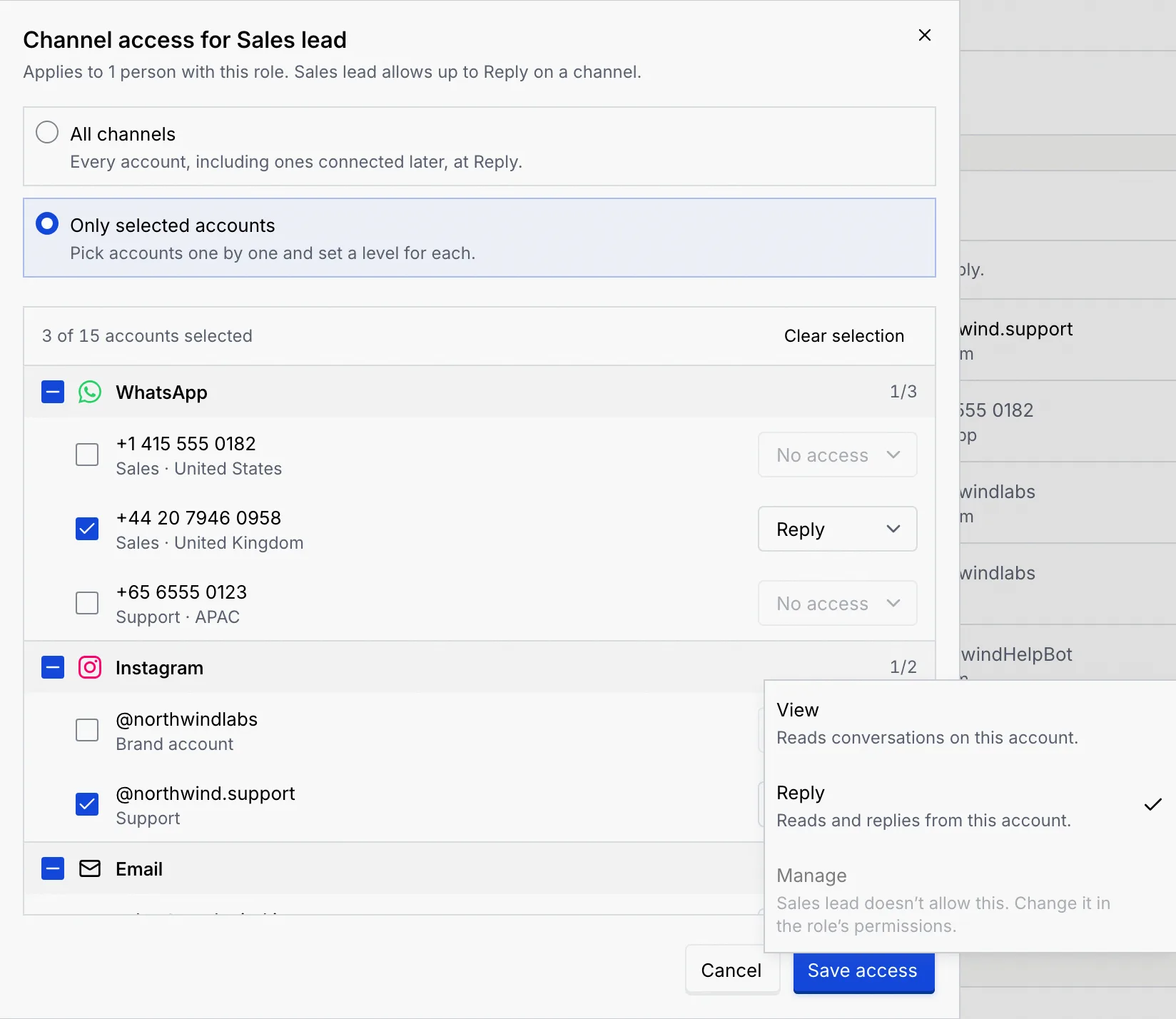
Each ticked account gets a level, starting at **Reply** (or the role's highest level if that's lower). Change it in the account's level picker. Levels above what the role allows are greyed out with "… doesn't allow this. Change it in the role's permissions."
### Save [#save]
Click **Save access**. You see **…'s channel access saved** with the new summary. It applies to everyone with the role right away.
If you clear every account under **Only selected accounts**, the dialog warns **No one with … will see any conversations** and the button turns red: **Remove channel access**. Their inboxes are empty and they can't reply anywhere until you give some back.
## Remove all channel access [#remove-all-channel-access]
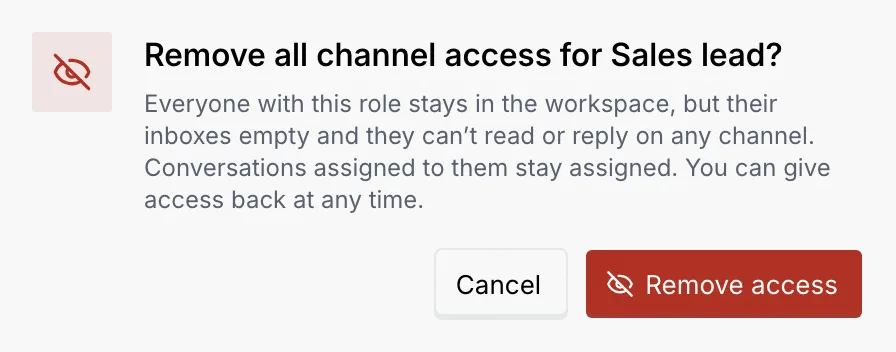
To take a role off every channel at once, open the **⋯** menu next to **Edit access** and choose **Remove all access**, then **Remove access**. Everyone with the role stays in the workspace and keeps the conversations assigned to them, but their inboxes empty and they can't read or reply on any channel. You see **… has no channel access**. Give access back any time with **Edit access**.
## Locked channel access [#locked-channel-access]
Some roles show **Locked** instead of **Edit access**. Hover or click the lock for the reason:
| Reason | Why |
|---|---|
| **The owner can always open every channel.** | The Owner role always has every account, up to Manage. |
| **Only the owner can change channel access for admin roles.** | You're an admin, and the role has Admin access. Ask the owner. |

You can also set channel access while [creating a role](/docs/settings/roles#create-a-role), in the form's **Channel access** panel.
## Troubleshooting [#troubleshooting]
Open their role (from **Members & roles → Members**, the **⋯** menu on their row has **View … role**) and check **Channel access**. With **Only selected accounts**, add the number and pick a level.
Roles with **All channels** get new accounts automatically. Roles with **Only selected accounts** don't: edit their access and tick the new account.
The role's permissions cap its level. Turn on **Reply and send** (for Reply) or **Edit channel settings** (for Manage) in the role's permissions, then come back. See [Roles and permissions](/docs/settings/roles#edit-a-role).
A role without **View conversations** can't open conversations, so it gets no channel access whatever you pick. Turn on **View conversations** in its permissions first.
## Next steps [#next-steps]