# Catalog and link defaults (/docs/payments/payment-catalog)
The **Catalog** tab holds the products you can add to a payment request. The **Link defaults** tab sets what every new link starts with: its currency, how long it stays open and the tax on rupiah orders.
- **Who can use it:** Everyone can see the catalog and the defaults. Adding products and choosing which are offered needs **Manage the product catalog**; changing the defaults needs **Manage gateways**. Both are for owners and admins by default. Anyone else sees a **View only** notice on the tab, with its controls disabled. See [Roles and permissions](/docs/settings/roles).
- **Before you start:** Nothing.
## Add a product to the catalog [#add-a-product-to-the-catalog]
### Open the Catalog tab [#open-the-catalog-tab]
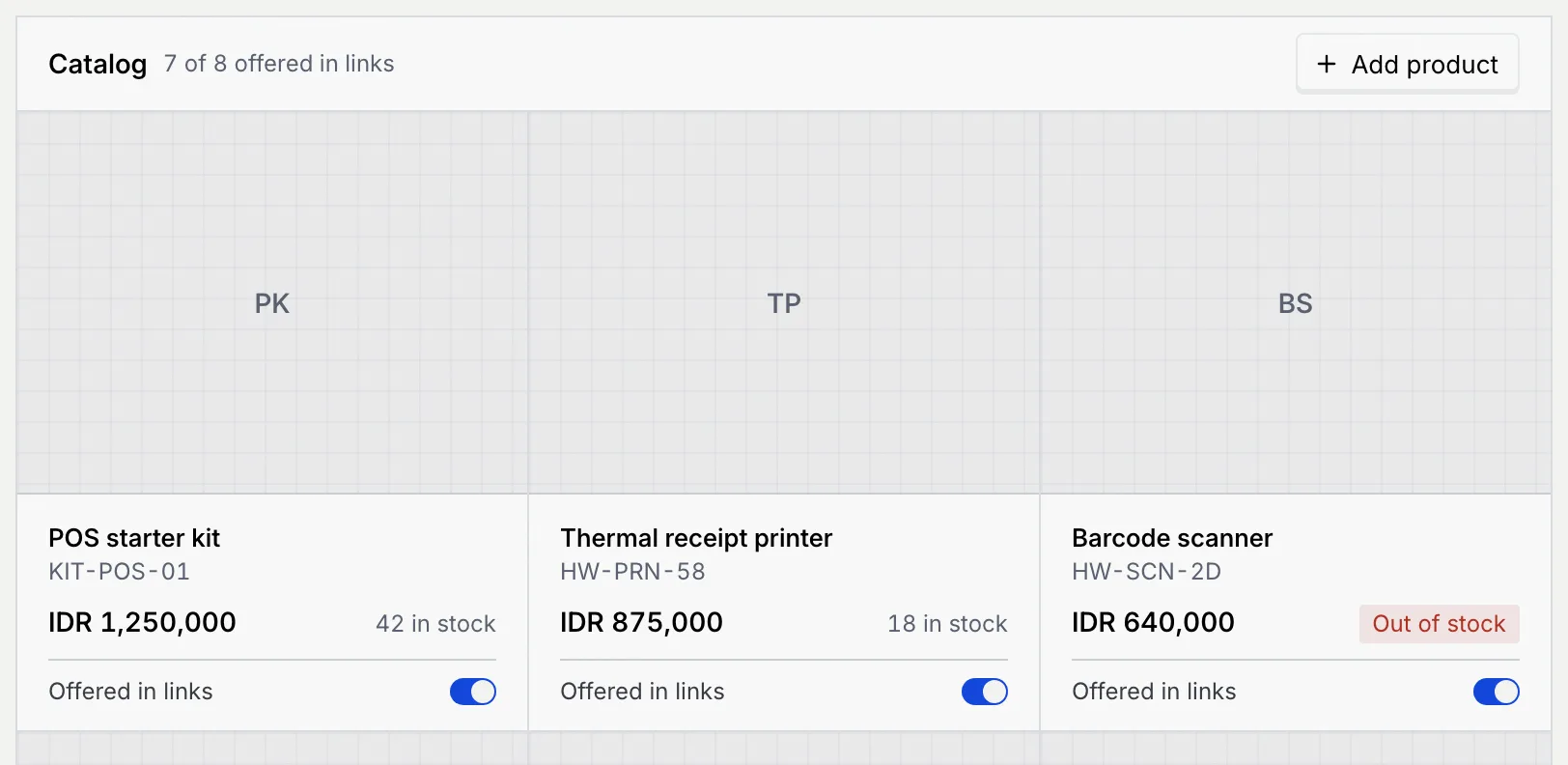
On **Payments**, click **Catalog**. Each product shows its name, SKU, price, stock (**N in stock**, **Unlimited** or **Out of stock**) and whether it's **Offered in links**. The count at the top says how many products are offered.
### Fill in the product [#fill-in-the-product]
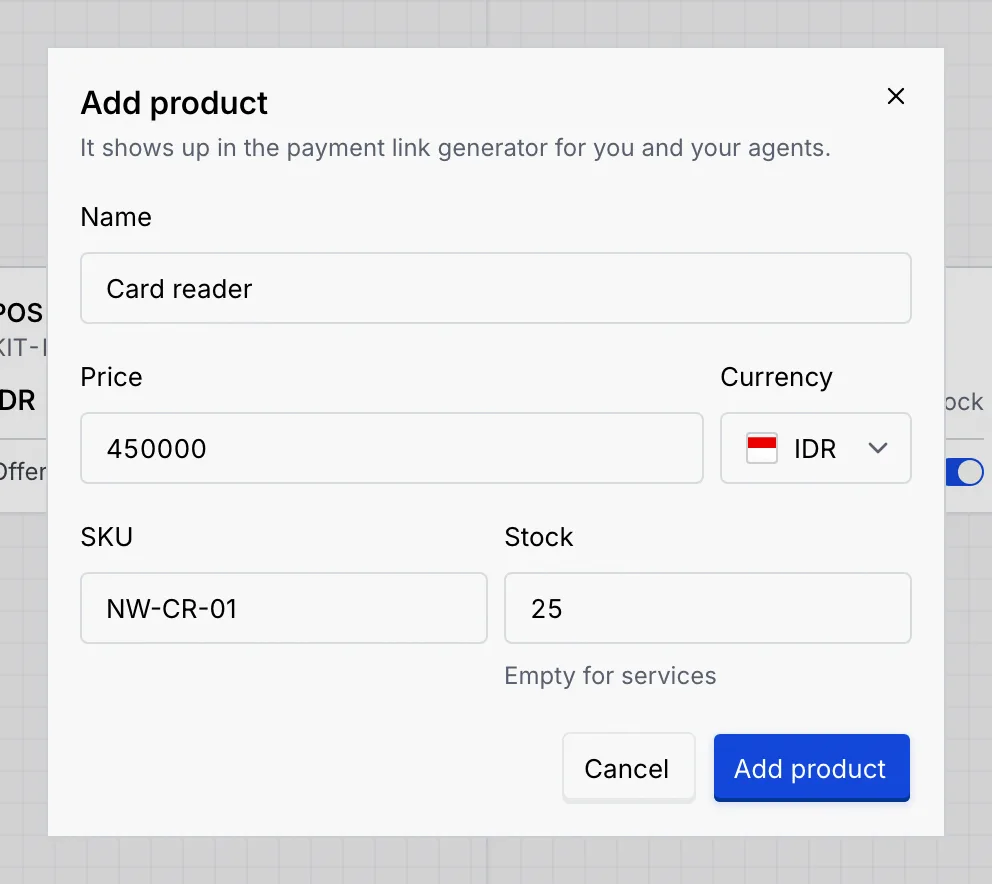
Click **Add product** and fill in:
- **Name** of the product, as customers see it.
- **Price** and its **Currency** (IDR, USD, SGD or MYR). Rupiah prices are whole numbers; other currencies take up to 2 decimals.
- **SKU** (optional), so you can find it by code.
- **Stock**: how many you have, or leave it empty for services and anything unlimited. Payment requests can't add more than the stock.
### Add it [#add-it]
Click **Add product**. It shows up in the catalog and in the payment request builder.
### Choose which products are offered [#choose-which-products-are-offered]
Turn **Offered in links** off to keep a product in the catalog but leave it out of new payment requests (for example something you've stopped selling for now). Turn it back on any time. A product only shows in a payment request whose currency matches its price.
## Set the link defaults [#set-the-link-defaults]
### Open Link defaults [#open-link-defaults]
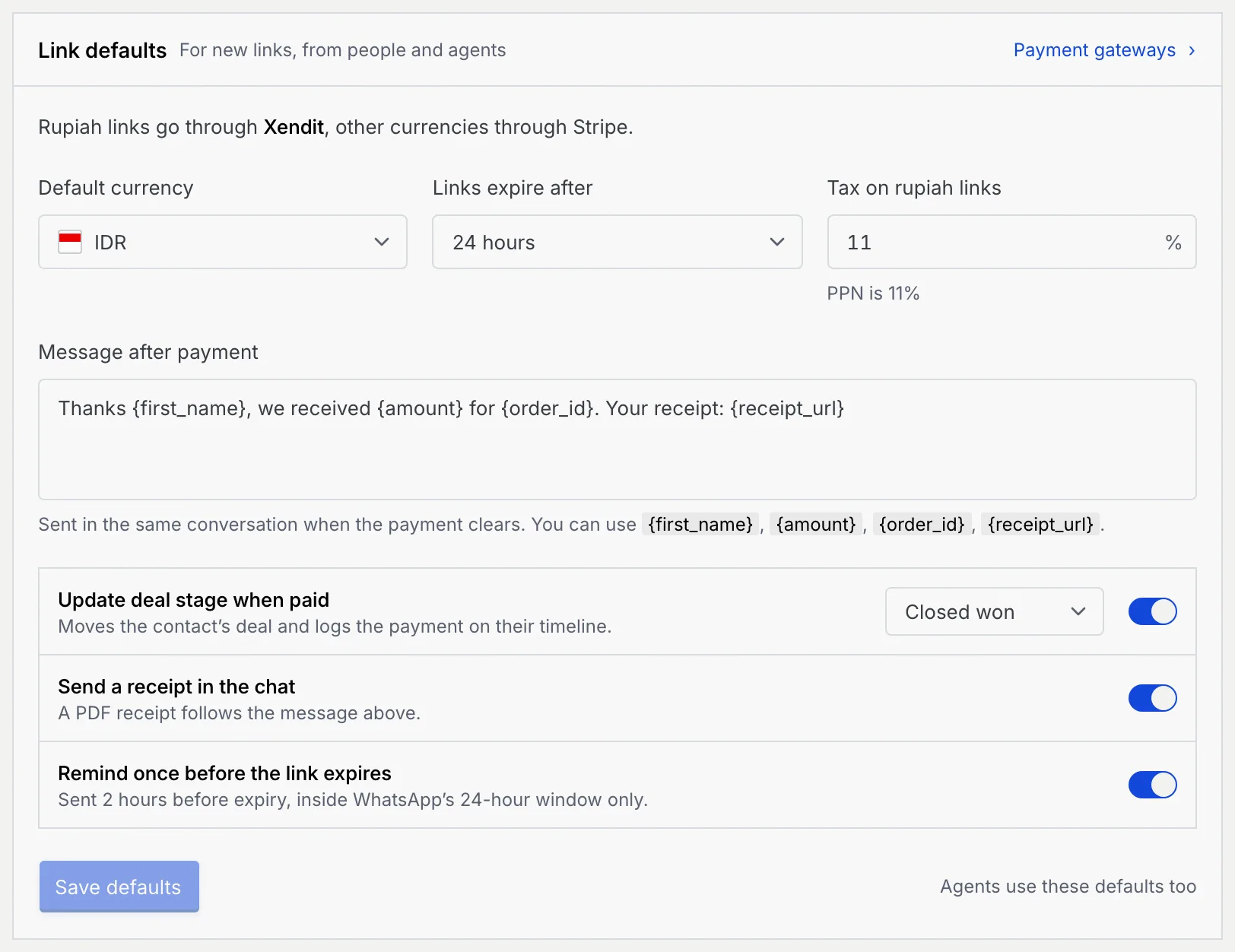
On **Payments**, click **Link defaults**. The panel says which gateway online payment links would go through; payment gateways are coming soon, so today you take payments as a QRIS. **Payment gateways** opens [Payment gateways and QRIS](/docs/payments/payment-gateways).
### Change what you need [#change-what-you-need]
| Setting | What it does |
|---|---|
| **Default currency** | The currency new payment requests start in. |
| **Links expire after** | How long a new link stays payable: 1 hour, 24 hours, 3 days, 7 days or 30 days. Resending an expired link gives it this long again. |
| **Tax on rupiah links** | The tax rate added to rupiah orders, between 0 and 50% with up to 2 decimals. PPN is 11%. Links in other currencies aren't taxed. |
| **Message after payment** | The thank-you meant for the conversation once a link is paid. Use `{first_name}`, `{amount}`, `{order_id}` and `{receipt_url}` for the customer's name, the amount, the order and a link to the receipt. Up to 500 characters. |
| **Update deal stage when paid** | The stage (**Negotiation** or **Closed won**) a paid link is meant to move the contact's deal to. |
| **Send a receipt in the chat** | Meant to send a PDF receipt after the message above. |
| **Remind once before the link expires** | Meant to send one reminder 2 hours before the link expires. |
Mokanata saves **Message after payment**, **Update deal stage when paid**, **Send a receipt in the chat** and **Remind once before the link expires**, but doesn't act on them yet: marking a link paid sends no message, receipt or reminder and doesn't move the deal.
### Save [#save]
The panel says **Unsaved changes** until you save. Click **Save defaults**, or **Discard changes** to put everything back. New links use the new defaults; links already sent don't change. If you leave the page with unsaved changes, Mokanata asks first.
## What other roles see [#what-other-roles-see]
Members and viewers can see the catalog but not add products or switch them on and off:

On **Link defaults**, a role without **Manage gateways** sees the defaults new links start with, and a notice that changing them comes with managing gateways.
## Troubleshooting [#troubleshooting]
Check that **Offered in links** is on, that the payment request's currency matches the product's price, and that it isn't out of stock.
**Enter a rate between 0 and 50.** or **Use at most 2 decimals.**: fix the tax rate. **Write a short thank-you, so customers know the payment went through.**: the message can't be empty. **Keep it under 500 characters.**: shorten it.
**Name the product.**: type a name. **Enter a price above zero.**: type a price. **Whole number, or leave empty.**: the stock must be a whole number.
## Next steps [#next-steps]