# Share a board or card with a public link (/docs/kanban/share-boards)
A public link lets clients, partners or anyone else see a board, or one card, without signing in. They can look but not change anything, and comments, files and other private details stay in your workspace.
- **Who can use it:** The board's project manager, with the **Share public links** permission (Owners, Admins and Members by default). Owners and admins can share any board. Everyone else on the board sees a **Public link on** label when a link is on, but can't open, copy, reset or turn it off, and the share items aren't in their menus. See [Board members, roles and access](/docs/kanban/board-members).
- **Before you start:** Decide whether to share the whole board or just one card. A board link shows every card on the board, including cards some members can't see on boards set to **Only their cards**.
## Share a board [#share-a-board]
### Open Share board [#open-share-board]
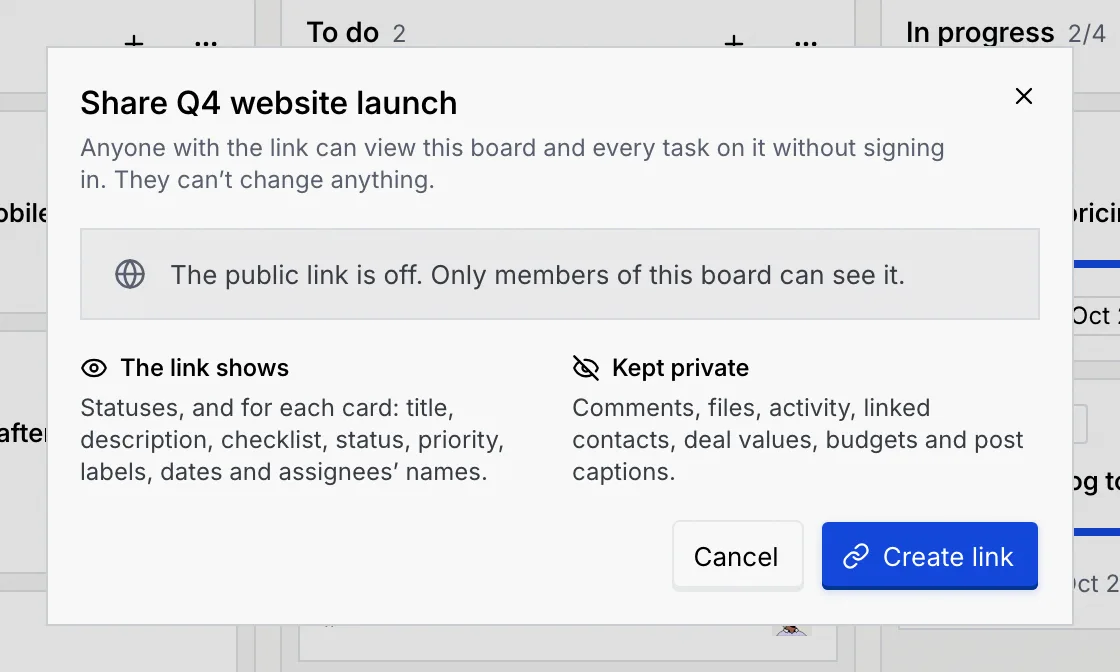
On the board, open the **⋯** menu and choose **Share board**. The dialog explains what the link shows and keeps private, and says the link is off.
### Create the link [#create-the-link]
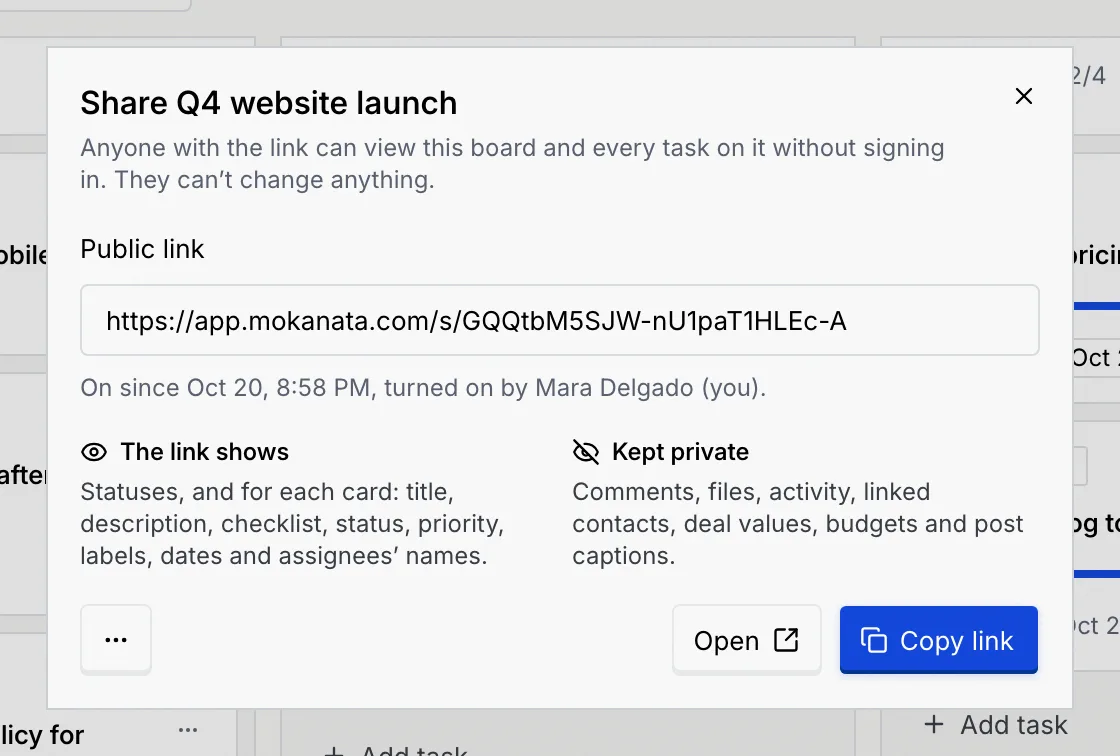
Click **Create link**. The **Public link** appears, with when it was turned on and by whom.
### Copy or open it [#copy-or-open-it]
Click **Copy link** to copy it ("Link copied"), then paste it into an email or message. Click **Open** to see the public page in a new tab, exactly as others will.
While the link is on, a **Public link on** button sits next to the board's status. Click it to get back to the link. In the board's **⋯** menu, **Share board** becomes **Public link**.

### What a board link shows [#what-a-board-link-shows]
**The link shows:**
- The board's name, kind, description, status and dates, and how many cards are done and overdue.
- Every status with its cards.
- Each card's title, description, checklist, status, priority, labels, dates and assignees' names.
**Kept private:**
- Comments, files and activity.
- Linked contacts.
- Deal values and budgets.
- Post captions and media.
- Members, roles and saved views.
## Share one card [#share-one-card]
### Open the card's share dialog [#open-the-cards-share-dialog]
Open the card's **⋯** menu (on the board or on the card page) and choose **Share task** (or **Share post**, **Share lead**, **Share campaign**).
### Create and copy the link [#create-and-copy-the-link]
Click **Create link**, then **Copy link**. The person you send it to sees only this card, not the board or its other cards.
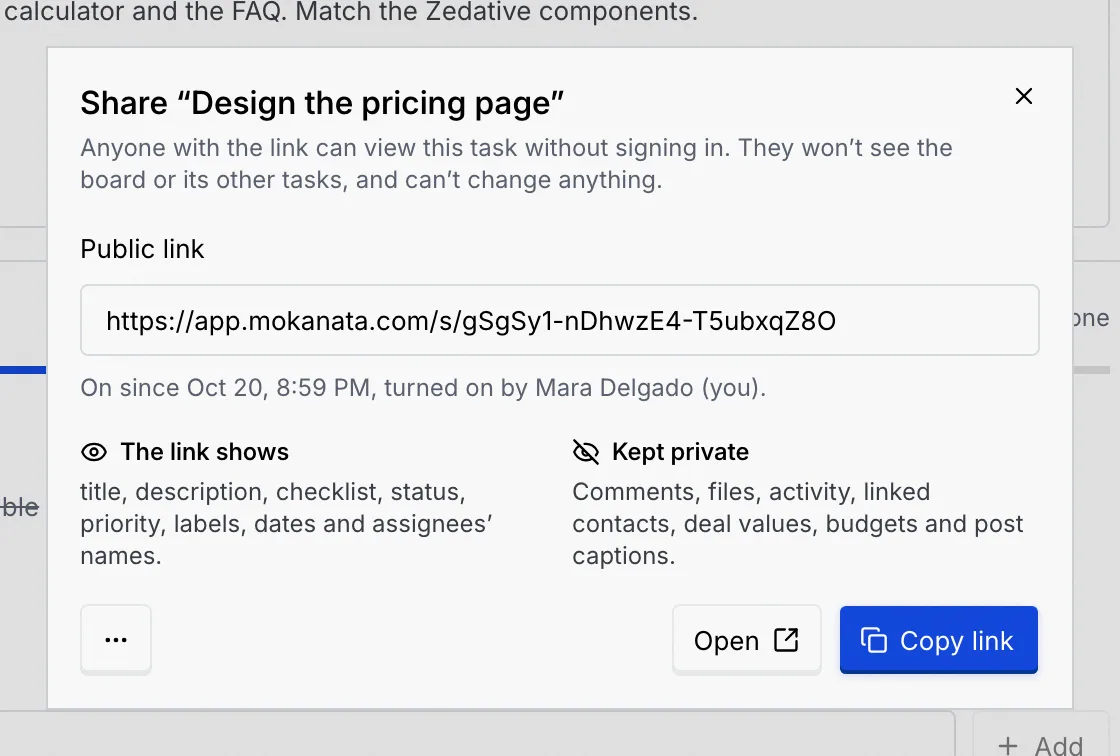
A shared card shows a **Public link on** badge next to its key on its page, and its activity notes when the link was turned on, reset or turned off.
## What people see [#what-people-see]
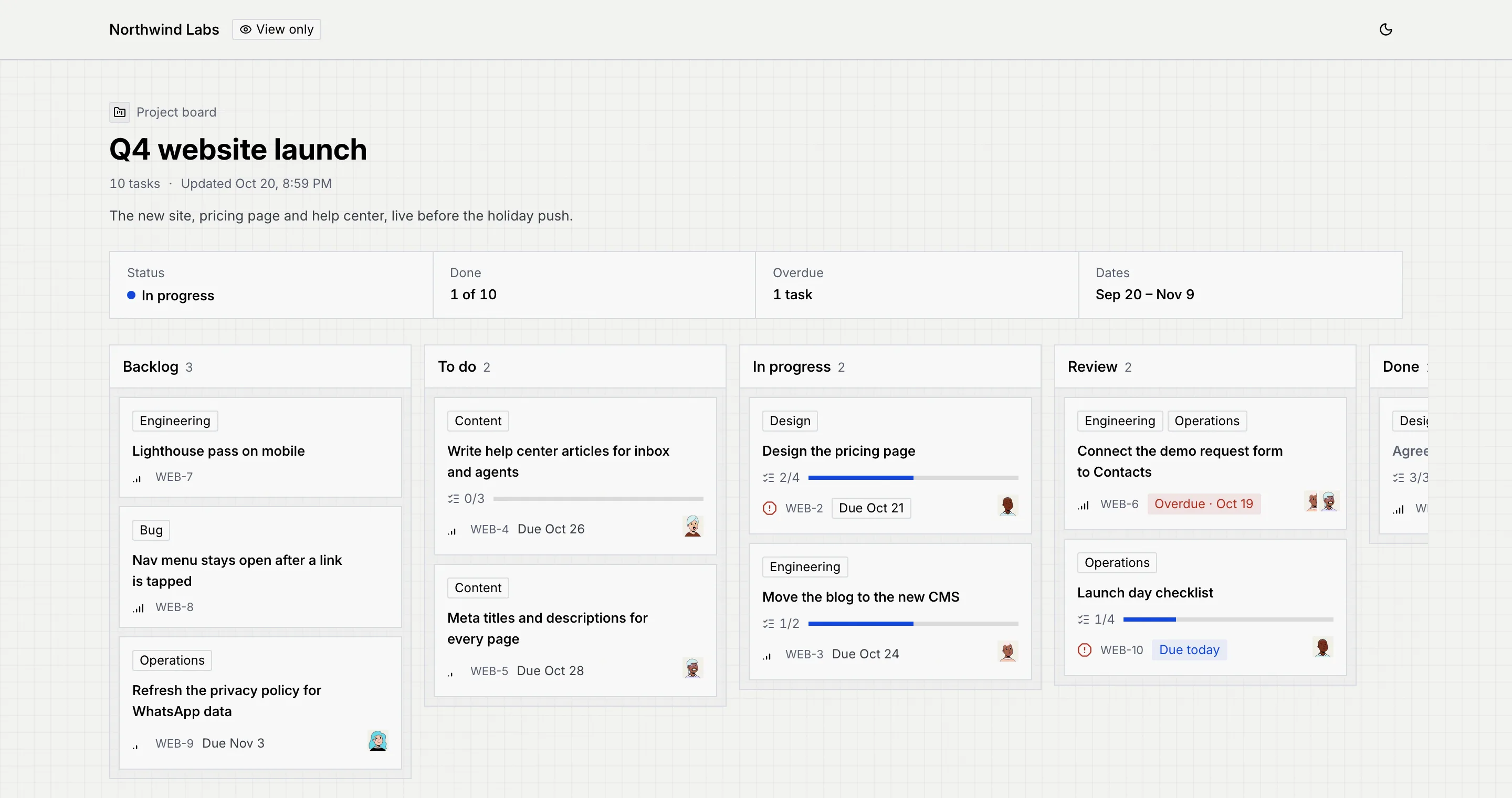
People who open a link see your workspace's name, a **View only** badge, a button to switch between light and dark, and the board or card. They don't need an account, and nothing on the page can be changed.
The board's name and description, a summary (**Status**, **Done**, **Overdue**, **Dates**) and every status with its cards. Clicking a card opens it within the same link.
The card with the board's name and its key above the title, its **Status**, **Priority**, **Start** and **Due**, then its description, checklist, assignees and labels.

The same card on its own, with **Task · WEB-2** above the title instead of the board's name.

The public page follows changes as they're saved: a card moved, edited or deleted on the board shows that way the next time the page updates. Dates use your workspace's date format ([Language and region](/docs/settings/language-region)).
## Reset or turn off a link [#reset-or-turn-off-a-link]
### Open the link's menu [#open-the-links-menu]
Open the share dialog again (the **Public link on** button, or **Public link** in the board's or card's **⋯** menu) and click **⋯** at the bottom left.
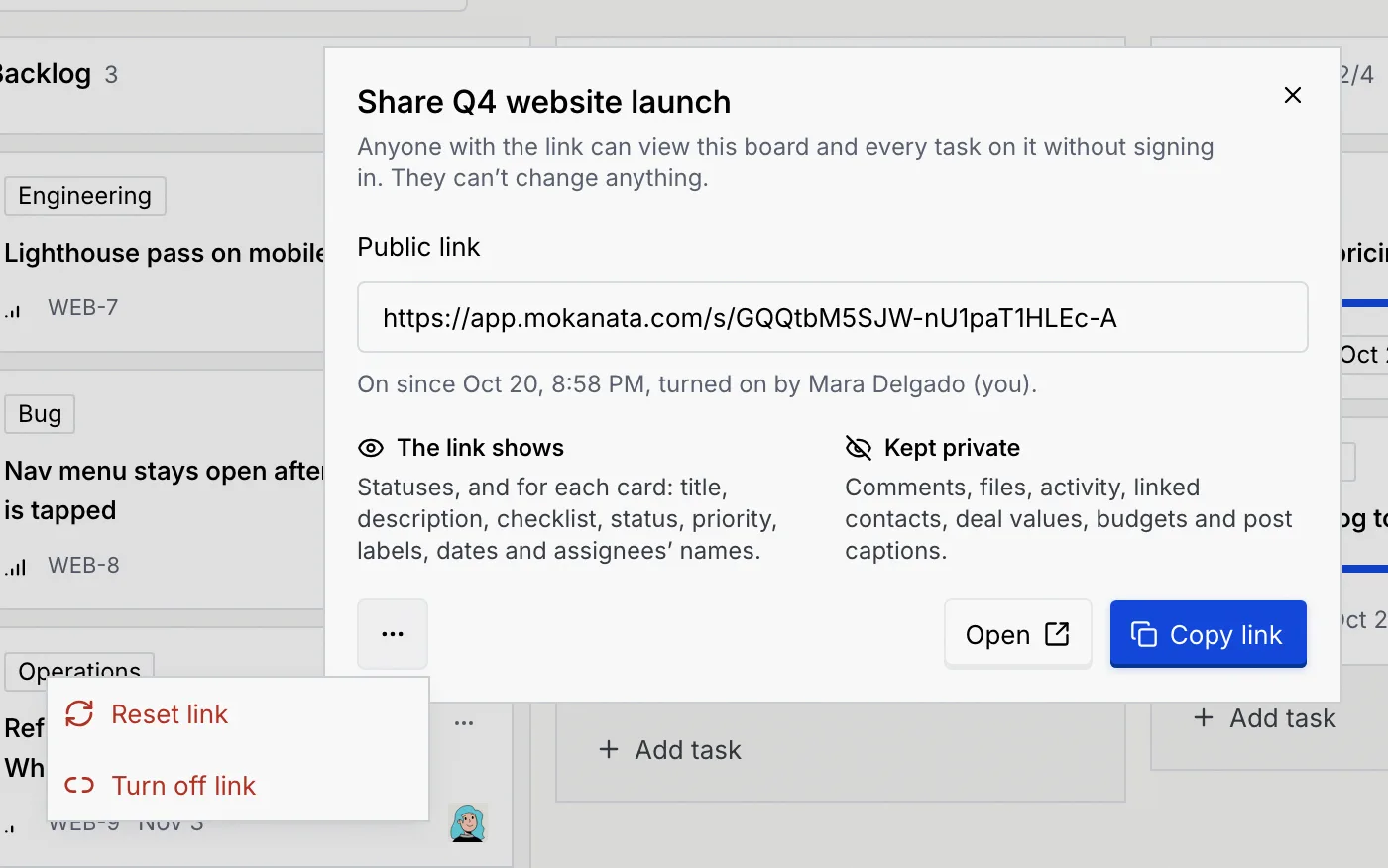
### Reset the link [#reset-the-link]
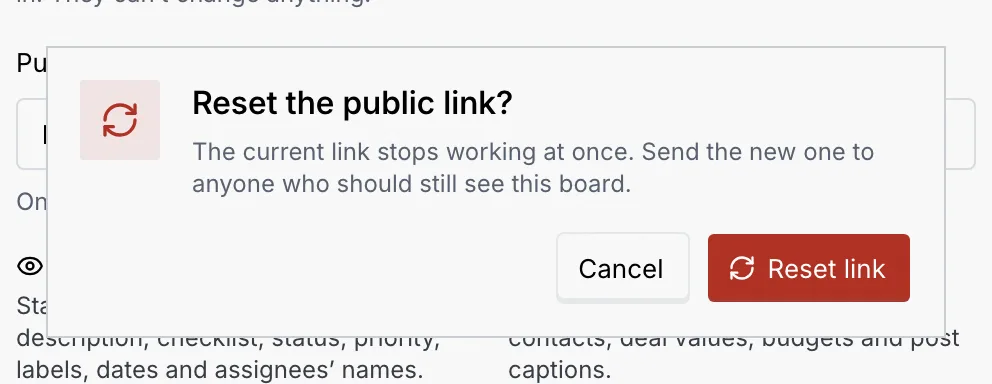
Choose **Reset link** to replace it with a new one, for example if it reached someone it shouldn't have. Confirm with **Reset link**: the old link stops working at once, so send the new one to anyone who should still see the board.
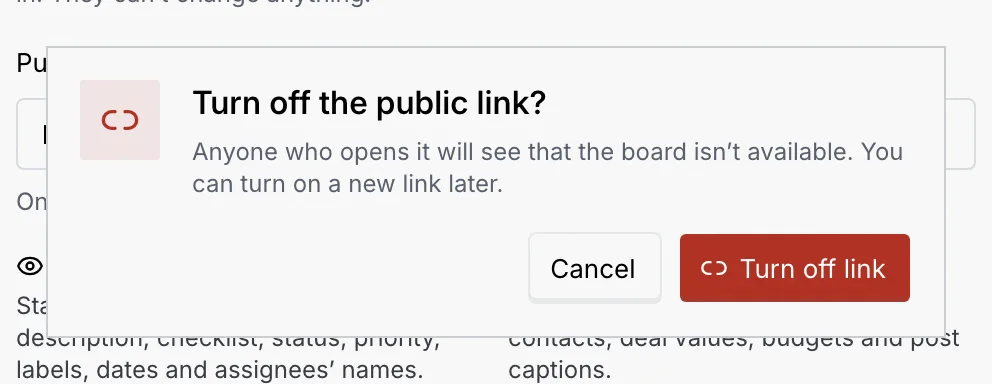
### Or turn it off [#or-turn-it-off]
Choose **Turn off link** and confirm. Anyone who opens the old link sees that it isn't available. You can create a new link later.
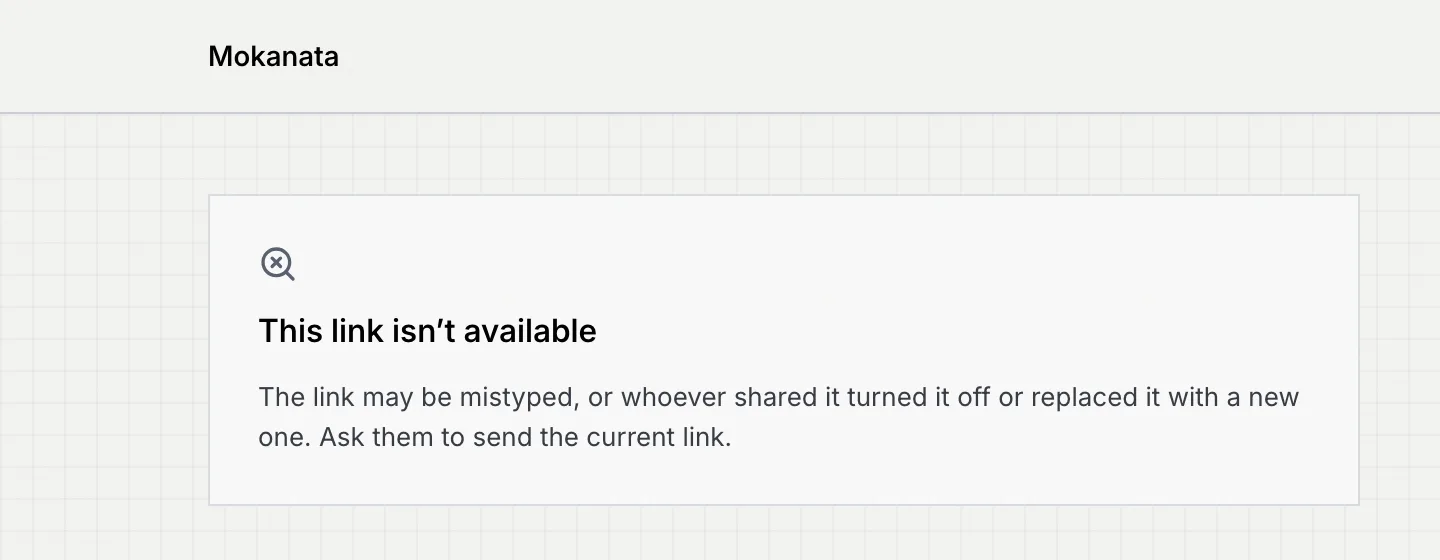
After a reset or turn-off, the old link shows **This link isn't available**: "The link may be mistyped, or whoever shared it turned it off or replaced it with a new one. Ask them to send the current link."
If a card is deleted or moved off a shared board, someone who opens it from the board's link sees that it isn't on the board anymore, with a link back to the board. Deleting a board, or a card with its own link, makes those links unavailable.
## Troubleshooting [#troubleshooting]
Only the board's project manager can share, and only if their role includes **Share public links**. Ask the project manager, or an owner or admin.
The link may have been reset or turned off, or copied incompletely. Open the share dialog to check it's on, then copy it again with **Copy link**.
Share each card on its own with **Share task**, rather than the whole board.
## Next steps [#next-steps]