# Kanban boards (/docs/kanban/kanban-boards)
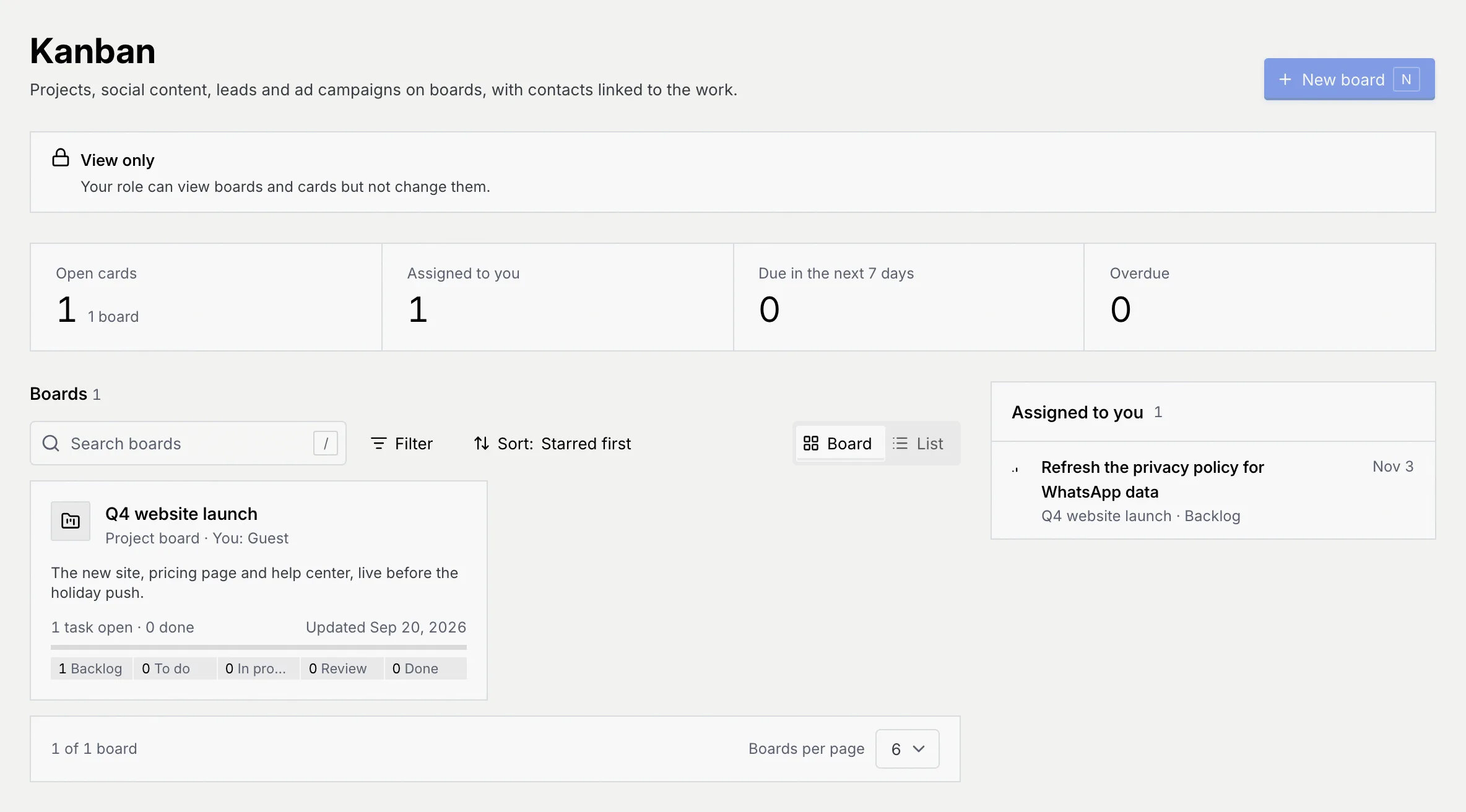
Kanban boards hold the work your team does around your conversations: projects and tasks, social posts, leads and ad campaigns. Each card moves through the board's statuses, and cards can link to the contacts they're about. The **Kanban** page lists every board you can see, with how the work stands across all of them.
- **Who can use it:** Everyone in the workspace with the **View boards** permission, which every built-in role has. Owners and admins see every board. Everyone else sees the boards they're a member of. Viewers see the page read-only: a **View only** notice says "Your role can view boards and cards but not change them", and **New board** is greyed out. Starting a board needs **Manage boards** (Owners, Admins and Members by default). See [Roles and permissions](/docs/settings/roles).
- **Before you start:** Nothing. To see a board someone else runs, ask its project manager to add you ([Board members, roles and access](/docs/kanban/board-members)).
## Open your boards [#open-your-boards]
### Go to Kanban [#go-to-kanban]
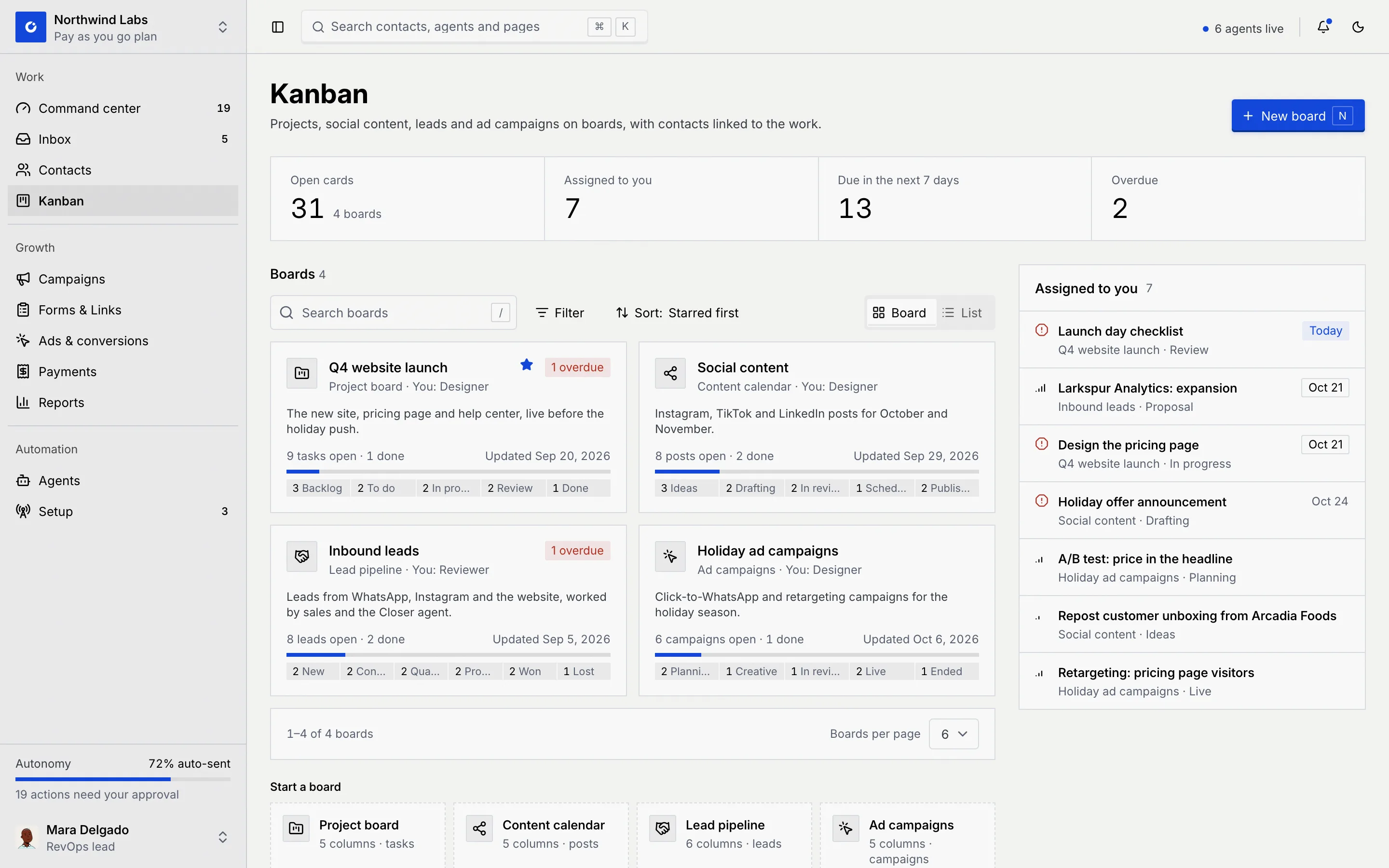
In the sidebar, under **Work**, click **Kanban**, or press G then K from anywhere. The page opens with four numbers across every board you can see, your boards, and the open cards assigned to you.
| Number | What it counts |
|---|---|
| **Open cards** | Cards that aren't finished or closed, with how many boards they're on. |
| **Assigned to you** | Open cards you're assigned to. |
| **Due in the next 7 days** | Open cards due today or in the next seven days. |
| **Overdue** | Open cards whose due date has passed. |
### Read a board tile [#read-a-board-tile]
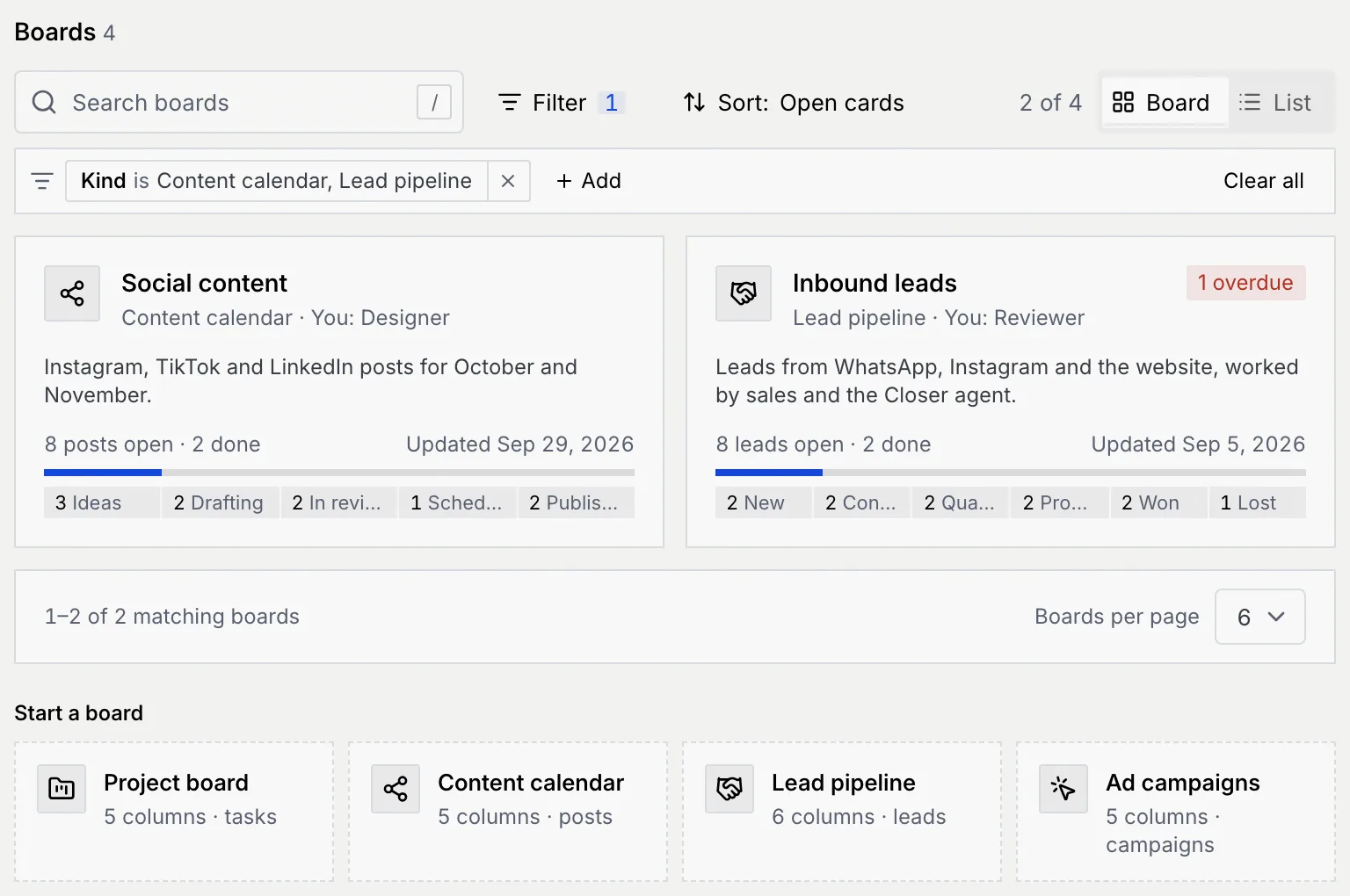
Each tile shows one board: its kind and your role on it ("You: Designer"), a star if you've added it to your favorites, a red badge with the number of overdue cards, the description, how many cards are open and done, when it last changed, a progress bar and how many cards sit in each status.
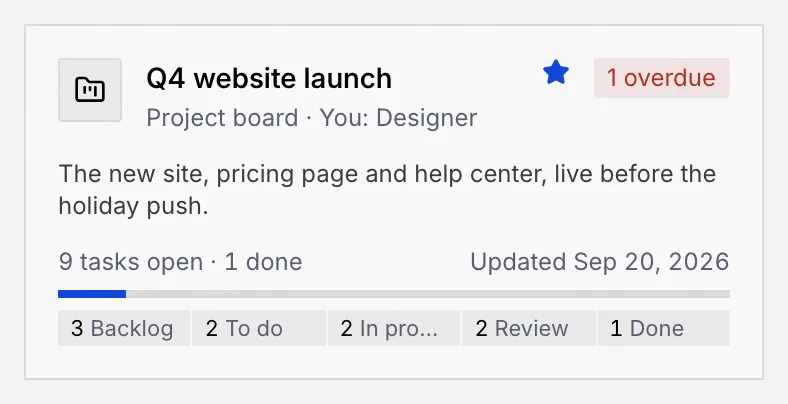
Click a tile to open the board. Owners and admins who aren't members of a board see **You: Workspace admin**.
### Switch to the list [#switch-to-the-list]
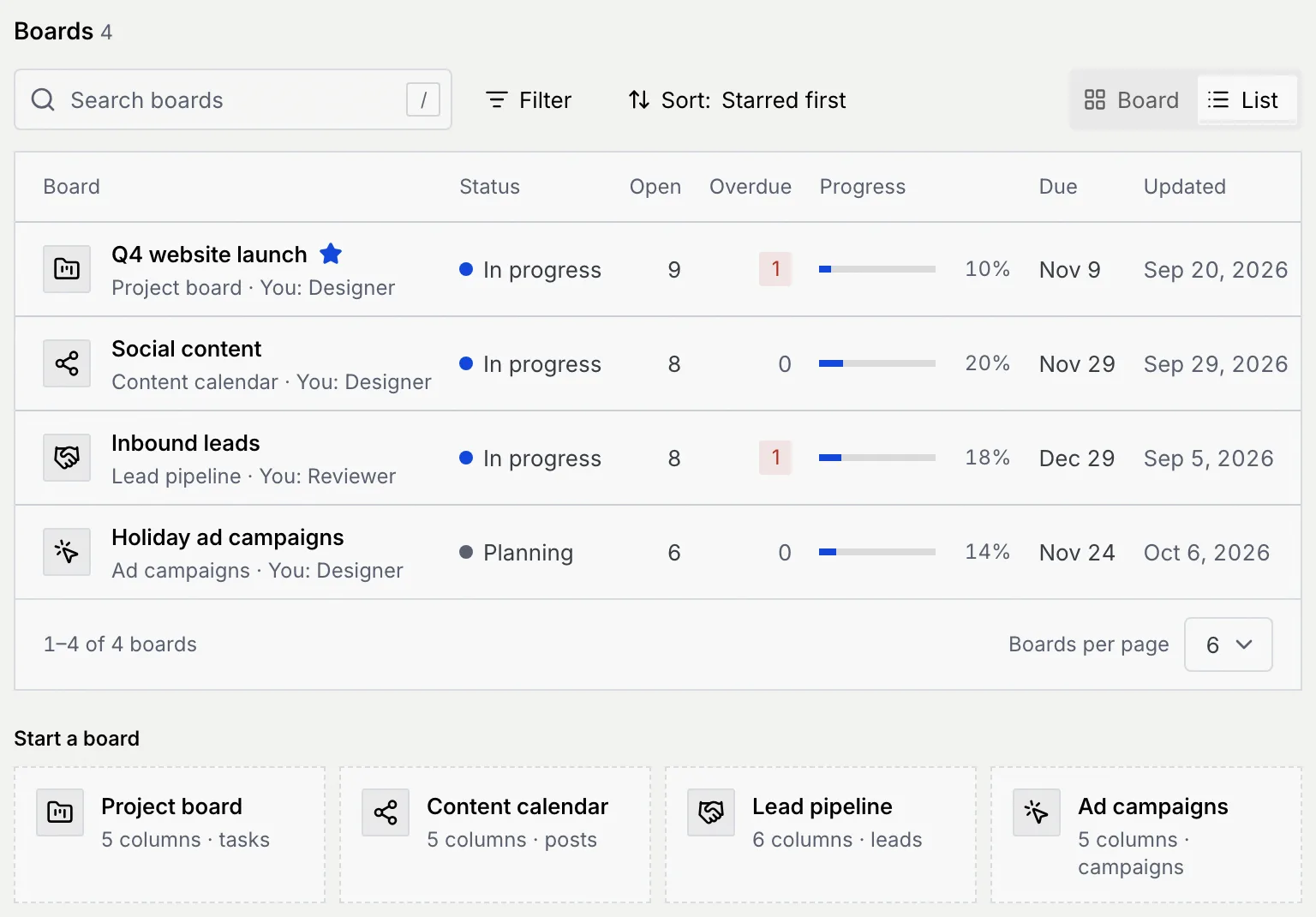
Use the **Board** / **List** switch above the boards to show them as a table instead. The list has the same boards with their **Status**, **Open** and **Overdue** cards, **Progress**, **Due** date and when they were **Updated**.
## Board kinds [#board-kinds]
Every board has a kind, chosen when it's created. The kind decides what a card is called, the statuses the board starts with and the extra fields on its cards. It can't be changed afterwards.
| Kind | What it's for | A card is a | Starts with these statuses | Extra card fields |
|---|---|---|---|---|
| **Project board** | General tasks for a team or project, from backlog to done, with checklists and owners. | task | Backlog, To do, In progress, Review, Done | None |
| **Content calendar** | Posts from idea to published, scheduled per network, with captions and results. | post | Ideas, Drafting, In review, Scheduled, Published | The post studio: media, captions per network, preview, scheduling and results ([Write, preview and schedule social posts](/docs/kanban/social-posts)) |
| **Lead pipeline** | Leads linked to contacts, from first touch to won or lost, with value and next steps. | lead | New, Contacted, Qualified, Proposal, Won, Lost | **Deal** and **Contacts** ([Lead pipelines and ad campaign boards](/docs/kanban/lead-and-ad-boards)) |
| **Ad campaigns** | Campaigns from brief to live: platform, budget, spend and results on every card. | campaign | Planning, Creative, In review, Live, Ended | **Campaign** ([Lead pipelines and ad campaign boards](/docs/kanban/lead-and-ad-boards)) |
Buttons follow the kind: a project board has **New task**, a content calendar **New post**, a lead pipeline **New lead** and an ad board **New campaign**.
### Board status [#board-status]
Each board also has a status of its own, set by its project manager, which shows as a dot on the list and in the board's header: **Planning**, **In progress**, **At risk**, **On hold** or **Completed**. There's no archive: set a finished board to **Completed** or a paused one to **On hold**. See [Create and set up a board](/docs/kanban/create-board#set-the-board-status).
## Find a board [#find-a-board]
### Search [#search]
Type in **Search boards** to match a board's name, card key (such as `WEB`) or description. Press / to jump to the search box. While a search or filter is on, the count beside the switch says how many boards match, for example "2 of 4".
### Filter [#filter]
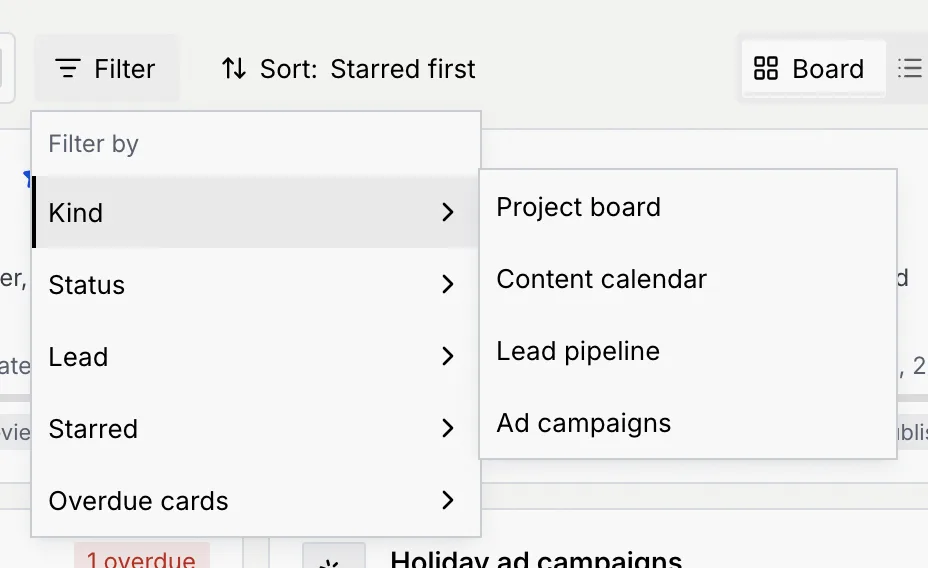
Click **Filter**, point to a field and tick one or more values.
| Field | Values |
|---|---|
| **Kind** | Project board, Content calendar, Lead pipeline, Ad campaigns |
| **Status** | Planning, In progress, At risk, On hold, Completed |
| **Lead** | The people leading your boards, and **No lead** |
| **Starred** | **Starred**, **Not starred** |
| **Overdue cards** | **Has overdue cards**, **Nothing overdue** |
Values you tick in one field widen the match (any of them); filters on different fields narrow it (all of them).
### Adjust the filter chips [#adjust-the-filter-chips]
Each filter shows as a chip under the toolbar, for example **Kind is Content calendar, Lead pipeline**. Click a chip to switch between **is** and **is not** or change its values, click its **×** to remove it, **Add** to filter by another field, or **Clear all**.
### Sort [#sort]
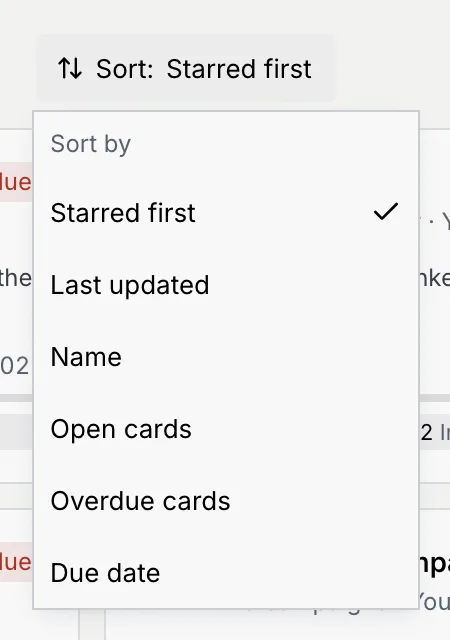
Click **Sort:** and choose **Starred first** (the default), **Last updated**, **Name**, **Open cards**, **Overdue cards** or **Due date** (the board's end date). Every choice except **Starred first** also lets you pick **Ascending** or **Descending** under **Order**.
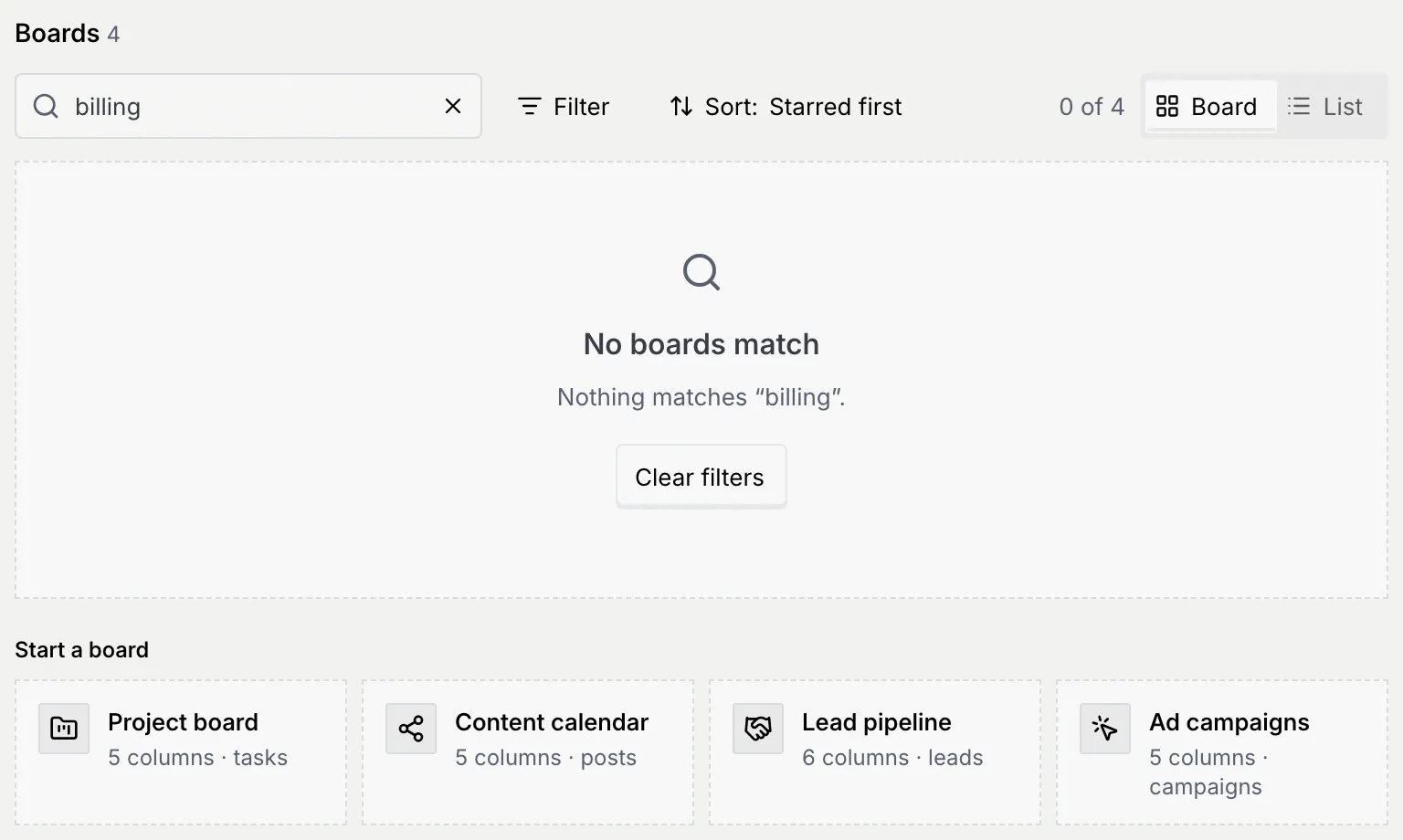
If nothing matches, the page says **No boards match**. Click **Clear filters** to clear the search and filters together.
Your search, filters, sort, view and page are part of the page's address, so you can bookmark a filtered list or send it to a teammate. When there are more boards than fit, use the arrows under the boards to page through them, and **Boards per page** to show 6, 12 or 24 at a time.
Open a board and click the star next to its name to add it to your favorites. Starred boards come first in the default sort. Stars are personal: your teammates keep their own.
## See what's assigned to you [#see-whats-assigned-to-you]
The **Assigned to you** panel lists up to 12 open cards you're assigned to, on every board, soonest due first. Each row shows the card's priority, its title, the board and status it's in, and its due date: red when it's overdue, **Today** when it's due today, outlined when it's due in the next three days.
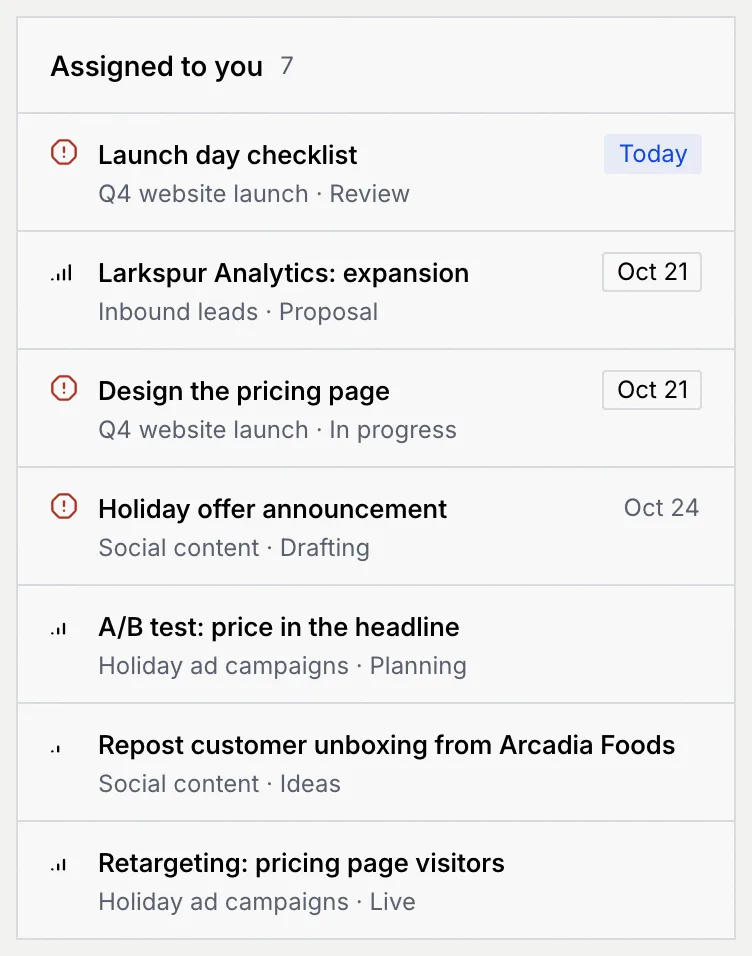
Click a card to open it. When nothing open is assigned to you, the panel says "Nothing open is assigned to you."
## Start a board [#start-a-board]
Below your boards, **Start a board** has one tile per kind with the number of statuses it starts with. Click one to open **New board** with that kind already picked, or click **New board** at the top (or press N). Only people whose role can manage boards see these tiles.

The full walkthrough is in [Create and set up a board](/docs/kanban/create-board).
## What a view-only role sees [#what-a-view-only-role-sees]
People whose role can view boards but not change them (Viewers, by default) see the boards they're members of, with a **View only** notice under the header. **New board** is greyed out and the **Start a board** tiles don't show. They can still open boards and cards, search and filter.
## Troubleshooting [#troubleshooting]
Boards are shared with their members only. Ask the board's project manager to add you from **Members and roles** ([Board members, roles and access](/docs/kanban/board-members)). Owners and admins see every board.
The board was deleted, or the link is wrong. Click **All boards** to go back to the Kanban page. If it says **You're not on this board** instead, ask its project manager to add you.
Your role doesn't include **Manage boards**. An owner or admin can change this in **Settings → Members & roles** ([Roles and permissions](/docs/settings/roles)).
Set the board's status to **Completed** (or **On hold**) instead, and filter the list by **Status** to hide it. Deleting a board removes it and all of its cards.
## Next steps [#next-steps]