# Create and set up a board (/docs/kanban/create-board)
A board starts from a kind (project, content calendar, lead pipeline or ad campaigns) with the statuses, labels and card fields that work needs. From there, its project manager renames it, adds or reorders statuses, sets card limits, and fills in its dates, lead and milestones.
- **Who can use it:** Creating a board needs the **Manage boards** permission (Owners, Admins and Members by default). Whoever creates a board becomes its **Project manager**. Changing a board's settings, statuses, status, dates, lead and milestones needs **Manage boards** and being the board's project manager; owners and admins act as project manager on every board. Deleting a board also needs **Delete boards** (Owners and Admins by default). Everyone else sees the board's status as a plain label, no **Board settings** button, and only the menu items they can use. See [Roles and permissions](/docs/settings/roles).
- **Before you start:** Nothing.
## Create a board [#create-a-board]
### Open New board [#open-new-board]
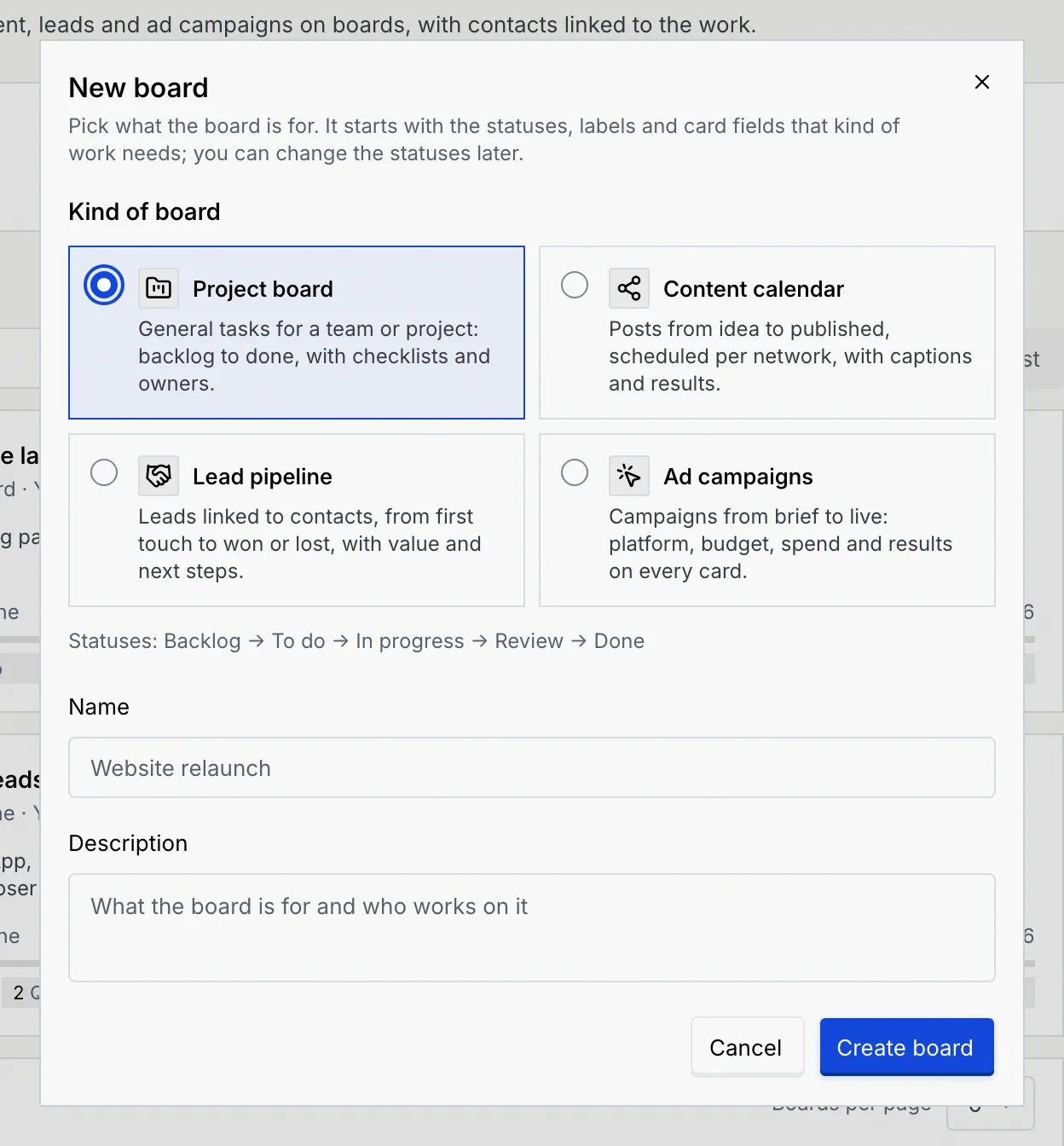
On the [Kanban page](/docs/kanban/kanban-boards), click **New board** or press N. You can also click one of the **Start a board** tiles to open the dialog with that kind already picked.
### Pick the kind of board [#pick-the-kind-of-board]
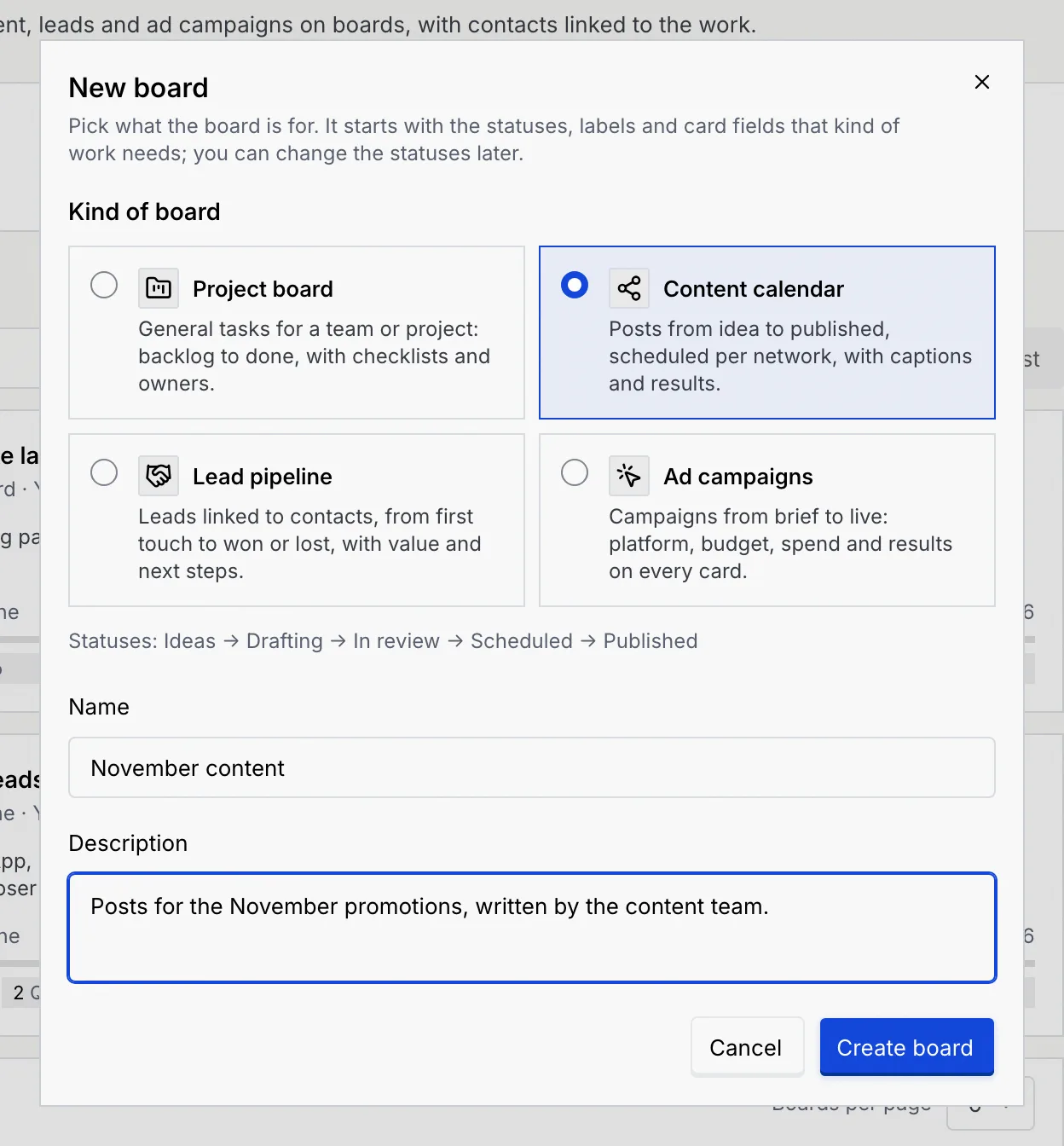
Under **Kind of board**, choose **Project board**, **Content calendar**, **Lead pipeline** or **Ad campaigns**. The line under the choices lists the statuses the board starts with, for example "Statuses: Backlog → To do → In progress → Review → Done". The kind can't be changed later.
### Name and describe it [#name-and-describe-it]
Type a **Name** (up to 60 characters; no two boards can share one) and, if you like, a **Description** of what the board is for and who works on it (up to 280 characters).
### Create the board [#create-the-board]
Click **Create board**. The board opens on its **Board** tab with empty statuses, and a message confirms it's ready, for example "November content is ready" with "Content calendar with 5 statuses." under it.
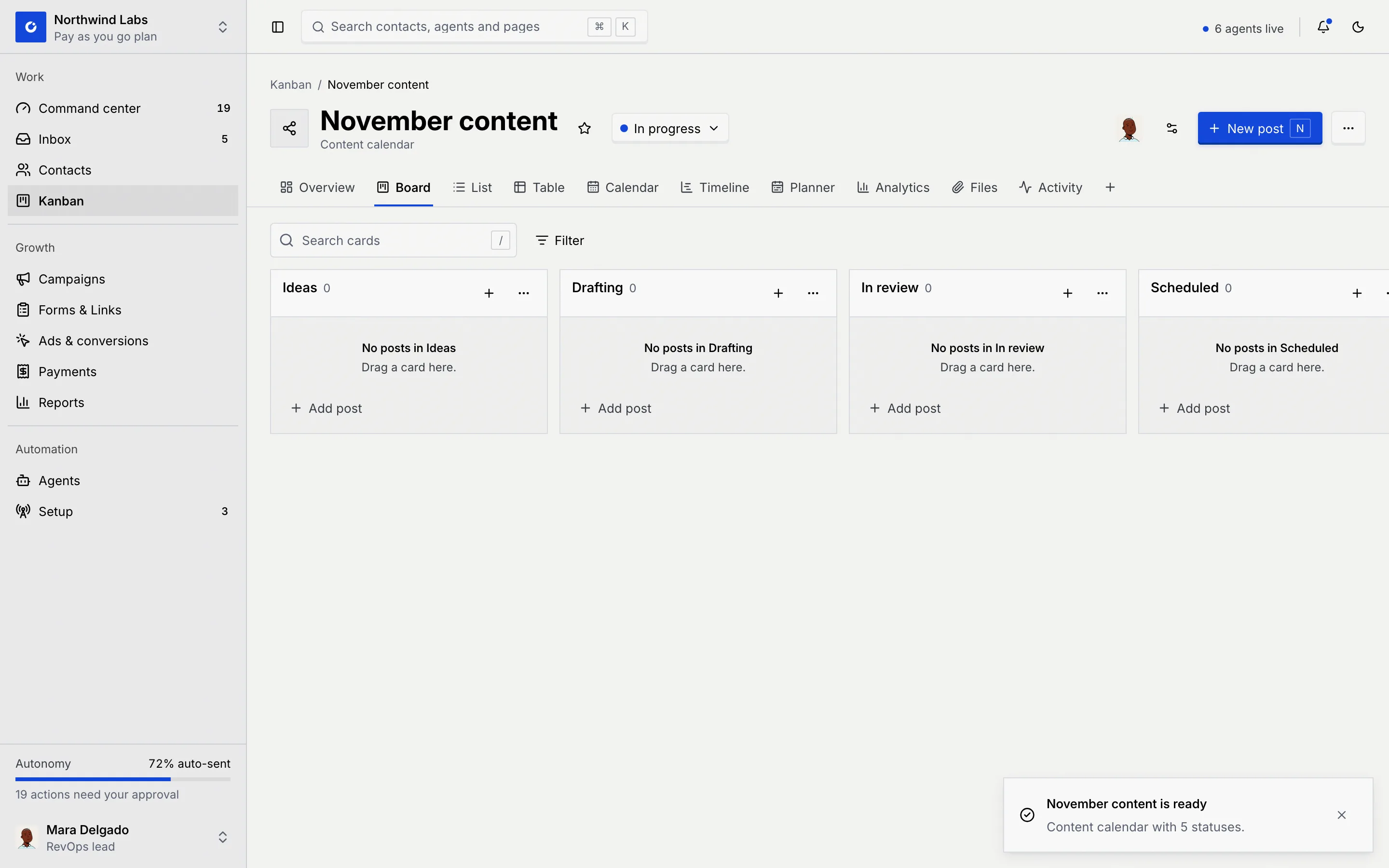
A new board starts **In progress**, with you as its only member and project manager, and every member able to see every card. Its card key, which prefixes card numbers such as `NC-1`, comes from the first letters of the board's name (or its first three letters for a one-word name).
If you close the dialog after typing, Mokanata asks **Discard this board?** Click **Keep editing** to go back or **Discard** to close it.
## Rename a board and edit its labels [#rename-a-board-and-edit-its-labels]
### Open Board settings [#open-board-settings]
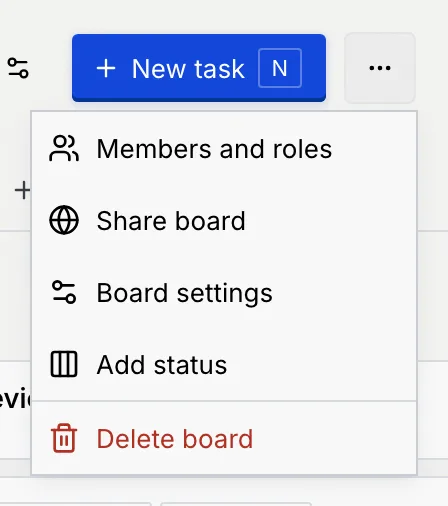
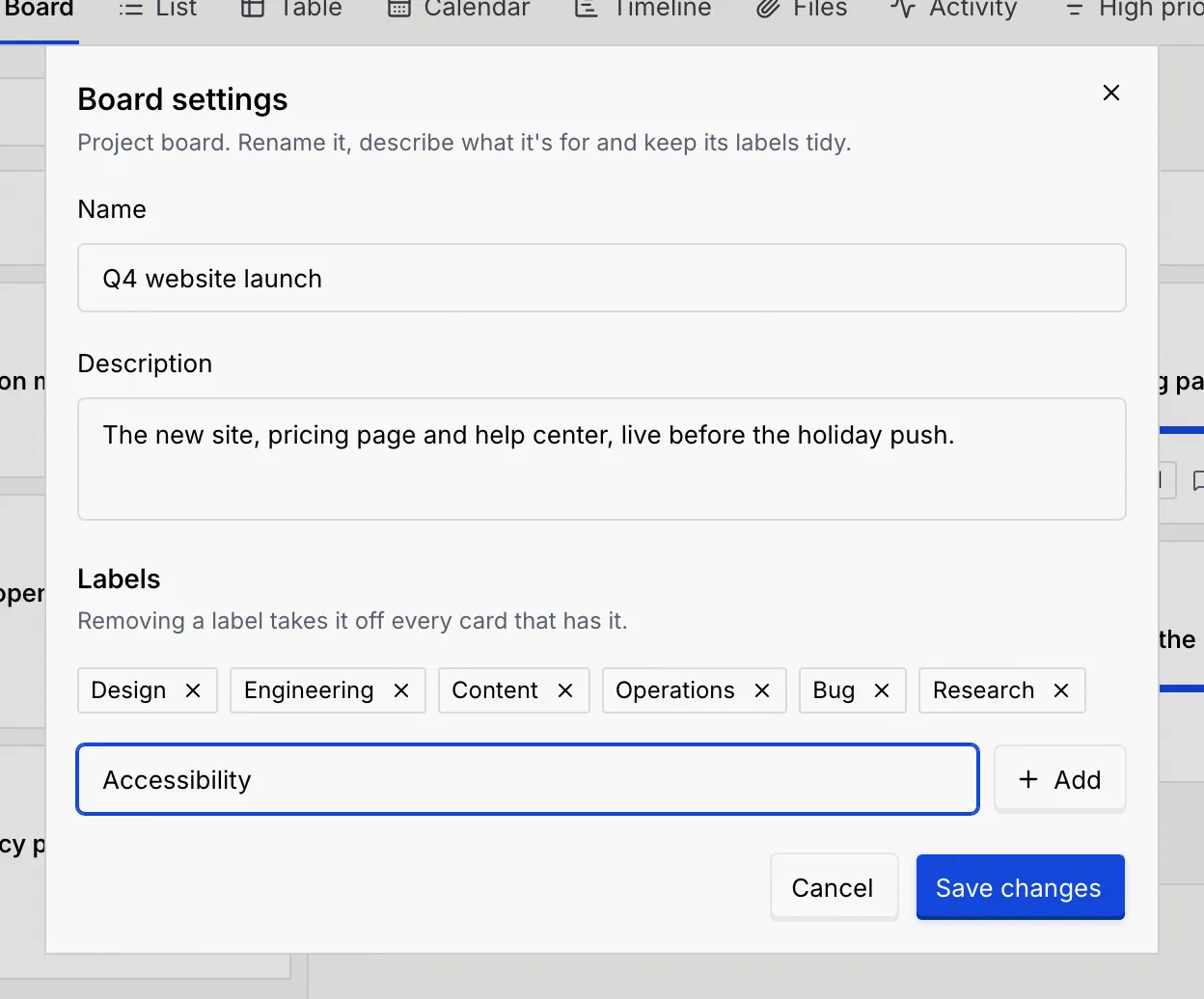
On the board, click the **Board settings** button (the sliders icon next to **New task**), or open the **⋯** menu and choose **Board settings**.
### Change the name, description and labels [#change-the-name-description-and-labels]
Edit the **Name** and **Description**. Under **Labels**, click a label's **×** to remove it, or type in **New label** and click **Add** (or press Enter). Labels can be up to 30 characters, and a name that's already there isn't added twice.
### Save [#save]
Click **Save changes**. A message says "Board saved".
When you remove a label and save, it comes off every card on the board that had it, and out of any saved view that filtered by it.
## Add a status [#add-a-status]
### Open New status [#open-new-status]
Open the board's **⋯** menu and choose **Add status**.
### Name it and choose what its cards are [#name-it-and-choose-what-its-cards-are]
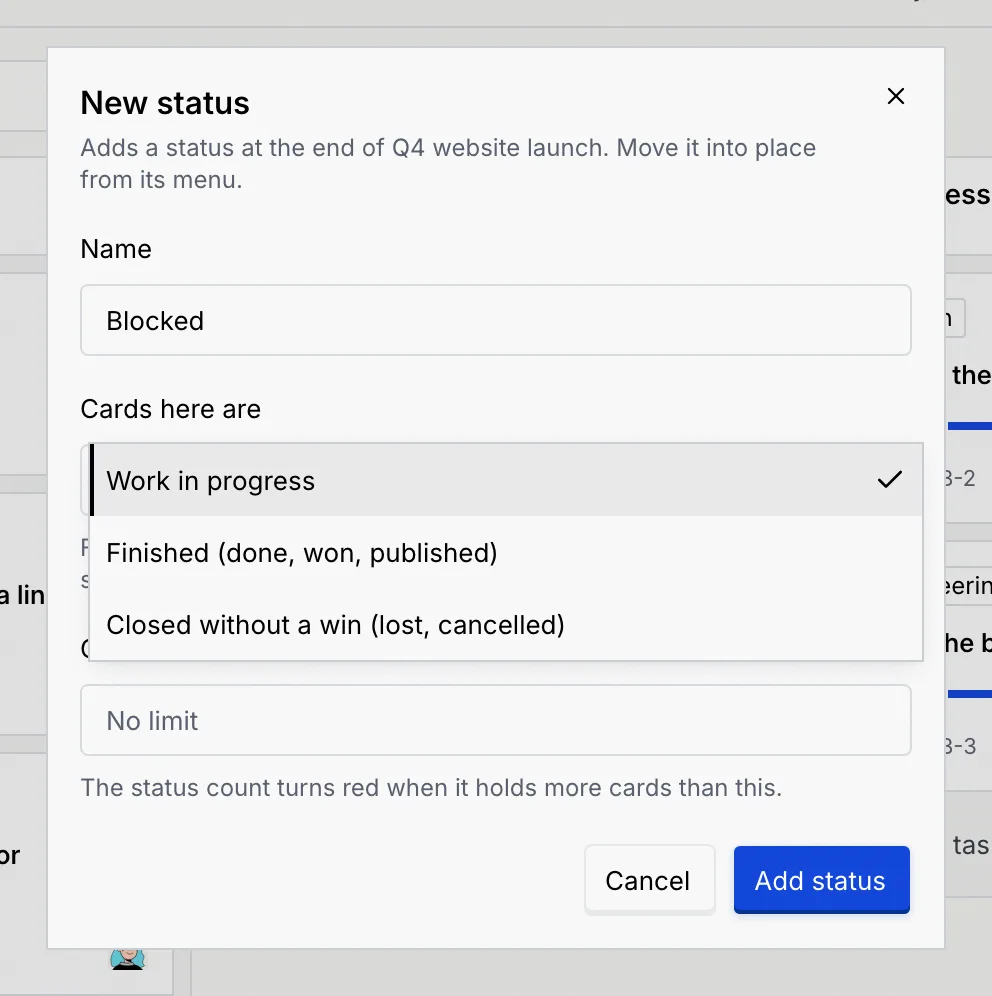
Type a **Name** (up to 40 characters, unique on the board). Under **Cards here are**, choose what being in this status means:
| Choice | Meaning |
|---|---|
| **Work in progress** | A normal stage of the work. |
| **Scheduled to go out (posts here publish at their time)** | Content calendars only, one per board. Posts in this status publish automatically at their time. |
| **Finished (done, won, published)** | Cards here count as done and are never overdue. A lead moved here gets a 100% chance to close; a post moved here is published. |
| **Closed without a win (lost, cancelled)** | Cards here are closed and never overdue. A lead moved here gets a 0% chance to close. |
### Add it [#add-it]
Optionally set a **Card limit**, then click **Add status**. The status is added at the end of the board; move it into place from its menu (below).
## Set a card limit [#set-a-card-limit]
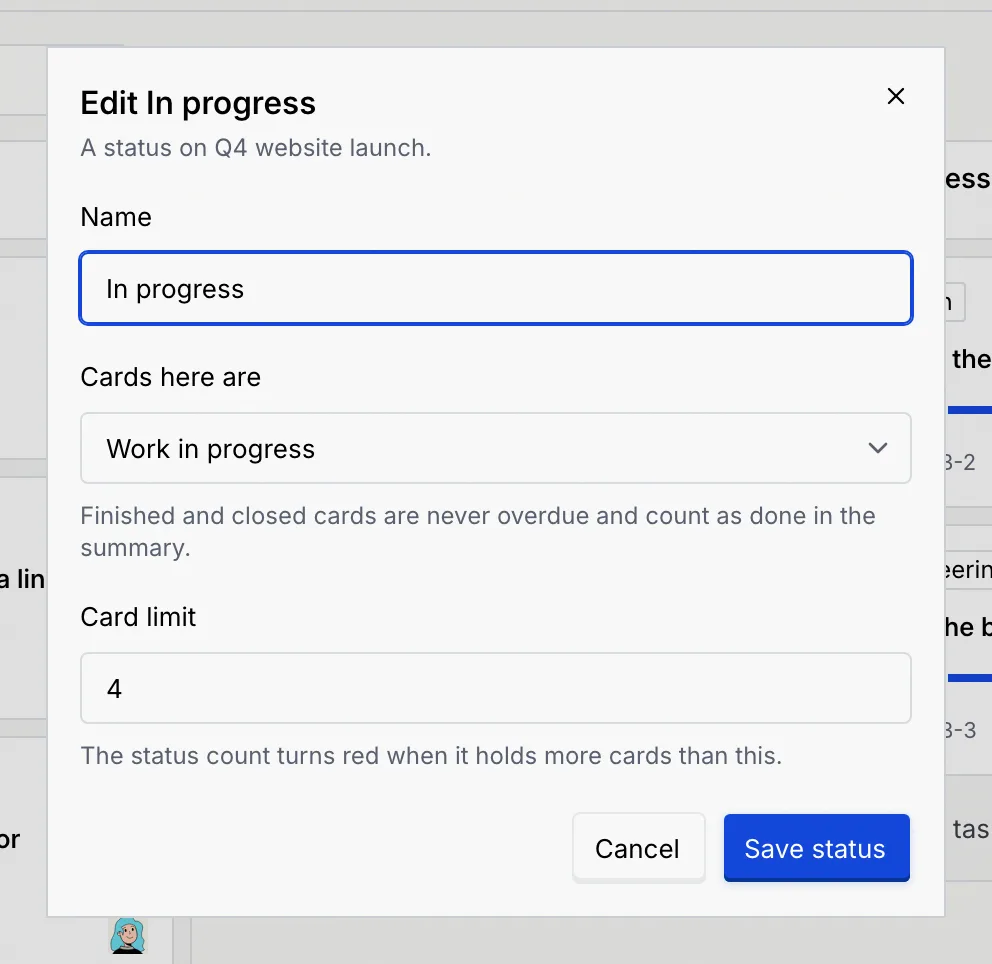
A card limit (often called a WIP limit) keeps a status from filling up. When a status holds more cards than its limit, its count turns red, for example **5/4**.
### Edit the status [#edit-the-status]
Open the status's **⋯** menu at the top of its column and choose **Edit status**.
### Type the limit [#type-the-limit]
In **Card limit**, type a whole number up to 999, or leave it empty for no limit. Click **Save status**.
## Reorder, collapse or delete a status [#reorder-collapse-or-delete-a-status]
Open a status's **⋯** menu at the top of its column:
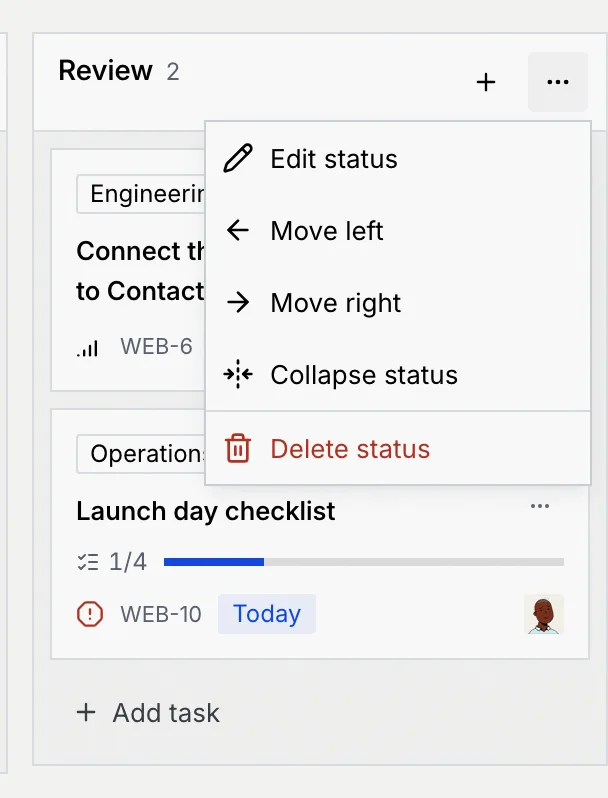
- **Edit status**: rename it, change what its cards are, or set its card limit.
- **Move left** / **Move right**: move the column one place.
- **Collapse status**: fold the column into a narrow strip with its name and count. Click the strip to expand it again. Collapsing is saved with the board, so everyone on it sees the column folded.
- **Delete status**: remove the status. Its cards move to the status before it (or the one after, if it was the first), and Mokanata asks you to confirm.
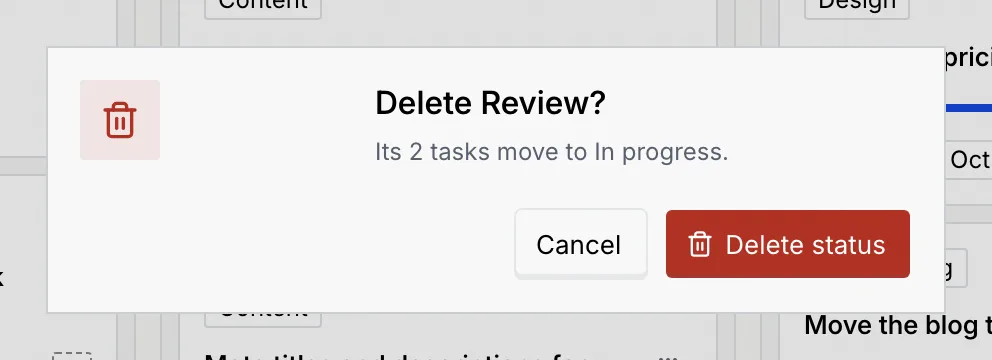
Posts in a deleted **Scheduled** status move with their times kept, but they no longer publish on their own. Mark another status as **Scheduled to go out** and schedule them again.
## Set the board status [#set-the-board-status]
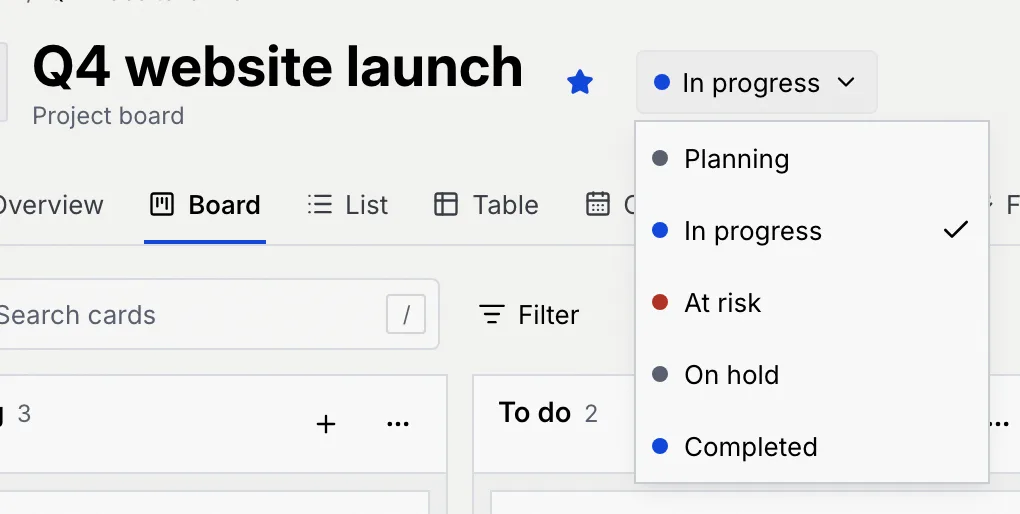
Next to the board's name, click its status (for example **In progress**) and choose **Planning**, **In progress**, **At risk**, **On hold** or **Completed**. The status shows on the Kanban page, where you can filter boards by it.
## Set the dates, lead and milestones [#set-the-dates-lead-and-milestones]
### Open the Overview tab [#open-the-overview-tab]
On the board, click the **Overview** tab. The right-hand column has the board's **Details**, **Lead**, **Members** and **Milestones**.
### Fill in the details and lead [#fill-in-the-details-and-lead]
In **Details**, change the **Status** or click **Dates** to pick the board's start and end. The **Card key** is shown for reference. In **Lead**, choose a person under **Choose a lead by name** (or **Change the lead by name**); click **×** on the lead's row to remove them.
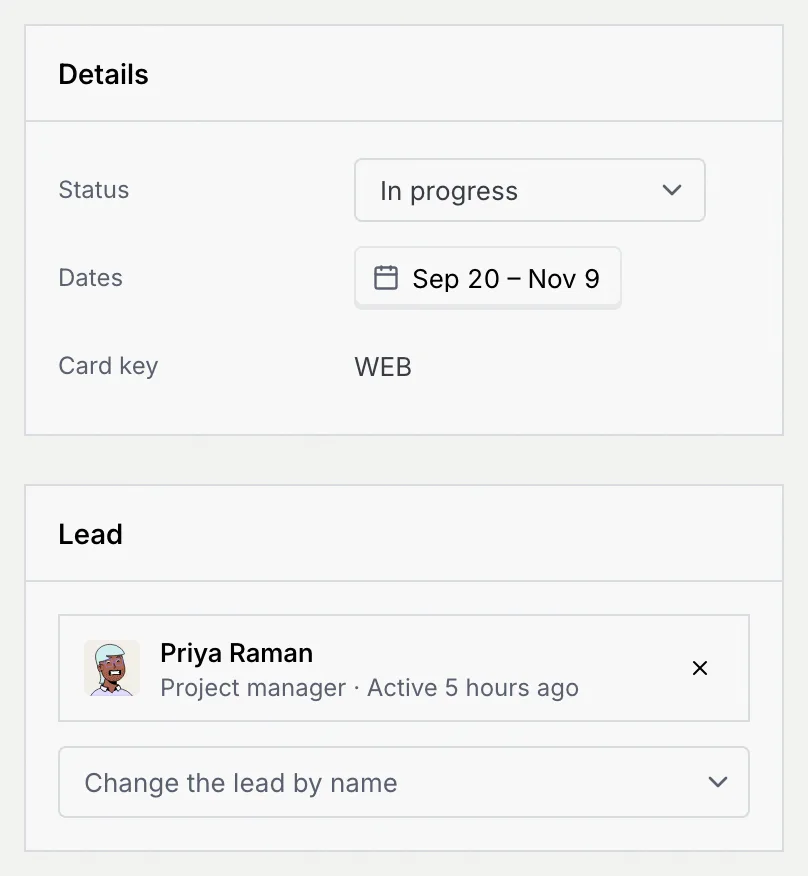
The board's end date is its **Due** date on the Kanban page, and the Overview's **Progress** panel counts down to it.
### Add a milestone [#add-a-milestone]
Under **Milestones**, type a name in **New milestone**, click **Pick a day** to choose its date, then click **Add**. To remove one, point to it and click its **×**.
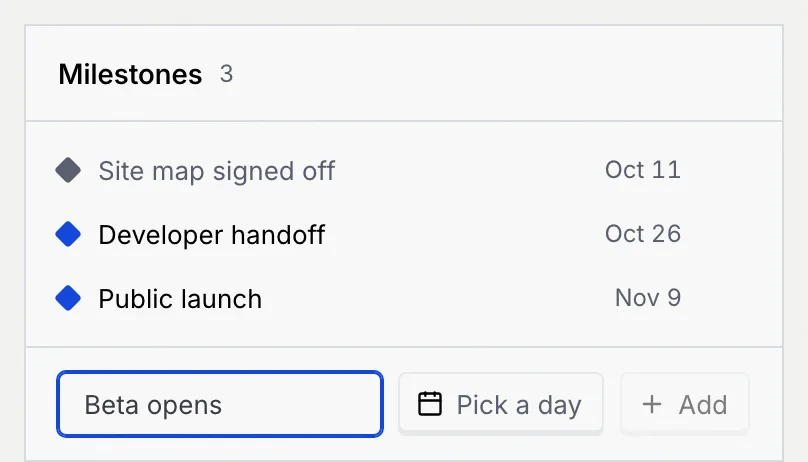
Milestones show as diamonds on the [Timeline](/docs/kanban/kanban-views#timeline); past ones turn grey.
## Delete a board [#delete-a-board]
### Choose Delete board [#choose-delete-board]
Open the board's **⋯** menu and choose **Delete board**.
### Confirm [#confirm]
Mokanata asks you to confirm and says how many cards go with it. Click **Delete board**.
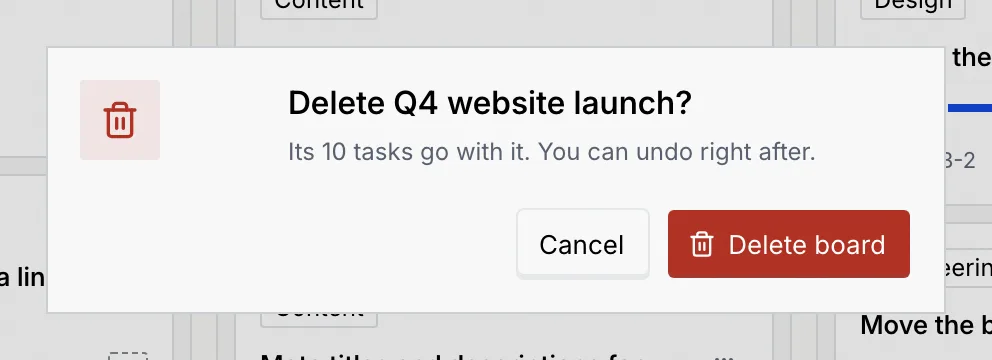
You're taken back to the Kanban page. Click **Undo** in the message to bring the board back with all of its cards.
The board's cards, comments, files and activity go with it. **Undo** is only offered right after. To put a board aside instead, set its status to **On hold** or **Completed**.
## Troubleshooting [#troubleshooting]
Board names are unique in a workspace. Pick another name, or rename the other board first.
Only the board's project manager can change it, and only if their role can manage boards. Ask the project manager, or an owner or admin, to make the change or to give you the **Project manager** role on the board ([Board members, roles and access](/docs/kanban/board-members)).
It's only on content calendars, and a board can have one scheduled status. Change the existing one to **Work in progress** first if you want another status to be the scheduled one.
## Next steps [#next-steps]