# The Command center (/docs/inbox/command-center)
The Command center is the home page of Mokanata. It answers three questions at a glance: what did the agents do, what do they need from you, and is anything going wrong. It's where you land after signing in.
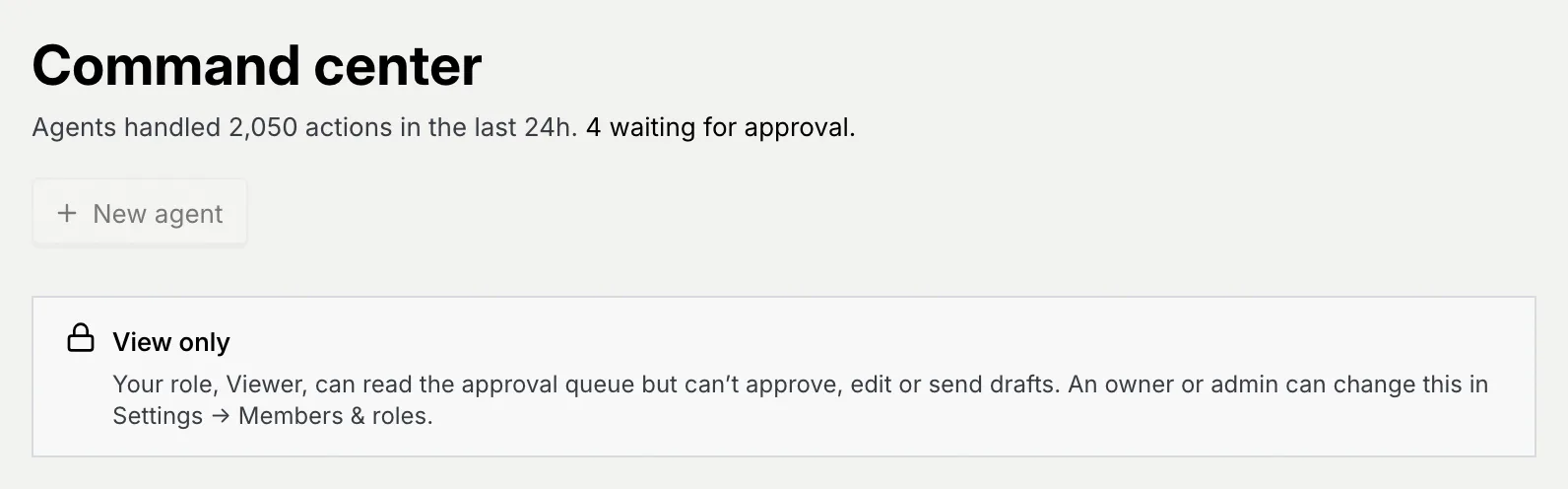
- **Who can use it:** Every built-in role can open the Command center and read the queue (**View the approval queue**). Acting on the queue needs **Approve agent drafts** (Owner, Admin and Member by default). A role that can't approve sees a **View only** notice under the title, and its counts say "waiting for approval" instead of "need your approval". Items on channels your role doesn't work in aren't shown. See [Roles and permissions](/docs/settings/roles).
- **Before you start:** Nothing. With no agents deployed yet, see [Create an agent](/docs/agents/create-agent).
## Open the Command center [#open-the-command-center]
In the sidebar, click **Command center**, or press G then H from anywhere. The number next to it in the sidebar is how many items wait for your approval.
The line under the title sums up the last 24 hours, for example "Agents handled 2,050 actions in the last 24h. **19 need your approval.**" (or "No agent actions in the last 24h.") **New agent** at the top right starts the [agent wizard](/docs/agents/create-agent) (greyed out, with the reason, for roles that can't create agents).
While your workspace is still being set up, the [setup checklist](/docs/getting-started/setup-checklist) also shows here.
## Read the numbers [#read-the-numbers]
Up to three tiles sum up where things stand. Each names its own window:
| Tile | What it counts |
|---|---|
| **Waiting for your approval** | Items in the approval queue right now. |
| **Agent actions, 24h** | Agent actions in the last 24 hours: replies agents sent (approved by a person or sent by a rule) and record changes a person approved. Drafts nobody sent don't count. |
| **Resolved without a human, 7 days** | The share of the last 7 days' conversations that agents resolved without a person. |
A tile with nothing behind it isn't shown: **Agent actions, 24h** needs a role that can see agents, and **Resolved without a human, 7 days** shows only once an agent resolved a conversation in the last 7 days, for a role that can read reports (today only people resolve conversations, so it's usually hidden). A brand-new workspace shows real zeros. For longer periods, see [Reports](/docs/reports/reports).
## See where conversations come from [#see-where-conversations-come-from]
**Inbound by channel** counts conversations from the last 7 days on each channel that had any, busiest first, with a bar for comparison. It's hidden while the week has no conversations, and for roles that can't read reports.
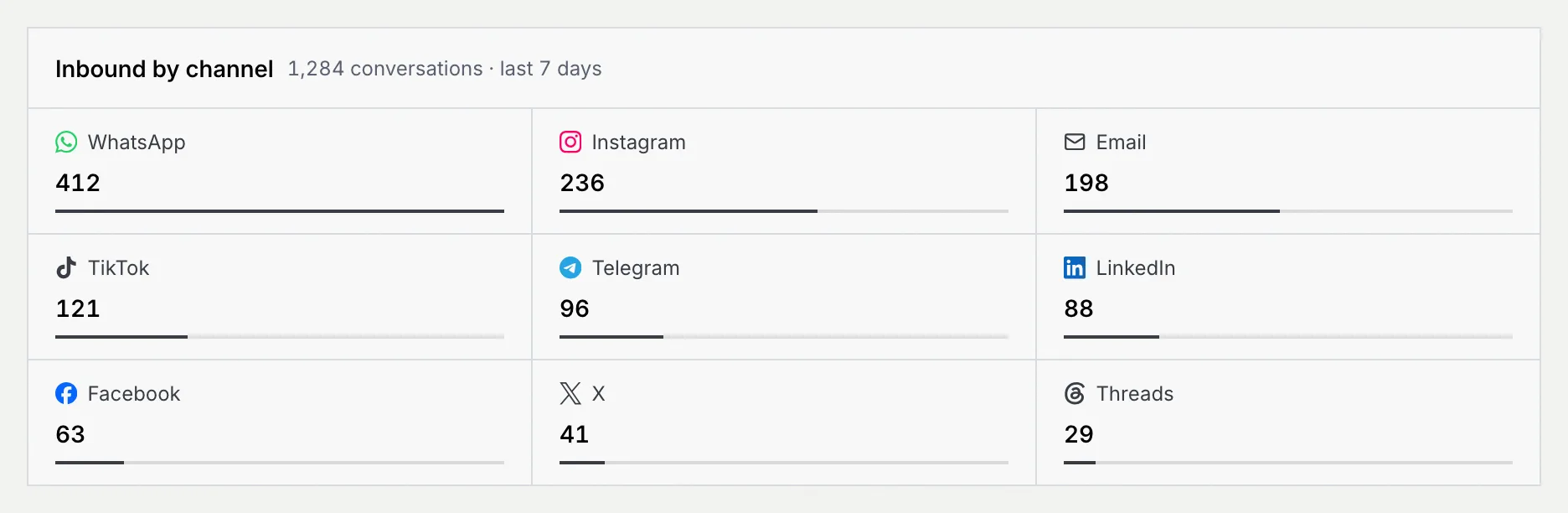
Click a channel to open the inbox's **All** view filtered to that channel. On narrower screens the panel moves below the queue.
## Work the approval queue [#work-the-approval-queue]
The **Approval queue** in the middle lists what agents want to do but need a person for: draft replies, escalations and CRM updates, with the three most urgent shown first. Approving, editing, reassigning and the rest are covered in [Triage the approval queue](/docs/inbox/approval-queue), and the rules that let replies skip the queue in [Auto-approve rules and auto-send](/docs/inbox/auto-approve-rules).
## Check on your agents [#check-on-your-agents]
**Fleet health** lists the agents that are live, with what each one is doing and its status.
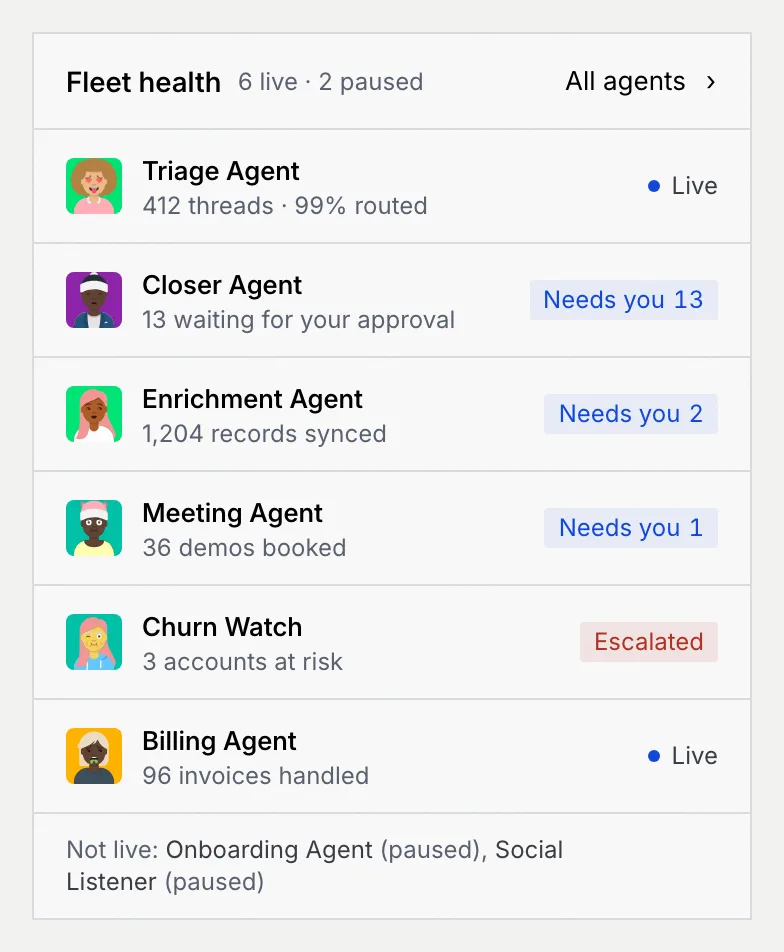
| Status | Meaning |
|---|---|
| **Live** | Working on its own; nothing from it waits on you. |
| **Needs you** *n* | It has *n* items in the approval queue. |
| **Escalated** | It handed one or more conversations to a person. |
| **Paused** | It's switched off. |
| **Draft** | It hasn't been deployed yet. |
Click an agent to open its page, or **All agents** for the full list. Agents that aren't live (paused, in shadow or drafts) are named under the list. If none is live, the panel says so: every new message then waits for a person. With no agents yet it says **No agents yet**, with **Create one** for roles that can create agents. See [AI agents](/docs/agents/agents).
## Follow live activity [#follow-live-activity]
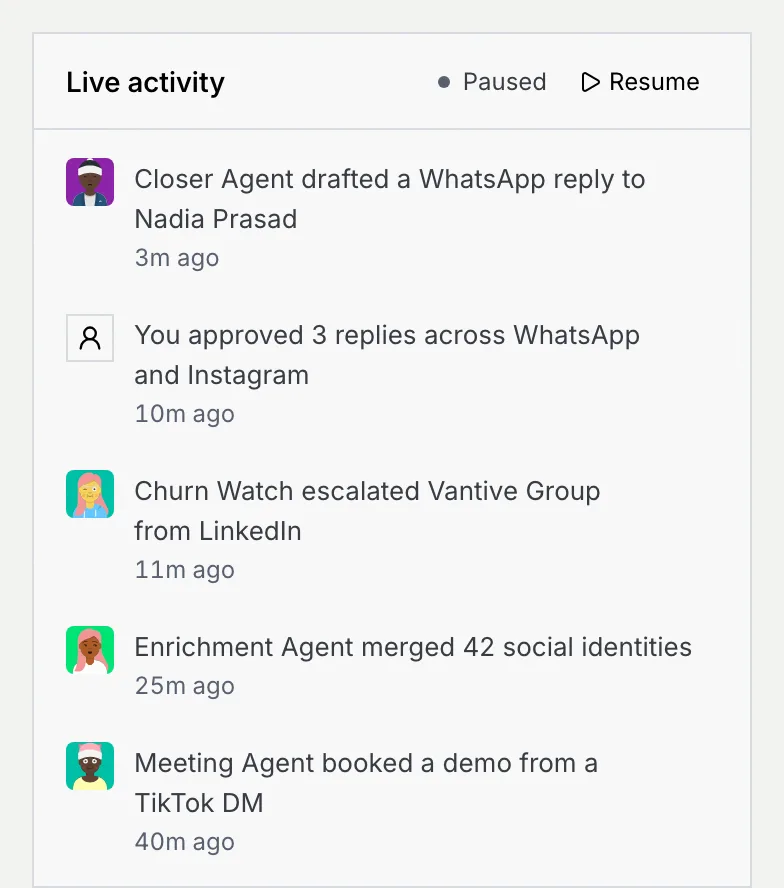
**Live activity** streams what agents and your team are doing, newest first: drafts written, replies approved, escalations, merged identities, demos booked. Your own actions anywhere in Mokanata show here too.
### Read the stream [#read-the-stream]
Each row shows who did it, what happened and how long ago. A new row is tinted for a moment as it arrives. Click a row to open its thread, agent or contact. **Show** *n* **more** reveals older rows, and **Show fewer** folds them again.
### Pause it [#pause-it]
Click **Pause** to hold the stream still while you read; the dot changes from **Streaming** to **Paused**. Click **Resume** to catch up.
## When your role can only read [#when-your-role-can-only-read]
Roles without **Approve agent drafts**, such as Viewer, see the same page with a notice under the title: "Your role, Viewer, can read the approval queue but can't approve, edit or send drafts. An owner or admin can change this in Settings → Members & roles." Approve buttons are greyed out, card menus only open the item, and the rules open read-only.
## Next steps [#next-steps]