# Review agent drafts in a thread (/docs/inbox/agent-drafts)
When an agent isn't allowed to send a reply on its own, or isn't confident enough, it writes a draft and waits for you. The draft sits at the bottom of the thread, ready to approve, change or throw away. Nothing reaches the customer until someone approves it (or an [auto-approve rule](/docs/inbox/auto-approve-rules) sends it).
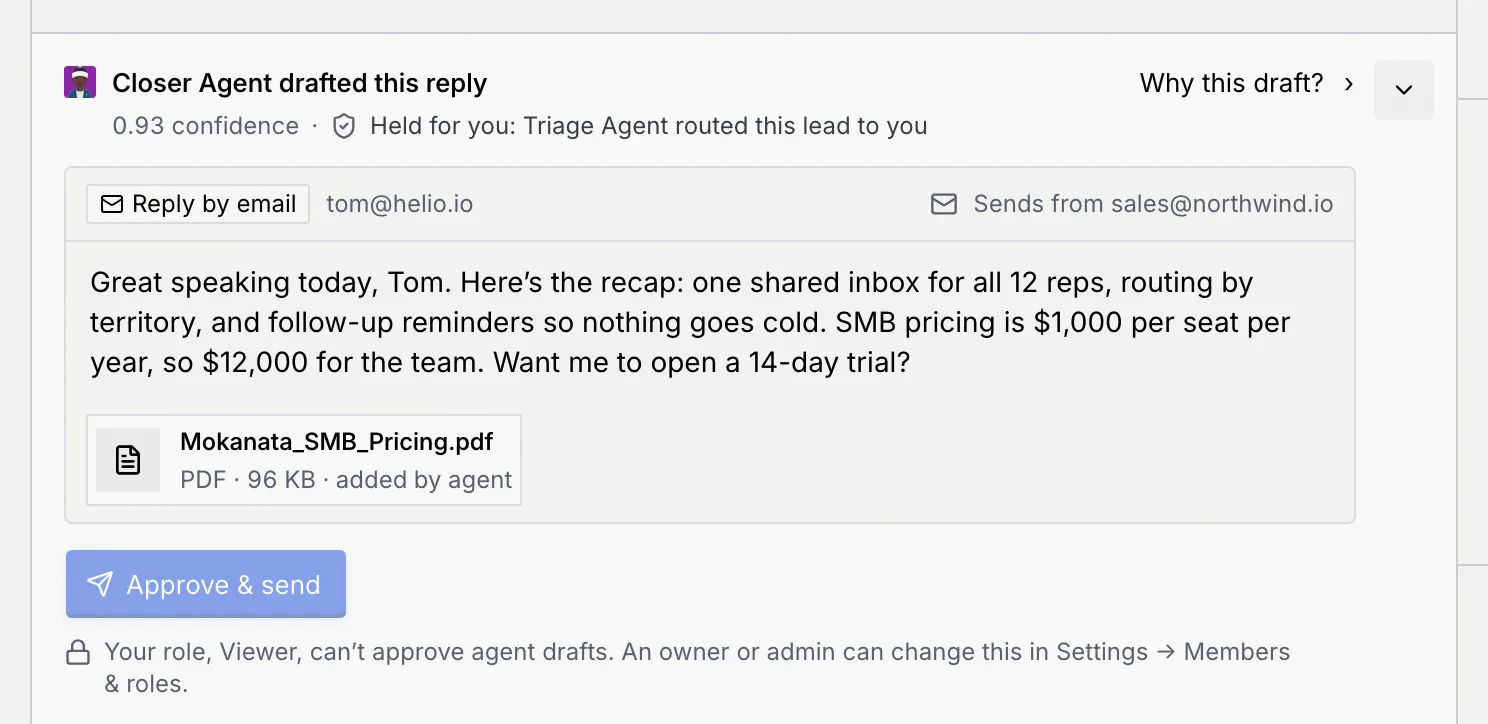
- **Who can use it:** Roles with **Approve agent drafts** (Owner, Admin and Member by default) on a channel where the role can reply. A Viewer, or a role that only reads the channel, still sees the draft, but **Approve & send** is greyed out with the reason under it, and the draft's menu isn't there. See [Roles and permissions](/docs/settings/roles).
- **Before you start:** Open a thread on **Needs you** in the [inbox](/docs/inbox/inbox). The same drafts are in the Command center's [approval queue](/docs/inbox/approval-queue), where you can also work through drafts that have no thread.
## What a draft shows [#what-a-draft-shows]
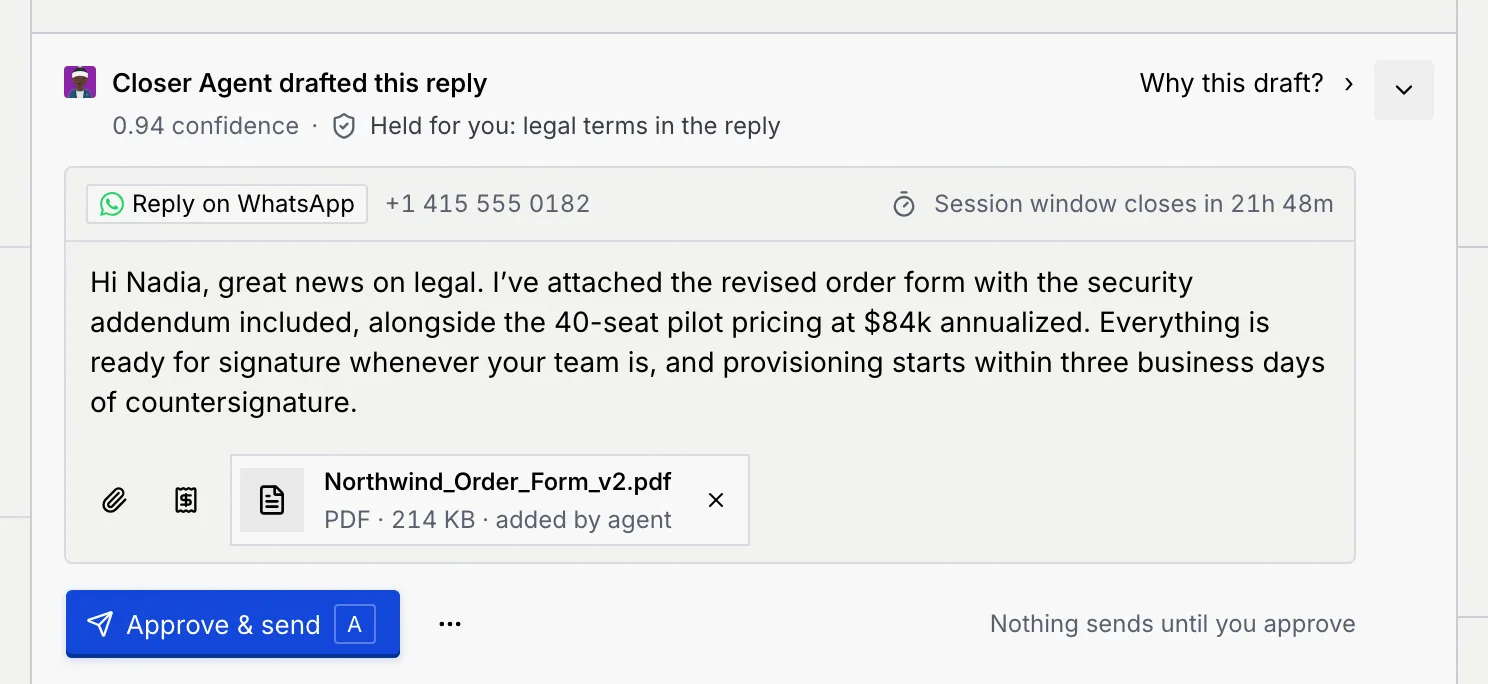
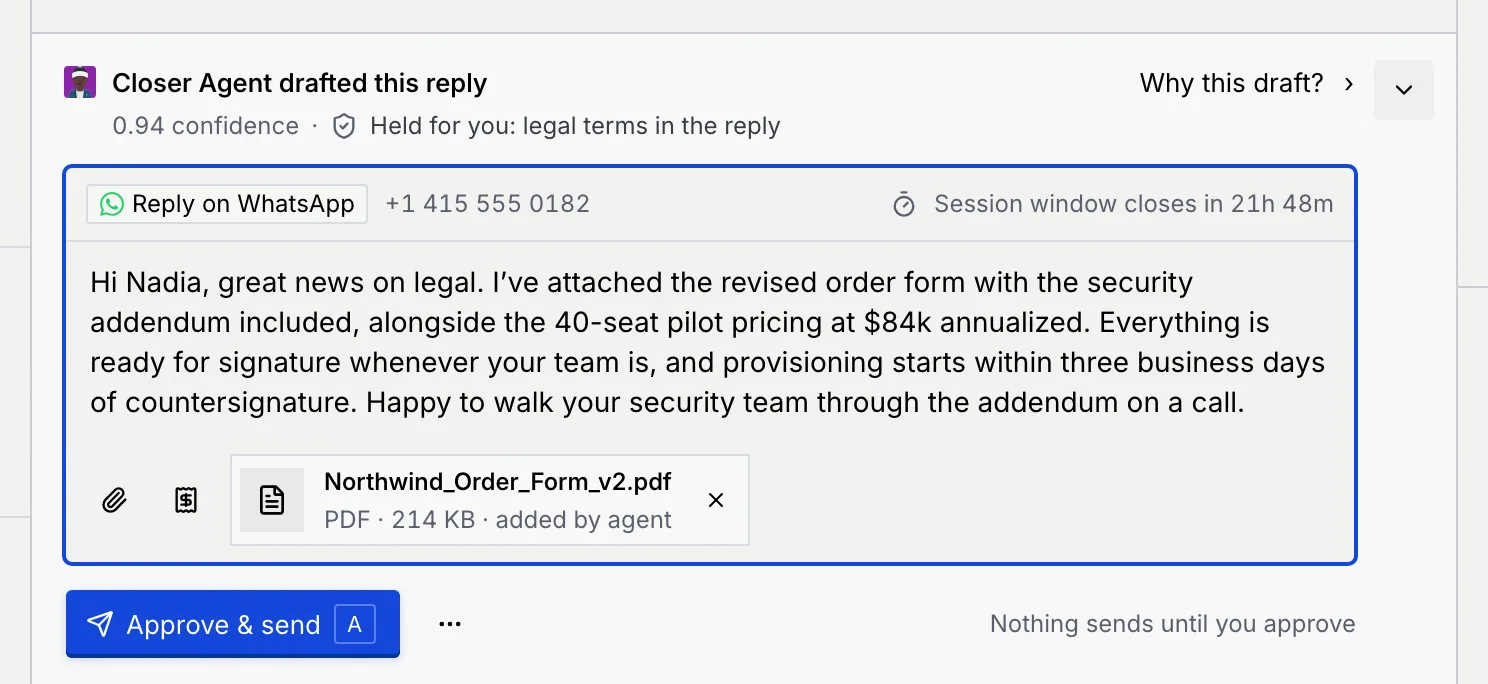
- **Which agent drafted it**, and **Why this draft?** to see its reasoning.
- **Its confidence**, from 0 to 1. Below 0.80 counts as low confidence.
- **Held for you:** and the reason, when a guardrail stops the agent from sending it even though it's confident: legal terms in the reply, a deal above $100K, or a lead routed to you. A held draft always waits for a person; no rule can send it.
- **The reply itself**, in an editable box, with the channel and address it goes to. On WhatsApp the line above the text shows how long the 24-hour session window stays open; on email, the address it sends from.
- **Files the agent attached**, marked **added by agent**. Click a file's **×** to send the reply without it (**Undo** on the notice puts it back).
- **When it sends:** **Nothing sends until you approve**, or a countdown if an auto-approve rule will send it (see [Stop a countdown](#stop-an-auto-send-countdown)).
## See why the agent wrote it [#see-why-the-agent-wrote-it]
### Open the reasoning [#open-the-reasoning]
Click **Why this draft?** in the draft's header. The **Why this draft?** section of the details column opens and lights up for a moment. On narrower screens, or in full screen, it opens in the details panel.
### Read the reasons and sources [#read-the-reasons-and-sources]
The section lists, in order, what the agent read and decided, and the sources it used, such as the thread, the deal record or your pricing rules.
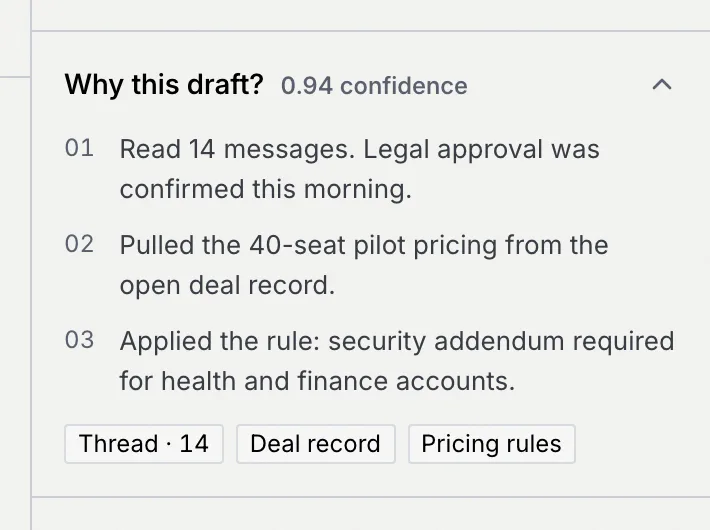
To see each step the agent took, open its run in the conversation, described in [See what an agent did](/docs/inbox/reading-a-conversation#see-what-an-agent-did).
## Approve and send a draft [#approve-and-send-a-draft]
### Check the reply [#check-the-reply]
Read the draft and its files. You can change the text right in the box (see [Edit a draft](#edit-a-draft)).
### Approve it [#approve-it]
Click **Approve & send**, press A while focus is in the thread, or press ⌘ Enter in the reply box (Ctrl Enter on Windows and Linux).
The reply goes out on the contact's channel and a notice confirms: **Reply sent to** *name*, with what happens to the thread next, for example "Moved to Agent working" or "1 more approval waits on this thread." Under the sent message, the footer says **Approved by you** (or **Edited and approved by you**).
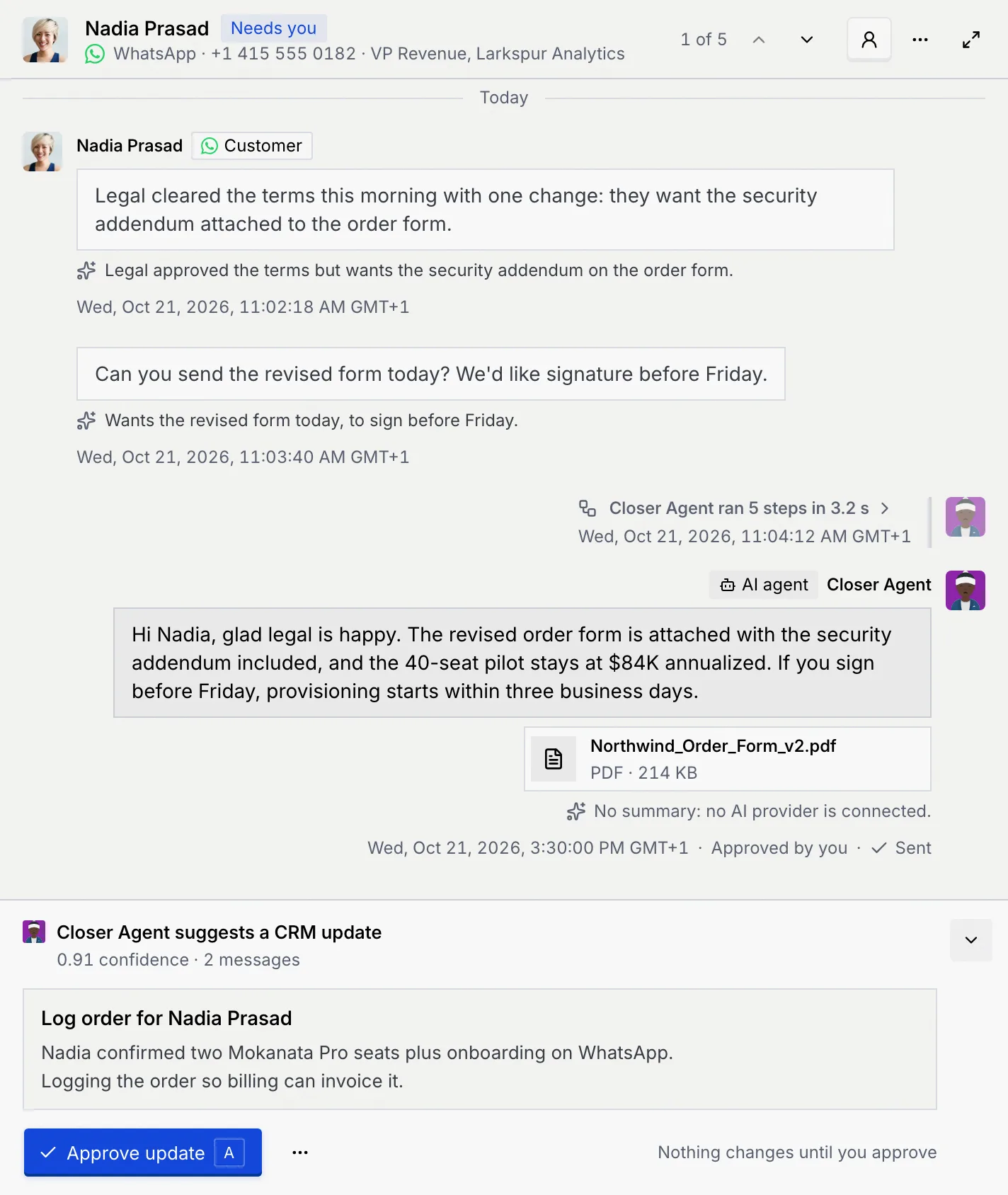
**Approve & send** is greyed out while the agent is writing a new draft, and when the box is empty ("The reply is empty. Write one or regenerate the draft.").
## Edit a draft [#edit-a-draft]
### Start editing [#start-editing]
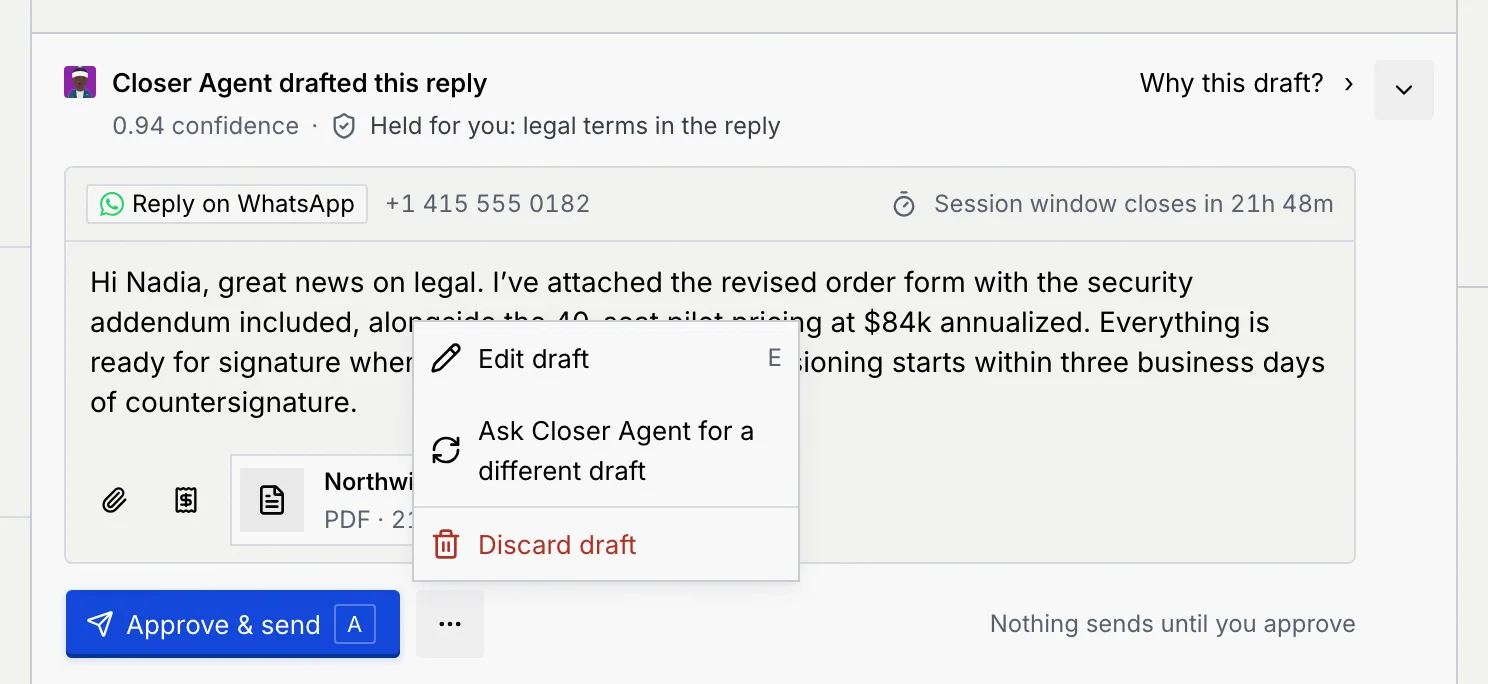
Click in the reply box, or open the draft's **More actions** (**…**) and choose **Edit draft**, or press E. The cursor goes to the end of the text.
### Change the text and approve [#change-the-text-and-approve]
Edit the reply, then click **Approve & send**. The sent message says **Edited and approved by you**.
Editing a draft that was counting down to auto-send stops the countdown: the draft then waits for you ("You edited it, so it waits for you to send it.").
## Ask for a different draft [#ask-for-a-different-draft]
### Ask the agent [#ask-the-agent]
Open the draft's **More actions** (**…**) and choose **Ask** *agent* **for a different draft**. The conversation shows the agent writing a new draft of the reply.
### Review the new draft [#review-the-new-draft]
The new draft replaces the old one, with its own confidence. If you had edited the old one, a notice says **A new draft replaced your edits**; click **Undo** to get your version back.
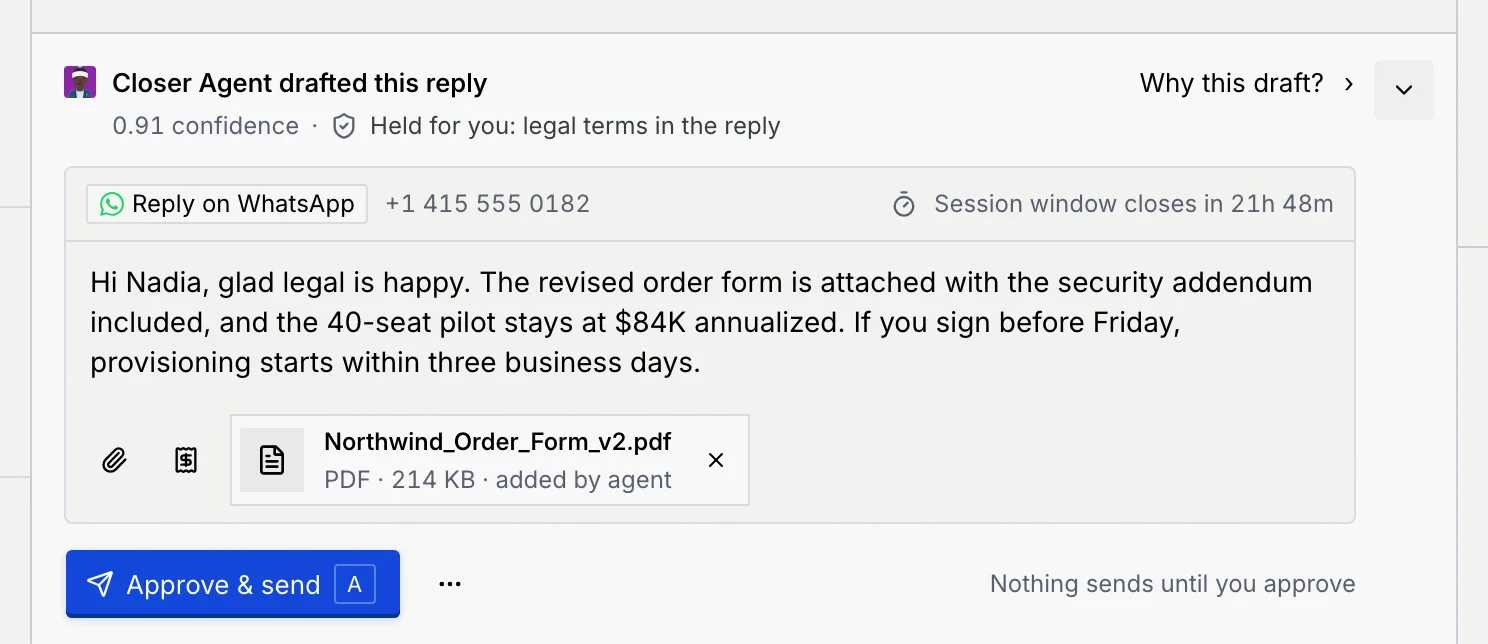
Asking for a new draft also stops an auto-send countdown on the old one.
## Discard a draft [#discard-a-draft]
### Discard it [#discard-it]
Open the draft's **More actions** (**…**) and choose **Discard draft**. Confirm with **Discard draft**.
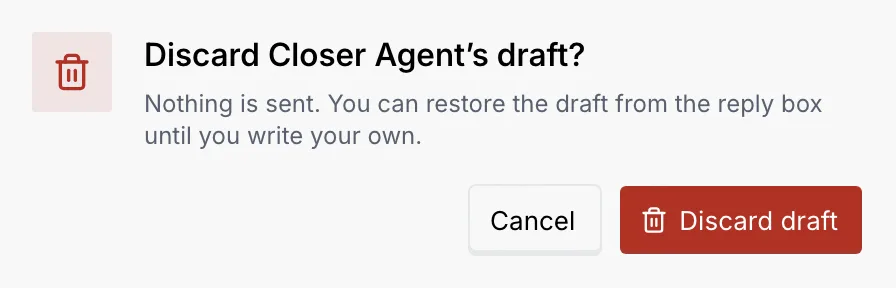
Nothing is sent. A notice says **Draft discarded**; **Undo** on it brings the draft back.
### Write your own, or get the draft back [#write-your-own-or-get-the-draft-back]
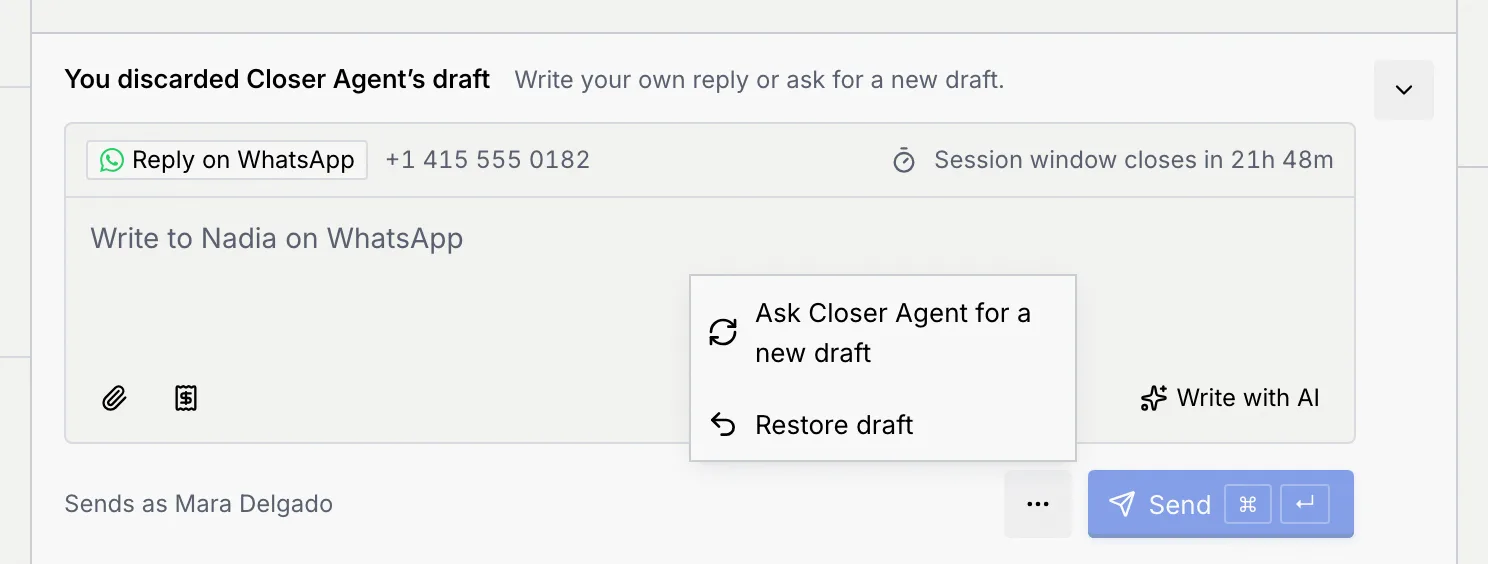
The bottom of the thread becomes your reply box: **You discarded** *agent*'s **draft**. Write your own reply and send it (see [Reply to a conversation](/docs/inbox/reply)), or open the box's **More actions** (**…**):
- **Ask** *agent* **for a new draft** has the agent write a fresh one. It waits for your approval.
- **Restore draft** brings back the draft you discarded, as long as you haven't written anything in the box.
## Approve a suggested CRM update [#approve-a-suggested-crm-update]
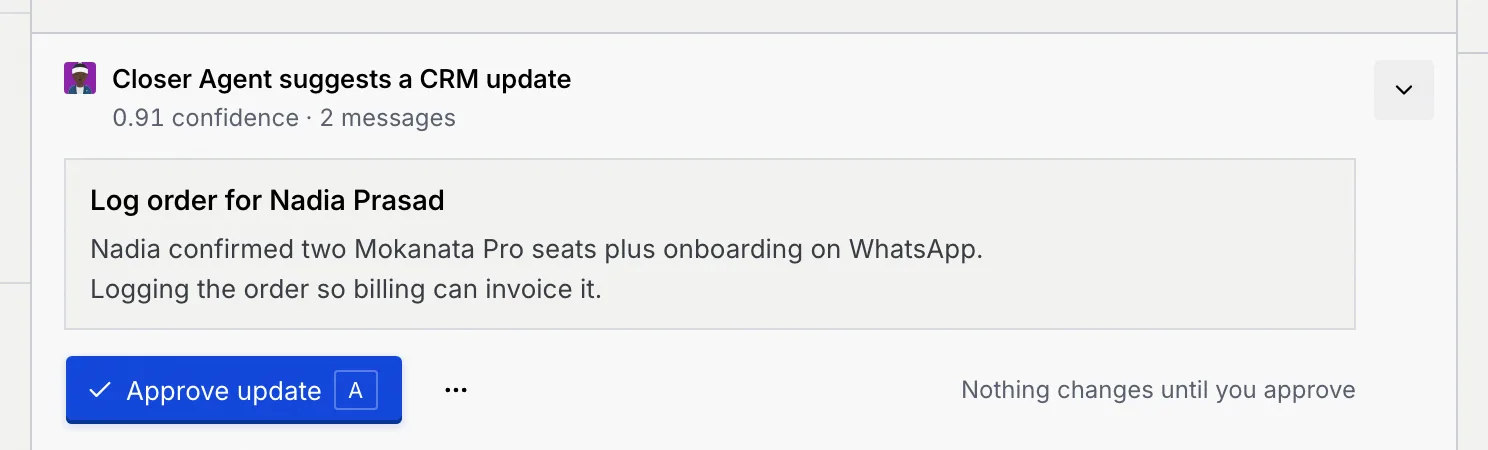
Besides replies, agents suggest changes to your records, such as logging an order, moving a deal to another stage or merging duplicate contacts. When one waits on the thread, it shows at the bottom once any draft reply is handled.
### Read the update [#read-the-update]
The dock says **… suggests a CRM update**, with its confidence, the evidence it's based on, and the change it wants to make.
### Approve it [#approve-it-1]
Click **Approve update** or press A. A notice says **Update approved**: the agent applies it on its next sync. **Undo** on the notice takes the approval back.
To turn an update down, open the dock's **More actions** (**…**) → **Open in Command center**, and dismiss it from the [approval queue](/docs/inbox/approval-queue#discard-or-dismiss-an-item).
## Stop an auto-send countdown [#stop-an-auto-send-countdown]
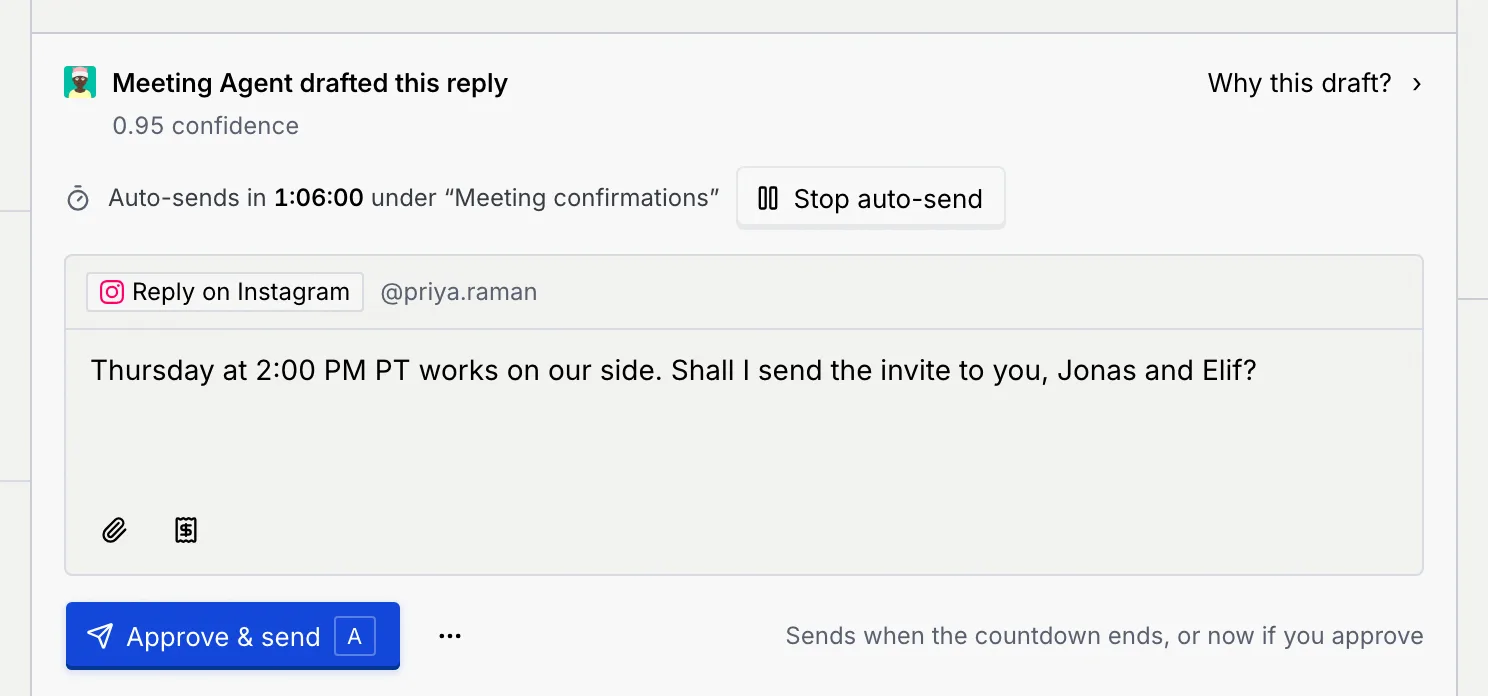
When an [auto-approve rule](/docs/inbox/auto-approve-rules) with a review window matches a draft, the draft counts down instead of waiting, for example **Auto-sends in 1:05:40 under "Meeting confirmations"**. Under the buttons it says **Sends when the countdown ends, or now if you approve**.
### Stop it [#stop-it]
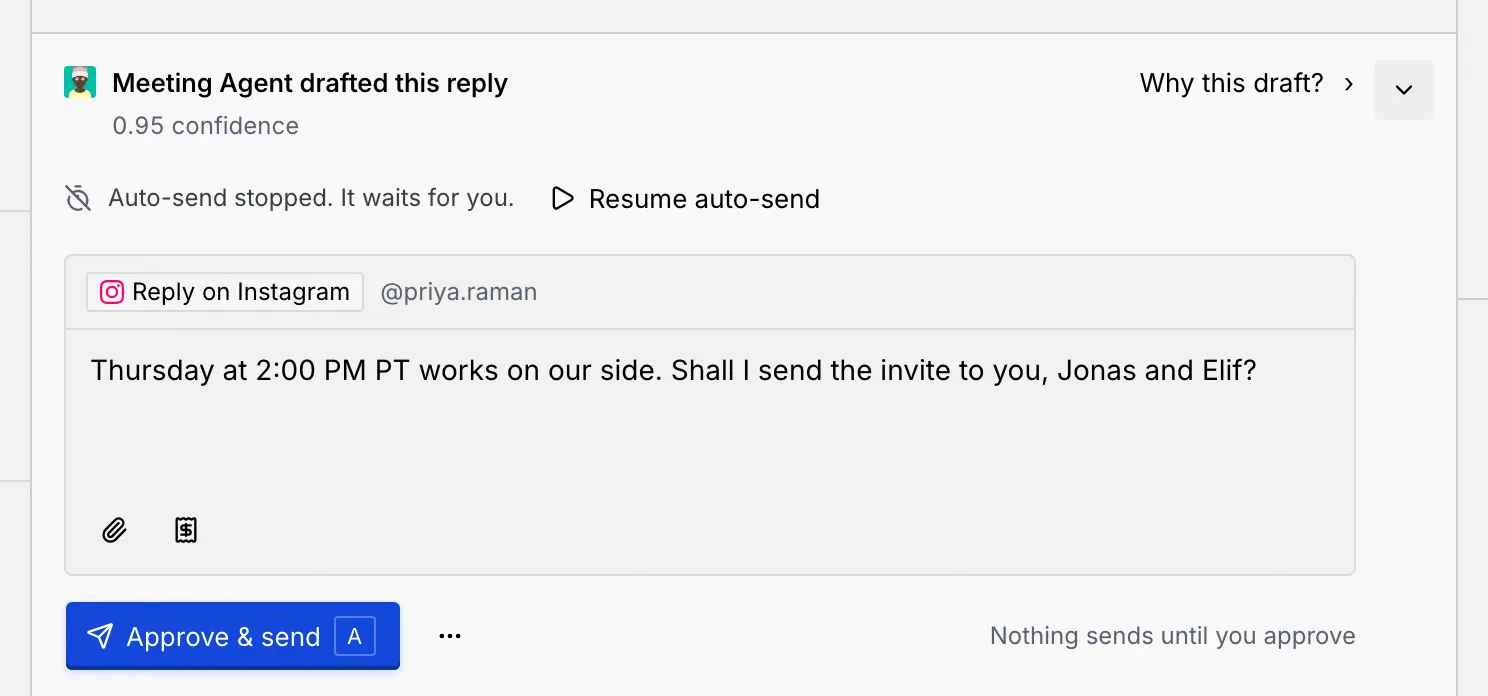
Click **Stop auto-send**. The draft now waits for you to approve, edit or discard it ("Auto-send stopped. It waits for you."). **Undo** on the notice starts the countdown again.
### Resume it later [#resume-it-later]
Click **Resume auto-send** to pick the countdown up where it stopped.
Editing the draft, asking for a different one, or turning off **Auto-send replies under $100K** for the account in the [details column](/docs/inbox/contact-panel#set-the-accounts-autonomy) also stop the countdown. If nobody stops it, the reply goes out when the countdown ends and its footer says **Auto-sent under** followed by the rule's name.
## Minimize the draft [#minimize-the-draft]
To read more of the conversation, click the arrow at the top right of the dock (**Minimize draft reply**). The draft folds to one line with its first words; click **Show draft reply** to open it again. Your choice holds as you move between threads. A draft that's counting down can't be minimized.

Pressing R, A or E on a minimized draft opens it first.
## When your role can't approve [#when-your-role-cant-approve]
You can still read the draft and why it was written. **Approve & send** stays greyed out, and a line under it says why, for example "Your role, Viewer, can't approve agent drafts. An owner or admin can change this in Settings → Members & roles."
## Troubleshooting [#troubleshooting]
The agent is still writing a new draft, the reply box is empty, or your role can't approve drafts on this channel (the line under the button says which).
Nothing was sent and the draft is still there. Click **Retry** on the notice.
A guardrail needs a person to look at this reply, for example because it mentions legal terms or the deal is above $100K. Rules never send held drafts: approve it yourself when it's right.
## Next steps [#next-steps]