# Find your way around (/docs/getting-started/find-your-way)
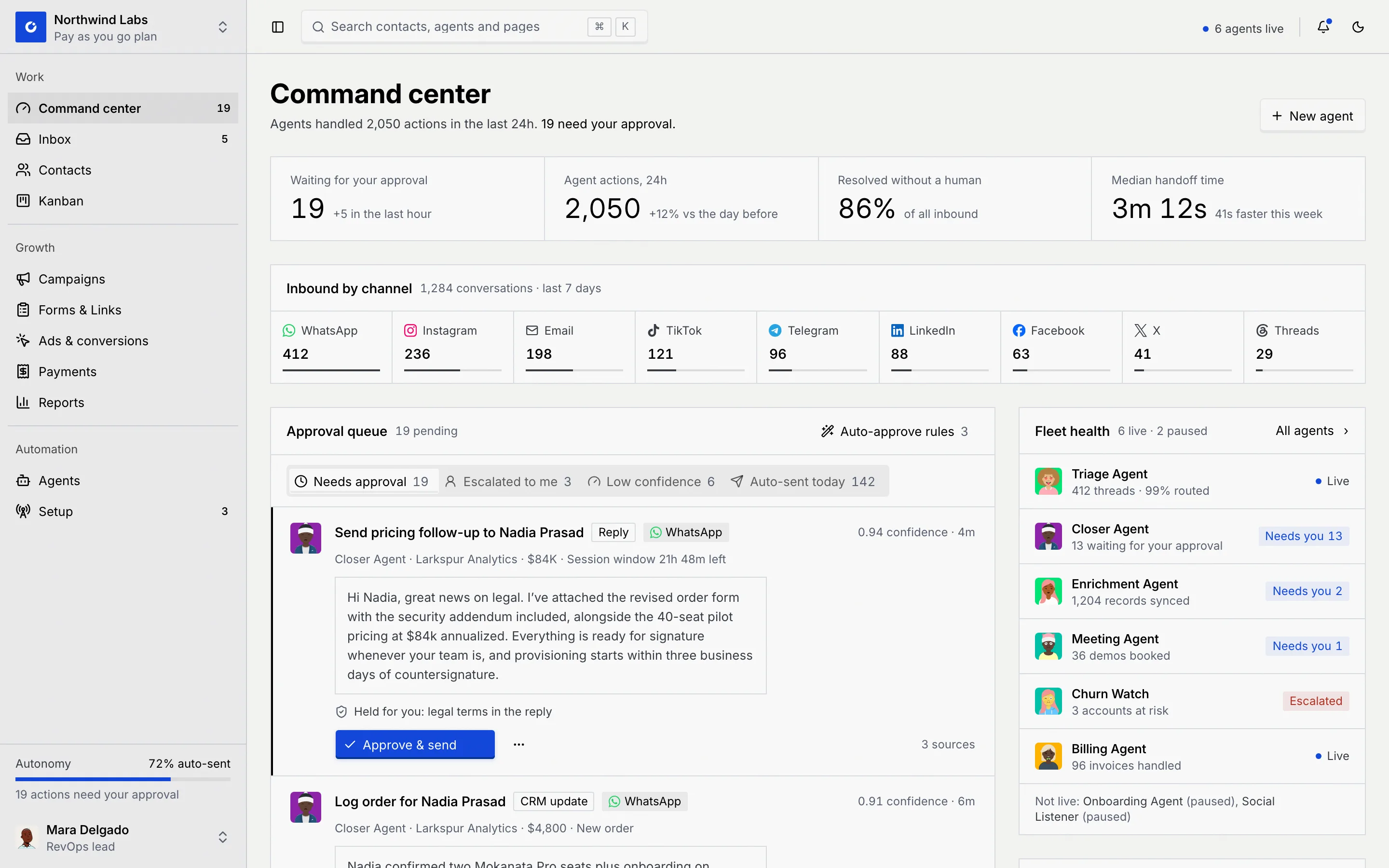
Every page in Mokanata shares the same frame: the sidebar on the left for moving between pages and workspaces, a top bar for search and alerts, and the page itself in the middle.
- **Who can use it:** Everyone. The sidebar lists every page to every role; a page you can only read says so with a **View only** notice (see [Workspaces and roles](/docs/getting-started/workspaces-and-roles)).
- **Before you start:** Nothing.
## The sidebar [#the-sidebar]
### Switch workspace at the top [#switch-workspace-at-the-top]
The top of the sidebar shows the workspace you're in and its plan (for example "Pay as you go plan"). Click it to switch to another workspace you belong to, or to open **Workspace settings**. See [Workspaces and roles](/docs/getting-started/workspaces-and-roles).
### Go to a page [#go-to-a-page]
The pages sit in three groups:
| Group | Pages |
|---|---|
| **Work** | **Command center** (what needs your approval), **Inbox**, **Contacts**, **Kanban** |
| **Growth** | **Campaigns**, **Forms & Links**, **Ads & conversions**, **Payments**, **Reports** |
| **Automation** | **Agents**, **Setup** (channels, integrations and other connections) |
The page you're on is highlighted. Hover a page to see its keyboard shortcut, such as G then I for the Inbox.
### Read the counts [#read-the-counts]
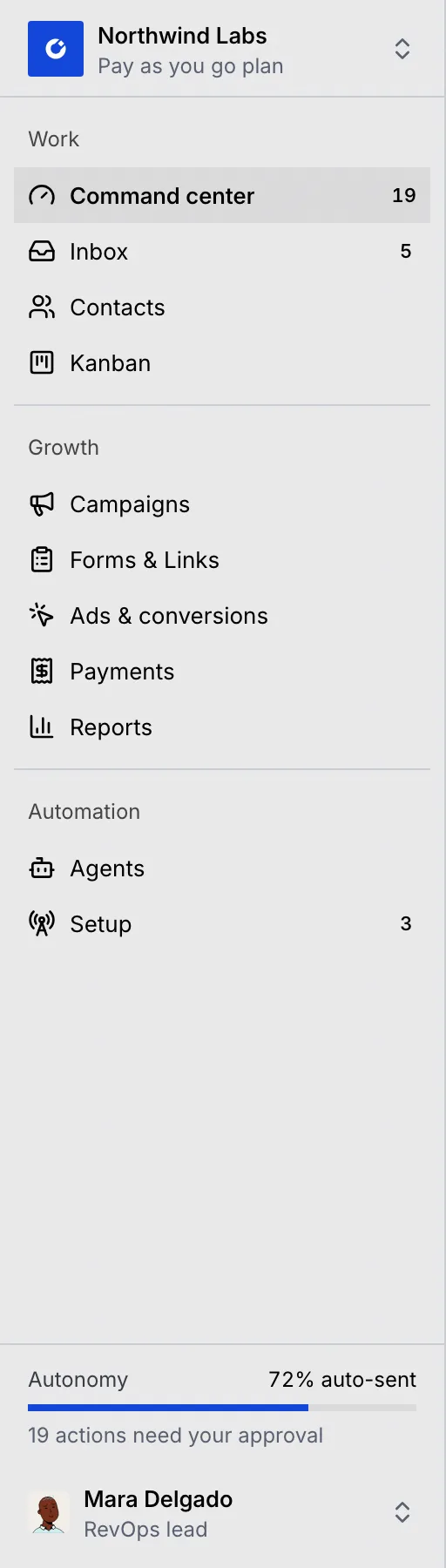
A number beside a page means something there needs someone:
| Page | What the number counts |
|---|---|
| **Command center** | Agent drafts waiting for approval on the channels your role works in. |
| **Inbox** | Conversations holding at least one draft that waits for approval. |
| **Setup** | Connected channel accounts that need attention: a login about to expire, a rate limit, a disconnected account, or a WhatsApp number about to unlink from the Business app. |
If your role can approve drafts, the hover text says they "need your approval" or "need you"; otherwise it says they're "waiting for approval".
### Check autonomy and approvals at the bottom [#check-autonomy-and-approvals-at-the-bottom]
Above your name, **Resolved without a human, 7 days** shows the share of the last 7 days' conversations that agents resolved without a person, with a bar. It's hidden until an agent resolved a conversation in the last 7 days (today only people resolve conversations), and for a role that can't read reports. The line under it links to the Command center: "19 actions need your approval", or "Nothing needs your approval" when the queue is empty. If your role can't approve drafts, it reads "actions waiting for approval" instead.
### Collapse the sidebar [#collapse-the-sidebar]
Click the sidebar button at the left of the top bar, or press ⌘ B (Ctrl B on Windows and Linux), to shrink the sidebar to a rail of icons. Hover an icon to see the page's name, its count and its shortcut; counts show as a blue dot. Mokanata remembers your choice on this device.
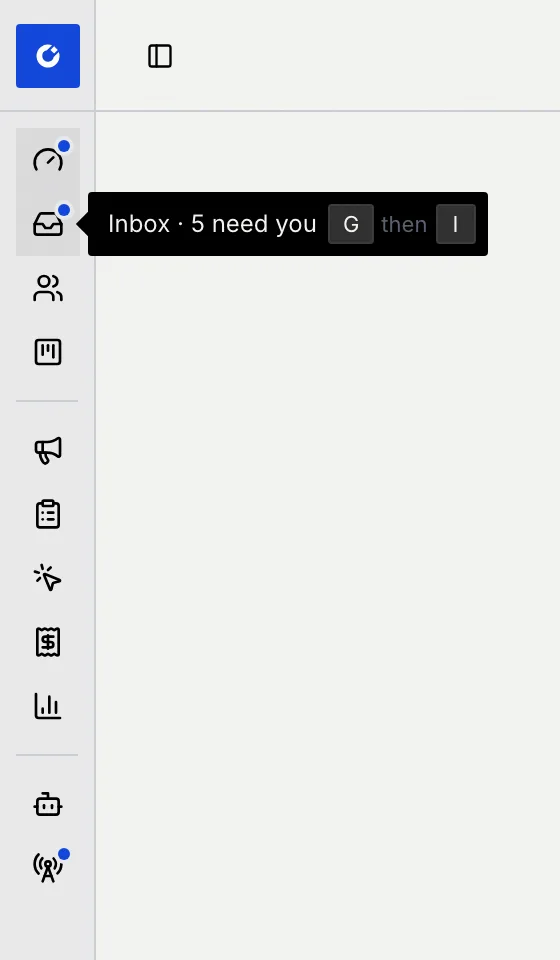
The Inbox and the flow builder open with the sidebar collapsed to give their panes room, and so does any window narrower than a small laptop screen. On a phone, the sidebar opens as a panel from the menu button.
## The top bar [#the-top-bar]

- **Search contacts, agents and pages** opens the command palette, as does ⌘ K (Ctrl K). See [Search and jump with ⌘K](/docs/getting-started/search).
- **Agents live** counts the agents that are running, with "in shadow" added for those that only draft. Click it to open **Agents**.
- The bell opens **Notifications**.
- The moon or sun button switches between the light and dark theme.
## Notifications [#notifications]
Click the bell in the top bar. Mokanata has no notifications feed yet, so the panel says **No notifications yet** and points to where things that need you already wait: drafts in the [Command center](/docs/inbox/command-center), and channel alerts on the [Setup page](/docs/channels/setup-page).
## Your account menu [#your-account-menu]
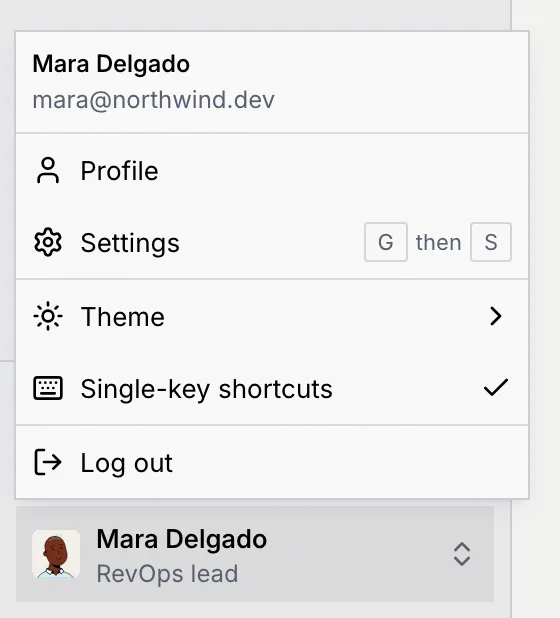
Click your name at the bottom of the sidebar. The menu shows your name and email address, then:
| Item | What it does |
|---|---|
| **Profile** | Opens [your profile](/docs/settings/profile): your avatar, name, job title and the email you log in with. |
| **Settings** | Opens Settings (G then S). See [Settings overview](/docs/settings/settings-overview). |
| **Finish setup** | Only while setup steps are open: opens setup, with how many steps are left. See [Finish setup later](/docs/getting-started/setup-checklist). |
| **Theme** | **Light**, **Dark** or **System** (follows your computer). |
| **Single-key shortcuts** | Turns shortcuts that use a single letter on or off. See [Keyboard shortcuts](/docs/settings/keyboard-shortcuts). |
| **Log out** | Logs you out of this device. See [Log in](/docs/getting-started/log-in#log-out). |
## Change the theme [#change-the-theme]
Mokanata comes in a light theme and a dark one. Two ways to switch:
- Click the moon (or sun) button at the right of the top bar to flip between light and dark. It's also at the top right of the log-in and setup pages.
- In your account menu, point to **Theme** and pick **Light**, **Dark** or **System**. **System** follows your computer's setting and changes with it.
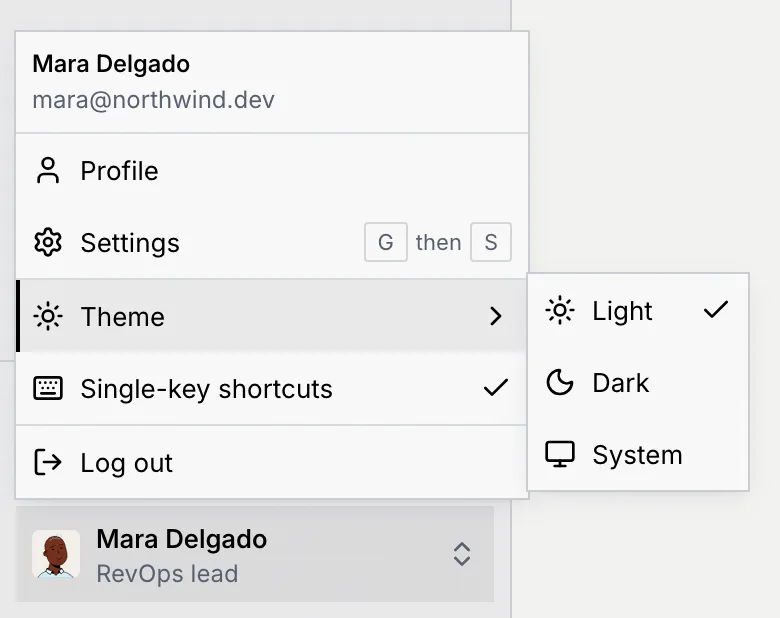
Your choice is saved on this device. The command palette also offers **Switch to dark theme** (or **Switch to light theme**).
## When a page doesn't exist [#when-a-page-doesnt-exist]
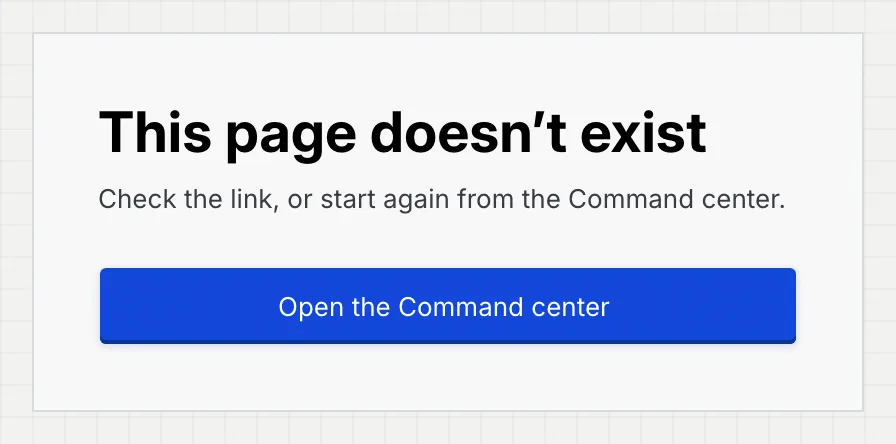
If you open a link to a page that doesn't exist (a mistyped address, or something that was deleted), Mokanata says **This page doesn't exist**.
- Inside the app, the sidebar and top bar stay, so you can carry on from there, or click **Open the Command center**.
- In Settings, the message reads **This settings page doesn't exist**, with **Open your profile**.
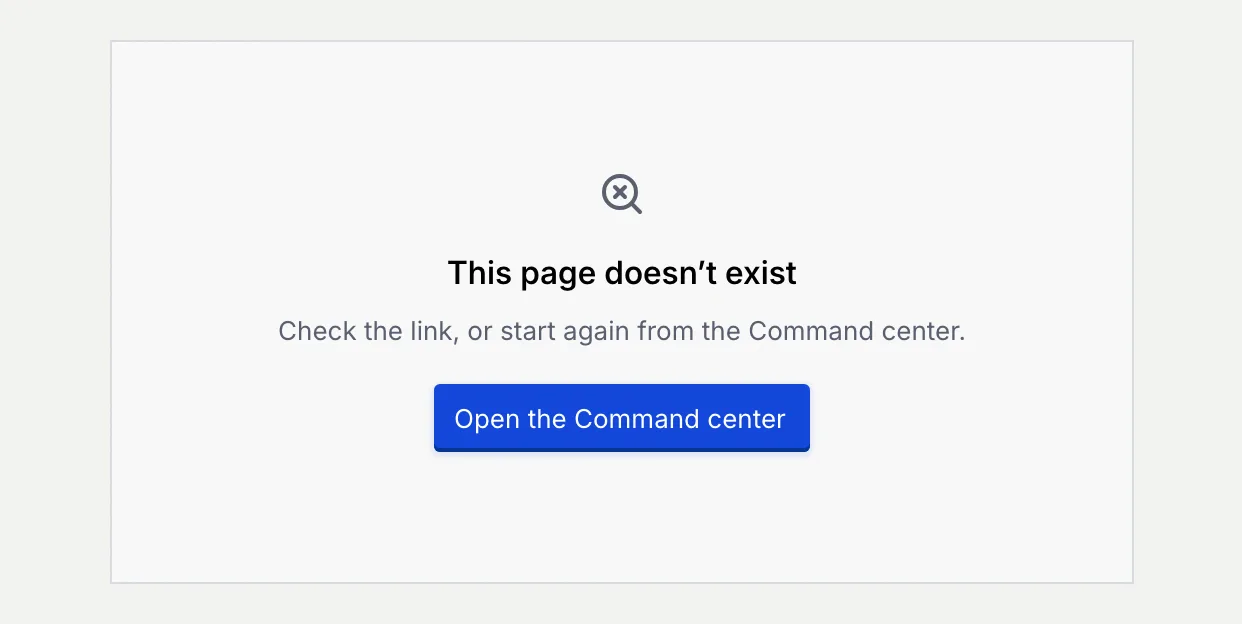
Outside the app (for example a mistyped address while you're logged out), the page shows the same title on its own with a button for where to go next: **Log in**, **Verify your email**, **Continue setup** or **Open the Command center**, depending on where you are with your account.
## When a page doesn't load [#when-a-page-doesnt-load]
If a page can't load, its area shows **This page didn't load** (or **You're offline** when your connection is down) with **Try again**. Nothing was changed. See [Sign-in and link problems](/docs/getting-started/sign-in-problems#a-page-doesnt-load).
## Other things you may see [#other-things-you-may-see]
- **Keyboard shortcuts.** Press ? on any page to see every shortcut. See [Keyboard shortcuts](/docs/settings/keyboard-shortcuts).
- **Loading.** While a page loads, a grey outline of it shows in place of its content (or a small spinner for pages without one).
- **Skip to content.** Press Tab once on any page and a **Skip to content** link appears at the top left; it jumps past the sidebar to the page itself.
- **Full screen in the Inbox.** The Inbox's full-screen mode hides the sidebar and top bar; press Esc to get them back (see [The inbox](/docs/inbox/inbox)).
- **Older links.** Bookmarks and shared links from earlier versions of Mokanata keep working: addresses that moved (for example Channels, Integrations and Objects, now tabs of **Setup**, or Members, now part of **Members & roles**) open the page's new home, and older record links open the same contact, agent, card or campaign.
- **The browser tab.** Each page names itself in the browser tab as **Mokanata ·** followed by the page, for example **Mokanata · Inbox**, so you can tell your tabs apart.
## Next steps [#next-steps]