# Accept an invite (/docs/getting-started/accept-invite)
When a teammate invites you, Mokanata emails you a link that adds you to their workspace with the role they picked. If you're new, you create your account right there: there's no password, and no workspace setup to go through.
- **Who can use it:** Anyone with an invite. Owners and admins send invites from [Settings → Members & roles](/docs/settings/members).
- **Before you start:** The invite email, opened within 7 days of when it was sent. You join with the address the invite was sent to.
## Open the invite [#open-the-invite]
The email's subject reads "Mara Delgado invited you to Northwind Labs on Mokanata" (with your teammate's name and workspace). Click **Accept invite** in it. The page that opens shows a summary of the invite: the workspace, your role (for example **Member**), who invited you, when the invite expires, and what the role can do.
| Role | What it can do |
|---|---|
| **Admin** | Manages members, channels, agents and billing. |
| **Member** | Works the inbox, approves drafts and edits contacts. |
| **Viewer** | Reads conversations and reports. Can't send or approve. |
Nobody is invited as an owner: a workspace has one owner, who can transfer ownership to someone in the workspace later (see [Danger zone](/docs/settings/danger-zone)). For what each role can do, see [Workspaces and roles](/docs/getting-started/workspaces-and-roles).
## Join with a new account [#join-with-a-new-account]
### Sign in with the invited address [#sign-in-with-the-invited-address]
When the invited address has no Mokanata account yet, the page reads **Join** followed by the workspace name. Sign in with the invited address: with **Join with Google** (it only accepts the Google account with the invited address), or with a sign-in link emailed to that address. Mokanata creates your account on that first sign-in.
### Secure your account and join [#secure-your-account-and-join]
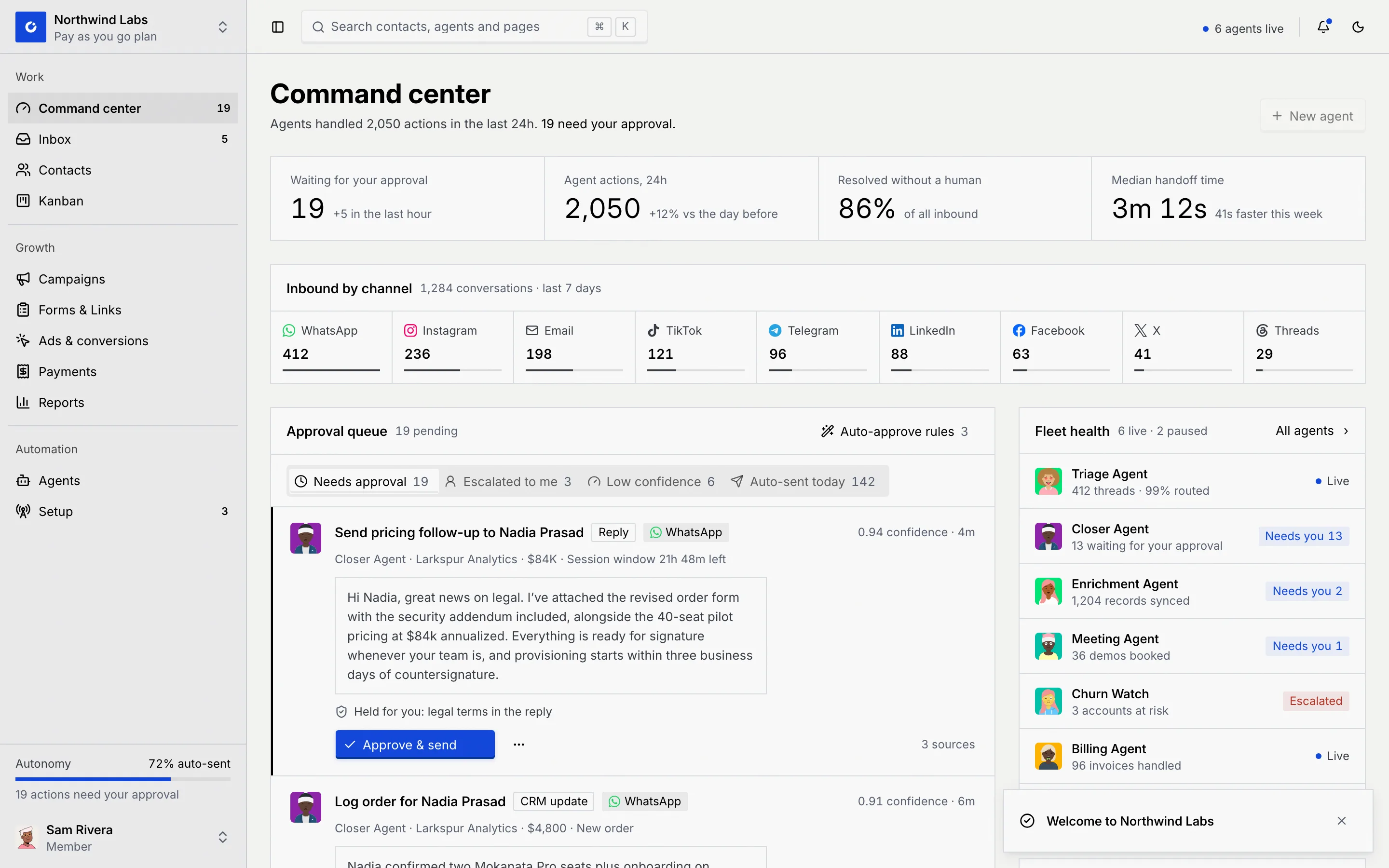
Set up an authenticator app and a passkey, which every account needs (see [Create your account](/docs/getting-started/create-account)). You then land on the workspace's Command center with "Welcome to Northwind Labs" (the workspace's name), signed in with the role from the invite. The workspace is already set up, so there are no setup steps for you.
## Join with the account you already have [#join-with-the-account-you-already-have]
### Log in to accept [#log-in-to-accept]
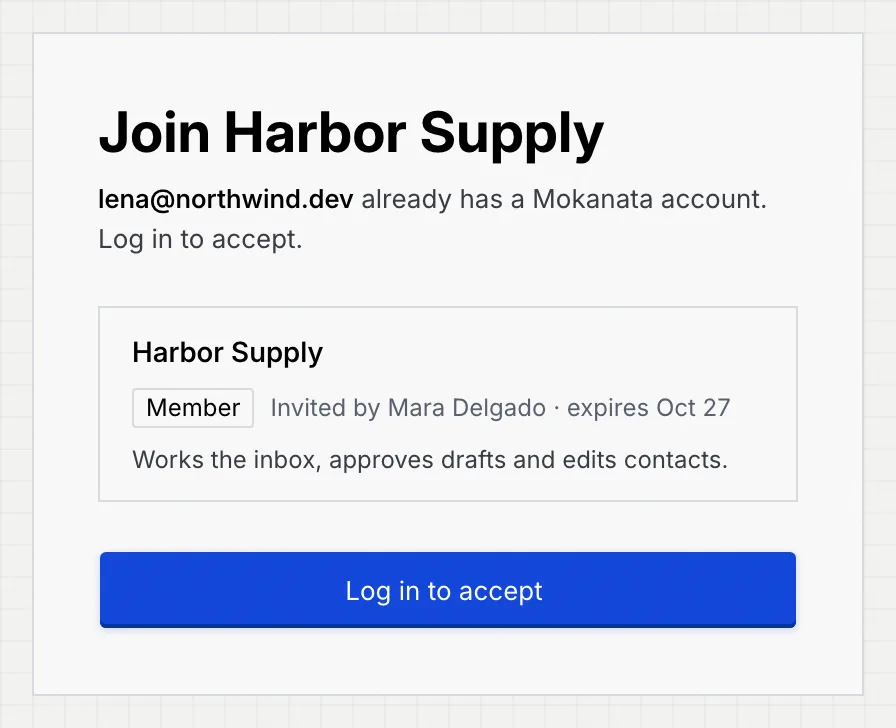
If the invited address already has a Mokanata account (for example, you're in another workspace), the page says you already have an account. Click **Log in to accept**.
### Log in with the invited address [#log-in-with-the-invited-address]
The log-in page opens with your email filled in. Log in any way you like (see [Log in](/docs/getting-started/log-in)); afterwards you're back on the invite.
### Accept the invite [#accept-the-invite]
Click **Accept invite**. Mokanata says "You joined Harbor Supply" (the workspace's name) and opens its Command center. Your other workspaces stay a click away in the workspace switcher at the top of the sidebar.
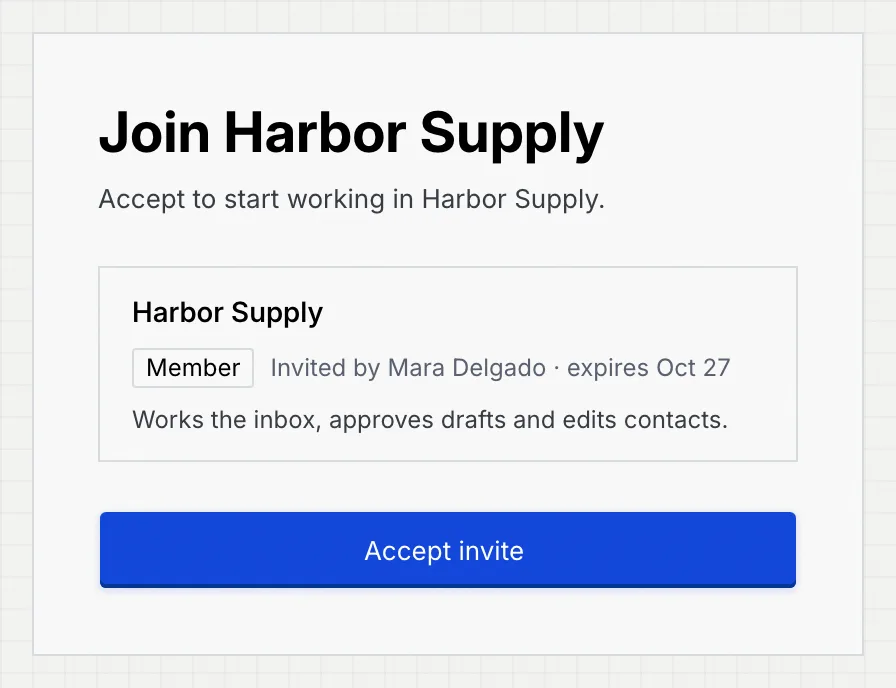
If you're already logged in with the invited address when you open the email, you go straight to **Accept invite**.
## If you're logged in as someone else [#if-youre-logged-in-as-someone-else]
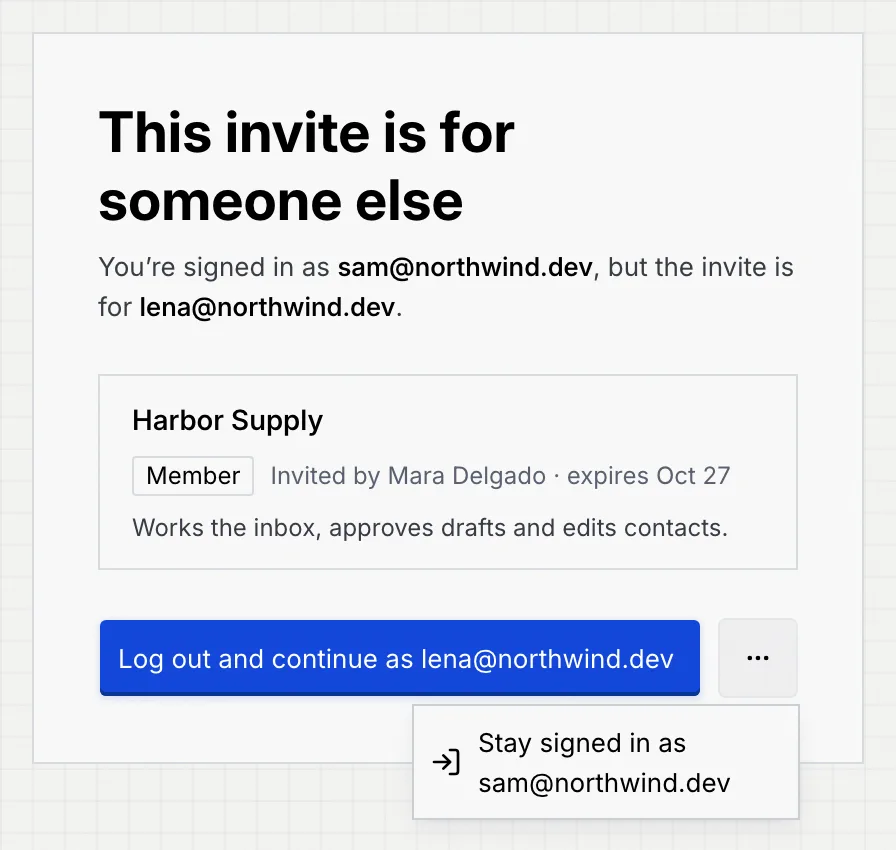
When the invite is for a different address than the one you're logged in with, the page reads **This invite is for someone else** and names both addresses.
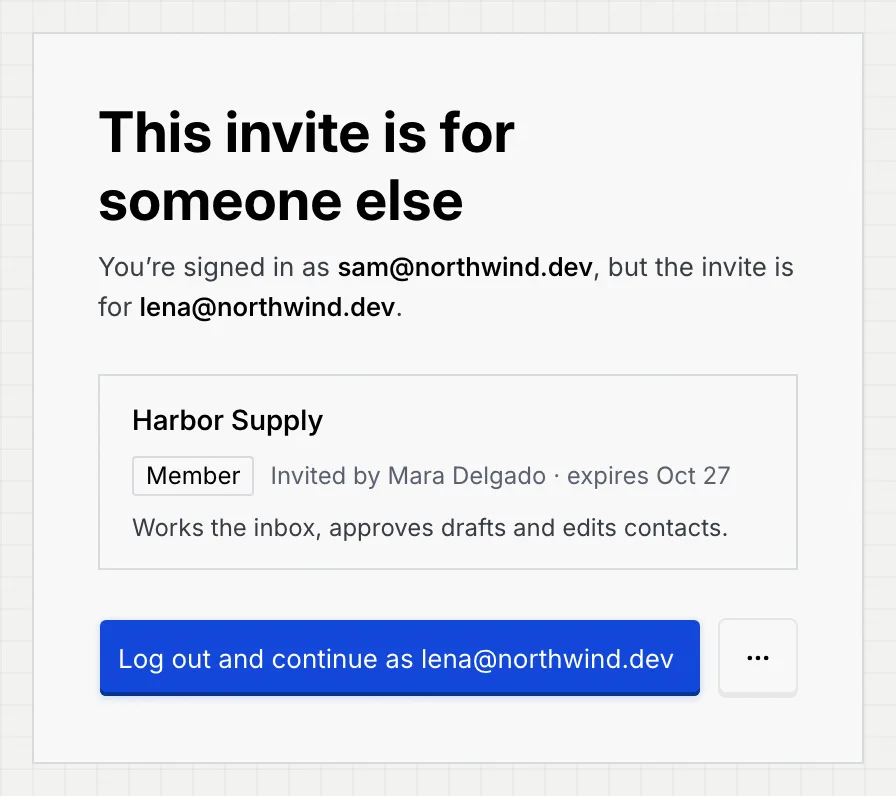
- Click **Log out and continue as** followed by the invited address to log out and carry on with the invite on the same page.
- To keep working as yourself, open the **⋯** menu and click **Stay signed in as** followed by your address. It takes you to your Command center and leaves the invite unused.
## When an invite can't be used [#when-an-invite-cant-be-used]
| Page title | What it means | What to do |
|---|---|---|
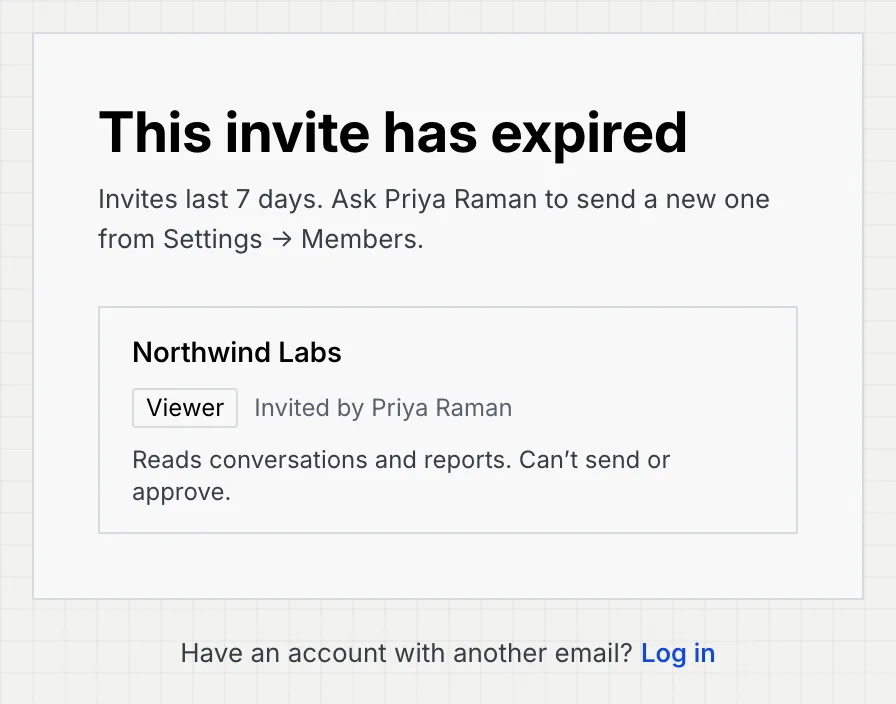
| **This invite has expired** | Invites last 7 days. | Ask the person who invited you to send a new one from Settings → Members & roles. |
| **This invite was withdrawn** | The person who invited you cancelled it. | Ask them if you still need access. |
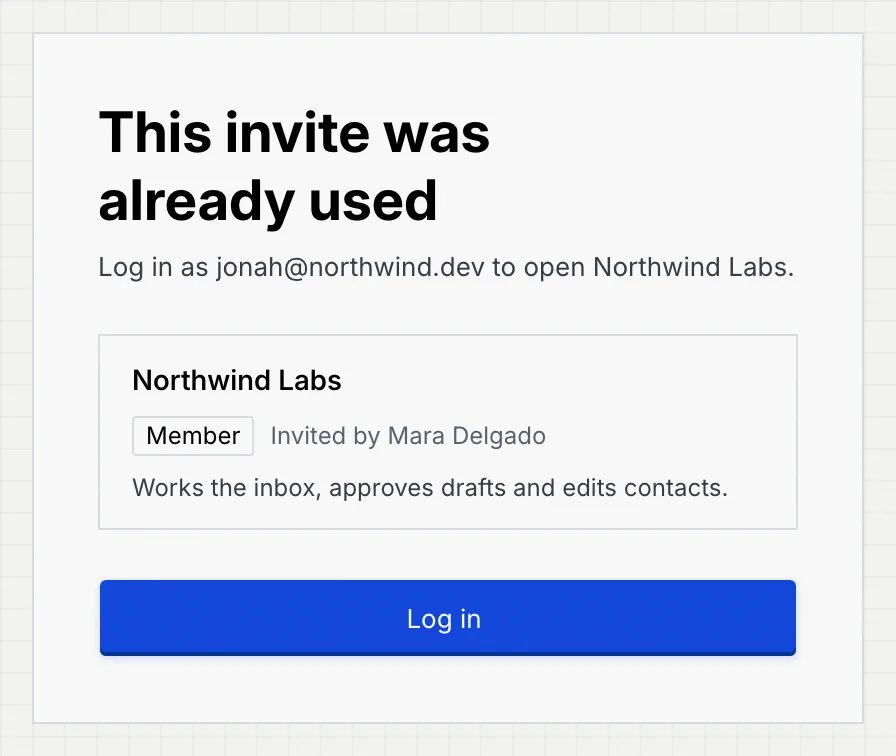
| **This invite was already used** | Someone already accepted it. | Log in with the address the invite was for (**Log in**). |
| **You've already joined** (workspace name) | You accepted this invite before. | Click **Go to Mokanata**. |
| **This invite link isn't valid** | The link is incomplete or wrong. | Open the whole link from the email again, or ask for a new invite. |
When the invited address has no account and you're logged out, these pages end with "Have an account with another email? **Log in**" instead of a button.
Only the newest invite to an address works: if someone invites you again or resends the invite, use the newest email.
## Troubleshooting [#troubleshooting]
An invite is tied to the address it was sent to. Ask an owner or admin of the workspace to invite the address you want to use.
You tried to accept while logged in with another address. Log out, then log in with the address the invite was sent to and open the invite again.
Check your spam folder. If it's not there, ask the person who invited you to resend it; resending sends a new link and the older one stops working.
## Next steps [#next-steps]