# Link in bio pages (/docs/forms/bio-pages)
A link in bio page is the one link you put in your social profiles. It shows your picture, name and a short bio, then the blocks you choose: chat buttons that open WhatsApp, Telegram or Instagram, links, your short links and forms, notes and your social profiles, in a theme of your own. Every view and tap is counted.
- **Who can use it:** Owners, admins, members and viewers can see link in bio pages with their views, taps and QR codes. Owners, admins and members can create, edit, publish and unpublish pages. Only owners and admins can delete them. A role that can't change pages sees a **View only** notice; a custom role without **View link in bio pages** doesn't get the **Link in bio** tab and sees **Link in bio isn't available to your role**. See [Roles and permissions](/docs/settings/roles).
- **Before you start:** Nothing. To add a form or a short link as a block, publish the form or create the short link first.
## Open Link in bio [#open-link-in-bio]
In **Forms & Links**, click the **Link in bio** tab.
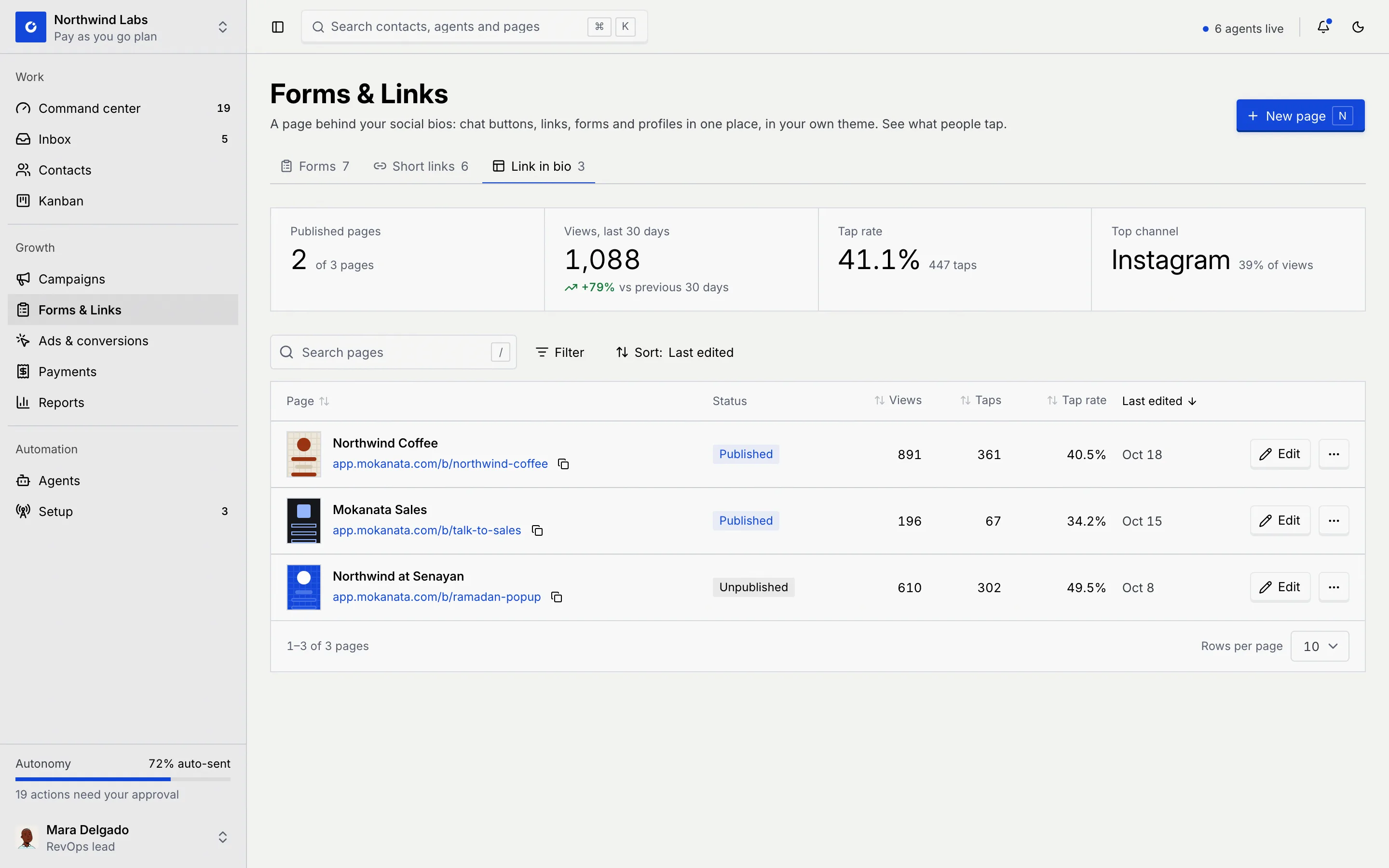
| Number | What it counts |
|---|---|
| **Published pages** | Pages that are live, out of all your pages. |
| **Views, last 30 days** | Times your pages were opened, with the change against the 30 days before. |
| **Tap rate** | Taps on blocks per view, with the number of taps. |
| **Top channel** | Where most visitors came from (such as Instagram, WhatsApp or a QR code scan), and its share. |
The list shows each page with a thumbnail of its theme, its address (with a copy button), **Status**, **Views**, **Taps**, **Tap rate** and **Last edited**. Search with **Search pages** (or press /) by name or address, **Filter** by **Status**, and **Sort** by any column. Click a row to open the page's views and taps. When nothing matches your search, the list says **No pages match** with **Clear filters**. A workspace without pages shows **One link for every profile** with three theme previews instead.
## Read a page's views and taps [#read-a-pages-views-and-taps]
### Open the page [#open-the-page]
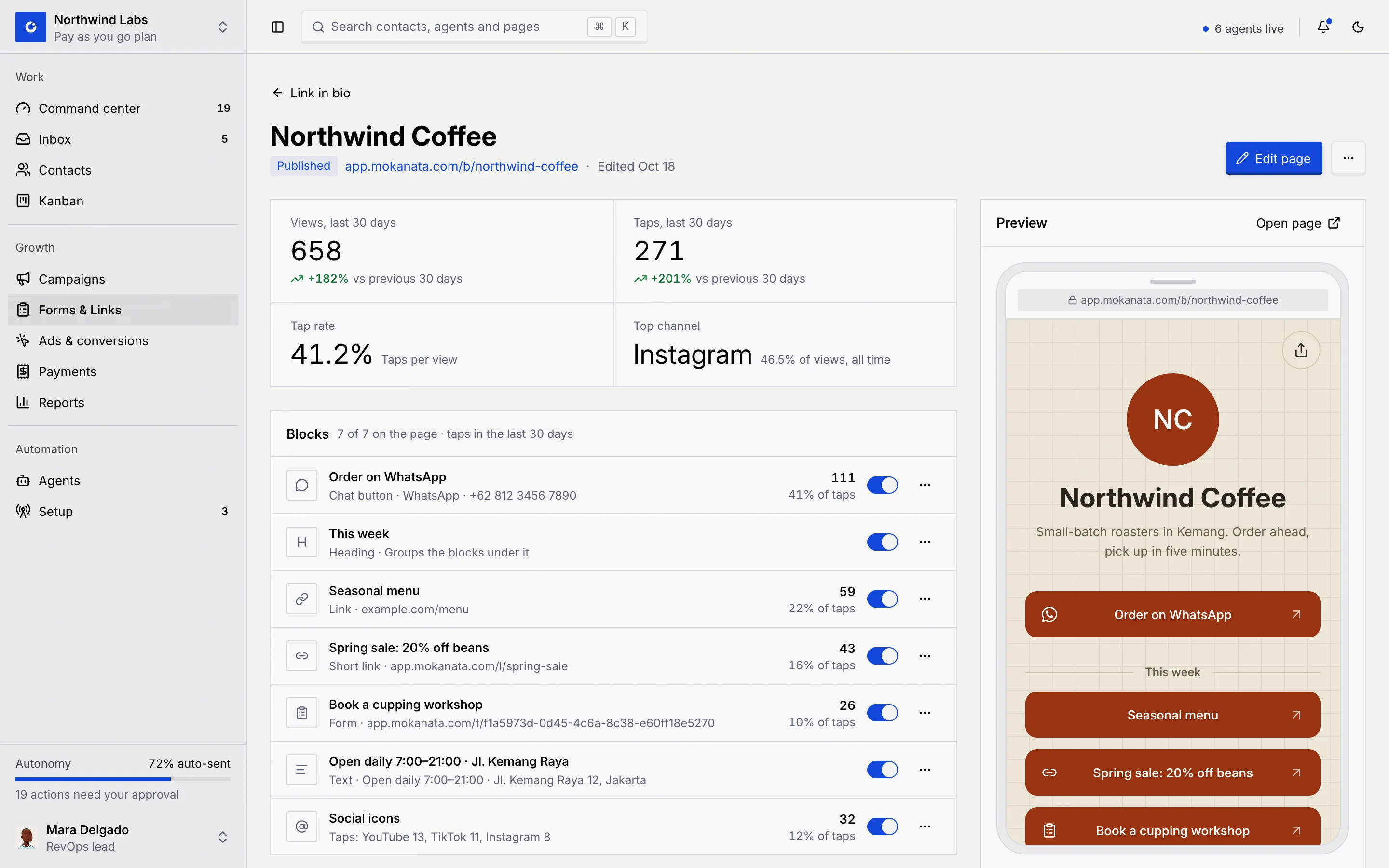
Click the page in the list. Its header shows the status, the address and when it was last edited, with **Edit page** and a **⋯** menu.
### Check each block [#check-each-block]
The **Blocks** panel lists the blocks in page order with how many taps each got in the last 30 days and its share of all taps. Social icons list taps per network. Point at a block and the preview on the right outlines it.
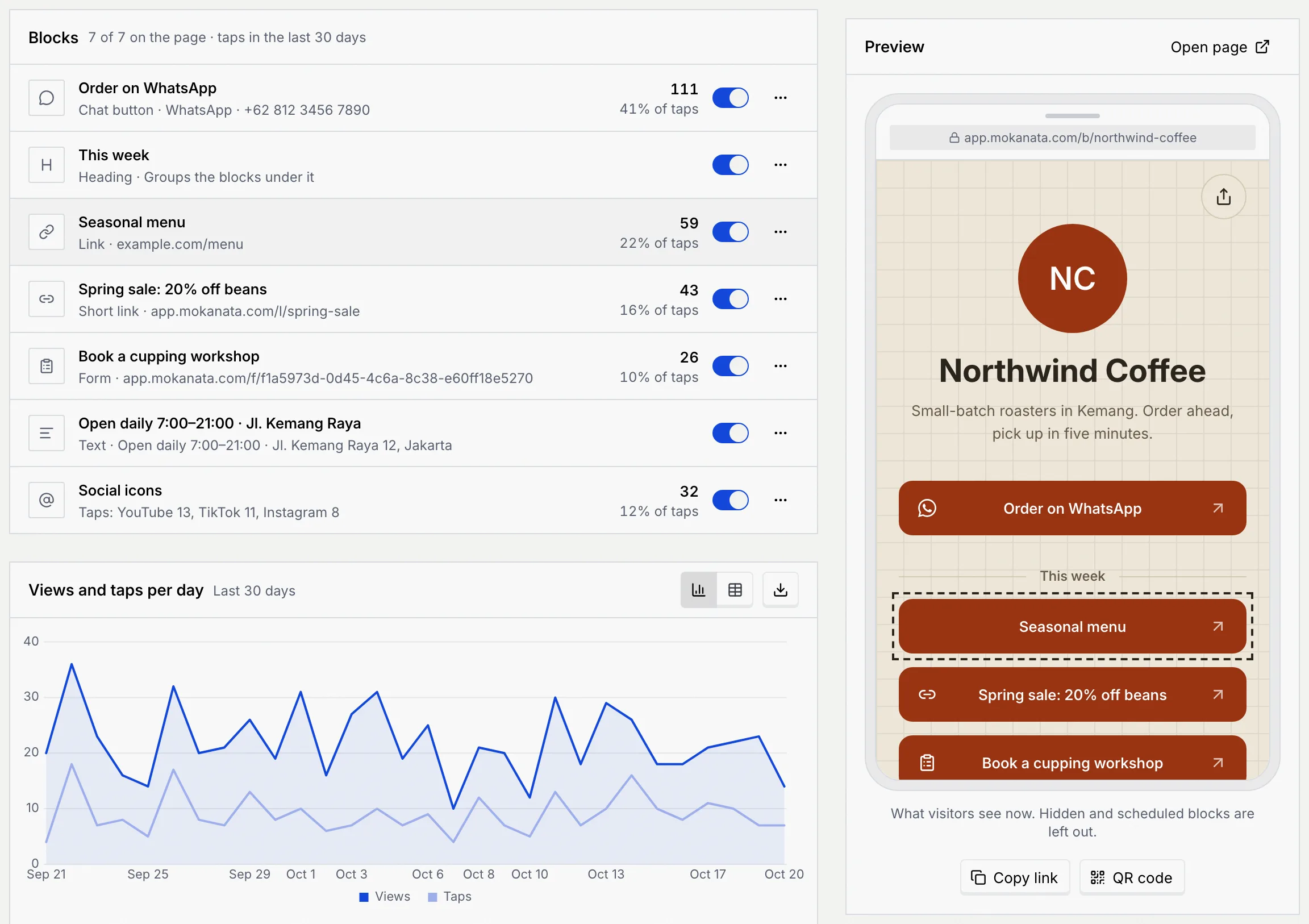
From here you can make quick changes without opening the editor, saved at once:
- Turn a block's switch off to hide it from the page, or on to show it again.
- Click **⋯** for **Edit block** (opens it in the editor), **Move up** and **Move down**.
### Read the charts and details [#read-the-charts-and-details]
**Views and taps per day** covers the last 30 days. **Top channels** shows where visitors opened the page from, all time; **QR code** counts scans of the page's printed code. **Details** lists the **Address**, **Theme**, number of **Blocks**, when it was **Published**, **Last edited** and **Created**. Under the preview, **Copy link** and **QR code** share the page.
## Create a page [#create-a-page]
### Click New page [#click-new-page]
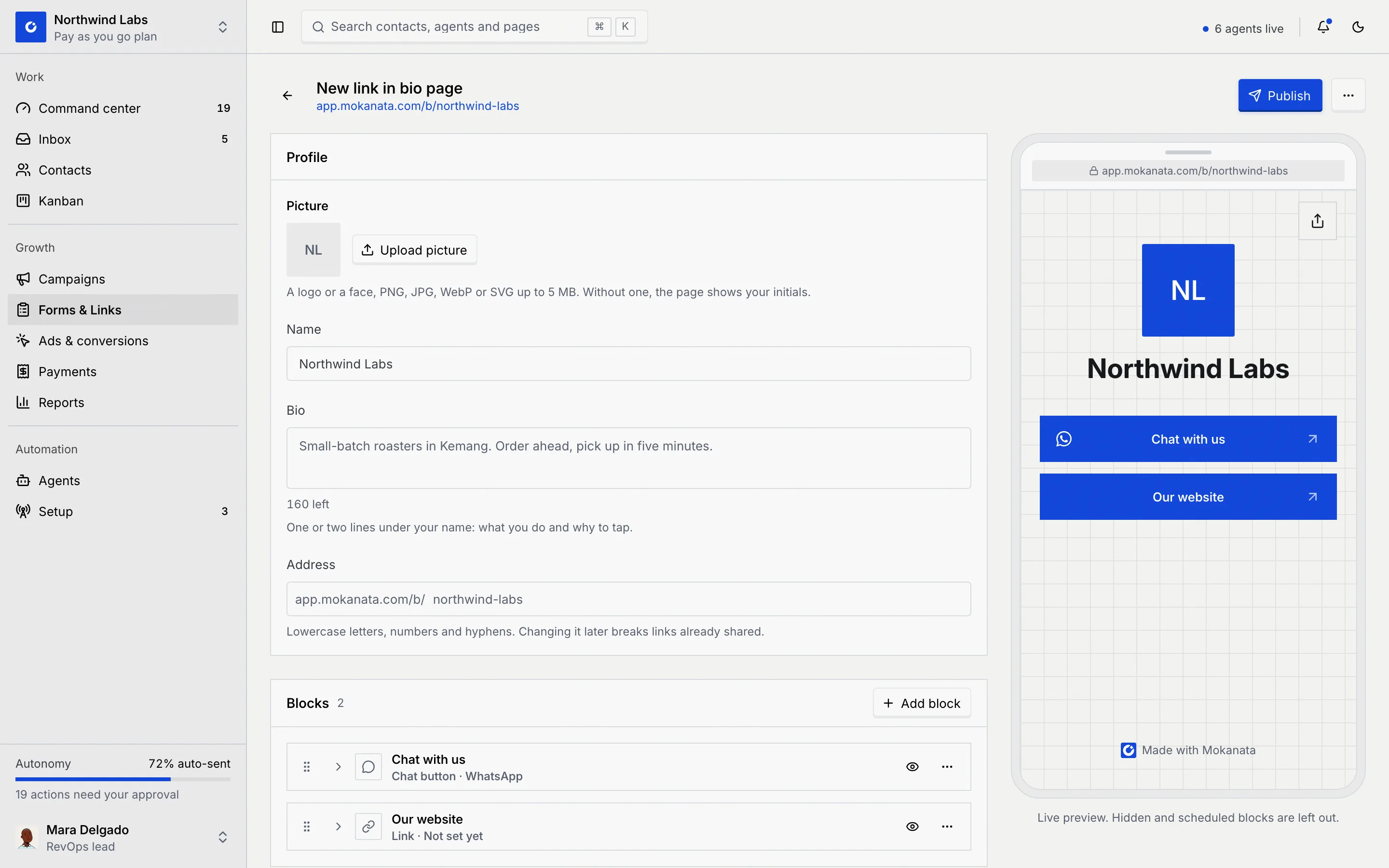
Click **New page** (or press N). The editor starts with your workspace's name, a **Chat with us** chat button and an **Our website** link, in the **Paper** theme. The phone on the right previews the page as you edit.
### Fill in the profile [#fill-in-the-profile]
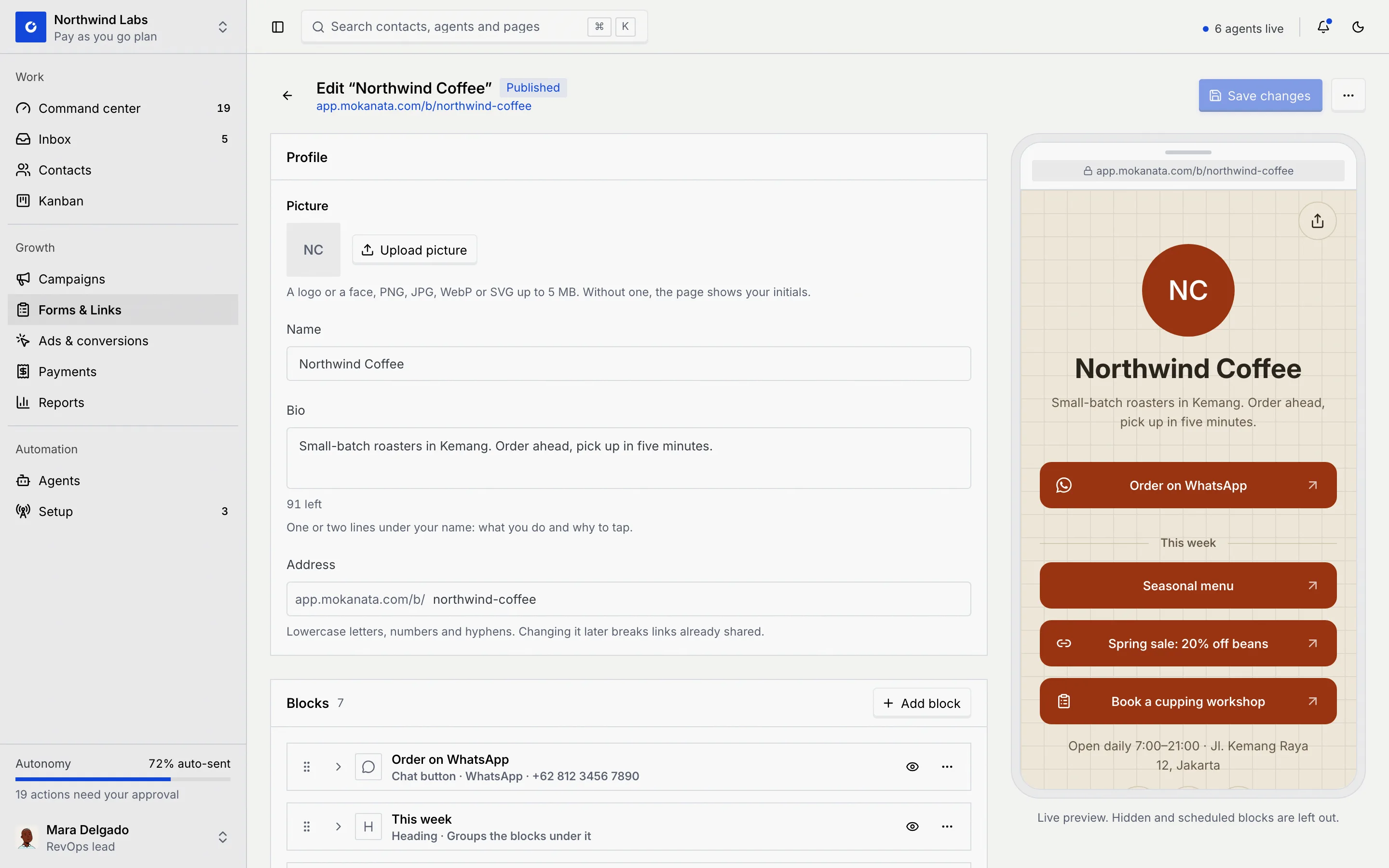
- **Picture**: click **Upload picture** for a logo or a face (PNG, JPG, WebP or SVG up to 5 MB). Without one, the page shows your initials. **Replace picture** and **Use initials** change it later.
- **Name**: what people see at the top of the page.
- **Bio**: one or two lines under your name, up to 160 characters. The count under the field shows what's left.
- **Address**: the ending of the page's link, such as `northwind-coffee`. Lowercase letters, numbers and hyphens.
The grey address in the empty **Address** field is only a suggestion. Type the address you want (you can type the suggestion), or **Publish** stops and shows **Use at least 3 characters.** under the field.
### Add blocks and pick a theme [#add-blocks-and-pick-a-theme]
See [Add and arrange blocks](#add-and-arrange-blocks) and [Choose the look](#choose-the-look). Fill in the starting blocks too: the **Our website** link needs an address before you can publish.
### Publish [#publish]
Click **Publish**. The toast says **Published. Share the link or its QR code.** To keep working on it first, click **⋯** → **Save as draft**: drafts can't be opened by anyone until you publish them.
On a phone, switch between **Edit** and **Preview** at the top of the editor.
## Edit a page [#edit-a-page]
Click **Edit page** on a page's details (or **Edit** on its row). The editor has the **Profile**, **Blocks** and **Appearance** panels, and a phone preview that follows every change. The header shows the page's status, its address, and **Unsaved changes** once you change something.
## Add and arrange blocks [#add-and-arrange-blocks]
### Add a block [#add-a-block]
In the **Blocks** panel, click **Add block** and pick a kind.
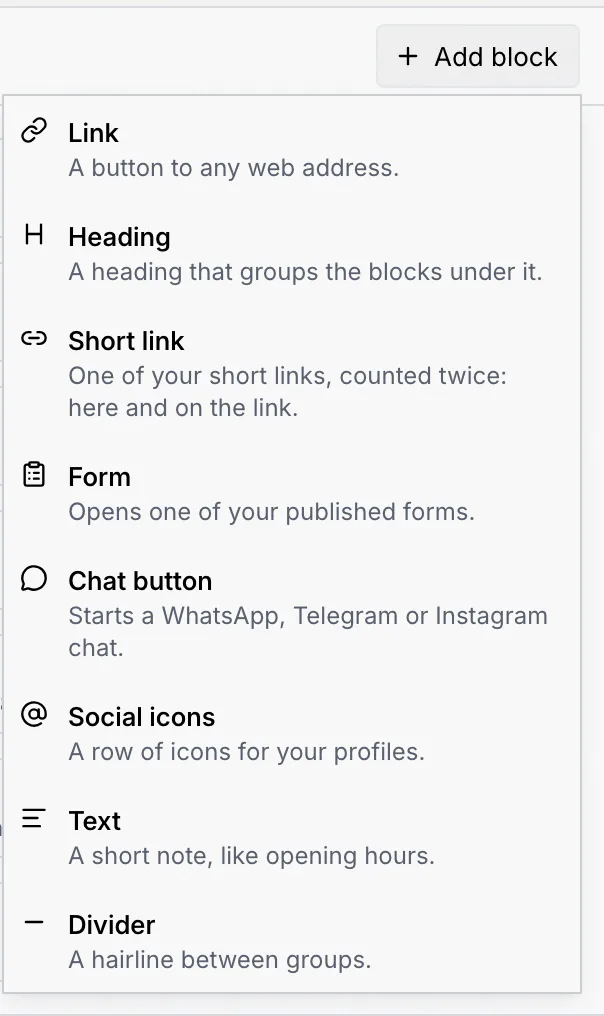
| Block | What it is | What you fill in |
|---|---|---|
| **Link** | A button to any web address. | **Button label** and the address it **Opens**. |
| **Heading** | A heading that groups the blocks under it. | **Heading**. |
| **Short link** | One of your short links, counted twice: here and on the link. | The **Short link**, and a **Button label** (empty uses the link's name). Taps count on the short link too, with its campaign tags. |
| **Form** | Opens one of your published forms. | The **Form** (drafts can't be picked) and a **Button label**. It follows the form if the form's link changes. |
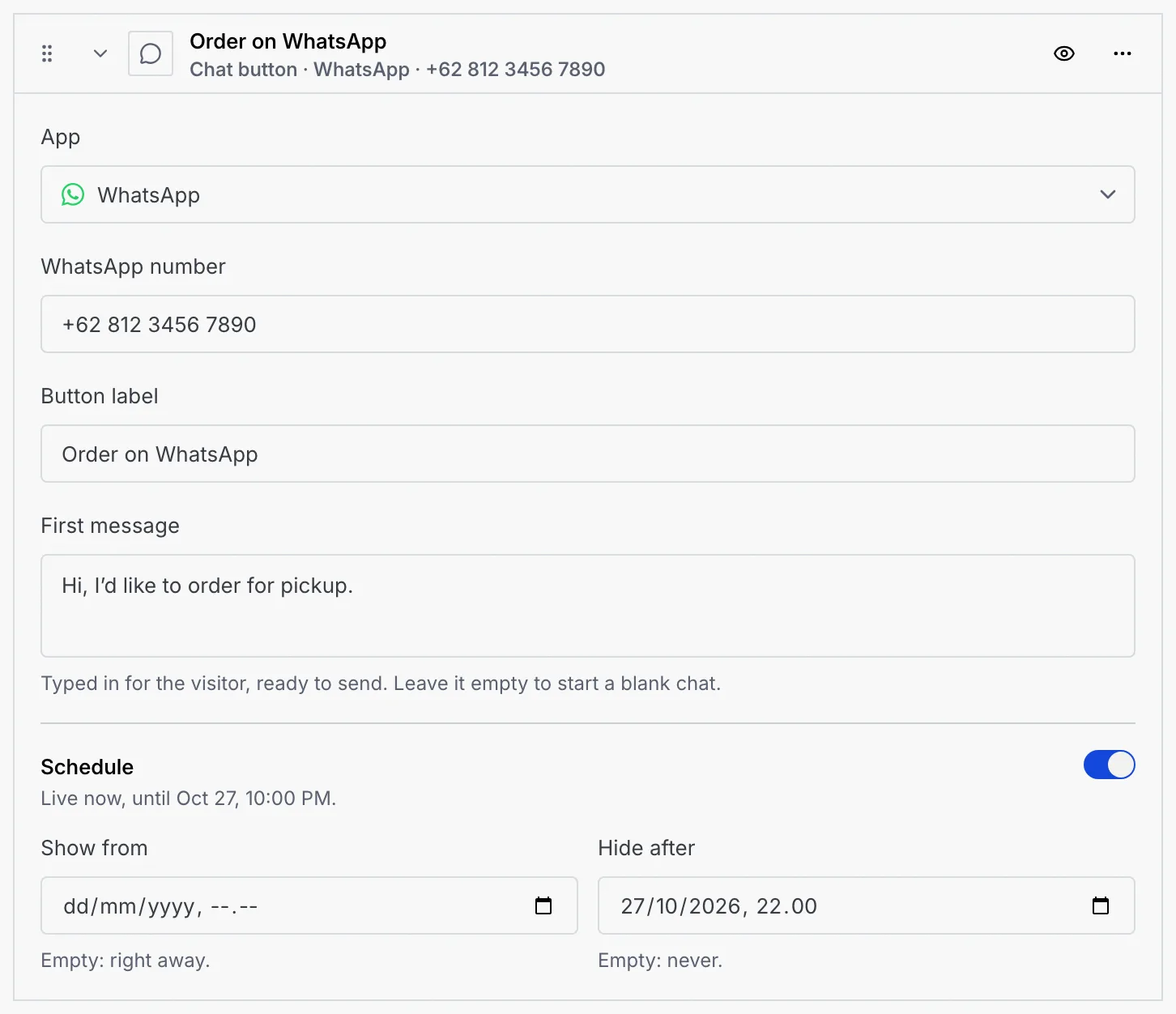
| **Chat button** | Starts a WhatsApp, Telegram or Instagram chat. | The **App**, the **WhatsApp number** (with country code), **Telegram username** or **Instagram username**, a **Button label**, and a **First message** typed in for the visitor (empty starts a blank chat). |
| **Social icons** | A row of icons for your profiles. | A **Network** and **Username or link** for each profile; **Add profile** adds another. Instagram, TikTok, YouTube, X, Facebook, LinkedIn, Threads, Telegram, WhatsApp and Email. |
| **Text** | A short note, like opening hours. | **Note**, up to 280 characters. |
| **Divider** | A hairline between groups. | Nothing. |
### Edit a block [#edit-a-block]
Click a block's heading to open it. Its heading shows the kind and a summary; **To fix** in red means something is missing.
### Schedule it (optional) [#schedule-it-optional]
Switch on **Schedule**, then set **Show from** (empty: right away) and **Hide after** (empty: never). The line under **Schedule** sums it up, such as **Live now, until** a date, **Shows from** a date, or **Ended** a date. Scheduled blocks appear and disappear on their own.
### Hide, move, copy or delete [#hide-move-copy-or-delete]
- Click the eye on a block to hide it from the page without deleting it, and again to show it.
- Drag a block by its grip, or focus the grip and use the up and down arrow keys, to reorder. **⋯** also has **Move up** and **Move down**.
- **⋯** → **Duplicate** adds a copy; **Delete block** removes it when you save. Its past taps stay in the numbers as a removed block.
A page with no blocks says **No blocks yet**: start with a **Chat button** or a **Link**, or pick another kind from **Add block**.
| Block state | What visitors see |
|---|---|
| **Live** | The block. |
| **Hidden** | Nothing: the block stays in the editor but never reaches the page. |
| **Scheduled** | Nothing yet: it shows from its start date. |
| **Ended** | Nothing: its end date passed. |
## Choose the look [#choose-the-look]
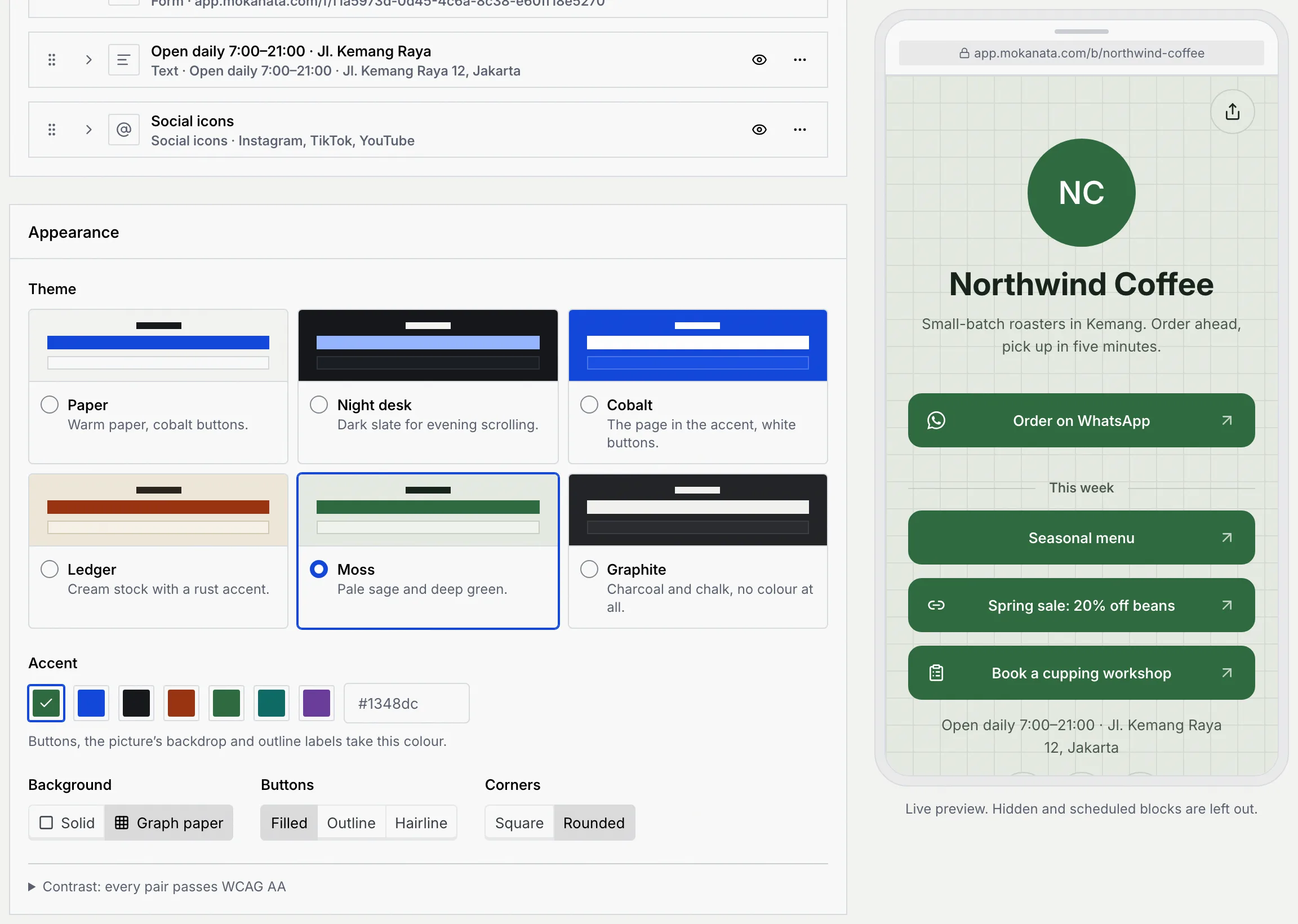
The **Appearance** panel sets the page's theme. The preview follows every change.
| Setting | Choices |
|---|---|
| **Theme** | **Paper** (warm paper, cobalt buttons), **Night desk** (dark slate), **Cobalt** (the page in the accent, white buttons), **Ledger** (cream with a rust accent), **Moss** (pale sage and deep green), **Graphite** (charcoal and chalk, no colour). |
| **Accent** | The theme's own colour, or Cobalt, Ink, Rust, Green, Teal or Plum, or any colour typed as a hex code. Buttons, the picture's backdrop and outline labels take it. If a colour would make button labels hard to read, Mokanata shifts it and says so. |
| **Background** | **Solid** or **Graph paper**. |
| **Buttons** | **Filled**, **Outline** or **Hairline**. |
| **Corners** | **Square** or **Rounded**. |
Open **Contrast: every pair passes WCAG AA** under the panel to see the contrast of each text and background pair.
## Save your changes [#save-your-changes]
On a published page, click **Save changes**; the toast says **Changes saved**. On a draft or unpublished page the main button is **Publish** (or **Publish again**), and **⋯** has **Save as draft** or **Save without publishing**. If a block is missing something, saving stops with a toast such as **One block needs fixing** and opens the block.
Leaving the editor with unsaved changes asks **Discard your changes?**: **Keep editing** or **Discard changes**. If you leave another way, such as a link in the sidebar, Mokanata asks **Discard unsaved changes?** ("You changed this page but didn’t save it. If you leave now, those changes are lost.") with **Keep editing** and **Discard and leave**.
## Publish, unpublish, copy or delete a page [#publish-unpublish-copy-or-delete-a-page]
Click **⋯** on a page's row, or in its header:
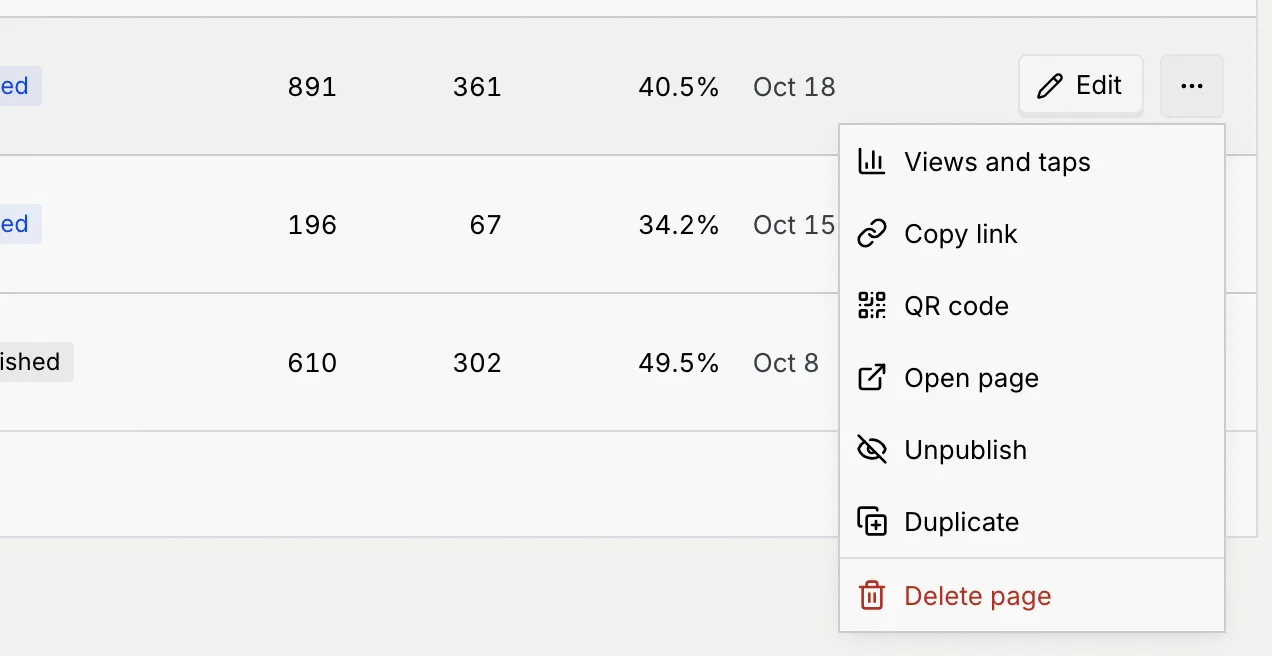
| Item | What it does |
|---|---|
| **Edit** | Opens the editor (also the **Edit** button on each row). |
| **Views and taps** | Opens the page's numbers. |
| **Copy link**, **Open page** | Copies or opens the page's address. On a page that isn't live the item reads **Open page (shows it's unavailable)** and shows what visitors get. |
| **QR code** | The page's QR code to download or print. Not for drafts. Scans count under the **QR code** channel. |
| **Publish** / **Unpublish** | Puts the page live (**Page published. Anyone with the link can open it.**) or takes it down (**Page unpublished. Visitors see that it's been taken down.**). |
| **Duplicate** | Copies the page as a new draft with `-copy` added to its address, and opens the copy in the editor. |
| **Delete page** | Deletes the page with its views, after you confirm. Its address and printed QR codes stop working. This can't be undone. |
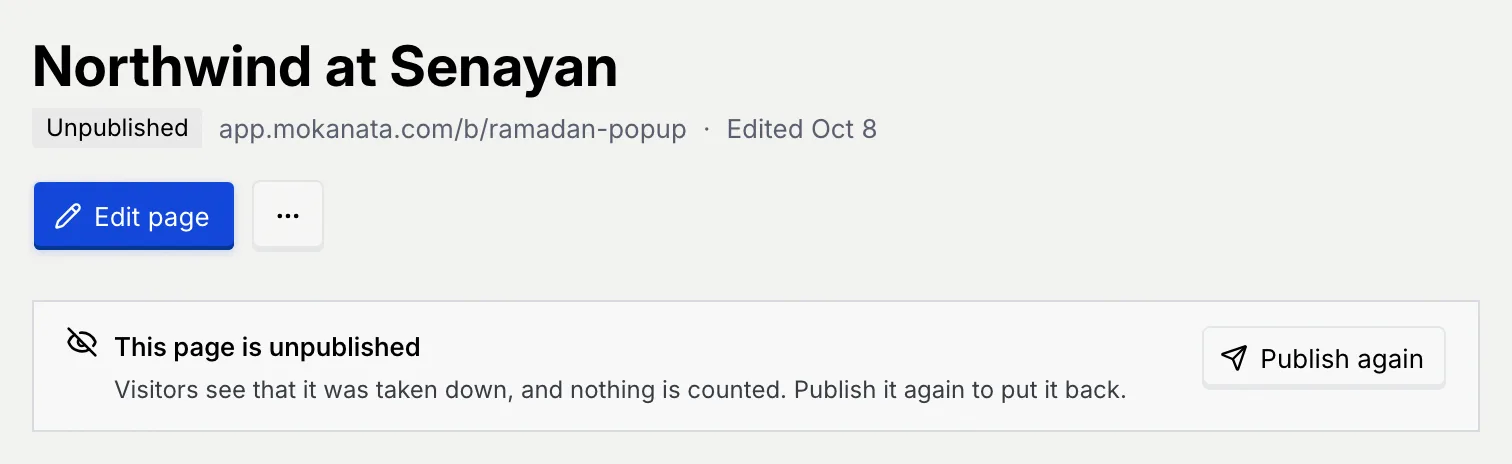
An unpublished page or a draft says so at the top of its details, with **Publish again** or **Publish**:
| Status | Meaning |
|---|---|
| **Published** | Live: anyone with the link can open it. |
| **Draft** | Never published. Nobody can open it yet. |
| **Unpublished** | Taken down. Visitors see that it was taken down, and nothing is counted. |
Changing a page's **Address** later breaks links already shared, so pick it carefully before you share the page.
## What visitors see [#what-visitors-see]
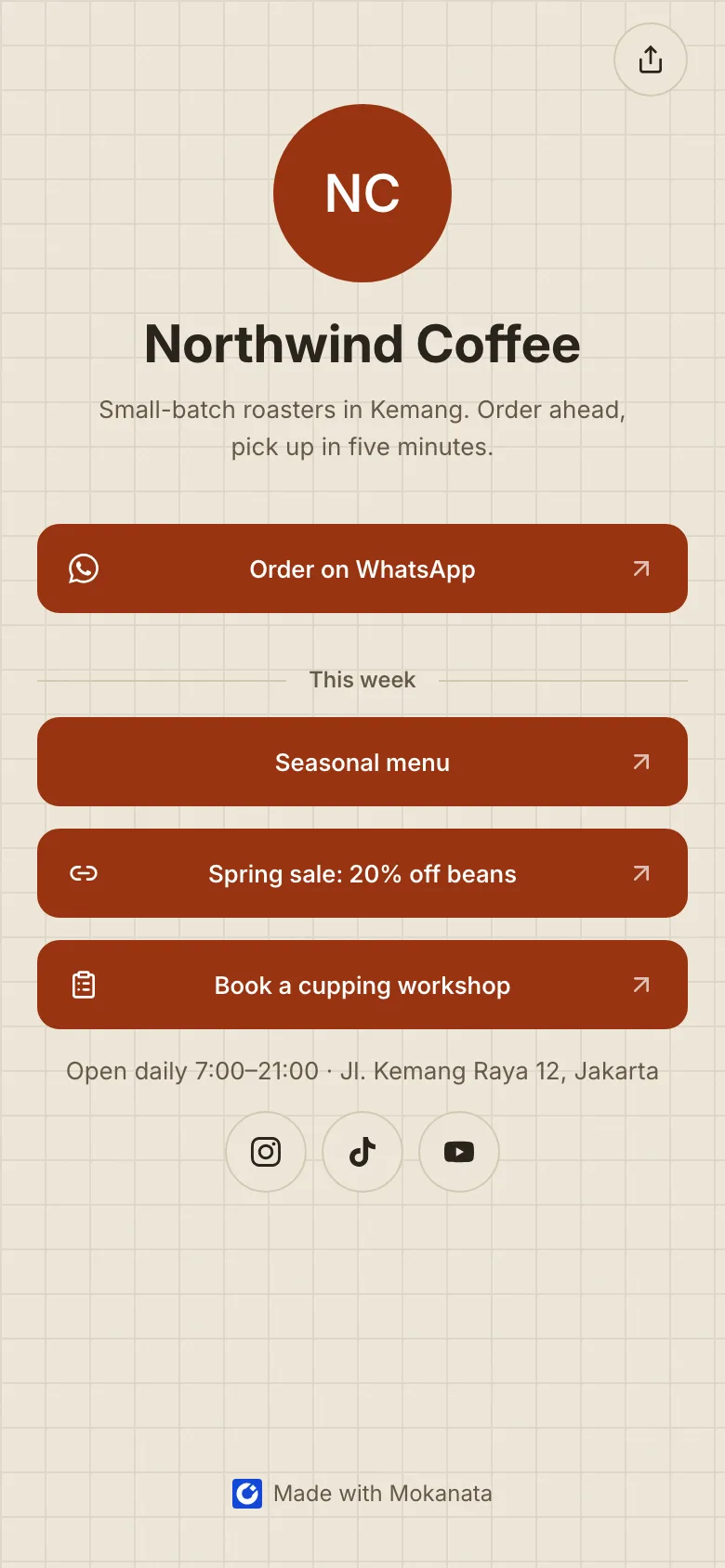
Each page lives at **app.mokanata.com/b/** followed by its address, for example app.mokanata.com/b/northwind-coffee. The published page fills the screen in your theme, with your picture or initials, name, bio and blocks. Opening the page counts a view and each tap counts on its block. The share button at the top right opens the phone's share sheet, or copies the link on a computer.
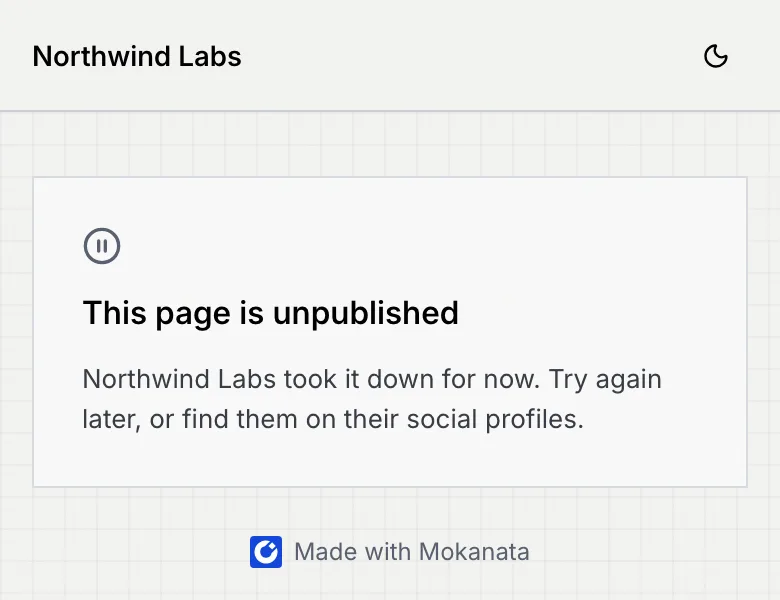
An unpublished page shows **This page is unpublished** with a note to try again later. A draft, or an address that doesn't exist, shows **This page doesn't exist**.
## Troubleshooting [#troubleshooting]
The **Address** field is empty: the grey text is a suggestion. Type the address, then publish.
The page was deleted, here or in another tab. Click **Back to link in bio** to return to the list.
Another of your pages, or another workspace, already uses it. Pick another.
Open it and fill in what's missing: a button label, a web address starting with https://, a number with its country code, a username, a short link or form to open, or at least one social profile. A heading or text block can't be empty; delete it if you don't need it.
Use a PNG, JPG, WebP or SVG up to 5 MB. If the file can't be read, try another.
## Next steps [#next-steps]