# Add and import contacts (/docs/contacts/import-contacts)
Most contacts arrive on their own when someone messages a connected channel. Add one by hand when someone reached out another way, such as at an event or by phone, or import a CSV to bring your list over from another CRM.
- **Who can use it:** Owners, admins and members can add contacts one at a time. Importing a CSV is for owners and admins by default, and an owner or admin can grant it to other roles. Without the permission, **New contact** is disabled with the reason on hover, and **Import contacts** isn't in the menu. See [Roles and permissions](/docs/settings/roles).
- **Before you start:** For a contact, know their name, company and one way to reach them (a phone number, email address or handle). For an import, have a `.csv` file with one contact per row.
## Add a contact [#add-a-contact]
### Open New contact [#open-new-contact]
On the [Contacts](/docs/contacts/contacts) page, click **New contact** or press N. On the board, you can also click **+** or **Add contact** in a column to start the contact in that stage.
### Fill in the person [#fill-in-the-person]
Under **Person**, enter their **Name** and **Company** (for a sole trader, use their own name). Pick the **Channel** you reach them on, then enter their handle there. The field changes with the channel:
| Channel | Field | Enter |
| --- | --- | --- |
| WhatsApp | **Handle** | The whole number with its country code, like `+1 415 555 0182`. Pick the country from the flag, or type the `+` code. |
| Email | **Address** | An email address, like `nadia@larkspur.io`. |
| Telegram | **Handle** | A username that starts with `@`, or a number that starts with `+`. |
| LinkedIn | **Handle** | The profile path from their LinkedIn URL, like `in/nadiaprasad`. |
| Facebook | **Handle** | The page or profile address, like `fb.com/fjordlabs`. |
| Instagram, TikTok, X, Threads | **Handle** | A handle that starts with `@`, like `@larkspurhq`. |
Switching between WhatsApp and another channel clears the field, because a phone number doesn't carry over into a handle.
A contact can keep a handle on any of these channels. Mokanata can message them on WhatsApp, Facebook and Instagram once those go live; Email, Telegram, LinkedIn, TikTok, X and Threads are coming soon (see [Connect a channel](/docs/channels/connect-a-channel#coming-soon)).
### Fill in the deal [#fill-in-the-deal]
Under **Deal**, pick the **Stage** (it starts on **Lead**) and the **Owner** (you, unless you pick a teammate). **Deal value** and **Close date** are optional. Type the value in your workspace's currency, with or without separators: `84000`, `84,000` and `$84,000` all work.
If your workspace has added custom fields or relations to Contacts, they appear below the deal under **Custom fields** or **Related records**. Required ones come first. See [Custom fields on contacts](/docs/contacts/contact-fields).
### Create the contact [#create-the-contact]
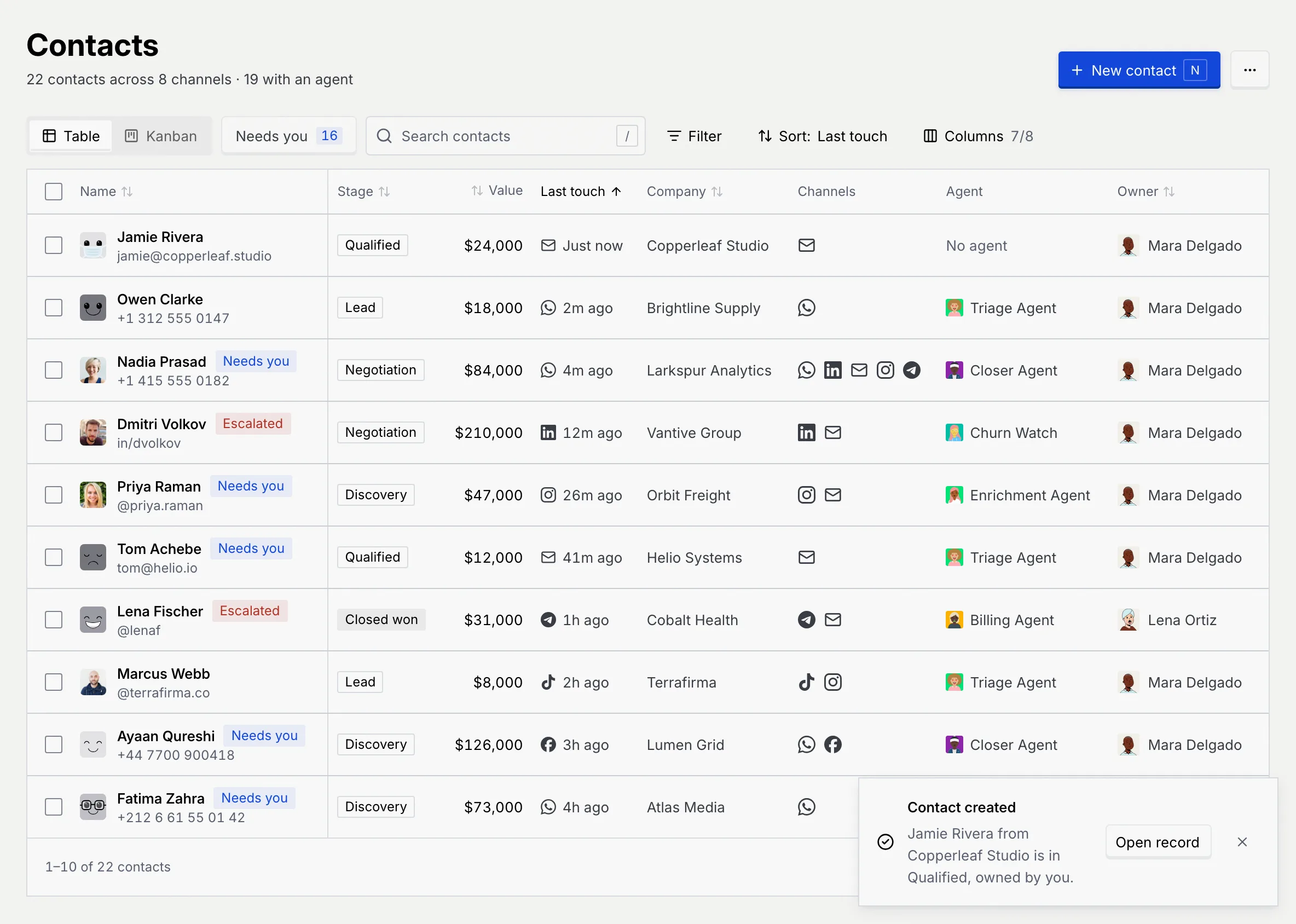
Click **Create contact** or press Enter. The dialog closes, the list goes back to its first page, and a notice confirms it: **Contact created**, with the stage and owner and an **Open record** button.
The new contact starts with no agent assigned. Their last touch reads **Just now**, and their timeline starts with a note that you created them.
### If a field is wrong [#if-a-field-is-wrong]
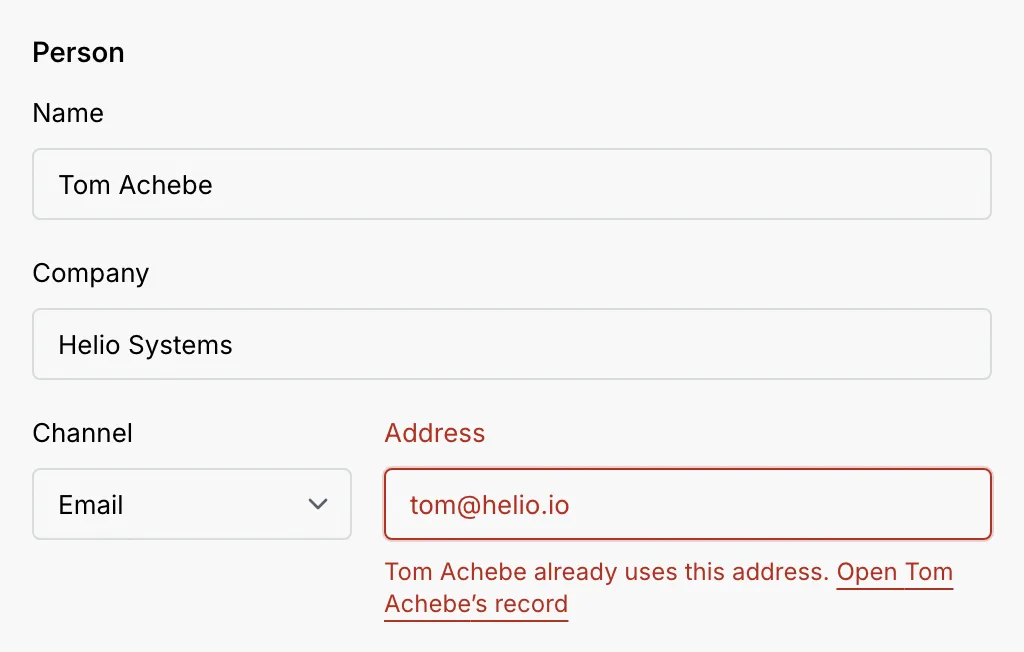
Mistakes show once you leave a field or click **Create contact**, under the field in red. Fix each one and create again.
When the handle already belongs to someone, the error names them and links to their record, so you can open it instead of creating a duplicate.
Once you've typed something, clicking outside the dialog doesn't close it. **Cancel** or Esc asks **Discard this contact?**: click **Keep editing** to go back, or **Discard** to close without saving.
## Import contacts from a CSV [#import-contacts-from-a-csv]
### Prepare the file [#prepare-the-file]
Save your list as a `.csv` file, with the column names in the first row and one contact per row: up to 500 contacts and 1 MB per file. Mokanata reads these columns, in any order:
| Column | Required | Also recognised as | Notes |
| --- | --- | --- | --- |
| `name` | Yes | full name, contact, contact name, person | At least two characters. |
| `company` | Yes | company name, account, organization, organisation, business | |
| `channel` | Yes | network, platform | WhatsApp, Facebook or Instagram, or a channel that's coming soon: Email, Telegram, LinkedIn, TikTok, X or Threads. Short forms work too: `wa`, `ig`, `insta`, `mail`, `e-mail`, `tg`, `fb`, and `twitter` for X. |
| `handle` | Yes | username, phone, phone number, email, email address, address, number, profile | Follows the same rules as the New contact form. |
| `stage` | No | deal stage, pipeline stage | Lead, Qualified, Discovery, Negotiation or Closed won (`won` and `closed` mean Closed won). Empty means Lead. |
| `value` | No | deal value, amount, deal size | Digits; `$` signs and commas are ignored. Empty means no value. |
Column names ignore capitals, and punctuation counts as a space, so `Full_Name` reads as full name. Files saved with semicolons instead of commas (common in European spreadsheet apps) work too. Other columns are ignored.
To start from a template, click **Download a template** in the import dialog. You get `mokanata-contacts-template.csv`:
```csv title="mokanata-contacts-template.csv"
name,company,channel,handle,stage,value
Nadia Prasad,Larkspur Analytics,WhatsApp,+1 415 555 0182,Negotiation,84000
Tom Achebe,Helio Systems,Email,tom@helio.io,Qualified,12000
```
### Open Import contacts [#open-import-contacts]
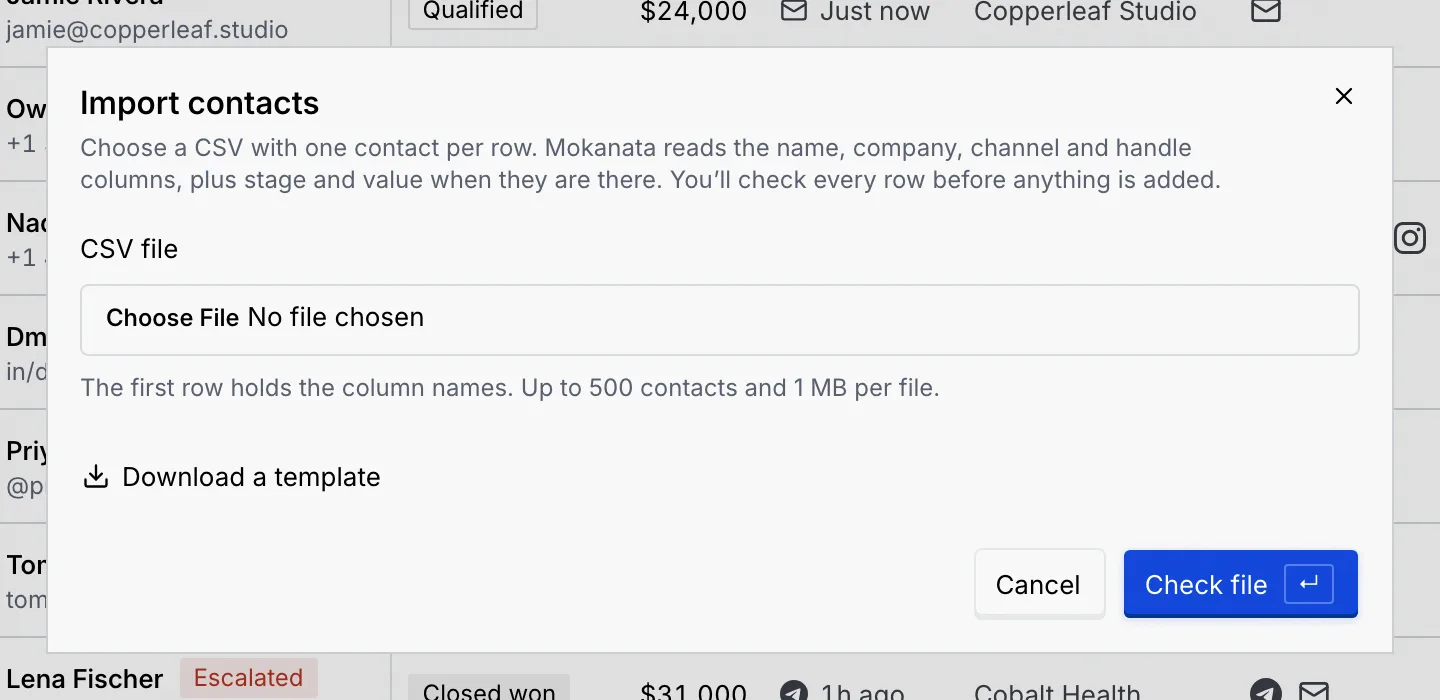
On the Contacts page, open the **⋯** menu next to **New contact** and click **Import contacts**. When the workspace has no contacts yet, the empty list offers **Import CSV** too.
### Choose the file and check it [#choose-the-file-and-check-it]
Under **CSV file**, choose your file, then click **Check file** or press Enter. Nothing is added yet: Mokanata reads every row and shows you what it found.
### Review every row [#review-every-row]
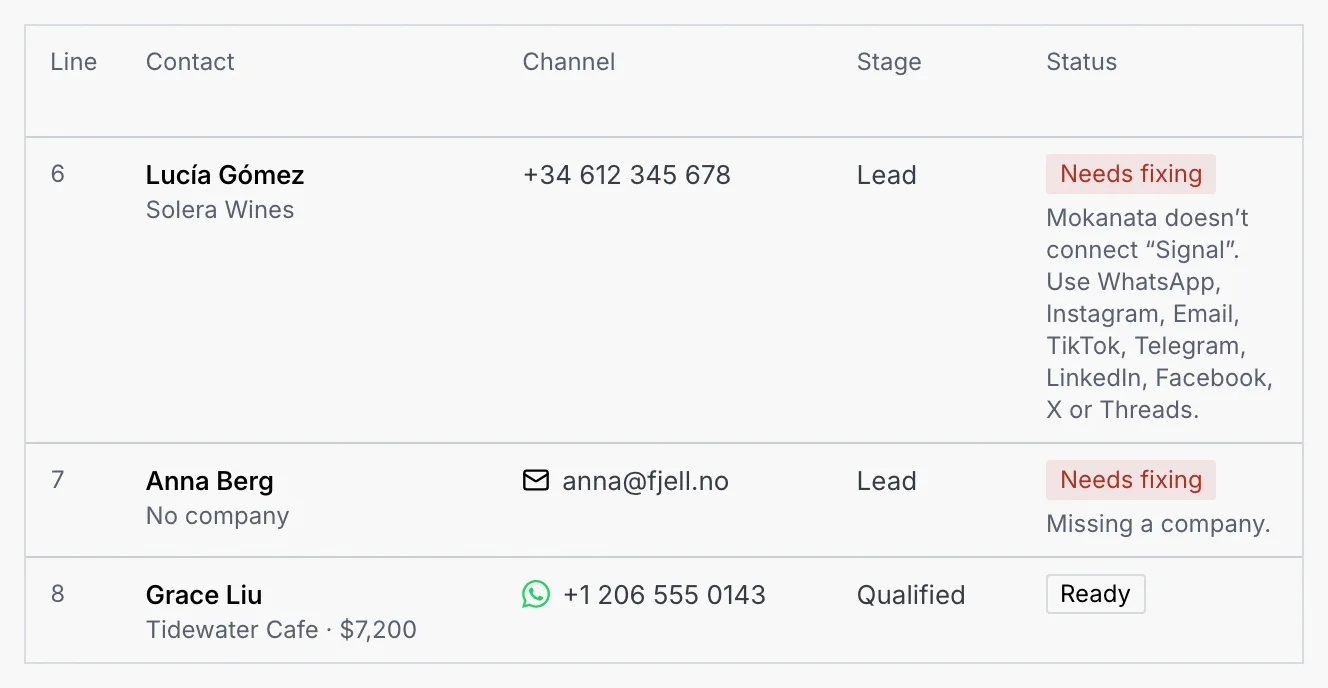
The dialog is now titled after your file. The line at the top sums it up, such as **4 ready · 1 already in Mokanata · 2 need fixing**, and the table lists each row with its line number in the file, so you can find it.
| Status | What it means |
| --- | --- |
| **Ready** | The row is added when you import. |
| **Skipped** | The person is already in Mokanata (same handle, or same name at the same company), or the same contact appears on an earlier line. The reason says which. |
| **Needs fixing** | Something in the row is missing or wrong. The reason says what; fix it in the file. |
Scroll the table to see every row. Rows that need fixing say exactly what's wrong:
To fix rows, correct the file, click **Choose another file** and check it again. You can also import the ready rows now and the fixed ones later: rows already in Mokanata are skipped next time.
### Import [#import]
Click **Import** with the number of ready contacts, such as **Import 4 contacts**. If no row is ready, the button reads **Nothing to import**.
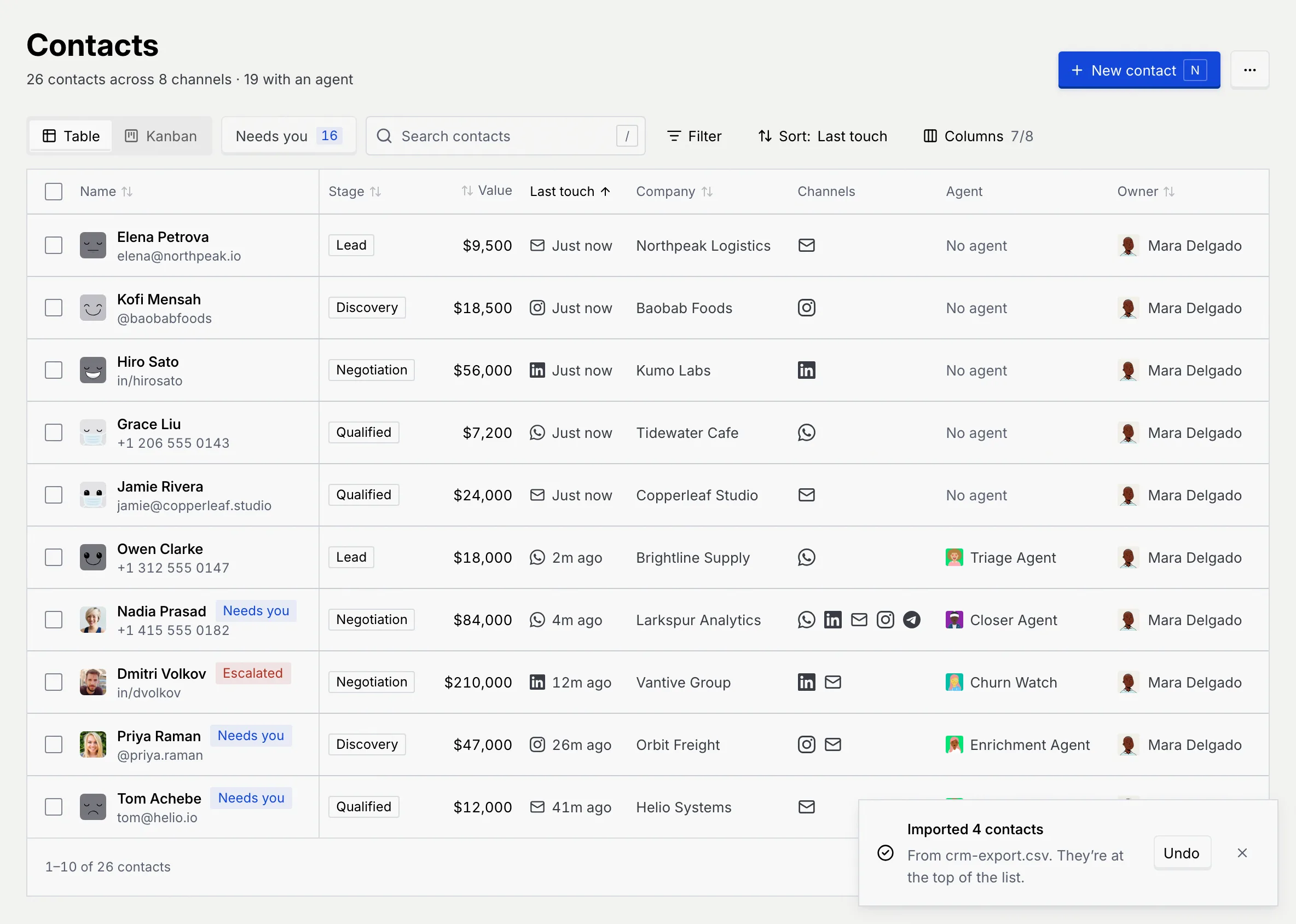
A notice confirms it: **Imported 4 contacts**, from your file, with **Undo**. Imported contacts start with no agent assigned and are owned by you. They appear at the top of the list, or at the top of their stage on the board. If a search, filter or other sort is on, the notice tells you how to see them.
The `value` column takes digits; dollar signs and commas are ignored. A dot counts as a decimal point, so `84.000` imports as 84, and text such as `Rp 84000` makes the row need fixing. Write `84000` or `84,000`.
## Troubleshooting [#troubleshooting]
You clicked **Check file** without choosing a file. Choose one under **CSV file**.
The file doesn't end in `.csv`. In your spreadsheet app, use **Save as** or **Download** and pick CSV (comma-separated values).
The file was renamed to `.csv` but is still a spreadsheet file inside. Export it as CSV from your spreadsheet app instead of renaming it.
One or more required columns (name, company, channel, handle) are missing, or their names aren't recognised. Rename the column to one of the names in the table above, or compare with the template.
A file can hold up to 500 contacts and 1 MB. Split it into smaller files and import them one after another.
Add a header row with the column names and one contact per row below it.
The channel isn't one Mokanata knows, or it's spelled in a way it doesn't recognise. Use one of the channel names in the `channel` column above.
Use one of the pipeline stages: Lead, Qualified, Discovery, Negotiation or Closed won. Leave the cell empty to start the contact as a Lead.
Saving failed, so nothing was added. The dialog stays open with what you entered or the rows it checked; the message after it says why. Click **Create contact** or **Import** again.
Click **Undo** in the notice that follows the import to take the contacts out again. Later, you can select them in the list and delete them; see [Search, filter, sort, export and bulk changes](/docs/contacts/contact-filters).
## Next steps [#next-steps]