# Field types (/docs/contacts/field-types)
Every field on an object has a type. The type decides what the field can hold, which editor you get when you fill it in, how the value shows in tables and on record pages, and whether you can search, filter or sort by it.
- **Who can use it:** Owners and admins choose field types when they [create or edit an object](/docs/contacts/create-object). Anyone with the Create records or Edit records permission fills the fields in; by default that's owners, admins and members. See [Roles and permissions](/docs/settings/roles).
- **Before you start:** Nothing.
## Choose a field's type [#choose-a-fields-type]
### Open the field [#open-the-field]
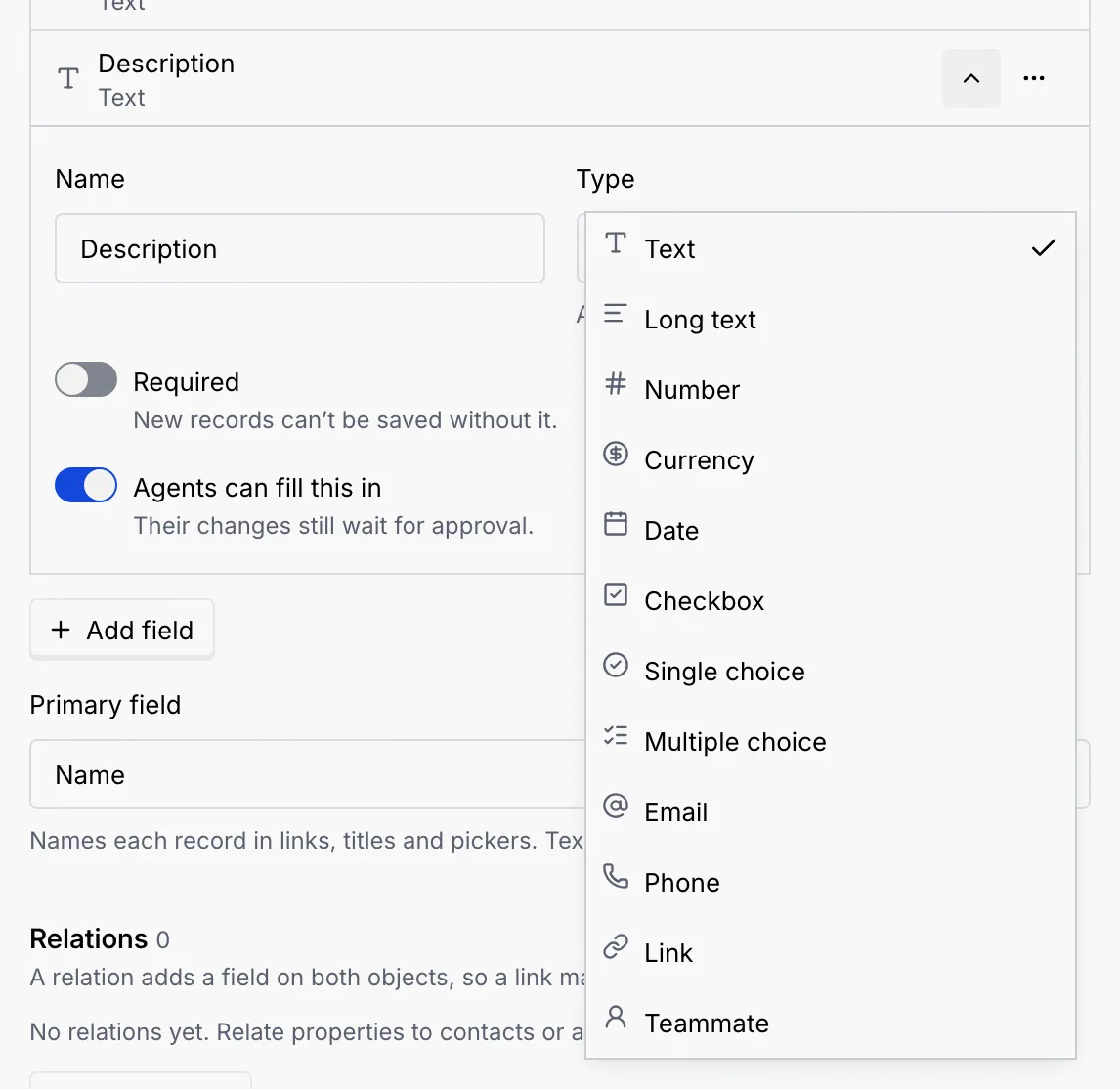
In the object sheet, click **Add field**, or click the arrow on an existing field to open it.
### Pick from Type [#pick-from-type]
Open **Type** and pick one of the twelve types. The line under the list describes the type you picked. A **Single choice** or **Multiple choice** field also needs its **Options**.
Each field row in the sheet shows its type under its name, with an icon for the type:
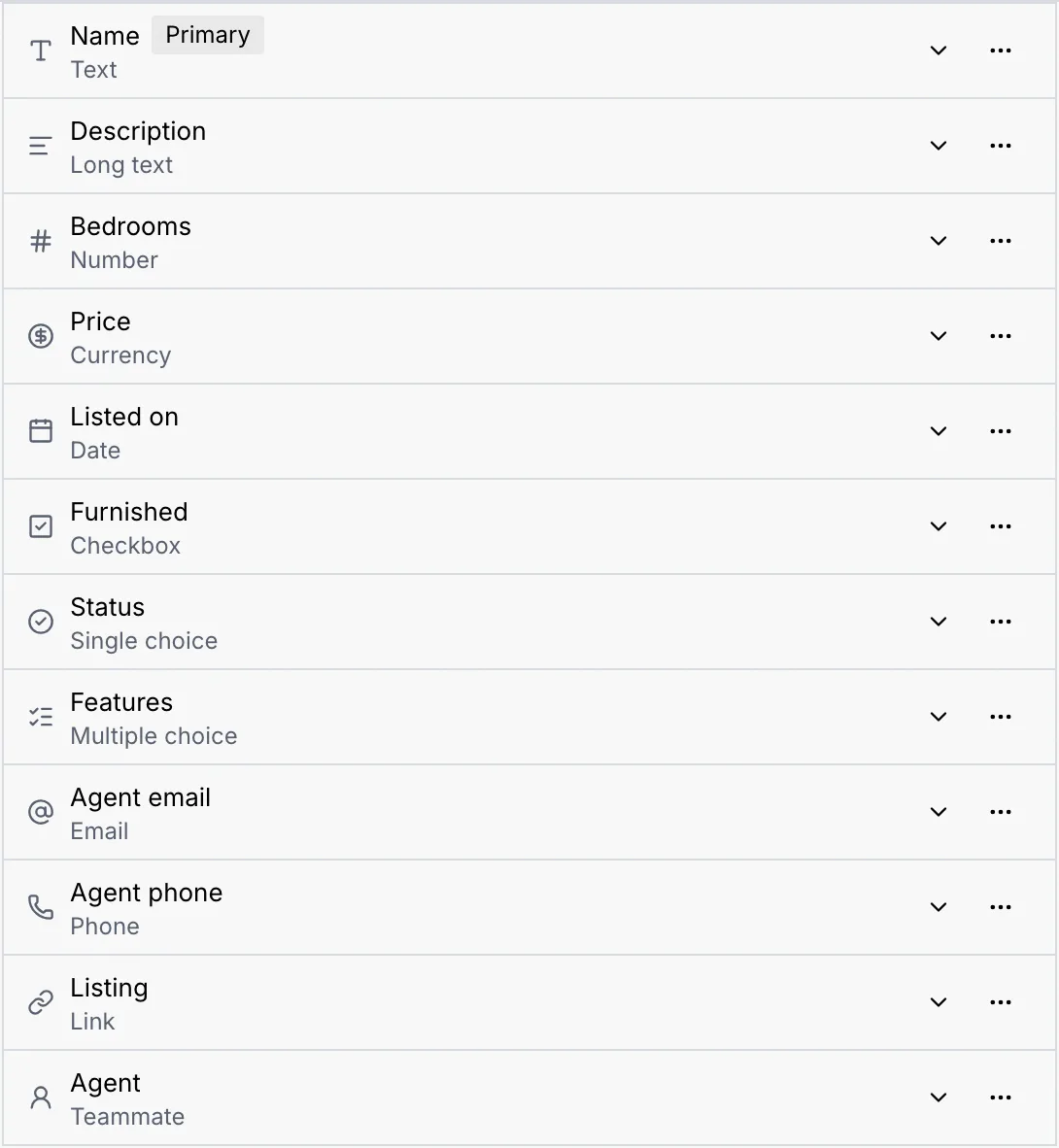
## Every field type [#every-field-type]
| Type | What it stores | How you fill it in | How it shows |
| --- | --- | --- | --- |
| **Text** | A short line, like a code or a name. | A text box. | The text. |
| **Long text** | Notes and descriptions. | A larger text box. In a table, ⌘ Enter (Ctrl Enter on Windows and Linux) saves, since Enter starts a new line. | The text, cut to two lines in tables. |
| **Number** | Counts and quantities. | A number box. Text it can't read as a number is refused with “Enter a number, like 4800.” | The number, formatted for your region. |
| **Currency** | An amount. | A number box in the workspace's currency; you can type the currency symbol or code too. | The amount in the workspace's currency, such as $450,000. See [Language and region](/docs/settings/language-region). |
| **Date** | A day, like a due date. | A date picker. | The date in the workspace's date format. |
| **Checkbox** | Yes or no. | A checkbox. In a table it saves as soon as you tick it. | **Yes** or **No**. |
| **Single choice** | One option from a list. | A list of the options, plus **Not set**. | The option as a badge. |
| **Multiple choice** | Any options from a list. | A searchable picker (**Pick options**). Type to narrow it; every option you pick shows as a chip with **×** to remove it. | One badge per option. |
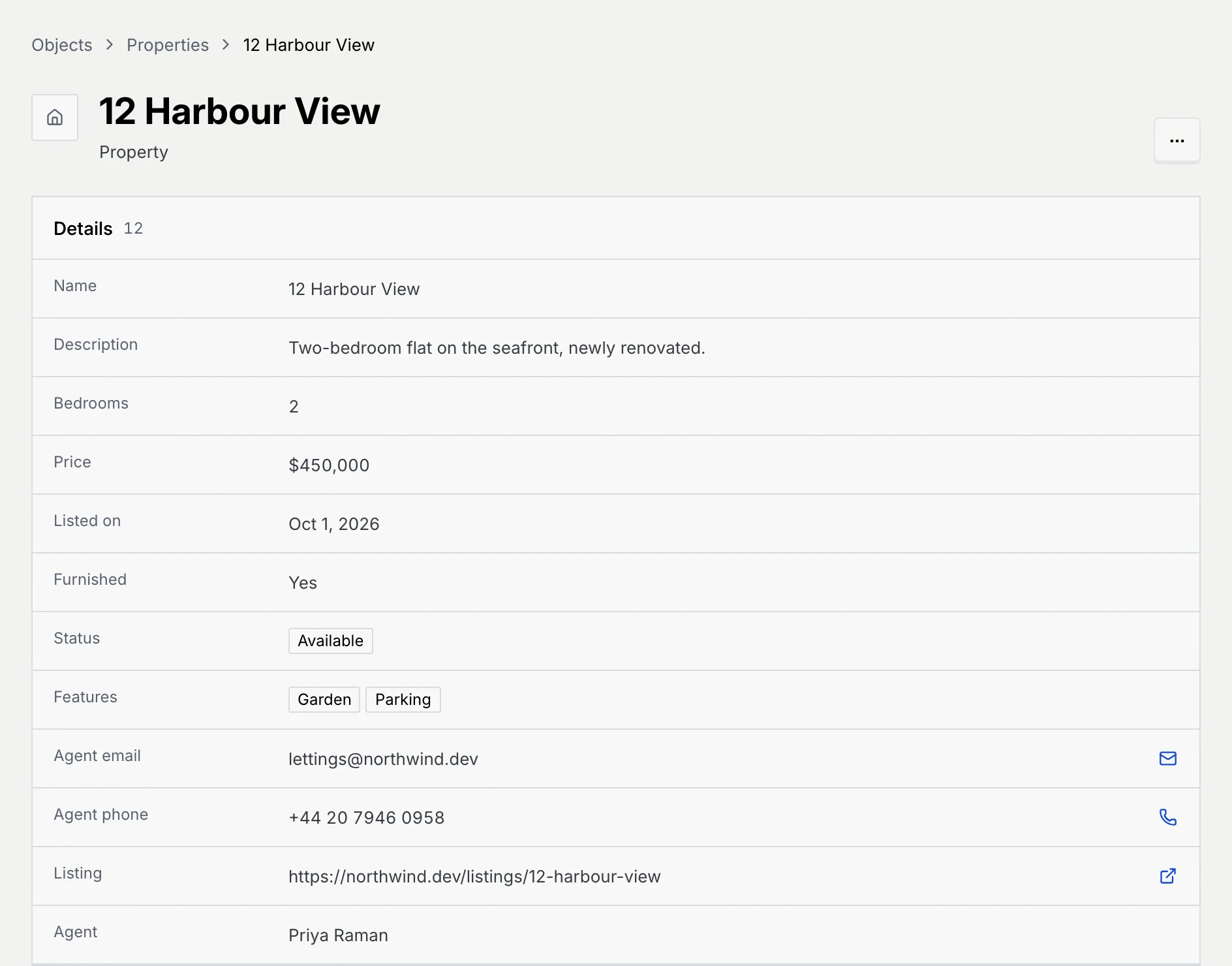
| **Email** | An email address. | An email box. | A link that opens your mail app, with a mail button beside it on the record page. |
| **Phone** | A number to call or message. | A phone box with a country picker. | A link that starts a call, with a phone button beside it on the record page. |
| **Link** | A web address. | A web address box. | A link that opens in a new tab, with an open button beside it on the record page. |
| **Teammate** | Someone in this workspace. | A list of the workspace's members, plus **Not set**. | The member's name, or **Former member** once they've left the workspace. |
| **Relation** | Links to records of another object (or of the same one). | Made under **Relations**, not **Add field**. You link and unlink records from the record page. See [Relate objects](/docs/contacts/relations). | The first two linked records as badges and **+** the rest in tables, or **None**. |
An empty value shows as **Not set**.
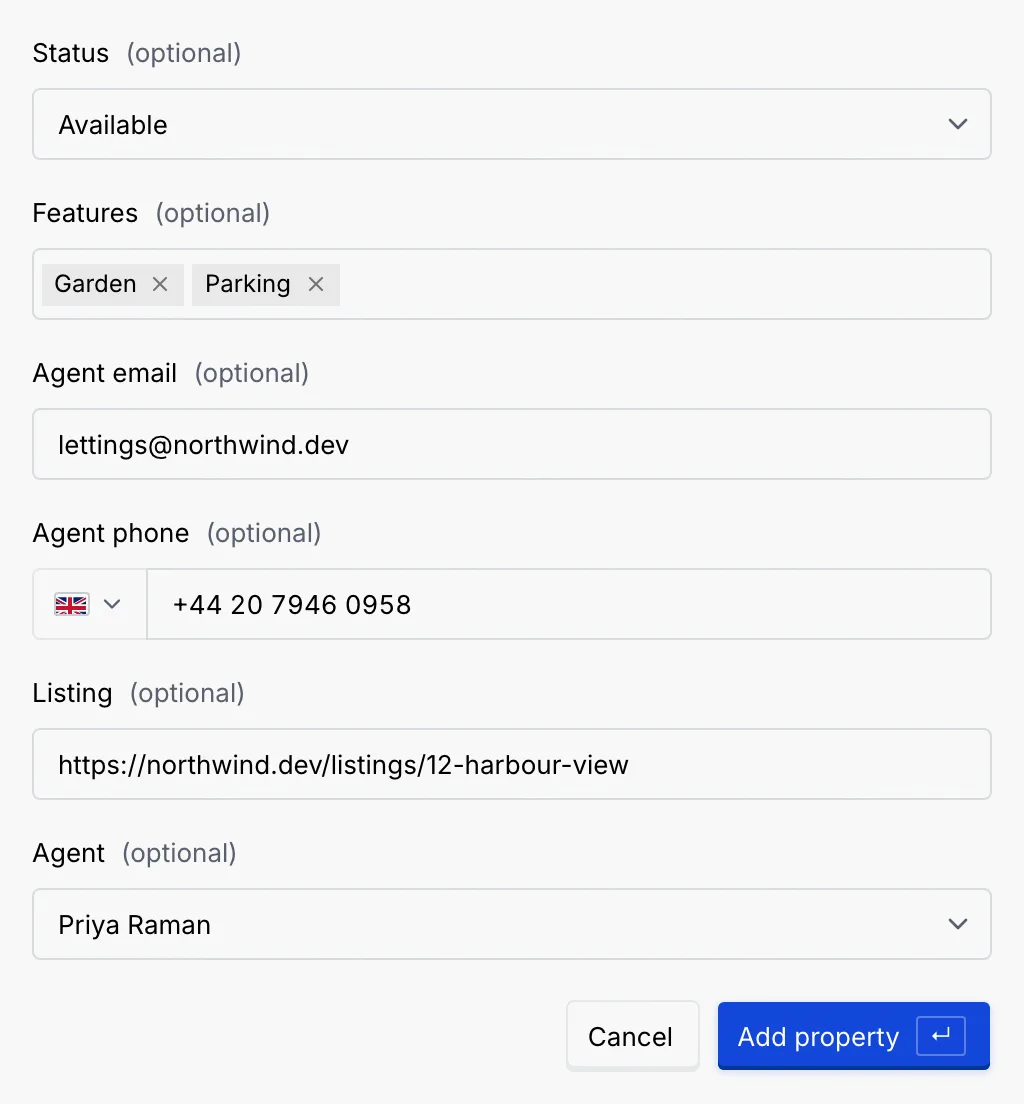
This is what the editors look like when you add a record:
And this is how the same values show on the record page:
## What you can do with each type [#what-you-can-do-with-each-type]
| Type | Can name records (primary field) | Searched by the table's search | Filter | Sort |
| --- | --- | --- | --- | --- |
| Text | Yes | Yes | | Yes |
| Long text | | Yes | | Yes |
| Number | Yes | | | Yes |
| Currency | Yes | | | Yes |
| Date | | | | Yes |
| Checkbox | | | **Yes** / **No** | Yes |
| Single choice | | Yes | Each option and **Not set** | Yes |
| Multiple choice | | Yes | Each option and **Not set** | Yes |
| Email | Yes | Yes | | Yes |
| Phone | Yes | Yes | | Yes |
| Link | Yes | Yes | | Yes |
| Teammate | | Yes | | Yes |
| Relation | | | | |
The primary field names each record in links, page titles and pickers. See [Work with records](/docs/contacts/records) for the table's search, **Filter** and **Sort**.
## Field settings [#field-settings]
Every field, whatever its type, has two switches:
- **Required** — new records can't be saved without it. A record added without it shows “… is required.” under the field. Required fields come first in the **New** record dialog; the others are marked **(optional)**.
- **Agents can fill this in** — agents may set this field when they propose a change. Their changes still wait for approval. Turn it off for fields only people should set, such as a price.
Choice fields also have **Options**: at least one, each with a different name. Removing an option from a saved field clears it from the records that had it.
## Change a field's type [#change-a-fields-type]
Once a field is saved, its type is fixed, with one exception: **Single choice** and **Multiple choice** can switch to each other. To change any other type, remove the field and add a new one of the right type. Removing a field deletes its values from every record, so copy anything you need first.
## Contacts' built-in fields [#contacts-built-in-fields]
Contacts comes with six fields of its own. They're locked: you can't rename, retype or remove them, but you can add your own fields next to them (see [Custom fields on contacts](/docs/contacts/contact-fields)).
| Field | Type |
| --- | --- |
| Name | Text (the primary field) |
| Company | Text |
| Stage | Single choice |
| Value | Currency |
| Owner | Teammate |
| Channels | Multiple choice |
## Fields from a connected database [#fields-from-a-connected-database]
When you sync a table from your database, each column becomes a field and its type is chosen from the column's type. You can't add fields to a synced object or change their types; they follow the table. See [Tables, columns, row filters and sync status](/docs/contacts/database-sync#how-columns-become-fields).
## Next steps [#next-steps]