# Deals, stages and owners (/docs/contacts/deals-and-stages)
Every contact carries one deal. Its stage puts the contact on the pipeline board, its value counts toward the pipeline totals, and its owner is the teammate responsible for it. Agents use the stage and close date to decide when and how to follow up.
- **Who can use it:** Owners, admins and members can change the owner, stage, value and close date. Without permission to edit contacts, the deal summary shows plain values and cards on the board can't be dragged. Viewers can't own deals. See [Roles and permissions](/docs/settings/roles).
- **Before you start:** Open a contact's record; see [The contact record](/docs/contacts/contact-record).
## The pipeline stages [#the-pipeline-stages]
| Stage | Win likelihood | Notes |
| --- | --- | --- |
| **Lead** | 10% | Where new contacts start, unless you pick another stage. |
| **Qualified** | 25% | |
| **Discovery** | 40% | |
| **Negotiation** | 60% | |
| **Closed won** | 100% | Agents stop pricing follow-ups. Moving a deal in or out asks you to confirm. |
Win likelihood follows the stage. Some deals show a more specific estimate from their history; when the stage changes, it goes back to the stage's figure. Stage badges are outlined for open stages and grey for Closed won.
## Read the deal summary [#read-the-deal-summary]
The strip under a record's header holds the deal's facts. Click **Owner**, **Stage**, **Deal value** or **Close date** to change it. **Last touch** and **Win likelihood** are read-only.

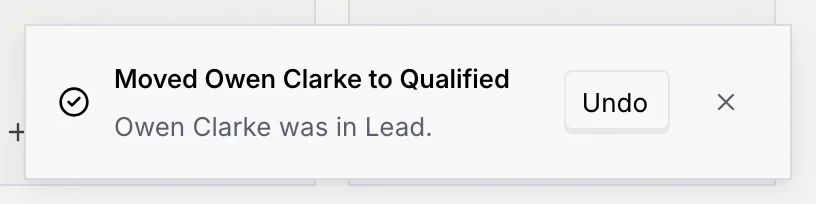
Every change applies at once, goes on the contact's timeline, and shows a notice with **Undo**.
## Change the owner [#change-the-owner]
### Open the owner menu [#open-the-owner-menu]
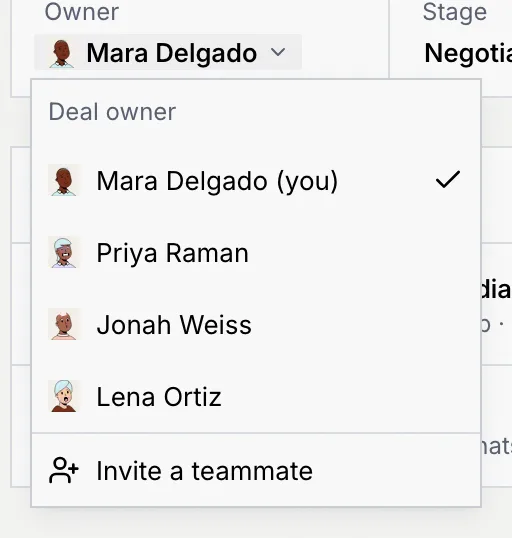
On the record, click the name under **Owner**. The **Deal owner** menu lists you, marked **(you)**, and every teammate who can own deals.
### Pick the new owner [#pick-the-new-owner]
Click a teammate. The notice says who owns the deal now, such as **You own Nadia Prasad’s deal**. To add someone who isn't in the workspace yet, owners and admins can click **Invite a teammate**; see [Members and invites](/docs/settings/members).
To change the owner of many deals at once, select them in the list and use **Change owner**; see [Change many contacts at once](/docs/contacts/contact-filters#change-many-contacts-at-once).
## Move a deal to another stage [#move-a-deal-to-another-stage]
You can move a deal from the record, from the board or from the list.
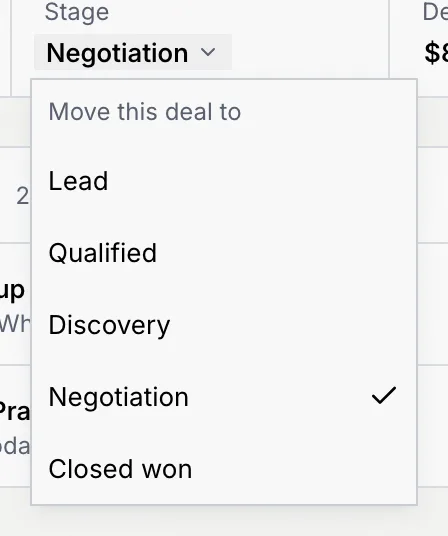
Click the stage under **Stage** and pick one under **Move this deal to**. You can also click a stage on the pipeline path in the **Deal** tab.
On the Kanban view of [Contacts](/docs/contacts/contacts#work-the-pipeline-as-a-board), drag the card to another column, or open the card's **⋯** menu and pick a stage under **Move to**.

Select rows in the table, click **Move to stage** in the bar at the bottom and pick a stage. See [Change many contacts at once](/docs/contacts/contact-filters#change-many-contacts-at-once).
Most moves happen at once. The notice names the move and the stage the deal came from, with **Undo**:
## Mark a deal Closed won [#mark-a-deal-closed-won]
### Move it to Closed won [#move-it-to-closed-won]
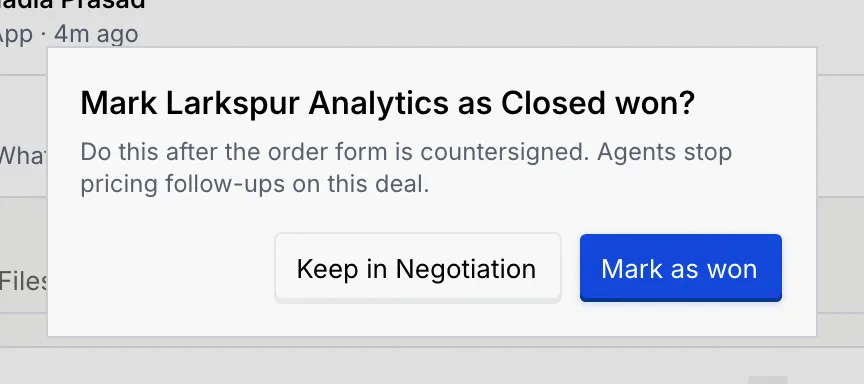
Move the deal to **Closed won** in any of the ways above. Mokanata asks first, because agents treat won deals differently.
### Confirm [#confirm]
Click **Mark as won**, or **Keep in** with the current stage to leave it where it is. The notice says the company **is Closed won**, and agents stop pricing follow-ups on the deal.
To reopen a won deal, move it to another stage. Mokanata asks **Reopen** with the company name: the deal moves back to the stage you picked and agents pick up follow-ups again. Click **Reopen deal** to confirm. Moving several deals at once where some are won asks once for all of them.
## Change the deal value [#change-the-deal-value]
### Open the value [#open-the-value]
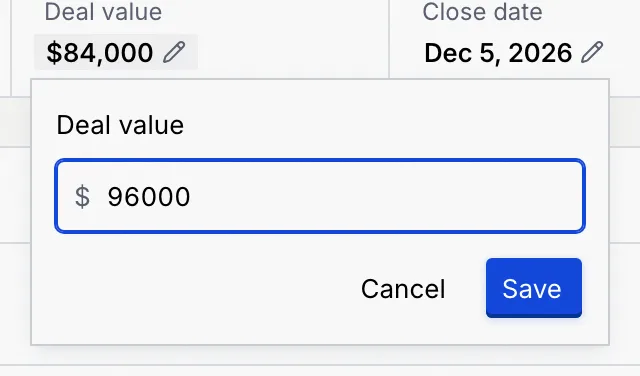
On the record, click the amount under **Deal value** (or **Not set**).
### Type the new value and save [#type-the-new-value-and-save]
Type the amount in your workspace's currency, with or without separators, and click **Save**. Enter `0` to clear it. The notice gives the old value, and the pipeline totals update.
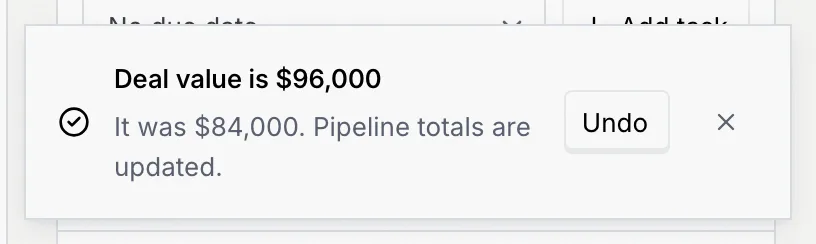
The currency comes from your workspace's settings; see [Language and region](/docs/settings/language-region).
## Set the close date [#set-the-close-date]
### Open the calendar [#open-the-calendar]
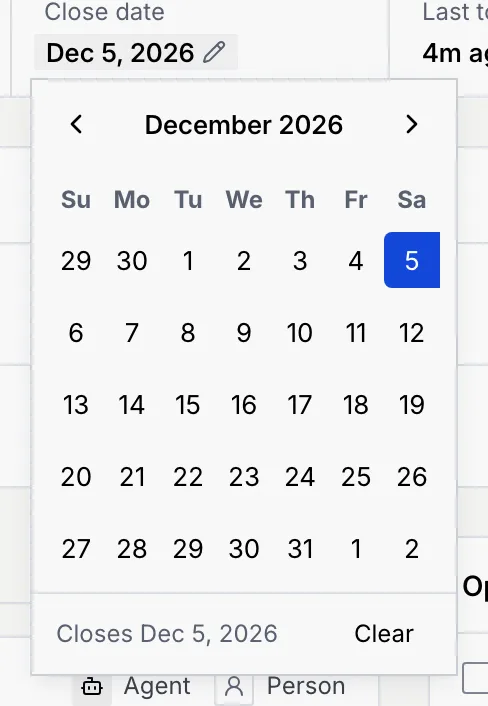
On the record, click the date under **Close date** (or **Not set**).
### Pick the day [#pick-the-day]
Click the day you expect to sign. It saves right away. To remove the date, click **Clear**. Agents use the close date to time their follow-ups.
## Use the Deal tab [#use-the-deal-tab]
The record's **Deal** tab shows the deal as a whole: its name, its stage, the pipeline path and its facts. The panel's title says when it closes, such as **Closes Dec 5, 2026**.
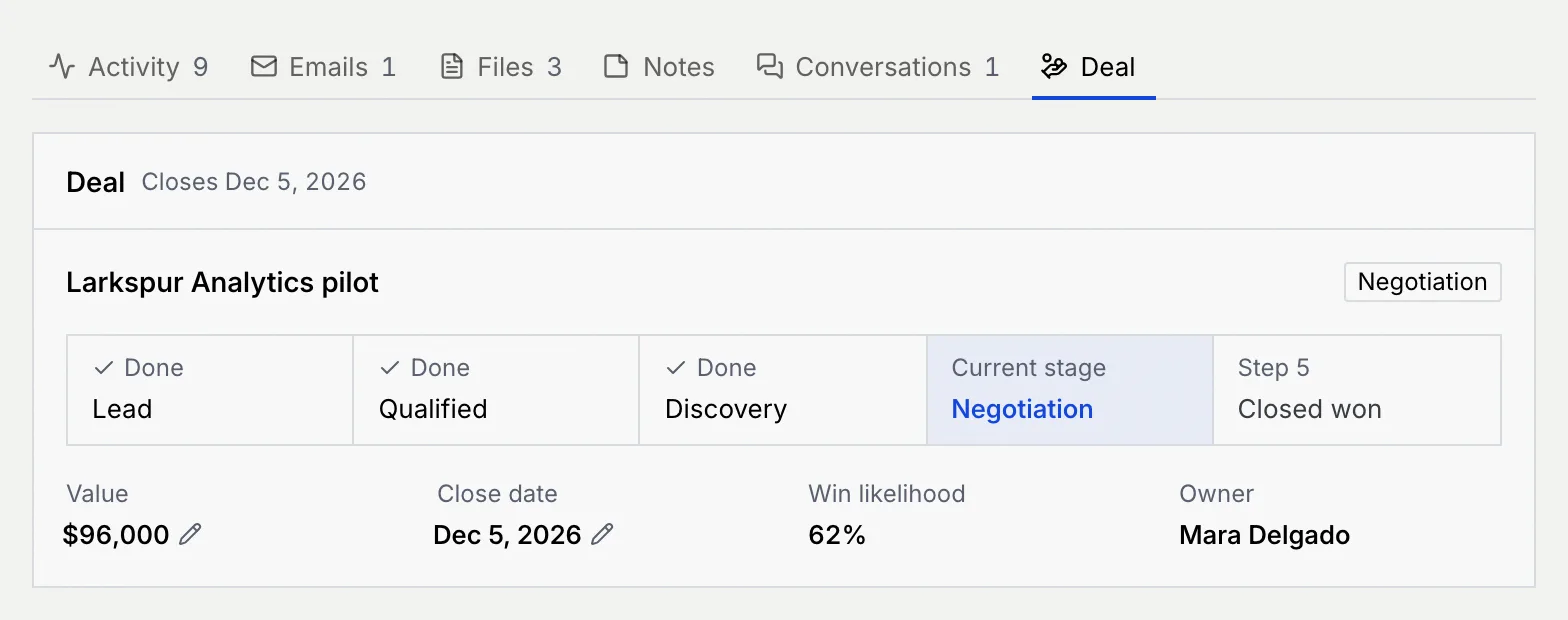
- **The pipeline path** marks earlier stages **Done**, the **Current stage**, and later ones by step number. Click any other stage to move the deal there.
- **Value** and **Close date** have the same editors as the deal summary.
- **Win likelihood** and **Owner** are shown for reference; change the owner from the deal summary.
## Troubleshooting [#troubleshooting]
Your role can't edit contacts, so the deal summary shows plain values. Ask an owner or admin to change your role; see [Roles and permissions](/docs/settings/roles).
Viewers can't own deals, and people who haven't joined the workspace aren't listed. Owners and admins can invite them from **Invite a teammate**.
Type the amount as a number, without letters or symbols other than separators. Values go up to the equivalent of 100,000,000 US dollars.
Click **Undo** in the notice right after the move. Later, move it back the same way; the timeline keeps both moves.
## Next steps [#next-steps]