# Tables, columns, row filters and sync status (/docs/contacts/database-sync)
A connected database syncs only what you choose: the tables you tick, the columns you keep and the rows that match your filters. This page covers those choices, how the tables turn into objects and fields, what the status dots mean, and how edits reach your database.
- **Who can use it:** Owners and admins change what syncs, pause, backfill and disconnect. Everyone else can open a sync's settings read-only (with a **Close** button) and read and edit its records according to their records permissions. See [Roles and permissions](/docs/settings/roles).
- **Before you start:** A connected database, or one you're connecting. See [Connect a database](/docs/contacts/connect-database) or [Try the sample database](/docs/contacts/sample-database).
## Choose tables [#choose-tables]
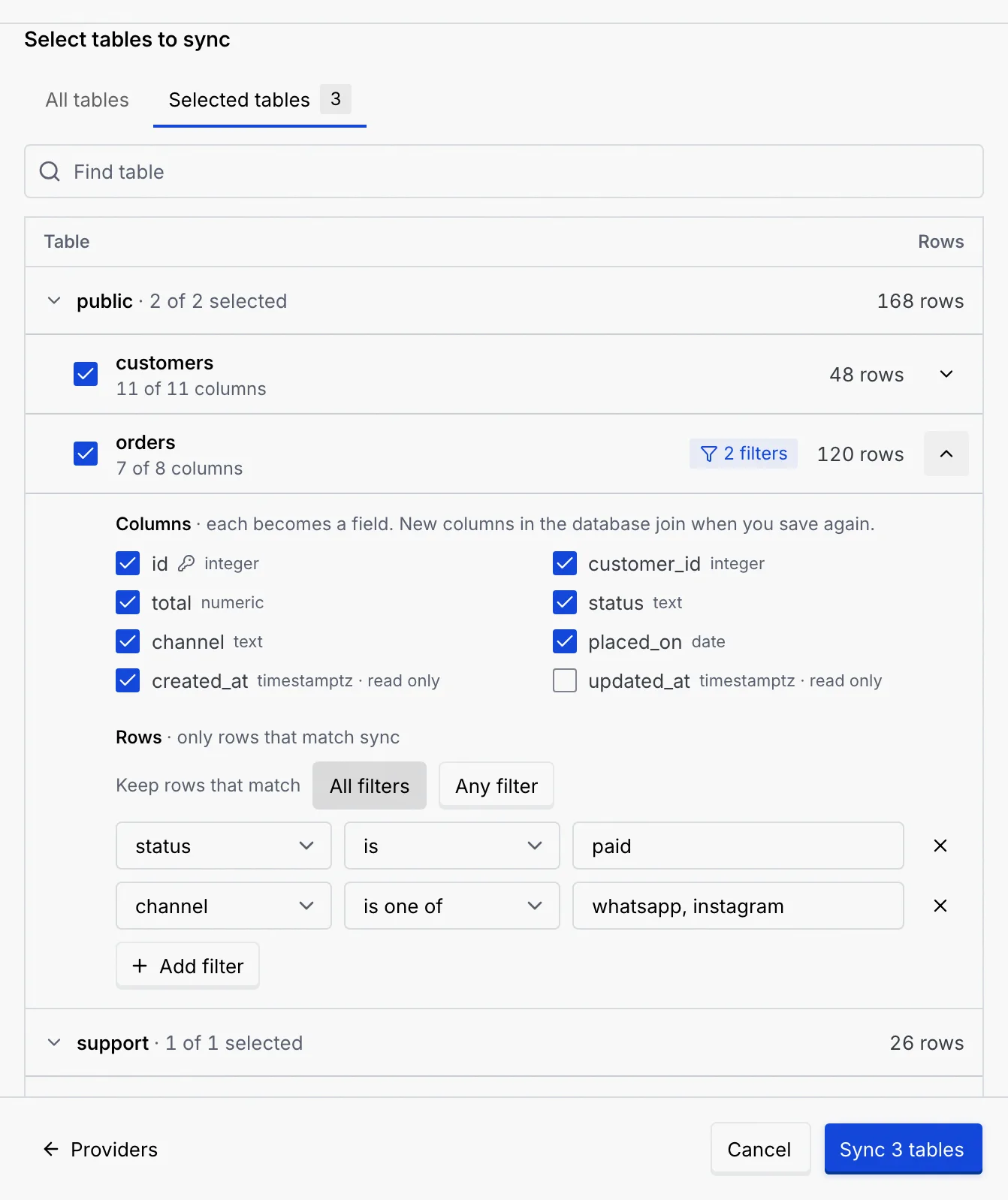
Under **Select tables to sync** (after a successful connection test):
- Tick a table to sync it, or **Select all tables**. Each table shows its column count and an estimate of its rows.
- With **All schemas** chosen, tables are grouped by schema. Click a schema's name to fold it; its line shows how many of its tables are selected.
- **Find table** narrows the list by name. **Selected tables** shows only what you've ticked, with its count; **All tables** shows everything again.
- A table without a primary key shows “No primary key, so its rows can't be tracked” and can't be ticked.
## Choose columns [#choose-columns]
### Open the table [#open-the-table]
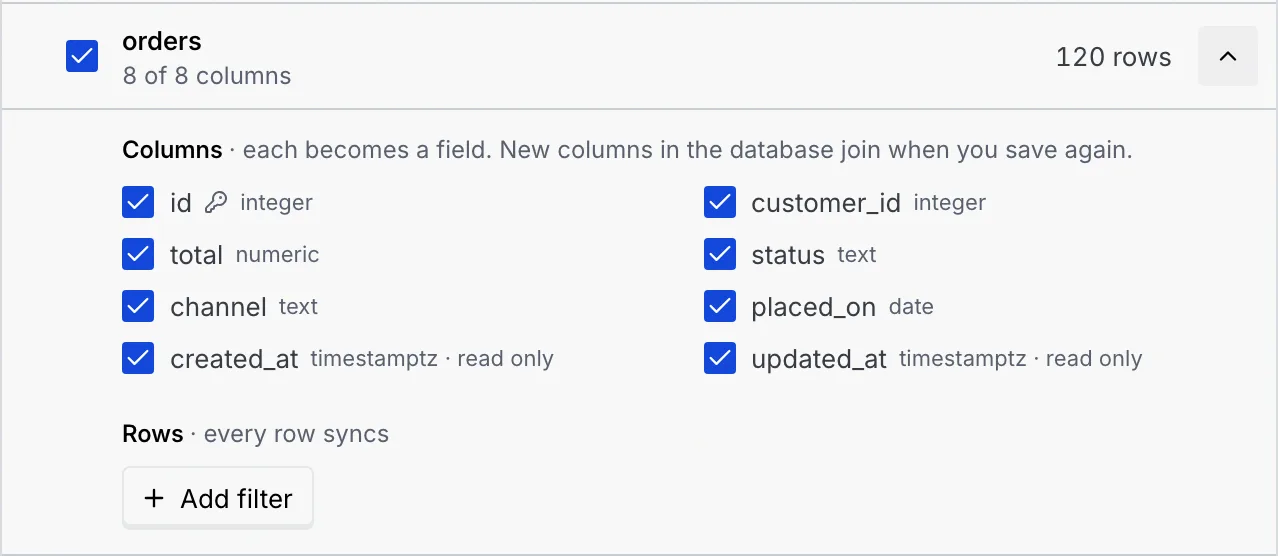
Tick the table, then click the arrow at the end of its row (**Columns and filters for** the table). Its **Columns** and **Rows** settings open below it.
### Untick what you don't need [#untick-what-you-dont-need]
Each ticked column becomes a field on the object. The primary key (with a key icon) is always kept. Next to each column are its database type and, for timestamps and structured data, **read only**. The table's row then reads, for example, **7 of 8 columns**.
New columns added to the database later join the object the next time you save the sync.
## Filter rows [#filter-rows]
By default every row syncs. Add filters to sync only the rows you need, such as paid orders or open tickets.
### Add a filter [#add-a-filter]
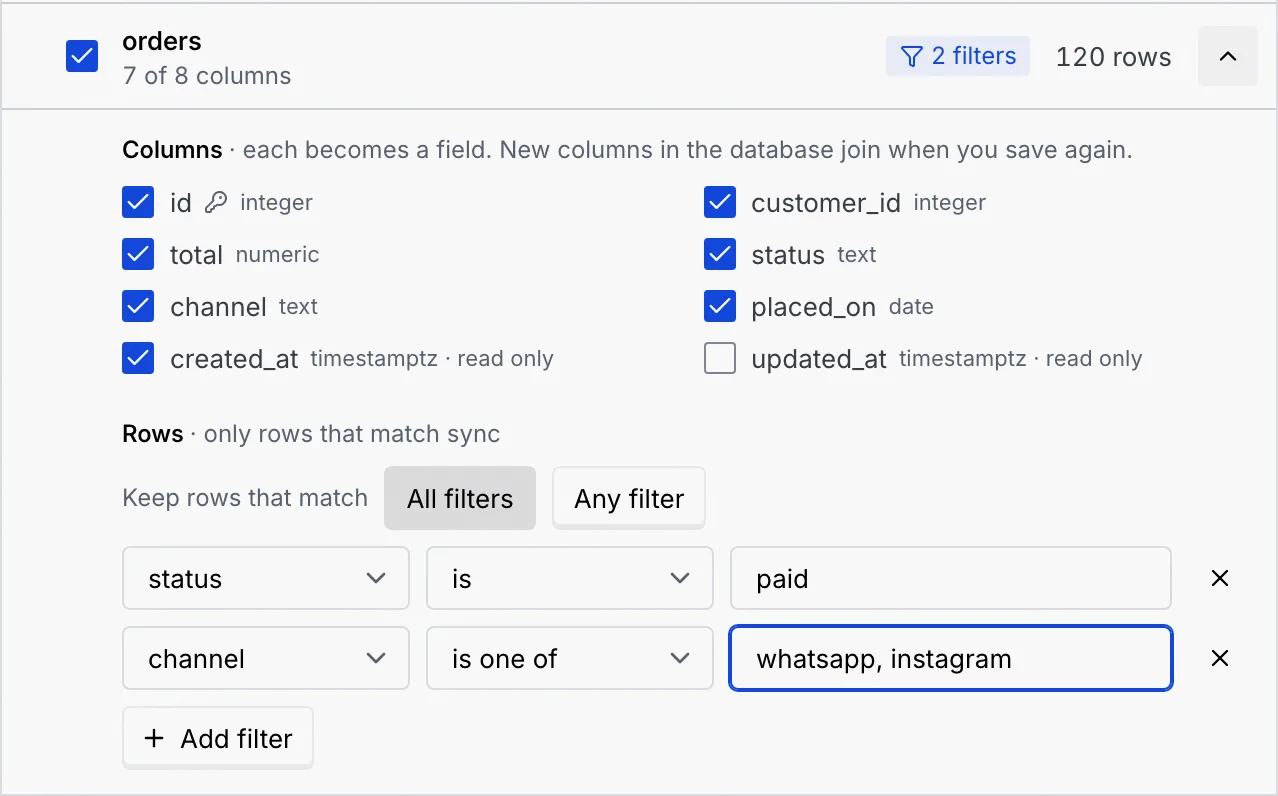
In the table's **Rows** settings, click **Add filter**. Pick the column, the condition and, for most conditions, a value. Add more filters the same way; **×** removes one.
### Decide how filters combine [#decide-how-filters-combine]
With two or more filters, **Keep rows that match** offers **All filters** (every filter must match) or **Any filter** (one is enough).
### Save [#save]
Save the sync (**Sync** followed by the number of tables, or **Save changes** for a connected database). The table's row shows a badge with its number of filters, and the connected database lists its filters as badges.
| Condition | Value | Keeps rows where the column… |
| --- | --- | --- |
| **is** | One value | equals the value |
| **is not** | One value | doesn't equal the value |
| **is more than** / **is at least** | A number or date | is greater than (or equal to) the value |
| **is less than** / **is at most** | A number or date | is smaller than (or equal to) the value |
| **contains** | Some text | contains the text |
| **is one of** | A list, separated by commas, such as `paid, pending` | equals any value in the list |
| **is empty** / **is not empty** | None | has no value / has a value |
Every filter that needs a value must have one: otherwise the sync can't be saved (“Give every filter a value, or remove it.”).
Filters keep working after the first sync: a row that stops matching leaves the object, and a row that starts matching joins it.
## How tables become objects [#how-tables-become-objects]
- **Names.** Each table becomes an object named after it: `order_items` becomes **Order item** / **Order items**. If another object already has that name, the sync's first word is added, as in **Orders (Northwind)**, then a number.
- **Icon.** Chosen from the table's name: orders and invoices get a receipt, products a package, customers and leads people, tickets a ticket, and so on.
- **Primary field.** The first of `name`, `full_name`, `title`, `display_name`, `email`, `label`, `code` or `number` that the table has; otherwise its primary key.
- **Badge.** Synced objects carry the sync's name and status dot in the objects list. You can't add fields to them or delete them from the list: they follow the table.
## How columns become fields [#how-columns-become-fields]
| Database column | Field type | Can you edit it? |
| --- | --- | --- |
| Integer, numeric, real and money columns | Number (amounts stay plain numbers) | Yes |
| Boolean | Checkbox | Yes |
| Date | Date | Yes |
| Timestamp | Date | No, set by the database |
| JSON, arrays, enums and binary data | Long text | No, set by the database |
| Text named like an email (`email`) | Email | Yes |
| Text named like a phone (`phone`, `mobile`, `whatsapp`) | Phone | Yes |
| Text named like a web address (`url`, `website`, `link`) | Link | Yes |
| Text named like notes (`notes`, `description`, `bio`, `summary`) | Long text | Yes |
| Any other text | Text | Yes |
| The primary key | As above | No, set when the row is created |
A column that can't be empty and has no default becomes a required field. See [Field types](/docs/contacts/field-types) for how each type shows and edits.
## Edit synced records [#edit-synced-records]
Synced objects work like any other: the table, record pages, links, agents, flows and forms all use them. What's different is where the data lives.
- **Edits write back.** Changing a value, adding a record or deleting one changes the row in your database. Changes made in the database show in Mokanata within seconds.
- **Some values are set by the database.** Keys, timestamps and structured data can't be changed in Mokanata; their values show **Set by the database** when you hover them.
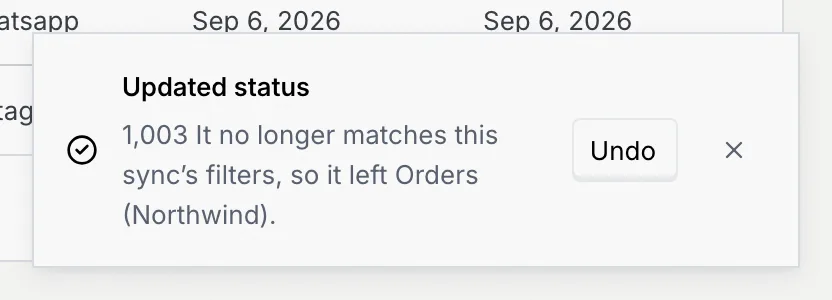
- **A row that stops matching leaves.** If an edit means the row no longer matches the sync's filters, it's saved to the database and leaves the object, and the notice says so (“It no longer matches this sync's filters, so it left …”). **Undo** writes the old value back.
- **A new row outside the filters** is saved to the database but not shown: “Saved to the database, but it doesn't match this object's filters, so it isn't shown here.”
- **While the sync is paused**, edits are refused: “Syncing … is paused. Resume it to save changes.”
- **Up to 5,000 rows per table.** If more rows match, the first 5,000 by primary key sync, and the connected database says which tables are affected. Add a filter to narrow them.
A synced record's page looks like any other. Here is a synced order:
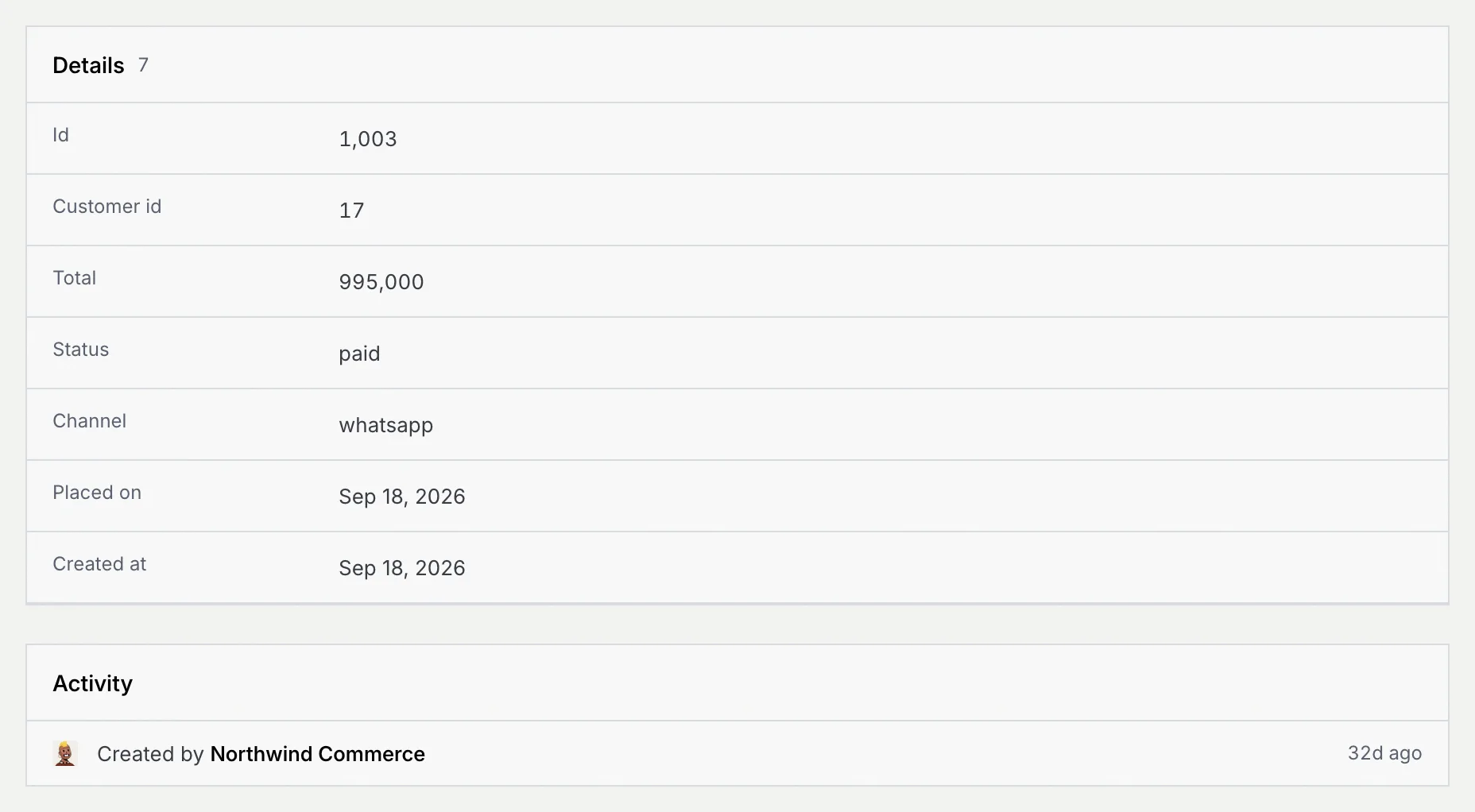
If you change its status so the row no longer matches the sync's filters, you see:
## Read the sync status [#read-the-sync-status]
Each connected database has a row in **Connected databases**: its provider, name and status, how many rows it holds, the changes received during this visit and when the last one arrived, the database it reads (user, host, port and database), a badge per synced table with its row count, and its filters.

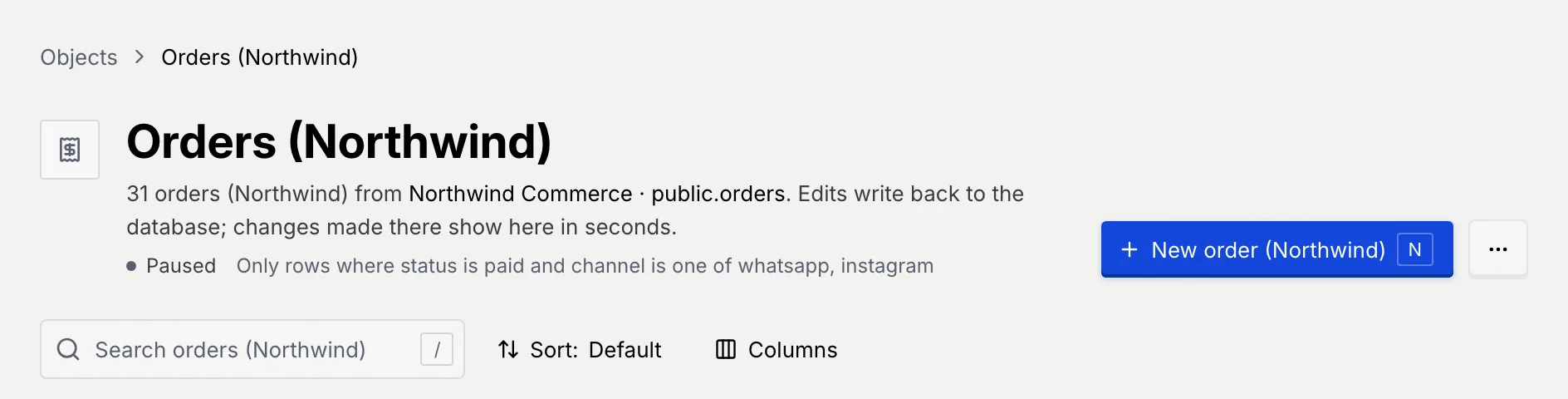
The same status shows on each synced table's page, under its title, with the filters that pick its rows:
| Status | What it means |
| --- | --- |
| **Connecting** | Mokanata is opening the connection. |
| **Backfilling** | Mokanata is copying the tables, the first time and after you change what syncs. |
| **Live · streaming** (blue dot) | Changes arrive as they're committed, through logical replication. |
| **Live · every 3s** (blue dot) | Mokanata checks for changes every 3 seconds. |
| **Paused** | Syncing is paused: nothing arrives and edits are refused until you resume. |
| **Sync error** (red dot) | The database returned an error, shown under the status. Mokanata keeps retrying. |
| **Server unreachable** (red dot) | Mokanata couldn't reach its sync service. It keeps retrying on its own. |
| **Not connected** (red dot, on a table's page) | The table's database was disconnected. |
## Change, pause or disconnect a sync [#change-pause-or-disconnect-a-sync]
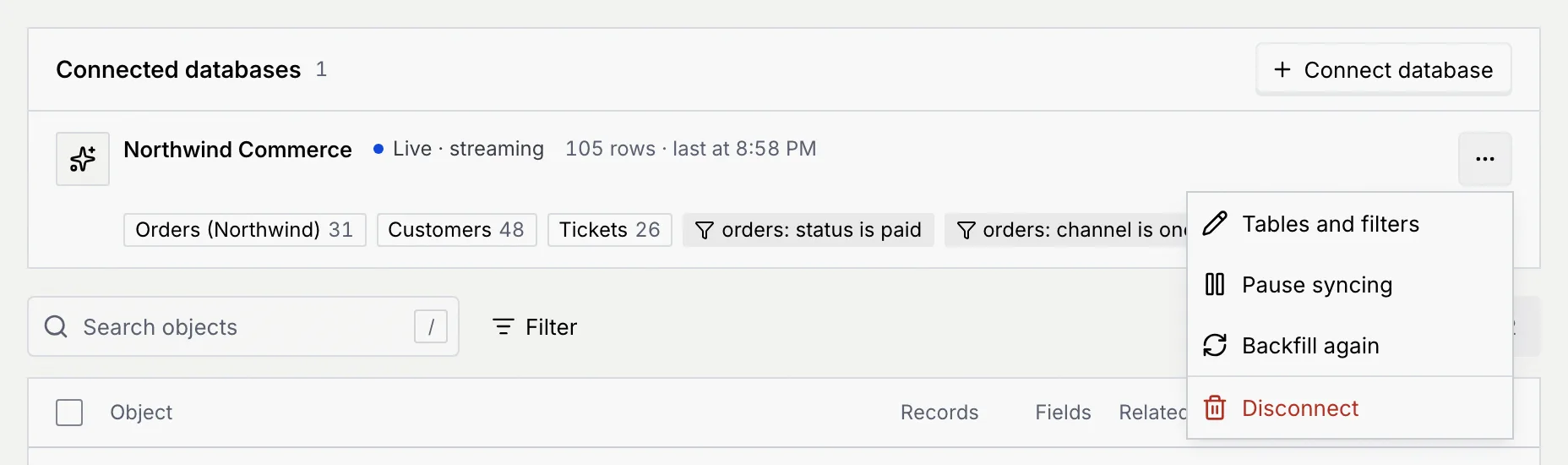
Open the **⋯** menu at the end of the database's row:
| Action | What it does |
| --- | --- |
| **Tables and filters** | Opens the sync's settings (as does clicking its name, or **Sync settings** on a synced object). Change the tables, columns and filters, then click **Save changes**: the sync backfills again. Unticking a table removes its object. |
| **Pause syncing** / **Resume syncing** | Stops and restarts the sync. While paused, the status reads **Paused** and edits to its records are refused. |
| **Backfill again** | Copies every table again from scratch, for example after granting the user new rights. Not available while paused. |
| **Disconnect** | Removes the sync and its objects from Mokanata. Nothing in the database changes. |

The settings sheet has the same **Pause syncing**, **Backfill again** and **Disconnect** in its **⋯** menu.
## Disconnect a database [#disconnect-a-database]
### Choose Disconnect [#choose-disconnect]
Open the database's **⋯** menu and click **Disconnect**.
### Confirm [#confirm]
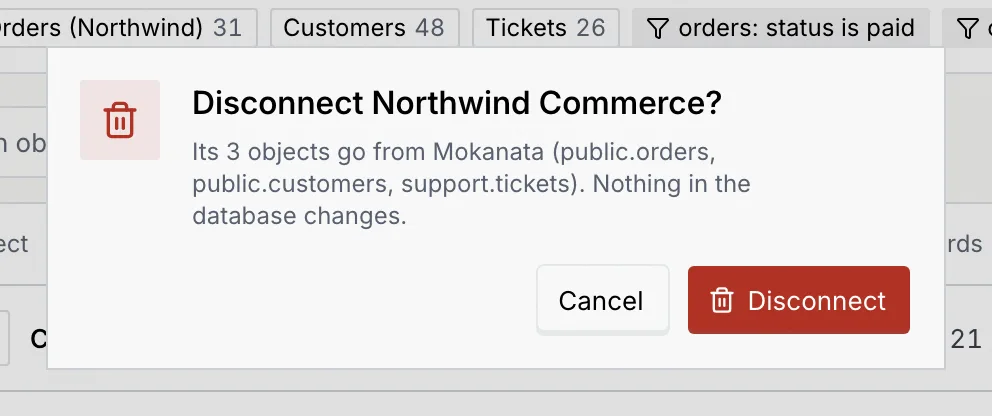
The confirmation lists the objects that go (one per synced table). Click **Disconnect**. Flows and forms that use those objects show a problem until you change them. Your database isn't touched, and you can connect it again later.
## Troubleshooting [#troubleshooting]
The edit made the row stop matching the sync's filters. It's saved in your database and left the object; the notice says so, and **Undo** writes the old value back.
Open the database's **⋯** menu and click **Resume syncing**, then make the change again.
Mokanata syncs up to 5,000 rows per table, the first by primary key. Add a row filter to narrow the table to what you need.
## Next steps [#next-steps]