# Create a custom object (/docs/contacts/create-object)
A custom object is a table of your own, such as orders, properties or vehicles. You set it up in one sheet: its name and icon, the fields every record gets, how it relates to contacts and other objects, and whether agents may create records in it. Nothing is saved until you click **Create object**.
- **Who can use it:** Owners and admins. Everyone else sees **New object** greyed out, and opening an object shows its fields read-only with a **Close** button. See [Roles and permissions](/docs/settings/roles).
- **Before you start:** Know what one record is (an order, a vehicle) and which details you want on each. You can add, rename and remove fields later.
## Create an object [#create-an-object]
### Open the New object sheet [#open-the-new-object-sheet]
Go to **Setup → Objects** and click **New object** (or press N). You can also start one from the **New object** button on the [data model canvas](/docs/contacts/data-model-canvas).
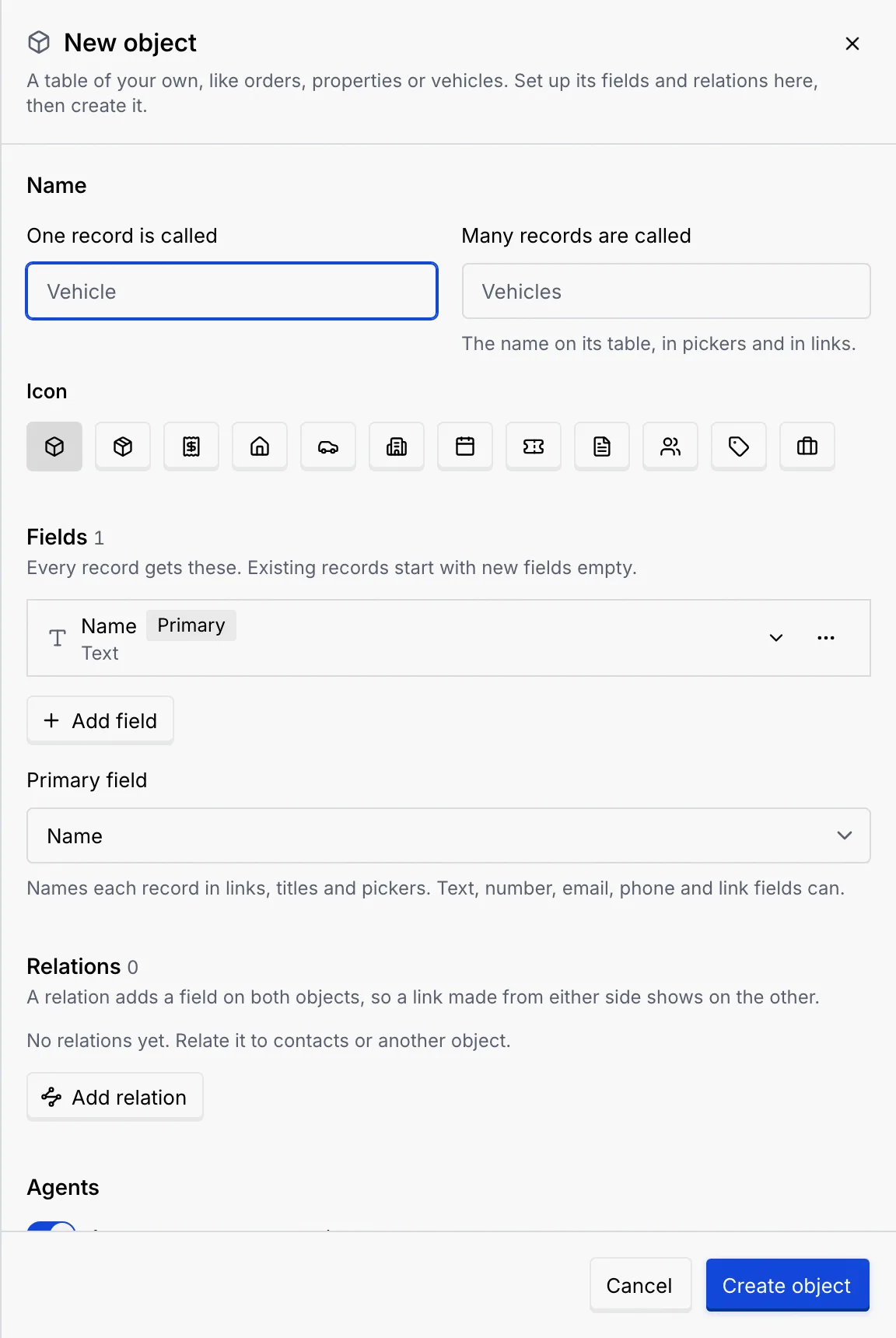
The sheet opens with a **Name** field already in place, set as the primary field.
### Name it and pick an icon [#name-it-and-pick-an-icon]
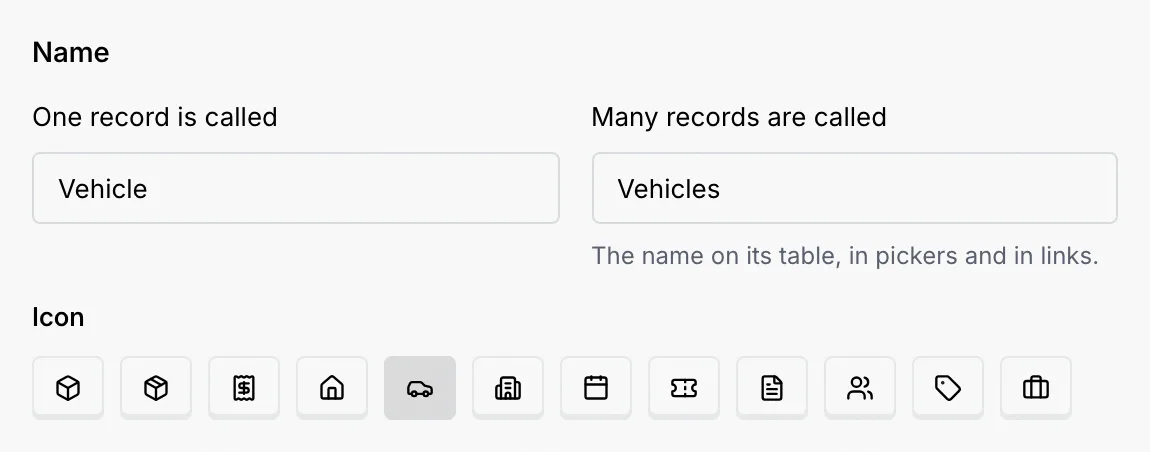
Under **One record is called**, type the singular, such as `Vehicle`. **Many records are called** fills in the plural (`Vehicles`) as you type; change it if the plural is irregular. The plural is the name on the table, in pickers and in links. Each name can be up to 40 characters and must differ from every other object's names.
Under **Icon**, pick one of the twelve icons: Box, Package, Receipt, Home, Car, Building, Calendar, Ticket, Document, People, Tag or Briefcase.
### Add fields [#add-fields]
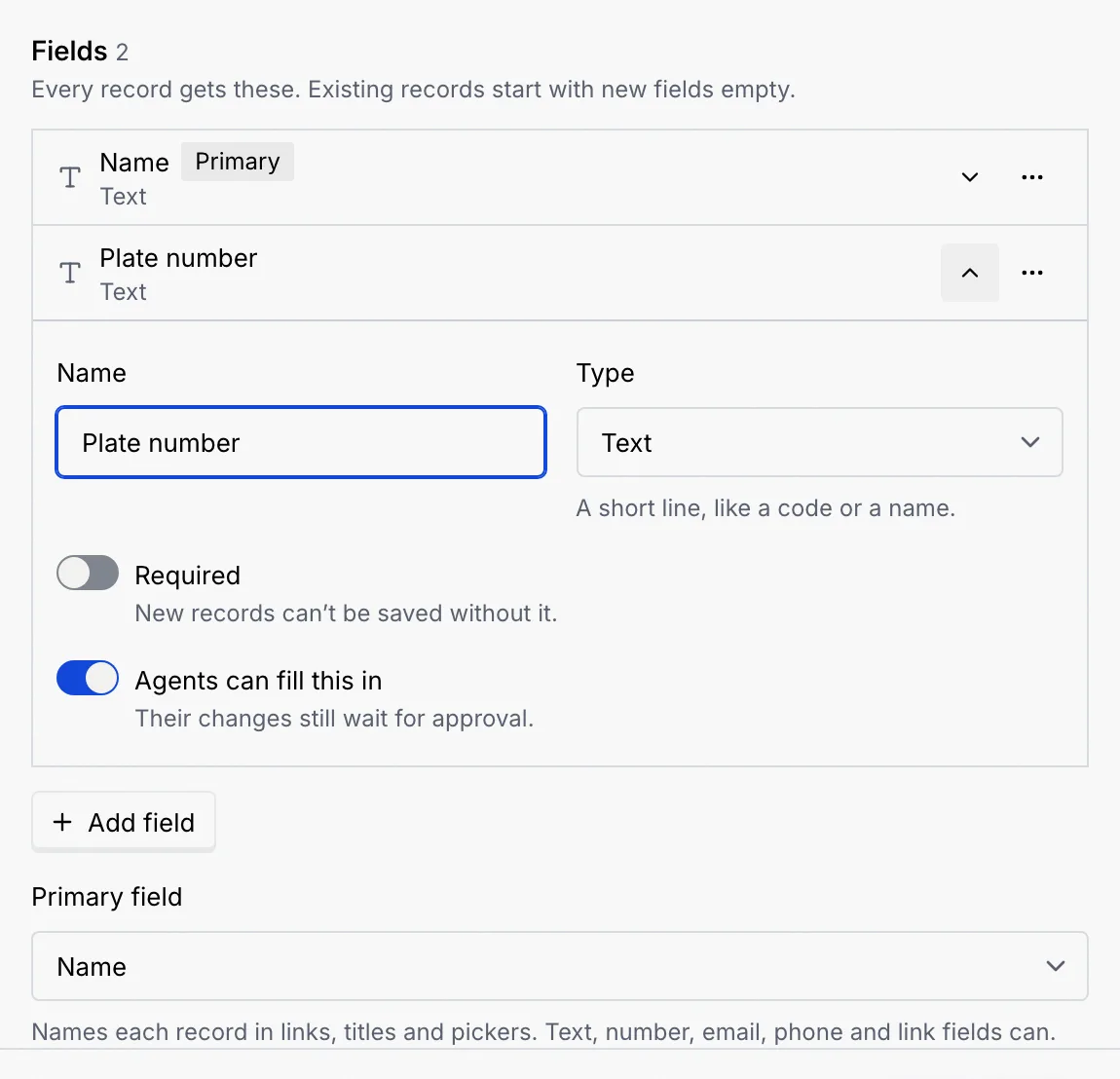
Click **Add field**. A new row opens with its settings:
- **Name** — what the field is called, such as `Plate number`. Names must be unique on this object, relation fields included.
- **Type** — what the field holds. The line under it describes the type you picked. See [Field types](/docs/contacts/field-types) for every type.
- **Required** — new records can't be saved without it.
- **Agents can fill this in** — agents may set this field. Their changes still wait for approval.
Click the arrow on a row to close or reopen it. The row's summary shows its type, and **Required** when it's on.
### Add the options of a choice field [#add-the-options-of-a-choice-field]
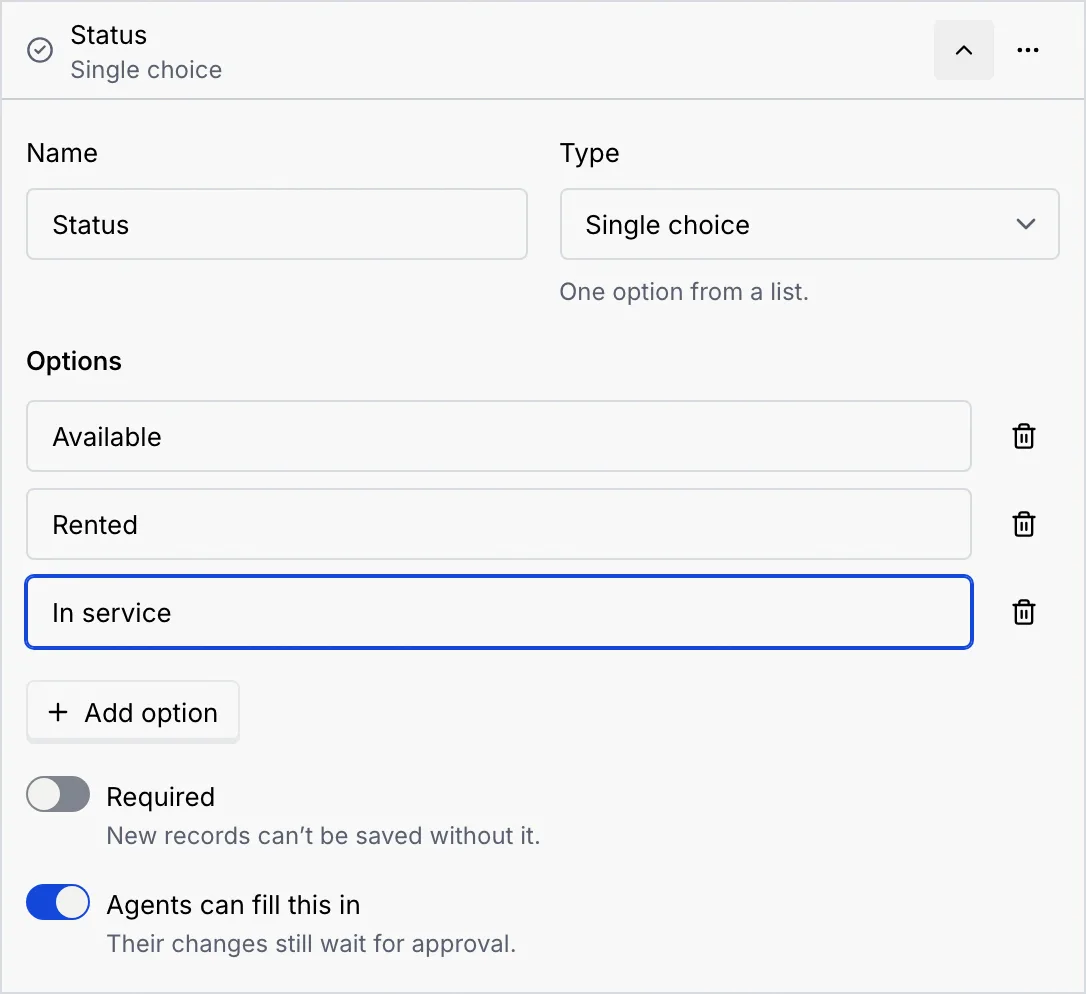
For a **Single choice** or **Multiple choice** field, an **Options** list appears. Type the first option, then click **Add option** for each one after it. The bin icon beside an option removes it.
### Choose the primary field [#choose-the-primary-field]
Under the fields, **Primary field** picks the field that names each record in links, titles and pickers. It can be a text, number, currency, email, phone or link field. A new object uses **Name** until you choose another.
### Relate it to other objects [#relate-it-to-other-objects]
Under **Relations**, click **Add relation**. The new relation links to Contacts as **Many to one** to start with; pick another object under **Relate to** and choose **How they link**. Each relation adds a field on both objects, named under **Field on** for each side.
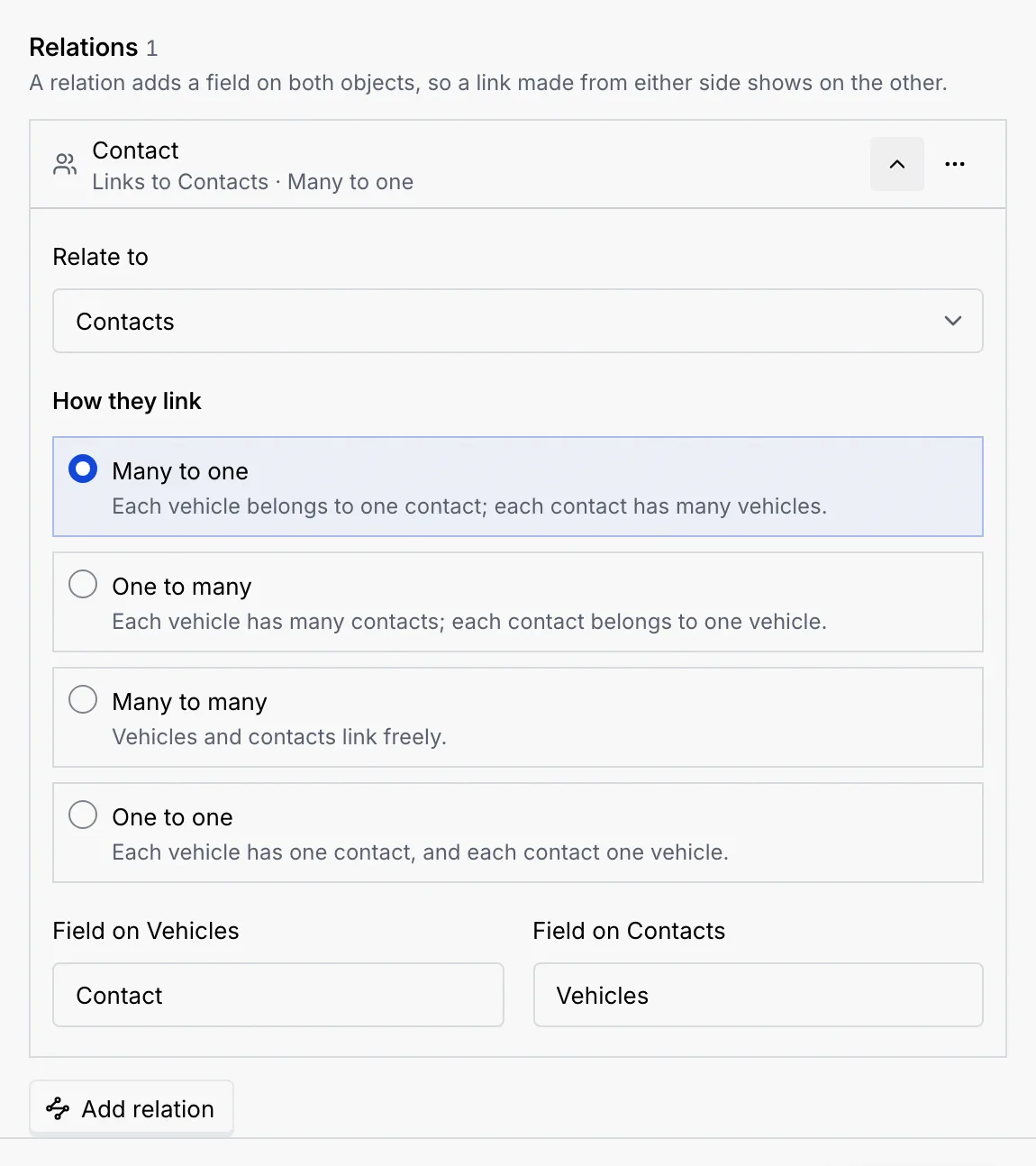
The kinds of relation and how to name each side are covered in [Relate objects](/docs/contacts/relations).
### Decide whether agents can create records [#decide-whether-agents-can-create-records]
Under **Agents**, **Agents can create** (followed by the object's name) is on for a new object. When it's on, agents can propose new records, and each one waits in the [approval queue](/docs/inbox/approval-queue) first. Turn it off to keep agents to reading the object.
### Create it [#create-it]
Click **Create object**. The sheet closes, a notice confirms what was created (**Created Vehicles** — "3 fields and 1 relation. Agents can read it as context.") and the new object joins the list. Related objects now list it under **Related to**.
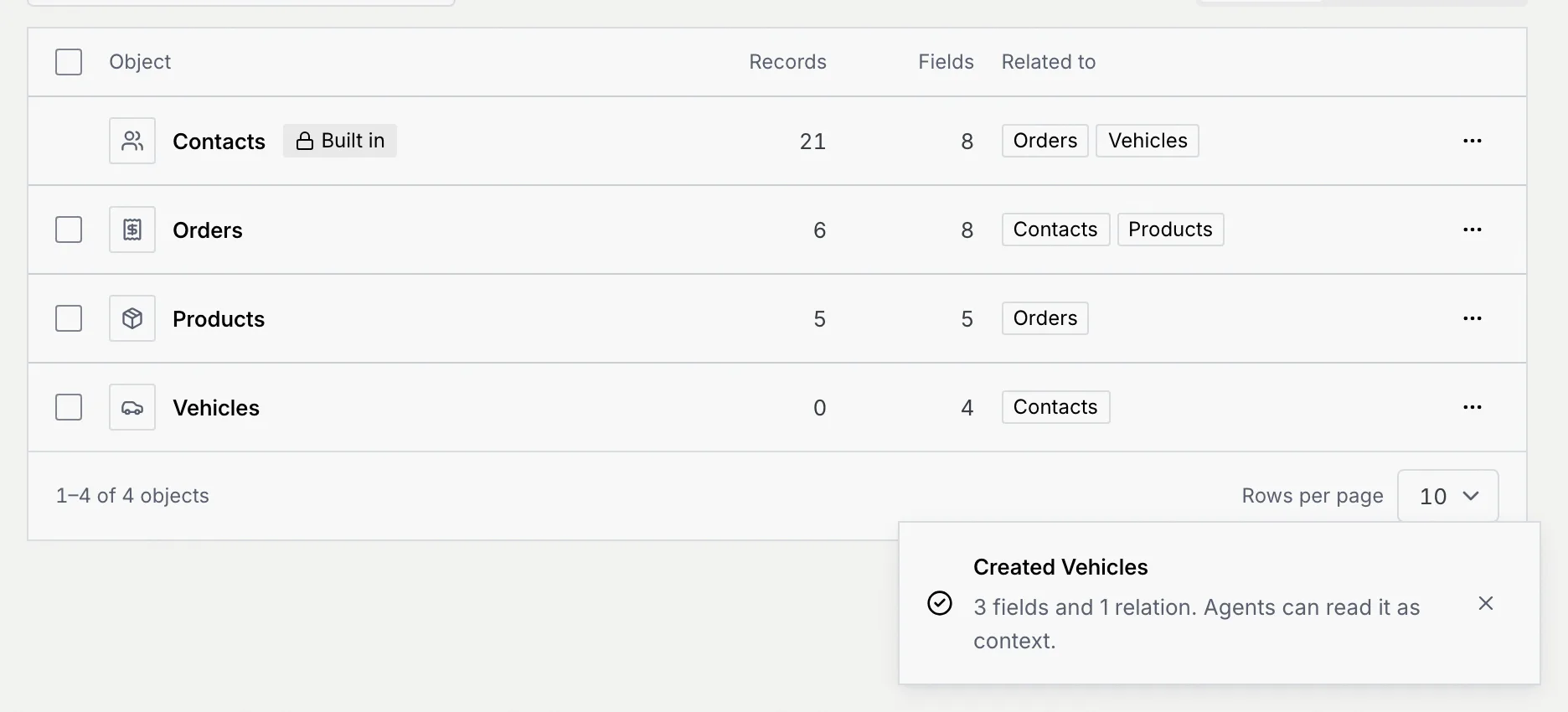
Next, open the object's table to add records: see [Work with records](/docs/contacts/records).
## Edit an object [#edit-an-object]
### Open the object sheet [#open-the-object-sheet]
On **Setup → Objects**, open the object's **⋯** menu and click **Edit object**. You can also click its card on the data model canvas, or choose **Edit object** from the **⋯** menu on its table.
### Make your changes [#make-your-changes]
Everything works as when you created it, with a few rules for what's already saved:
- **Move up** and **Move down** in a field's **⋯** menu change the order of the fields.
- A saved field's type is fixed, except that **Single choice** and **Multiple choice** can switch to each other. To change any other type, remove the field and add a new one.
- Removing an option from a saved choice field clears it from the records that had it.
- New fields start empty on existing records.
### Remove what you don't need [#remove-what-you-dont-need]
Open a field's **⋯** menu and click **Remove field** (the primary field can't be removed; choose another primary field first). For a relation, click **Remove relation**. A saved field stays in the list, struck through, with **Deleted when you save** under it until you save. Click **Restore** to keep it after all.
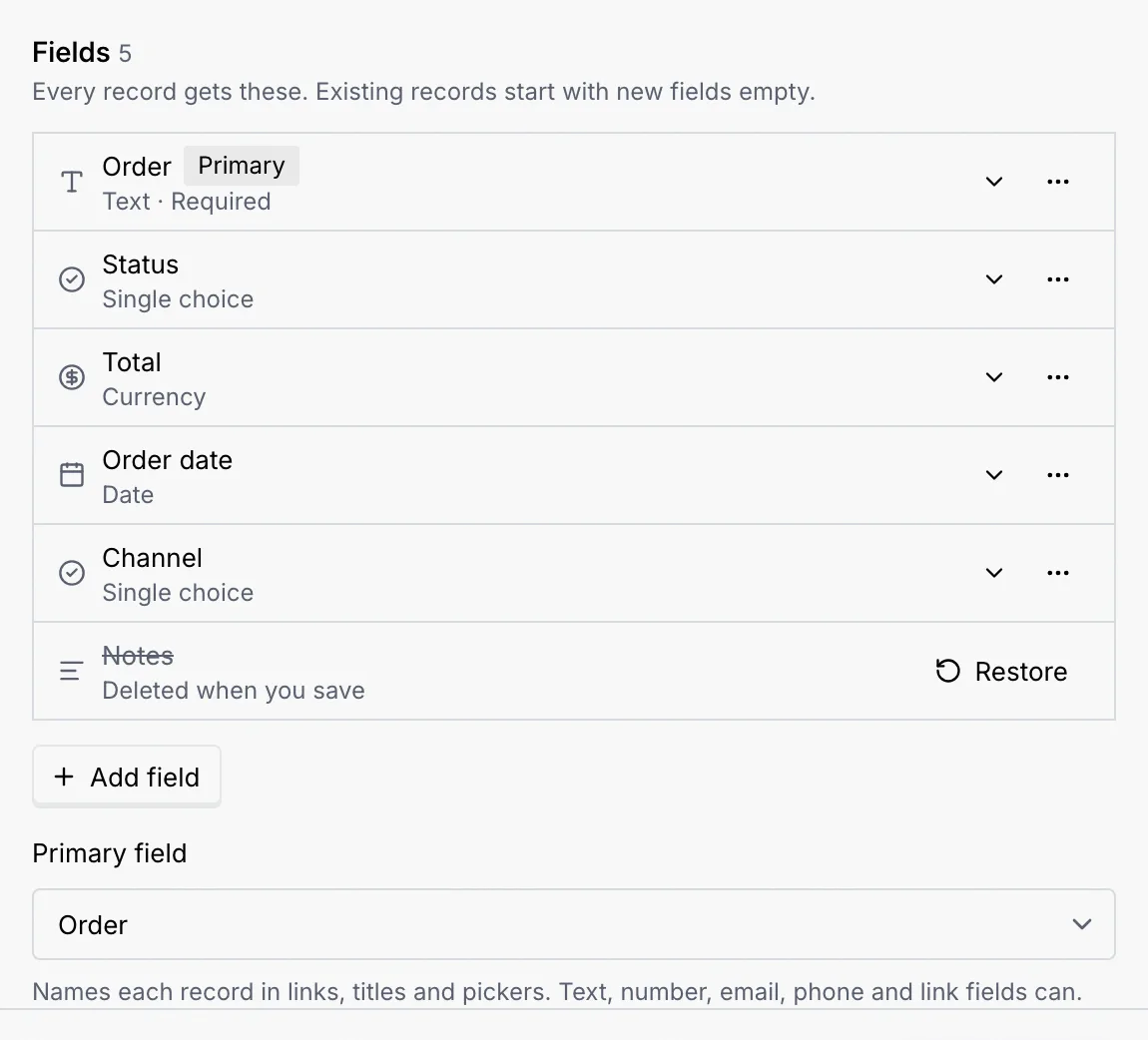
### Save [#save]
Click **Save changes** (it's available once something changed). If you removed saved fields or relations, Mokanata asks first and counts what goes: the fields and relations, the values and links stored in your records, and the other side of each relation on the related objects. Click **Save and delete** to go ahead, or **Keep editing**.
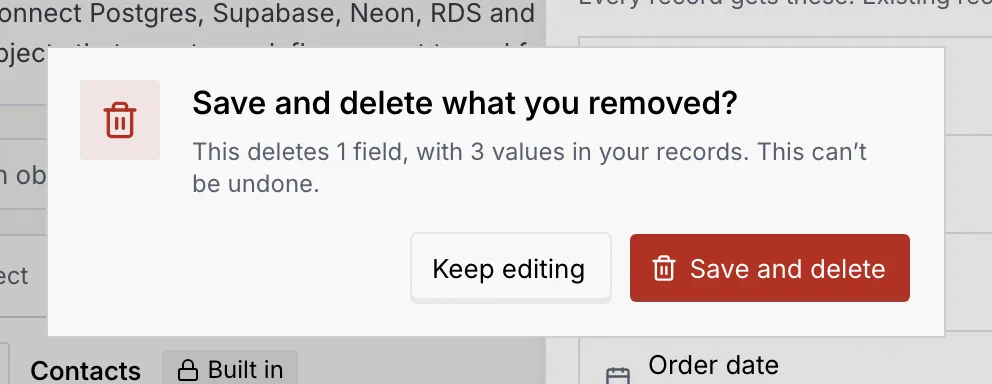
A notice confirms it, for example **Saved Orders**.
Saving deletes the removed fields and relations, with every value and link stored in them. There is no undo for changes to the data model.
## Close without saving [#close-without-saving]
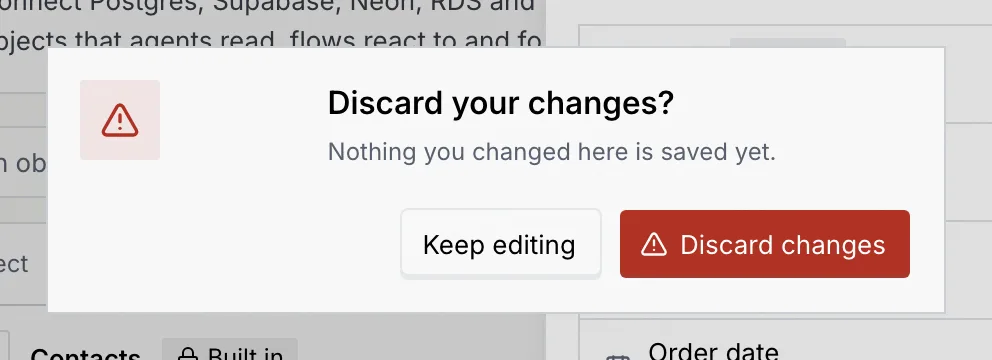
Click **Cancel**, press Esc or click **×**. If you changed anything, Mokanata asks **Discard your changes?** first. **Keep editing** returns to the sheet; **Discard changes** closes it without saving. The same question appears if you go Back, follow a link or reload the page with unsaved changes.
## Delete an object from its sheet [#delete-an-object-from-its-sheet]
In an existing object's sheet, open the **⋯** menu in the footer and click **Delete** followed by the object's name. The same confirmation as in the list counts the records and relations that go with it. The menu also has **Open table**. See [Delete objects](/docs/contacts/objects#delete-objects).
## Troubleshooting [#troubleshooting]
Each object needs both names, of up to 40 characters, and the plural must differ from the singular (“Use a different word for many, like “Vehicles”.”). No other object can use either name: “There’s already an object called …”. While Mokanata checks the names, **Checking…** shows under them.
Open the row: its message is under the field that needs it. Every field needs a name (“Give the field a name.”), unique on this object including relation fields, and a choice field needs at least one option (“Add at least one option.”) with no two alike.
A choice field has an empty option, often one added by pressing Enter in the last option. Open the choice fields and remove empty options with the bin icon, then save again.
The primary field must be a text, number, currency, email, phone or link field. Pick one under **Primary field**, or add one.
## Next steps [#next-steps]