# The contact record (/docs/contacts/contact-record)
Each contact has a record: who they are, where their deal stands, what an agent is waiting on you for, and everything that has happened with them, from messages and agent actions to calls, notes, tasks and files. Agents read the same record before they reply.
- **Who can use it:** Everyone in the workspace can open records. Owners, admins and members can edit them: the deal, name and company, tasks, notes, files, identities and agents. A Viewer sees a **View only** notice and plain values instead of controls. Deleting and restoring contacts is for owners and admins by default. See [Roles and permissions](/docs/settings/roles).
- **Before you start:** Nothing.
## Open a record [#open-a-record]
### Find the contact [#find-the-contact]
Click a row or card on [Contacts](/docs/contacts/contacts), or press ⌘ K (Ctrl K on Windows and Linux) and type their name. You can also open the record from the [contact details beside a conversation](/docs/inbox/contact-panel).
### Read the header [#read-the-header]
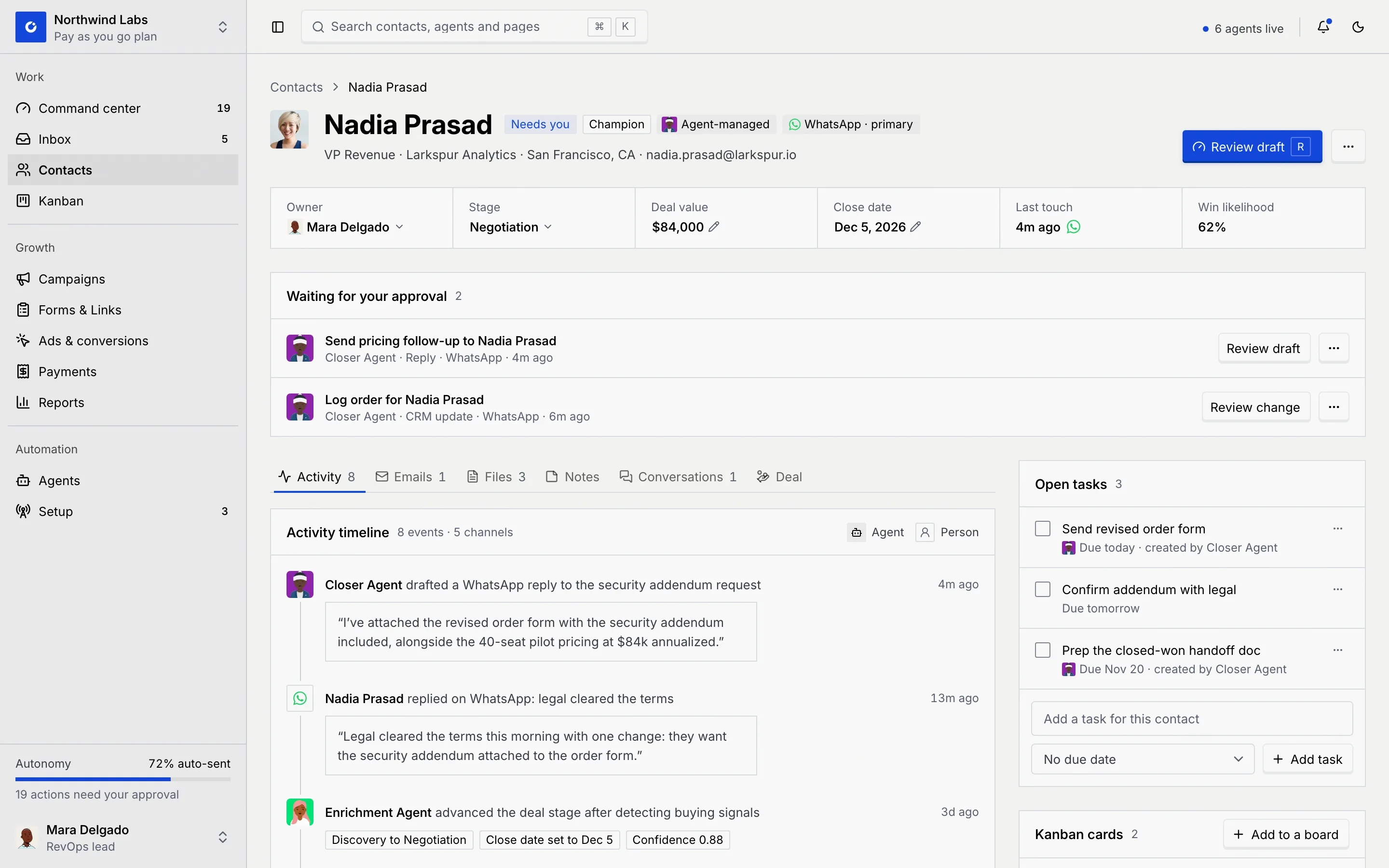
The header shows who the person is and the one thing to do next.

| Part | What it shows |
| --- | --- |
| **Contacts** breadcrumb | Back to the list as you left it. |
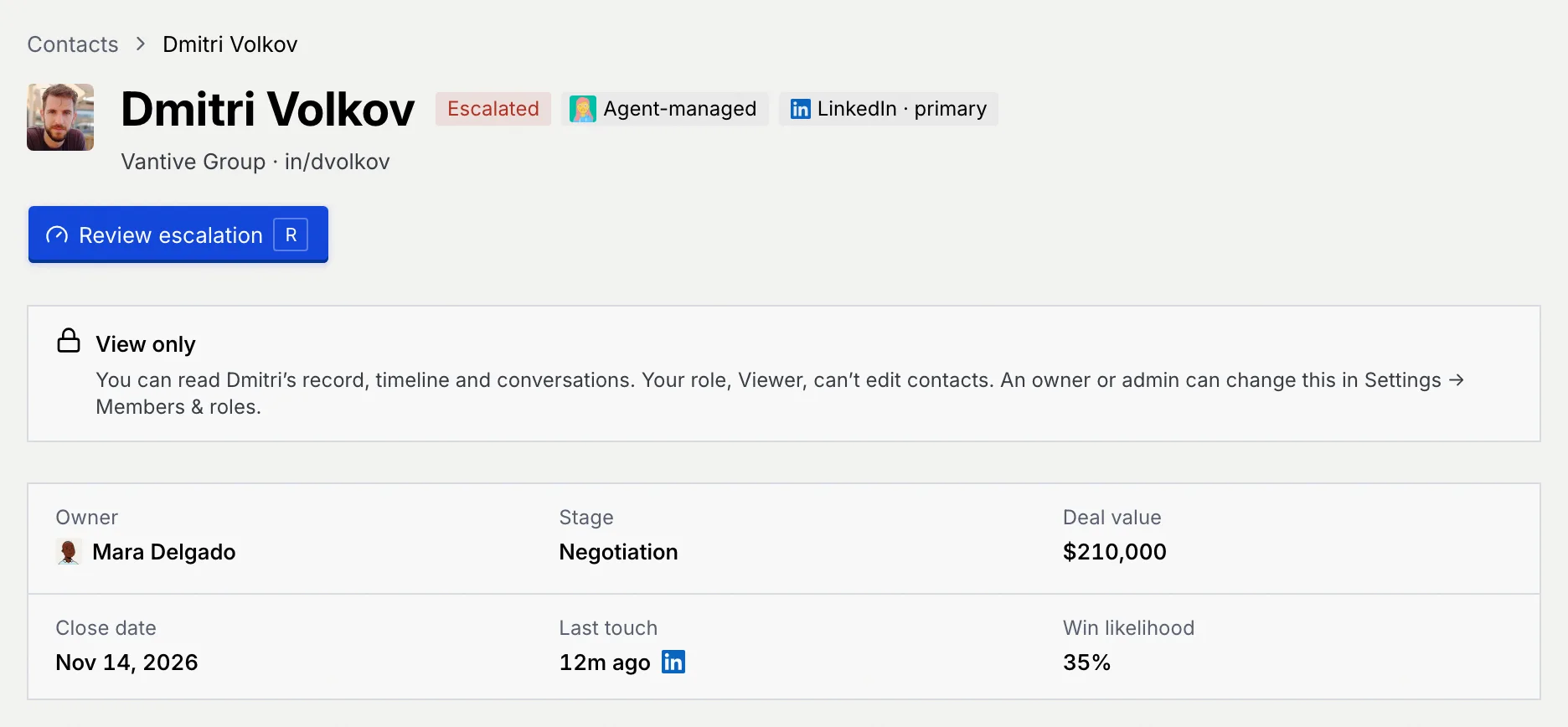
| Badges | **Needs you** or **Escalated** when something waits on your team; their role on the deal, such as **Champion**, when it's known; **Agent-managed** when an agent is assigned (hover to see which); and the primary channel, such as **WhatsApp · primary**. |
| The line under the name | Their job title, company, location and email when the record has them; otherwise their company and handle. |
| Main button | **Review draft**, **Review escalation** or **Review change** when something waits on you (R); otherwise **Log activity** (L). |
| **⋯** menu | **Log activity** (when the main button is a review), **Edit details** and **Delete contact**, as far as your role allows. |
### Check the deal [#check-the-deal]
Under the header, the deal summary shows the **Owner**, **Stage**, **Deal value**, **Close date**, **Last touch** and **Win likelihood**. Click one of the first four to change it; see [Deals, stages and owners](/docs/contacts/deals-and-stages).
## Review what's waiting [#review-whats-waiting]
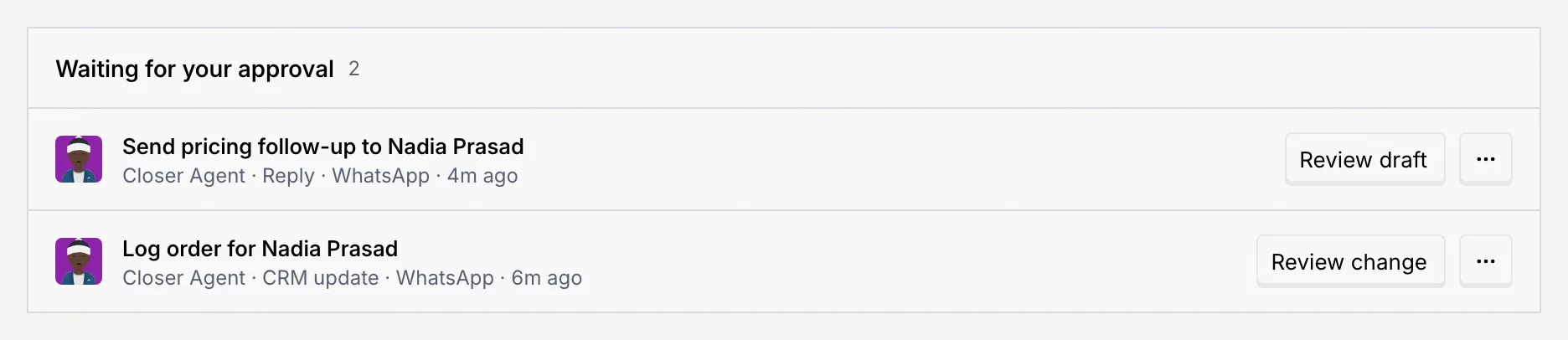
When an agent needs you for this contact, **Waiting for your approval** sits under the deal summary, with a count.
### Read the item [#read-the-item]
Each row names the agent and what it wants, followed by the kind (**Reply**, **Escalation** or **CRM update**), the channel and how long it has waited.
### Review it [#review-it]
Click **Review draft**, **Review escalation** or **Review change** to open that item in the Command center, where you approve, edit or reject it. When the item came from a conversation, its **⋯** menu also has **Open in inbox**. Pressing R on the record does the same as the header's review button. See [The Command center](/docs/inbox/command-center).
Once everything is handled, the panel goes away, the **Needs you** badge clears and **Log activity** becomes the main button again.
## Use the side panels [#use-the-side-panels]
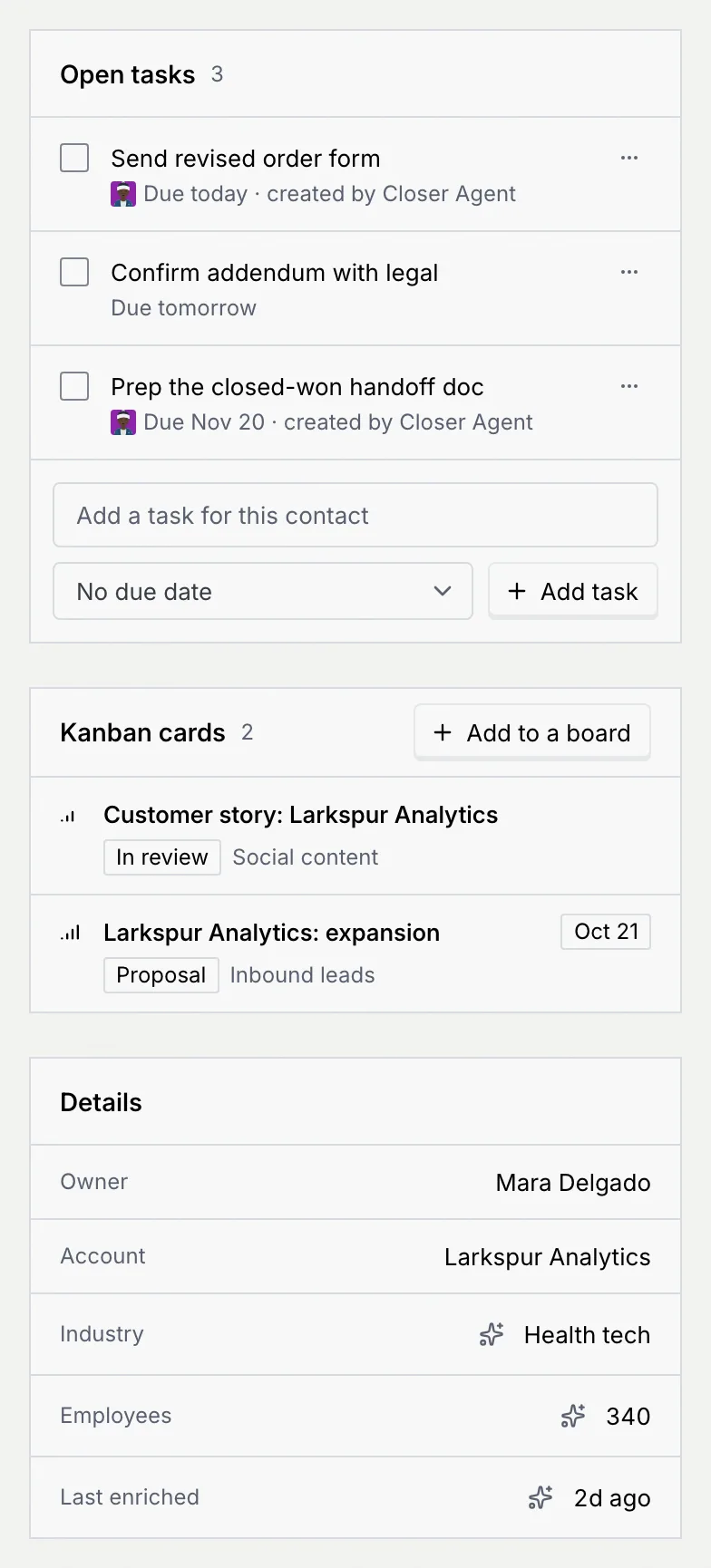
Next to the tabs (above them on narrower screens) is a column of panels about the contact.
| Panel | What it holds | Guide |
| --- | --- | --- |
| **Open tasks** | Things to do for this contact, from agents and teammates. | [Log activity, notes, tasks and files](/docs/contacts/contact-activity#manage-tasks) |
| **Kanban cards** | Cards on your boards that link to this contact, with **Add to a board**. | [Add and work on cards](/docs/kanban/kanban-cards) |
| **Details** | Owner, account and how to reach them. A sparkle marks a field an agent filled in; hover it to see which agent and when. | |
| **Custom fields** and related records | Your workspace's own fields on Contacts, and one panel per relation, such as **Orders**. | [Custom fields on contacts](/docs/contacts/contact-fields) |
| **Channel identities** | Every handle this person uses, and possible duplicates to merge. | [Channel identities and duplicates](/docs/contacts/channel-identities) |
| **Agents on this account** | The agents working this contact, with their status. | [Agents on a contact](/docs/contacts/contact-agents) |
## Read the tabs [#read-the-tabs]
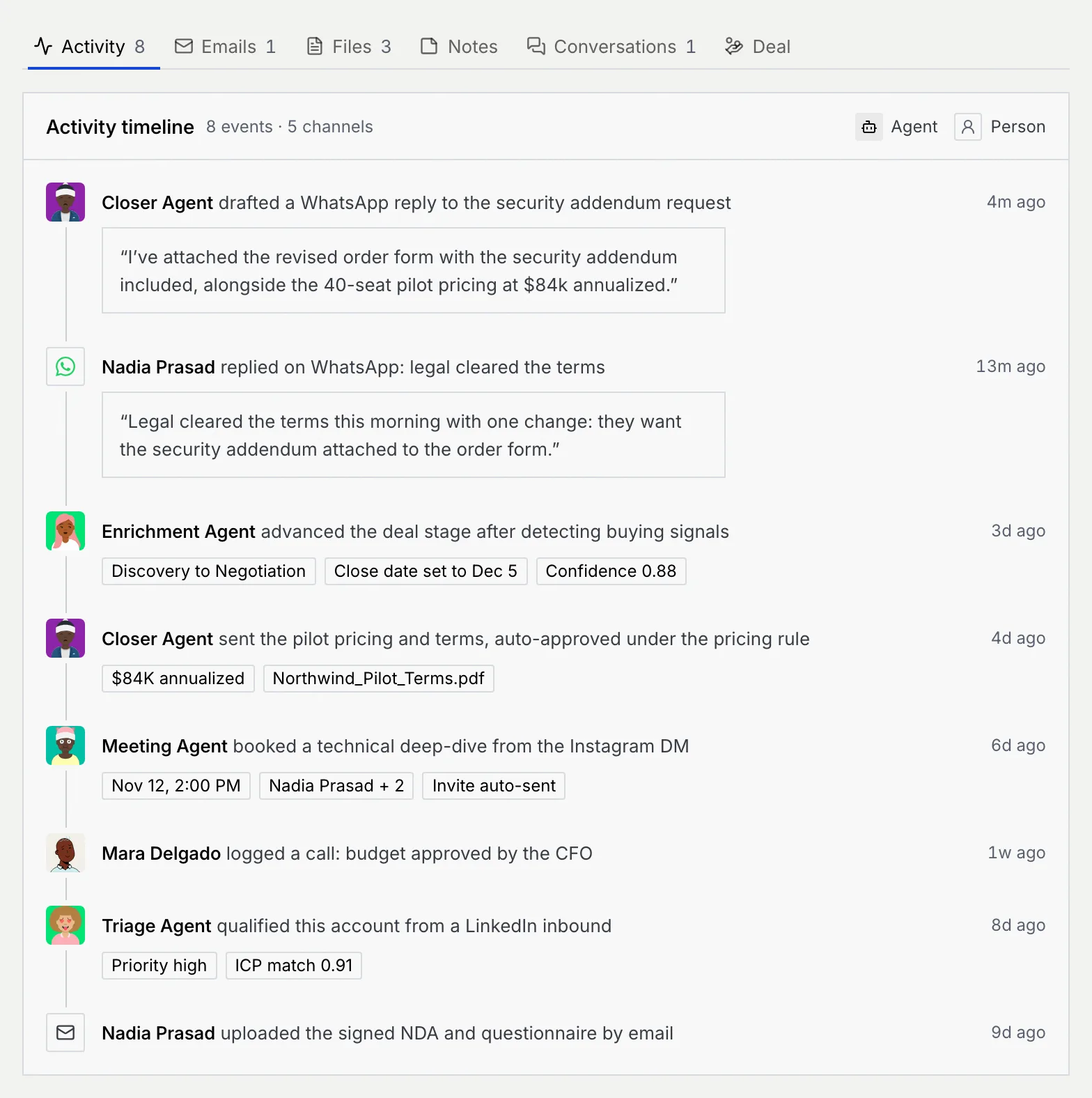
The tabs under the deal hold the contact's history. The tab you're on is part of the address, so a link can open a record straight on its files or deal.
| Tab | What it shows |
| --- | --- |
| **Activity** | Every event on the record, newest first: messages, what agents did, stage and owner changes, and the calls, meetings, emails and notes your team logged. The legend tells agents' events from people's. |
| **Emails** | Emails to and from the contact, and ones your team logged. **Log email** adds one you sent from your own inbox. |
| **Files** | Attachments from conversations and files your team uploaded. Agents on this account can cite them. |
| **Notes** | Notes your team wrote, with a box to add one. |
| **Conversations** | The contact's conversations in the inbox. |
| **Deal** | The deal's name, the pipeline path and its facts. See [Deals, stages and owners](/docs/contacts/deals-and-stages#use-the-deal-tab). |
To add calls, emails, notes, tasks or files, see [Log activity, notes, tasks and files](/docs/contacts/contact-activity).
### Conversations [#conversations]
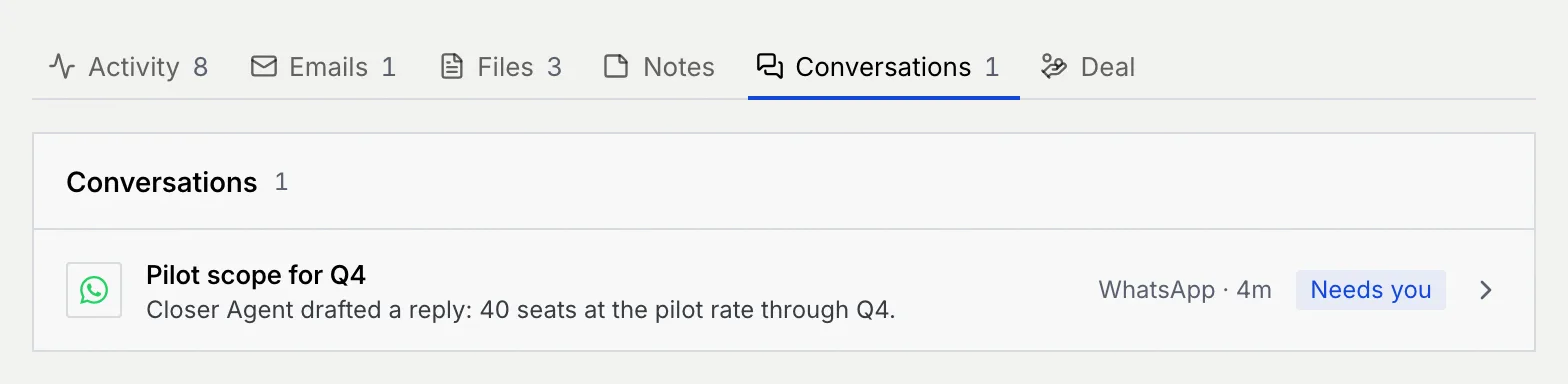
Each conversation shows its channel, subject, latest message and age, and its state. Click it to open it in the inbox.
| State | Meaning |
| --- | --- |
| **Needs you** | A drafted reply or change waits for approval. |
| **Escalated** | The agent handed the conversation to a person. |
| **Auto-sent** | The agent's reply went out on its own. |
| **Agent working** (blue dot) | The agent has the conversation and nothing waits on you. |
With nothing open, the tab says **No open conversations**: earlier messages stay on the timeline, and **Open the inbox** takes you there. If an agent drafted a reply to the contact outside a conversation, it says **No thread yet** and offers **Review draft**.
## Edit the name and company [#edit-the-name-and-company]
### Open Edit details [#open-edit-details]
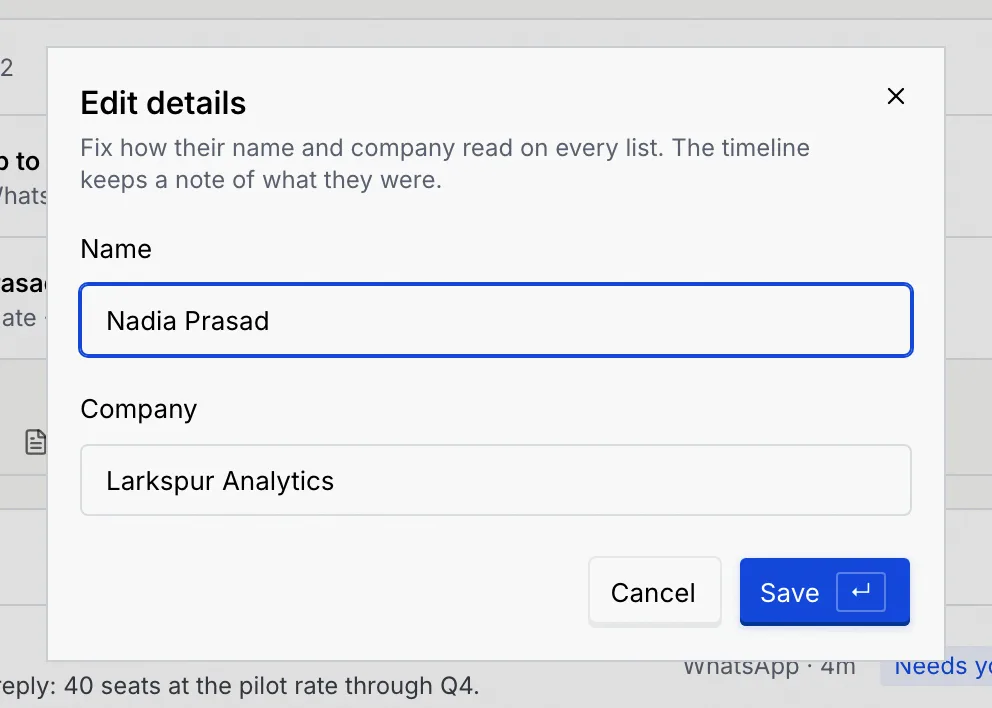
Click **⋯** in the header, then **Edit details**.
### Change and save [#change-and-save]
Fix the **Name** or **Company** and click **Save** or press Enter. The new name shows on every list. The timeline keeps a note of the old one, and the notice offers **Undo**.
## Delete or restore a contact [#delete-or-restore-a-contact]
### Delete the contact [#delete-the-contact]
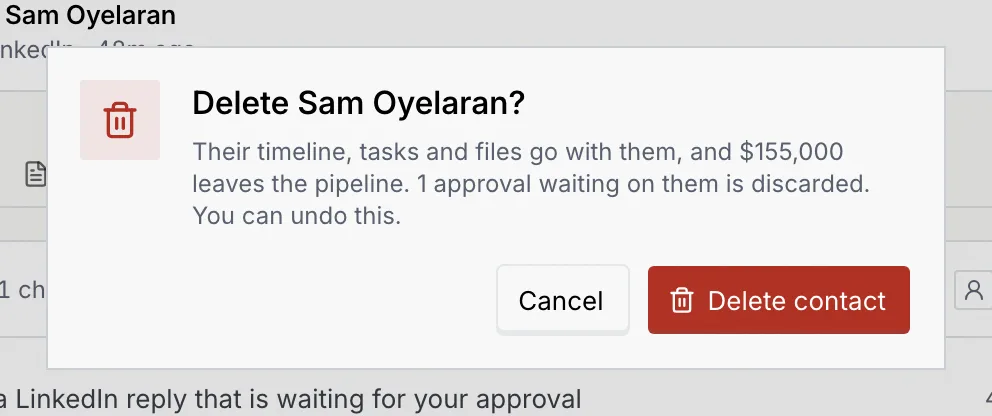
Click **⋯** in the header, then **Delete contact**. The confirmation says what goes with them: their timeline, tasks and files, their deal value from the pipeline, and any approvals waiting on them. Click **Delete contact** to confirm.
A contact with a conversation in the inbox can't be deleted: **Delete contact** is greyed out with **In the inbox**.
### Restore them if you need to [#restore-them-if-you-need-to]
The record turns into a page that says the contact was deleted. Click **Restore** with their first name to bring back their record, timeline and tasks, or **Undo** in the notice. **⋯** → **Back to contacts** returns to the list.
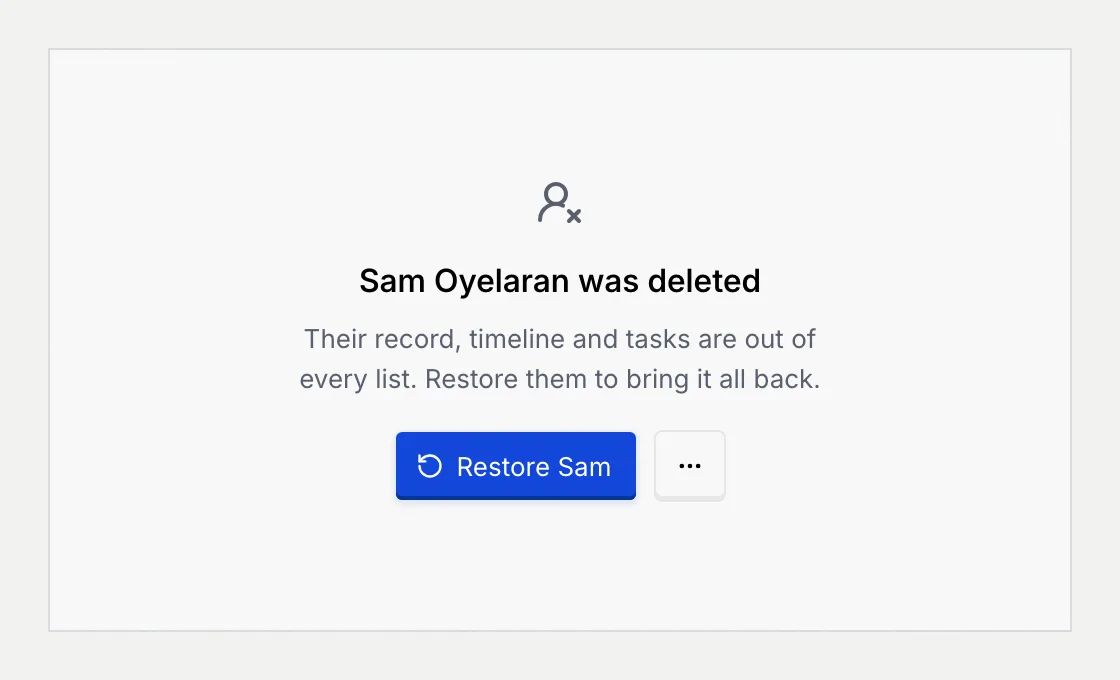
A deleted contact's timeline, tasks and files go with them, and the approvals waiting on them are discarded. If you deleted the wrong person, use **Undo** in the notice or **Restore** on their page. To delete many contacts at once, see [Change many contacts at once](/docs/contacts/contact-filters#change-many-contacts-at-once).
## If the record says it doesn't exist [#if-the-record-says-it-doesnt-exist]
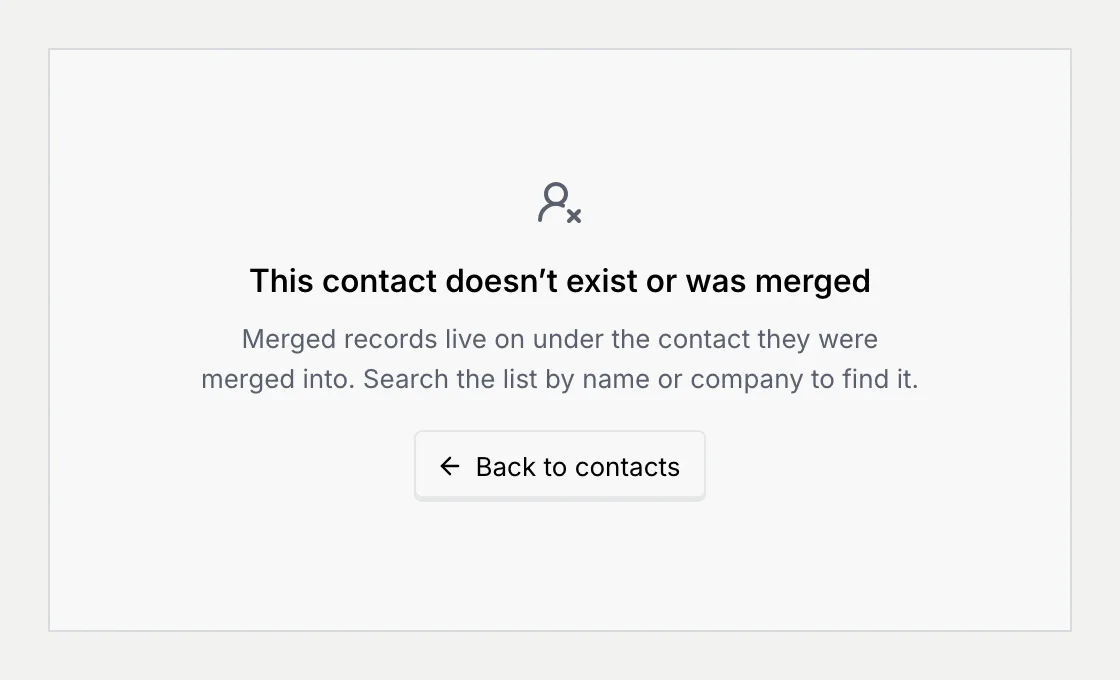
A link to a contact that was never there, or that no longer exists, opens **This contact doesn’t exist or was merged**. Click **Back to contacts** and search the list by name or company.
## If your role is read-only [#if-your-role-is-read-only]
Without permission to edit contacts, a **View only** notice says you can read the record, timeline and conversations. The deal summary shows plain values, **Log activity** is disabled, and the side panels show their content without add, edit or remove controls. The review button still opens what's waiting in the Command center.
## Keyboard shortcuts [#keyboard-shortcuts]
| Keys | What it does |
| --- | --- |
| L | Log activity on the open contact. |
| R | Review what the contact is waiting on, in the Command center. |
| ⌘ Enter (Ctrl Enter on Windows and Linux) | Save in **Log activity** and the note box. |
## Troubleshooting [#troubleshooting]
Your role can't edit contacts, so the record shows plain values and the **View only** notice. Ask an owner or admin to change your role in **Settings → Members & roles**; see [Roles and permissions](/docs/settings/roles).
A contact with a conversation in the inbox can't be deleted, so the conversation never loses its person. Leave the contact in place.
Merged records live on under the contact they were merged into. Click **Back to contacts** and search the list by name or company.
Click **Undo** in the notice that follows, or **Restore** with their first name on the deleted record's page. Their timeline and tasks come back with them.
## Next steps [#next-steps]