# Custom fields on contacts (/docs/contacts/contact-fields)
Contacts is a built-in object, so it comes with fields of its own: Name, Company, Stage, Value, Owner and Channels. You can add your own next to them, such as a region, an account tier or a contract renewal date, and relate contacts to your other objects, such as orders. Your fields show on every contact record, as optional columns in the Contacts table and in the New contact dialog, and agents read them as context.
- **Who can use it:** Owners and admins add, change and remove custom fields and relations. Filling them in on a contact takes the Edit records permission, and in the New contact dialog the Create records permission; owners, admins and members have both by default. Without them, the values are read only, and the New contact dialog says “Custom fields are left out.” with the reason. See [Roles and permissions](/docs/settings/roles).
- **Before you start:** To relate contacts to another object, that object must exist. See [Create a custom object](/docs/contacts/create-object).
## Add a field to Contacts [#add-a-field-to-contacts]
### Open the Contacts sheet [#open-the-contacts-sheet]
Go to **Setup → Objects**, open the **⋯** menu on the **Contacts** row and click **Edit object**. The sheet says the object is built in; it has no Name or Agents section, and its six standard fields each carry a lock.
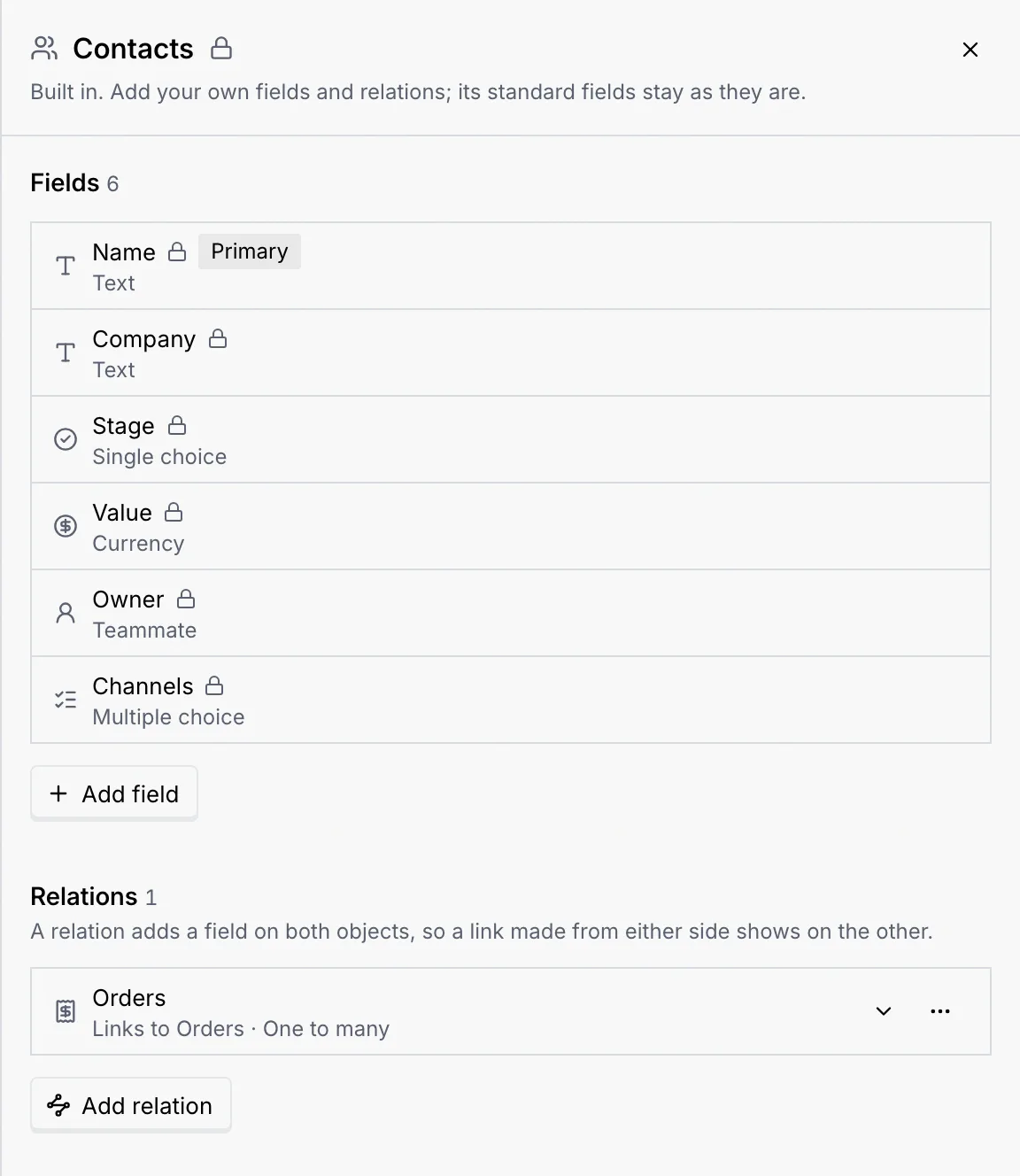
### Add your field [#add-your-field]
Click **Add field**, name it and pick its type, exactly as for any object (see [Create a custom object](/docs/contacts/create-object#create-an-object) and [Field types](/docs/contacts/field-types)). For example, a **Region** field of type **Single choice** with the options APAC, EMEA and Americas.
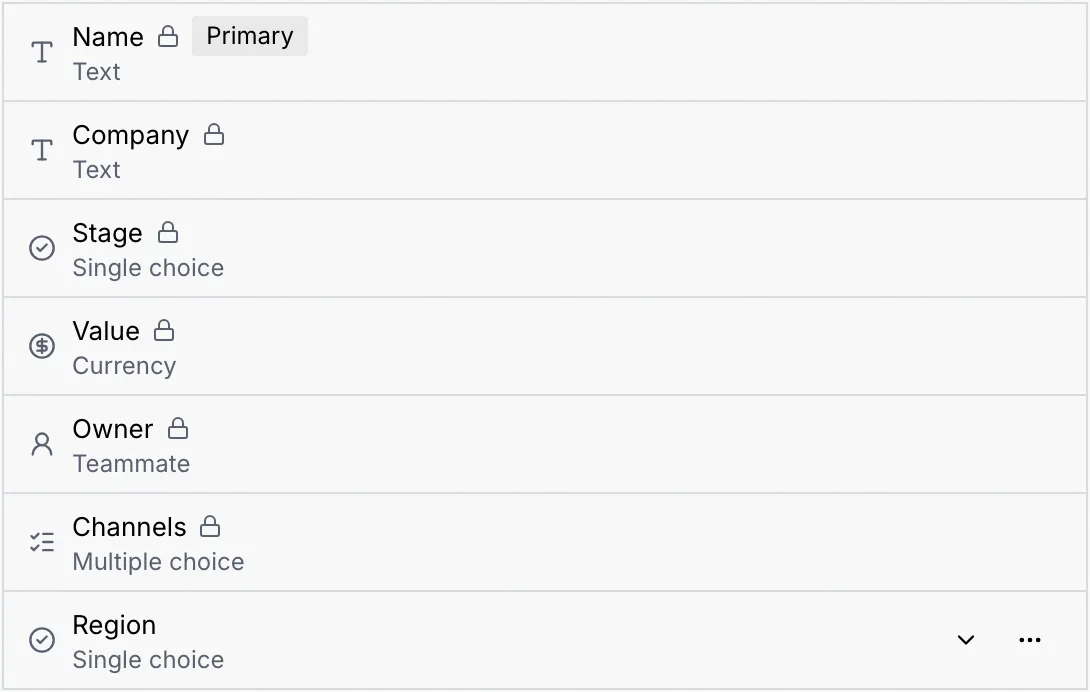
### Save [#save]
Click **Save changes**. A notice confirms it (**Saved Contacts**), and every contact now has the field, empty to start with.
The standard fields can't be renamed, retyped or removed. Your own fields can, as on any object; removing one deletes its values from every contact.
## Relate contacts to another object [#relate-contacts-to-another-object]
Under **Relations** in the Contacts sheet, click **Add relation**, pick the object and how they link, and save. You can also add the relation from the other object's sheet, picking **Contacts** under **Relate to**: it's the same relation either way. See [Relate objects](/docs/contacts/relations).
## Fill in custom fields on a contact [#fill-in-custom-fields-on-a-contact]
### Open the contact [#open-the-contact]
Open a contact from the [Contacts](/docs/contacts/contacts) page. Beside the activity, the **Custom fields** panel lists your fields, and each relation has its own panel, such as **Orders**.
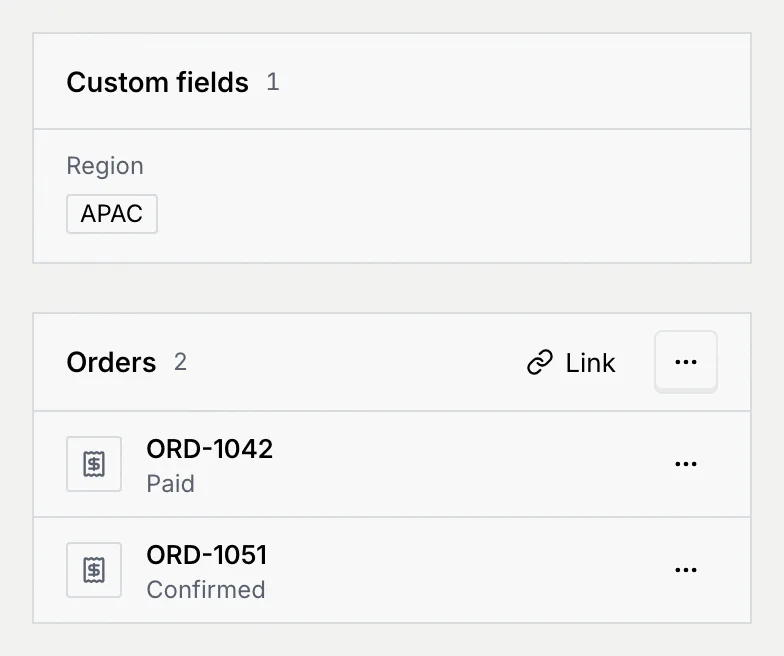
### Click a value [#click-a-value]
Click a value to edit it in place, the same way as in any records table (see [Work with records](/docs/contacts/records#edit-a-value)). A notice confirms the change. To link records, click **Link** on the relation's panel (see [Relate objects](/docs/contacts/relations#link-records)).
## Show custom fields in the Contacts table [#show-custom-fields-in-the-contacts-table]
Custom fields and relations are hidden in the Contacts table until you turn them on.
### Open Columns [#open-columns]
On the [Contacts](/docs/contacts/contacts) page, click **Columns**. Your fields and relations are listed after the standard columns, unticked.
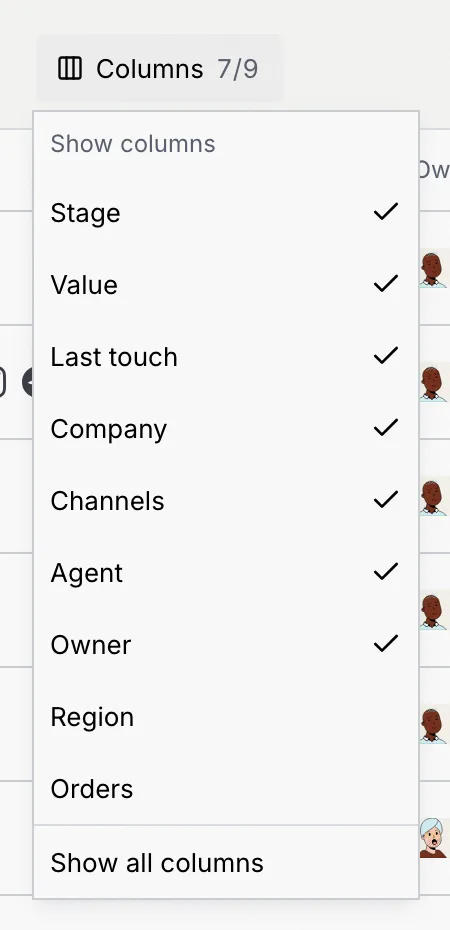
### Tick the ones you want [#tick-the-ones-you-want]
Each one you tick becomes a column. A relation column shows the first linked record and **+** the number of others, or **None**.

## Fill them in on a new contact [#fill-them-in-on-a-new-contact]
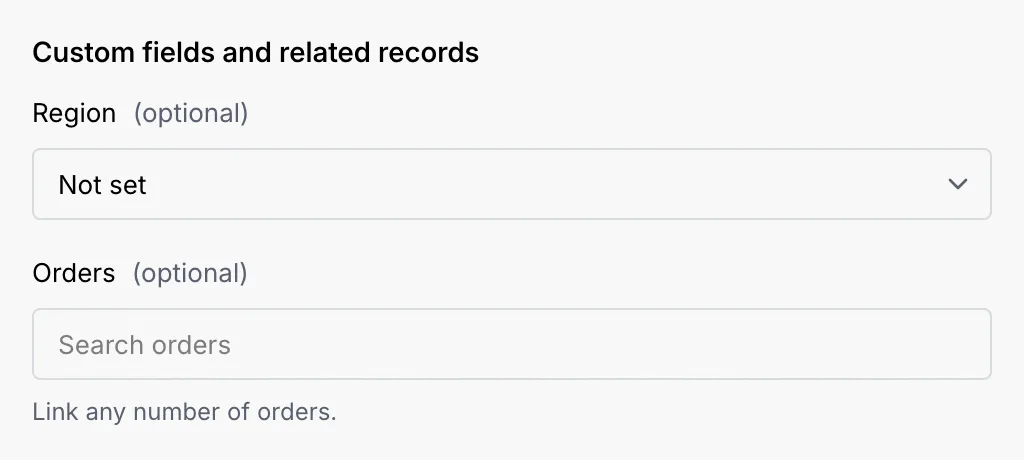
When you add a contact with **New contact**, the dialog ends with a **Custom fields and related records** section: one input per custom field (required ones first, the rest marked **(optional)**) and a picker per relation. See [Add and import contacts](/docs/contacts/import-contacts).
## See them beside a conversation [#see-them-beside-a-conversation]
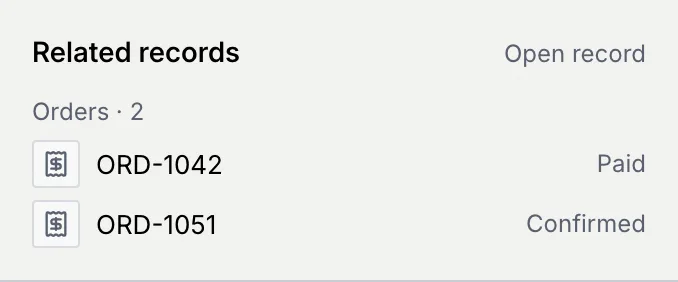
In the [inbox](/docs/inbox/contact-panel), the contact panel beside a conversation has a **Related records** section for each relation that has links: the relation's name and count, up to three linked records, **View all** when there are more, and **Open record** to go to the contact.
## Next steps [#next-steps]