# Connect a database (/docs/contacts/connect-database)
Connect your own Postgres database and pick the tables to sync. Each table becomes an object in Mokanata that stays live: inserts, updates and deletes in the database show up in seconds, and edits you make in Mokanata (or that agents, flows and forms make) are written back to the database. Your database stays the source of truth.
- **Who can use it:** Owners and admins. This comes with Admin access, so it can't be given to other roles one by one. Everyone else sees **Connect database** greyed out (“Only workspace owners and admins can connect databases.”) and can open a connected database's settings read-only. Anyone can read the synced tables. See [Roles and permissions](/docs/settings/roles).
- **Before you start:**
- A Postgres database, version 12 or later, or a Postgres-compatible service such as CockroachDB, that Mokanata can reach over the internet. If it only accepts known addresses, allow Mokanata in its firewall or allow list.
- A database user that can read the tables you want, and write them if edits, forms and agents should save there.
- For changes to stream as they happen, logical replication turned on (`wal_level = logical`) and the `REPLICATION` attribute on that user. Without them Mokanata checks for changes every 3 seconds instead.
- Tables need a primary key: a table without one can't be synced.
To see how it all works before connecting your own database, [try the sample database](/docs/contacts/sample-database).
## Connect your database [#connect-your-database]
### Open Connect a database [#open-connect-a-database]
Go to **Setup → Objects**. In the **Connected databases** panel, click **Connect database**. (You can also open the **⋯** menu beside **New object** and click **Connect a database**.)

### Pick your provider [#pick-your-provider]
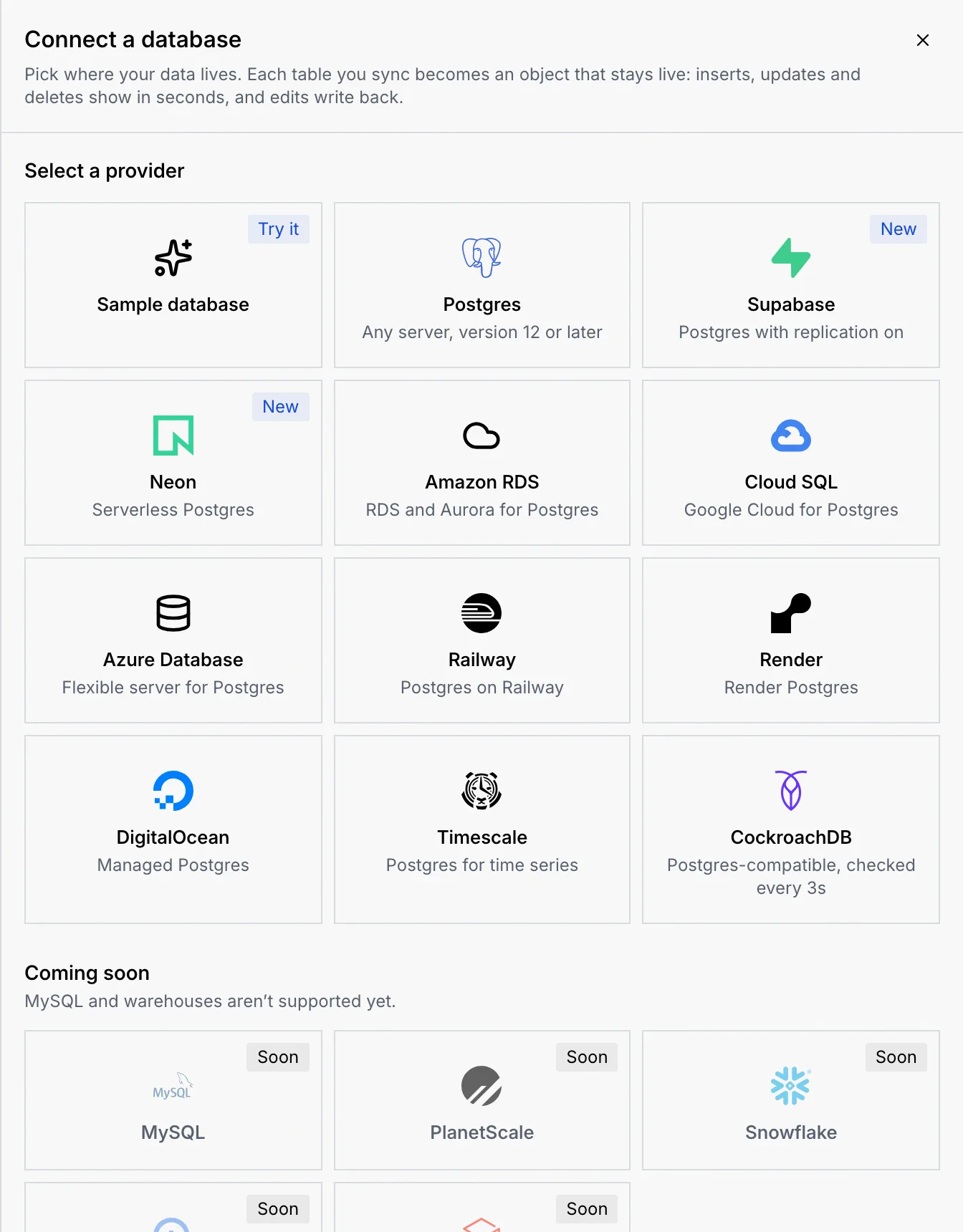
Under **Select a provider**, click where your database lives: **Postgres**, **Supabase**, **Neon**, **Amazon RDS**, **Cloud SQL**, **Azure Database**, **Railway**, **Render**, **DigitalOcean**, **Timescale** or **CockroachDB**. They all connect the same way; the provider decides the example connection string and the hint about where to find yours. **Sample database** connects a ready-made store instead (see [Try the sample database](/docs/contacts/sample-database)).
MySQL, PlanetScale, Snowflake, BigQuery and Databricks are listed under **Coming soon** and can't be picked yet.
### Name the sync [#name-the-sync]
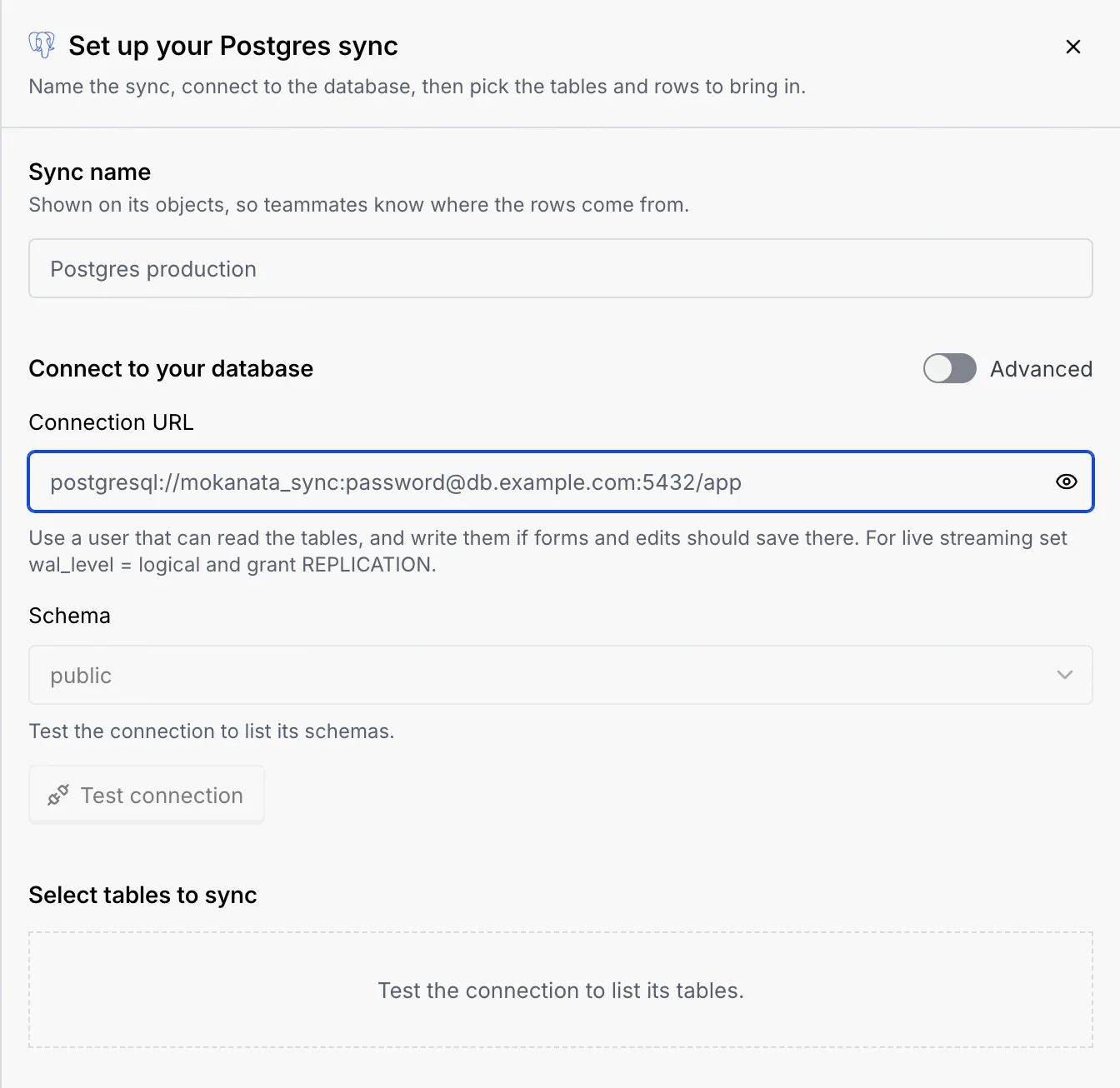
Under **Sync name**, type a name of up to 40 characters, such as `Shop production`. It's shown on the objects the sync creates, so teammates know where the rows come from. Leave it empty to use the database's name.
### Enter the connection [#enter-the-connection]
Paste your database's connection string into **Connection URL**, such as `postgresql://user:password@host:5432/dbname`. It's hidden like a password; click the eye button to check it. The line under the field says where your provider shows the connection string (see the table below).
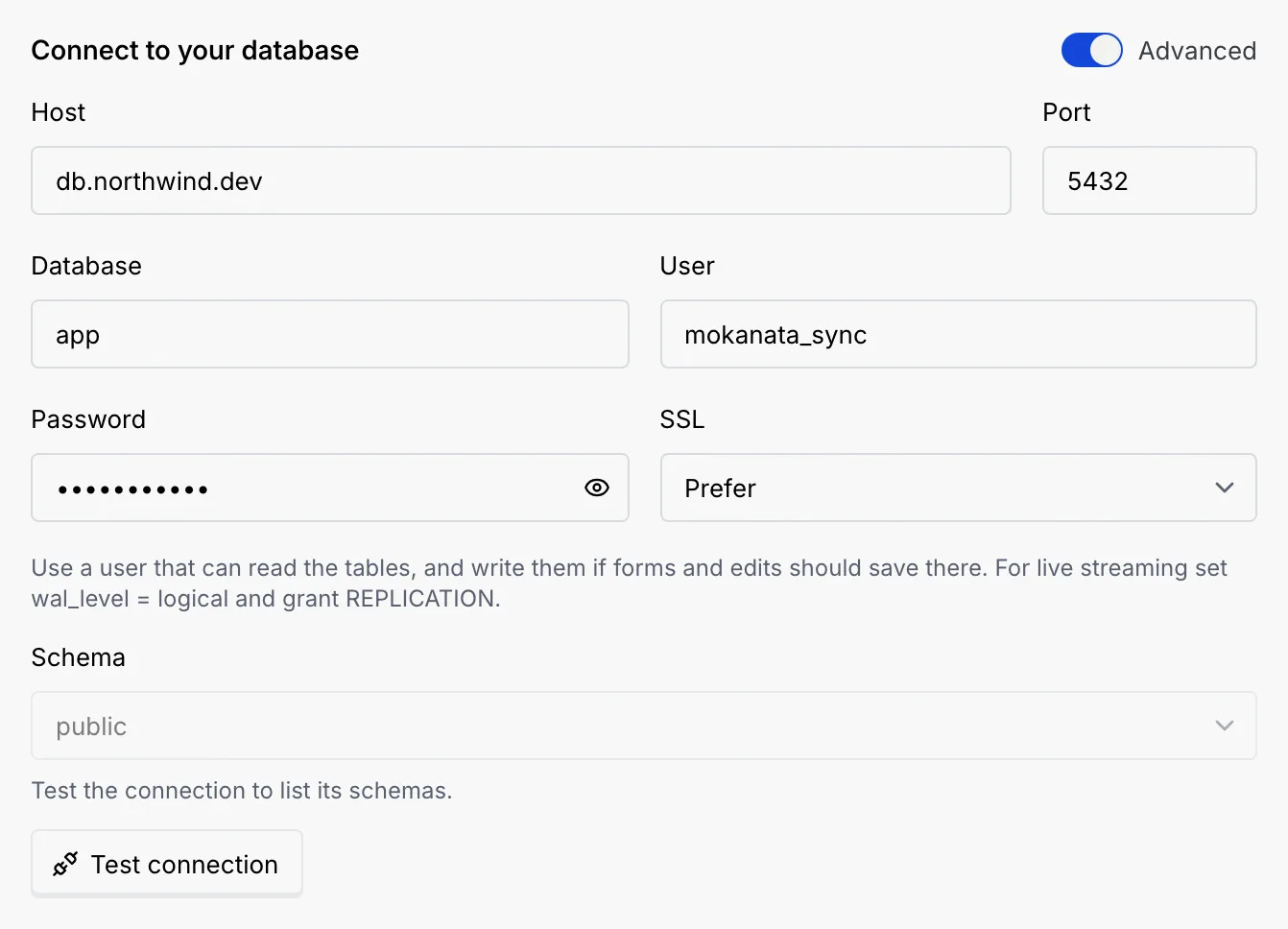
To enter the parts separately, turn on **Advanced**: **Host**, **Port**, **Database**, **User**, **Password** and **SSL** (**Require**, **Prefer** or **Disable**). Both ways describe the same connection, so you can switch between them.
### Test the connection [#test-the-connection]
Click **Test connection** (or press Enter in **Connection URL**). Mokanata connects, reads the server version and lists the tables this user can see. A note then says how the sync will follow changes:
- **Streams changes as they commit**: logical replication is on, so Mokanata reads each insert, update and delete as it happens. Every minute it also re-reads the tables and repairs anything that drifted.
- **Checks for changes every 3 seconds**: replication isn't available, with the reason (for example, `wal_level` isn't `logical`, or the user has no `REPLICATION` attribute). The sync still works; changes just take up to a few seconds to show.
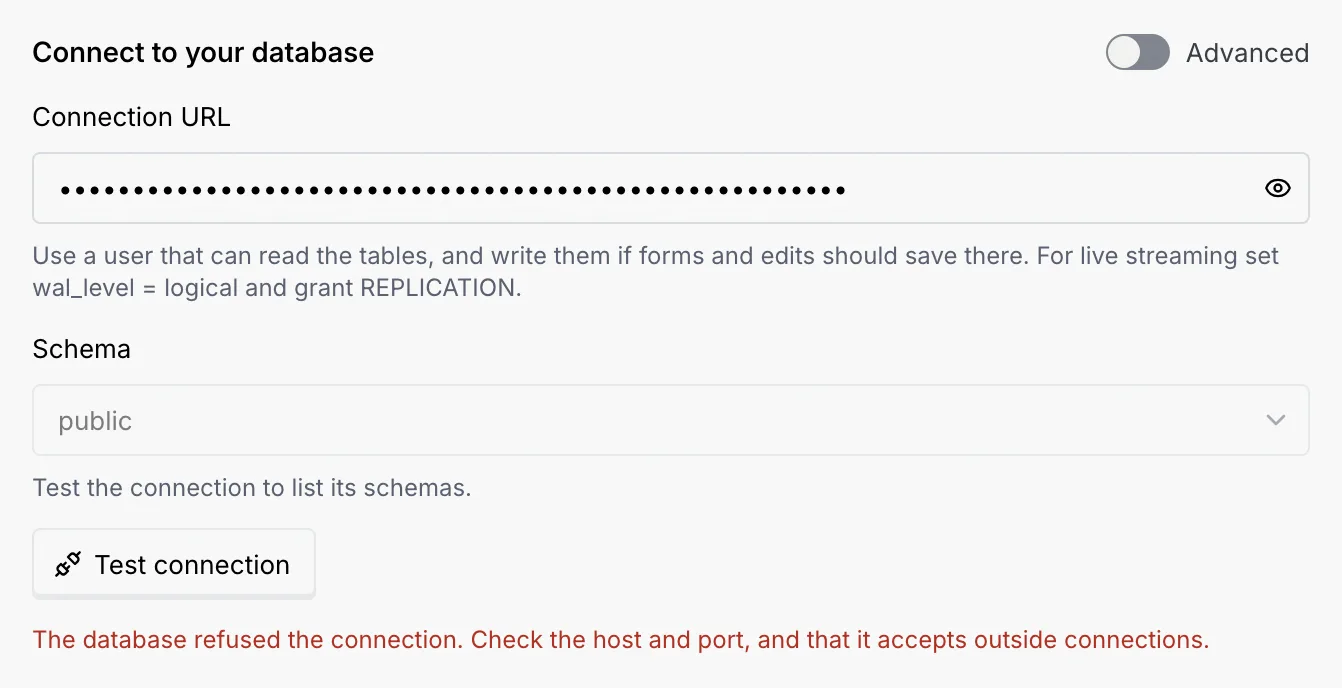
The note also shows the Postgres version and how many tables were found. If the test fails, the reason shows under the button: see [Troubleshooting](#troubleshooting).
### Choose a schema [#choose-a-schema]
Once the test works, **Schema** lists the database's schemas. Pick one to list only its tables, or **All schemas** to list every table, grouped by schema. A new Postgres connection starts on `public`.
### Pick the tables [#pick-the-tables]
Under **Select tables to sync**, tick the tables to bring in. Open a table to choose its columns and filter which rows sync. See [Tables, columns, row filters and sync status](/docs/contacts/database-sync).
### Connect [#connect]
Click **Sync** followed by the number of tables, for example **Sync 3 tables** (it reads **Connect and sync** until you tick one). The button reads **Backfilling…** while Mokanata copies the tables for the first time. When it's done, the sheet closes and a notice confirms it, for example **Connected Shop production** — “3 tables sync live into objects.”
The database now has a row in **Connected databases**, and each table is an object in the list with the sync's name on its badge.
If you close the sheet before connecting, Mokanata asks **Discard your changes?** first: the database isn't connected until you connect it.
## Where to find your connection string [#where-to-find-your-connection-string]
| Provider | Where to find it |
| --- | --- |
| Postgres | Your server's host, port, database, user and password. |
| Supabase | Project settings → Database → Connection string → URI. Use the session pooler (port 5432), not the transaction pooler: streaming changes needs a session. |
| Neon | Dashboard → Connect → copy the direct (unpooled) connection string. Turn on logical replication under Settings → Beta to stream changes. |
| Amazon RDS | RDS console → your database → Connectivity → Endpoint. Allow Mokanata in the security group; set `rds.logical_replication = 1` in the parameter group to stream. |
| Cloud SQL | Cloud SQL → your instance → Overview → Public IP address. Add Mokanata to Authorized networks; set `cloudsql.logical_decoding = on` to stream. |
| Azure Database | Azure portal → your server → Connect. Add a firewall rule for Mokanata; set `wal_level = logical` under Server parameters to stream. |
| Railway | Your Postgres service → Variables → `DATABASE_PUBLIC_URL`. |
| Render | Your database → Info → External Database URL. |
| DigitalOcean | Databases → your cluster → Connection details → Connection string. Add Mokanata under Trusted sources. |
| Timescale | Your service → Connection info → Service URL. |
| CockroachDB | Cluster → Connect → General connection string. CockroachDB has no logical replication, so Mokanata checks for changes every 3 seconds. |
## Troubleshooting [#troubleshooting]
Nothing accepted the connection at that host and port. Check both, and that the database accepts connections from outside its own network.
The host in the connection string doesn't exist. Copy it again from your provider.
A firewall or IP allow list is probably blocking Mokanata. Allow Mokanata where your provider manages network access (see the table above).
Check the user and password. If they're right, the database's access rules (`pg_hba.conf`, or your provider's settings) don't let this user connect from outside.
The database name at the end of the connection string is wrong. Check it, including upper and lower case.
The user can't read one of the tables, or can't write it when an edit is saved. Grant it the rights it needs, then click **Backfill again** on the sync.
Paste the URI form of the connection string, which starts with `postgres://` or `postgresql://`, or turn on **Advanced** and enter the parts.
Mokanata follows each row by its primary key, so tables without one can't be ticked. Add a primary key to the table, then test the connection again.
Mokanata lists tables only after a successful test, and needs at least one table ticked. If you change the connection after testing, test again.
## Next steps [#next-steps]