# WhatsApp number health, limits and settings (/docs/channels/whatsapp-number-settings)
Each WhatsApp number has its own health, limits and settings. Meta rates every number's quality and caps how many conversations your business can start on it each day; Mokanata shows both, and lets you protect the number with a PIN and decide which agents answer it and what happens outside business hours.
WhatsApp is built, and goes live once Mokanata's Meta app is approved by Meta. Until then no number can be connected, so there's nothing to set here.
- **Who can use it:** Everyone can see every number's health, settings and the WhatsApp policy. Changing routing, the PIN and the blue badge request needs the **Edit channel settings** permission (owners and admins by default) and **Manage** access to the number. Without it, routing is read-only with the reason above it and **Set PIN** is disabled. See [Who can change channels](/docs/channels/setup-page#who-can-change-channels).
- **Before you start:** At least one WhatsApp number in Mokanata. See [Add a WhatsApp number](/docs/channels/whatsapp-numbers).
## Open a number [#open-a-number]
### Go to WhatsApp Business [#go-to-whatsapp-business]
On the [Setup page](/docs/channels/setup-page), select **WhatsApp** in the **Connected accounts** list, or click one of its numbers.
WhatsApp Business has three tabs: **Numbers** (each number's health and settings), **Webhook** and **Account and API** (shared by every number, see [Business account, API access and webhook](/docs/channels/whatsapp-business-account)). Templates live under Campaigns: see [Message templates](/docs/campaigns/message-templates).
### Pick a number [#pick-a-number]
Under **Numbers**, click a number's tab. **Add** adds another number.
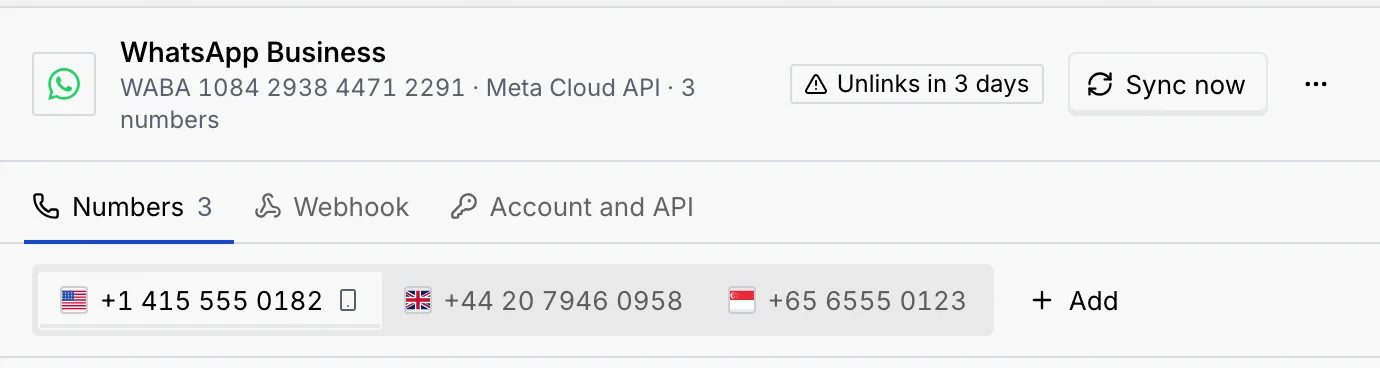
Mokanata remembers the number you looked at last the next time you open WhatsApp. When the panel is narrow, the tabs show only each number's last digits, and a line under them names the number you're viewing.
The number's panel shows, from top to bottom: any alerts (the number still needs its PIN, or its display name is in review), **Number health**, **Status and limits**, **Connection details**, **Routing**, and the WhatsApp policy line.
## Read a number's health [#read-a-numbers-health]
The four figures at the top of the number:
- **Quality rating:** Meta's rating of the number over the last 24 hours.
- **Messaging tier:** how many business-initiated conversations the number can start in 24 hours.
- **Templates:** how many message templates are approved and in review. **Manage templates** opens them under Campaigns.
- **Delivery rate:** the share of messages delivered over the last 7 days.

### Status and limits [#status-and-limits]
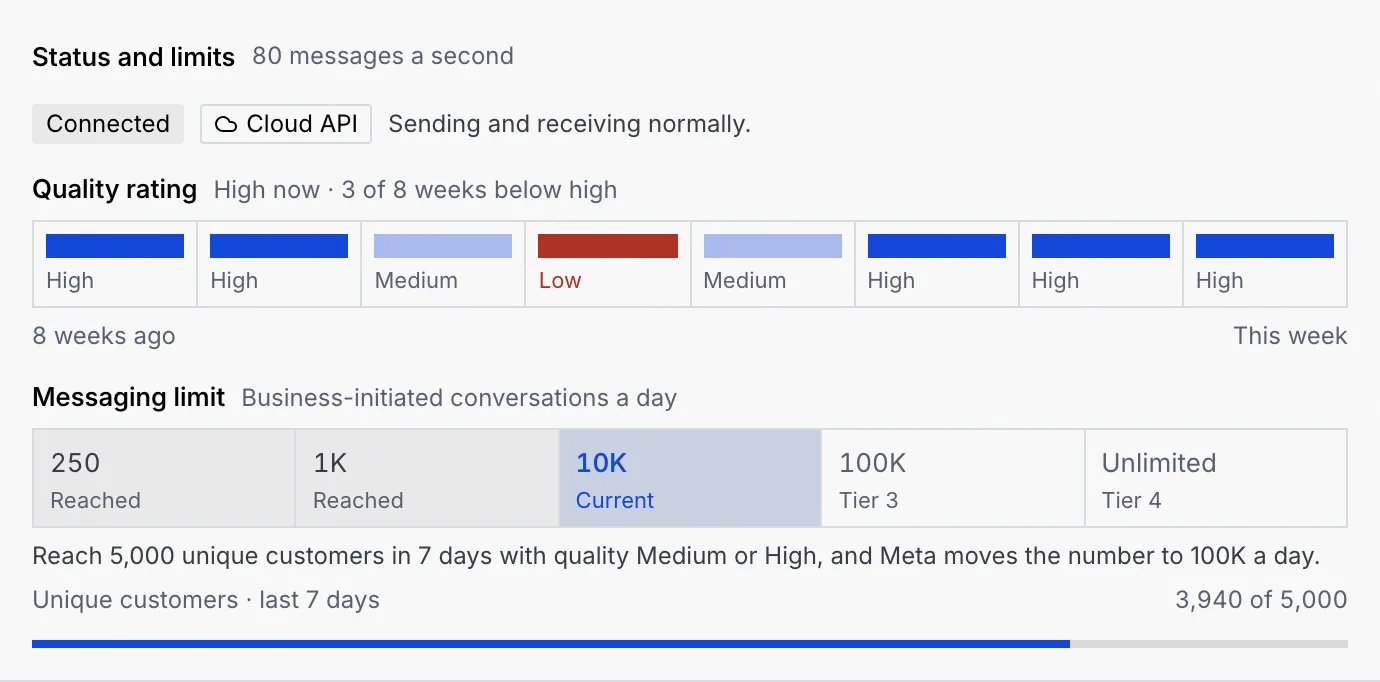
**Status and limits** shows how many messages a second the number sends (80 on the Cloud API), the number's status and connection, its quality rating week by week, and its messaging limit.
| Status | What it means |
| --- | --- |
| **Connected** | Sending and receiving normally. |
| **Pending** | Not registered yet (choose its PIN, see [Add a WhatsApp number](/docs/channels/whatsapp-numbers)), or waiting for Meta to approve the display name. |
| **Flagged** | Quality dropped to Low. Meta lowers the tier if it stays there for 7 days. |
| **Restricted** | Meta paused business-initiated messages. Customers can still write in. |
The **Quality rating** strip has one cell per week, oldest first: **High**, **Medium** or **Low** (in red). Meta starts rating a number after 24 hours of traffic, so a new number's history is empty until then.
### Messaging tiers [#messaging-tiers]
The **Messaging limit** ladder shows the tiers the number has **Reached**, the **Current** one and the ones still ahead. The sentence under it says what moves the number up.
| Tier | Business-initiated conversations a day | To reach the next tier |
| --- | --- | --- |
| 250 | 250 | New numbers start here. Meta raises the limit once the display name is approved and the number has traffic. |
| 1K | 1,000 | Reach 500 unique customers in 7 days with quality Medium or High. |
| 10K | 10,000 | Reach 5,000 unique customers in 7 days with quality Medium or High. |
| 100K | 100,000 | Reach 50,000 unique customers in 7 days with quality Medium or High. |
| Unlimited | No cap | The highest tier. |
The tier can't go up while quality is **Low**. Bring it back to Medium or High first.
### A new number in review [#a-new-number-in-review]
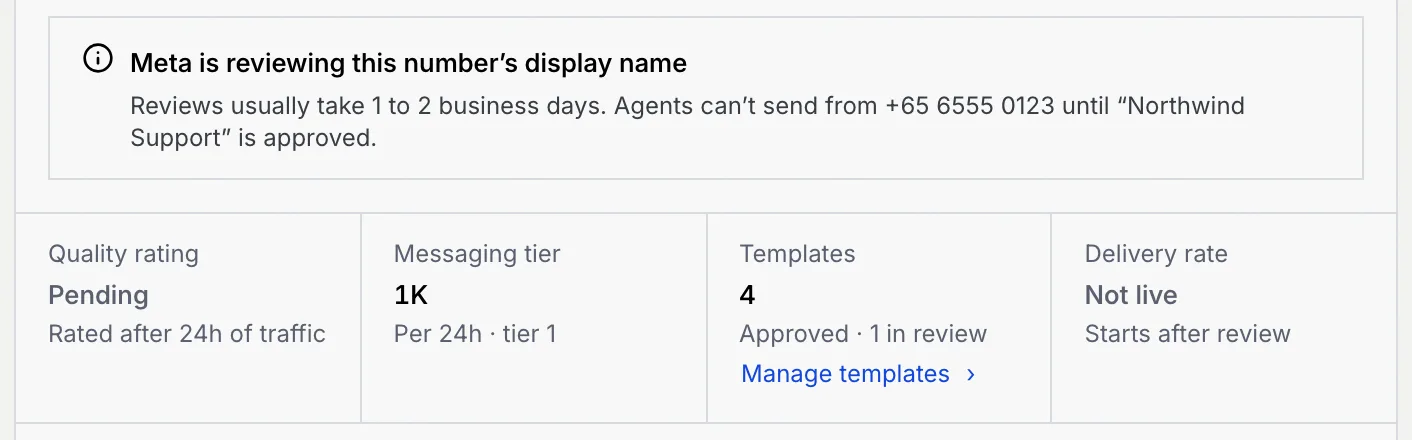
While Meta reviews a new number's display name, usually 1 to 2 business days, the number shows **In review**, its quality is **Pending** and agents can't send from it.
## Connection details [#connection-details]
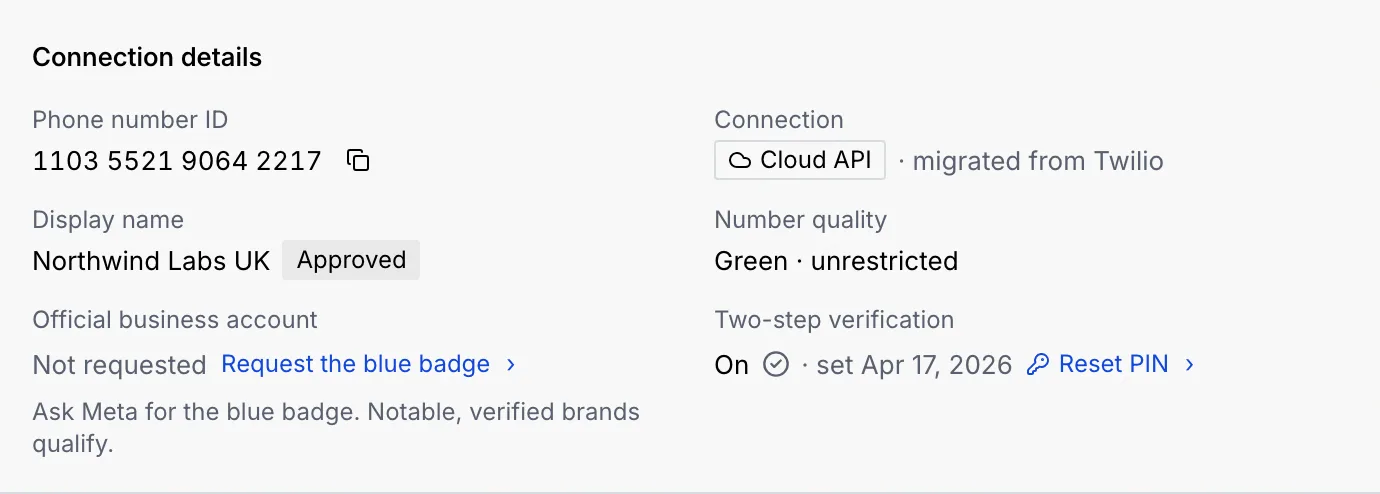
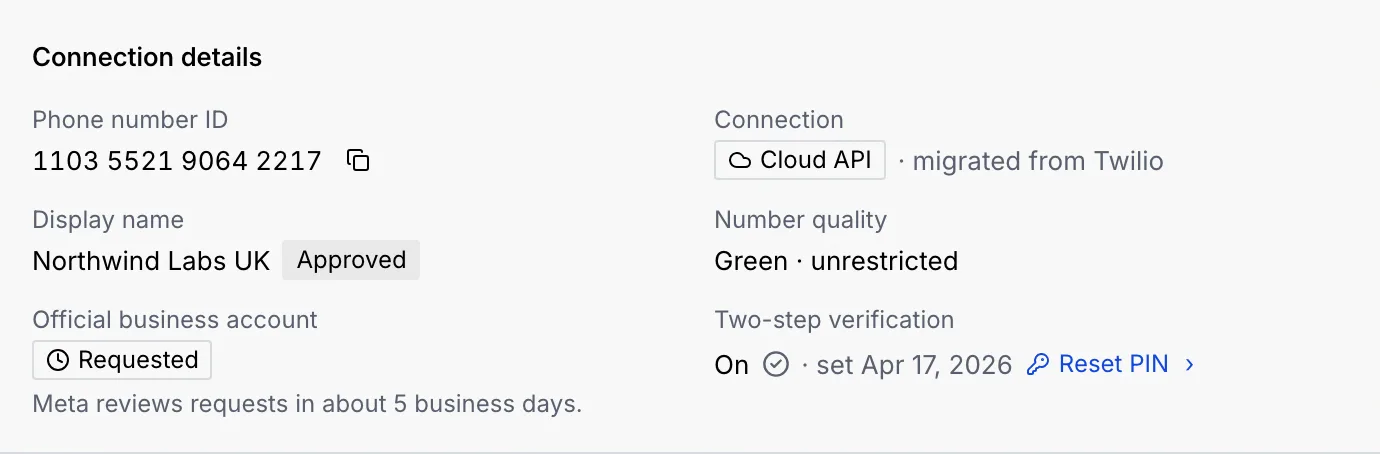
**Connection details** lists:
- **Phone number ID:** Meta's ID for the number. Click the copy button to copy it.
- **Connection:** **Cloud API**.
- **Display name** with **Approved** or **In review**.
- **Number quality**, as Meta reports it.
- **Official business account:** the blue badge.
- **Two-step verification:** whether the number has a PIN.
## Request the blue badge [#request-the-blue-badge]
The blue badge (an official business account) shows next to your display name in WhatsApp. Meta gives it to notable, verified brands.
### Request it [#request-it]
Under **Official business account**, click **Request the blue badge**. The link only shows when the badge hasn't been requested.
### Wait for Meta [#wait-for-meta]
A message confirms the request. Meta reviews requests in about 5 business days. The value changes to **Requested**, then to **Official business account** once Meta approves it.
| Value | What it means |
| --- | --- |
| **Official business account** | Customers see the blue badge next to the display name. |
| **Requested** | Meta is reviewing the request. |
| **Not requested** | You can ask Meta for the badge. |
| **Not available yet** | Meta takes requests once the display name is approved. |
## Set a two-step verification PIN [#set-a-two-step-verification-pin]
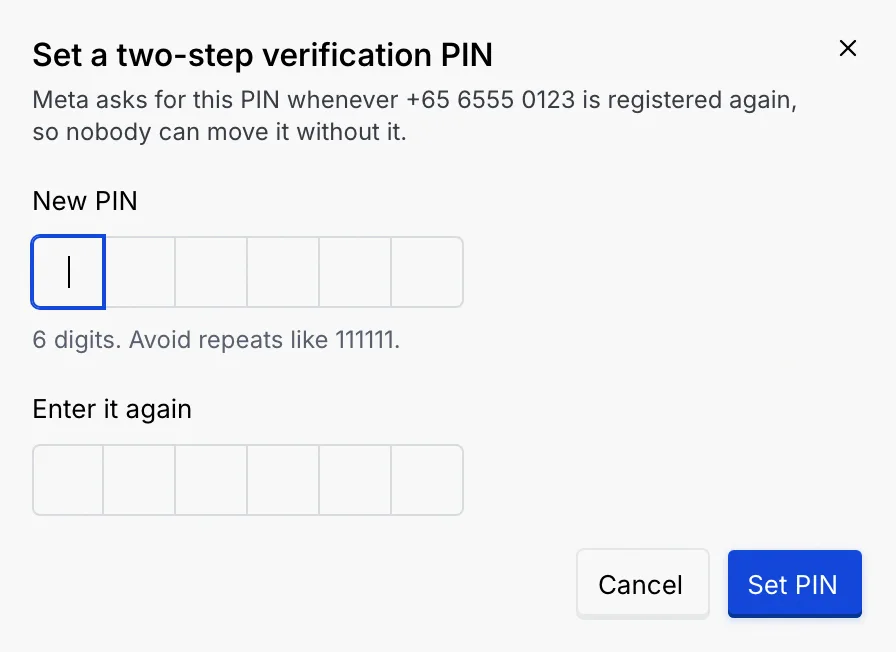
You choose the number's first PIN when you register it (see [Add a WhatsApp number](/docs/channels/whatsapp-numbers)). Meta asks for this PIN whenever the number is registered again, so nobody can move it without it. Without a PIN, **Two-step verification** shows a red **Off**: anyone with the SIM can register the number somewhere else.
### Open the PIN dialog [#open-the-pin-dialog]
Under **Two-step verification**, click **Set PIN** (or **Reset PIN** if the number already has one; you don't need the old PIN).
### Choose a PIN [#choose-a-pin]
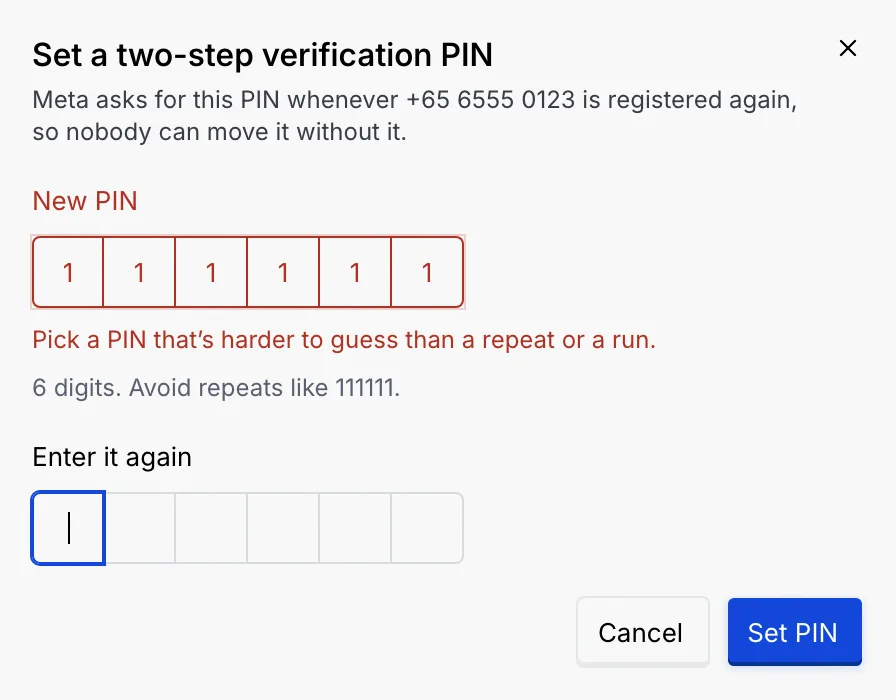
Type 6 digits in **New PIN** and the same again in **Enter it again**. Avoid repeats like 111111 and runs like 123456.
### Save it [#save-it]
Click **Set PIN** (or **Reset PIN**). A message confirms two-step verification is on, and the value shows **On** with the date you set it.
Store the PIN where your team can find it. Meta asks for it whenever the number is registered again, for example when you move it to another provider.
## Route new conversations [#route-new-conversations]
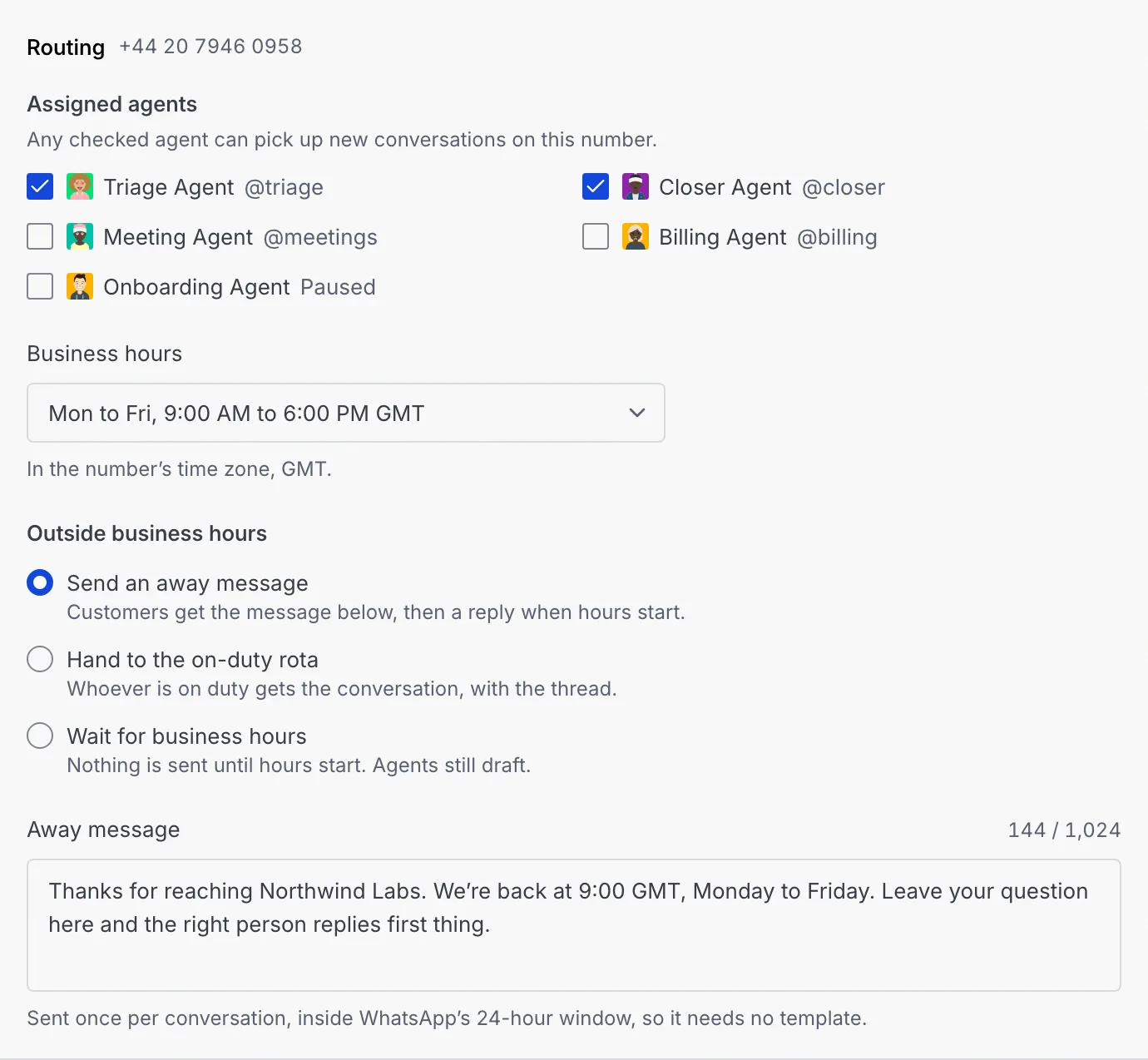
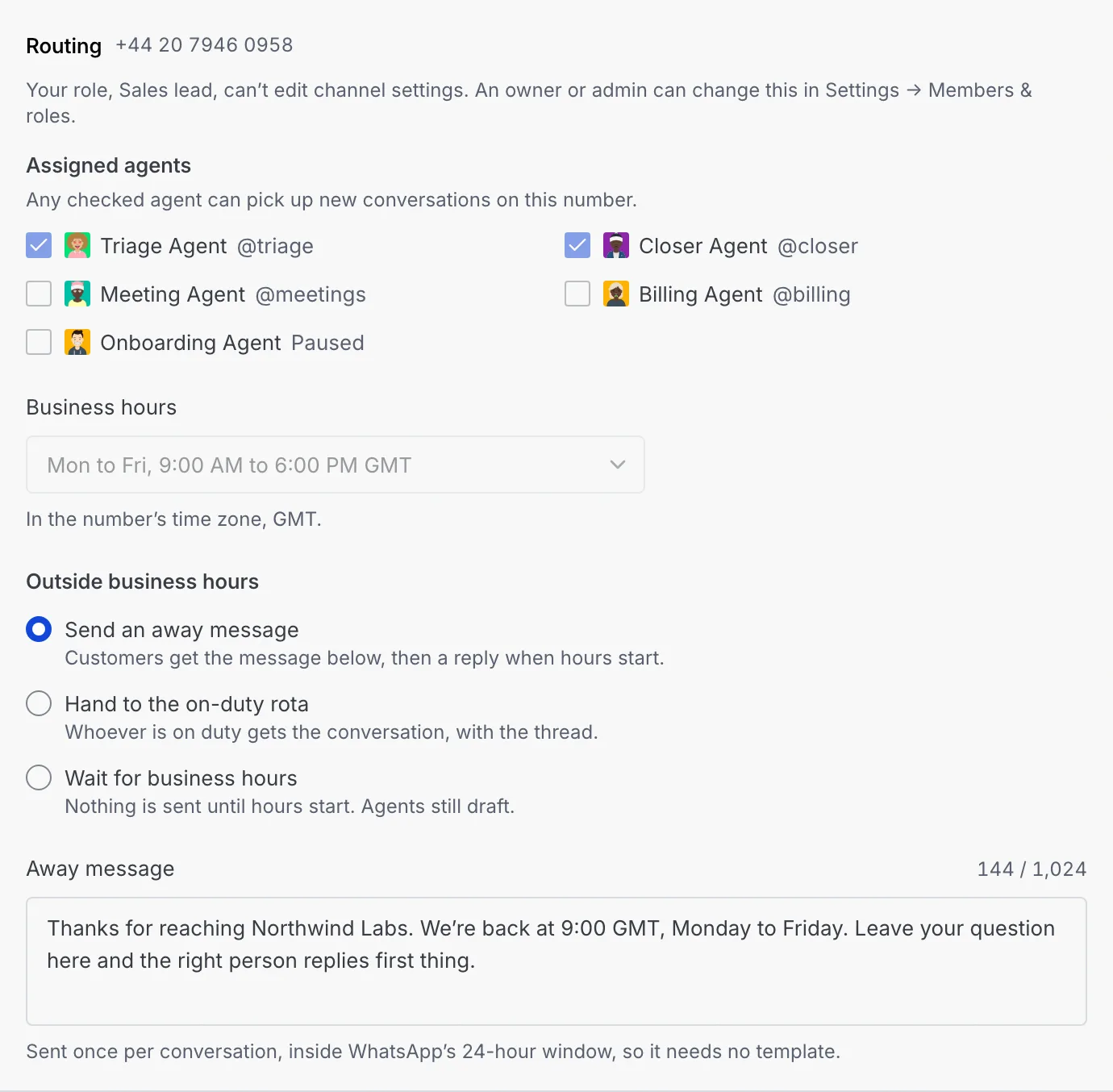
**Routing** decides which agents pick up new conversations on the number and what happens outside business hours. Each number has its own routing.
### Choose the agents [#choose-the-agents]
Under **Assigned agents**, tick the agents that may pick up new conversations on this number. Paused agents and agents in shadow (drafts only) say so next to their name. Pick at least one: without one, new WhatsApp conversations wait in the inbox for a teammate.
### Set business hours [#set-business-hours]
Pick **Business hours**: Monday to Friday 9:00 to 18:00, Monday to Saturday 8:00 to 20:00, or every day, 24 hours. Hours are in the number's time zone.
### Decide what happens outside hours [#decide-what-happens-outside-hours]
Under **Outside business hours**, choose:
- **Send an away message:** customers get the message below, then a reply when hours start.
- **Hand to the on-duty rota:** whoever is on duty gets the conversation, with the thread.
- **Wait for business hours:** nothing is sent until hours start. Agents still draft.
With **Send an away message**, write the **Away message** (10 to 1,024 characters). It's sent once per conversation, inside WhatsApp's 24-hour window, so it needs no template.
### Save routing [#save-routing]
A bar appears at the bottom of the page while you have changes. Click **Save routing**, or **Discard** to undo them.

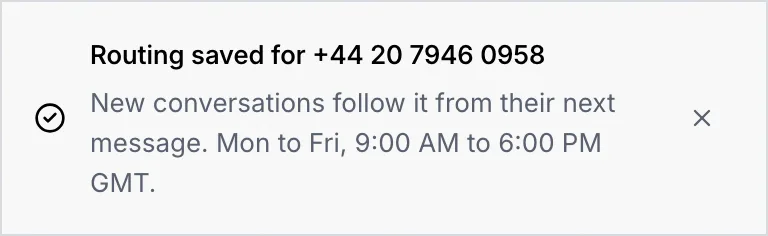
A message confirms routing was saved. New conversations follow it from their next message.
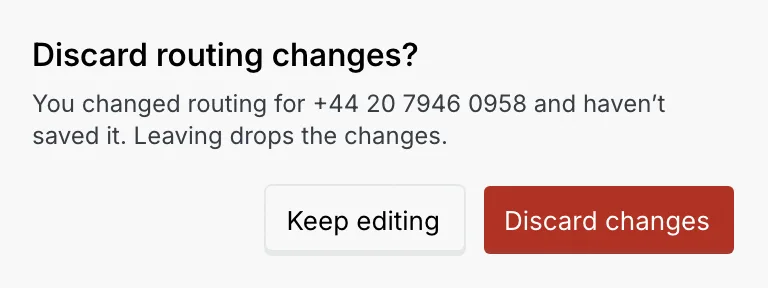
If you switch numbers, tabs or pages with unsaved changes, Mokanata asks first: **Keep editing** or **Discard changes**.
Without the **Edit channel settings** permission or **Manage** access to the number, routing is read-only and says why.
## Read the WhatsApp policy [#read-the-whatsapp-policy]
The WhatsApp policy lists the rules every WhatsApp number follows. The line under **Routing** sums it up; click **WhatsApp policy** next to it to read them. Neither can be turned off:
- **Enforce the 24-hour window:** outside the window, agents can only send approved templates. Meta requires it.
- **No marketing templates to people who turned them off:** someone who turns off marketing messages from your business in WhatsApp stops getting marketing templates. Meta holds them back, and the campaign lists that person as **Stopped marketing messages**.
Mokanata doesn't act on opt-out keywords such as STOP, and it doesn't hold templates for a teammate to send.
## Troubleshooting [#troubleshooting]
Meta is still reviewing its display name. Reviews usually take 1 to 2 business days; the number shows **In review** until then.
The tier rises when enough unique customers start conversations in 7 days and quality stays Medium or High. It can't go up while quality is Low, and a new number has to be approved and get traffic first.
Your role can't edit channel settings, or doesn't have **Manage** access to this number. Ask an owner or admin, or see [Channel access](/docs/settings/channel-access).
A link to the PIN dialog only works on a WhatsApp number. Open the number and click **Set PIN** under **Two-step verification**.
For routing, a message says "Routing for" the number "wasn't saved", with **Retry**; your changes stay in the form. For the PIN, the dialog stays open and says Mokanata can't be reached or something went wrong, and nothing was changed. Check your connection and try again.
## Next steps [#next-steps]