# Business account, API access and webhook (/docs/channels/whatsapp-business-account)
All your WhatsApp numbers belong to one WhatsApp Business account (WABA) at Meta. The **Webhook** and **Account and API** tabs on WhatsApp Business show what they share: the webhook Meta sends events to, the business account's verification and billing, and the access token Mokanata calls Meta's Graph API with.
WhatsApp is built, and goes live once Mokanata's Meta app is approved by Meta. Until then no business account can be connected, and **Send test event** and **Rotate token** say WhatsApp isn't available yet.
- **Who can use it:** Everyone can see these tabs and copy the IDs and the webhook URL. Sending a test event needs **Edit channel settings** (owners and admins by default) and **Manage** access to every WhatsApp number. Rotating the token needs **Connect and disconnect** and Manage access to every WhatsApp number. Without them, **Send test event** is disabled and **Rotate token** is left out of the menu. See [Who can change channels](/docs/channels/setup-page#who-can-change-channels).
- **Before you start:** WhatsApp connected. See [Add a WhatsApp number](/docs/channels/whatsapp-numbers).
## Check the webhook [#check-the-webhook]
Meta sends Mokanata an event whenever something happens on the business account: a customer writes, a message is delivered, a template is approved. Mokanata sets the webhook up for you.
### Open the Webhook tab [#open-the-webhook-tab]
On the [Setup page](/docs/channels/setup-page), select **WhatsApp**, then click the **Webhook** tab next to **Numbers**.
### Read its status [#read-its-status]
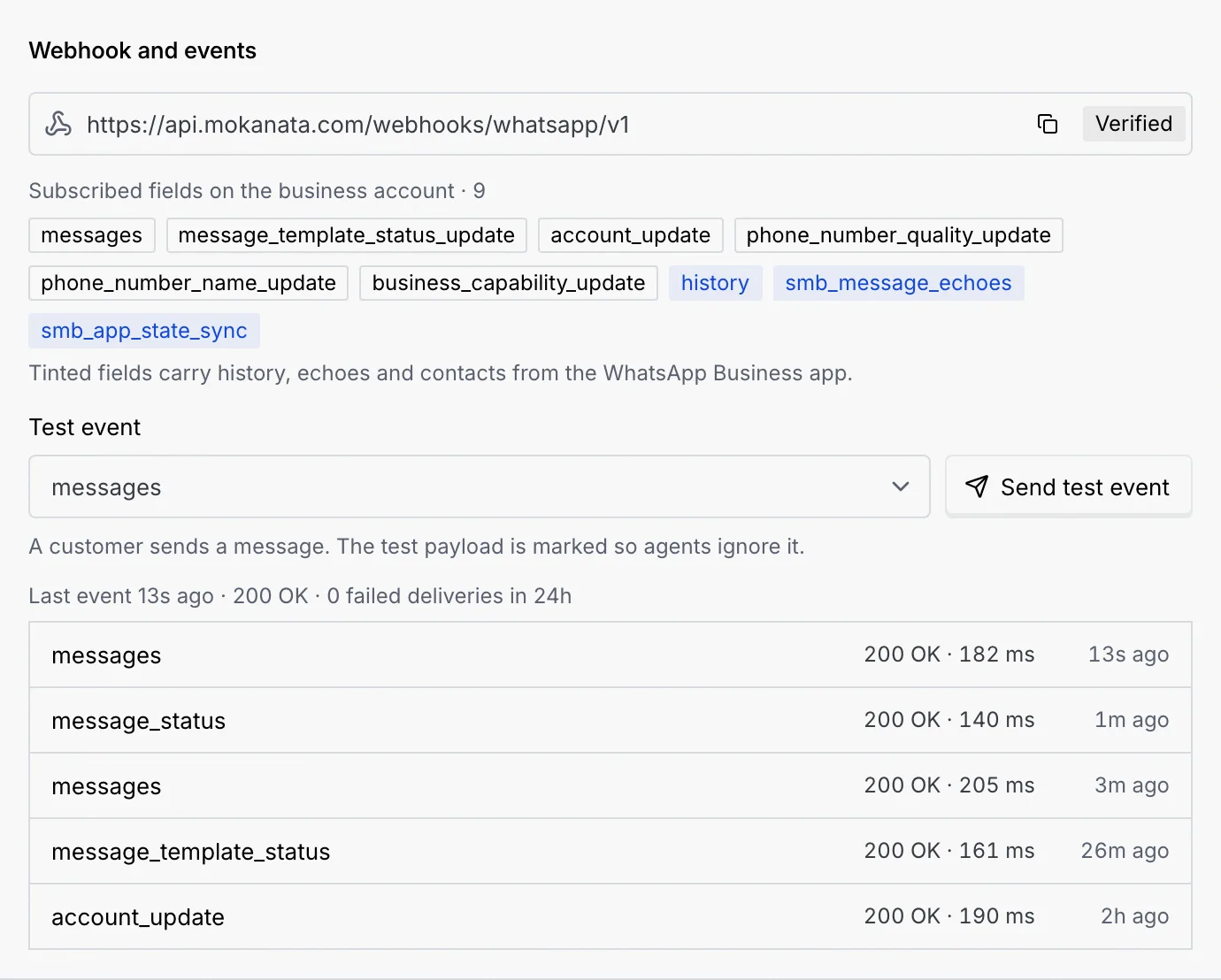
**Webhook and events** shows:
- The **Webhook URL** Meta delivers to, marked **Verified**. Click the copy button to copy it.
- The **Subscribed fields on the business account**. Hover a field to see what it carries.
- When the last event arrived, its response, and how many deliveries failed in the last 24 hours.
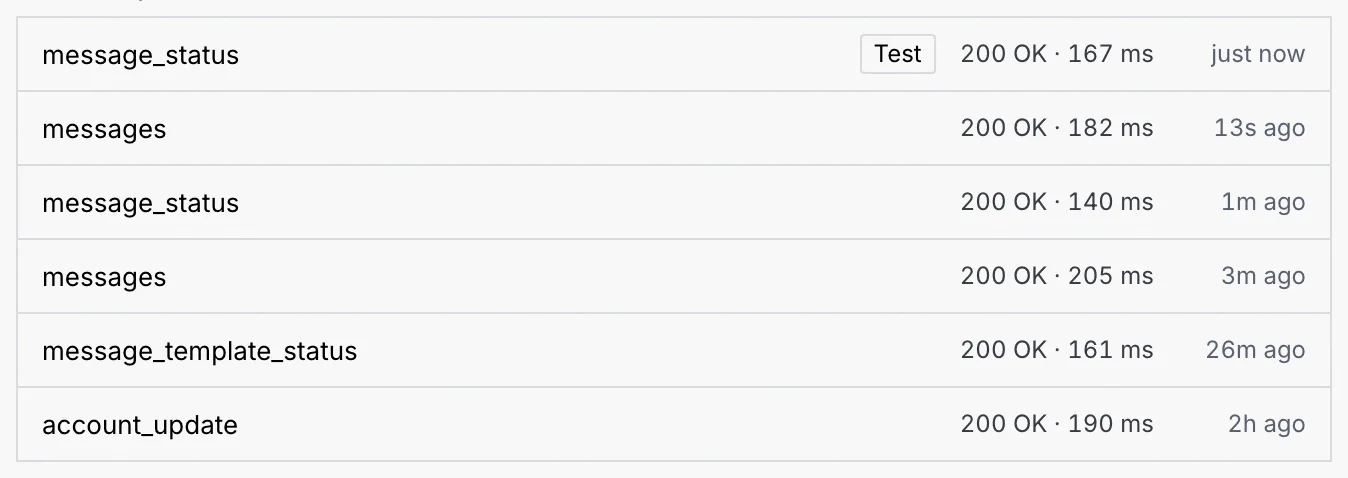
- **Recent deliveries:** the last 8 events, each with its response and how long it took.
### Subscribed fields [#subscribed-fields]
| Field | What it carries |
| --- | --- |
| `messages` | Messages from customers, and delivery and read receipts |
| `message_template_status_update` | Meta approves, pauses or rejects a template |
| `account_update` | Verification, bans and policy changes on the business account |
| `phone_number_quality_update` | A number's quality rating or tier changes |
| `phone_number_name_update` | Meta approves or rejects a display name |
| `business_capability_update` | The business account's messaging limits change |
## Send a test event [#send-a-test-event]
To check the webhook reaches Mokanata end to end:
### Pick an event [#pick-an-event]
Choose one in **Test event**: `messages` (a customer sends a message), `message_status` (a message is sent, delivered or read), `message_template_status` (Meta approves or rejects a template) or `account_update` (the business account changes). The test payload is marked so agents ignore it.
### Send it [#send-it]
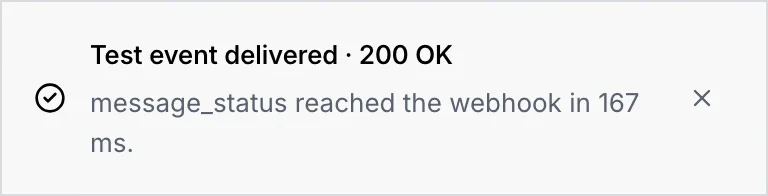
Click **Send test event**. A message confirms it was delivered and how long it took.
The event tops **Recent deliveries** with a **Test** badge.
If it fails, the message says "Test event wasn't delivered" with **Retry**, and the delivery shows **Failed** with the reason.
## See the business account [#see-the-business-account]
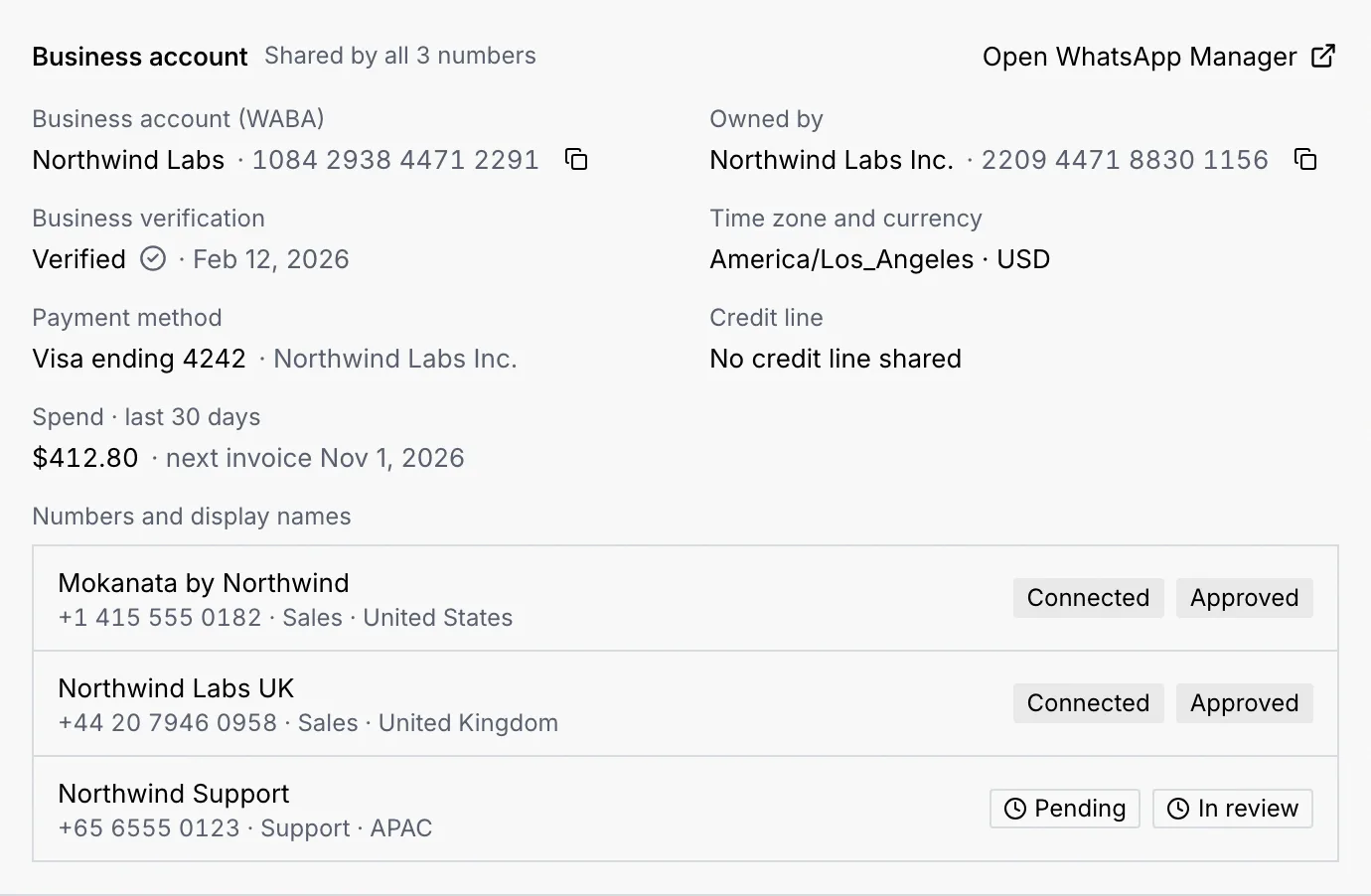
Click the **Account and API** tab. **Business account** is shared by all your numbers:
- **Business account (WABA):** its name and ID, with a copy button.
- **Owned by:** the Meta business that owns it, with its ID.
- **Business verification:** whether Meta verified the business, and when.
- **Time zone and currency**, **Payment method** and **Credit line** for WhatsApp charges.
- **Spend · last 30 days** and the date of the next invoice from Meta.
- **Numbers and display names:** every number with its status and display name status.
To change any of these, click **Open WhatsApp Manager**. Meta's WhatsApp Manager opens in a new tab.
## Check API access [#check-api-access]
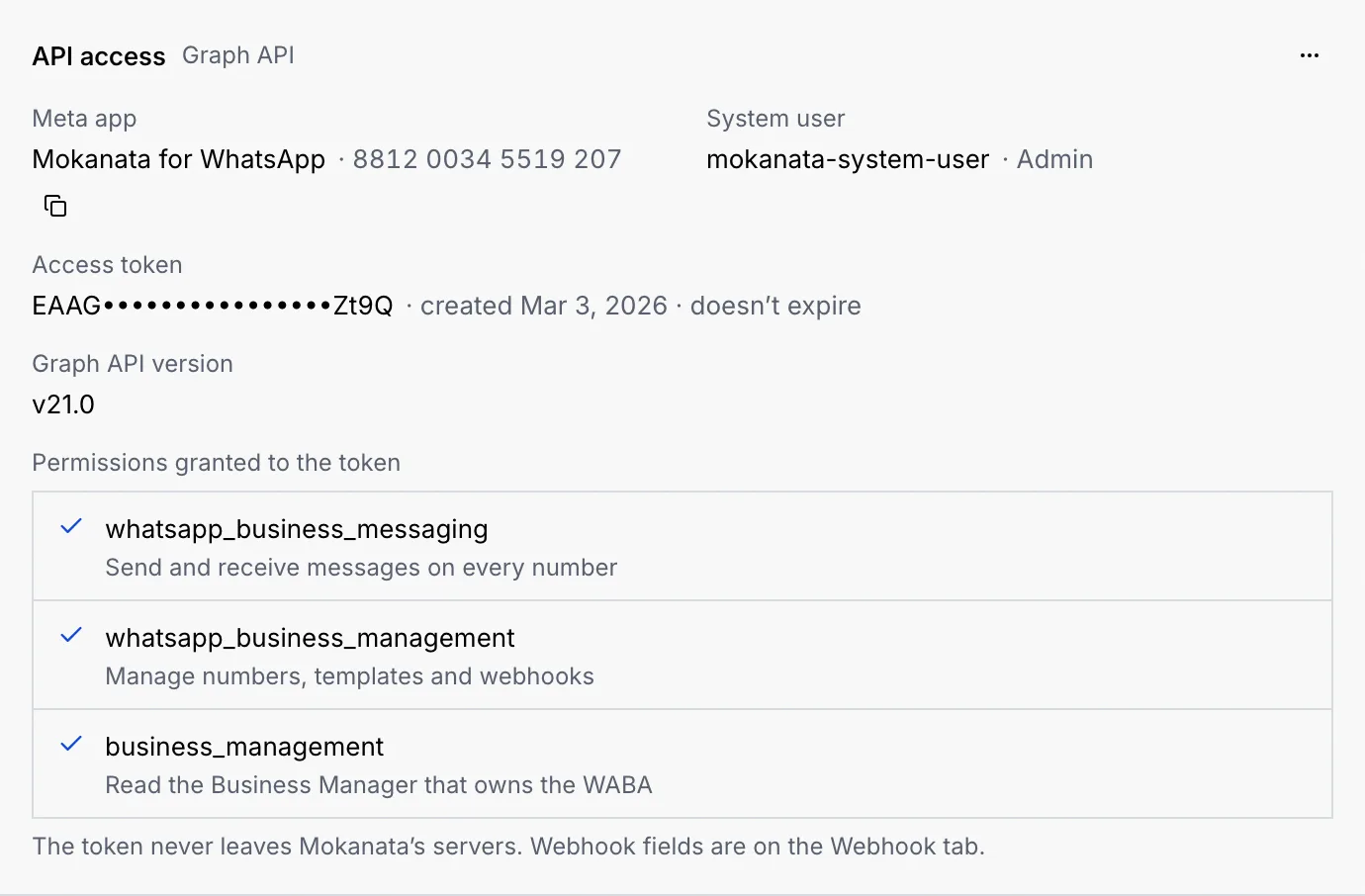
**API access** shows how Mokanata talks to Meta's Graph API for every number:
- **Meta app:** the app Mokanata uses, with its ID.
- **System user:** the Business Manager system user that holds the token, and its role.
- **Access token:** the token, masked except its first and last characters, when it was created, and that it doesn't expire.
- **Graph API version.**
- **Permissions granted to the token:** `whatsapp_business_messaging` (send and receive messages on every number), `whatsapp_business_management` (manage numbers, templates and webhooks) and `business_management` (read the Business Manager that owns the business account).
The token never leaves Mokanata's servers.
## Rotate the system user token [#rotate-the-system-user-token]
Rotate the token if you think it leaked, or as part of your security routine.
### Start the rotation [#start-the-rotation]
In **API access**, click **⋯**, then **Rotate token**.
### Confirm [#confirm]
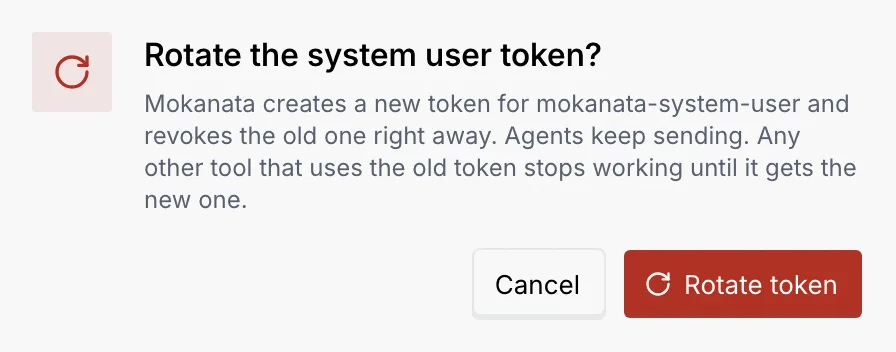
Mokanata creates a new token and revokes the old one right away. Agents keep sending, but any other tool that uses the old token stops working until it gets the new one. Click **Rotate token**.
### Check the new token [#check-the-new-token]
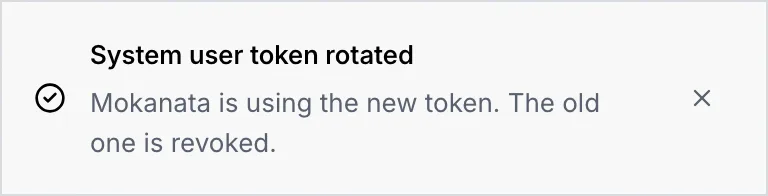
A message confirms Mokanata is using the new token and the old one is revoked. **Access token** shows the new token's last characters.
The old token is revoked the moment you rotate. Any other tool or script that used it stops working until it's given a new token.
## Troubleshooting [#troubleshooting]
The delivery shows why: Mokanata couldn't be reached, or there was a server error. Send a test event to check again.
Your role needs the permission and **Manage** access to every WhatsApp number. Ask an owner or admin, or see [Channel access](/docs/settings/channel-access).
A message says so, with **Retry**. The old token still works; nothing changed.
## Next steps [#next-steps]