# Connect a channel (/docs/channels/connect-a-channel)
Connecting a channel brings its messages into the Mokanata inbox, where your team and your agents answer them. Facebook Pages (Messenger) and the Instagram accounts linked to them connect with a Facebook sign-in; WhatsApp numbers have their own flow.
Messenger, Instagram and WhatsApp are built, and go live once Mokanata's Meta app is approved by Meta. Until then the connect steps on this page say the channel isn't available yet. The other channels listed under [Coming soon](#coming-soon) aren't available yet either.
- **Who can use it:** Owners and admins, and any role with the **Connect and disconnect** permission. Everyone else sees **Connect channel** and every **Connect** button disabled, and the **Add account** items are left out of the menus. See [Who can change channels](/docs/channels/setup-page#who-can-change-channels).
- **Before you start:** For Facebook and Instagram, a Facebook account that can manage the Pages you want to connect. To add a WhatsApp number, follow [Add a WhatsApp number](/docs/channels/whatsapp-numbers) instead.
## Connect Facebook Pages and Instagram [#connect-facebook-pages-and-instagram]
### Open Connect a channel [#open-connect-a-channel]
On the [Setup page](/docs/channels/setup-page), click **Connect channel** in the header (or press C on the Channels tab). You can also click **Connect** next to a platform in the **More channels** panel under the accounts list.
### Choose Facebook or Instagram [#choose-facebook-or-instagram]
Click **Connect** next to **Facebook** or **Instagram**. Step 1 of 2 opens: **Connect Facebook Pages** or **Connect Instagram**. To pick another platform, click the back arrow (**Back to all channels**).
### Continue with Facebook [#continue-with-facebook]
Click **Continue with Facebook**. Facebook opens in a new window: choose the Pages Mokanata may message from, and keep every permission switched on. An Instagram account comes with the Page it's linked to. While Mokanata checks what Facebook shared, the step says **Checking access with Meta…**.
### Switch on what agents reply from [#switch-on-what-agents-reply-from]
Step 2 of 2 lists the Pages your sign-in shared. Each Page has a **Facebook** switch and, when an Instagram account is linked to it, a switch with the account's @name (otherwise it says **No Instagram account linked**). The channel you opened the step for starts switched on for every Page. What's connected already shows **Connected** and stays as it is.
Instagram accounts need **Allow access to messages** switched on in Instagram → Settings → Messages and story replies → Message controls → Connected tools.
### Connect [#connect]
Click **Connect**. A message confirms what was connected, and the new account opens on the Setup page.
A new account answers nothing on its own: its conversations land in the inbox for your team. To let an agent work it, add the platform in the agent's channels. See [Agent settings](/docs/agents/agent-settings).
## Add another Page or Instagram account [#add-another-page-or-instagram-account]
Open **Facebook** or **Instagram** on the Setup page and click **Add page** (or **Add account**) next to the **Accounts** heading, or **⋯** in its header, then **Add account**. The same two steps open. Sign in with Facebook again and switch on the new Page or Instagram account; the ones already in Mokanata show **Connected**.
When everything your sign-in shared is already connected, the step says "Every Page and Instagram account this sign-in shared is already in Mokanata. Sign in as someone with access to another Page to add it." and offers only **Close**.
## What each channel can do [#what-each-channel-can-do]
You sign in with Facebook (Facebook Login for Business) and pick **Pages**. Mokanata reads and replies to the messages people send your Page on Messenger.
Inside 24 hours of the customer's last message, agents and your team can reply. After that, for up to 7 days, only a person's reply goes out (as a human agent reply); agents' automatic sends stop at 24 hours. Past 7 days nothing can be sent until the customer writes again.
You connect an Instagram professional account through the Facebook Page it's linked to, in the same sign-in as Facebook. Mokanata reads and replies to the account's direct messages.
The same windows apply as on Facebook: replies inside 24 hours, a person's reply up to 7 days, nothing after that.
WhatsApp numbers connect with **Connect with Facebook** (Meta's Embedded Signup), then a two-step PIN registers the number. Outside WhatsApp's 24-hour window, only approved templates can be sent.
Open the **WhatsApp** platform and click **⋯**, then **Add a phone number**. See [Add a WhatsApp number](/docs/channels/whatsapp-numbers).
## Coming soon [#coming-soon]
These channels aren't available yet: Email, TikTok, Telegram, LinkedIn, X, Threads, LINE and the [website chat](/docs/channels/website-chat). YouTube, Google Business, Phone (voice calls and SMS), Discord and Slack are coming soon too, and you can join their waitlist.
### Open YouTube, Google Business, Phone, Discord or Slack [#open-youtube-google-business-phone-discord-or-slack]
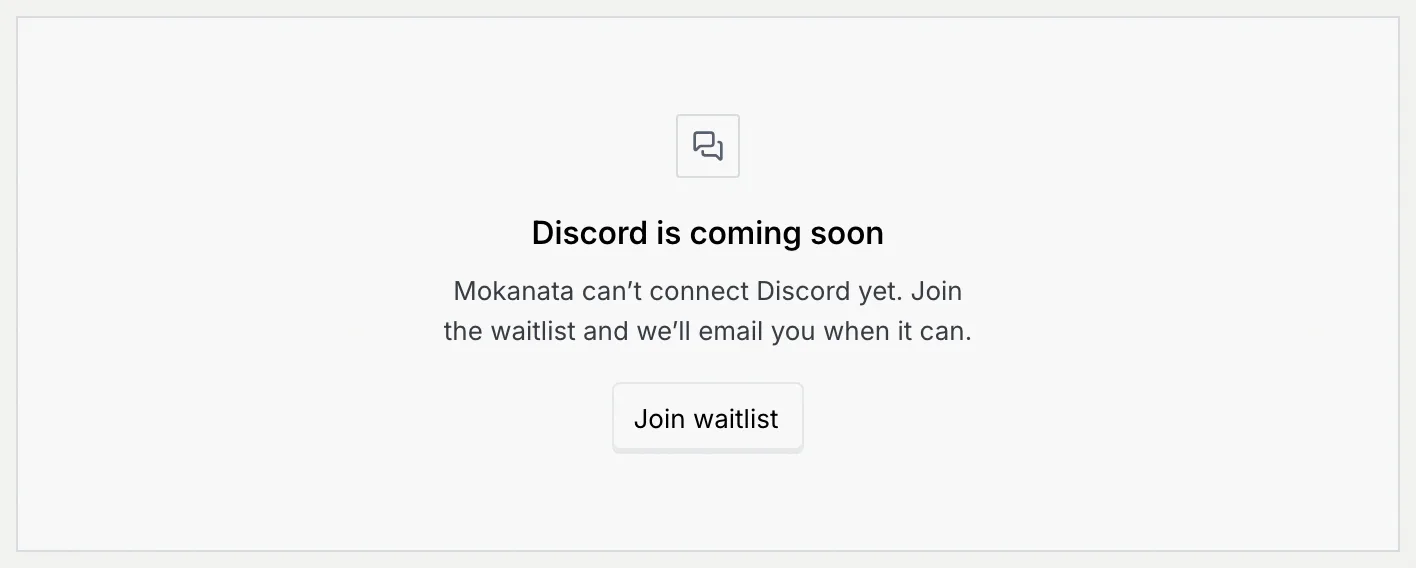
Click **Join waitlist** next to it in the **Connect a channel** dialog or the **More channels** panel. Clicking the platform's name opens its panel, which says it's coming soon.
### Join [#join]
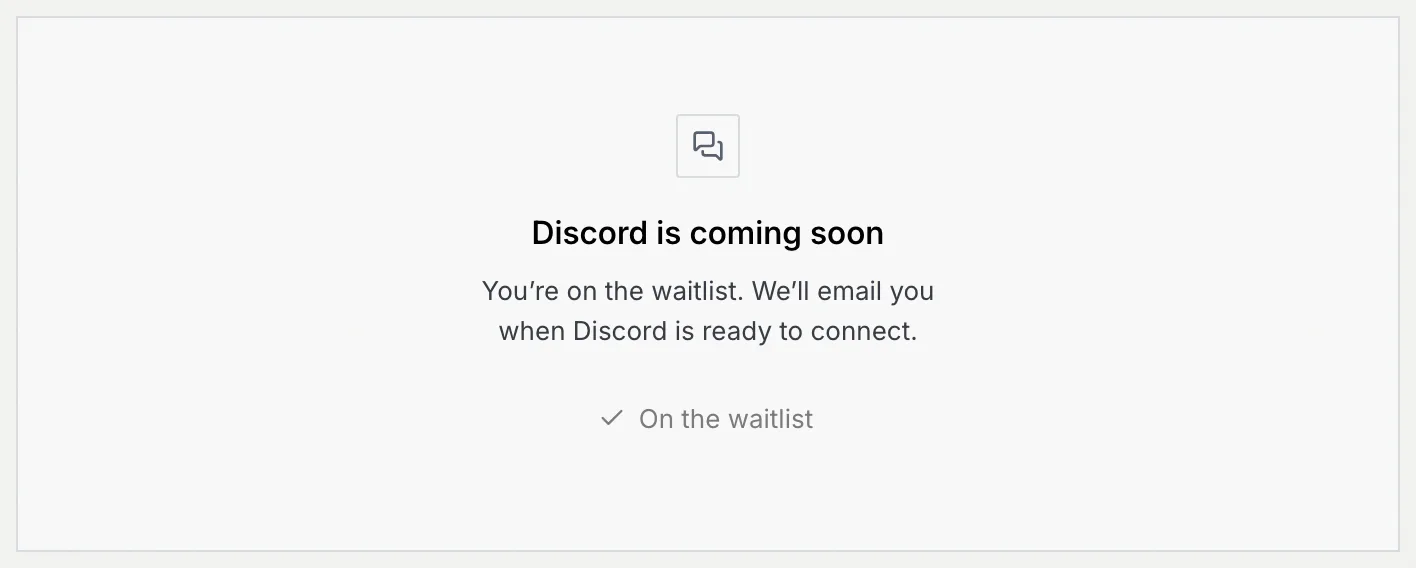
Click **Join waitlist**. A message confirms you're on the waitlist: Mokanata notes that this workspace wants the channel, and sends no email. The button turns into **On the waitlist**.
## Troubleshooting [#troubleshooting]
Your role can't connect channels. Ask an owner or admin to connect it, or to give your role the **Connect and disconnect** permission in [Roles and permissions](/docs/settings/roles).
Messenger, Instagram and WhatsApp go live once Mokanata's Meta app is approved. Until then nothing can be connected, and nothing was changed.
The sign-in finished without a Page. Sign in again and pick the Pages agents reply from, keeping every permission switched on.
The connection didn't go through and nothing was changed. Check your connection and try again.
Joining the waitlist didn't go through. Click **Retry** in the message, or **Join waitlist** again.
Mokanata only offers what your Facebook sign-in shared. Sign in as someone who manages the Page, choose it in Facebook's window, and check that the Instagram account is linked to that Page.
## Next steps [#next-steps]