# WhatsApp message templates (/docs/campaigns/message-templates)
WhatsApp only lets a business start a conversation, or write after 24 hours without a reply, with a template Meta has approved. Campaigns send templates, and so do agents when they follow up outside the 24-hour window. Every WhatsApp number on your business account shares the same templates.
WhatsApp is built, and goes live once Mokanata's Meta app is approved by Meta. Until then no WhatsApp number can be connected, so templates can't be submitted to Meta.
- **Who can use it:** Everyone in the workspace can see templates and how they read. Owners and admins can write them and submit new versions. A custom role needs **Create templates** to write one and **Edit templates** to submit a new version or fix a rejected one; **Use in a campaign** needs **Create campaigns**. Members and viewers see the page read-only, with a **View only** notice, and opening **New template** shows **Can’t create templates**. See [Roles and permissions](/docs/settings/roles).
- **Before you start:** A WhatsApp Business account connected on Setup ([Add a WhatsApp number](/docs/channels/whatsapp-numbers)).
## See your templates [#see-your-templates]
### Open Message templates [#open-message-templates]
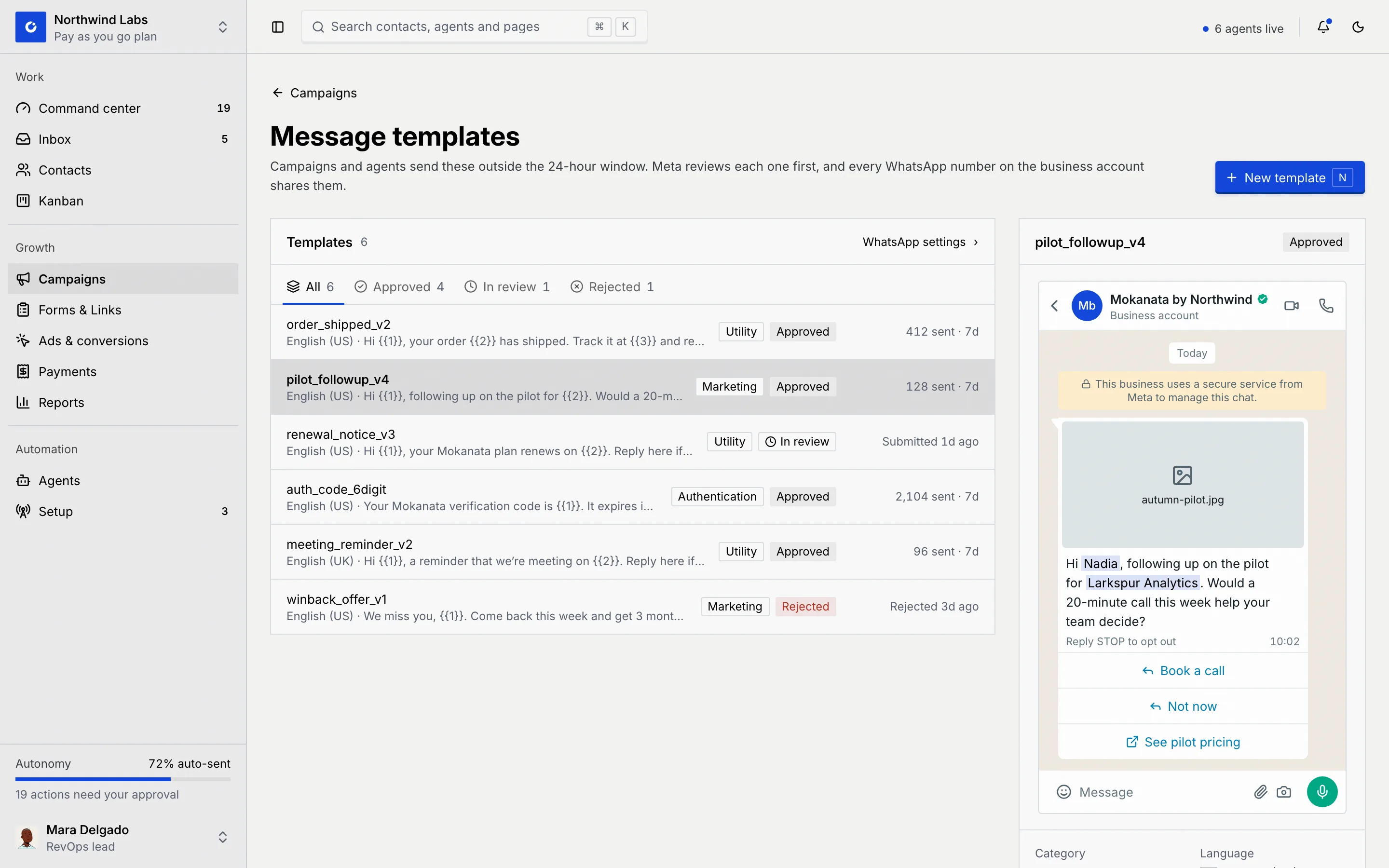
On **Campaigns**, open the **⋯** menu next to **New campaign** and click **Message templates**. The list shows every template with its language, text, category, status and how often it's been sent (or when it was submitted). **WhatsApp settings** opens your business account on Setup.
### Filter by status [#filter-by-status]
Click **All**, **Approved**, **In review** or **Rejected** above the list. Each tab shows how many templates it holds. If a tab has none, click **Show all templates** to go back to the full list.
### Preview a template [#preview-a-template]
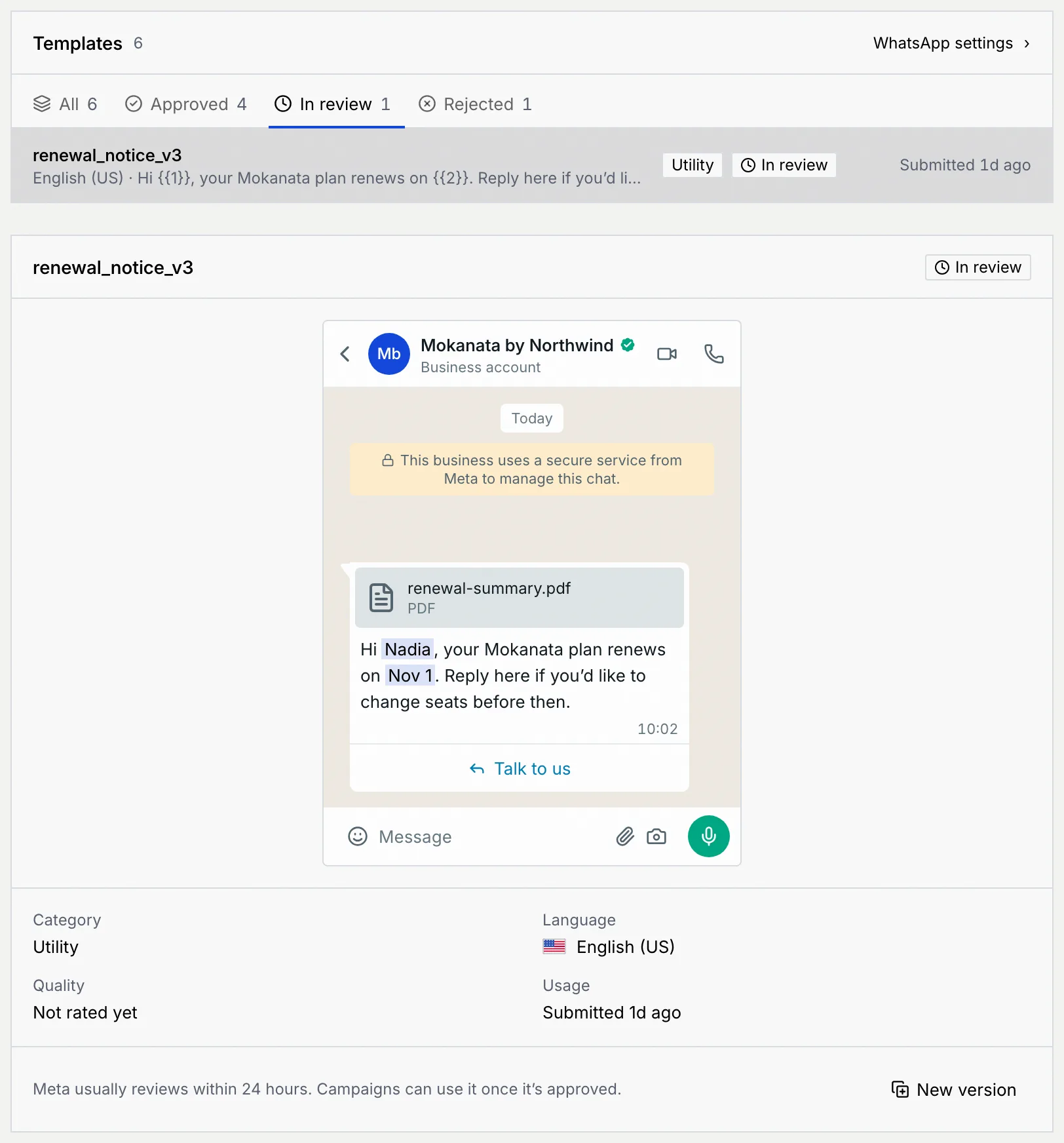
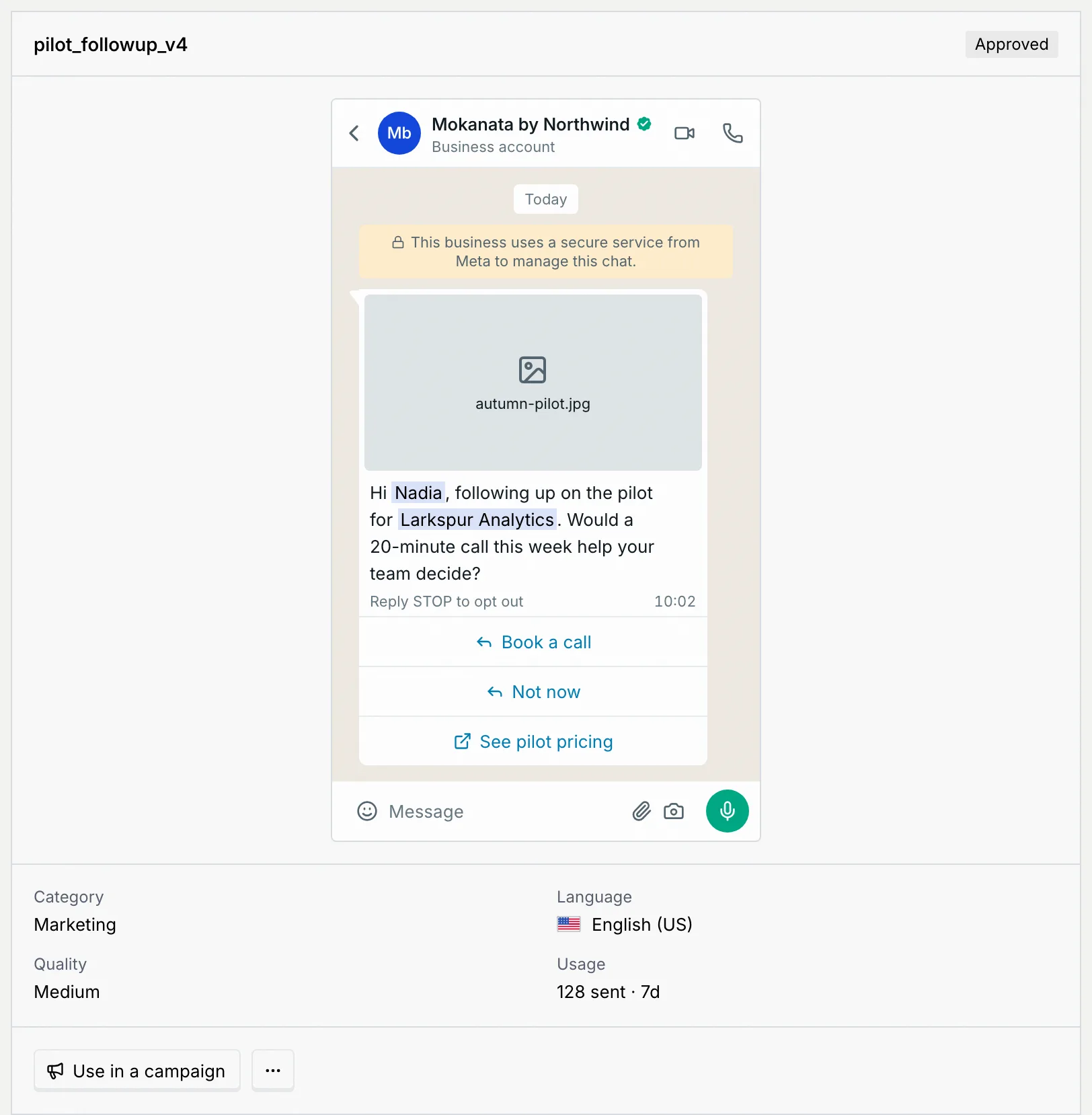
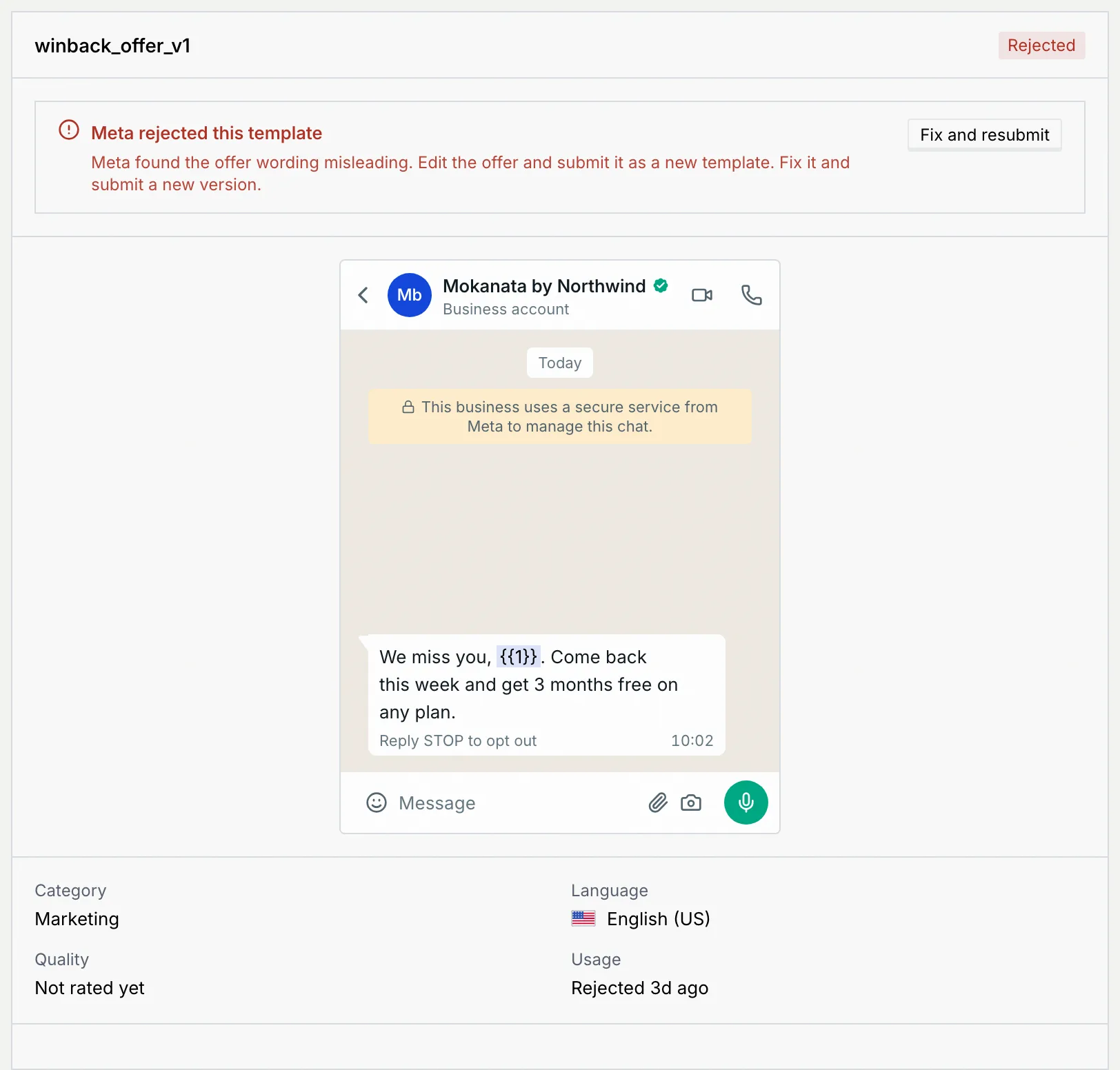
Click a template to preview it as a customer sees it in WhatsApp, with sample values in the variables. Under the preview: its **Category**, **Language**, **Quality** (**High**, **Medium** or **Low**; **Not rated yet** until it's approved) and **Usage**.
| Status | What it means |
|---|---|
| **Approved** | Meta approved it. Campaigns and agents can send it. |
| **In review** | Submitted and waiting for Meta. Meta usually reviews within 24 hours. Campaigns can use it once it's approved. |
| **Rejected** | Meta turned it down. The preview says why; fix it and submit a new version. |
## Write a template [#write-a-template]
### Start a new template [#start-a-new-template]
Click **New template**, or press N on Message templates.
### Fill in the details [#fill-in-the-details]
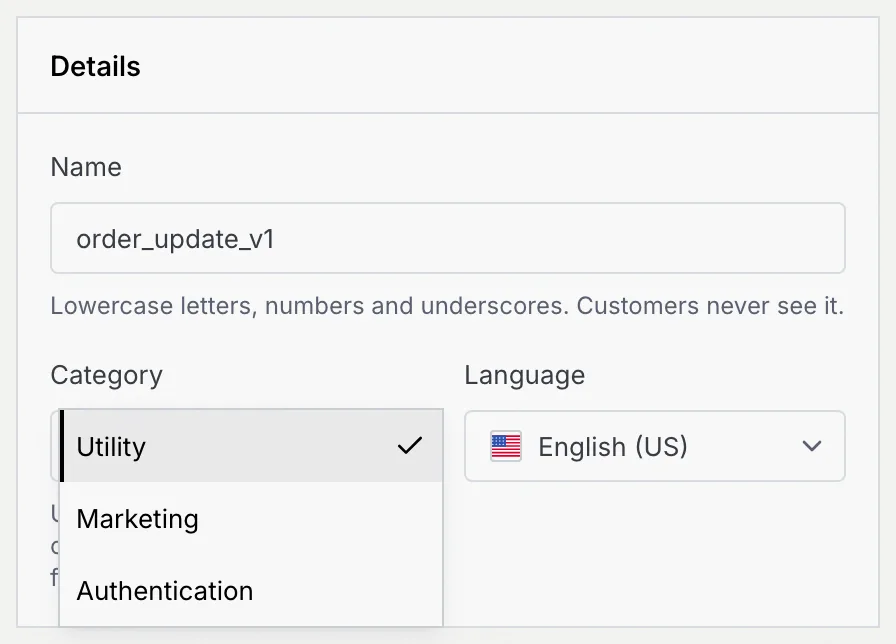
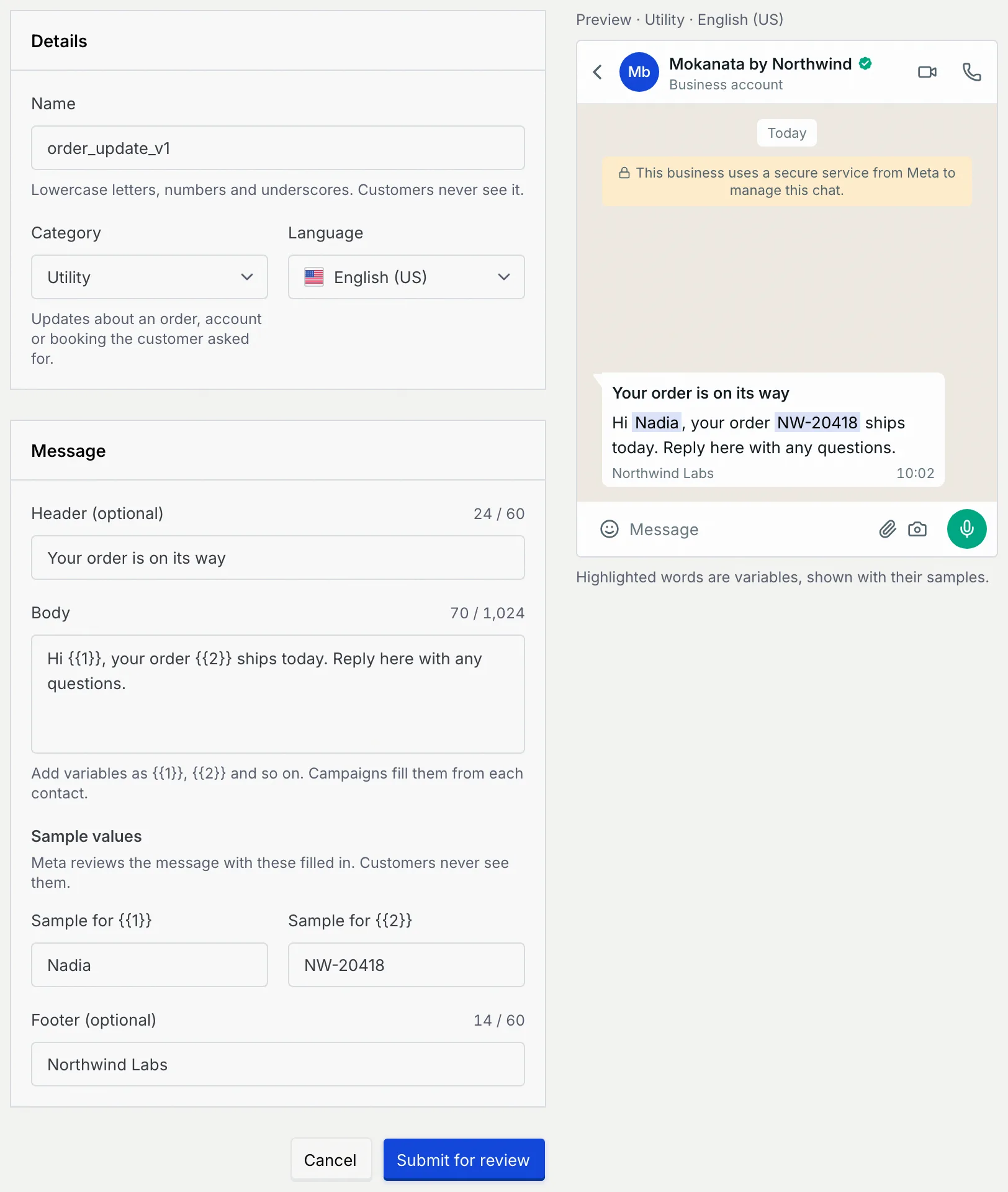
- **Name**: lowercase letters, numbers and underscores, like `order_update_v1`. Customers never see it. Each name can only be used once.
- **Category**: what the message is for (see [Categories](#categories)).
- **Language**: English (US), English (UK), German, French, Spanish or Portuguese (Brazil).
### Write the message [#write-the-message]
- **Header (optional)**: a short title, up to 60 characters.
- **Body**: the message, up to 1,024 characters. Add variables as `{{1}}`, `{{2}}` and so on, numbered in the order they appear. Campaigns fill them from each contact. Start and end the body with words, not a variable: Meta rejects both.
- **Sample values**: one per variable. Meta reviews the message with these filled in; customers never see them.
- **Footer (optional)**: a line under the message, up to 60 characters.
The preview on the right shows the message as you write it, with the samples highlighted in the variables.
### Submit it for review [#submit-it-for-review]
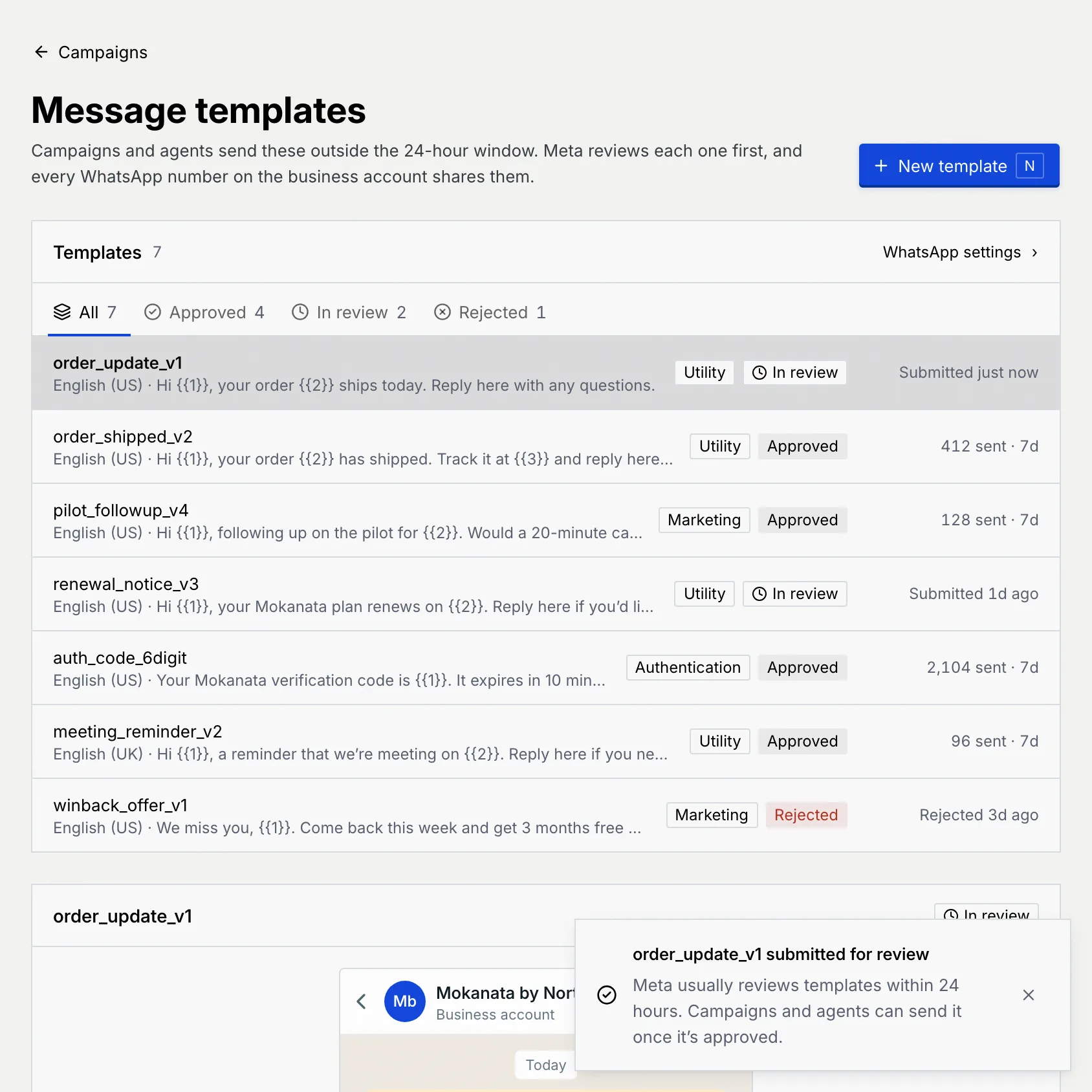
Click **Submit for review**. The template appears at the top of the list as **In review**, and Mokanata says Meta usually reviews templates within 24 hours. Campaigns and agents can send it once it's approved.
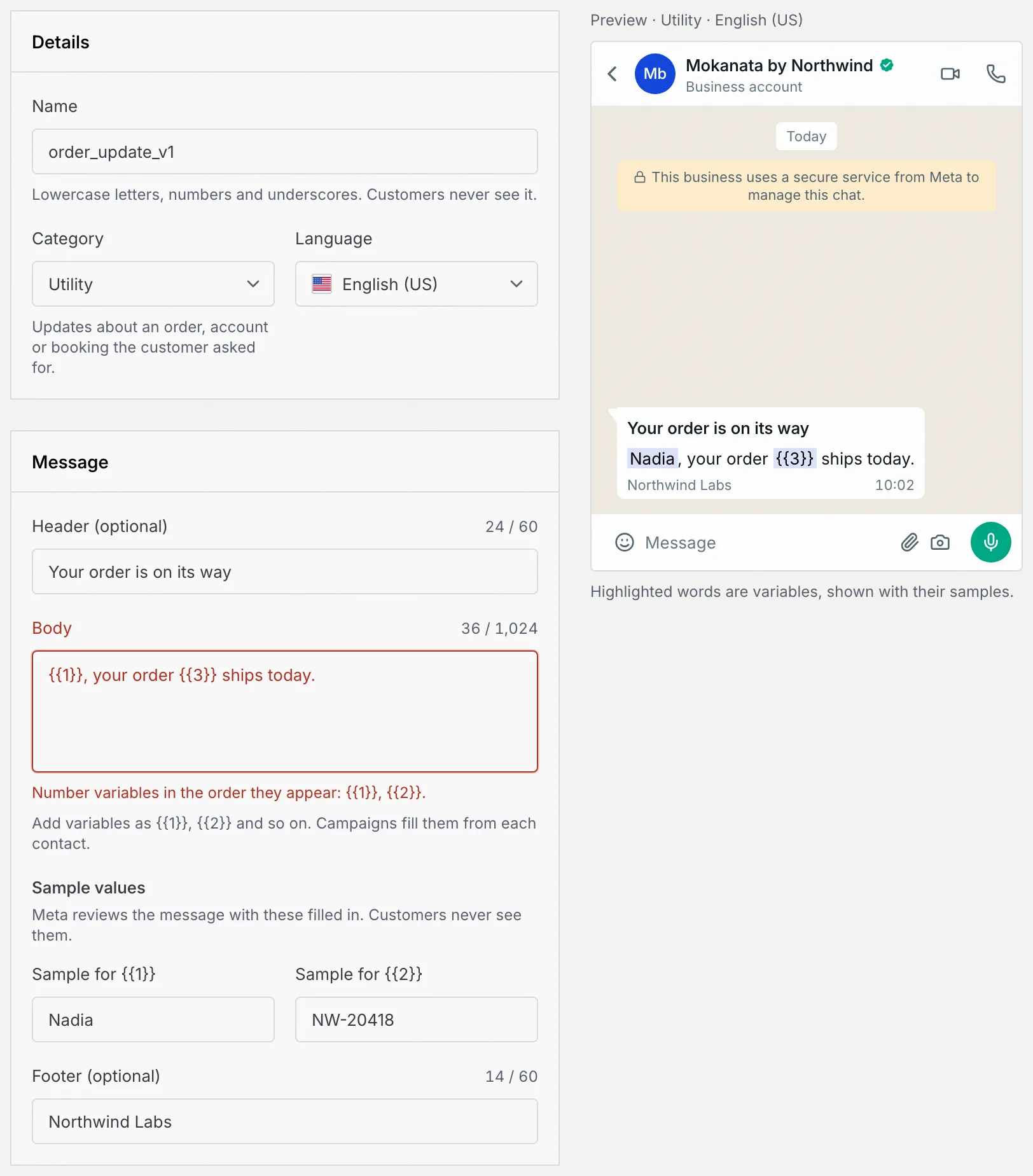
If something's wrong, the field says so when you leave it or when you submit:
| Message | What to do |
|---|---|
| Name the template, like order_update_v1. | Type a name. |
| Use lowercase letters, numbers and underscores only, like order_update_v1. | Remove capitals, spaces and other characters. |
| A template with this name already exists. Add a version, like \_v2. | Pick a new name. |
| Write the message customers get. | Write the body. |
| Close every variable with double braces, like \{\{1\}\}. | Fix a variable that's missing a brace. |
| Variables are numbers in double braces, like \{\{1\}\}, not names. | Replace names such as \{\{first_name\}\} with numbers. |
| Number variables in the order they appear: \{\{1\}\}, \{\{2\}\}. | Renumber the variables from 1. |
| Start and end the body with words, not a variable. Meta rejects both. | Add words before the first or after the last variable. |
| Keep the header to 60 characters. / Keep the body to 1,024 characters. / Keep the footer to 60 characters. | Shorten it. |
| Add a sample so Meta can review the message. | Fill in every sample value. |
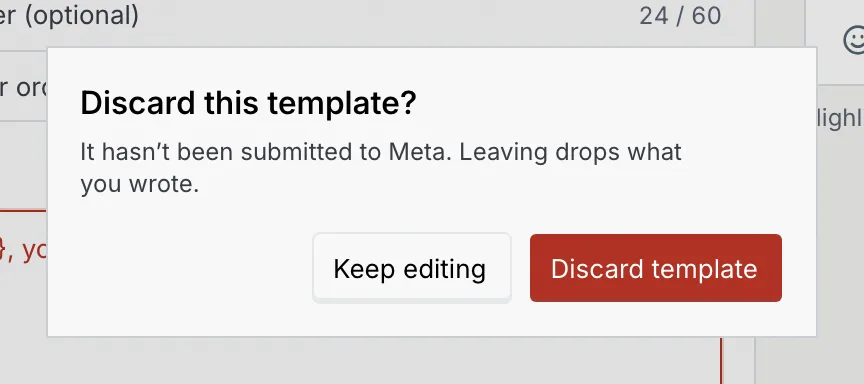
To leave without submitting, click **Cancel**. If you wrote anything, Mokanata asks first: **Discard template** drops it, **Keep editing** stays.
## Fix a rejected template [#fix-a-rejected-template]
### Read why it was rejected [#read-why-it-was-rejected]
Click the rejected template. The preview starts with **Meta rejected this template** and Meta's reason.
### Submit a new version [#submit-a-new-version]
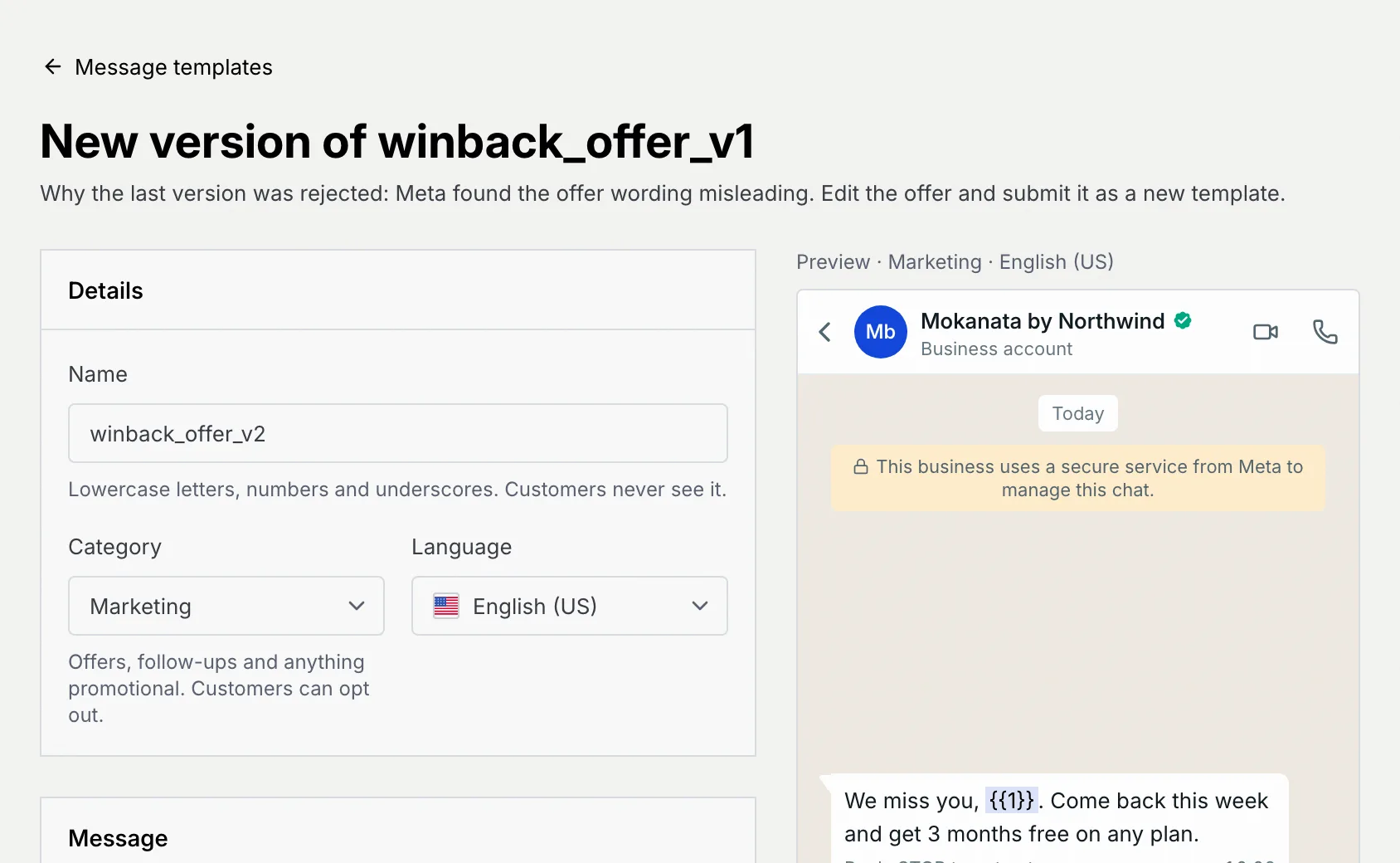
Click **Fix and resubmit**. **New version of …** opens with the template's details and text filled in, the next version number in the name (for example `winback_offer_v2`), and the rejection reason under the title. Fix the message and click **Submit for review**.
You can also start a new version of an approved template (from the **⋯** menu next to **Use in a campaign**) or of one in review (**New version**), for example to change its wording. Meta reviews each version separately.
## Use a template in a campaign [#use-a-template-in-a-campaign]
On an approved template, click **Use in a campaign**. A new campaign opens with the template already chosen on its Message step. If the campaign doesn't have a name and an audience yet, it opens on Audience first. See [Create and send a campaign](/docs/campaigns/create-campaign).
You can't broadcast authentication templates: they only send one-time codes.
## Categories [#categories]
| Category | Use it for |
|---|---|
| **Utility** | Updates about an order, account or booking the customer asked for. Utility templates aren't capped per person. |
| **Marketing** | Offers, follow-ups and anything promotional. Customers can opt out, and Meta caps how many marketing messages one person gets. |
| **Authentication** | One-time codes. Meta fixes most of the wording. Can't be used in campaigns. |
Meta charges per delivered template message, at a different rate for marketing and utility templates.
## Troubleshooting [#troubleshooting]
A link pointed at a template that's no longer there. The list opens without a preview.
Meta usually reviews templates within 24 hours. Until then, campaigns can't pick it. If you need to send sooner, use another approved template.
People have blocked or reported messages sent with it. If quality drops to low, Meta pauses the template and can lower your number's limit. Review the wording and who you send it to. See [WhatsApp number health, limits and settings](/docs/channels/whatsapp-number-settings).
## Next steps [#next-steps]