# Create and send a campaign (/docs/campaigns/create-campaign)
A campaign is built in five steps: **Audience**, **Message**, **Sender & schedule**, **Follow-up** and **Review**. The right-hand column keeps a live preview of the message up to date as you go. Who the campaign reaches is counted when it starts sending, so the steps show no estimate of reach or cost.
WhatsApp is built, and goes live once Mokanata's Meta app is approved by Meta. Until then no WhatsApp number can be connected, so a campaign can't be sent or scheduled.
- **Who can use it:** Owners and admins. A custom role needs **Create campaigns** to start one, **Edit campaigns** to change a draft or scheduled campaign, and **Send and stop campaigns** to send or schedule it (without it, **Send now** and **Schedule** on Review are disabled, but you can still save a draft). Members and viewers can't create campaigns: opening **New campaign** shows a **Can’t create campaigns** notice with a link back to the list. See [Roles and permissions](/docs/settings/roles).
- **Before you start:** You need a connected WhatsApp number whose display name Meta has approved ([Add a WhatsApp number](/docs/channels/whatsapp-numbers)) and at least one approved [message template](/docs/campaigns/message-templates). The people you send to must be in [Contacts](/docs/contacts/contacts) with a WhatsApp number, in a pipeline stage or a saved segment.
## Start a campaign [#start-a-campaign]
On the **Campaigns** page, click **New campaign** or press N. You can also start from a template: on **Message templates**, open an approved template and click **Use in a campaign**.
The bar at the top shows the steps. Click **Continue** to move on, **Back** to go back, or a step's name to jump to it. A step you've finished gets a check mark. You can't skip ahead past a step that isn't finished: Mokanata says what's missing and takes you to it.
The **Preview** shows the message as one of your contacts on WhatsApp will get it, with their details filled into the variables. Choose another contact in **Preview as** to check how it reads for them. With no contacts on WhatsApp yet, the preview fills each variable with its fallback.
## 1. Choose the audience [#1-choose-the-audience]
### Name the campaign [#name-the-campaign]
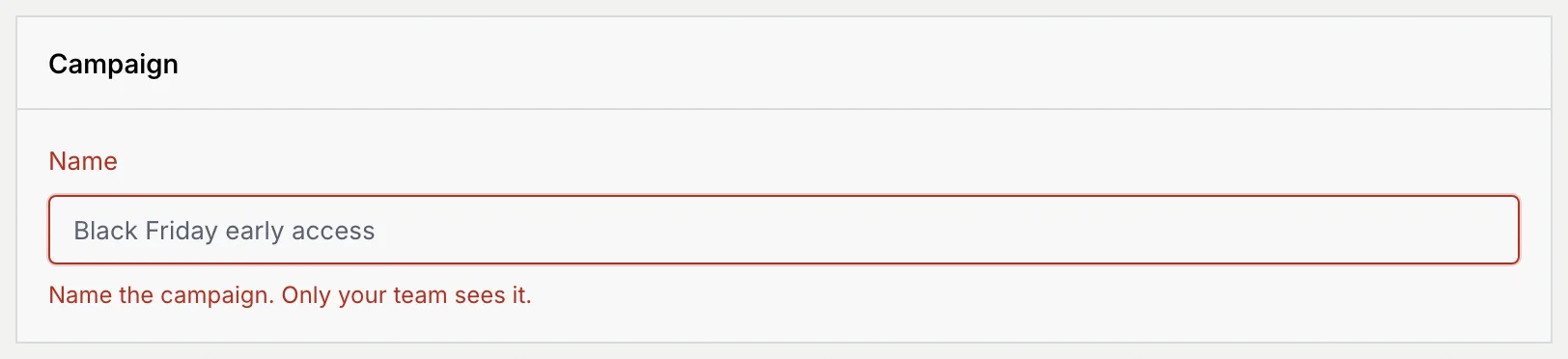
Type a **Name**. Only your team sees it, in Campaigns and reports. Keep it under 60 characters. If you click **Continue** without a name, the field turns red and says what's missing.
### Pick who gets it [#pick-who-gets-it]
Under **Who gets it**, tick any mix of **Pipeline stages** and **Saved segments**. People in more than one are messaged once. The saved segments are:
- **Read the last campaign**: people who read or replied to the last campaign your workspace sent.
- **Pipeline over 50K**: contacts whose deal is worth more than 50,000 US dollars.
Who's in the audience is counted when the campaign starts sending, leaving out anyone without a WhatsApp number. There's no list upload and no tags here: to reach people from a spreadsheet, [import them into Contacts](/docs/contacts/import-contacts) and put them in a stage first.
### Check the exclusions [#check-the-exclusions]
**People who turned off marketing messages** isn't a switch. Meta doesn't deliver marketing templates to people who turned them off in WhatsApp: they show as **Stopped marketing messages** (error 131050) on the campaign's page and aren't retried. Mokanata keeps no opt-out list of its own.
**Skip people another campaign reached in the last 24 hours** is on by default for marketing templates. Meta holds back marketing messages from people who got too many recently (error 131049), so skipping them saves the failed sends. Utility templates aren't capped, so the switch is off for them.
## 2. Write the message [#2-write-the-message]
### Choose a template [#choose-a-template]
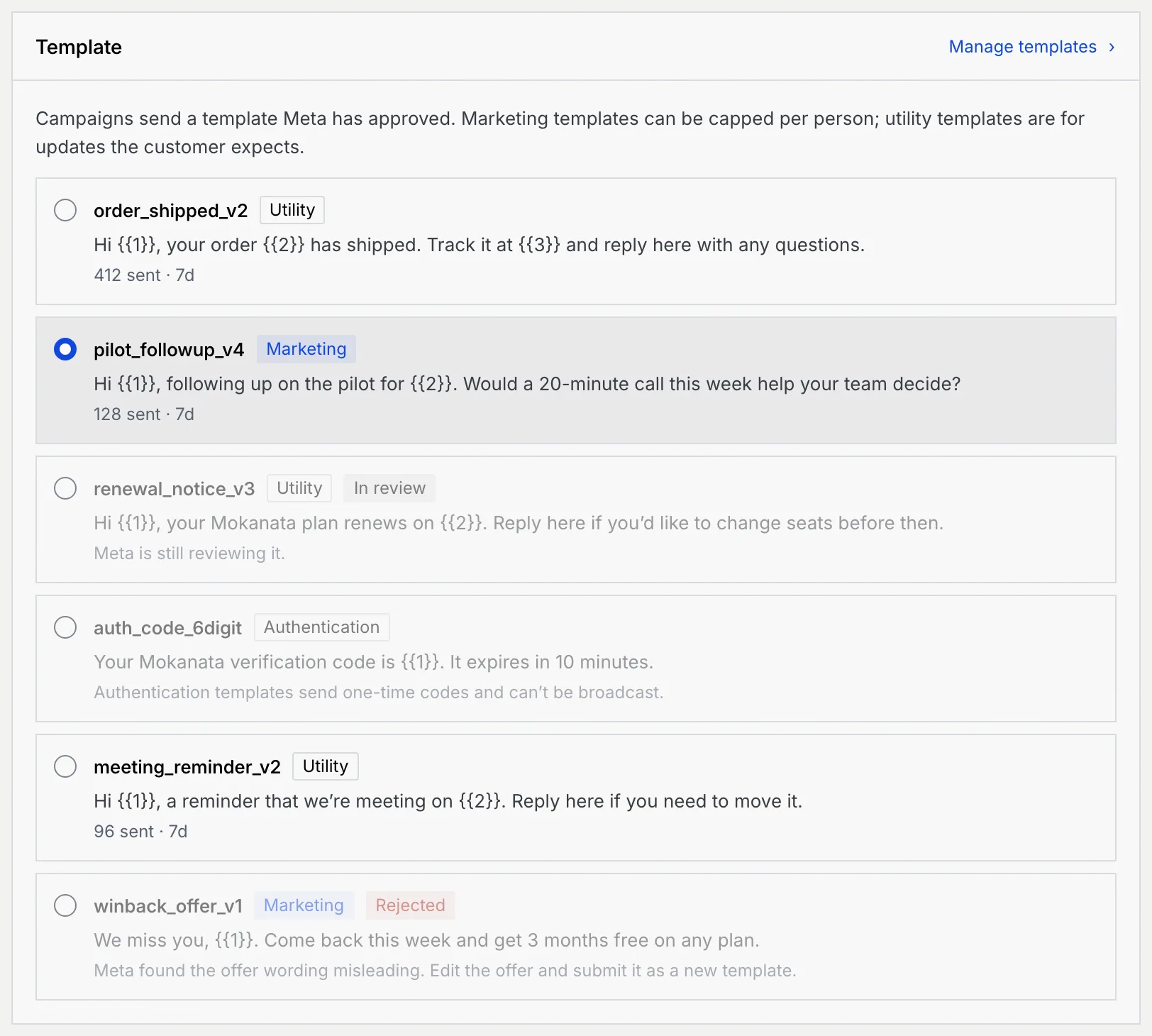
Under **Template**, pick an approved template. Each shows its category, its text and how often it's been sent. Templates Meta is still reviewing, rejected templates and authentication templates (which only send one-time codes) can't be picked, and say why. **Manage templates** opens [Message templates](/docs/campaigns/message-templates).
### Fill the variables [#fill-the-variables]
Each `{{1}}`, `{{2}}`… in the template fills from one of the contact fields Mokanata fills when it sends: **First name**, **Full name**, **Company** or **Deal owner** (the owner's first name). Type a **Fallback** for contacts who have no value, so nobody gets a blank. Choose **Custom text** to send the same text to everyone.
A variable that isn't mapped yet shows **Choose a field**. Every variable needs a field and its text or fallback, and each value can be up to 200 characters: a counter shows as you get close. Until every variable is ready, the campaign can't be sent or scheduled.
### Check the buttons [#check-the-buttons]
**Buttons** lists the buttons Meta approved with the template. Recipients always get those: a template goes out as Meta approved it, and Mokanata sends no buttons of its own. If you edit the list, a note says the edits aren't sent; **Use approved buttons** puts the list back. To change a template's buttons, change them in WhatsApp Manager and submit a new version of the template.
## 3. Choose the sender and schedule [#3-choose-the-sender-and-schedule]
### Pick the number [#pick-the-number]
Under **Send from**, choose a WhatsApp number. Each shows how many people Meta lets it start conversations with a day, its label and its quality. A disconnected number, or one whose display name Meta is still reviewing, can't be picked.
### Choose when [#choose-when]
- **Send now** starts as soon as you confirm on Review.
- **Schedule** sends at one moment: pick a **Date** and **Time**. The time is read in your browser’s time zone; the **Time zone** you pick only labels it for now.
- **Contact’s local time**: pick a **Date** and **Local time**. For now this also sends at one moment, at that time in your browser’s time zone, not at each contact’s own hour.
A scheduled time must be at least 5 minutes from now.
### Set the pace [#set-the-pace]
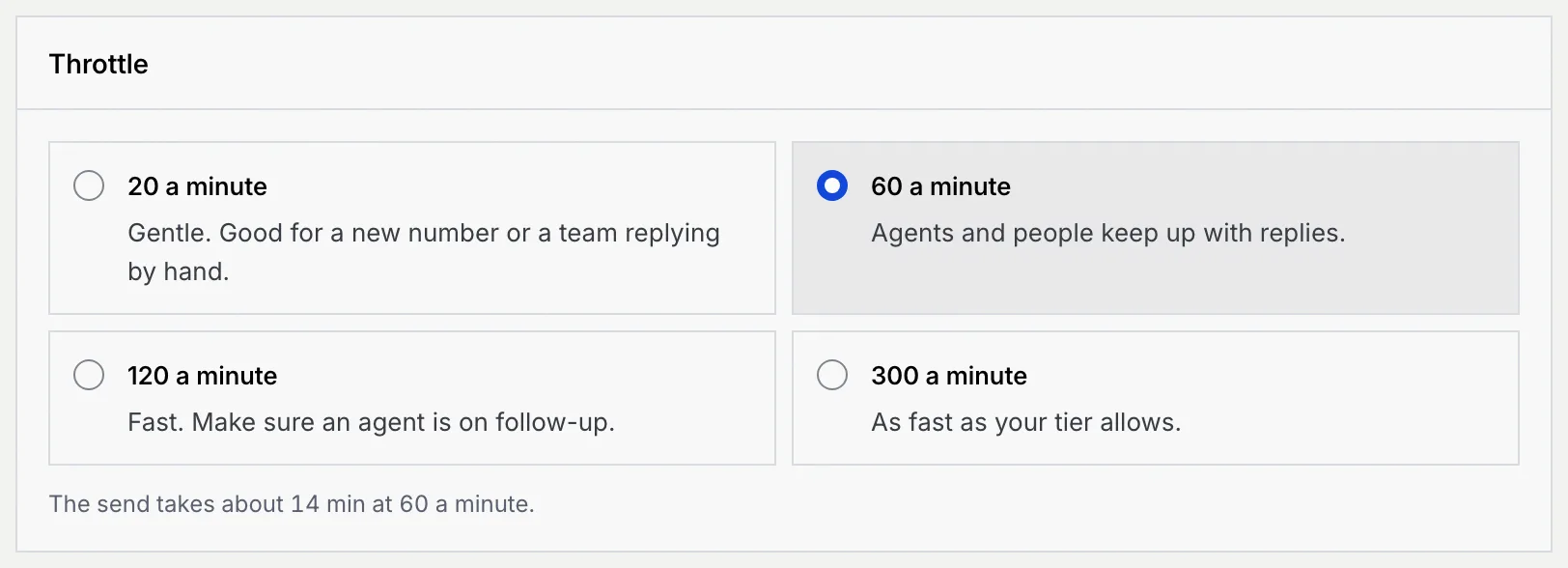
**Throttle** sets how many messages go out a minute: **20** (gentle, for a new number or a team replying by hand), **60** (the default), **120** or **300**. The caption says how long every 1,000 people take at that pace.
## 4. Name who answers replies [#4-name-who-answers-replies]
A reply opens a 24-hour window where anyone can answer freely. Replies arrive in the [inbox](/docs/inbox/inbox) like any other message. Under **When someone replies**, choose:
- **Name an agent**, then pick an agent that works WhatsApp conversations.
- **Name a teammate**, then pick yourself or a teammate (viewers aren't listed).
- **No follow-up**. Replies wait in the inbox with no owner.
The agent or teammate you name is saved with the campaign and shows on its page. Mokanata doesn't hand replies to them on its own yet: answer replies from the inbox.
## 5. Review and send [#5-review-and-send]
### Check the summary [#check-the-summary]
**Summary** lists the name, audience (counted when the campaign starts), template, sender and pace, timing and follow-up. Click **Edit** on a row to go back to that step. **Cost** says how Meta charges: each delivered template message at the template category's rate for the recipient's country, billed to your WhatsApp Business account. Replies within 24 hours are free. The campaign's page shows the charges as messages are delivered.
### Read the checks [#read-the-checks]
**Checks** says what to expect, and flags anything to note: the number's daily limit, that people who turned off marketing messages don't get a marketing template (error 131050), whether people another campaign reached in the last 24 hours are skipped (a warning when the cap is off), and edited buttons, which aren't sent. Warnings never block sending.
### Send or schedule [#send-or-schedule]
Click **Send now** (or **Schedule**, if you chose a time). Mokanata asks you to confirm: sending now starts right away, and a scheduled campaign can be changed or cancelled until its time. Click **Send now** or **Schedule** again to go ahead, or **Keep editing**.
The campaign's page opens. A sending campaign shows its progress; a scheduled one waits for its time, and you can still edit, send now or cancel it. See [Read campaign results](/docs/campaigns/campaign-results).
Once a message is delivered, it stays delivered. You can pause or stop what's still queued from the campaign's page.
## Save a draft and come back [#save-a-draft-and-come-back]
### Save the draft [#save-the-draft]
At any step, open the **⋯** menu next to **Continue** and click **Save draft**. The campaign needs a name first. It's saved as a **Draft** on the Campaigns page, and its page opens.

### Leave without saving [#leave-without-saving]
Click the back arrow to leave. If you changed anything, Mokanata asks first: **Leave** keeps your setup for this session, so **New campaign** picks up where you left off; **Discard** throws it away; **Keep editing** stays.
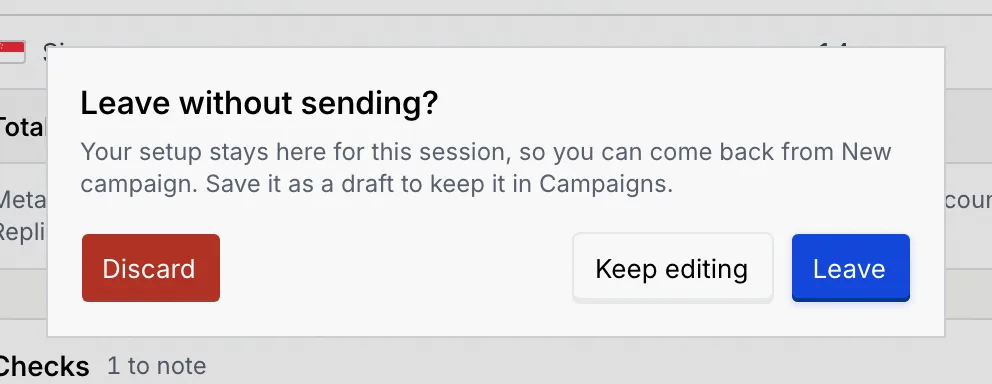
Until you save it as a draft, send it or schedule it, your setup only lasts for this session. Save a draft to keep it in Campaigns.
## Edit a draft or scheduled campaign [#edit-a-draft-or-scheduled-campaign]
Open the campaign and click **Edit draft** (for a draft) or **Edit campaign** in the **⋯** menu (for a scheduled one). The same five steps open as **Edit campaign**. Saving a scheduled campaign as a draft unschedules it: it won't go out until you schedule it again from Review.
Only drafts and scheduled campaigns can be edited. Once a campaign has started sending, finished or been cancelled, use **Duplicate** on the campaign's page instead: it opens the steps as a copy, named "… copy", and nothing is saved until you send it or save it as a draft.
If a draft's chosen number is still in Meta review, sending stops on **Sender & schedule** with a message saying so. Choose another number to carry on.
## Troubleshooting [#troubleshooting]
A step before the one you clicked isn't finished. Mokanata takes you there and says what's missing. Once you've completed a step, the missing piece also shows above it as **To continue: …**. The usual ones:
| Step | Message | What to do |
|---|---|---|
| Audience | Name the campaign. | Type a name. |
| Audience | Pick at least one stage or segment. | Choose who gets it. |
| Message | Choose an approved template. | Pick a template. |
| Message | Choose what \{\{n\}\} fills from, so nobody gets a blank. | Pick a field for that variable. |
| Message | Write the text for \{\{n\}\}, so nobody gets a blank. | Type the text everyone gets. |
| Message | Give \{\{n\}\} a fallback, so nobody gets a blank. | Type a fallback for that variable. |
| Message | Keep \{\{n\}\} to 200 characters. | Shorten the text or fallback. |
| Message | Every button needs a label. | Label or remove the empty button. |
| Sender & schedule | Choose a connected WhatsApp number. | Pick a number, or reconnect it ([Health, sync, reconnect and disconnect](/docs/channels/channel-health)). |
| Sender & schedule | This number is still in Meta review. Choose another. | Pick another number until Meta approves the display name. |
| Sender & schedule | Pick a date and time. / Pick today or a later day. / Schedule it at least 5 minutes from now. | Fix the schedule. |
| Follow-up | Choose the agent that handles replies. / Choose who gets the replies. | Pick an agent or a teammate. |
Only approved marketing and utility templates can be broadcast. A template in review can be used once Meta approves it (usually within 24 hours); a rejected one needs a new version. See [WhatsApp message templates](/docs/campaigns/message-templates).
Your role can build campaigns but not send them. Save a draft and ask an owner or admin to send it, or to give your role **Send and stop campaigns**.
You left an edit earlier in this session without saving. Your changes are kept for this session only: save the draft to keep them, or click **Start a new campaign instead** to drop them. If you try to edit a different campaign meanwhile, Mokanata says **Didn’t open …**: save the first one, or click **Let changes go** to drop them and edit the other.
Only drafts and scheduled campaigns can be edited. For one that's sending, sent or cancelled, click **Open campaign** and duplicate it instead. If the campaign no longer exists (for example a draft someone deleted), start a new one.
The send didn't go through. Your setup is still there: click **Retry** in the message, or try again from Review.
## Next steps [#next-steps]