# Flow builder basics (/docs/agents/flow-builder)
A flow is the list of steps an agent takes when something happens: a customer writes in, a deal changes stage or a schedule fires. Webhook triggers are coming soon. The flow builder is where you lay those steps out, set each one up, test the result and publish it.
- **Who can use it:** Owners and admins can change flows. Publishing also needs the **Deploy and pause agents** permission, which owners and admins have by default. Members can open every flow, read each step's settings and the code, and run tests, but not change anything. Viewers can only read. See [If your role can't edit flows](#if-your-role-cant-edit-flows) and [Roles and permissions](/docs/settings/roles).
- **Before you start:** You need an agent. See [Create an agent](/docs/agents/create-agent).
## Open the builder [#open-the-builder]
### Open the agent's flows [#open-the-agents-flows]
In the sidebar, click **Agents**, then the agent. Its **Flows** tab lists every flow it runs. See [Manage an agent's flows](/docs/agents/agent-flows).
### Open a flow [#open-a-flow]
On a flow's row, click **Edit flow** (or **View flow** if your role can only read it), or choose **Open in builder** from the row's menu. To start a new one, click **New flow for this agent** at the bottom of the list, or press N on the agent's page.
The builder opens full height, with the app sidebar folded to its rail so the flow has room.
## The builder at a glance [#the-builder-at-a-glance]
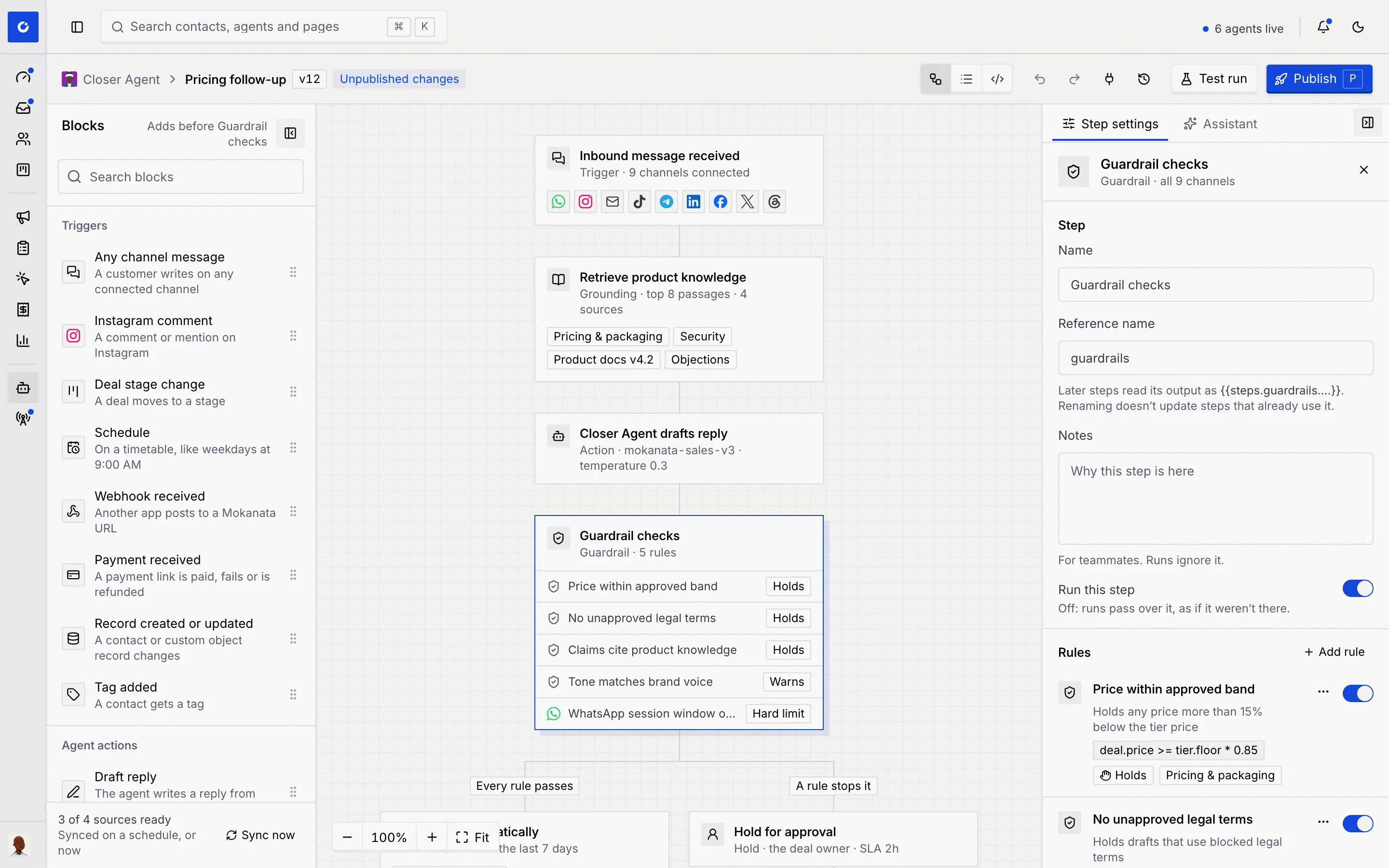
| Area | What it's for |
| --- | --- |
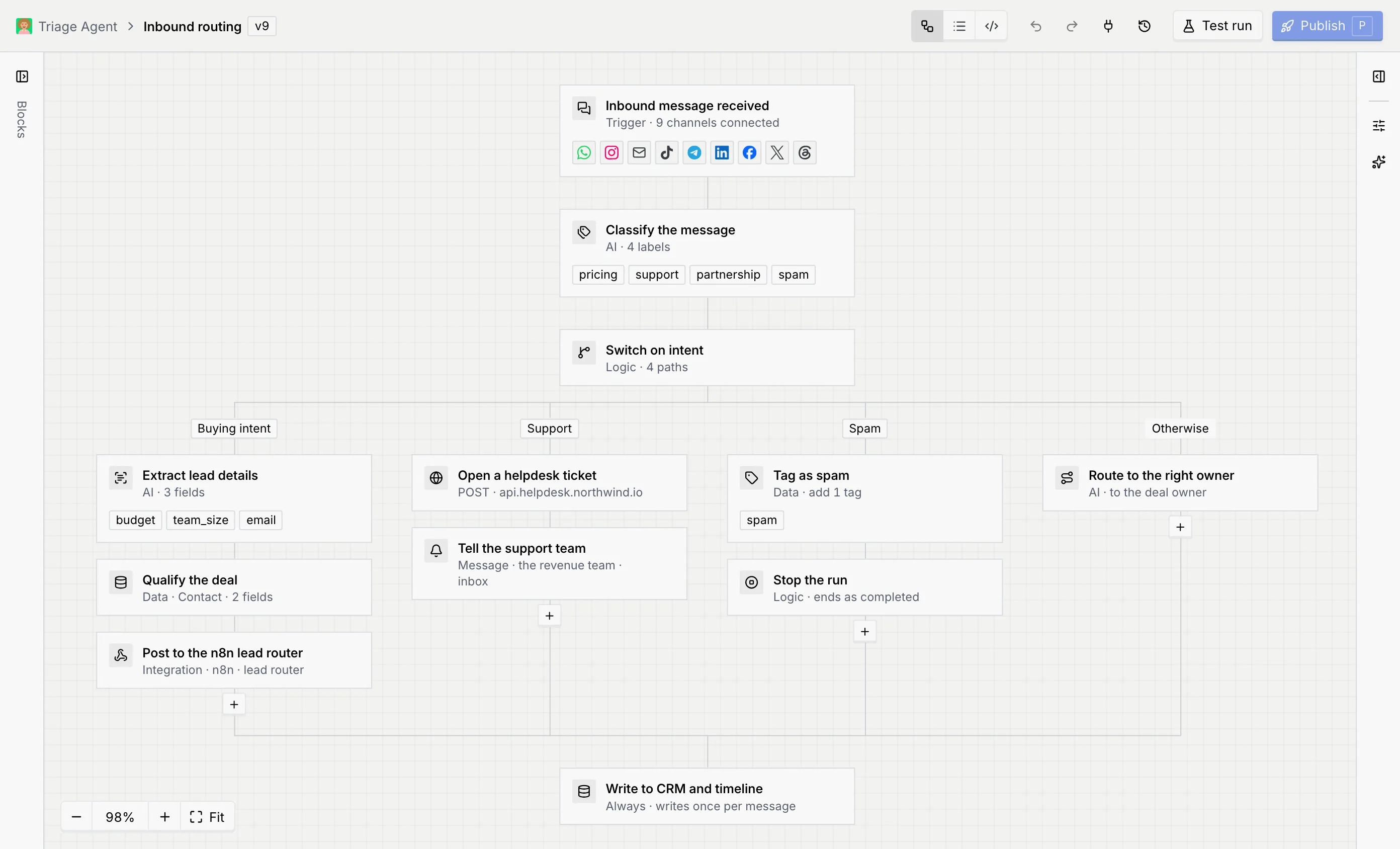
| **Top bar** | The agent you came from, the flow's name and version, the view switch, undo and redo, Integrations, Version history, **Test run** and **Publish**. |
| **Blocks** (left) | Every kind of step you can add, grouped by what it does, plus the agent's knowledge sources at the bottom. See the [Blocks reference](/docs/agents/flow-nodes). |
| **Canvas** (middle) | The flow itself, top to bottom. Click a step to set it up; drag steps and blocks to arrange them. |
| **Side panel** (right) | **Step settings** for the selected step, or **Flow details** when nothing is selected, and the [flow assistant](/docs/agents/flow-assistant) on its own tab. |
### The top bar [#the-top-bar]
The left of the bar shows the agent (click it to go back to the agent's page), the flow's name, its version badge, such as **v12**, and one of these badges:
| Badge | What it means |
| --- | --- |
| **Unpublished changes** | You changed the flow since its last published version. Live runs still use the published version. |
| **Draft** | The flow has never been published. |
| No badge | The draft matches the published version. |
The controls on the right:

| Control | What it does |
| --- | --- |
| **Canvas**, **List**, **Code** | Switch how you see the flow. See [Switch views](#switch-views). |
| **Undo**, **Redo** | Step back and forward through your changes. See [Undo and redo](#undo-and-redo). |
| **Integrations** (plug icon) | Opens the apps, APIs and webhooks your flows can use. See [Apps and webhooks in flows](/docs/agents/flow-connections). |
| **Version history** (clock icon) | Published versions, with discard and restore. See [Test, publish and version a flow](/docs/agents/flow-test-run#version-history). |
| **Test run** | Runs this draft on a sample message. Press T. |
| **Publish** | Checks the flow and publishes it as the next version. Press P. It's off when there's nothing new to publish ("Nothing to publish. v12 is current."). |
### Flow details [#flow-details]
When no step is selected, the side panel shows the flow's details: its trigger, how many steps it has, the pipeline from trigger to last step, how many conditions and filters it uses and how many runs it had in the last 7 days. **Integrations** lists the apps, APIs and webhooks the flow depends on, so a broken connection is easy to spot before you publish. Click **Manage** to open them.
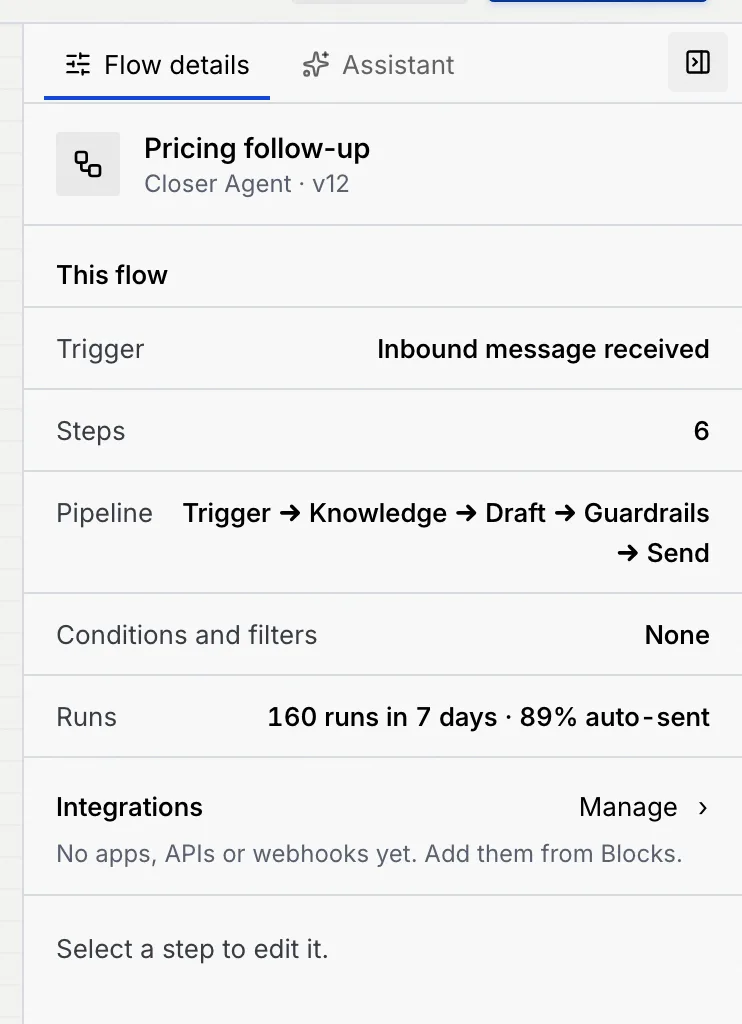
To get back to Flow details from a step, click an empty part of the canvas, click the **X** in the step's settings, or press Esc.
## Start a new flow [#start-a-new-flow]
### Name the flow [#name-the-flow]
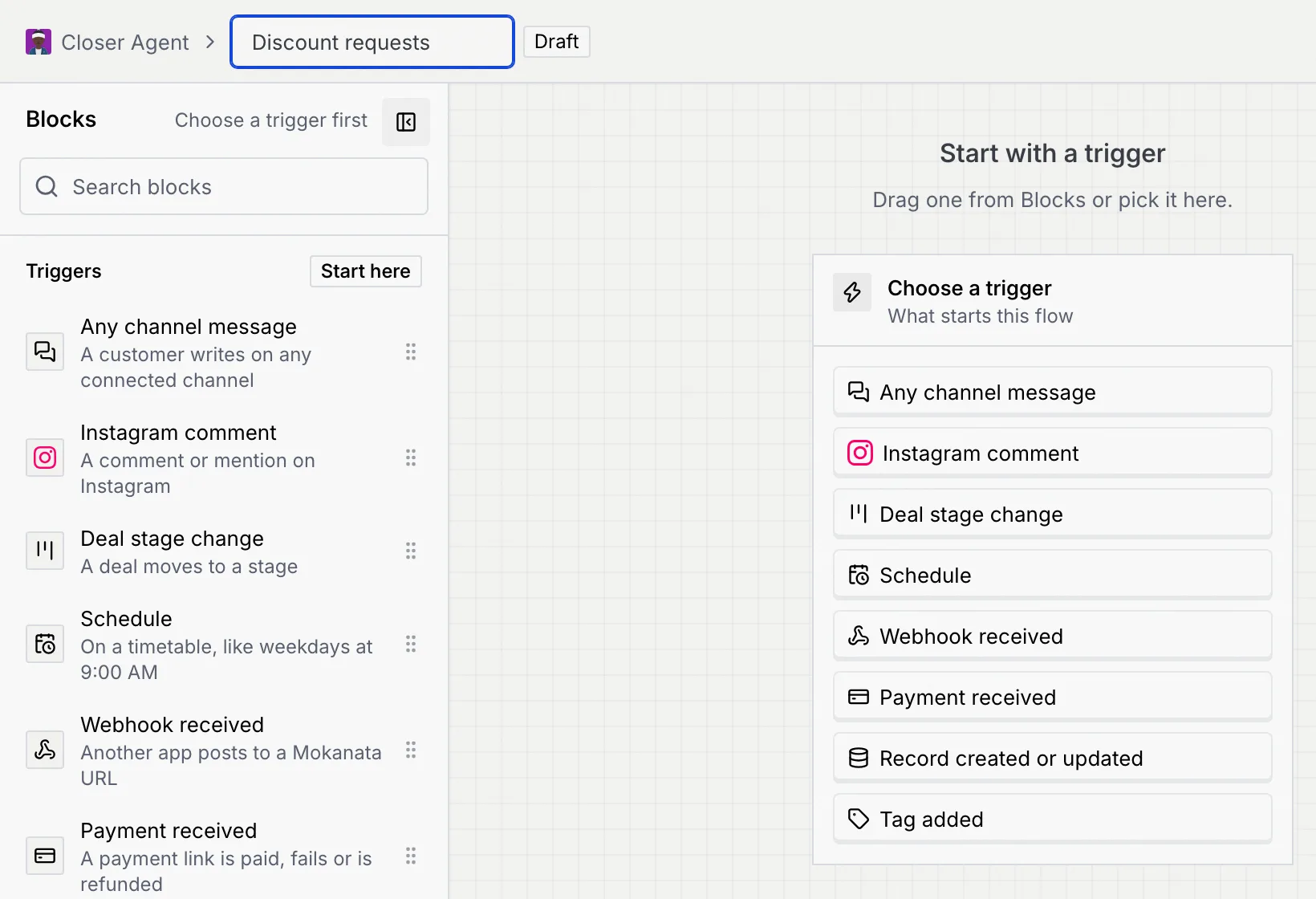
On a new flow, the top bar has a **Name this flow** box where the name goes. Type a name your team will recognise, such as "Discount requests". You can't publish a flow without a name.
### Choose a trigger [#choose-a-trigger]
Every flow starts with a trigger: what makes it run. Click one in the **Choose a trigger** card on the canvas, or in the **Triggers** group of Blocks (marked **Start here** until the flow has one). A toast confirms "Trigger set to Any channel message".
To change the trigger later, pick another one the same way. The toast says what it was before and has an **Undo** button.
### Add steps [#add-steps]
Click a block in Blocks to add it. The new step opens in the side panel so you can set it up straight away, and a toast says where it went, such as "It runs after Inbound message received", with an **Undo** button.
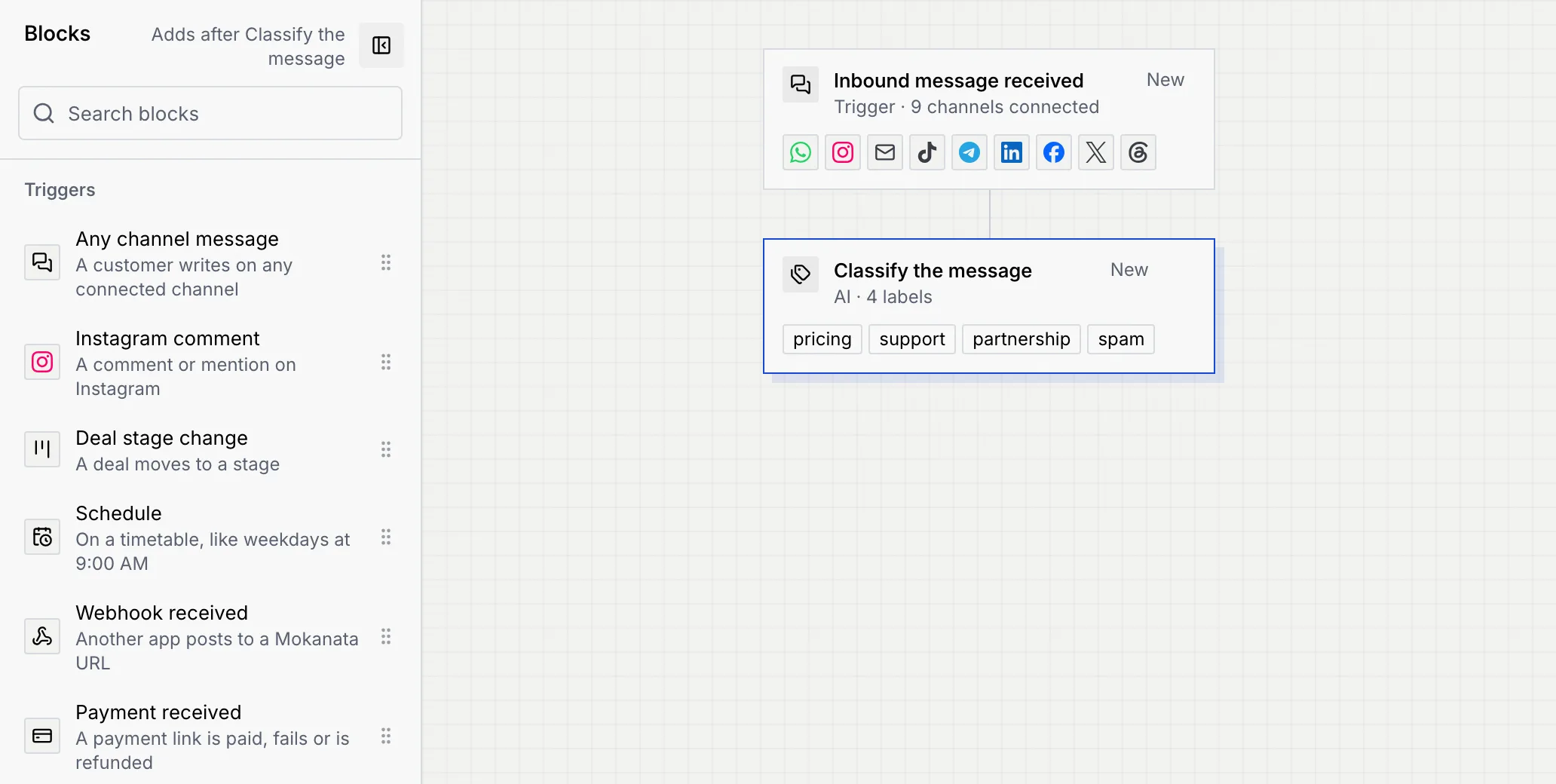
Each step you add carries a **New** badge until you publish.
### Or drag a block into place [#or-drag-a-block-into-place]
Drag a block from Blocks onto the canvas. Dashed drop slots open between the steps and at the start and end of the flow. Drop the block on a slot to put it there, or anywhere else on the canvas to add it after the selected step.
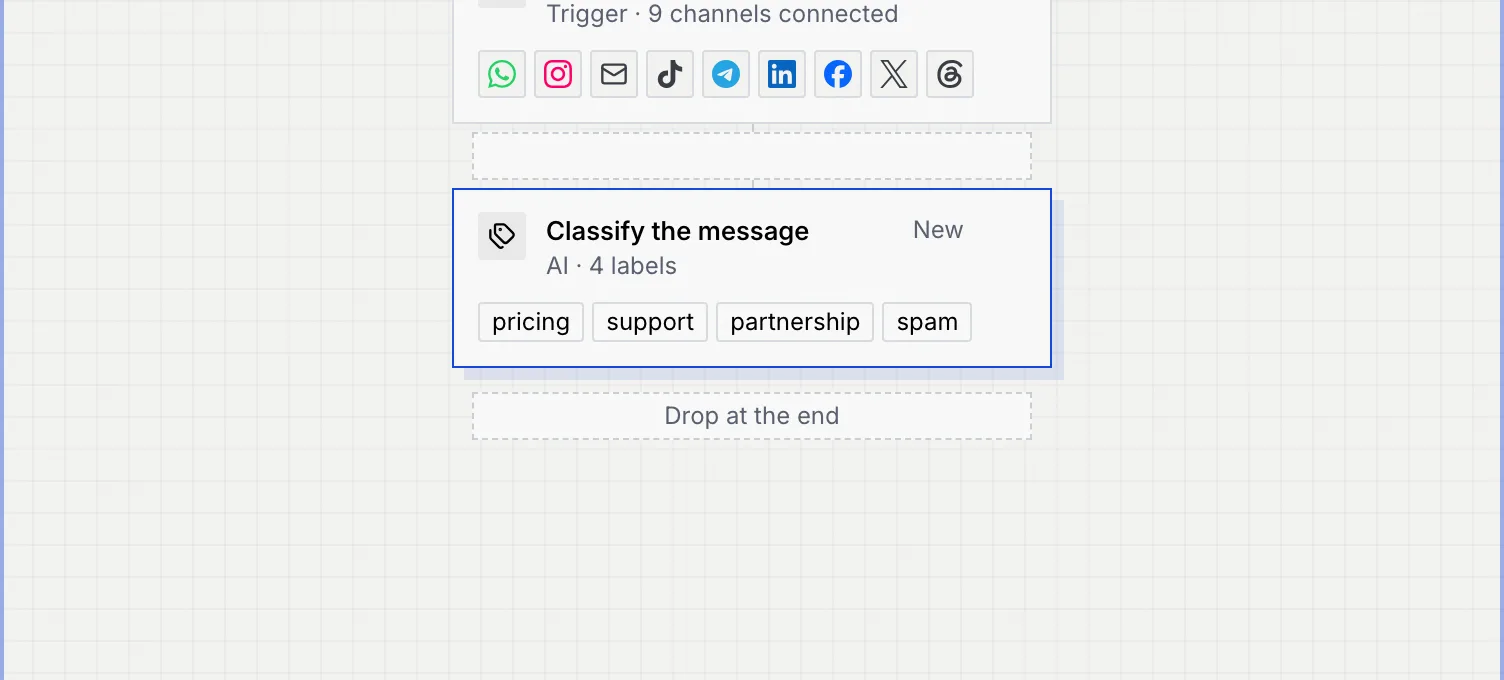
### Where a new step lands [#where-a-new-step-lands]
The Blocks header always says where a click will put the next block, so you don't have to guess:
| Blocks header says | What happens |
| --- | --- |
| **Choose a trigger first** | The flow has no trigger. Clicking any other block shows "Choose a trigger first". |
| **Adds after** a step | The block goes right after the selected step. |
| **Adds before** a step | The block goes just above that step. That's where it lands when nothing is selected and the flow has a guardrail gate, a send, a handoff or the CRM write near the end, and when the selected step is a gate with branches below it or the CRM write that ends the flow, since those stay together at the end. |
| **Adds to** a path, or **Adds after** a step **on** a path | The selected step is inside an If / else or Switch path, so the block goes on that path. See [Conditions and paths](/docs/agents/flow-conditions). |
| **Adds after the paths of** a condition **merge** | The block goes below the condition, where its paths join again. |
Triggers replace the current trigger, and guardrail blocks go before the first send or handoff. See [Guardrails](/docs/agents/flow-nodes#guardrails).
To find a block quickly, type in **Search blocks** at the top of Blocks. Press ↓ to move into the results, ↑ and ↓ to move between them and Enter to add one. When nothing matches, click **Clear search**.
## Select, move and remove steps [#select-move-and-remove-steps]
Click a step to select it and open its settings. Then:
- **Move it:** drag it by its card to a drop slot, use **Move up** and **Move down** at the bottom of its settings, or press ⌥ ↑ and ⌥ ↓ (Alt on Windows and Linux) while the step has focus. The trigger always stays first, and nothing can go above it.
- **Move it into a path:** choose a path from **Move into a path**. See [Add steps to a path](/docs/agents/flow-conditions#add-steps-to-a-path).
- **Remove it:** click **Remove this step**, or press Delete or Backspace while the step has focus. It goes at once, and the toast's **Undo** puts it back where it was. Removing a condition that still has steps on its paths, or both branches after a guardrail gate, asks you first.
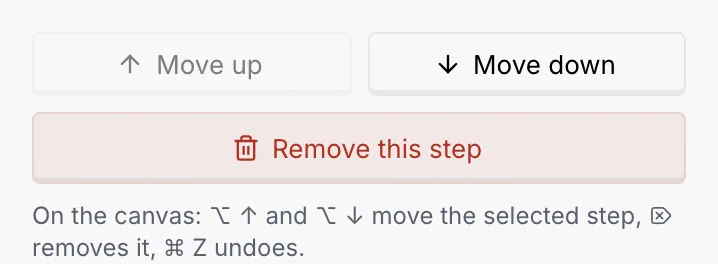
The note under the buttons shows your own keys: if you change them in [Keyboard shortcuts](/docs/settings/keyboard-shortcuts), it follows.
A step you'd like to keep but not run can be switched off instead: turn off **Run this step** in its settings. Runs pass over it, and its card shows **Off**. See [Settings every step has](/docs/agents/flow-nodes#settings-every-step-has).
## Switch views [#switch-views]
Use **Canvas**, **List** and **Code** at the top to change how you see the flow. The builder remembers your choice for the next flow you open.
| View | Best for |
| --- | --- |
| **Canvas** | Seeing the whole flow, its paths and branches, and arranging by drag and drop. |
| **List** | The same steps as numbered cards: **Edit** (or **View**) opens a step, the arrows move it, the bin removes it, and **Add a step here** or **Add a step at the end** adds one at that spot. Nothing to drag, so it suits keyboards and small screens. |
| **Code** | Reading or editing the whole flow as YAML. See [Edit a flow as code](/docs/agents/flow-code). |
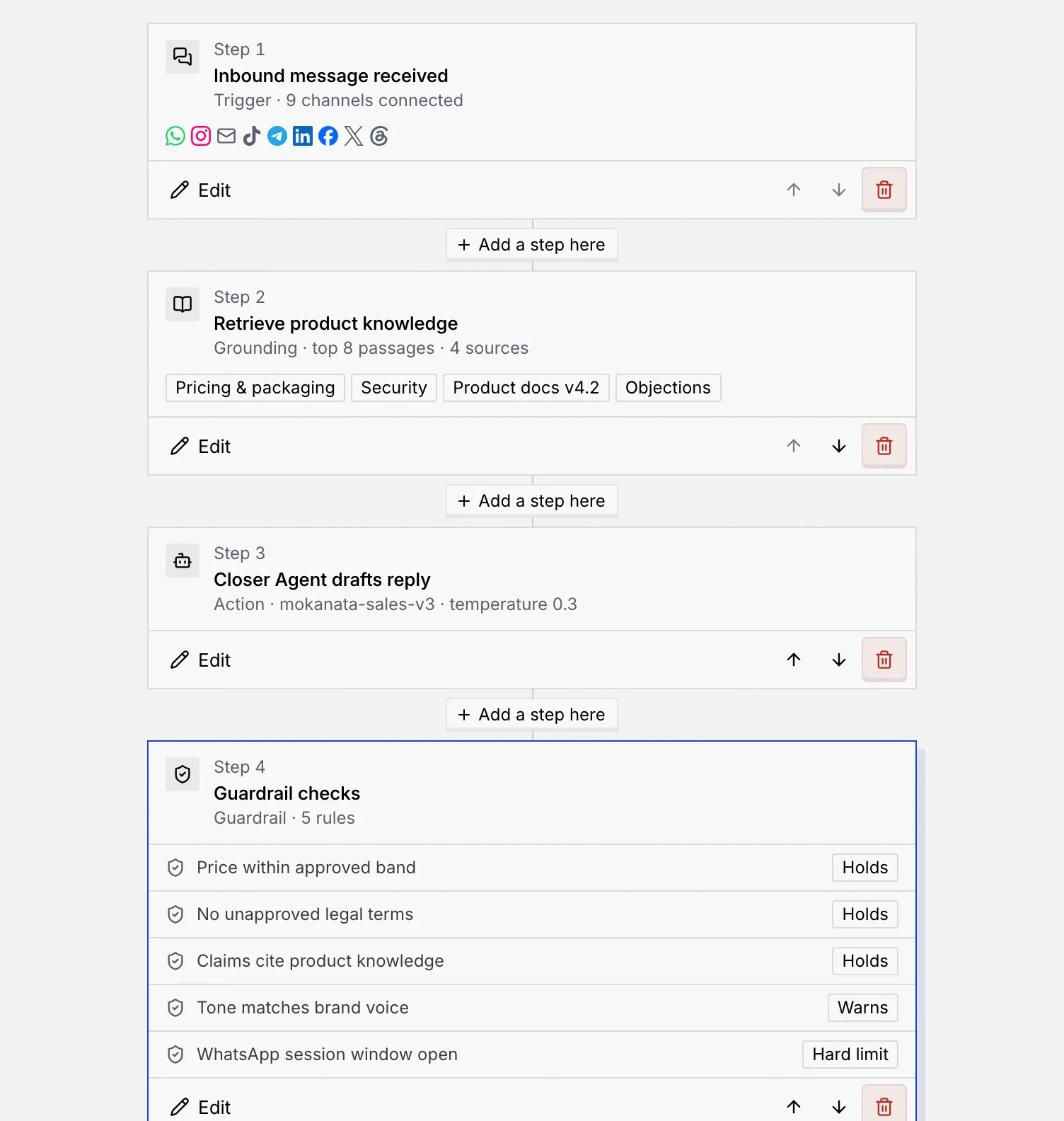
## Pan and zoom the canvas [#pan-and-zoom-the-canvas]
| To | Do this |
| --- | --- |
| Scroll around | Scroll, or hold Space and drag the canvas. |
| Zoom in and out | Use **−** and **+** at the bottom left (50% to 150%), pinch on a trackpad, or hold ⌘ (Ctrl) and scroll. |
| Go back to 100% | Click the percentage between **−** and **+**. |
| Fit the flow | Click **Fit**. It zooms to show the whole flow, down to 75%; zoom out further with **−** for very wide flows. |
A flow wider than the canvas opens zoomed out to fit its width.
## Hide the docks [#hide-the-docks]
To give the canvas more room, fold Blocks with the **Hide blocks** button in its header, and the side panel with **Hide the side panel**. Each folds to a thin rail. Click **Show blocks** or **Show the side panel** on the rail to bring it back; the side panel's rail also has buttons straight to the step's settings and the assistant. Folded docks stay folded as you move between flows.
## Undo and redo [#undo-and-redo]
Click **Undo** or **Redo** in the top bar, or press ⌘ Z and ⌘ ⇧ Z (Ctrl Z and Ctrl ⇧ Z on Windows and Linux). Hold the keys to step back several changes. The builder keeps your last 50 changes. While you're typing in a field, the keys undo your typing instead.
Every toast that reports a change (a step added, moved or removed, a rule removed, code applied) also has its own **Undo**, which reverses just that change.
## Leave with unpublished changes [#leave-with-unpublished-changes]
If you edited the flow and try to leave before publishing, the builder asks **Leave with unpublished changes?**
- **Keep editing** stays in the builder.
- **Leave, keep draft** leaves; your draft is still there when you come back to the flow.
- **Discard draft** leaves and throws the changes away.
Until you publish, live runs keep using the published version.
Only published versions run on real conversations. Test the draft first, then publish it, and copy the flow from the [Code view](/docs/agents/flow-code) if you want a backup.
## If your role can't edit flows [#if-your-role-cant-edit-flows]
Without the **Edit agents** permission, the builder opens read-only with a **View only** notice under the top bar, for example: "You can open every step, its settings and the code, and test this draft. Your role, Member, can't edit agents. An owner or admin can change this in Settings → Members & roles."
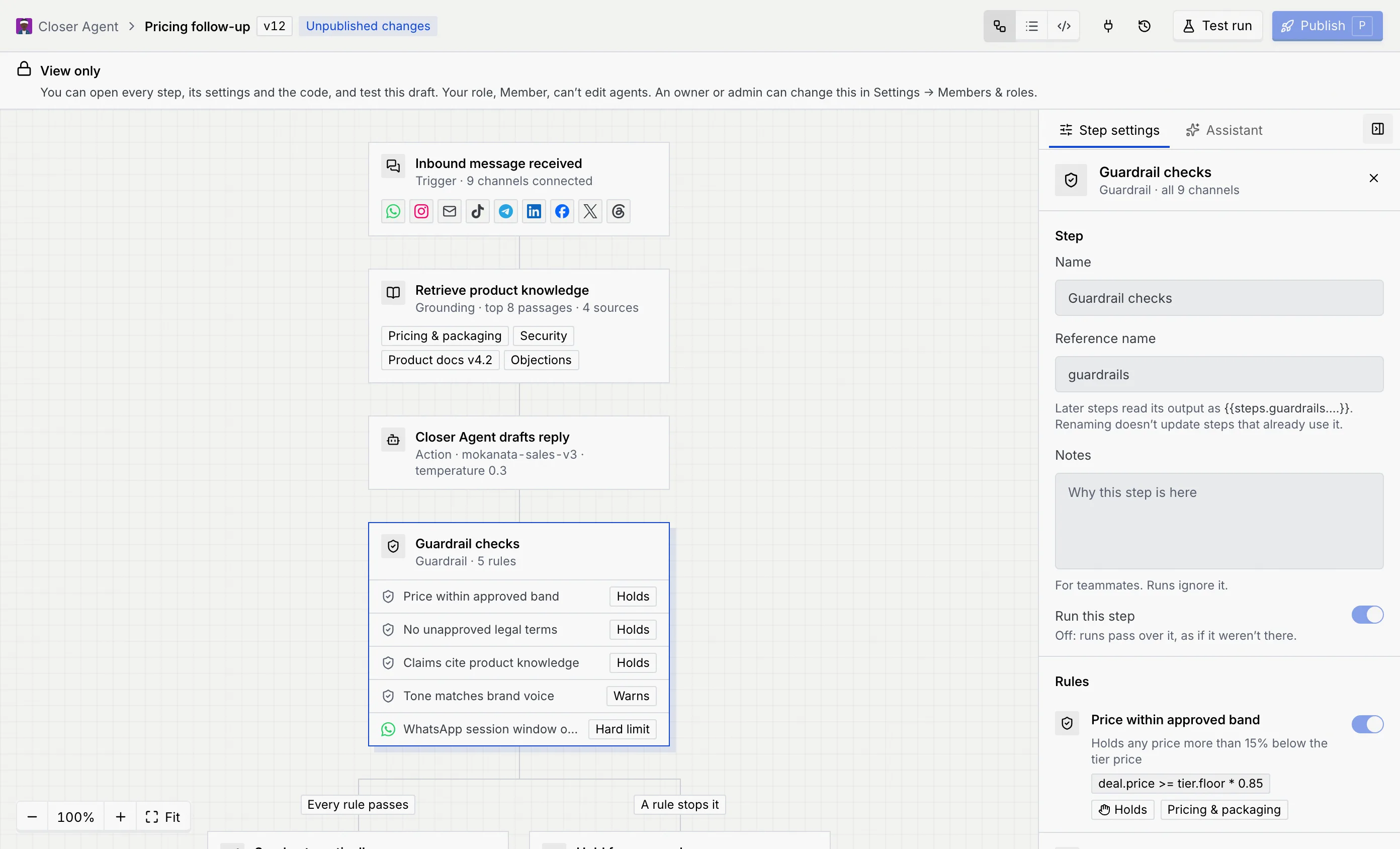
| Role default | What changes |
| --- | --- |
| **Member** | Blocks is hidden, every setting is read-only, **Undo** and **Redo** are gone and **Publish** is off with the reason. **Test run** still works. |
| **Viewer** | As for members, and **Test run** is off too, with the reason in its tooltip. |
| No **Deploy and pause agents** | Everything can be edited, but **Publish** is off with the reason. |
Without **Edit agents**, a link to a new flow shows **Can't create flows** and a **Back to** button for the agent. A flow with no steps yet shows **No steps yet**: "Nothing starts this flow, and it has no steps."
## On a smaller screen [#on-a-smaller-screen]
When the builder is narrower than about 1,200 pixels (a laptop with the app sidebar open, a tablet), Blocks and the side panel open as sheets instead of docks. Use the **Blocks**, **Flow details** (or **Settings for** the selected step) and **Flow assistant** buttons in the top bar to open them. On a phone, the builder opens in the **List** view.
## Keyboard shortcuts [#keyboard-shortcuts]
| Keys | What they do |
| --- | --- |
| T | Test run |
| P | Publish |
| ⌘ Z / ⌘ ⇧ Z | Undo / redo (Ctrl on Windows and Linux) |
| ⌥ ↑ / ⌥ ↓ | Move the focused step up or down (Alt on Windows and Linux) |
| Delete or Backspace | Remove the focused step |
| Esc | Clear the selection |
| Space + drag | Pan the canvas |
| ⌘ + scroll, or pinch | Zoom the canvas (Ctrl + scroll on Windows and Linux) |
| ↓ / ↑ / Enter in Search blocks | Move into the results, move between them, add one |
You can change or turn off these keys in [Keyboard shortcuts](/docs/settings/keyboard-shortcuts). Keys for actions your role can't take are ignored.
## Troubleshooting [#troubleshooting]
The flow has no trigger yet. Pick one from the **Choose a trigger** card on the canvas or from **Triggers** at the top of Blocks, then add the other steps.
Paths hold steps, not triggers or other conditions. The builder says "… can't go inside a path" and leaves the step where it was. A new If / else or Switch dropped into a path goes after the paths merge instead.
**Flow not found** means the agent has no flow at that link: it may have been archived, or the link is wrong. **This flow is archived** means someone archived it; restore it from **Archived** on the agent's **Flows** tab to edit it again. Both pages have a button back to the agent. See [Manage an agent's flows](/docs/agents/agent-flows).
The link points to an agent that isn't in this workspace. Check the link, or open the agent from the [Agents](/docs/agents/agents) page. If you belong to several workspaces, make sure you're in the right one.
The builder couldn't load the flow. Check your internet connection, then click **Try again**.
Hover over it to see why. "Nothing to publish" means the draft matches the current version. Otherwise your role can't publish flows; an owner or admin can change that in [Roles and permissions](/docs/settings/roles).
## Next steps [#next-steps]