# The flow assistant (/docs/agents/flow-assistant)
The flow assistant changes a flow from a sentence: "Wait 2 hours for a reply, then hand to a person". It writes the change as code and shows you what it would do. Nothing changes until you apply it, and even then it only changes your draft.
- **Who can use it:** Anyone who can open the builder can ask the assistant. Applying its changes needs the **Edit agents** permission (owners and admins by default); for other roles, a proposal says "Your role can't change this flow, so this stays a suggestion." See [Roles and permissions](/docs/settings/roles).
- **Before you start:** Open the flow in the builder. See [Flow builder basics](/docs/agents/flow-builder).
## Ask for a change [#ask-for-a-change]
### Open the assistant [#open-the-assistant]
In the side panel, click the **Assistant** tab. If the side panel is folded, click the sparkles button on its rail; on a smaller screen, click **Flow assistant** in the top bar.
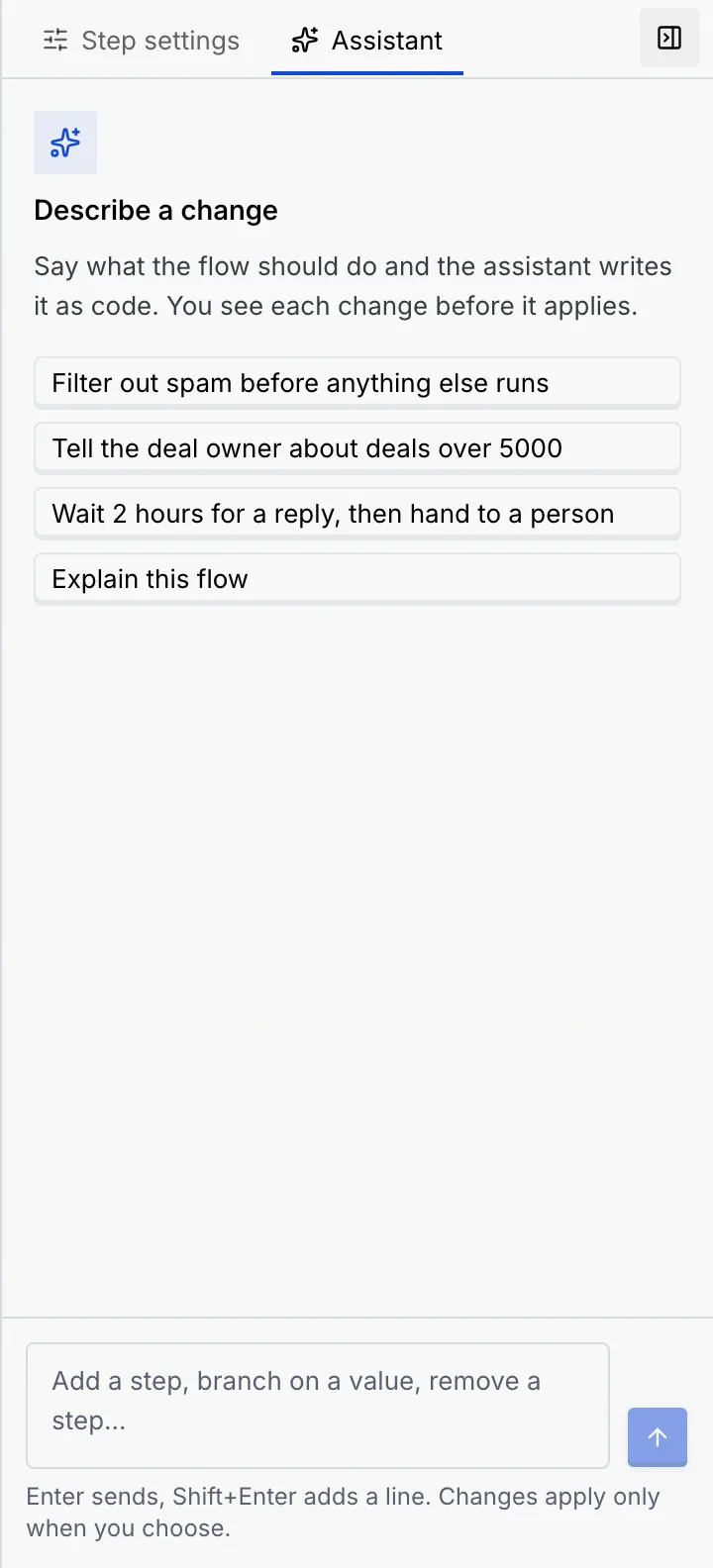
### Describe the change [#describe-the-change]
Click a suggestion, or type what the flow should do in the box at the bottom (**Add a step, branch on a value, remove a step…**) and press Enter. ⇧ Enter starts a new line. While it works, the assistant shows "Writing the change".
### Review the proposal [#review-the-proposal]
The reply lists the **Proposed changes**, such as "Adds Wait up to 2 hours for a reply before Write to CRM and timeline". Click **Show the new steps' code** to read the YAML of the new steps.
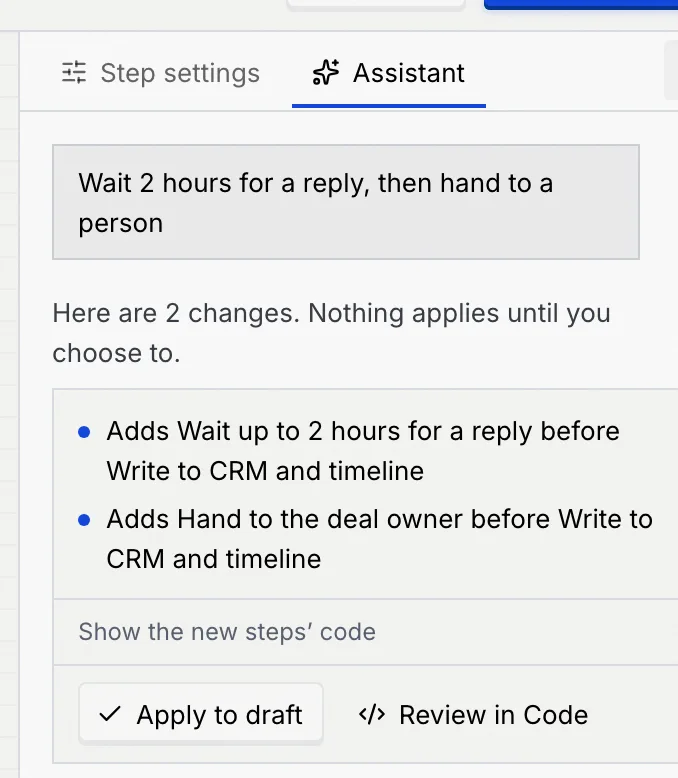
### Apply it, or review it in Code [#apply-it-or-review-it-in-code]
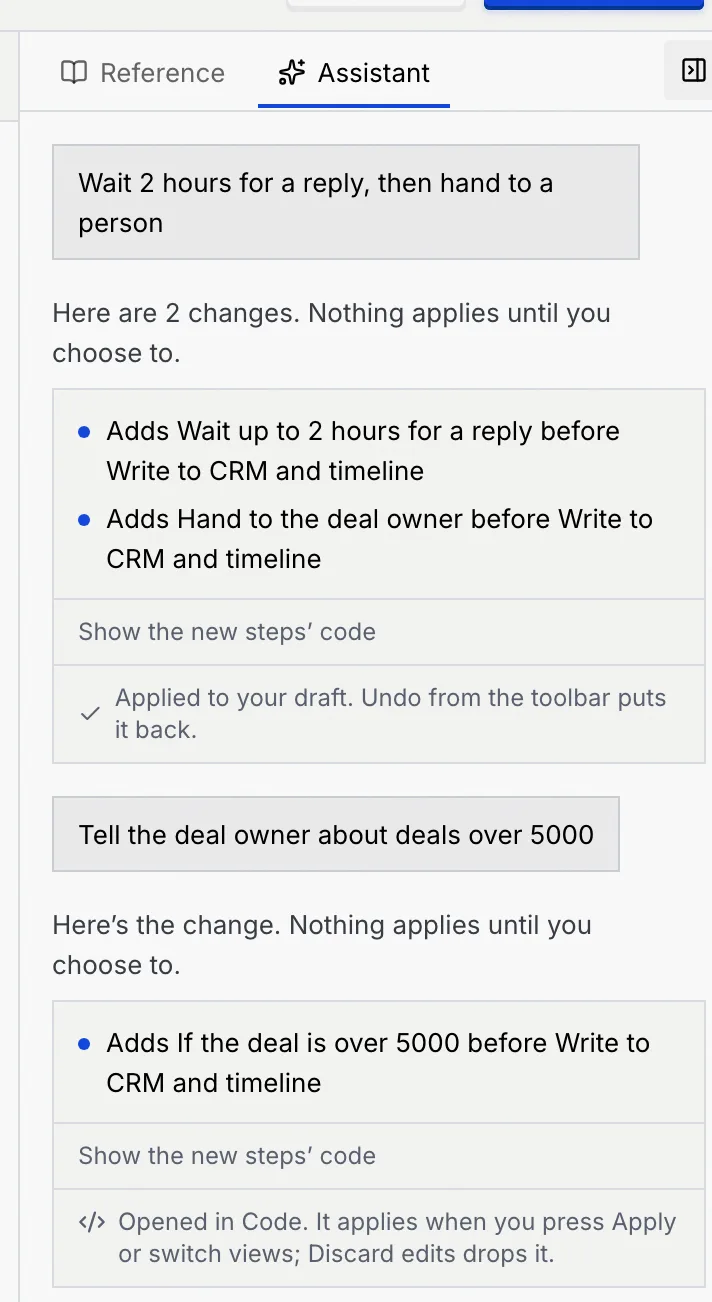
- **Apply to draft** adds the change to your draft straight away. The proposal says "Applied to your draft. Undo from the toolbar puts it back." The new steps appear on the canvas with a **New** badge.
- **Review in Code** opens the whole flow in the [Code view](/docs/agents/flow-code) with the change in it, marked **Not applied**. Read or adjust it, then click **Apply** (or switch views) to apply it, or **Discard edits** to drop it.
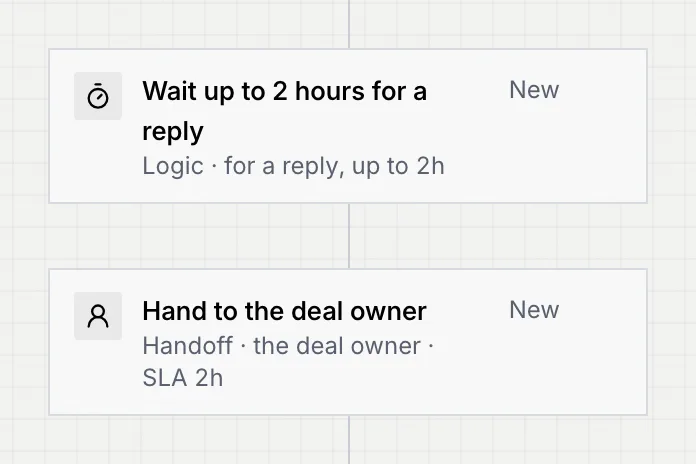
Applying a proposal changes the draft only. A guardrail step the assistant adds starts with no rules, and the flow can't publish until you add some: select the step and use **Add rule**, or add rules from the Guardrails group of Blocks. Test the change with [Test run](/docs/agents/flow-test-run#test-the-draft), then [publish](/docs/agents/flow-test-run#publish-the-flow) to make it live.
## What you can ask for [#what-you-can-ask-for]
| Ask for | Example | What it proposes |
| --- | --- | --- |
| Filter spam | "Filter out spam before anything else runs" | A **Filter** ("Skip spam") after the message classifier, adding a **Classify message** step if the flow has none. |
| Pull out details | "Extract the budget and email address" | An **Extract fields** step. |
| Score or qualify | "Score the lead" | A **Score lead** step. |
| Branch on deal size | "Tell the deal owner about deals over 5000" | An If / else on the deal value, with steps on its path. |
| Wait or follow up | "Wait 2 hours for a reply, then hand to a person" | A **Wait** step, often with what happens next. |
| Notify | "Let the team know" | A **Notify a teammate** step. |
| Tag or move the deal | "Tag the contact", "Move the deal to Qualified" | **Add or remove tags**, **Change deal stage**. |
| Hand off | "Escalate to a person" | A **Hand to a person** step. |
| Post to another app | "Send it to n8n", "Post a webhook to Zapier" | A **Send webhook** step. |
| Call an API | "Open a helpdesk ticket" | An **HTTP request** step. |
| Payment | "Send a payment link" | A **Send payment link** step. |
| Summarise | "Summarise the thread for the owner" | A **Generate text** step. |
| Guardrails | "Check every draft before it sends" | A **Guardrail checks** step after the draft, with no rules yet: add them in its settings before you publish. |
| Remove a step | "Remove the wait step" | Removes the step with that title or id. |
| Start over | "Build a new flow from scratch for Instagram comments" | A new flow: the trigger you name (Instagram comment, a schedule, a payment or a deal stage change; a message otherwise), then knowledge, a draft, guardrail checks (with no rules yet) and a send. |
| Explain | "Explain this flow" | A plain-language walk through the flow. Nothing to apply. |
| Find problems | "Why can't I publish?" | The issues that stop publishing, or that nothing does. |
You can combine requests in one message, such as "wait 1 hour, then notify the team". If the assistant can't tell what you want, it says what it can do and suggests a way to ask.
The conversation stays with the flow while you work on it, so you can come back to a proposal later.
## Troubleshooting [#troubleshooting]
It reads the flow from its code. If the Code view has edits with problems, fix or discard them first (see [Fix problems](/docs/agents/flow-code#fix-problems)), then ask again.
Use the step's title as it appears on the canvas, or its reference name, for example "remove the wait step".
The request didn't go through. Click **Try again**.
If the flow changed since the proposal was written, the proposal may no longer fit. The reason shows under the proposal in red. Ask again, or use **Review in Code** to adjust it.
## Next steps [#next-steps]