# Agent settings (/docs/agents/agent-settings)
The **Settings** tab holds what an agent is and how far it may go: its identity and model, its autonomy level, the channels it works on, and the limits and quiet hours that apply once it sends. The **Danger zone** at the bottom deletes an agent.
- **Who can use it:** Everyone can read an agent's settings. Changing them needs permission to edit agents, and deleting needs permission to delete agents (owners and admins by default). Without it, the fields are read-only and **Save settings** and **Delete agent** are disabled. See [Roles and permissions](/docs/settings/roles).
- **Before you start:** Nothing.
## Change the settings [#change-the-settings]
### Open the Settings tab [#open-the-settings-tab]
On the agent's page, click the **Settings** tab.
### Edit its identity [#edit-its-identity]
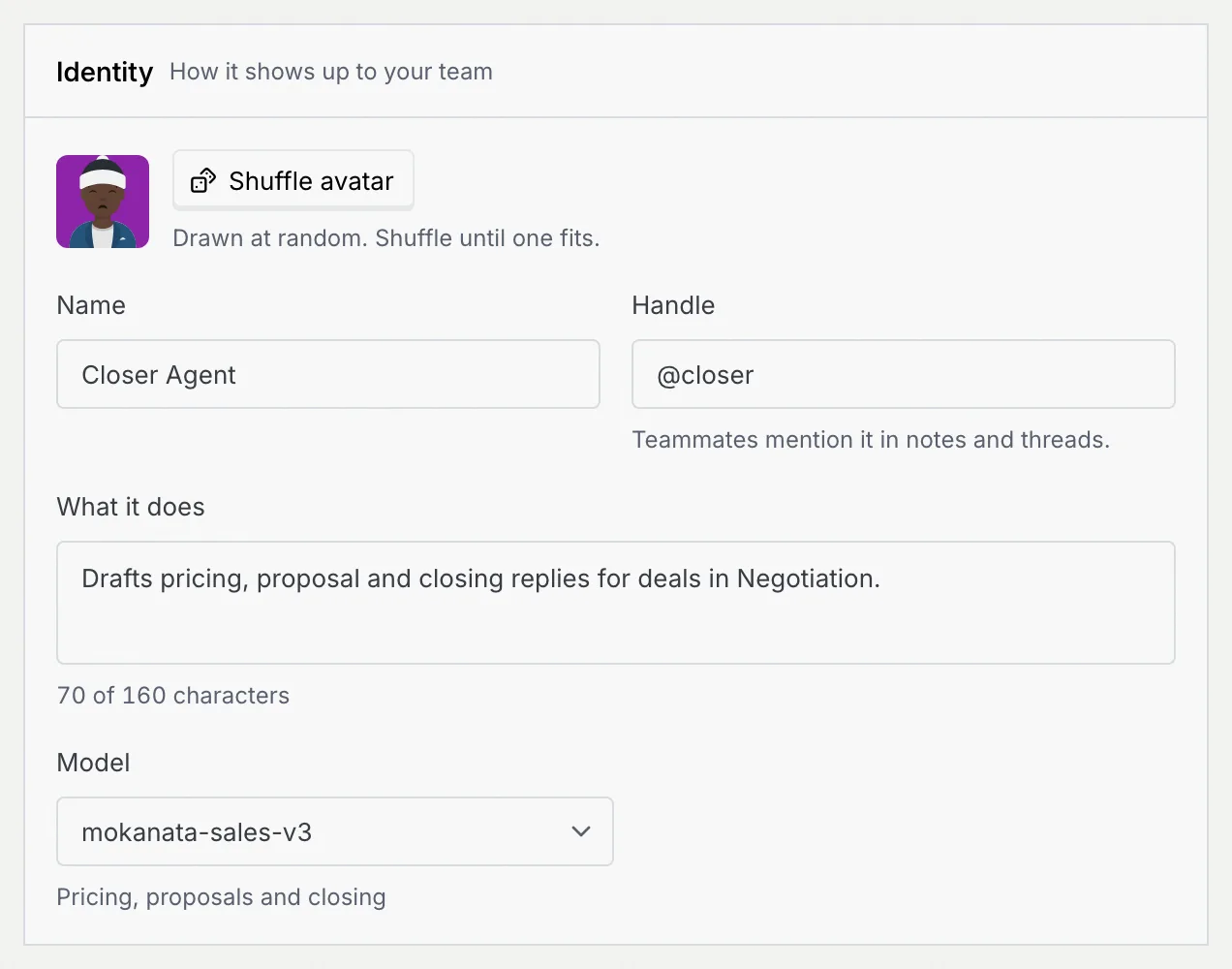
In **Identity**:
- **Shuffle avatar** draws a new picture at random. Shuffle until one fits.
- **Name:** up to 40 characters, unique in the workspace, such as "Closer Agent".
- **Handle:** starts with `@`, then 2 to 24 lowercase letters, numbers or dashes, such as `@closer`. Teammates mention it in notes and threads. It's checked as you type ("Checking…") and must be unique.
- **What it does:** a short description, up to 160 characters, shown on the Agents page.
- **Model:** the model it runs on. Each one says what it's good at, such as "Pricing, proposals and closing" or "Classifying and routing".
### Set its autonomy level [#set-its-autonomy-level]
The **Autonomy** panel sets how far the agent goes on its own on every flow: **Shadow**, **Approval** or **Autonomous**. See [Deploy, pause and set autonomy](/docs/agents/agent-autonomy#change-the-autonomy-level).
### Choose its channels [#choose-its-channels]
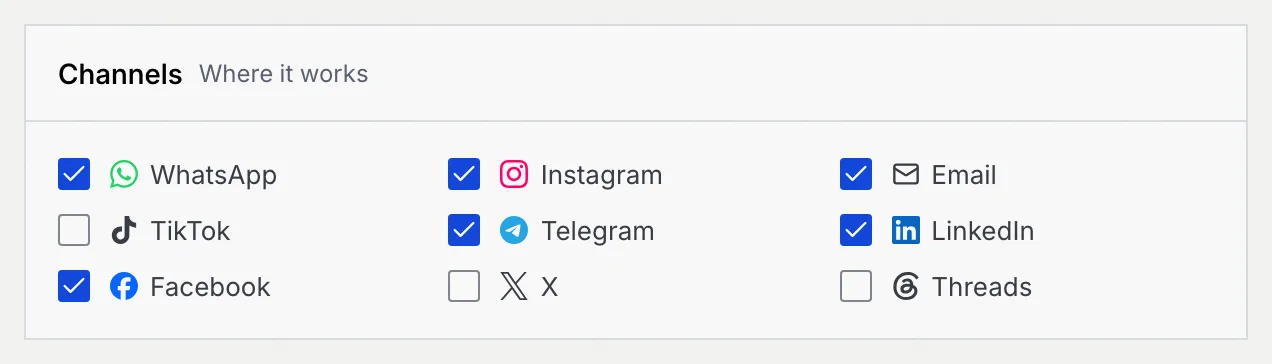
In **Channels**, tick each channel the agent works on. At least one must stay ticked: to stop it everywhere, pause the agent instead. WhatsApp, Facebook and Instagram go live once Mokanata's Meta app is approved; the other channels in the list are coming soon (see [Connect a channel](/docs/channels/connect-a-channel#coming-soon)).
### Set limits and quiet hours [#set-limits-and-quiet-hours]
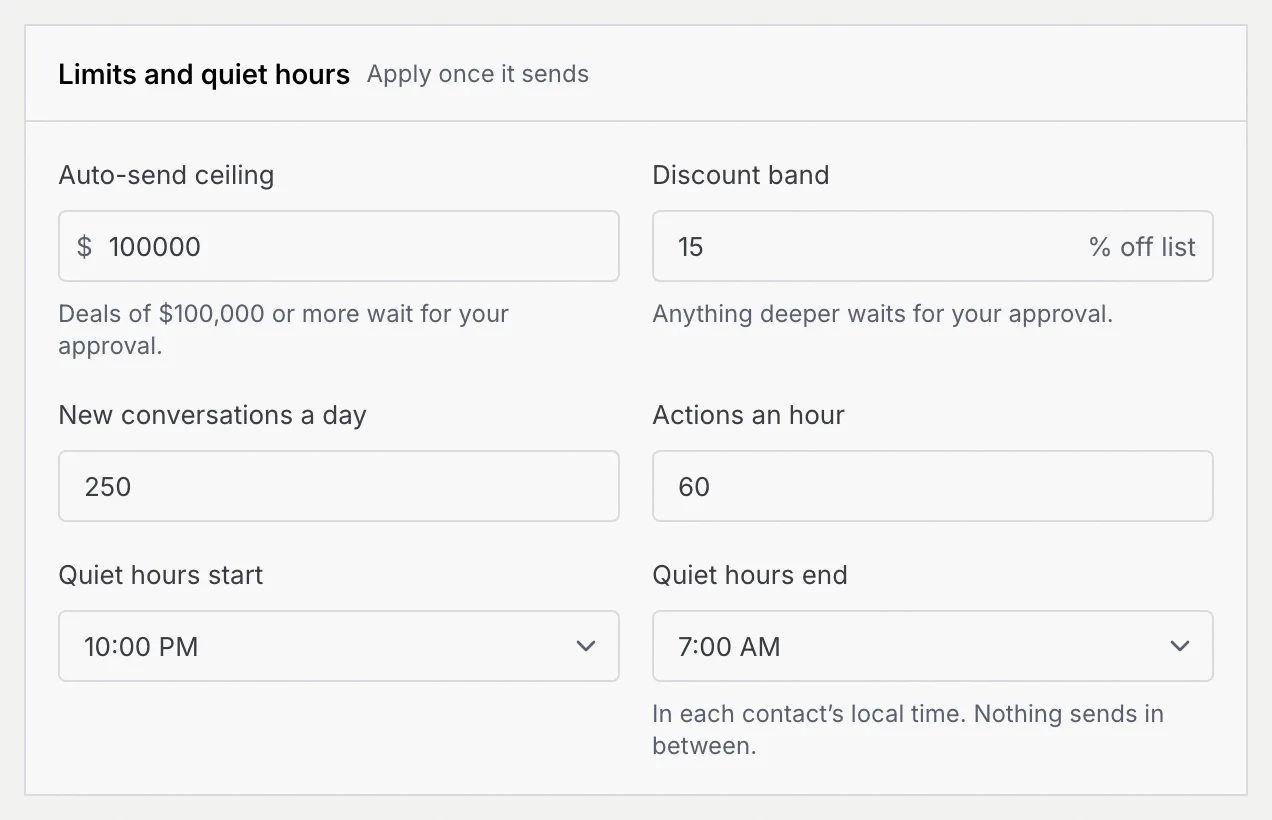
**Limits and quiet hours** apply once the agent sends:
| Field | What it does |
| --- | --- |
| **Auto-send ceiling** | Deals (or credits) of this amount or more wait for your approval. Shown for agents that quote prices or give credits. |
| **Discount band** | The deepest discount, in % off list, it can offer on its own. Anything deeper waits for your approval. |
| **New conversations a day** | How many new conversations it picks up a day (1 to 1,000). |
| **Actions an hour** | How many actions it takes an hour (1 to 500). |
| **Quiet hours start** / **Quiet hours end** | A window, in each contact's local time, when nothing sends. Start and end must differ. |
### Save [#save]
As soon as you change something, a bar appears at the bottom of the page: "Unsaved changes to Closer Agent's settings". Click **Save settings**, or **Discard** to undo your changes. The **Settings** tab shows **Unsaved** meanwhile.
The bar stays while you look at other tabs: click **Review** on it to come back to Settings and jump to your first change. If a field has a problem when you save, the page takes you to it.

A message such as **Closer Agent saved** confirms it, with **Undo**, and lists what changed: for example, "Name, handle and limits updated. It uses them from its next run." Raising the level to **Autonomous** asks you to confirm first.
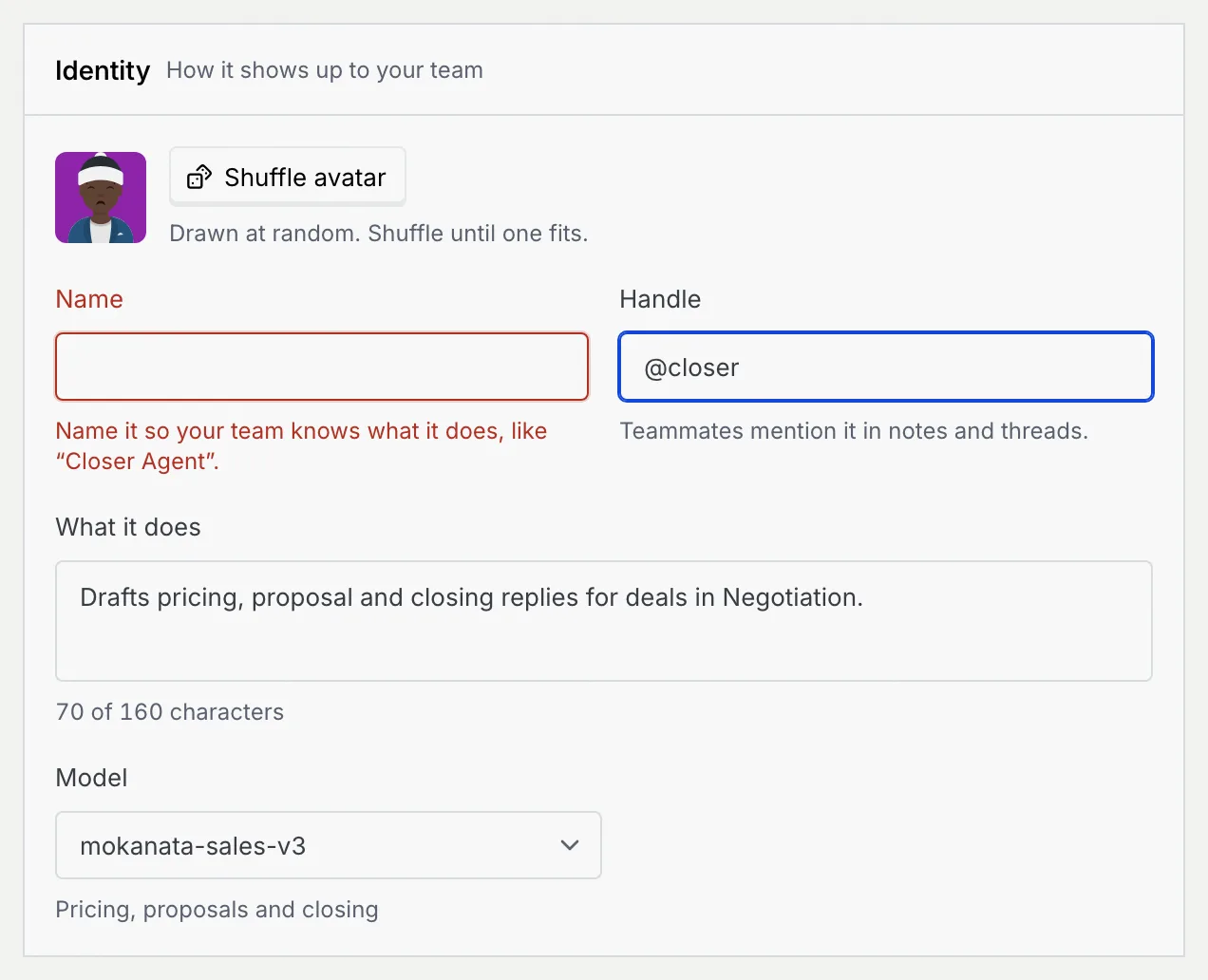
Errors show under the field once you leave it: an empty name asks you to name the agent so your team knows what it does, and a taken handle says "Another agent already uses this handle."
## Leave without saving [#leave-without-saving]
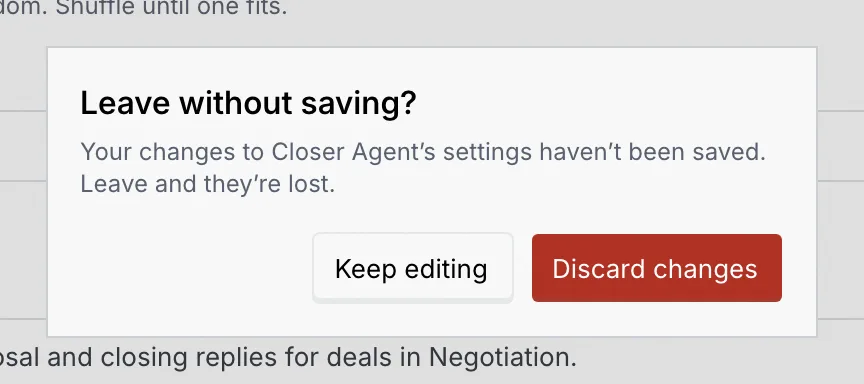
If you try to leave the agent's page with unsaved settings, Mokanata asks **Leave without saving?**. Click **Keep editing** to go back, or **Discard changes** to leave and lose them. Closing or reloading the browser tab warns you too.
## Delete an agent [#delete-an-agent]
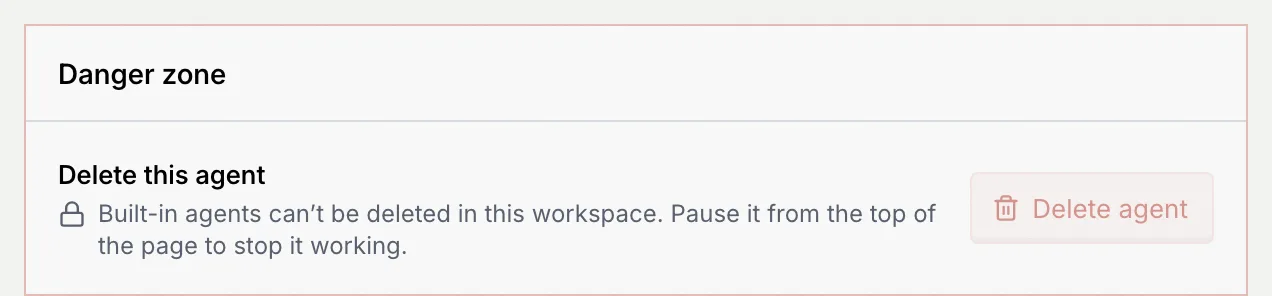
The **Danger zone** at the bottom of the tab deletes the agent. Only agents your team made, such as copies and agents created with **New agent**, can be deleted. The agents that came with your workspace show "Built-in agents can't be deleted in this workspace. Pause it from the top of the page to stop it working."
### Click Delete agent [#click-delete-agent]
In **Danger zone**, click **Delete agent**. You can also choose **Delete** from the agent's **⋯** menu on the [Agents page](/docs/agents/agents).
### Type its name to confirm [#type-its-name-to-confirm]
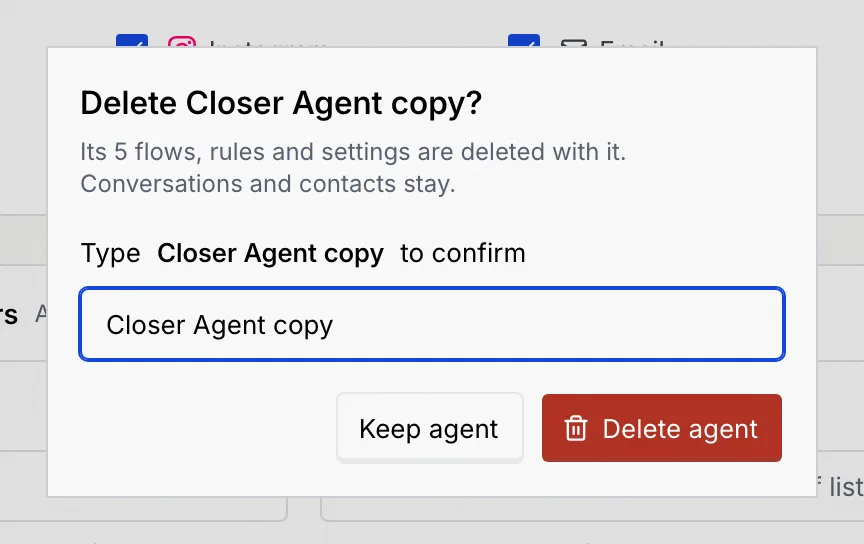
The dialog says what goes with it: its flows, rules and settings. Conversations and contacts stay. Type the agent's name exactly as shown, then click **Delete agent**, or **Keep agent** to cancel.
### Check it's gone [#check-its-gone]
You go back to the Agents page, and a message such as **Closer Agent copy deleted** confirms that its flows, rules and settings went with it. Click **Undo** in it if you change your mind straight away.
A deleted agent stops working right away. Use **Undo** in the message if you deleted the wrong one; otherwise pause an agent rather than delete it if you might need it again.
## Troubleshooting [#troubleshooting]
Your role can't edit agents. Ask an owner or admin. See [Roles and permissions](/docs/settings/roles).
An agent needs at least one channel. To stop it everywhere, pause it from the top of its page instead.
The name in the delete dialog must match the agent's name exactly, including capitals and spaces.
## Next steps [#next-steps]