# Tracking tags (/docs/ads/tracking-tags)
Tracking tags are the pixels and analytics tags of other tools, like the Meta Pixel, Google Analytics 4 or Hotjar, loaded on your workspace's public forms and short links. They let you build ad audiences from people who open them, count the leads they send, and see your forms in your own analytics. Tags never load inside Mokanata itself.
- **Who can use it:** Everyone can see the installed tags, the events they send and the consent settings. Installing a tag needs **Install tracking tags**; editing, pausing and resuming one, and clearing the recent events list, need **Edit tracking tags**; removing one needs **Remove tracking tags**. Owners and admins have all of them by default. See [Roles and permissions](/docs/settings/roles).
- **Before you start:** The tag's ID from the vendor (for example a Meta pixel ID or a GA4 measurement ID), and at least one published [form](/docs/forms/share-a-form) or [short link](/docs/forms/short-links) for it to load on.
## Open Tracking [#open-tracking]
In the sidebar, click **Setup**, then the **Tracking** tab. The count on the tab is the number of installed tags, and the line under the title says what loads for visitors: "nothing loads for visitors yet", how many tags load on every visit, or "visitors are asked before anything loads" when you [ask for consent](/docs/ads/tracking-consent).
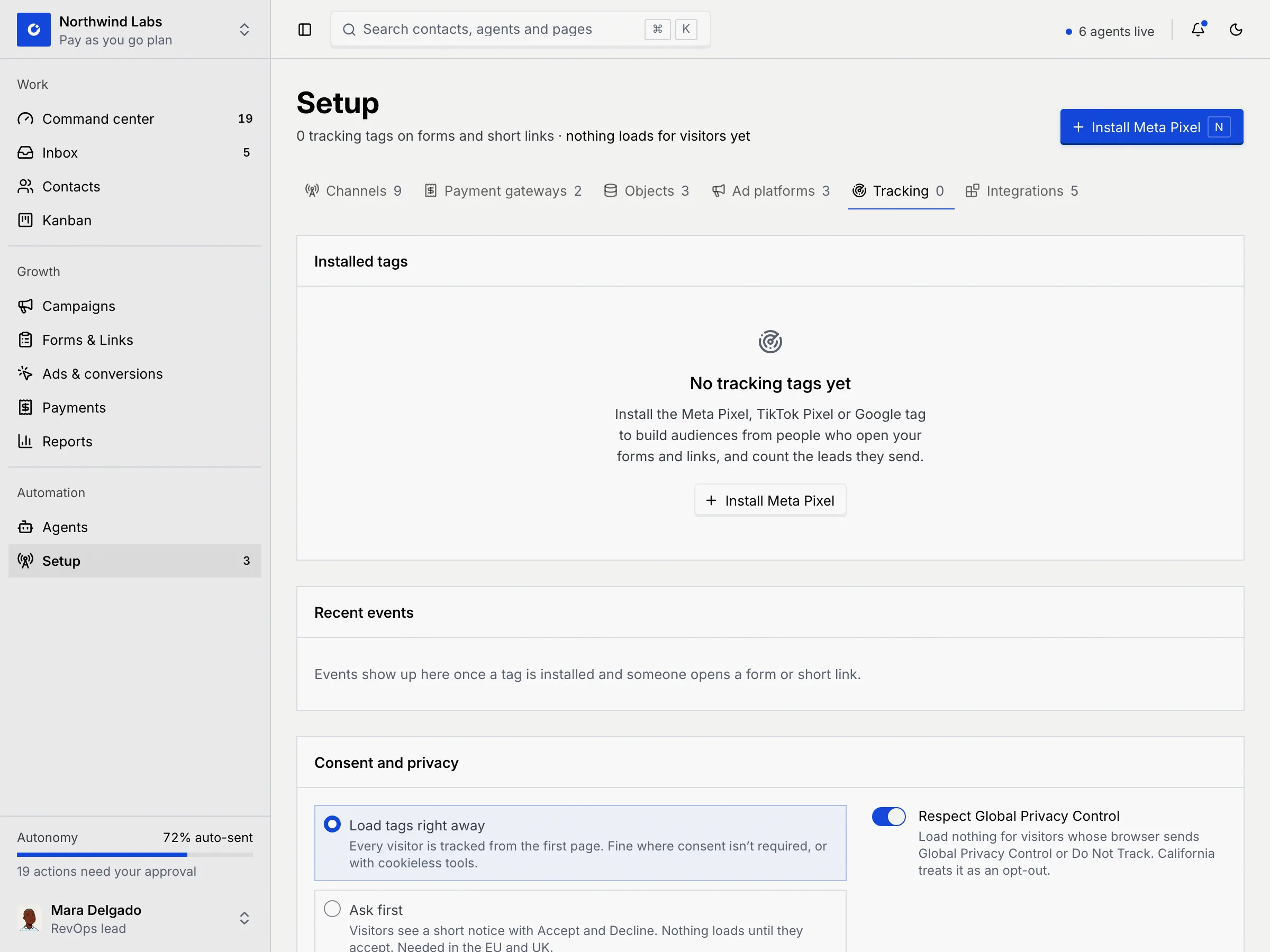
The tab has four panels: **Installed tags**, **Recent events**, **Consent and privacy** and **Available tags**.
## Install a tag [#install-a-tag]
### Pick the tag [#pick-the-tag]
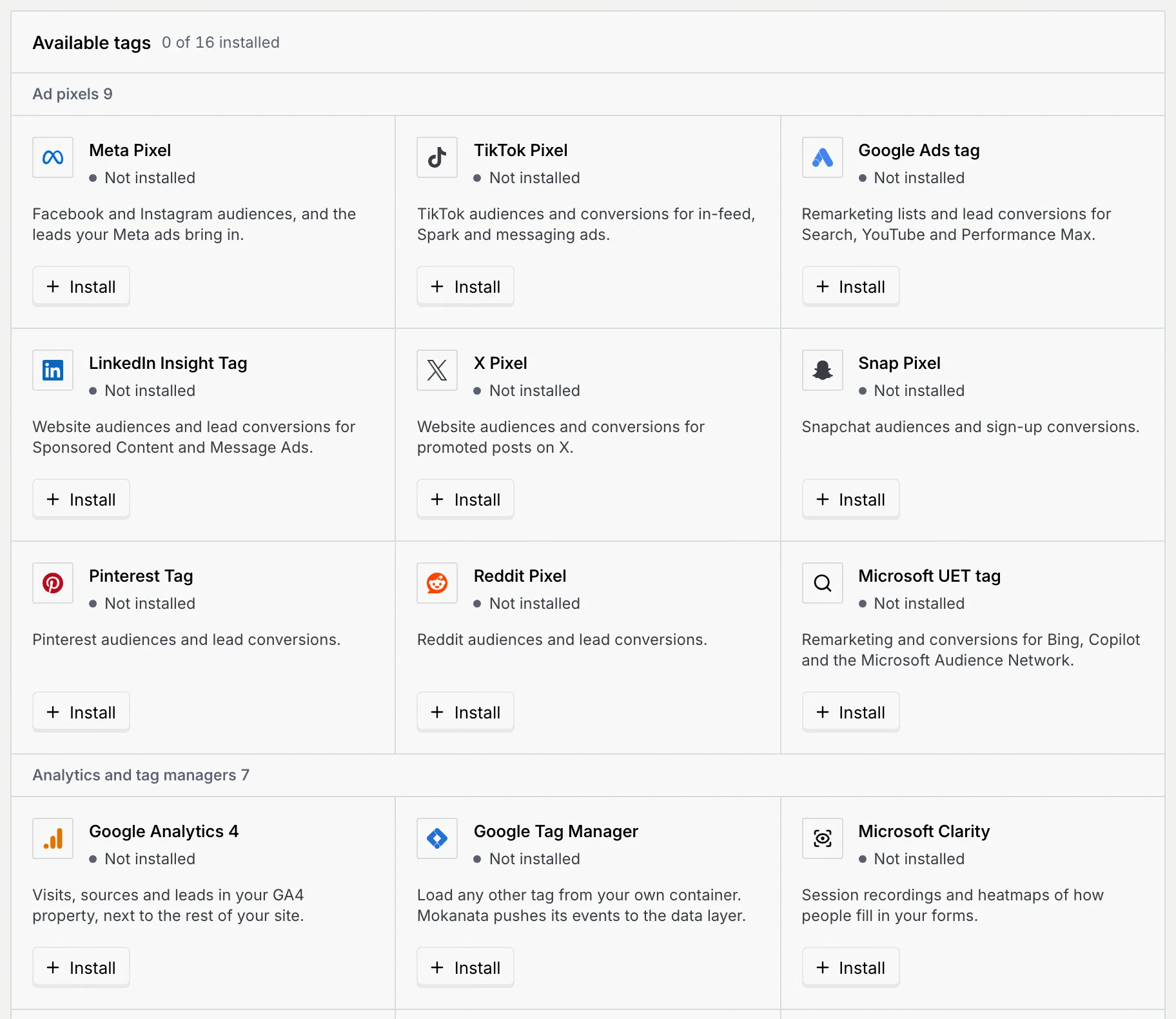
Click **Install Meta Pixel** in the header (or press N), or scroll to **Available tags** and click **Install** on the tag you want. Tags are grouped into **Ad pixels** and **Analytics and tag managers**; a tag you already have says **Installed** and offers **Add another**.
### Enter its ID [#enter-its-id]
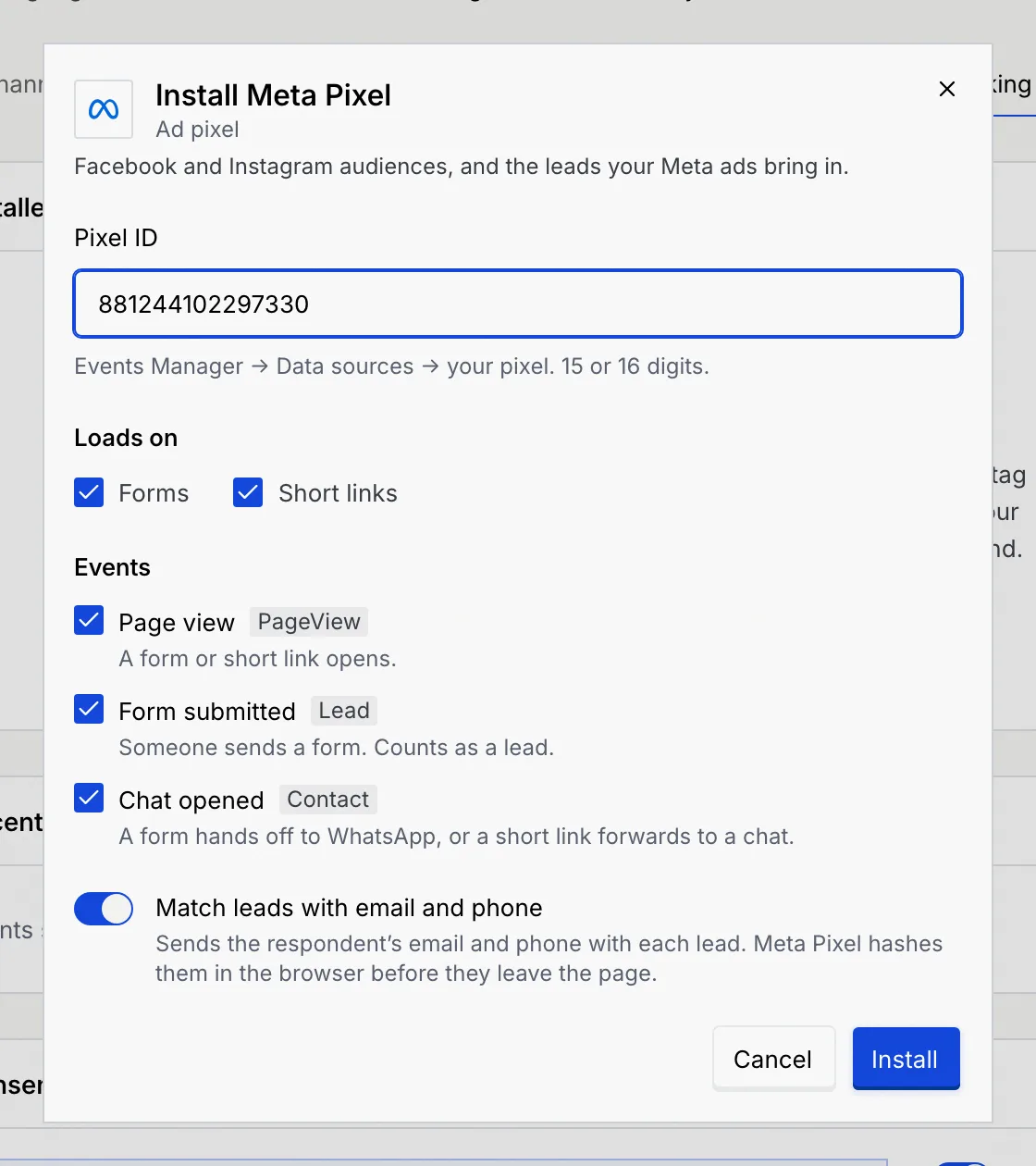
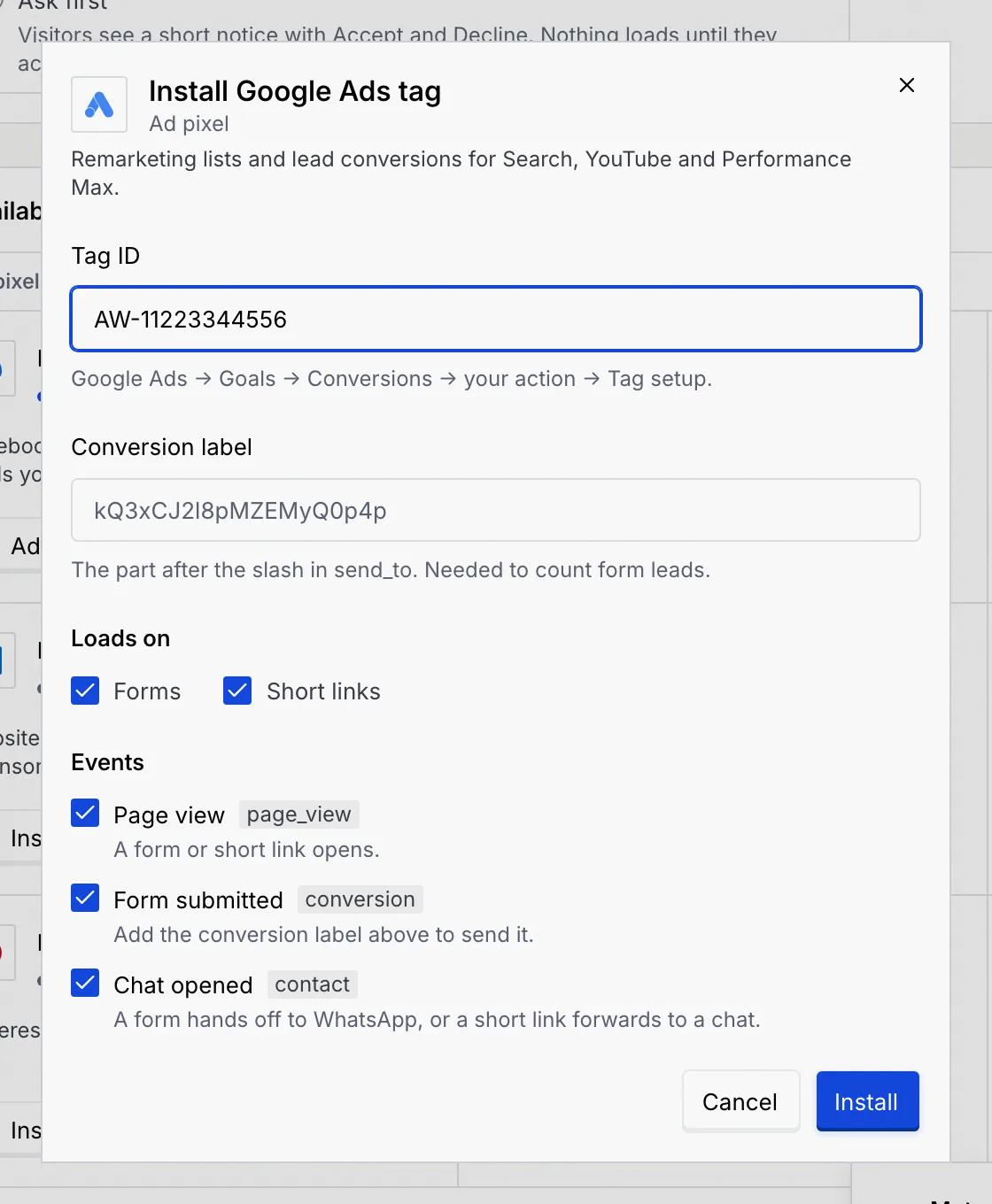
Paste the tag's ID. The help under the field says where to find it in the vendor's tool, and the field checks its format. Some tags have a second field, needed to count form leads (see the table below).
### Choose where it loads and what it sends [#choose-where-it-loads-and-what-it-sends]
- **Loads on**: **Forms**, **Short links** or both (both by default).
- **Events**: **Page view** (a form or short link opens), **Form submitted** (someone sends a form, which counts as a lead) and **Chat opened** (a form hands off to WhatsApp, or a short link forwards to a chat). Each shows the event name the vendor receives, like `PageView` or `Lead`. An event the vendor has no equivalent for is greyed out.
- **Match leads with email and phone** (Meta, TikTok, Snap, Pinterest and Reddit): sends the respondent's email and phone with each lead. The vendor hashes them in the browser before they leave the page.
### Install it [#install-it]
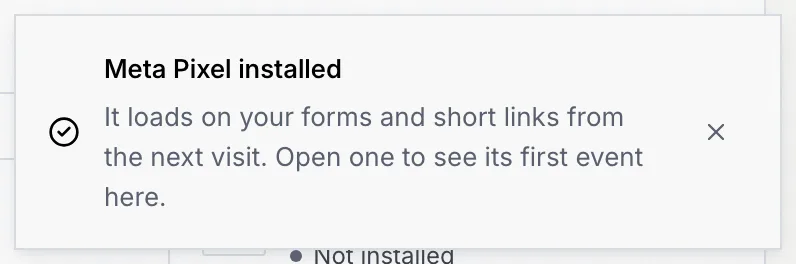
Click **Install**. The tag loads from the next visit to your forms and links.
Tags with a second field still install without it, but they can't count form leads until you add it: the dialog says "Add the conversion label above to send it" (or the field's name), and the tag's row adds "Leads need the …".
### Where to find each ID [#where-to-find-each-id]
| Tag | ID field | Where to find it | Second field | Sends (page view / form / chat) |
|---|---|---|---|---|
| Meta Pixel | **Pixel ID** (15 or 16 digits) | Events Manager → Data sources → your pixel | | PageView / Lead / Contact |
| TikTok Pixel | **Pixel code** | TikTok Ads Manager → Tools → Events → Web events | | Pageview / SubmitForm / Contact |
| Google Ads tag | **Tag ID** (starts with AW-) | Google Ads → Goals → Conversions → your action → Tag setup | **Conversion label**: the part after the slash in `send_to` | page_view / conversion / contact |
| LinkedIn Insight Tag | **Partner ID** | Campaign Manager → Analyze → Insight Tag → Manage Insight Tag | **Lead conversion ID**: Campaign Manager → Analyze → Conversion tracking | page_view / conversion / – |
| X Pixel | **Pixel ID** (5 letters and digits) | Ads Manager → Tools → Events manager → your pixel | **Lead event ID**: your lead event → Install with pixel code | page_view / event / – |
| Snap Pixel | **Pixel ID** | Ads Manager → Events Manager → your pixel | | PAGE_VIEW / SIGN_UP / – |
| Pinterest Tag | **Tag ID** | Ads Manager → Conversions → Tag manager | | pagevisit / lead / – |
| Reddit Pixel | **Pixel ID** | Ads Manager → Events Manager → your pixel | | PageVisit / Lead / – |
| Microsoft UET tag | **UET tag ID** | Microsoft Advertising → Tools → UET tag | | pageLoad / submit_lead_form / contact |
| Google Analytics 4 | **Measurement ID** (starts with G-) | Admin → Data streams → your web stream | | page_view / generate_lead / contact |
| Google Tag Manager | **Container ID** (starts with GTM-) | Tag Manager → your container, top of the workspace | | mokanata_page_view / mokanata_form_submit / mokanata_chat_open, pushed to the data layer |
| Microsoft Clarity | **Project ID** | Clarity → Settings → Overview | | page_view / form_submitted / chat_opened |
| Hotjar | **Site ID** | Hotjar → Sites & Organizations | | page_view / form_submitted / chat_opened |
| PostHog | **Project API key** (starts with phc_) | Project settings → Project API key | **API host (optional)**: leave empty for US Cloud; EU Cloud is `https://eu.i.posthog.com` | $pageview / form_submitted / chat_opened |
| Mixpanel | **Project token** | Project settings → Access keys → Project token | | Page view / Form submitted / Chat opened |
| Plausible | **Domain** | The site's domain as you added it in Plausible | | pageview / Form submitted / Chat opened |
A dash means the vendor has no event for it. LinkedIn, X, Clarity and Hotjar also count page views themselves once loaded. Use **Google Tag Manager** to load any other tag from your own container.
## Check a tag fires [#check-a-tag-fires]
### Open a form [#open-a-form]
On **Recent events**, click **Open a form to test**. Your first published form opens in a new tab, and every tag that loads on forms fires its page view.
### Watch the events arrive [#watch-the-events-arrive]
Back on **Tracking**, each event shows under **Recent events** as it fires: the event, the name the vendor received, the tag, where it fired (form name or short link) and the time. The tag's row in **Installed tags** changes from **Waiting for a visit** to **Receiving**, with the time of its last event.
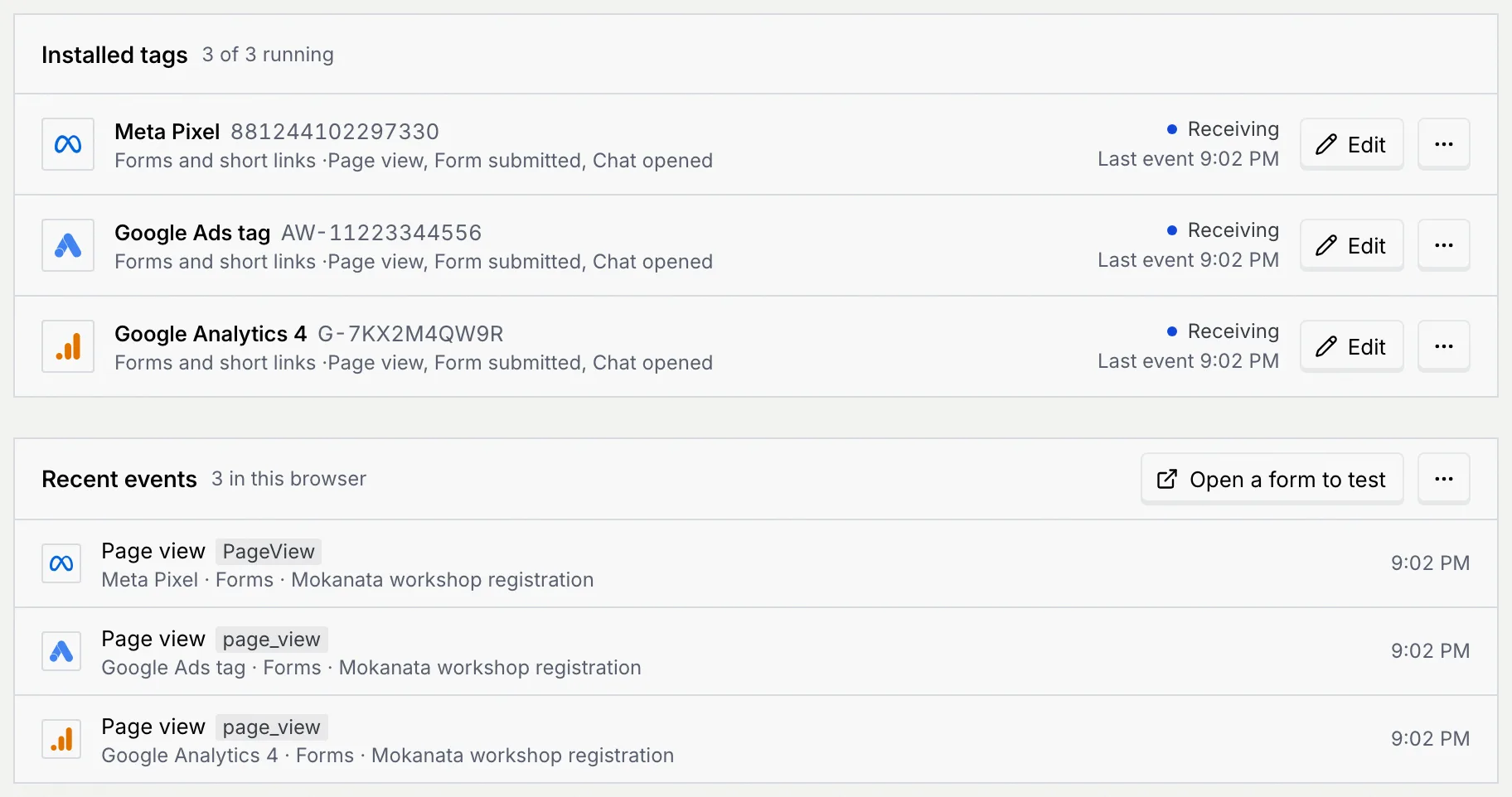
**Recent events** lists events from visits in this browser, so you can test your own visits; it keeps the newest 12. To start over, open its **⋯** menu and choose **Clear the list**.
Ad blockers can stop a pixel from loading. For the Meta Pixel and TikTok Pixel, also send the same events server-side: open the tag's **⋯** menu and choose **Send server-side events too** to set up its [conversion destination](/docs/ads/conversion-destinations) (for the Google Ads tag it's coming soon). Both send a form lead with the same `event_id`, so it counts once.
## Edit, pause or remove a tag [#edit-pause-or-remove-a-tag]
Each installed tag shows its ID, where it loads and its events, then its state: **Receiving**, **Waiting for a visit** or **Paused**.
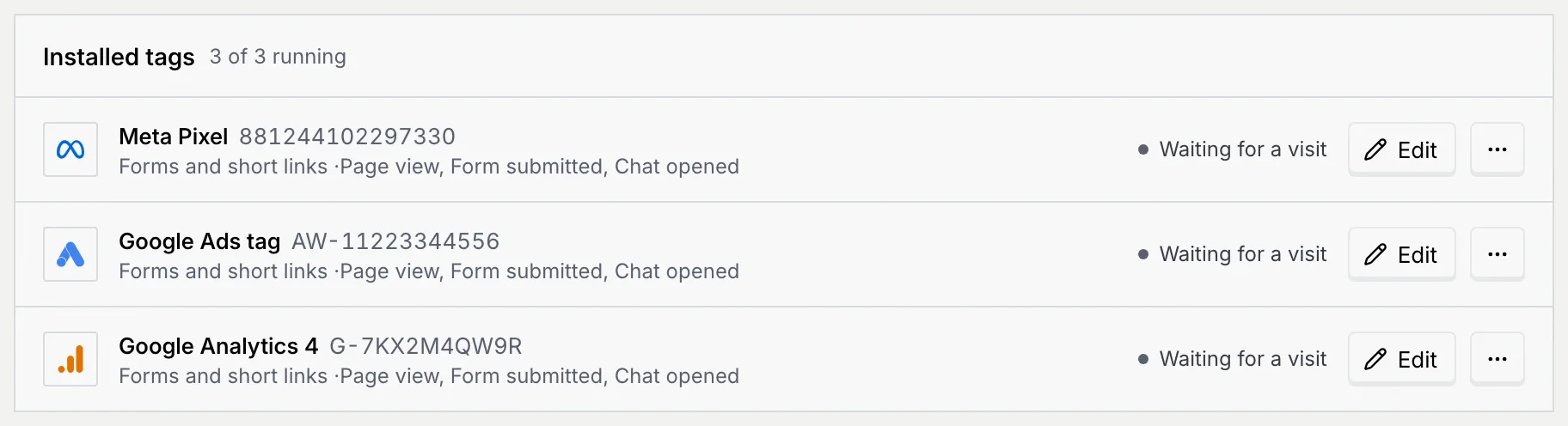
- **Edit** opens the tag's settings. Change them and click **Save**; pages opened from then on use the new settings.
- The **⋯** menu has **Pause** (the tag stops loading but keeps its settings) or **Resume**, **Send server-side events too** for tags with a destination, and **Remove** with the tag's name.
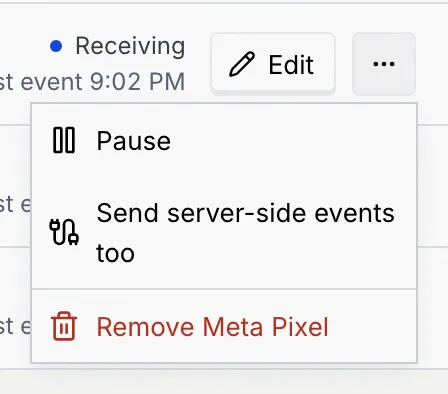
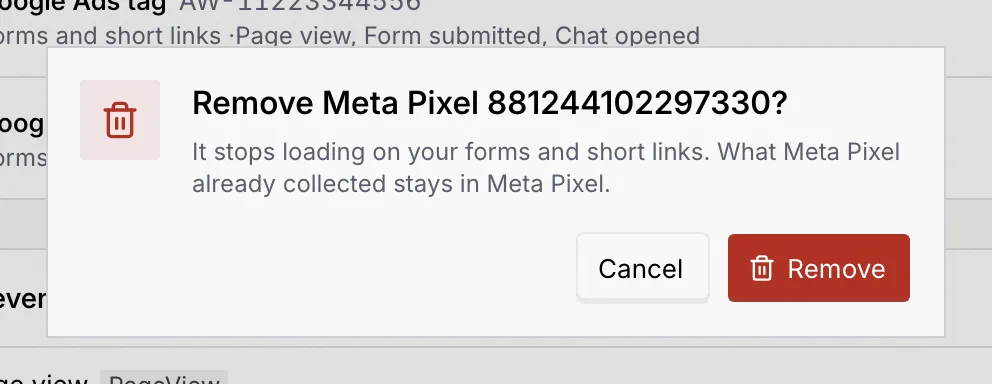
Removing asks you to confirm. The tag stops loading on your forms and short links; what the vendor already collected stays with them. The toast has **Undo**.
## What members and viewers see [#what-members-and-viewers-see]
Without the tracking permissions, a **View only** notice explains you can see the installed tags, the events they send and the consent settings. **Install**, **Edit** and the consent controls are disabled, and **Pause**, **Remove** and **Clear the list** are left out of the menus. See [Consent and privacy for tracking](/docs/ads/tracking-consent#what-members-and-viewers-see).
## Troubleshooting [#troubleshooting]
Each tag checks its ID: for example a Meta pixel ID is 15 or 16 digits, a Google Ads tag ID starts with AW-, a GA4 measurement ID starts with G-, and a PostHog key starts with phc_. Copy it again from the place the help text names. Spaces are removed for you.
Each ID can be installed once. Edit the existing tag instead.
Tick **Forms**, **Short links** or both under **Loads on**.
No one has opened a form or short link since it was installed. Click **Open a form to test**. If you ask visitors for consent first, accept the notice on the form; a browser that sends Global Privacy Control loads nothing (see [Consent and privacy for tracking](/docs/ads/tracking-consent)). Paused tags don't load.
These tags need their second field (**Conversion label**, **Lead conversion ID** or **Lead event ID**) to count leads. Click **Edit** and add it.
Someone removed the tag after the link was made (in another tab, or a teammate), so there's nothing to edit and nothing loads for it any more. Install it again from the catalogue if you still need it.
## Next steps [#next-steps]