# Test events and the event log (/docs/ads/event-log)
The **Event log** tab on **Ads & conversions** shows every conversion event Mokanata sent to Meta and TikTok in the last 24 hours, and whether each one arrived. Use it with a test event to check a new destination works before real conversions flow.
Sending conversions to Meta and TikTok works now. Google Ads conversions are coming soon. The screenshots show the sample workspace.
- **Who can use it:** Everyone can read the event log. Sending a test event needs **Connect ad platforms**, which owners and admins have by default; for other roles **Send test event** is disabled and says why. See [Roles and permissions](/docs/settings/roles).
- **Before you start:** At least one connected conversion destination (see [Send conversions to Meta and TikTok](/docs/ads/conversion-destinations)). For a test event, a test event code from the platform's Events Manager → Test events: a test needs one, so it never counts as a real conversion.
## Check match quality [#check-match-quality]
**Event match quality** at the top rates, for each destination, how well its events can be matched to real people, out of 10: **Great** (8 or more), **Good** (6 or more), **OK** (4 or more) or **Poor** (under 4, with a red bar). A note under each score says what would raise it.

A destination that isn't connected shows **Not rated · connect to start sending**; a newly connected one shows **Not rated yet · scores appear after events arrive**. To lift a score, add emails and phone numbers to more contacts: they're the match keys every destination uses.
## Read the event log [#read-the-event-log]
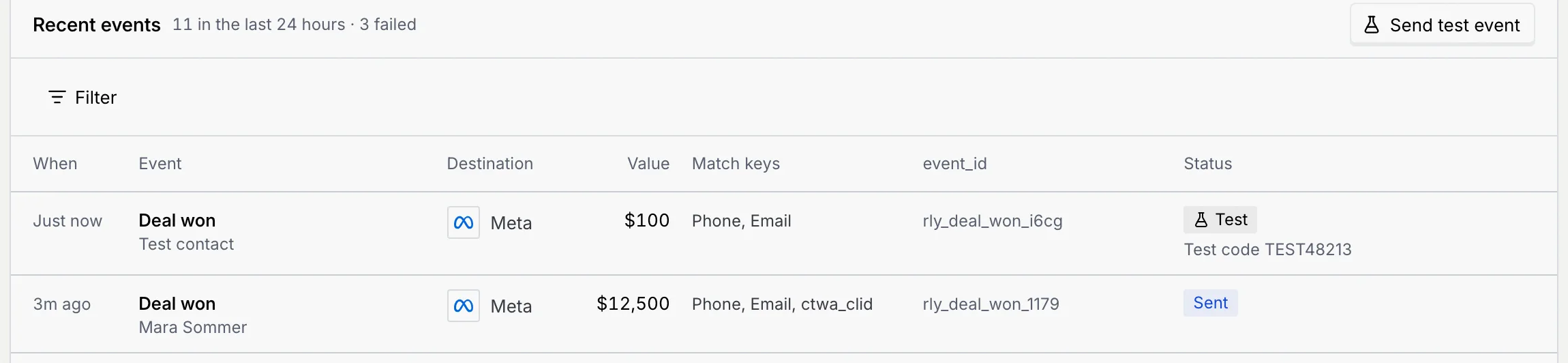
**Recent events** lists events newest first, with how many were sent in the last 24 hours and how many failed. Failed rows are tinted red.
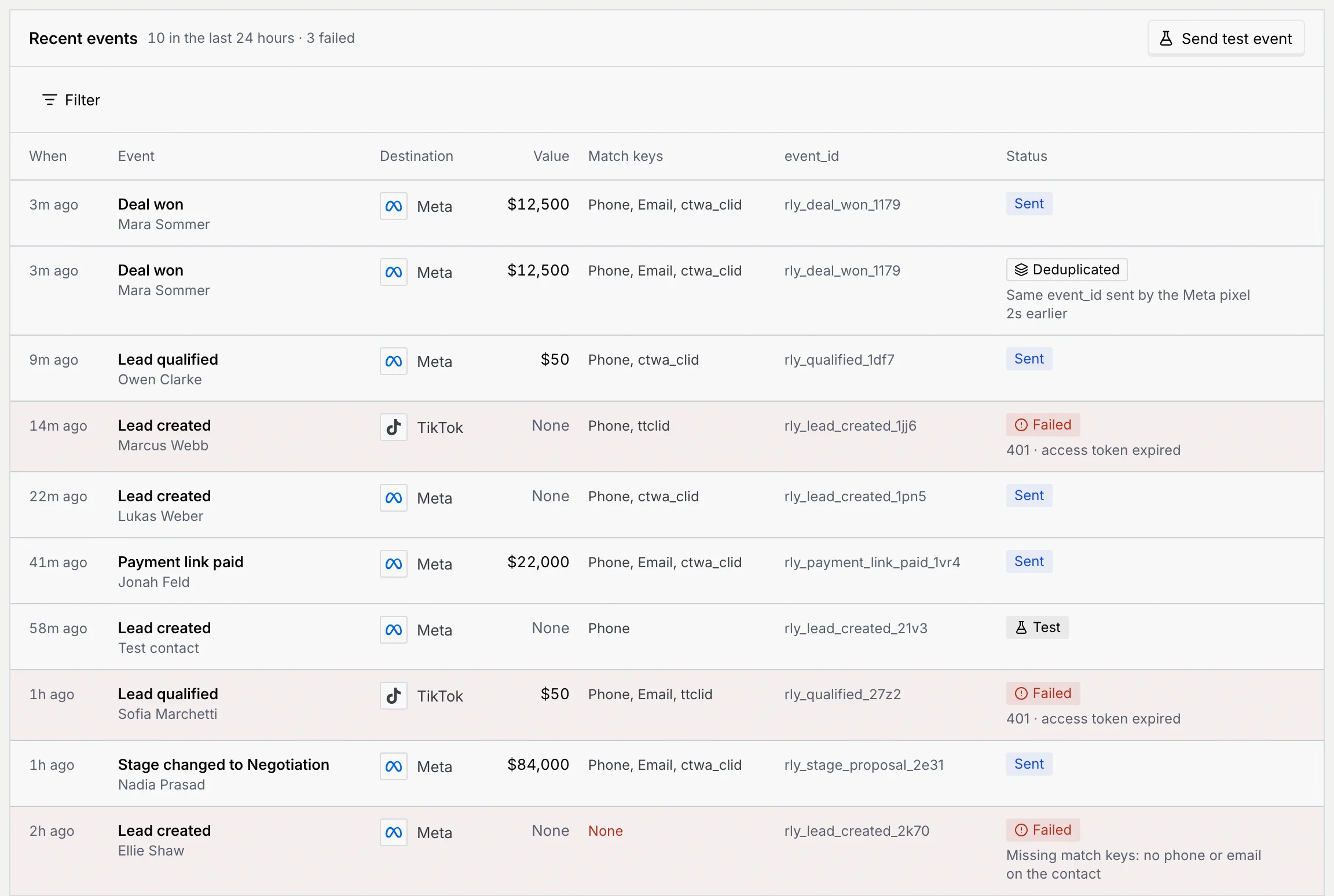
| Column | What it shows |
|---|---|
| **When** | How long ago it was sent ("Just now", "3m ago", "1h ago"). |
| **Event** | The CRM event, over the contact (the name links to their record when they're in your contacts). |
| **Destination** | Meta or TikTok. |
| **Value** | The amount sent with it, or **None**. |
| **Match keys** | What was sent to match the person, such as phone and email (hashed). **None** in red means nothing could be matched. |
| **event_id** | The deduplication key. The same deal and event always gets the same one. |
| **Status** | The outcome, with the reason underneath when there is one. |
| Status | Meaning |
|---|---|
| **Sent** | Delivered to the destination. |
| **Deduplicated** | The destination already had an event with the same `event_id` (for example from your pixel) and dropped this copy. The conversion still counts once. |
| **Failed** | Not delivered; the reason shows underneath, like "401 · access token expired" or "Missing match keys: no phone or email on the contact". Mokanata tries again a few times, waiting longer each time; Meta and TikTok take nothing more than 7 days old. |
| **Test** | Sent with **Send test event**. It never counts as a conversion. |
## Filter the log [#filter-the-log]
### Pick a filter [#pick-a-filter]
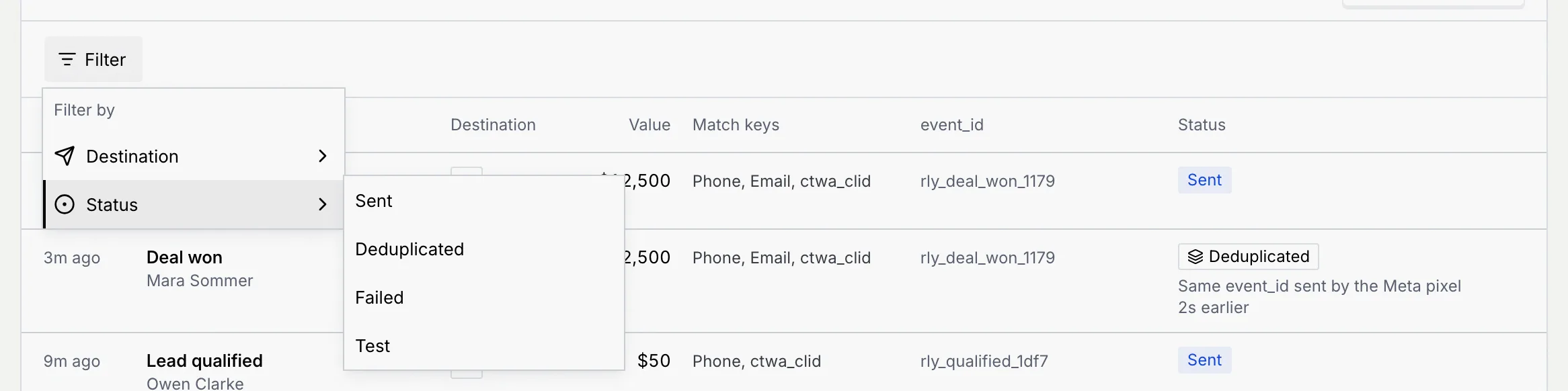
Click **Filter**, point at **Destination** or **Status** and tick what you want to see. Here, **Status** → **Failed**:
### Narrow or clear it [#narrow-or-clear-it]
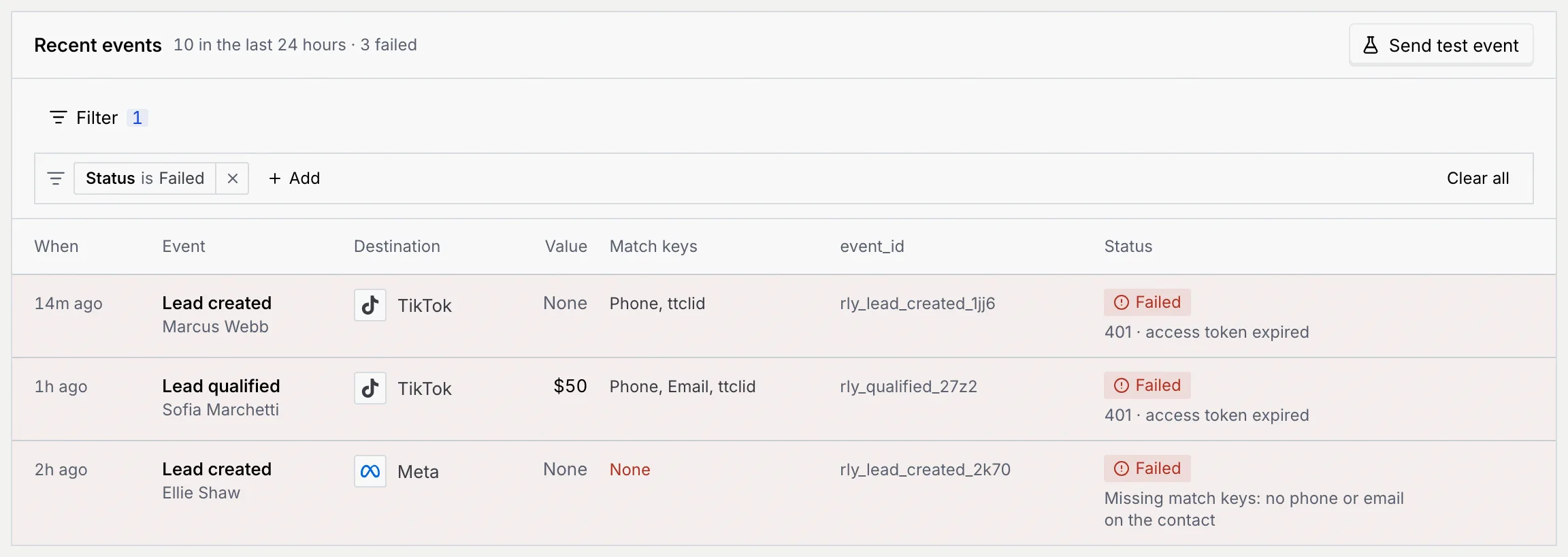
The filter shows as a chip, like **Status is Failed**. Click **Add** to filter on the other field too, click a chip to change it (or switch it to **is not**), its **×** to remove it, or **Clear all**.
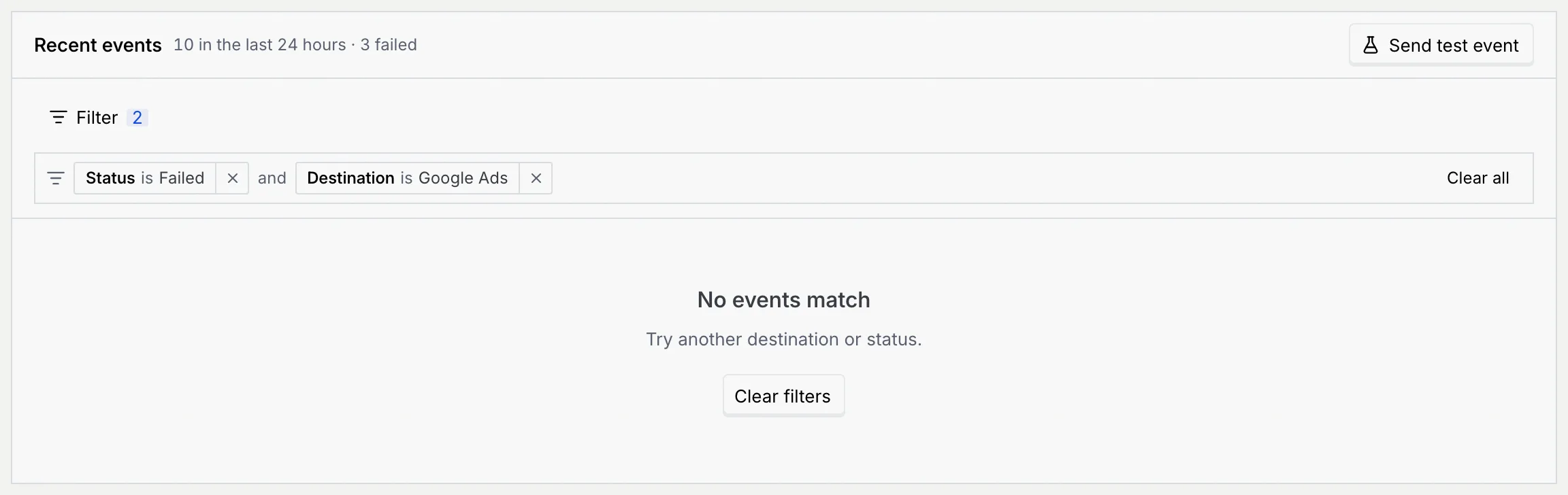
If nothing matches, **No events match** shows with **Clear filters**.
## Send a test event [#send-a-test-event]
### Open Send a test event [#open-send-a-test-event]
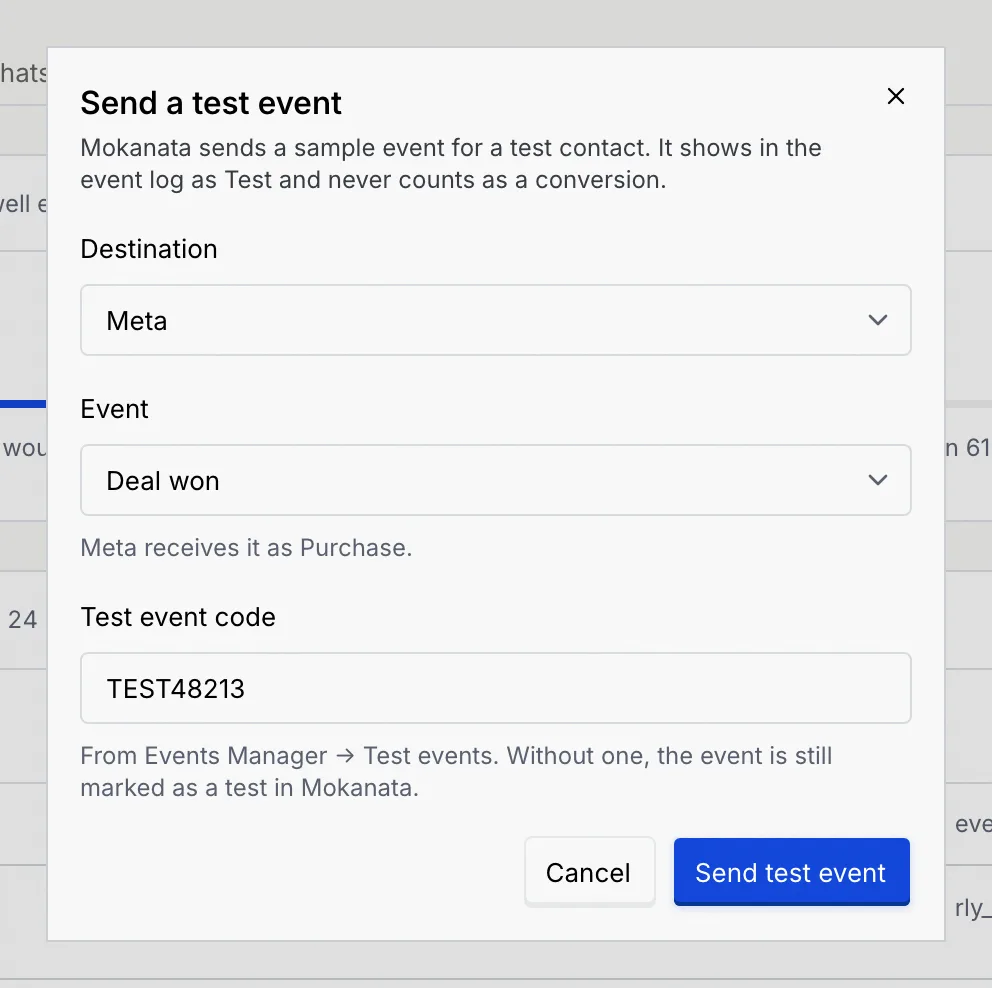
Click **Send test event** on **Recent events**, or on a connected destination's card on the **Destinations** tab (which picks that destination for you).
### Choose the destination and event [#choose-the-destination-and-event]
- **Destination**: any connected destination.
- **Event**: one of the CRM events. The hint underneath says what the destination receives it as, for example "Meta receives it as Purchase".
- **Test event code**: fills in with the destination's saved code. It's required: copy it from Events Manager → Test events, so the event shows in the platform's test view and never counts as a real conversion.
### Send it and find it [#send-it-and-find-it]
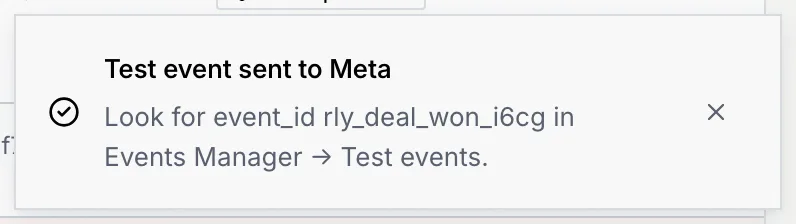
Click **Send test event**. The toast gives the `event_id` to look for in Events Manager → Test events.
A new row tops the log for **Test contact**, with the status **Test** and the code you used.
## Troubleshooting [#troubleshooting]
Either no destination is connected (point at the button: "Connect or resume a destination to send a test event"), or your role doesn't include **Connect ad platforms**. Connect or resume a destination on the **Destinations** tab, or ask an owner or admin.
The destination was disconnected or paused since you opened the page. Click **Go to Destinations**, connect or resume it, then send the test again.
The destination's token expired. Click **Update token** on its card and paste a new one; the failed events are sent again and turn into **Sent**. See [Fix an expired token](/docs/ads/conversion-destinations#fix-an-expired-token).
The contact has no phone number or email, so the destination can't tell who it was. Add one to the contact; future events for them will match.
One was sent and the other **Deduplicated**: both carry the same `event_id`, usually because your pixel sent the same purchase from your checkout. The destination keeps the first and drops the copy, so it counts once.
## Next steps [#next-steps]