# Send conversions to Meta and TikTok (/docs/ads/conversion-destinations)
A conversion destination is an ad platform Mokanata reports outcomes back to: when a lead comes in, a form is submitted, a lead qualifies, a payment link is paid or a deal is won, Mokanata sends that event server-side to **Meta** or **TikTok**. The platforms use it to optimise your ads for people who actually buy, not just people who start a chat.
Meta and TikTok conversions work now. For Meta, connect with a pasted system user access token and your dataset ID; **Continue with Facebook** is coming soon, once Mokanata's Meta app is approved; until then the dialog doesn't show it. TikTok connects with a pixel code and an access token. **Google Ads** conversions are coming soon; see [Google Ads](#google-ads).
- **Who can use it:** Everyone can see the destinations and the event mapping. Connecting, editing, updating a token, disconnecting and sending test events need **Connect ad platforms**; pausing and resuming a destination and switching events on or off need **Edit conversion events**. Owners and admins have both by default. See [Roles and permissions](/docs/settings/roles).
- **Before you start:** For Meta, a dataset in Events Manager, and a system user access token. (Continuing with Facebook, which needs admin access to the business that owns the dataset, is coming soon.) For TikTok, a pixel and an Events API access token.
## The Destinations tab [#the-destinations-tab]
On **Ads & conversions**, click **Destinations**. The tab's count (for example "1/3") is how many of the destinations are sending. Each destination has a card with its state, what it does and, once connected, its settings and last-24-hours numbers.
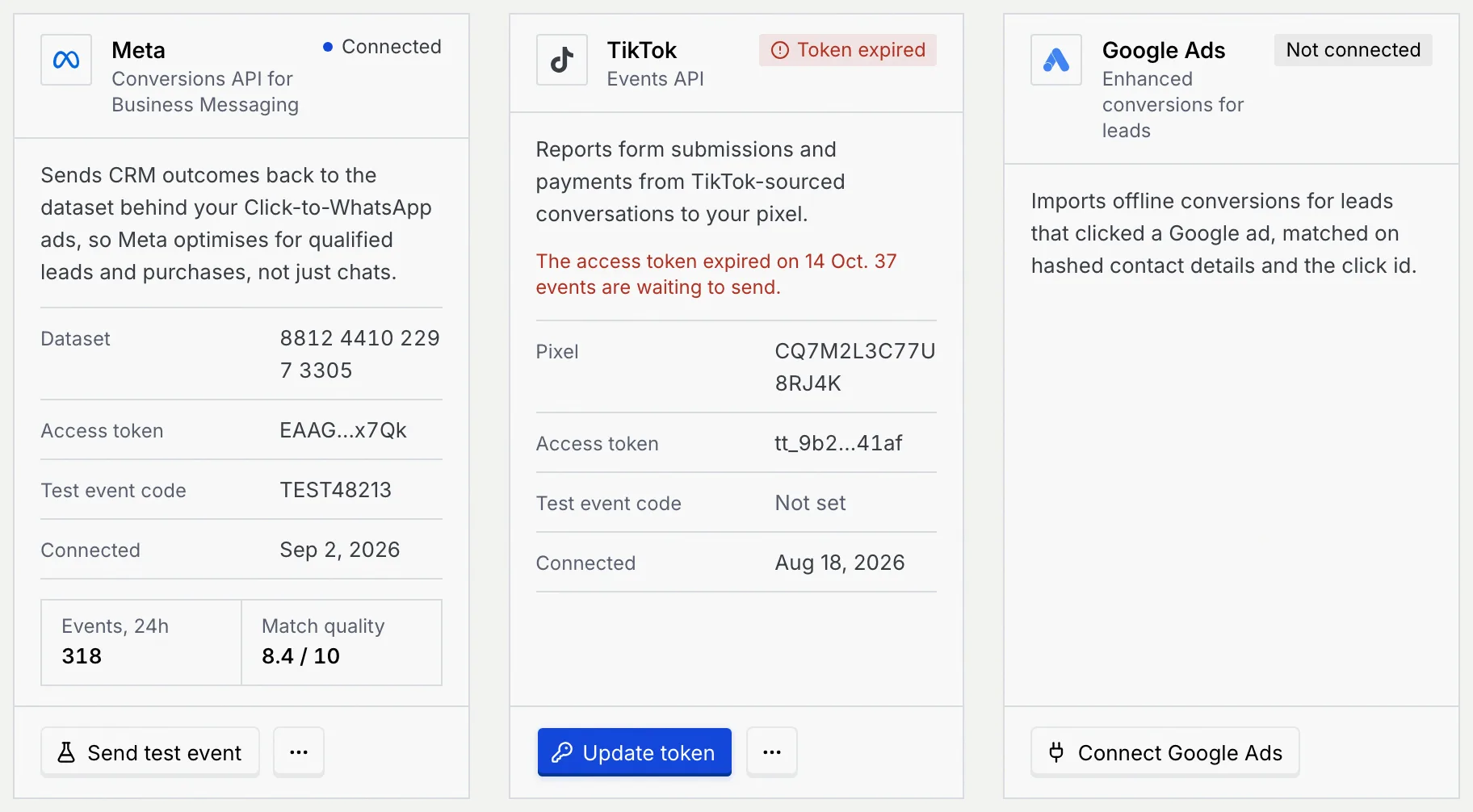
| Destination | Sends through | What it does | Matches people on |
|---|---|---|---|
| **Meta** | Conversions API | Sends CRM outcomes back to your dataset, so Meta optimises for qualified leads and purchases, not just chats. | Phone and email (SHA-256), the contact's Mokanata ID, and the browser's details for events from a form |
| **TikTok** | Events API | Reports leads, form submissions and payments to your pixel. | The same as Meta |
| **Google Ads** | Enhanced conversions for leads | Coming soon. | |
A card's state is one of:
| State | Meaning | Main button |
|---|---|---|
| **Not connected** | No credentials yet. | **Connect** with the destination's name |
| **Connecting** | Mokanata is checking the credentials. | (busy) |
| **Connected** | Events are sending. | **Send test event** |
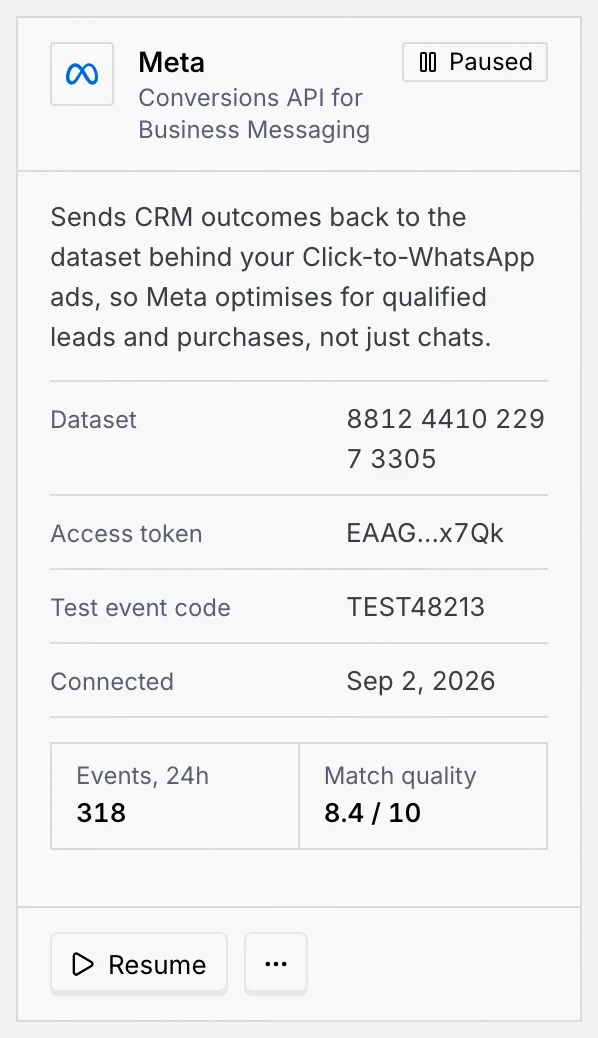
| **Paused** | Sending is on hold; new events wait up to 7 days. | **Resume** |
| **Token expired** | The access token stopped working; events wait up to 7 days. | **Update token** |
Mokanata sends each event server-side within minutes of the CRM change, and tries again a few times when the platform doesn't take it. Meta and TikTok take nothing more than 7 days old. Payloads never include message content.
## Connect a destination [#connect-a-destination]
### Open the connect dialog [#open-the-connect-dialog]
On the destination's card, click **Connect Meta** or **Connect TikTok**.
### Fill in the details [#fill-in-the-details]
- **Dataset ID**: from Events Manager → Data sources → your dataset. It's 15 or 16 digits, like 8812 4410 2297 3305.
- Paste an **Access token**: a system user token from Events Manager → Settings → Conversions API. Meta tokens start with `EAA`, and a system user token doesn't expire. **Continue with Facebook** is coming soon and doesn't show in the dialog yet, so the token is the way to connect.
- **Test event code (optional)**: saved with the destination for test events.
Click **Connect Meta**. Events from a form go as website events with the browser's details; the others go as events from your system.
- **Pixel code**: 16 to 20 capital letters and digits, from TikTok Events Manager.
- **Access token**: Events Manager → your pixel → Settings → Generate access token.
- **Test event code (optional)**.
Mokanata sends events server-side to your pixel. Click **Connect TikTok**.
Mokanata stores tokens encrypted and never shows them again; the card shows only the first and last characters.
### Check it connected [#check-it-connected]
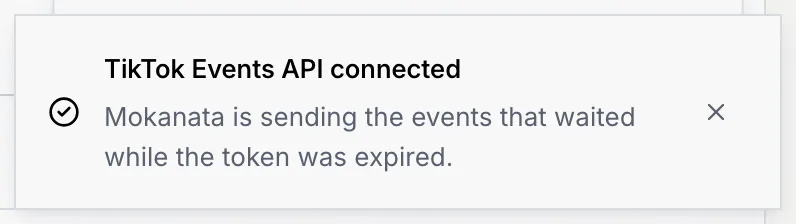
The dialog closes and the card shows **Connecting**, then **Connected** with the details you entered, and a toast confirms it. Mapped events start sending from the next CRM change. Send a test event to check the setup (see [Test events and the event log](/docs/ads/event-log)).
## Google Ads [#google-ads]
Sending conversions to Google Ads (enhanced conversions for leads) isn't available yet. The Google Ads card and its column in the event mapping say it isn't connected, and connecting it says Google Ads isn't available yet.
## Choose which events are sent [#choose-which-events-are-sent]
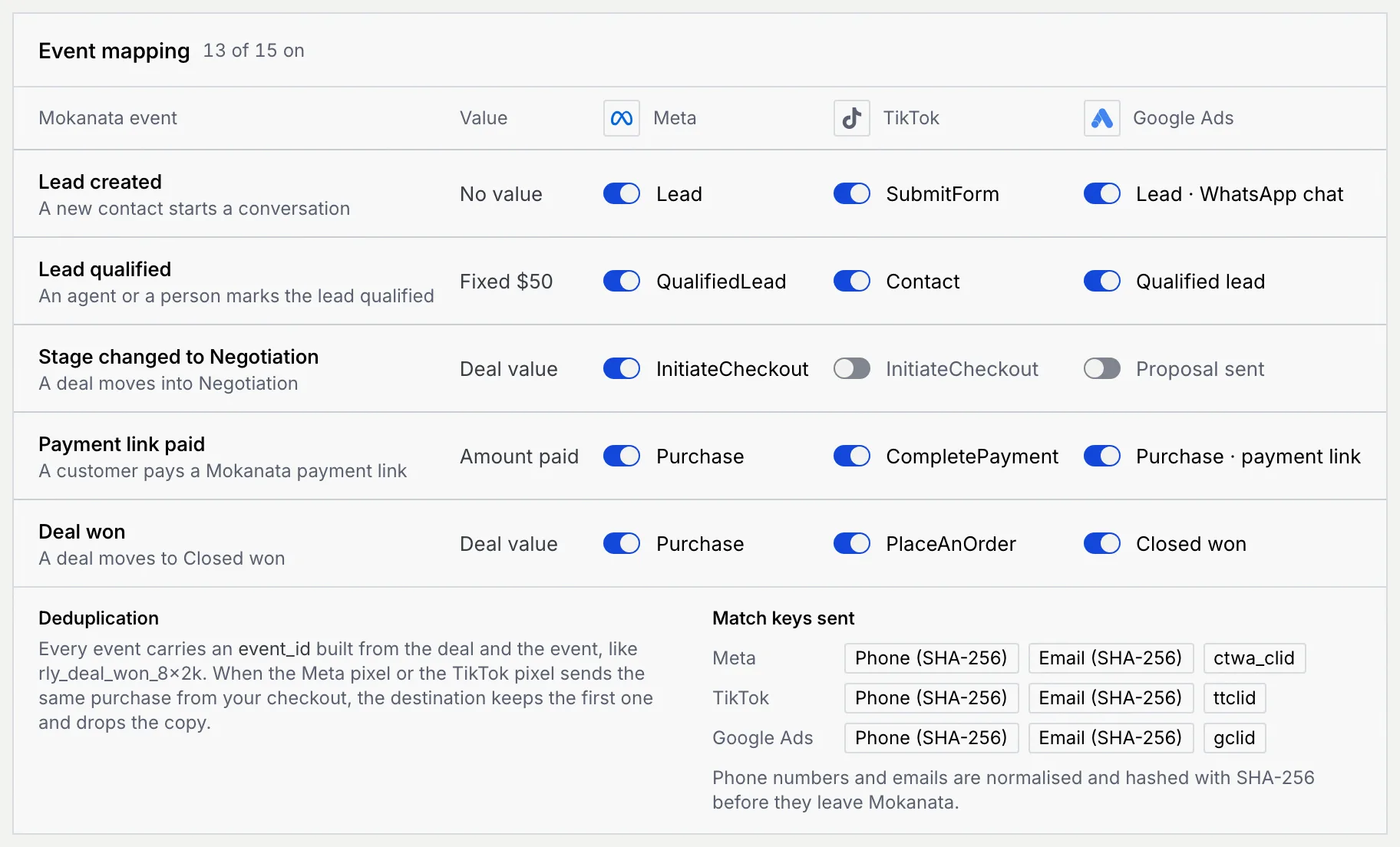
**Event mapping**, under the cards, decides which Mokanata CRM events go to which destination, and under which event name. The count at the top says how many combinations are on. Each switch takes effect straight away.
| Mokanata event | When it happens | Value sent | Meta | TikTok |
|---|---|---|---|---|
| **Lead created** | A new contact starts a conversation | No value | Lead | SubmitForm |
| **Form submitted** | Someone submits a published form | No value | Lead | SubmitForm |
| **Lead qualified** | An agent or a person marks the lead qualified | A fixed value | QualifiedLead | Contact |
| **Stage changed to Negotiation** | A deal moves into Negotiation | Deal value | InitiateCheckout | InitiateCheckout |
| **Payment link paid** | A customer pays a Mokanata payment link | Amount paid | Purchase | CompletePayment |
| **Deal won** | A deal moves to Closed won | Deal value | Purchase | PlaceAnOrder |
Every combination is on by default except **Stage changed to Negotiation**, which goes only to Meta. A destination that isn't sending shows why in its column header (for example "· token expired" or "· not connected"); its switches still save, ready for when it's connected.
Under the table:
- **Deduplication**: every event carries an `event_id`, like `rly_deal_won_8x2k`; a form lead uses the same one as the pixel on the form. When the Meta Pixel or the TikTok Pixel sends the same event from the browser, the destination keeps the first one and drops the copy.
- **Match keys sent**: what each destination receives to match the event to a person: the contact's email and phone, normalised and hashed with SHA-256 before they leave Mokanata, and the contact's hashed ID as the external ID. A lead from a form also carries the visitor's IP address and browser (user agent). No ad click IDs are sent.
Installing the Meta Pixel or TikTok Pixel on your forms and links as well (see [Tracking tags](/docs/ads/tracking-tags)) sends the same lead from the browser and from Mokanata with one `event_id`, so it counts once even when an ad blocker stops the pixel.
## Pause, edit or resume a destination [#pause-edit-or-resume-a-destination]
Open the **⋯** menu next to a connected destination's **Send test event**:
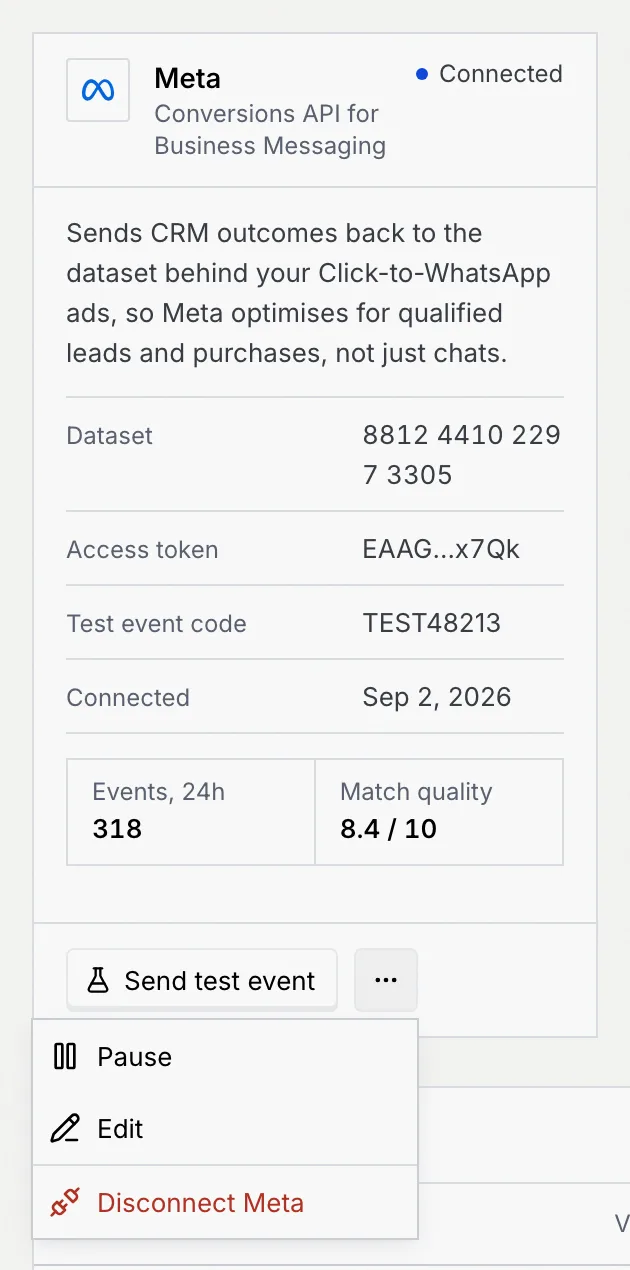
- **Pause** holds new events for up to 7 days instead of sending them. The card shows **Paused** and a **Resume** button; resuming sends the held events, oldest first.
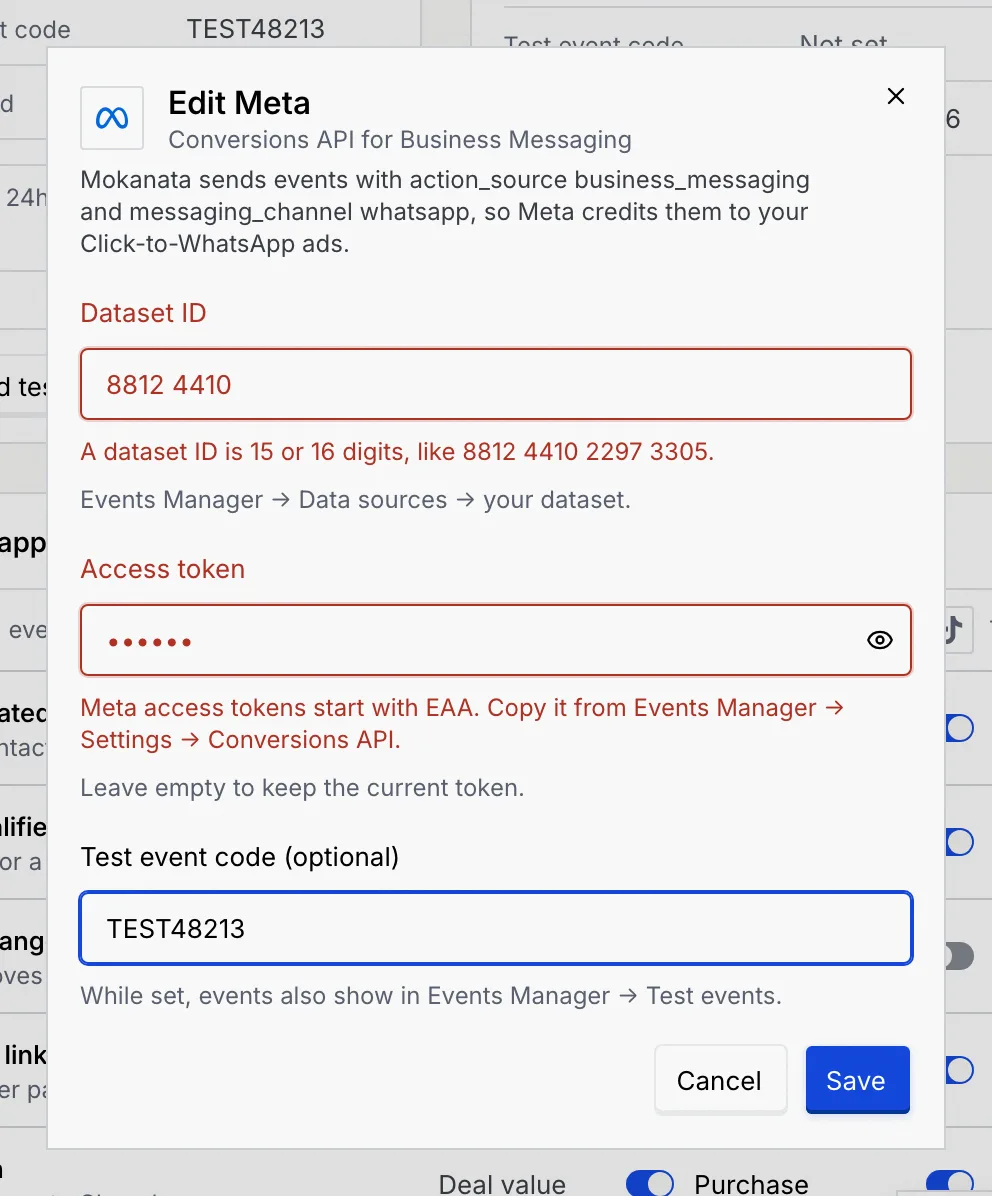
- **Edit** opens the same dialog as connecting, titled **Edit** with the destination's name. Leave **Access token** empty to keep the current token, then click **Save**. Editing a paused destination keeps it paused.
- **Disconnect** stops sending (see below).
The dialog checks each field as you type and won't save until they're valid:
## Fix an expired token [#fix-an-expired-token]
When a token stops working, the card shows **Token expired** with how many events are waiting, and a red notice appears at the top of every Ads & conversions tab.
### Open Update token [#open-update-token]
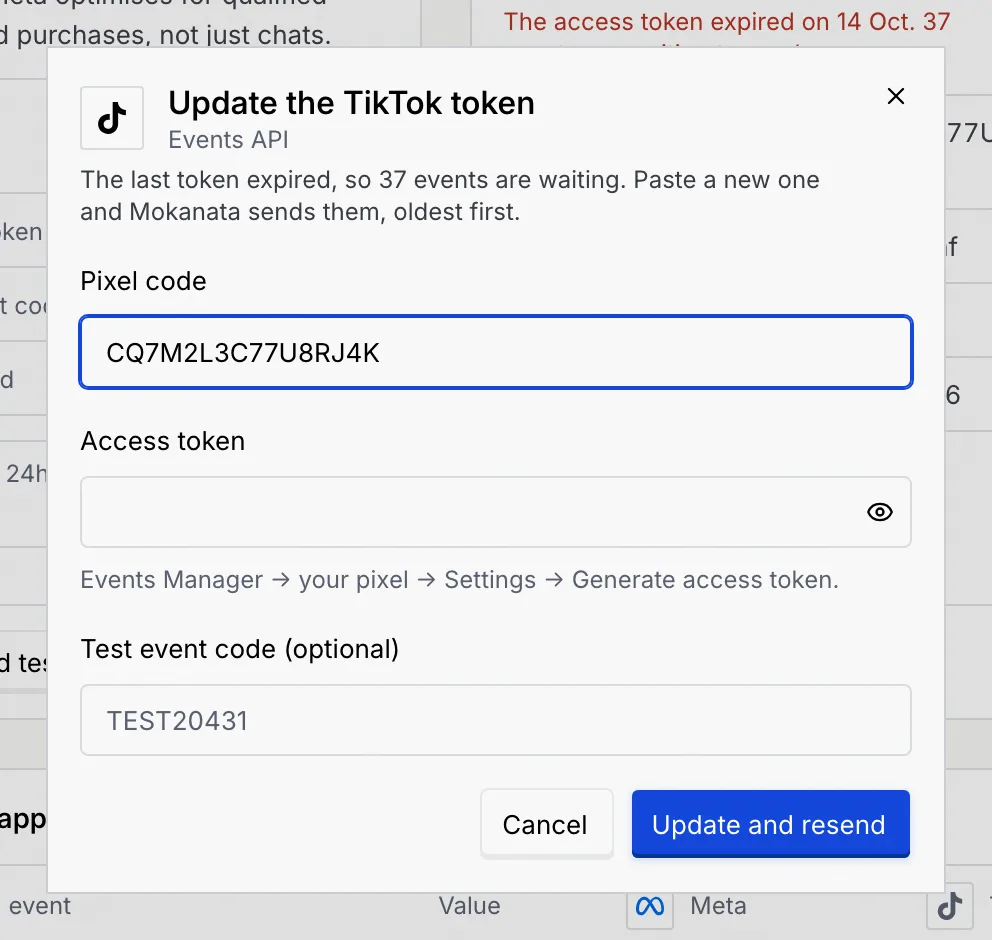
Click **Update token** on the card or on the notice. The dialog is titled **Update the TikTok token** (or the destination you're fixing).
### Paste the new token [#paste-the-new-token]
Generate a new token in the platform's events tool, paste it into **Access token** and click **Update and resend**. Mokanata sends the events that waited while the token was expired, oldest first, and those that waited show **Sent** in the event log.
## Disconnect a destination [#disconnect-a-destination]
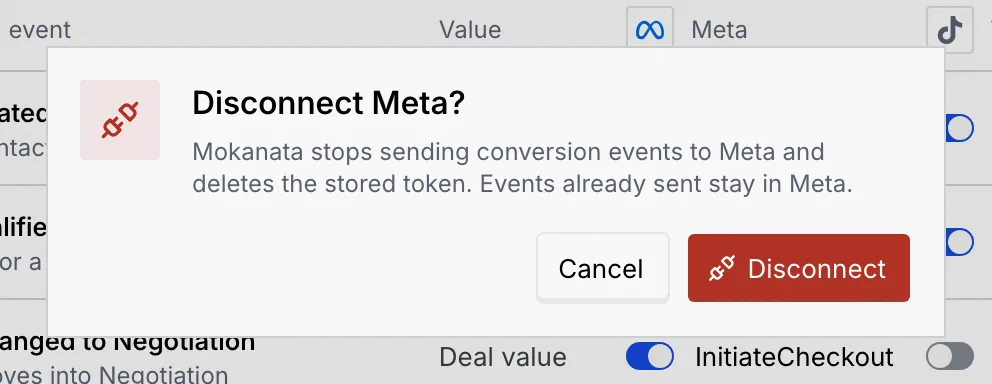
Open the destination's **⋯** menu and choose **Disconnect** with its name, then confirm **Disconnect**. Mokanata stops sending events and deletes the stored token; events already sent stay in the platform. The toast has **Undo**.
## What members and viewers see [#what-members-and-viewers-see]
Without the permissions, the cards and the event mapping stay readable. Buttons like **Send test event**, **Update token** and **Connect Meta** are disabled and say why when you point at them (for example "Your role, Viewer, can't connect ad platforms"), the **⋯** menu leaves out what you can't do, and the event mapping switches can't be changed.
## Troubleshooting [#troubleshooting]
- **Dataset ID**: "A dataset ID is 15 or 16 digits, like 8812 4410 2297 3305." Copy it from Events Manager → Data sources.
- **Access token** (Meta): "Meta access tokens start with EAA" or "That token looks cut off. Copy the whole token."
- **Pixel code** (TikTok): "A pixel code is 16 to 20 capital letters and digits."
If the platform turns the credentials down, the card goes back to how it was and a toast says it isn't connected, with the reason and **Retry**. Check the token was copied whole and belongs to the same dataset or pixel.
Check the destination is **Connected** (not **Paused** or **Token expired**) and that the event is switched on in **Event mapping**. Then look at the [event log](/docs/ads/event-log) for failed events and their reason, such as missing match keys.
The change didn't save. A toast says so, with **Retry**.
## Next steps [#next-steps]