# Click-to-WhatsApp ads (/docs/ads/click-to-whatsapp)
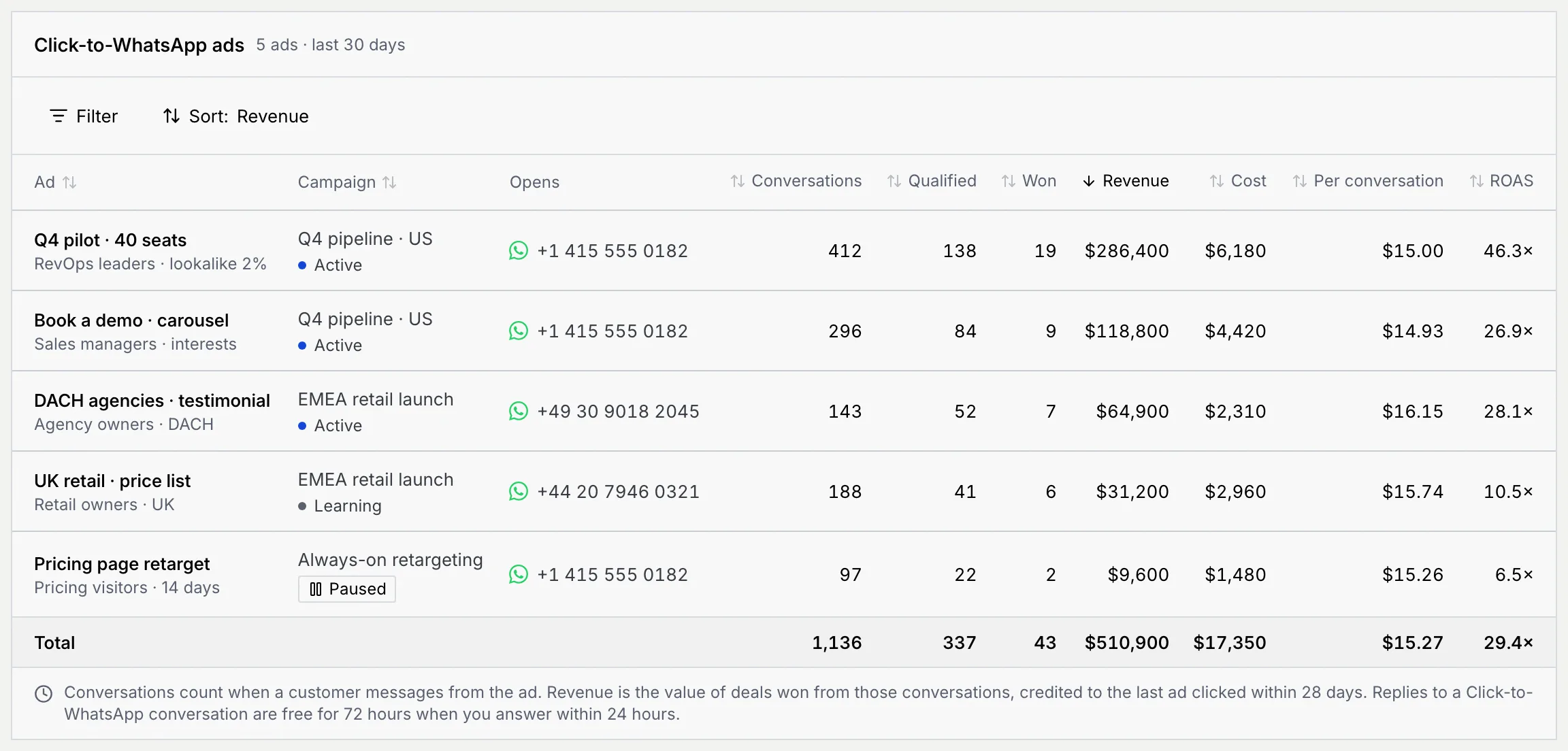
A Click-to-WhatsApp ad opens a WhatsApp chat with your business when someone taps it. The **Click-to-WhatsApp** tab is built to show, ad by ad, how many conversations an ad started, how many qualified and closed, and what it earned for what it cost.
Mokanata doesn't read Click-to-WhatsApp ads or their spend from Meta yet, or the ad referral Meta attaches to a conversation's first message, so it can't match a conversation to its ad. This tab only lists the sample workspace's ads, and the screenshots come from it. Signing in to a Meta ad account is coming soon too.
- **Who can use it:** Everyone in the workspace can see the ads and open an ad's details. Disconnecting a Meta ad account needs **Connect ad platforms** (owners and admins by default); without it the row menu is hidden. See [Roles and permissions](/docs/settings/roles).
- **Before you start:** A Meta ad account that runs Click-to-WhatsApp ads, connected in **Setup → Ad platforms** (see [Connect ad platforms](/docs/ads/ad-platforms)).
## Compare your ads [#compare-your-ads]
### Open the tab [#open-the-tab]
On **Ads & conversions**, click the **Click-to-WhatsApp** tab. The count on the tab is the number of ads. Pick **Last 7 days**, **Last 30 days** or **Last 90 days** in the header to change the range.
### Read the table [#read-the-table]
Each row is one ad. **Total** at the bottom adds up the rows shown.
| Column | What it shows |
|---|---|
| **Ad** | The ad's name (click it to open the ad) over its ad set. |
| **Campaign** | The campaign, over the ad's status. |
| **Opens** | The WhatsApp number the ad opens a chat with. |
| **Conversations**, **Qualified**, **Won** | Conversations started from the ad, how many qualified, and deals won. |
| **Revenue** | The value of deals won, credited to the last ad clicked within 28 days. |
| **Cost**, **Per conversation** | Spend on the ad, and spend divided by conversations. |
| **ROAS** | Return on ad spend: revenue divided by cost. |
An ad's status is one of:
| Status | Meaning |
|---|---|
| **Active** | The ad is delivering. |
| **Learning** | Meta is still in the ad's learning phase. |
| **Paused** | The ad isn't delivering. Its past results still count. |
### Filter by ad account [#filter-by-ad-account]
Click **Filter**, point at **Ad account** and tick one or more of your connected Meta ad accounts. The filter shows as a chip above the table; click the chip to switch between **is** and **is not**, or its **×** to remove it. If an account has no ads in the range, **No Click-to-WhatsApp ads yet** shows with **Show all ad accounts**.

### Sort [#sort]
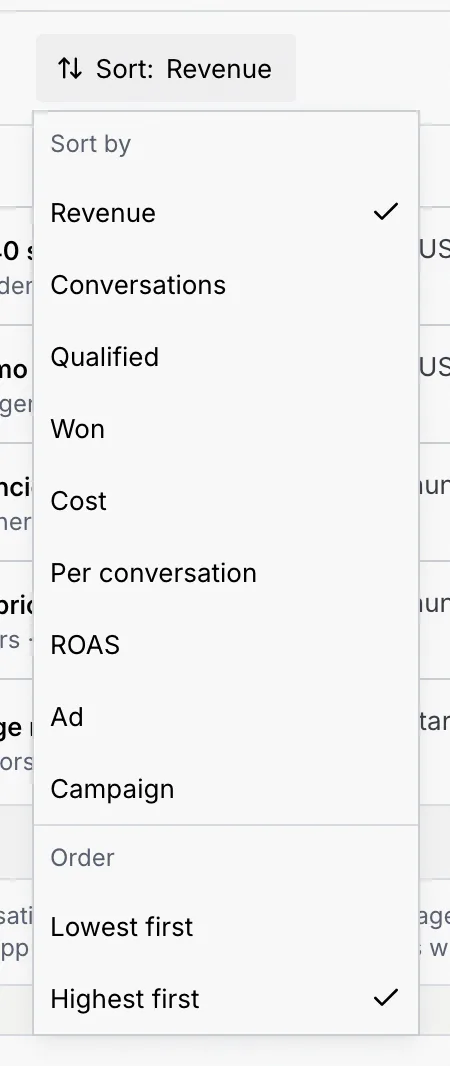
Click **Sort:** and pick a column: **Revenue** (the default), **Conversations**, **Qualified**, **Won**, **Cost**, **Per conversation**, **ROAS**, **Ad** or **Campaign**. Under **Order**, choose **Highest first** or **Lowest first** for numbers, **A to Z** or **Z to A** for names. You can also click a column header.
## Open an ad [#open-an-ad]
Click an ad's name in the table (or in **Top ads by revenue** on the Overview tab). The ad opens in a panel on the right; close it with **×**, Esc or your browser's Back button. The panel has its own link, so you can share it with a teammate.
### Check the numbers and the creative [#check-the-numbers-and-the-creative]
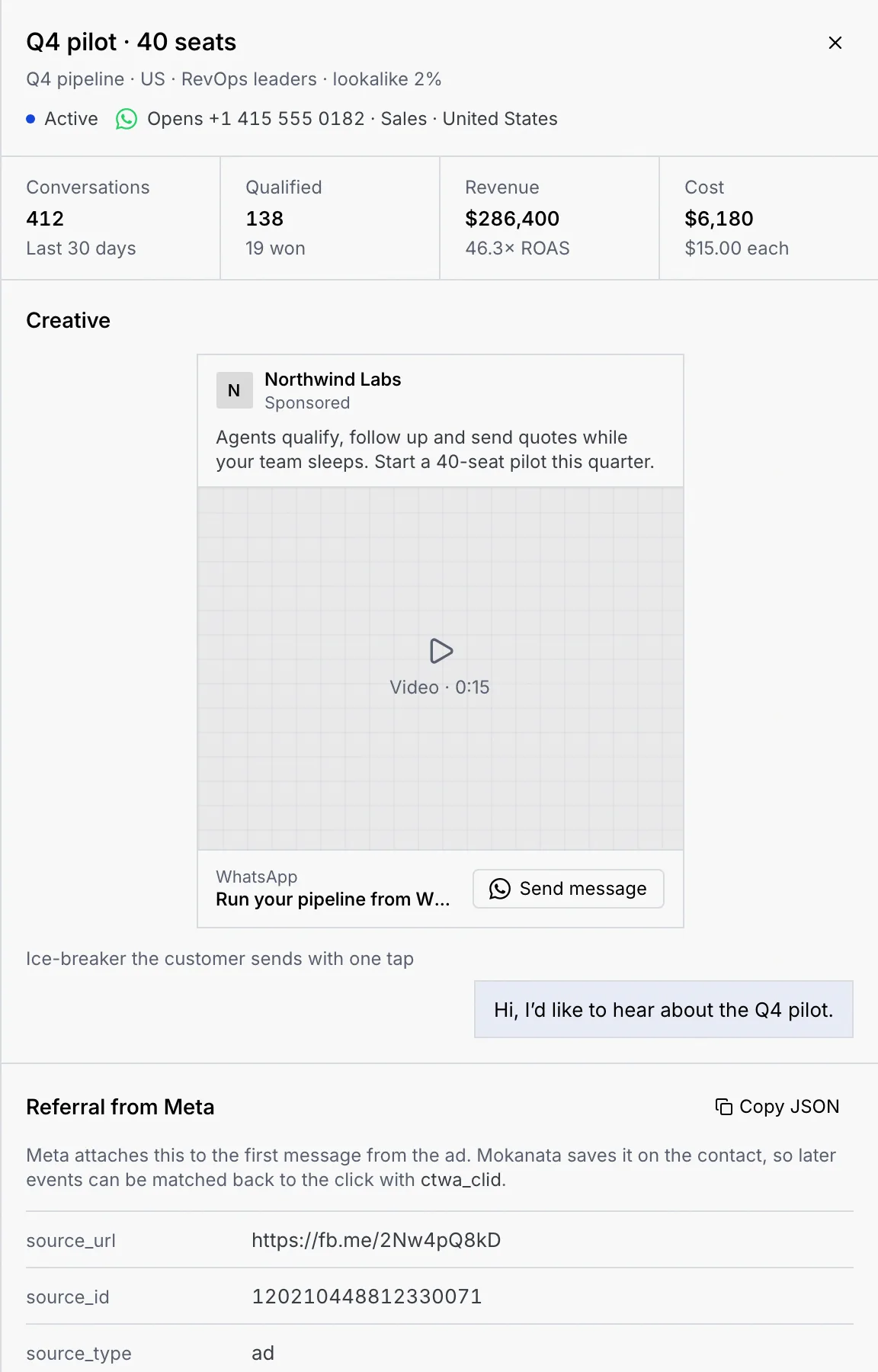
The top shows the ad's campaign and ad set, its status and the number it opens, then four figures for the range: **Conversations**, **Qualified** (with deals won), **Revenue** (with ROAS) and **Cost** (with cost per conversation).
**Creative** shows the ad as people see it in their feed, with its text, media, headline and the **Send message** button, followed by the ice-breaker message the customer sends with one tap.
### Read the referral from Meta [#read-the-referral-from-meta]
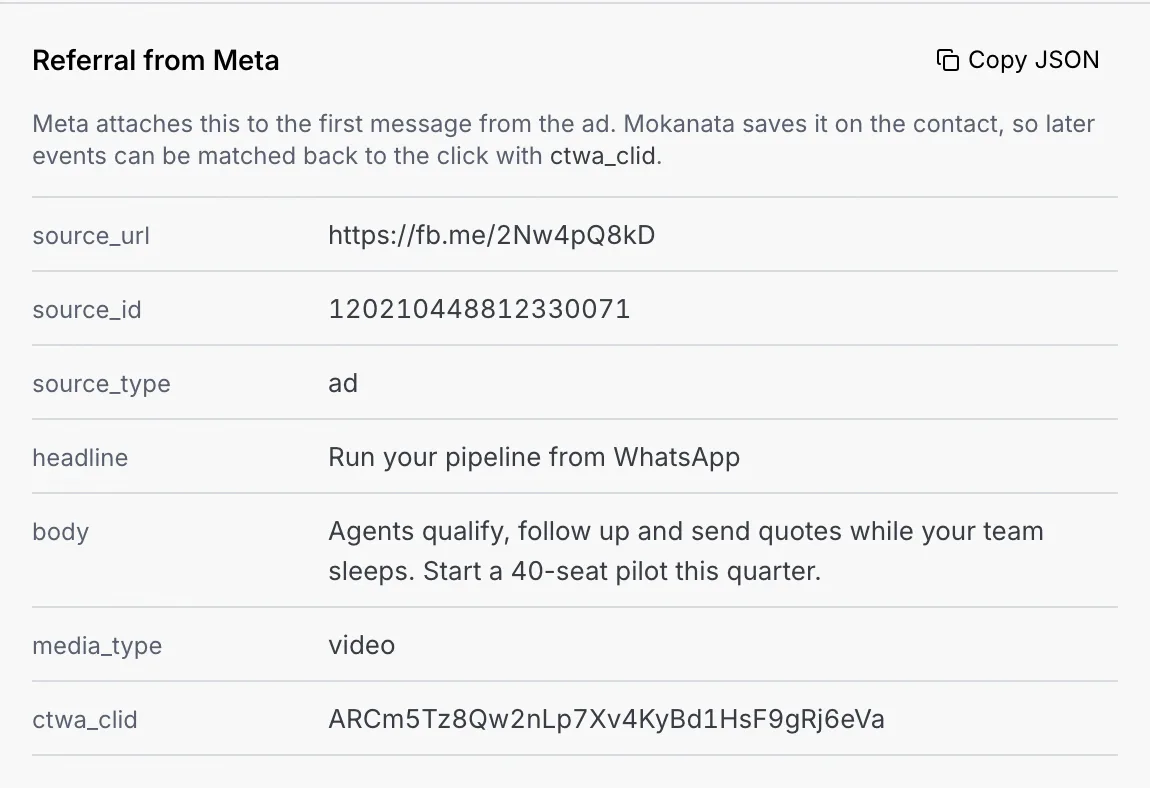
When someone messages you from an ad, Meta attaches a referral to their first message: the ad's URL and ID, its headline and body, the media type and a click ID (`ctwa_clid`). Mokanata doesn't read or keep it yet: in the sample workspace, the panel shows a referral, and **Copy JSON** copies it.
### See the conversations it started [#see-the-conversations-it-started]
**Recent conversations** lists people who messaged from the ad, when they started and where they are now (for example **Qualified**, or **Closed won** with the deal value). A name in blue opens their conversation in the inbox; other names open the contact's record when there is one.
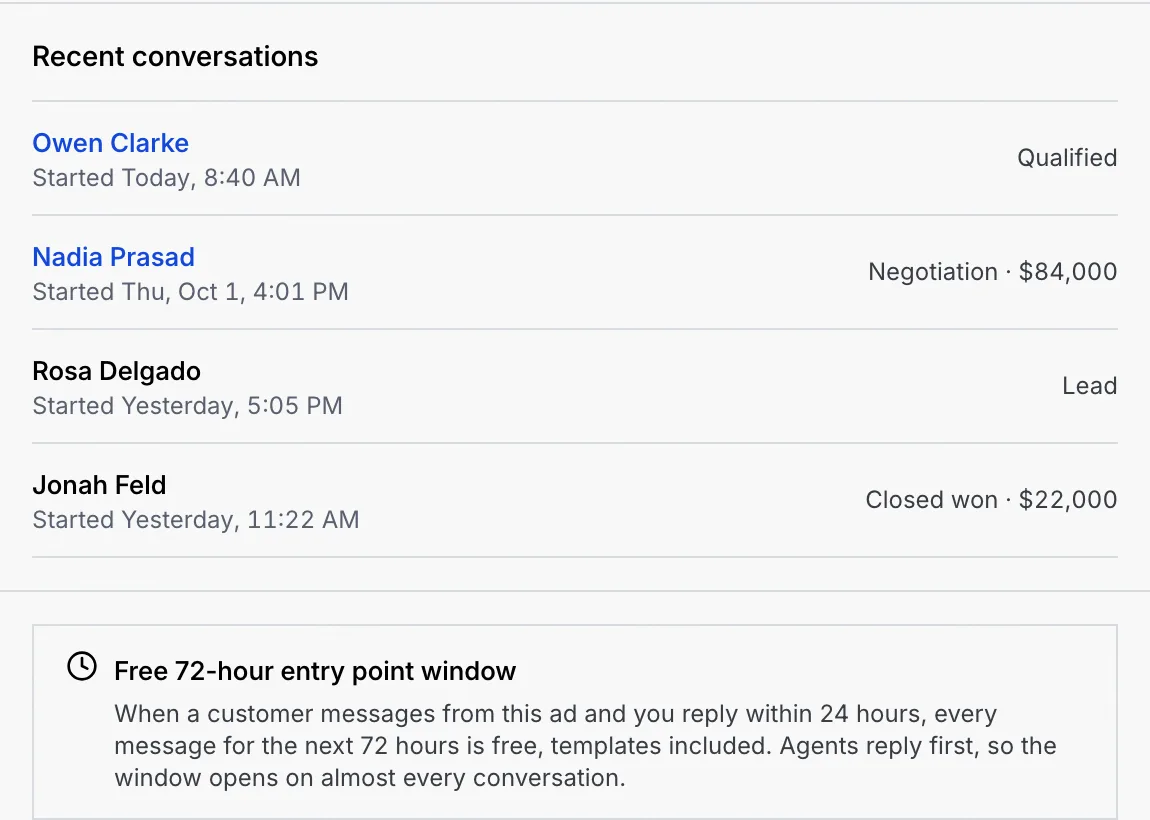
When a customer messages you from a Click-to-WhatsApp ad and you reply within 24 hours, every message for the next 72 hours is free, templates included. Agents reply first, so the window opens on almost every conversation.
### From a conversation [#from-a-conversation]
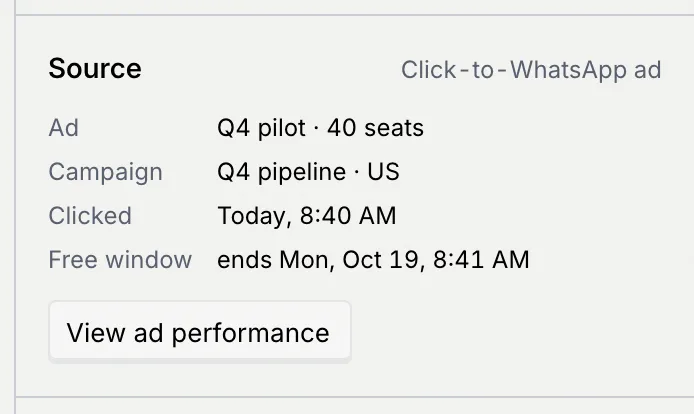
In the sample workspace, a conversation that started from an ad shows a **Source** section in the details beside the thread, with the ad, campaign, when the person clicked and when the free window ends. Your own conversations don't show one yet. Click **View ad performance** to open that ad here. See [Conversations that started from an ad](/docs/inbox/reading-a-conversation#conversations-that-started-from-an-ad).
## Manage Meta ad accounts [#manage-meta-ad-accounts]
Under the table, **Meta ad accounts** lists every connected Meta ad account with its ID, how many Click-to-WhatsApp ads it runs and its time zone. **Connect ad account** opens the Meta sign-in on **Setup → Ad platforms** to add another.

To remove an account, open its **⋯** menu, choose **Disconnect** with the account's name, then confirm **Disconnect**. Its ads stop appearing here; conversations they started stay in the inbox. The confirmation toast has **Undo**.
You can also disconnect ad accounts from **Setup → Ad platforms** (see [Disconnect an ad account](/docs/ads/ad-platforms#disconnect-an-ad-account)).
## Troubleshooting [#troubleshooting]
Mokanata doesn't read Click-to-WhatsApp ads from Meta yet, so only the sample workspace's ads show here.
Revenue counts only deals won from conversations that started from an ad, credited to the last ad clicked within 28 days. Deals from people who came another way don't count here; see [Reports](/docs/reports/reports) for all revenue.
Your role doesn't include **Connect ad platforms**. Ask an owner or admin.
A toast says the account is still connected, with the reason and **Retry**. The confirmation stays open so you can try again.
## Next steps [#next-steps]